> ## Documentation Index
> Fetch the complete documentation index at: https://docs.ycloud.com/llms.txt
> Use this file to discover all available pages before exploring further.
# AI Performance
> Monitor how your AI Agent handles conversations, uses resources, and transfers customers.
Use **Performance** to understand how your AI Agent handles conversations and where customers may need human support.
## Open AI Performance
1. Open the AI Agent you want to review.
2. Select **Performance** in the left sidebar.
3. Choose a **Time range** and, if needed, one or more **WhatsApp business numbers**.
All metrics on the page use the selected filters. Percentage changes compare the selected period with the previous period of the same length. A value of `--` means comparison data is unavailable.
 ## Review the signals
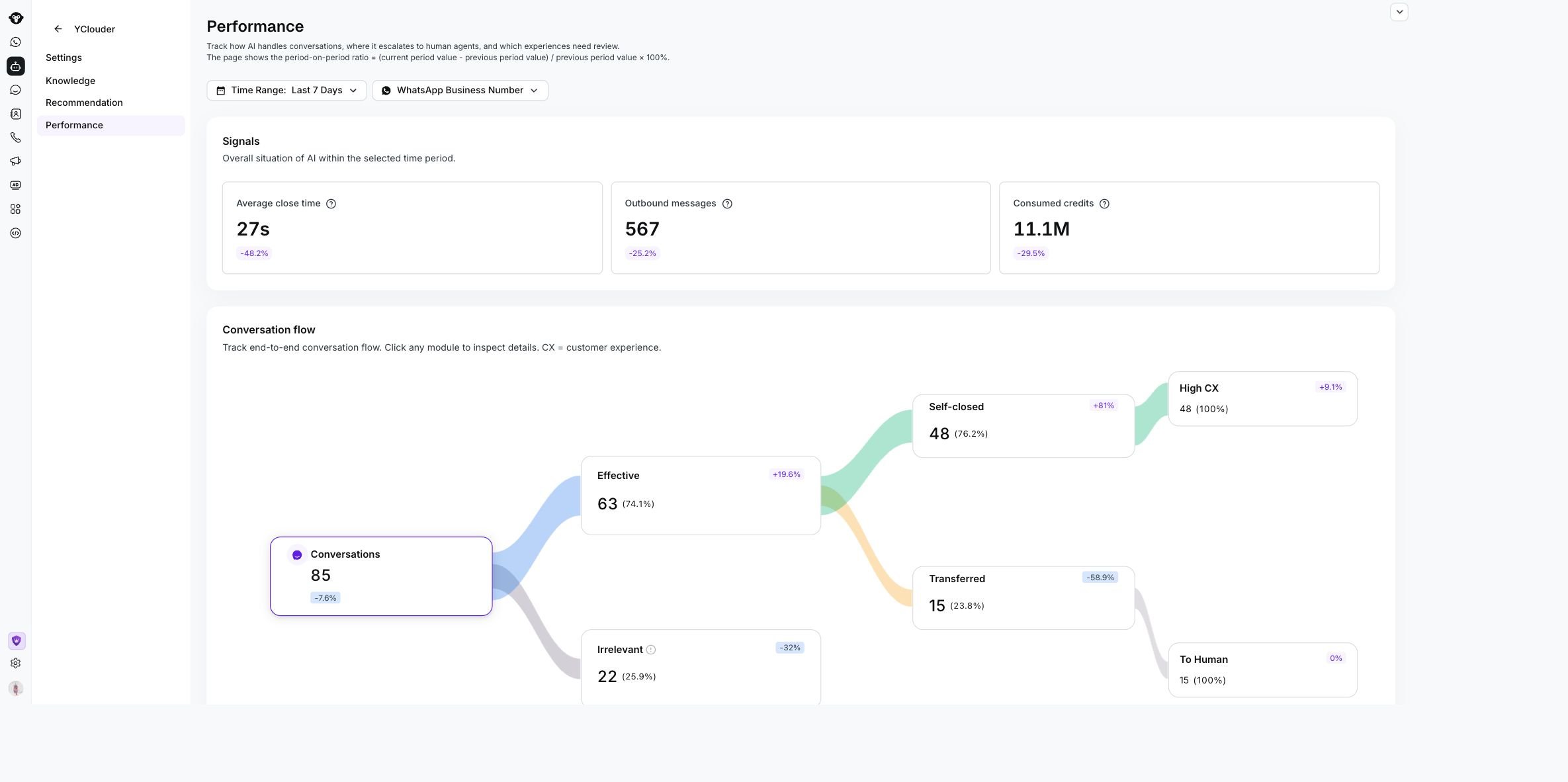
**Signals** summarizes the AI Agent's activity and resource use.
| Metric | What it shows |
| - | - |
| **Average close time** | Average time from the first message until the AI Agent closes the conversation |
| **Outbound messages** | Messages sent by the AI Agent during the selected period |
| **Consumed credits** | Total AI credits used to handle conversations |
## Follow conversation outcomes
**Conversation flow** shows how conversations move through the AI Agent. It includes the total conversation count and the outcomes available for the selected data, such as **Effective**, **Irrelevant**, **Self-closed**, **Transferred**, **High CX**, and **To Human**.
Click any conversation node to open the matching conversation list. Use the list to review the contact, conversation summary, and date, then open a conversation for its full history.
## Review the signals
**Signals** summarizes the AI Agent's activity and resource use.
| Metric | What it shows |
| - | - |
| **Average close time** | Average time from the first message until the AI Agent closes the conversation |
| **Outbound messages** | Messages sent by the AI Agent during the selected period |
| **Consumed credits** | Total AI credits used to handle conversations |
## Follow conversation outcomes
**Conversation flow** shows how conversations move through the AI Agent. It includes the total conversation count and the outcomes available for the selected data, such as **Effective**, **Irrelevant**, **Self-closed**, **Transferred**, **High CX**, and **To Human**.
Click any conversation node to open the matching conversation list. Use the list to review the contact, conversation summary, and date, then open a conversation for its full history.
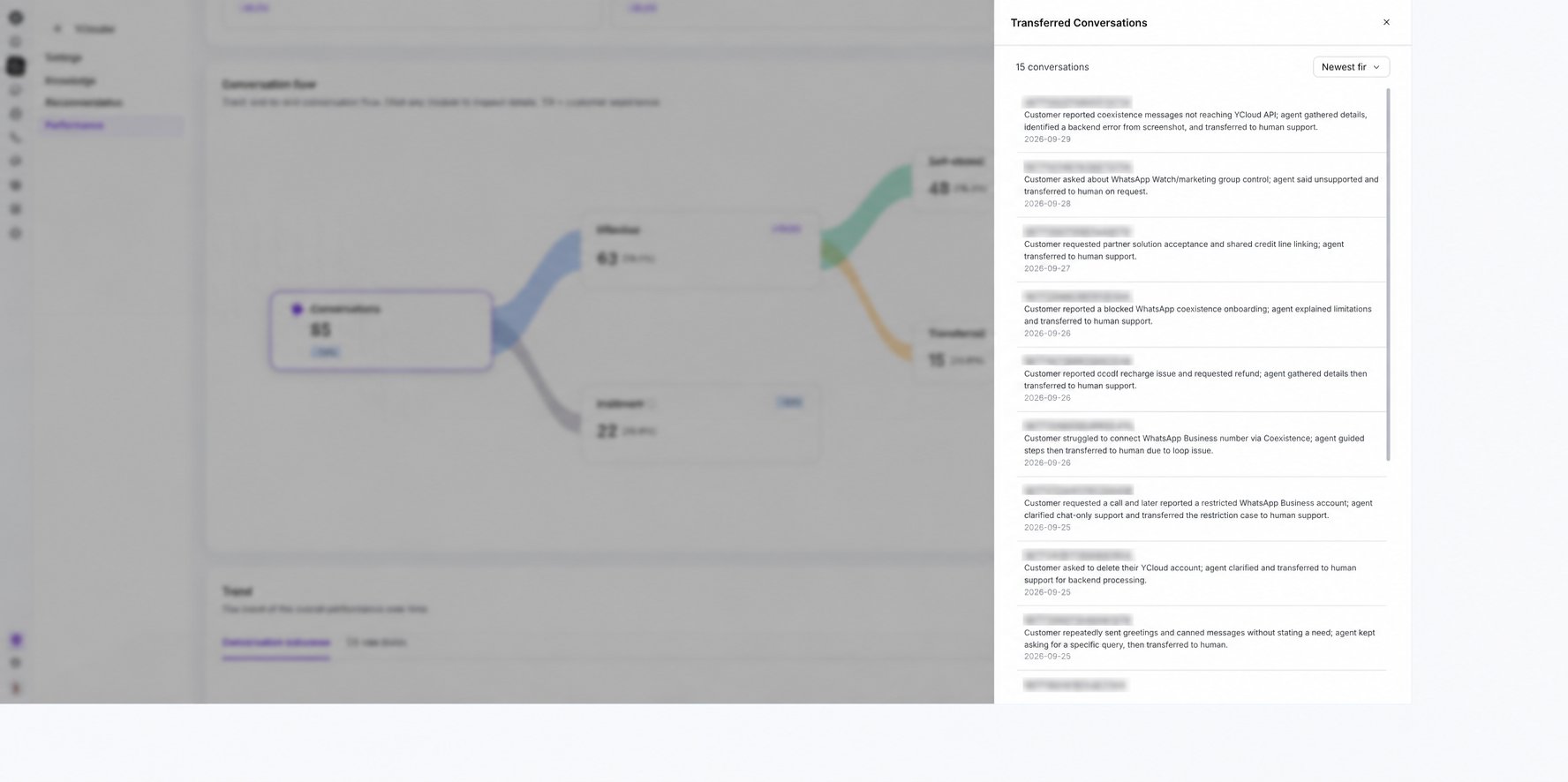 Start with **Transferred** and **Irrelevant** conversations. They usually show where the AI Agent's Knowledge or Skills need improvement.
## Compare trends
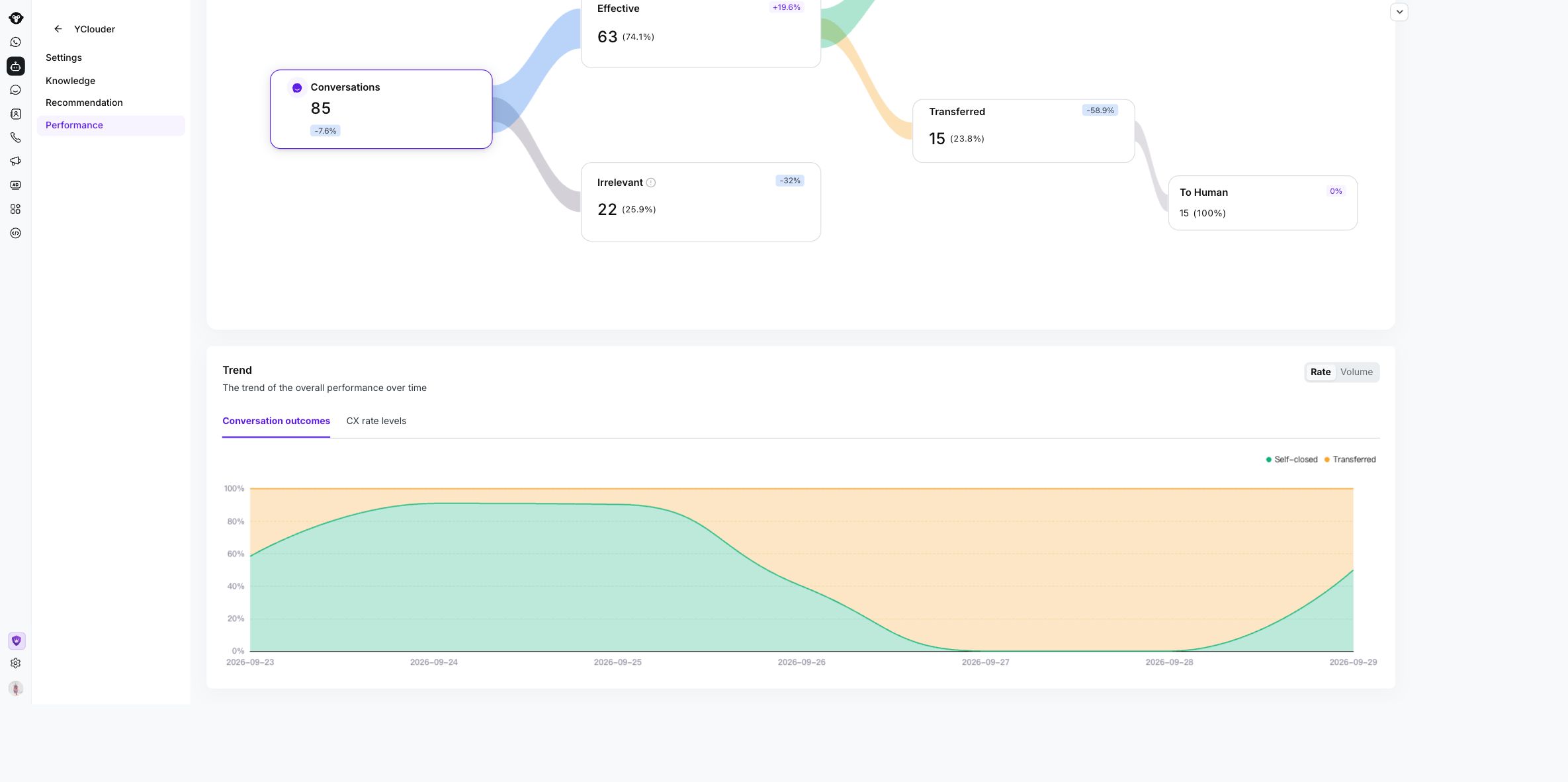
Use **Trend** to see how results change over time.
* Switch between **Rate** and **Volume**.
* Use **Conversation outcomes** to compare self-closed and transferred rates.
* Use **CX rate levels** to review customer-experience trends.
Start with **Transferred** and **Irrelevant** conversations. They usually show where the AI Agent's Knowledge or Skills need improvement.
## Compare trends
Use **Trend** to see how results change over time.
* Switch between **Rate** and **Volume**.
* Use **Conversation outcomes** to compare self-closed and transferred rates.
* Use **CX rate levels** to review customer-experience trends.
 Changing the time range or WhatsApp business number refreshes the page with the new selection.
This documentation is built and hosted on [Mintlify](https://mintlify.com), a developer documentation platform.
Changing the time range or WhatsApp business number refreshes the page with the new selection.
This documentation is built and hosted on [Mintlify](https://mintlify.com), a developer documentation platform.