> ## Documentation Index
> Fetch the complete documentation index at: https://docs.ycloud.com/llms.txt
> Use this file to discover all available pages before exploring further.

# Create a Flow

## Step 1: Create a Rule-based Agent flow

Open the Rule-based Agent, then select **Create a flow**.

<Frame caption="Open Flows, then select Create a flow. The flows shown in this demo are inactive.">
  <img src="https://mintcdn.com/lchnan/gXEJIQXV2JH2VUQJ/product-assets/english-help-2026-09-22/rule-agent-flows-annotated.svg?fit=max&auto=format&n=gXEJIQXV2JH2VUQJ&q=85&s=10e9c4649b87453f94439efeb5967dde" alt="Rule-based agent flow list with Create a flow highlighted." width="3024" height="1656" data-path="product-assets/english-help-2026-09-22/rule-agent-flows-annotated.svg" />
</Frame>

1. Add a trigger. When a customer's message matches it, the flow starts.

<Frame caption="Start the flow by selecting Add a trigger.">
  <img src="https://mintcdn.com/lchnan/gXEJIQXV2JH2VUQJ/product-assets/english-help-2026-09-22/rule-flow-editor-annotated.svg?fit=max&auto=format&n=gXEJIQXV2JH2VUQJ&q=85&s=5e0c5423b201d2f1c738cb7ebcb44b12" alt="Inactive flow editor with Add a trigger highlighted." width="3024" height="1656" data-path="product-assets/english-help-2026-09-22/rule-flow-editor-annotated.svg" />
</Frame>

2. Add keywords and choose **Exact matching** or **Containing**.

<Frame caption="Choose a matching rule and enter a keyword. This form has not been saved.">
  <img src="https://mintcdn.com/lchnan/gXEJIQXV2JH2VUQJ/product-assets/english-help-2026-09-22/rule-trigger-keyword-annotated.svg?fit=max&auto=format&n=gXEJIQXV2JH2VUQJ&q=85&s=e37d659bb7fa5d5aaa1fe137f7d9c8f3" alt="Keyword trigger editor with Keywords matching rules and the keyword input highlighted." width="3024" height="1656" data-path="product-assets/english-help-2026-09-22/rule-trigger-keyword-annotated.svg" />
</Frame>

* Ask a question: After the user triggers this Rule-based Agent, you can set the questions you want to ask the user in this section, along with setting reply buttons.
* Send message: When the user clicks the button, the Rule-based Agent will automatically reply with the preset answer.

**Final Effect:**
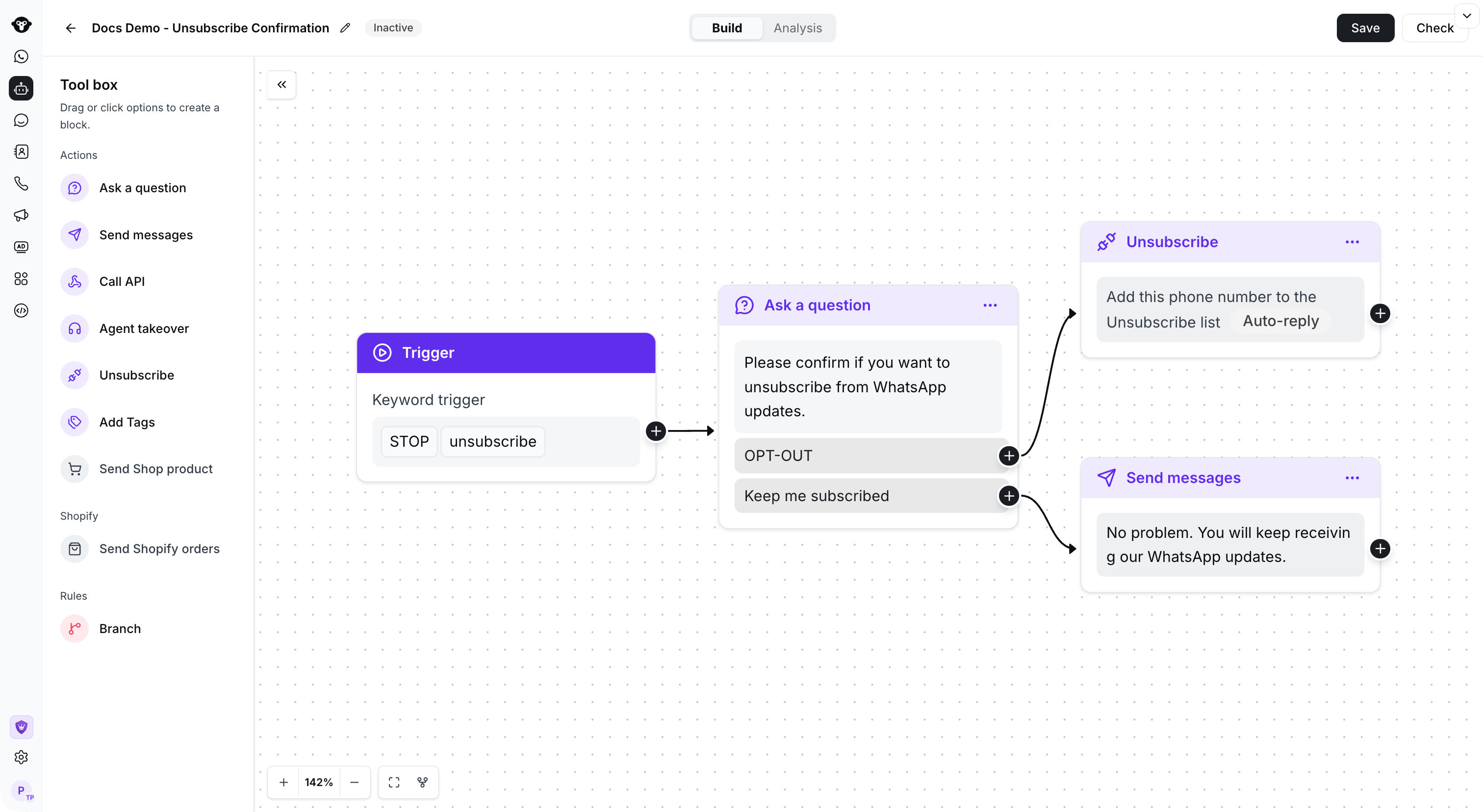
<Frame caption="Example: connect a keyword trigger to a confirmation question and route each reply to an action.">
  <img src="https://mintcdn.com/lchnan/TsMGu8UTNQaUw-Rc/product-assets/english-help-demo-2026-09-23/rule-complete-flow.png?fit=max&auto=format&n=TsMGu8UTNQaUw-Rc&q=85&s=4aead9ee880f3063f987b3194d005835" alt="Saved inactive rule flow with a trigger and two connected response branches." width="3024" height="1656" data-path="product-assets/english-help-demo-2026-09-23/rule-complete-flow.png" />
</Frame>

*Example confirmation flow*

## Copy a flow

Open the action menu for the flow you want to reuse, then select **Copy**.

<Frame caption="Open the flow action menu and select Copy.">
  <img src="https://mintcdn.com/lchnan/TsMGu8UTNQaUw-Rc/product-assets/english-help-demo-2026-09-23/rule-copy-menu-annotated.svg?fit=max&auto=format&n=TsMGu8UTNQaUw-Rc&q=85&s=9936969651e1c3a92844e0a6285459b1" alt="Flow actions menu with Copy." width="3024" height="1656" data-path="product-assets/english-help-demo-2026-09-23/rule-copy-menu-annotated.svg" />
</Frame>

Choose the destination Rule-based Agent, then select **Copy**.

<Frame caption="Select the destination agent, then choose Copy.">
  <img src="https://mintcdn.com/lchnan/TsMGu8UTNQaUw-Rc/product-assets/english-help-demo-2026-09-23/rule-copy-destination-annotated.svg?fit=max&auto=format&n=TsMGu8UTNQaUw-Rc&q=85&s=84a9fded513bc3a80056711963951b23" alt="Copy dialog with a destination agent selected." width="3024" height="1656" data-path="product-assets/english-help-demo-2026-09-23/rule-copy-destination-annotated.svg" />
</Frame>

## Watching the tutorial video👇

[Open linked resource](https://youtu.be/2MHBoBsNuAg)


This documentation is built and hosted on [Mintlify](https://mintlify.com), a developer documentation platform.