> ## Documentation Index
> Fetch the complete documentation index at: https://docs.ycloud.com/llms.txt
> Use this file to discover all available pages before exploring further.
# Admin Guide
> Set up agents, Calling access, assignment rules, tags, and logs.
## Add team members
Skip this section if the team member has already joined your YCloud organization.
### Step 1: Invite a team member
1. Go to **Settings > Users and teams > [Users](https://www.ycloud.com/console/#/app/globalSettings/general/usersAndTeams)**.
2. Click **Invite user**.
3. Enter the user's email address, assign a role and any required permissions, then click **Add**.
4. YCloud sends an activation email to the invited user.

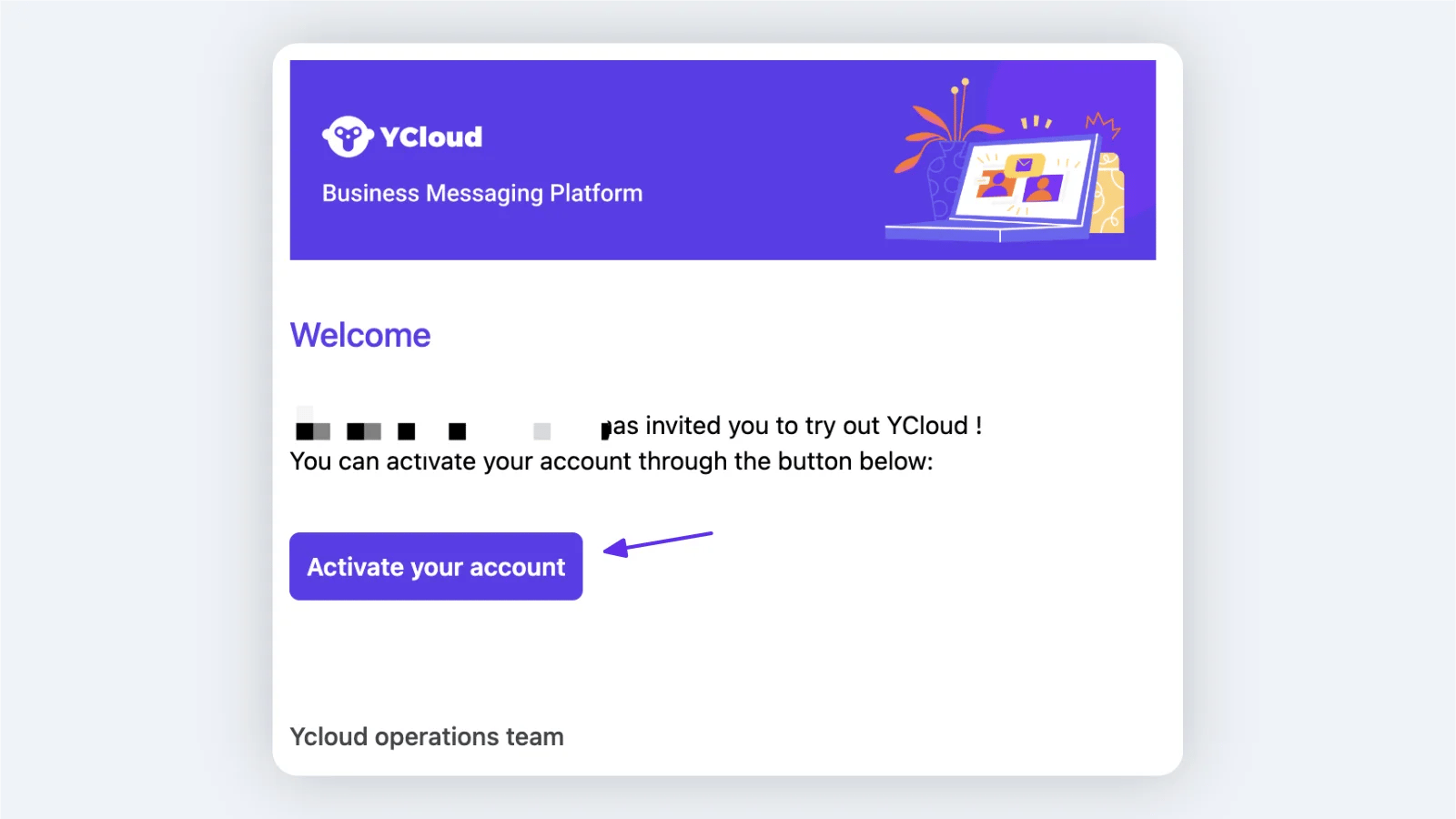
 ### Step 2: Activate the account
The invited user opens the activation email and clicks **Activate account**. They do not need to register a separate account on the YCloud website.
### Step 2: Activate the account
The invited user opens the activation email and clicks **Activate account**. They do not need to register a separate account on the YCloud website.
 ## Configure Calling for a business number
Go to **WhatsApp accounts**, find the business number, click its settings icon, and open the **Calling** section.
## Configure Calling for a business number
Go to **WhatsApp accounts**, find the business number, click its settings icon, and open the **Calling** section.
 ### Authority
Open **Calling > Authority** to manage the Calling feature for the selected number.
* **Calling feature:** enables both inbound and outbound Calling for the number.
* **Inbound calling:** when enabled, customers can call the business number.
* **Call icon visibility:** shows the call icon in WhatsApp conversations and the business profile. If hidden, customers may still call from a message that contains a call button.
* **Outbound access:** select the agents who can place outbound calls with this business number in the YCloud console.
### Assignment
Open **Calling > Assignment** to add eligible agents or teams and configure how inbound calls are distributed.
You can enable **Prioritize assigning calls to the customer's Inbox assignee when available**. The Inbox assignee must also be included in the Calling agent list; otherwise, the call follows the default rule.
Choose one default assignment rule:
1. **Assign calls to the available online agents randomly.**
2. **Prioritize assigning calls to the available online agents with the lowest call volumes for the day.**
### Authority
Open **Calling > Authority** to manage the Calling feature for the selected number.
* **Calling feature:** enables both inbound and outbound Calling for the number.
* **Inbound calling:** when enabled, customers can call the business number.
* **Call icon visibility:** shows the call icon in WhatsApp conversations and the business profile. If hidden, customers may still call from a message that contains a call button.
* **Outbound access:** select the agents who can place outbound calls with this business number in the YCloud console.
### Assignment
Open **Calling > Assignment** to add eligible agents or teams and configure how inbound calls are distributed.
You can enable **Prioritize assigning calls to the customer's Inbox assignee when available**. The Inbox assignee must also be included in the Calling agent list; otherwise, the call follows the default rule.
Choose one default assignment rule:
1. **Assign calls to the available online agents randomly.**
2. **Prioritize assigning calls to the available online agents with the lowest call volumes for the day.**
 ### Recording and transcription
Admins configure whether new calls on each business number are recorded, transcribed, or both. They also set the announcement language and purpose shown to call participants. See [Recording and Transcription](/en/documentation/calling/recording-and-transcription) for setup instructions.
### Calling tags
Supervisors can manage tags used to classify call records. Go to **Settings > Calling > Calling tags** to add, edit, search, or remove tags.
### Recording and transcription
Admins configure whether new calls on each business number are recorded, transcribed, or both. They also set the announcement language and purpose shown to call participants. See [Recording and Transcription](/en/documentation/calling/recording-and-transcription) for setup instructions.
### Calling tags
Supervisors can manage tags used to classify call records. Go to **Settings > Calling > Calling tags** to add, edit, search, or remove tags.
 ### Calling logs
Open **Calling > Calling logs** to review historical calls. Use the filters to locate records and select a record to inspect its details.
### Calling logs
Open **Calling > Calling logs** to review historical calls. Use the filters to locate records and select a record to inspect its details.
 This documentation is built and hosted on [Mintlify](https://mintlify.com), a developer documentation platform.