> ## Documentation Index
> Fetch the complete documentation index at: https://docs.ycloud.com/llms.txt
> Use this file to discover all available pages before exploring further.
# Agent Guide
> Handle WhatsApp calls and complete follow-up work in YCloud.
## Prepare to receive calls
1. Open **Calling**.
2. If prompted, authorize microphone and audio access in your browser.
3. Confirm that the microphone, speaker, and connection indicators are normal.
4. Change your status from **Away** to **Available** when you are ready.
Calls are not automatically assigned while your status is Away.
 ## Answer and end a call
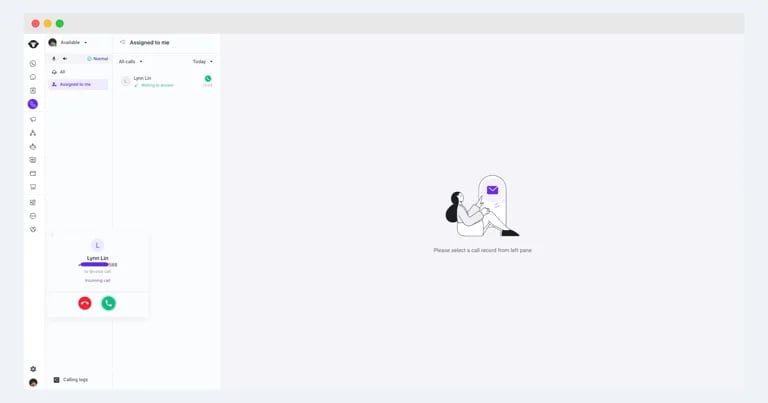
When an incoming call is assigned, an incoming-call prompt appears. Click the green answer button to accept the call. When the conversation is complete, click the red end-call button.
## Answer and end a call
When an incoming call is assigned, an incoming-call prompt appears. Click the green answer button to accept the call. When the conversation is complete, click the red end-call button.
 ## Complete call follow-up
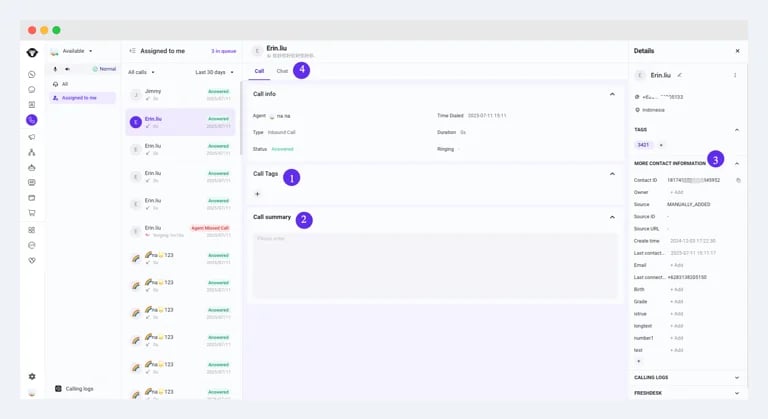 After or during a call, you can:
1. **Add call tags:** classify the call so it is easier to find and report on later.
2. **Add or edit the call summary:** record the resolution, remaining issues, and any important follow-up.
3. **Update contact information:** edit the customer's details in the contact panel.
4. **Continue in Inbox:** switch to the Chat tab to send text, images, or other supported messages to the customer.
This documentation is built and hosted on [Mintlify](https://mintlify.com), a developer documentation platform.
After or during a call, you can:
1. **Add call tags:** classify the call so it is easier to find and report on later.
2. **Add or edit the call summary:** record the resolution, remaining issues, and any important follow-up.
3. **Update contact information:** edit the customer's details in the contact panel.
4. **Continue in Inbox:** switch to the Chat tab to send text, images, or other supported messages to the customer.
This documentation is built and hosted on [Mintlify](https://mintlify.com), a developer documentation platform.