> ## Documentation Index
> Fetch the complete documentation index at: https://docs.ycloud.com/llms.txt
> Use this file to discover all available pages before exploring further.
# Calling Logs
> Search, review, and export historical WhatsApp call records.
## Access
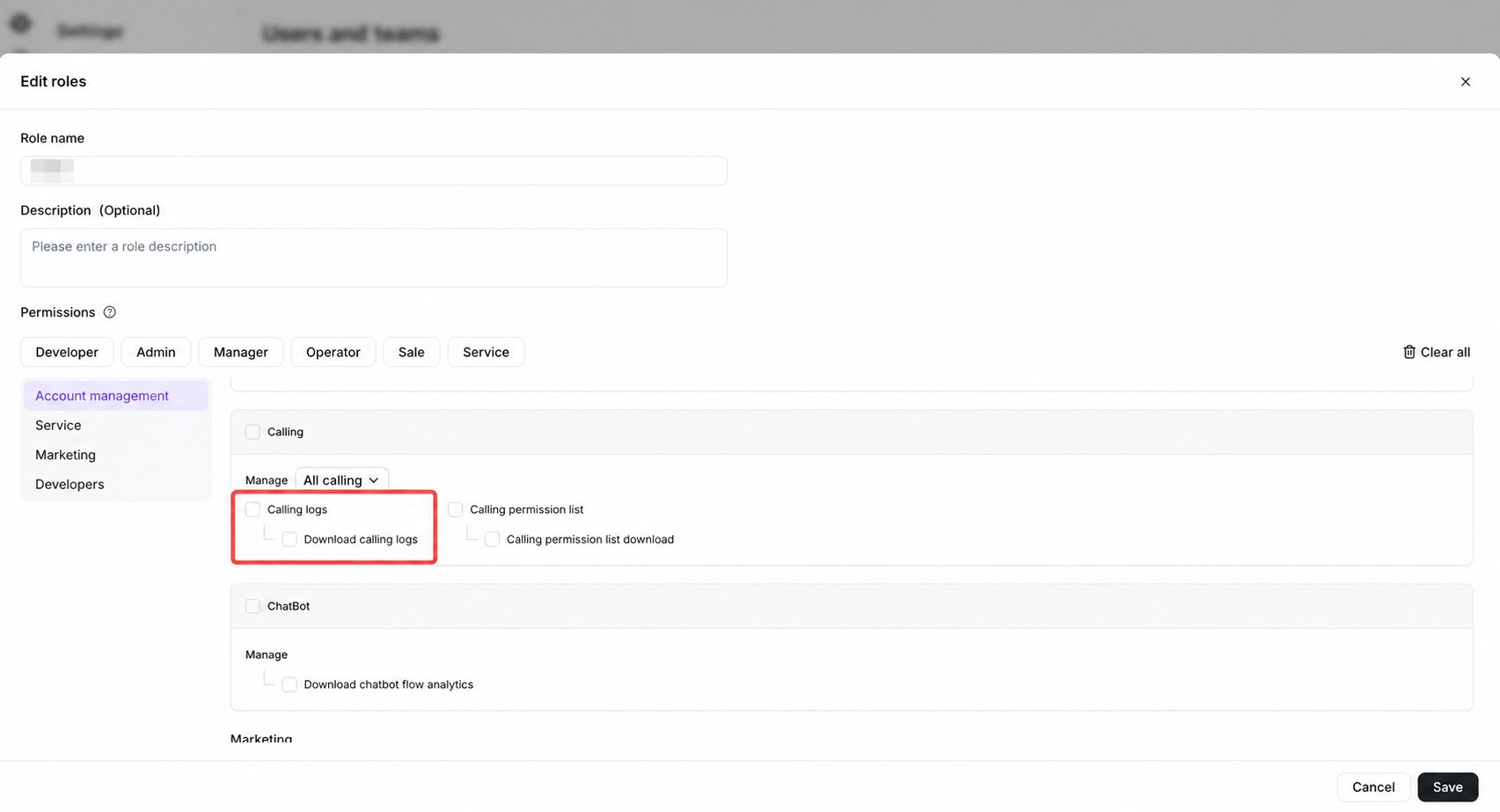
The default **Admin**, **Manager**, and **Operator** roles can access Calling logs. A custom role can also be granted the relevant Calling logs permission.
 ## Open Calling logs
Go to **Calling** and select **Calling logs** in the lower-left area.
## Open Calling logs
Go to **Calling** and select **Calling logs** in the lower-left area.
 ## Search and filter records
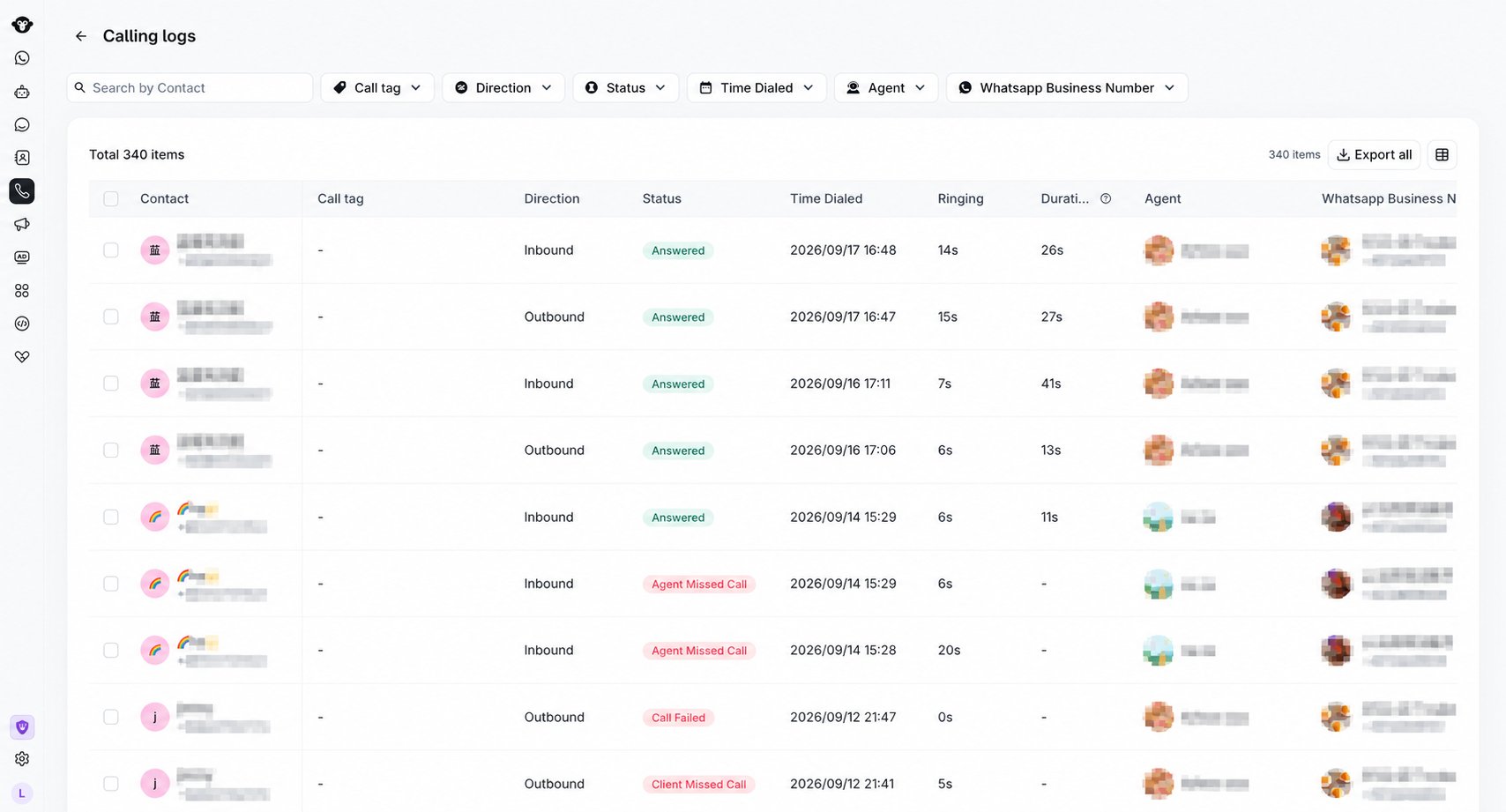
The current Calling logs page includes:
* Search by contact.
* Filters for **Call tag**, **Direction**, **Status**, **Time Dialed**, **Agent**, and **WhatsApp Business Number**.
* **Export all** for exporting available log data.
* **Set Displayed attributes** for choosing visible table fields.
## Search and filter records
The current Calling logs page includes:
* Search by contact.
* Filters for **Call tag**, **Direction**, **Status**, **Time Dialed**, **Agent**, and **WhatsApp Business Number**.
* **Export all** for exporting available log data.
* **Set Displayed attributes** for choosing visible table fields.
 ## Review log details
The table can display **Contact**, **Call tag**, **Direction**, **Status**, **Time Dialed**, **Ringing**, **Duration**, **Agent**, **WhatsApp Business Number**, **Note**, **Recording**, and **Transcription**.
* **Recording** shows **Available** when a recording can be played or downloaded. A dash means no recording is available.
* **Transcription** shows a one-line preview of the transcript. Customer and business speech is identified with `[Customer]` and `[Business]`. A dash means no transcript is available.
Long transcript previews are shortened in the table. Hover over or focus the transcription to read the full text.
## Review log details
The table can display **Contact**, **Call tag**, **Direction**, **Status**, **Time Dialed**, **Ringing**, **Duration**, **Agent**, **WhatsApp Business Number**, **Note**, **Recording**, and **Transcription**.
* **Recording** shows **Available** when a recording can be played or downloaded. A dash means no recording is available.
* **Transcription** shows a one-line preview of the transcript. Customer and business speech is identified with `[Customer]` and `[Business]`. A dash means no transcript is available.
Long transcript previews are shortened in the table. Hover over or focus the transcription to read the full text.
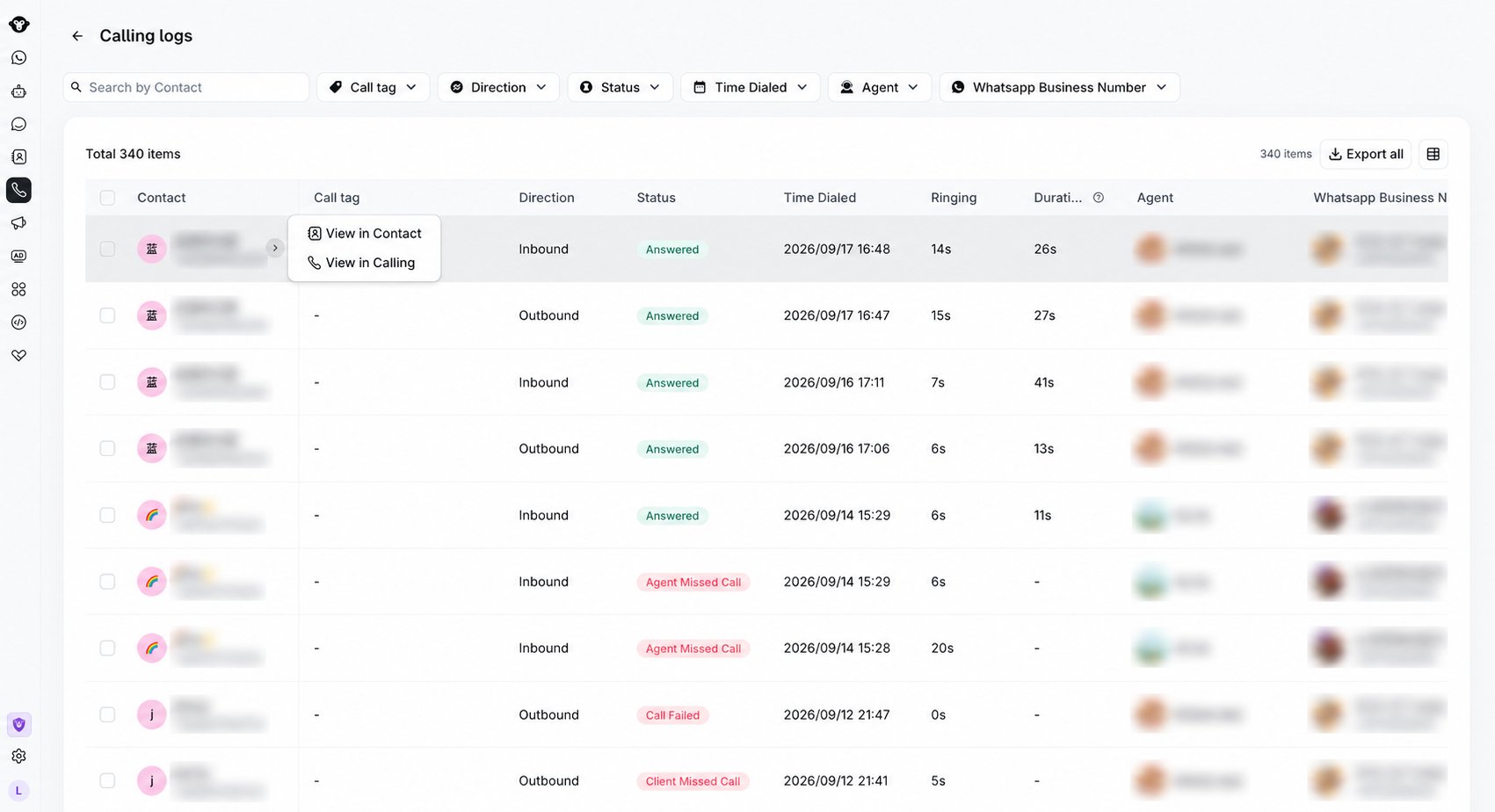
 Hover over the contact column and use the available shortcut to open the contact or the related Calling view.
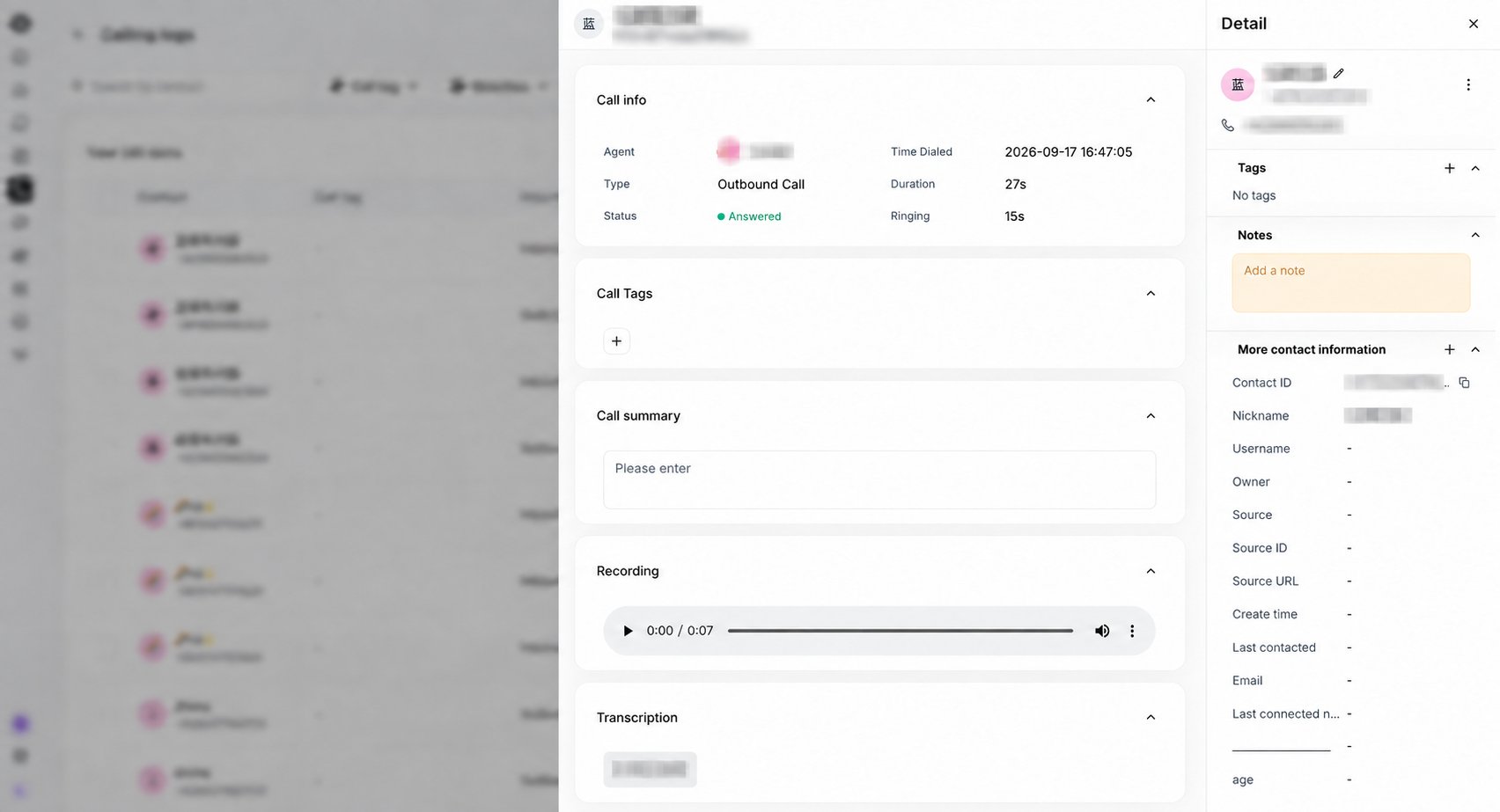
 Select a call record to open the detail panel. Expand **Recording** or **Transcription** below **Call summary**.
### Recording
When a recording is available, use the player to play or pause the call, move through the recording, adjust the volume, or download the audio. The player shows the current position and total duration.
If the call was not recorded, the section shows **No recording available**.
### Transcription
The transcript follows the order of the conversation and separates the speakers:
* Customer messages appear on the left.
* Business messages appear on the right with the agent or business name when available.
If the call was not transcribed, the section shows **No transcription available**.
Select a call record to open the detail panel. Expand **Recording** or **Transcription** below **Call summary**.
### Recording
When a recording is available, use the player to play or pause the call, move through the recording, adjust the volume, or download the audio. The player shows the current position and total duration.
If the call was not recorded, the section shows **No recording available**.
### Transcription
The transcript follows the order of the conversation and separates the speakers:
* Customer messages appear on the left.
* Business messages appear on the right with the agent or business name when available.
If the call was not transcribed, the section shows **No transcription available**.
 ## Export Calling logs
Use **Export all** to export the records that match the current filters. To export only specific calls, select their checkboxes and use **Export selected**.
For each exported call:
* **Recording** contains the controlled recording URL when audio is available.
* **Transcription** contains the conversation in speech order, using `[Business]` and `[Customer]` to identify the speakers.
* Either field is blank when the corresponding content is unavailable.
YCloud asks you to verify your account before continuing with an export. Playback, download, transcript access, and export availability depend on your Calling logs permissions.
This documentation is built and hosted on [Mintlify](https://mintlify.com), a developer documentation platform.
## Export Calling logs
Use **Export all** to export the records that match the current filters. To export only specific calls, select their checkboxes and use **Export selected**.
For each exported call:
* **Recording** contains the controlled recording URL when audio is available.
* **Transcription** contains the conversation in speech order, using `[Business]` and `[Customer]` to identify the speakers.
* Either field is blank when the corresponding content is unavailable.
YCloud asks you to verify your account before continuing with an export. Playback, download, transcript access, and export availability depend on your Calling logs permissions.
This documentation is built and hosted on [Mintlify](https://mintlify.com), a developer documentation platform.