> ## Documentation Index
> Fetch the complete documentation index at: https://docs.ycloud.com/llms.txt
> Use this file to discover all available pages before exploring further.
# Outbound Calling Guide
> Request customer permission and place compliant outbound WhatsApp calls.
## Requirements
To use outbound WhatsApp Calling, your business account must meet these conditions:
1. The Business Portfolio messaging limit has reached the 2,000-customer tier.
2. The business number's registered country or region is not:
* United States
* Canada
* Türkiye
* Egypt
* Vietnam
* Nigeria
## Calling rules
1. The customer must grant permission before the business initiates an outbound call.
2. You can send no more than two calling-permission request messages within 72 hours.
3. You can initiate no more than 100 outbound voice calls within 24 hours.
Customer permission is time-limited. Confirm that permission is still valid before placing a call. WhatsApp or YCloud may enforce additional eligibility, quality, and rate limits.
## Request customer permission
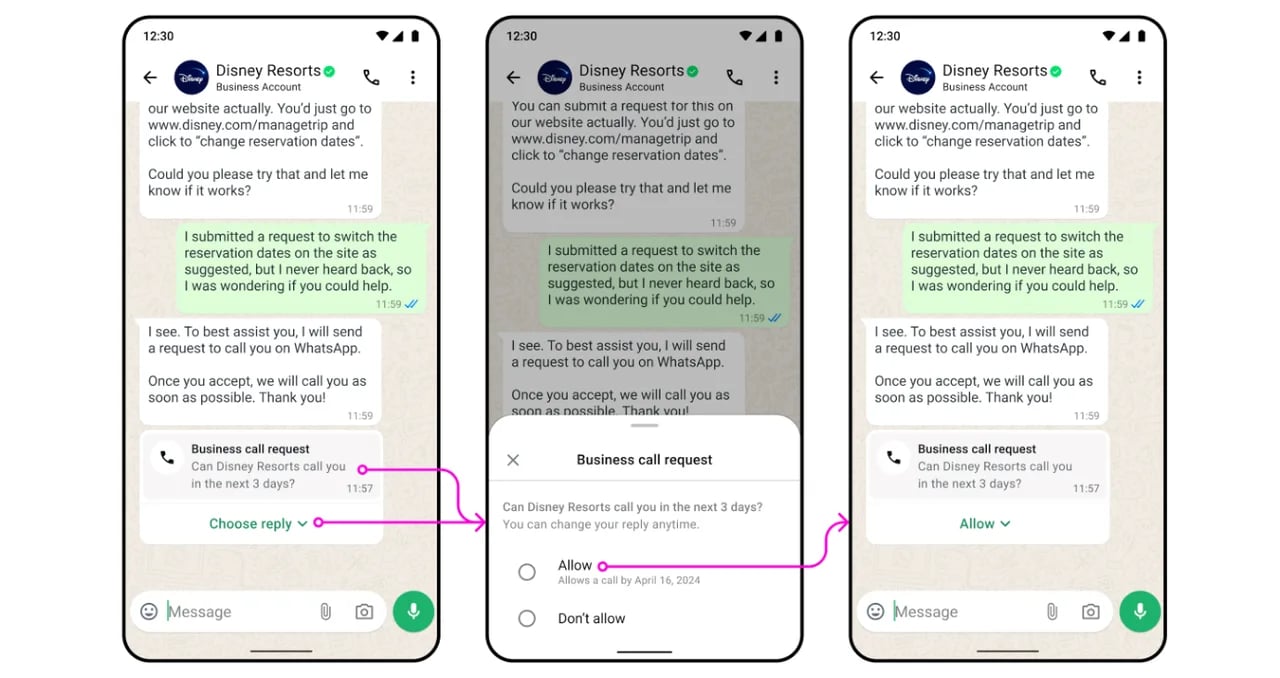
Send a **Calling Request** template message. The customer can allow or reject the request.
 ### Create a Calling Request template
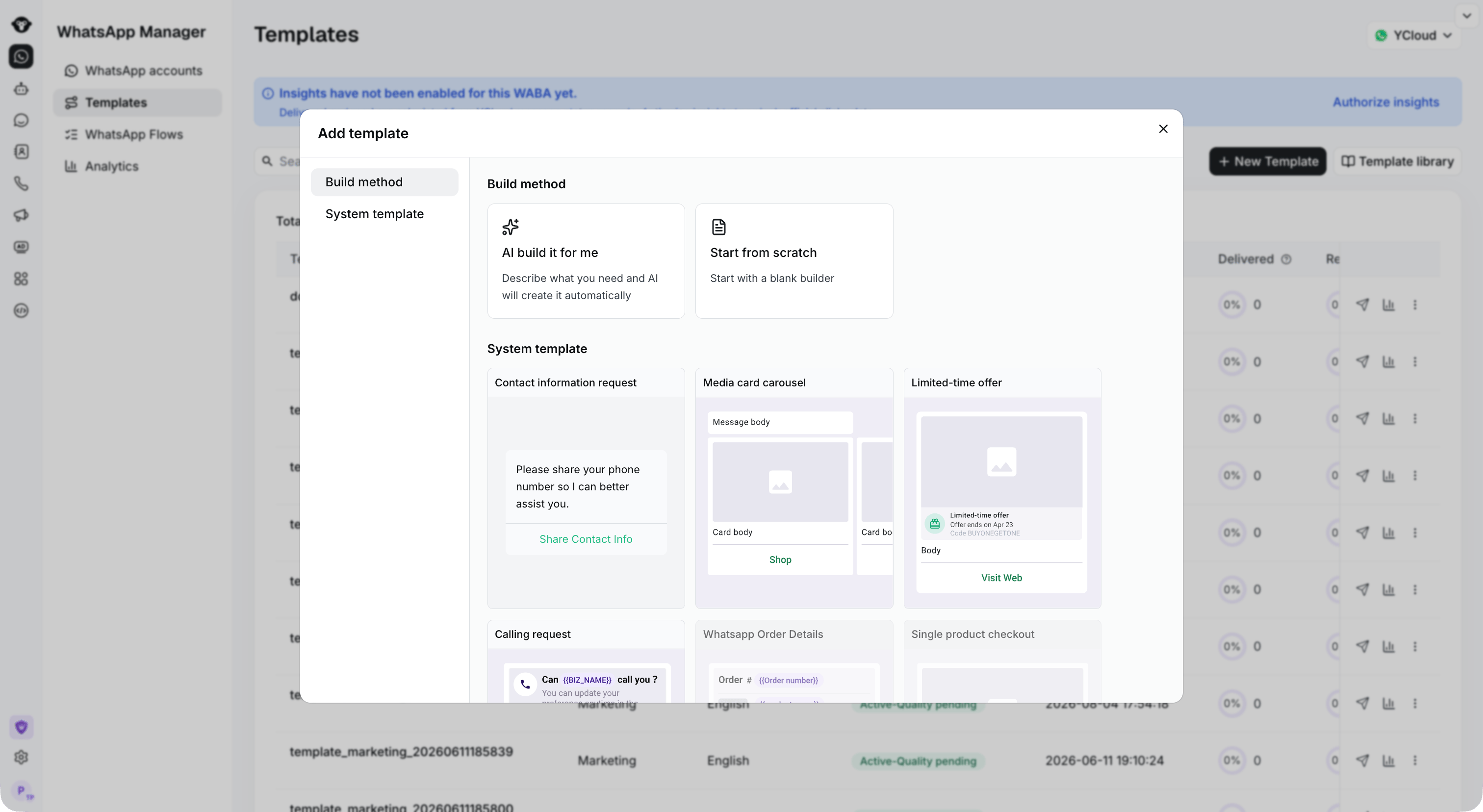
1. Go to **Templates**.
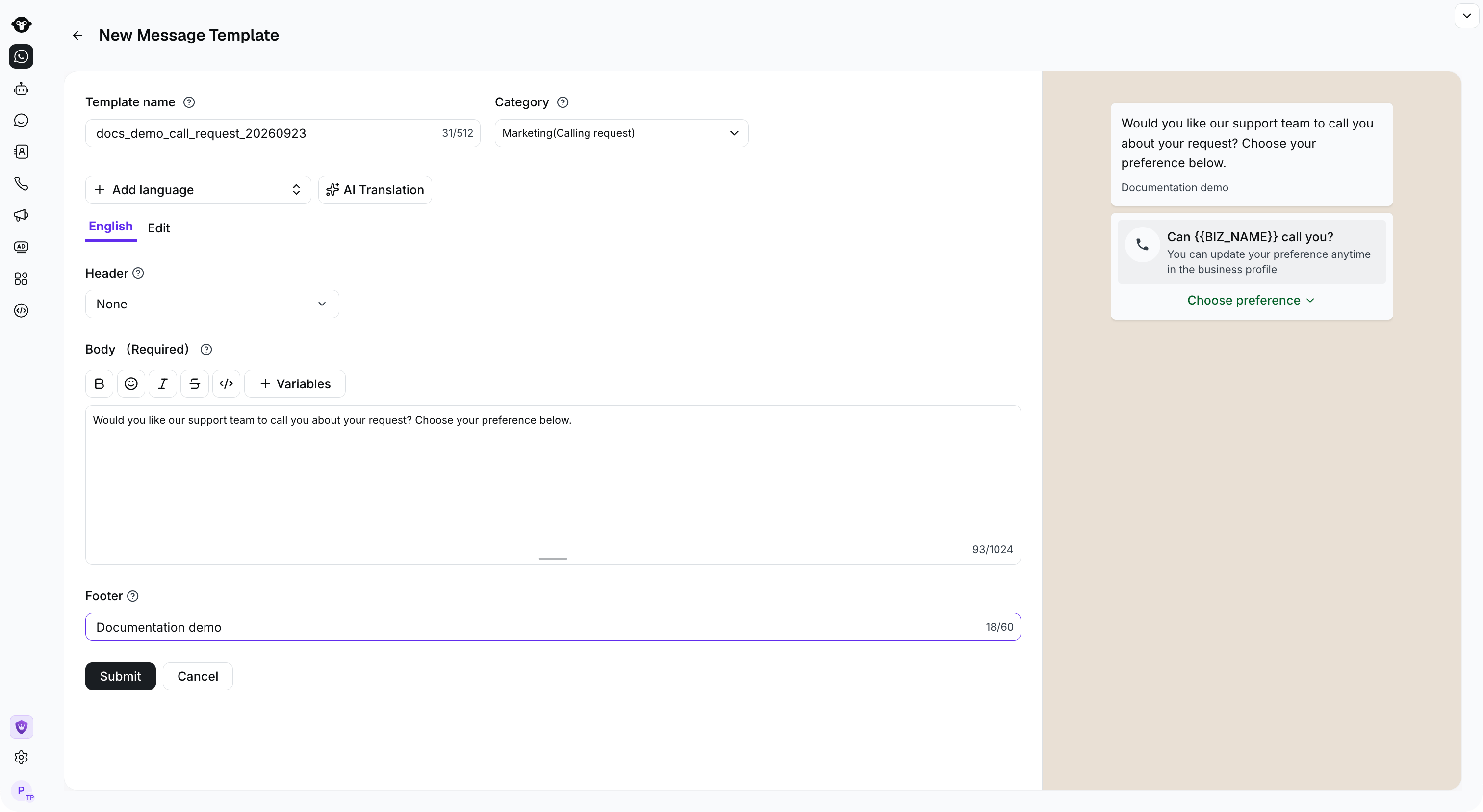
2. Create a template with the **Calling Request** button.
3. Enter the message content and submit the template for review.
### Create a Calling Request template
1. Go to **Templates**.
2. Create a template with the **Calling Request** button.
3. Enter the message content and submit the template for review.
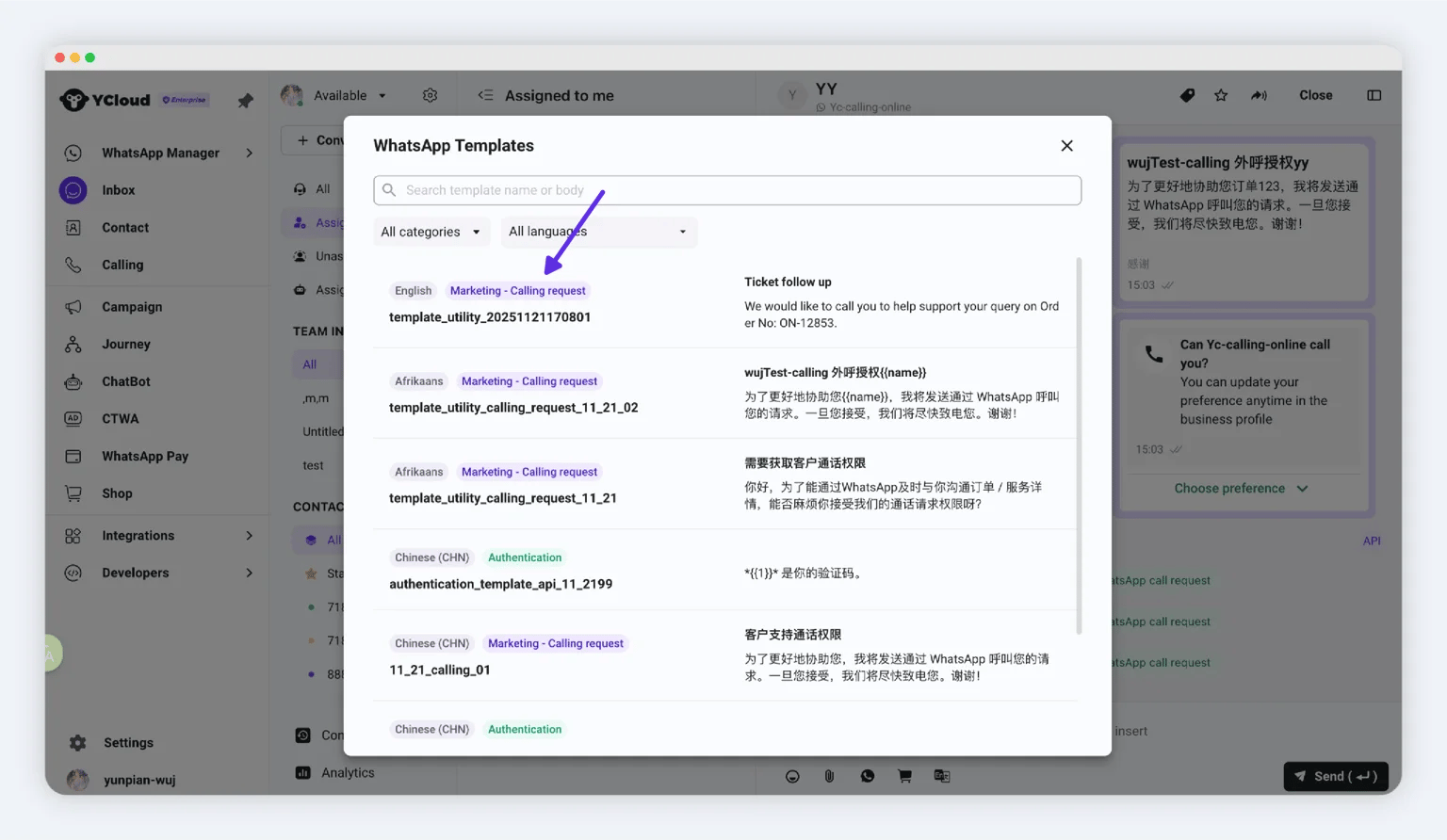
 ### Send the request from Inbox
After the template is approved:
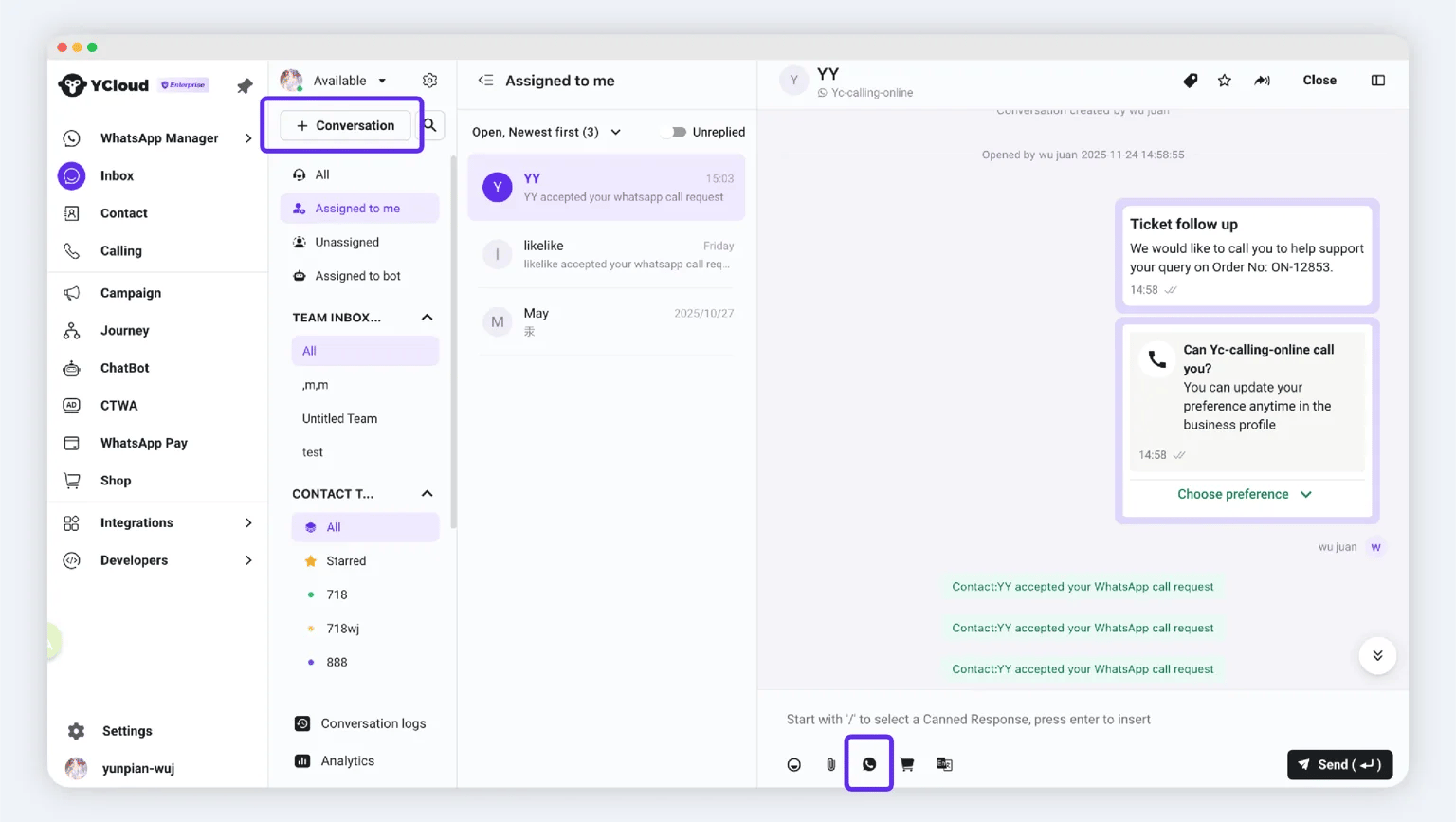
1. Open **Inbox**.
2. Start a conversation for a new contact, or open an existing conversation.
3. Select the approved Calling Request template and send it.
### Send the request from Inbox
After the template is approved:
1. Open **Inbox**.
2. Start a conversation for a new contact, or open an existing conversation.
3. Select the approved Calling Request template and send it.
 ### Send the request with Campaign
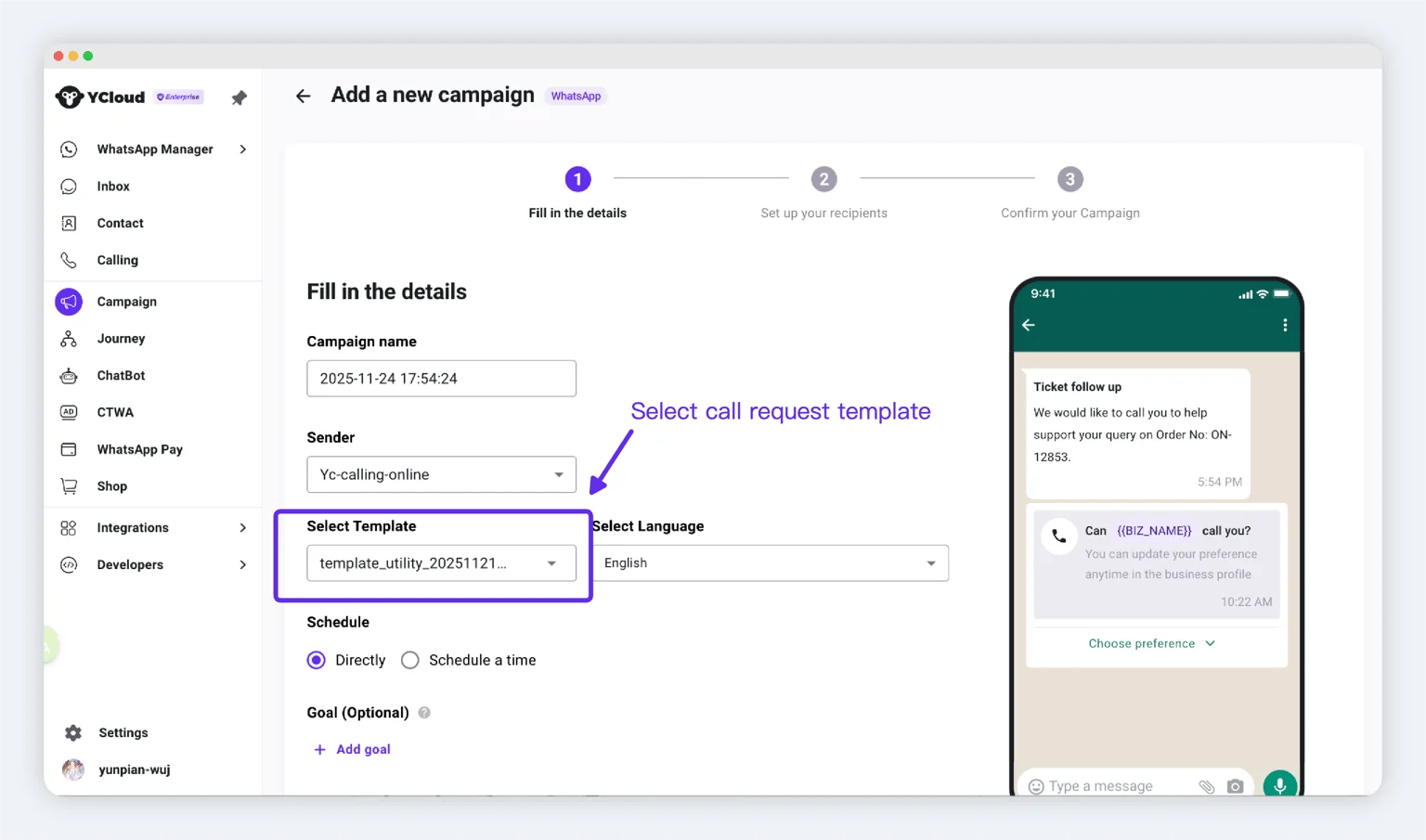
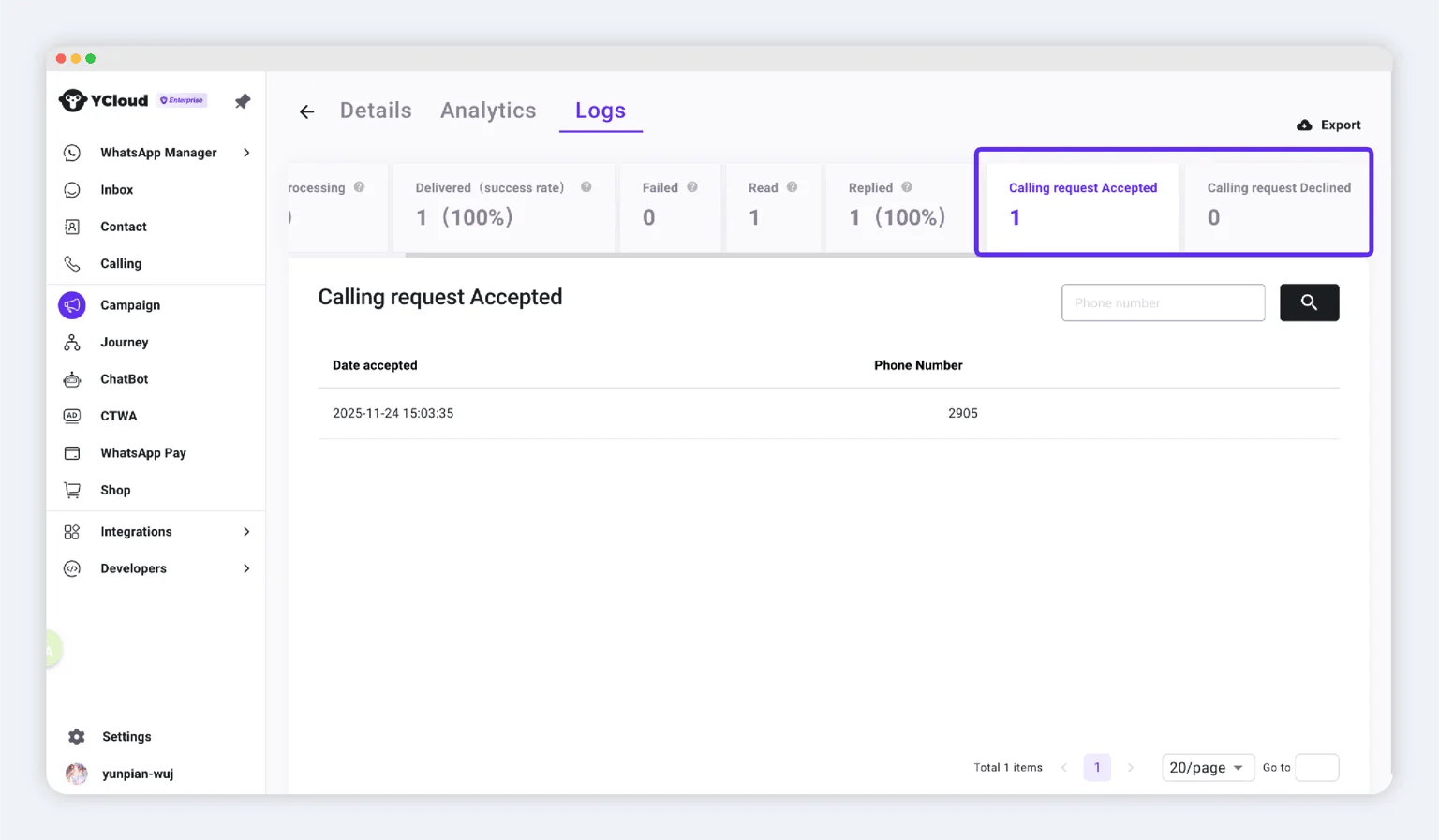
For a larger audience, create a Campaign and select the approved Calling Request template. After sending, use the campaign statistics to review results and permission activity.
### Send the request with Campaign
For a larger audience, create a Campaign and select the approved Calling Request template. After sending, use the campaign statistics to review results and permission activity.
 ## View customers who granted permission
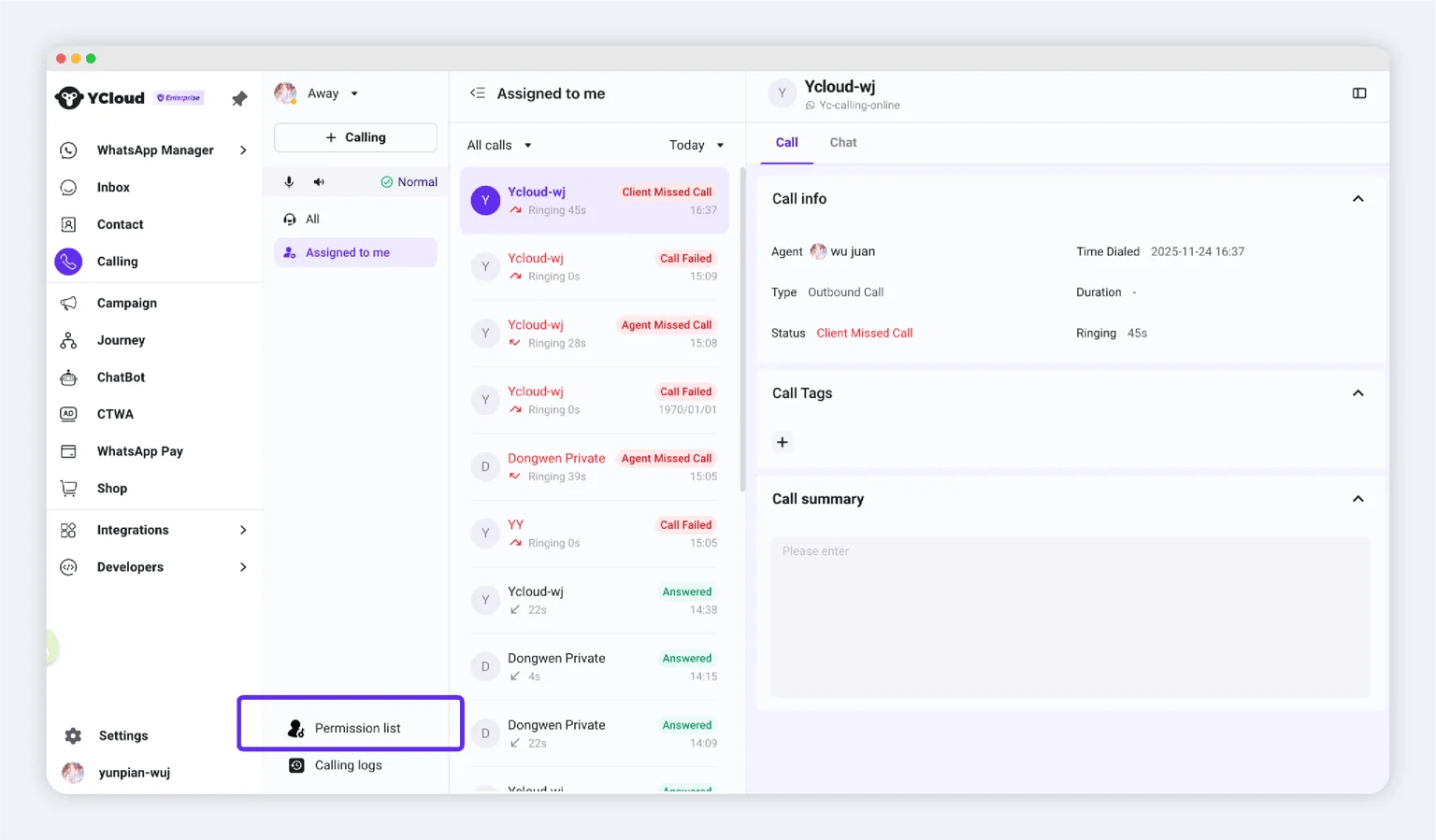
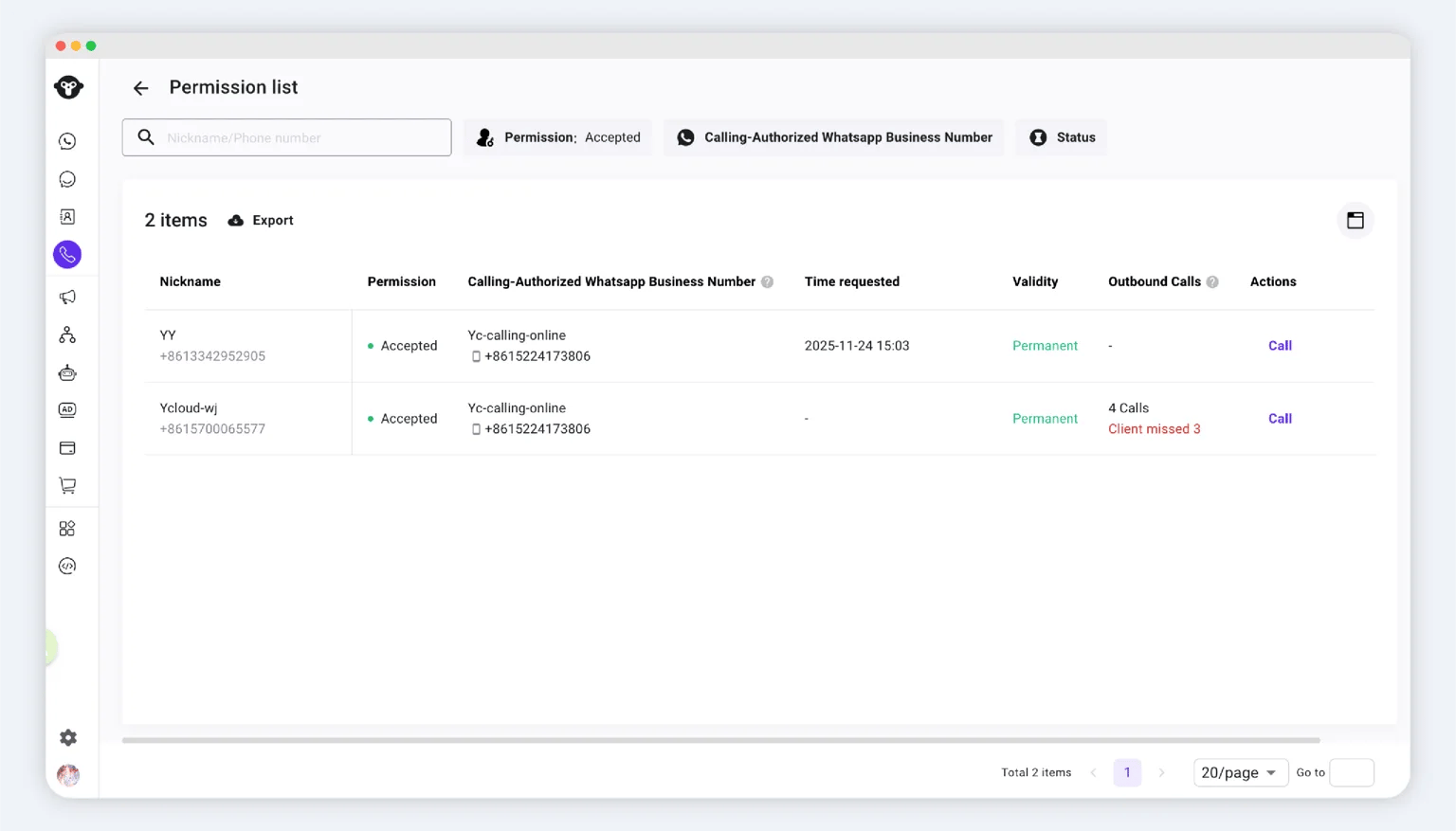
Open **Calling > Permission list**. The list shows permission records within your role and data-access scope.
## View customers who granted permission
Open **Calling > Permission list**. The list shows permission records within your role and data-access scope.
 ## Place an outbound call
Before calling, confirm that:
* The customer has granted permission and it remains valid.
* You have outbound access to the selected business number.
### Method 1: Permission list
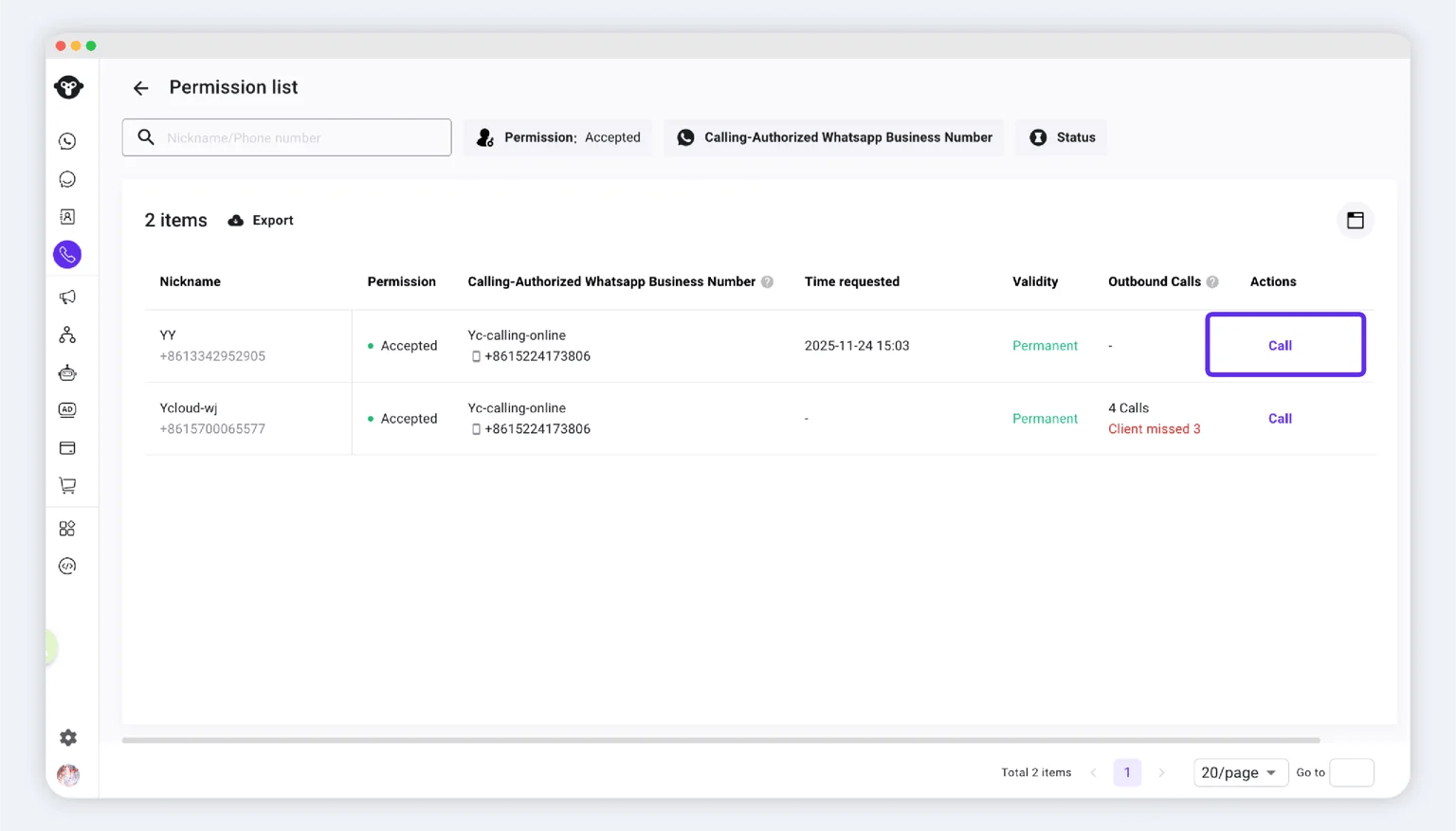
1. Open **Calling > Permission list**.
2. Find the customer.
3. Click the call action.
## Place an outbound call
Before calling, confirm that:
* The customer has granted permission and it remains valid.
* You have outbound access to the selected business number.
### Method 1: Permission list
1. Open **Calling > Permission list**.
2. Find the customer.
3. Click the call action.
 ### Method 2: Calling workspace
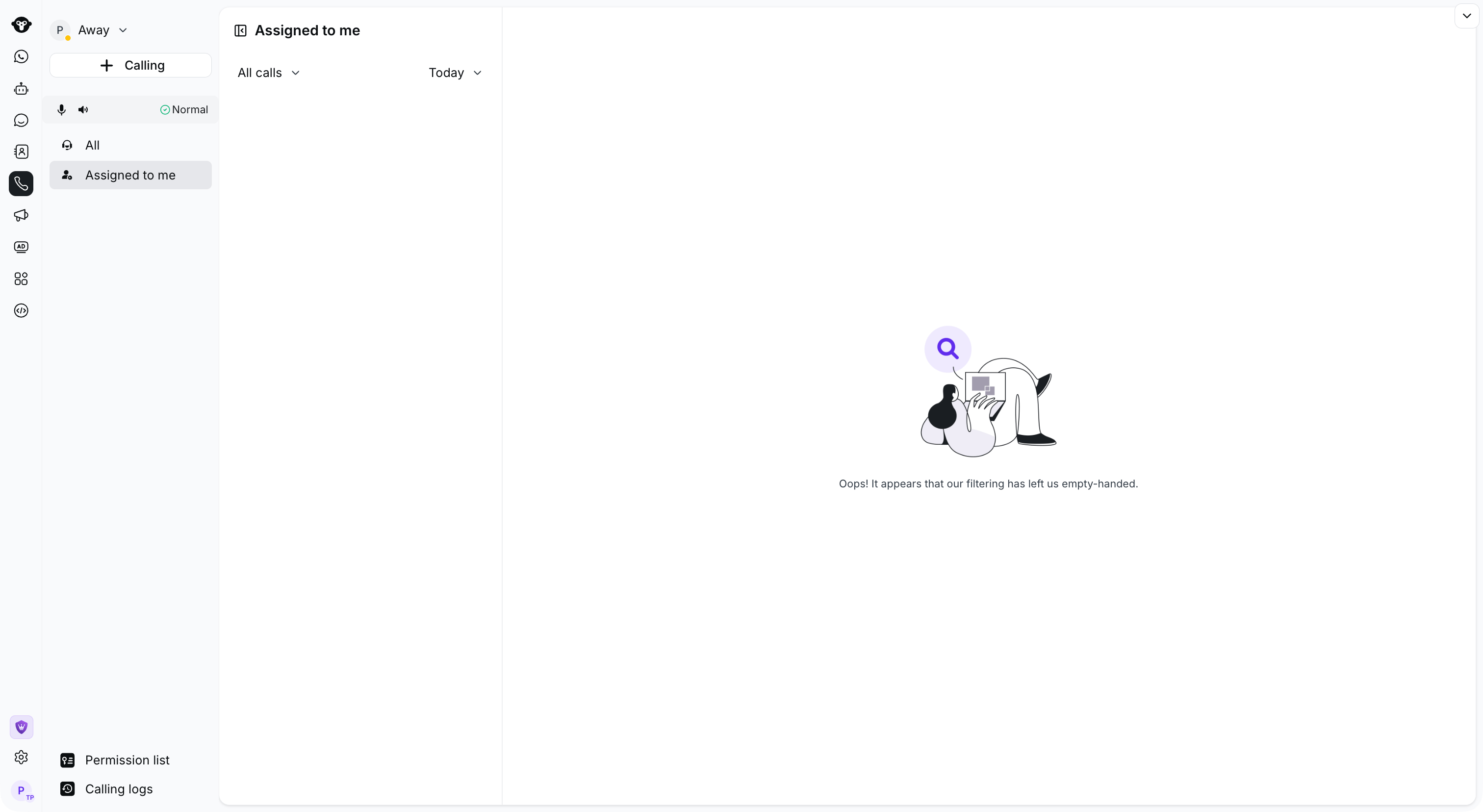
1. Open **Calling**.
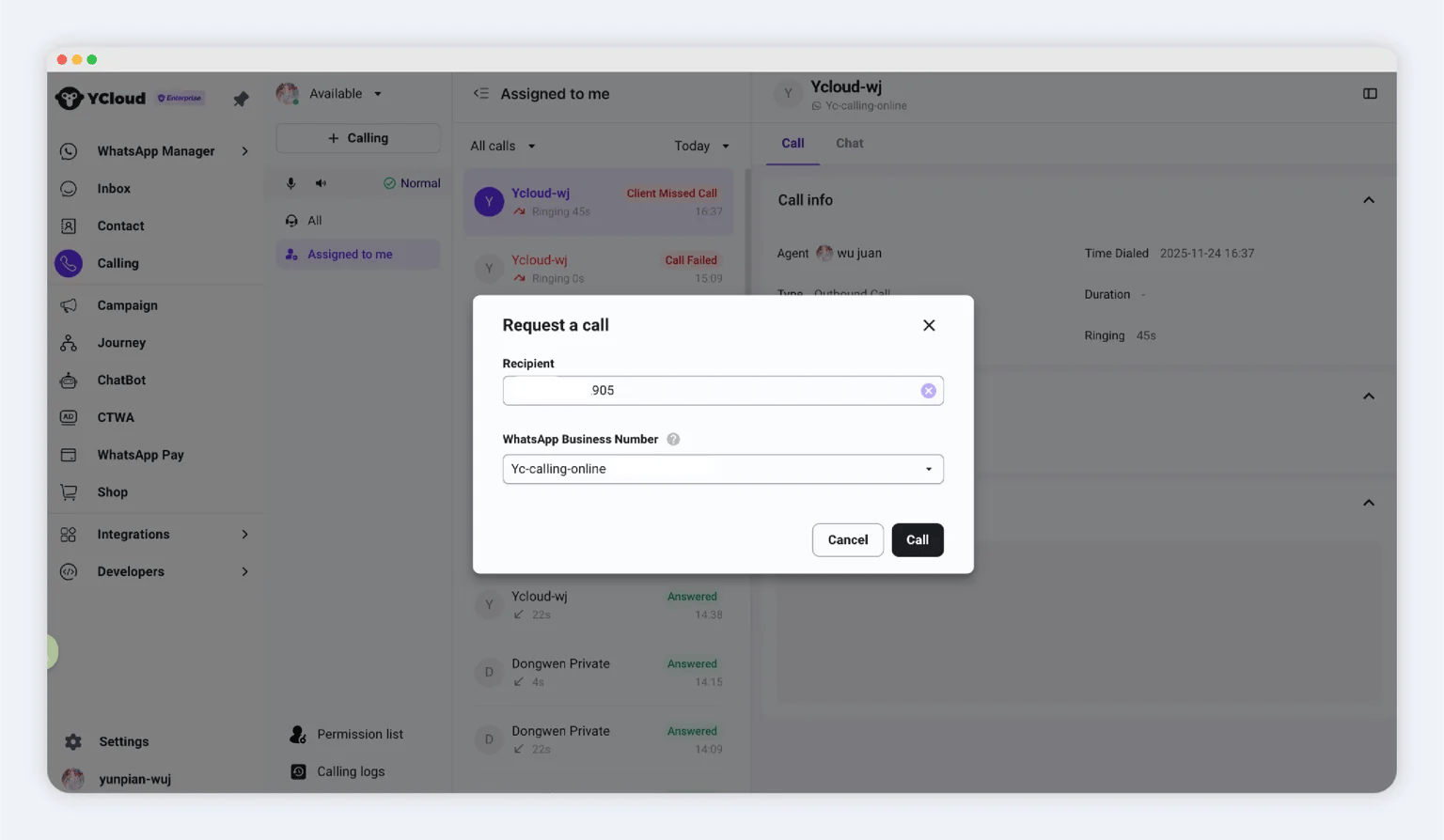
2. Click **+ Calling**.
3. Enter the customer's phone number.
4. Select the business number to use.
5. Start the call.
### Method 2: Calling workspace
1. Open **Calling**.
2. Click **+ Calling**.
3. Enter the customer's phone number.
4. Select the business number to use.
5. Start the call.
 ### Method 3: Inbox
1. Open **Inbox** and select the customer conversation.
2. Open **WhatsApp Calling**.
3. Click **Call out**.
See [Calling in Inbox](/en/documentation/inbox/whatsapp-calling-in-inbox) for the Inbox workflow.
### Method 3: Inbox
1. Open **Inbox** and select the customer conversation.
2. Open **WhatsApp Calling**.
3. Click **Call out**.
See [Calling in Inbox](/en/documentation/inbox/whatsapp-calling-in-inbox) for the Inbox workflow.
 This documentation is built and hosted on [Mintlify](https://mintlify.com), a developer documentation platform.