> ## Documentation Index
> Fetch the complete documentation index at: https://docs.ycloud.com/llms.txt
> Use this file to discover all available pages before exploring further.
# Recording and Transcription
> Configure call recording, transcription, and the announcement played before capture begins.
Configure recording and transcription separately for each WhatsApp business number. The settings apply to new inbound and outbound calls on that number.
## Configure recording and transcription
1. Go to **WhatsApp accounts** and open the settings for the business number.
2. Select **Calling > Recording & Transcription**.
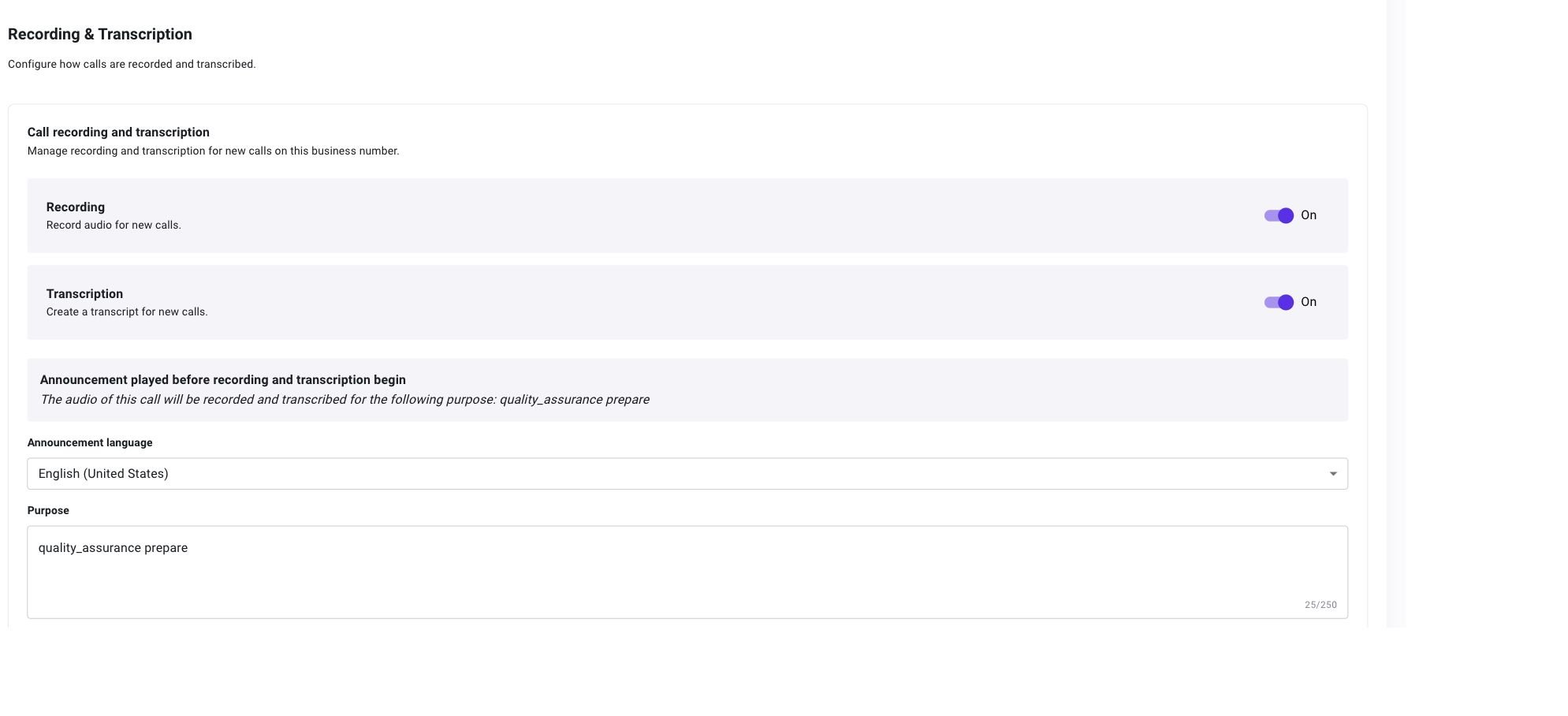
3. Enable **Recording**, **Transcription**, or both.
* **Recording** records the audio for new calls.
* **Transcription** creates speaker-separated text for new calls.
 When at least one feature is enabled, configure:
* **Announcement language:** The language used for the announcement played before recording or transcription begins. This does not change the language spoken during the call.
* **Purpose:** Why the call is being recorded or transcribed. This field is required, supports up to 250 characters, and appears in the announcement preview.
The preview changes to match the enabled features. When both are enabled, both parties hear that the call will be recorded and transcribed for the purpose you entered.
When at least one feature is enabled, configure:
* **Announcement language:** The language used for the announcement played before recording or transcription begins. This does not change the language spoken during the call.
* **Purpose:** Why the call is being recorded or transcribed. This field is required, supports up to 250 characters, and appears in the announcement preview.
The preview changes to match the enabled features. When both are enabled, both parties hear that the call will be recorded and transcribed for the purpose you entered.
 Turning recording or transcription off affects new calls. Existing recordings and transcripts remain available in Calling logs, subject to the user's Calling logs permissions.
## Review recordings and transcripts
Open **Calling > Calling logs** to find captured calls. See [Calling Logs](/en/documentation/calling/calling-logs) for playback, download, transcript review, and export instructions.
This documentation is built and hosted on [Mintlify](https://mintlify.com), a developer documentation platform.
Turning recording or transcription off affects new calls. Existing recordings and transcripts remain available in Calling logs, subject to the user's Calling logs permissions.
## Review recordings and transcripts
Open **Calling > Calling logs** to find captured calls. See [Calling Logs](/en/documentation/calling/calling-logs) for playback, download, transcript review, and export instructions.
This documentation is built and hosted on [Mintlify](https://mintlify.com), a developer documentation platform.