> ## Documentation Index
> Fetch the complete documentation index at: https://docs.ycloud.com/llms.txt
> Use this file to discover all available pages before exploring further.
# Track button clicks
> Enable YCloud click tracking for a template URL button and review click data for a Campaign.
YCloud click tracking lets you review recipient-level clicks on a tracked URL button after a WhatsApp Campaign is complete. This is different from **Meta click tracking**, which reports website clicks at the template level.
## 1. Enable YCloud click tracking
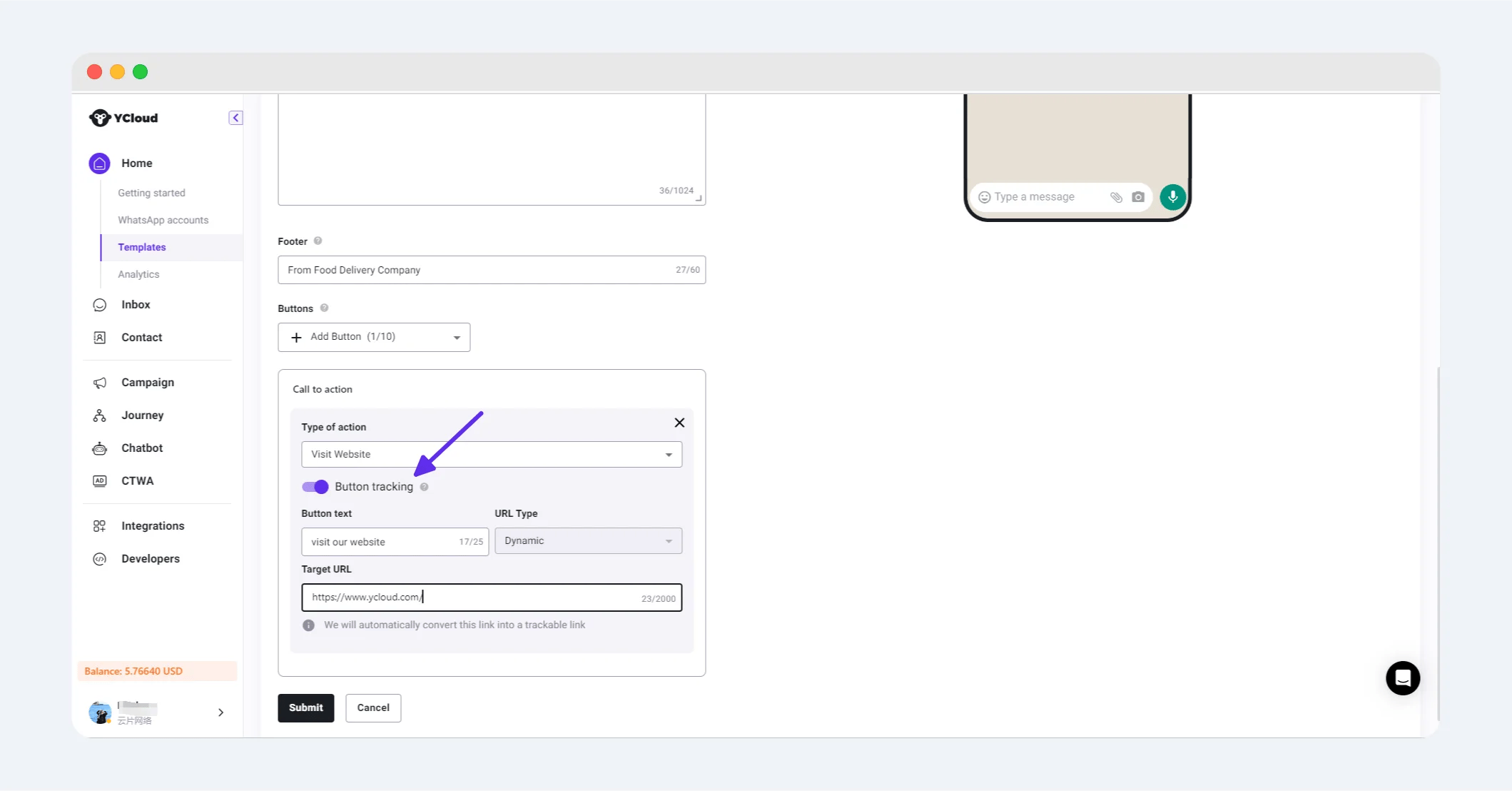
When you create or edit an eligible template, add a URL button and enable **YCloud click tracking**. Enter the URL that recipients should open. The target URL cannot contain template variables.
When tracking is enabled, YCloud uses a tracked link for that button. The option is available only when it is enabled for your account and supported by the template.
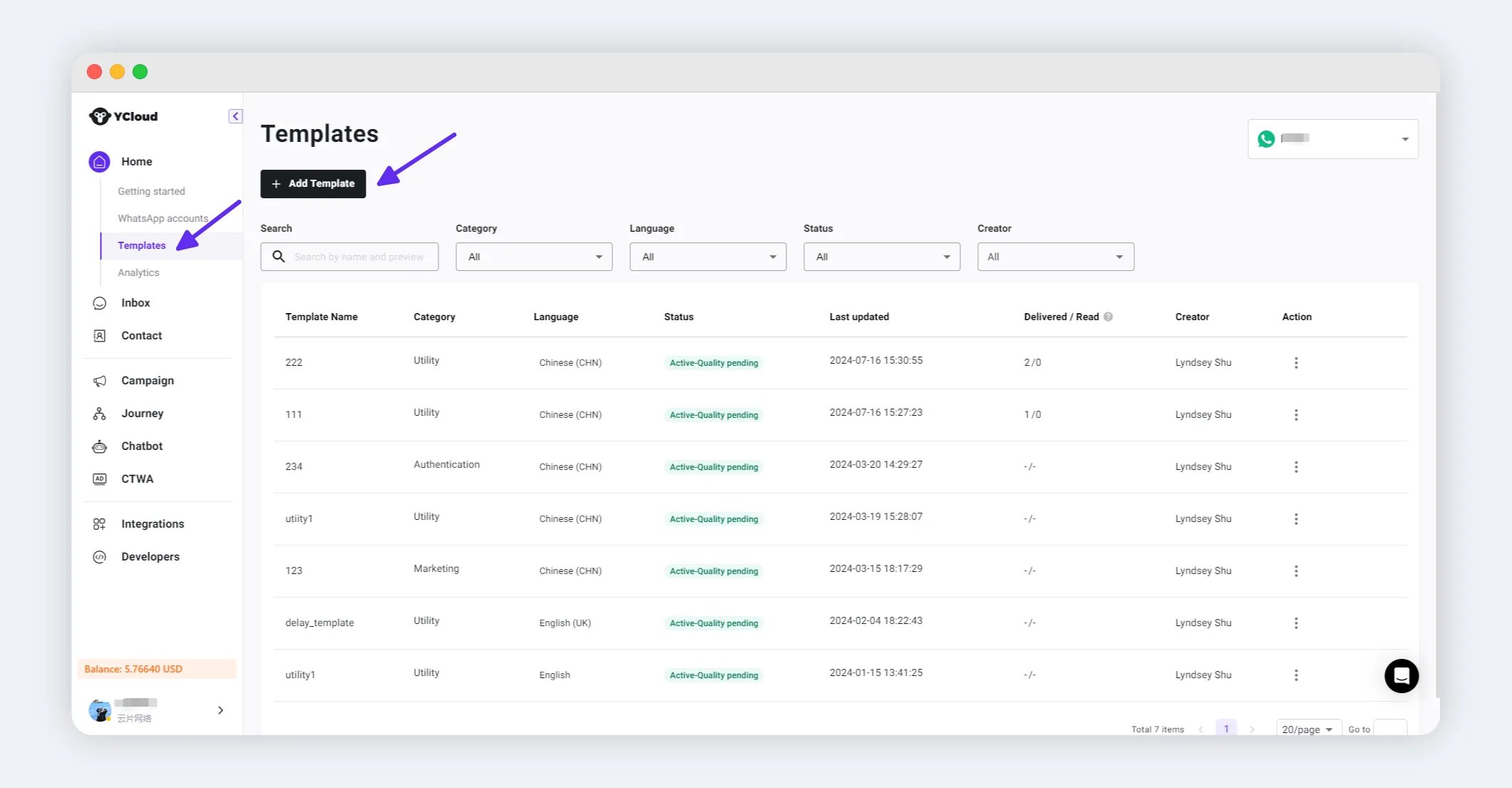

 For help creating a template, see [Create Template](/en/documentation/channels/whatsapp-accounts-management/template-management/create-template/index).
## 2. Send a Campaign with the template
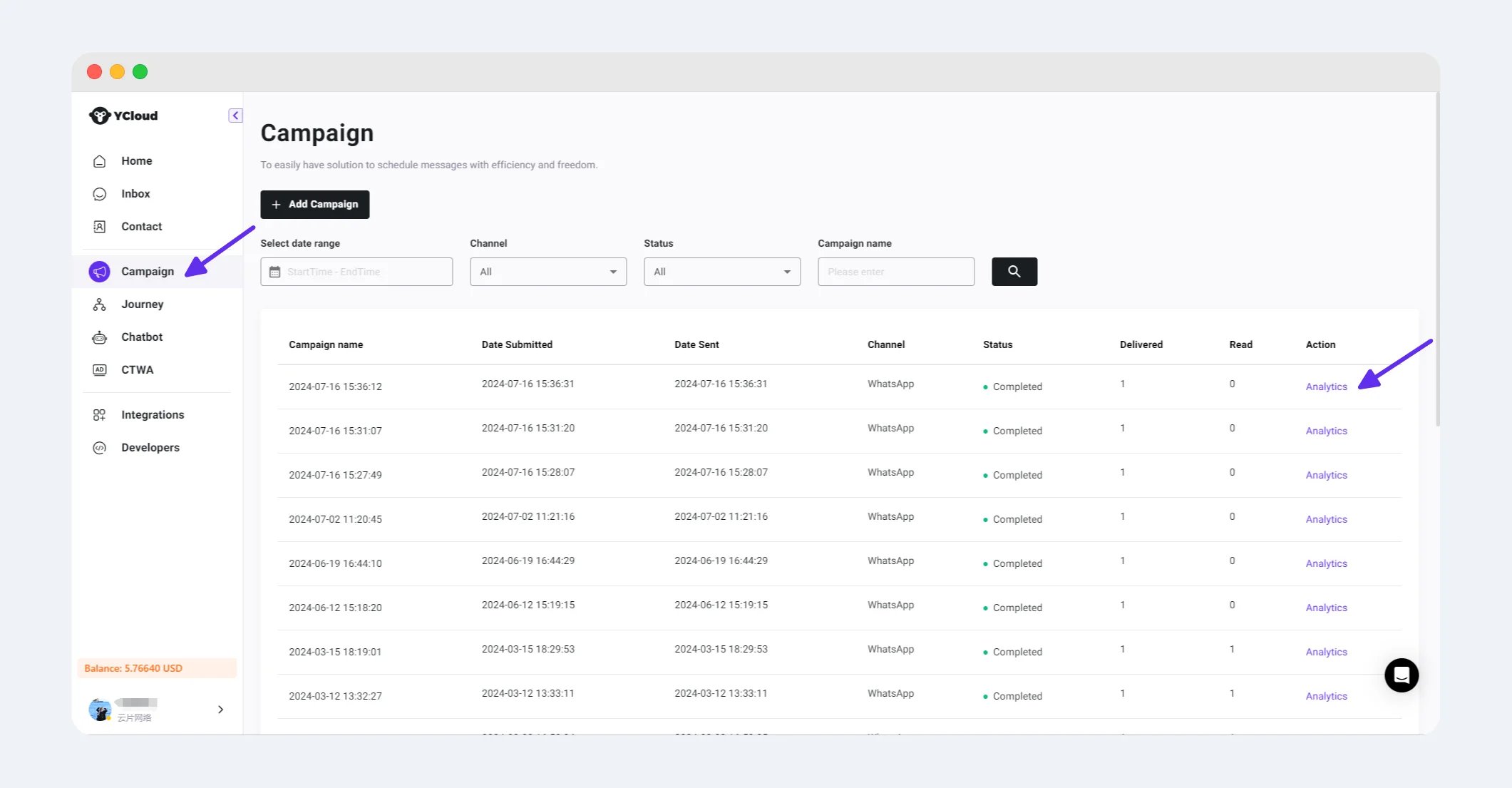
Create a WhatsApp Campaign and select the template with click tracking enabled. Complete the recipient, variable, and review steps, then submit the Campaign.
For the full Campaign flow, see [Create a WhatsApp Marketing Campaign](/en/documentation/campaign/create-a-whatsapp-marketing-campaign).
## 3. View button click data
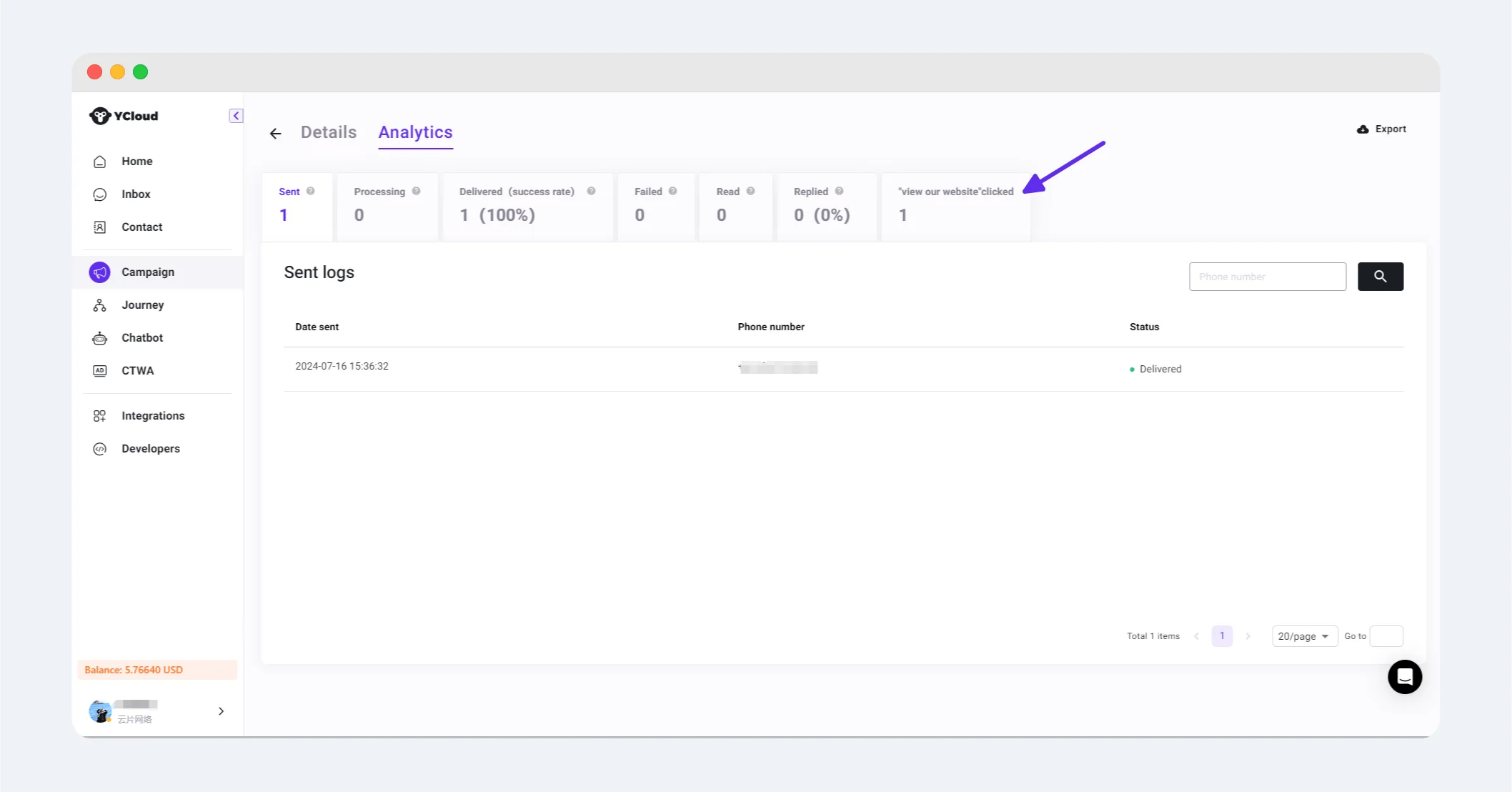
After the Campaign is complete, open its **Analytics** page. The **Button Clicked** section shows click counts for tracked buttons.
Select a button card to open **Logs** for that button and view the related recipient-level click records.
For help creating a template, see [Create Template](/en/documentation/channels/whatsapp-accounts-management/template-management/create-template/index).
## 2. Send a Campaign with the template
Create a WhatsApp Campaign and select the template with click tracking enabled. Complete the recipient, variable, and review steps, then submit the Campaign.
For the full Campaign flow, see [Create a WhatsApp Marketing Campaign](/en/documentation/campaign/create-a-whatsapp-marketing-campaign).
## 3. View button click data
After the Campaign is complete, open its **Analytics** page. The **Button Clicked** section shows click counts for tracked buttons.
Select a button card to open **Logs** for that button and view the related recipient-level click records.
 This documentation is built and hosted on [Mintlify](https://mintlify.com), a developer documentation platform.