> ## Documentation Index
> Fetch the complete documentation index at: https://docs.ycloud.com/llms.txt
> Use this file to discover all available pages before exploring further.
# Onboard WhatsApp business app
> Unlock advanced API messaging capabilities without leaving the WhatsApp Business App
## What is WhatsApp Coexistence
**This means your WhatsApp Business API and WhatsApp Business App can now co-exist together!**
Onboarding a number already in use with the WhatsApp Business App for API access allows both the API and the app to operate on the same phone number. You can use features such as large-scale messaging, AI Agent replies, rule-based flows, and Journeys while continuing to send messages from the WhatsApp Business App.
This feature is perfect for teams looking to transition to API-based workflows while continuing to use their existing app.
## Why use WhatsApp Coexistence
**Scenario 1:** If your employees need to communicate with users using a work computer during the day and continue the conversation seamlessly via the app in the evening.
**✅ Corresponding benefits:** Messages will be mirrored between the mobile App and the API. That is:
1. Messages sent via the API will appear in the WhatsApp Business App.
2. Messages sent via the App will appear in the Cloud API conversation history, which you can check on computers.
**Scenario 2:** If you want to use features like bulk marketing messages, intelligent AI Agent auto-replies, Journey-based customer engagement, and other advanced functionalities while maintaining access through the mobile app.
**✅ Corresponding benefits:** WhatsApp Coexistence allows you to use all these advanced API features while retaining one-to-one messaging in the app.
**Scenario 3:** If you already have an active number in WhatsApp Business App and want to skip the hassle of registering a new API number.
**✅ Corresponding benefits:** Seamlessly connect your WhatsApp Business App number and use API functionalities without deleting your original WhatsApp Business account.
## Noteworthy Info
#### **Throughout**
1. In order to remain compatible with the WhatsApp Business app, business phone numbers that are in use with both the WhatsApp Business app and Cloud API have a fixed throughput of 5 mps(messages per second).
#### **Requirement**
To use this feature, you must be using WhatsApp Business app version 2.24.17 or higher.
#### **Pricing**
Messages sent from the WhatsApp Business app remain free, messages sent from the API Partner Platform are charged based on the existing [API pricing model](https://www.ycloud.com/price).
#### **Function comparison after binding**
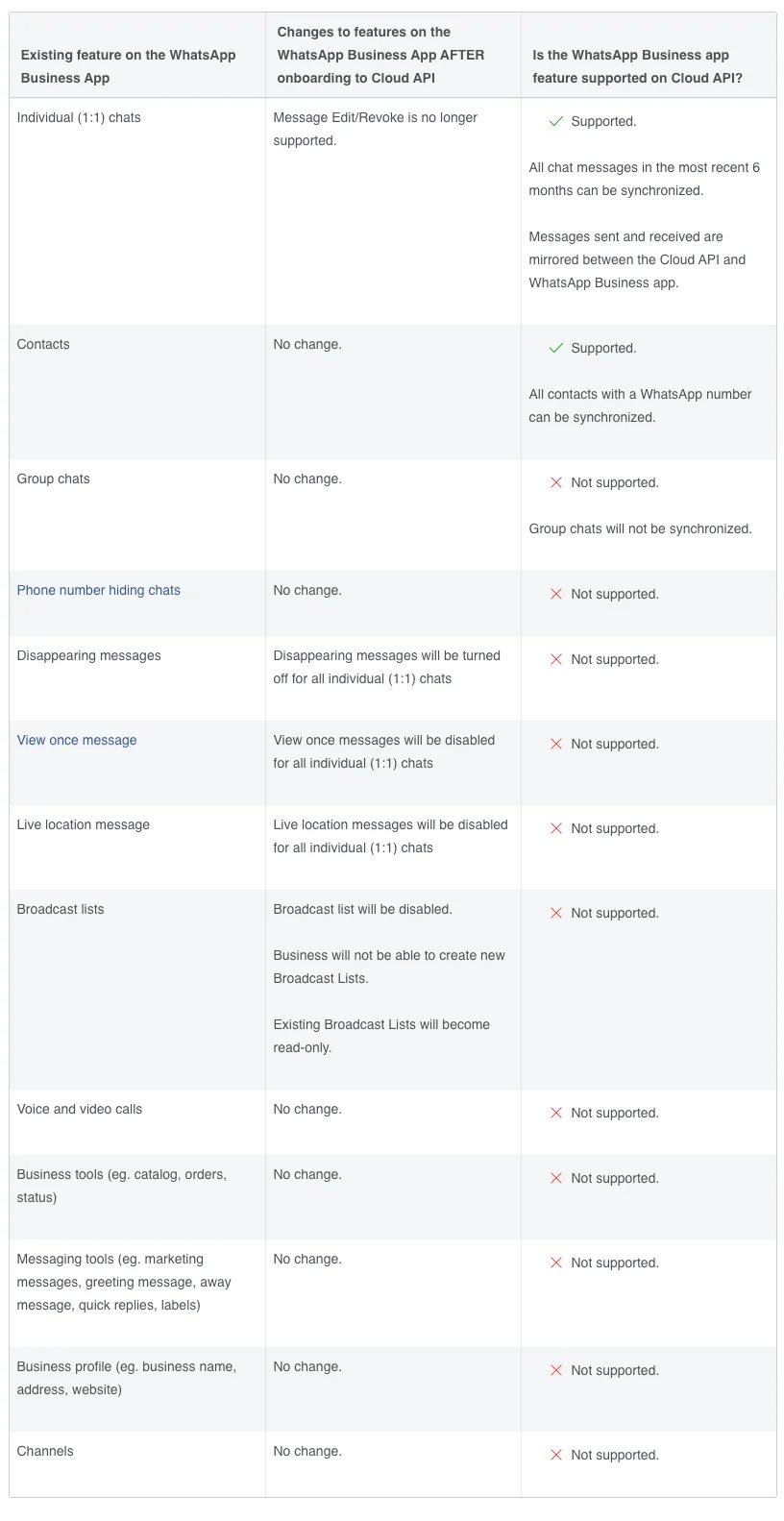
The following table describes features available to business customers who have been onboarded to Cloud API, as well as any changes to WhatsApp Business app functionality post-onboarding.Note: Media messages (such as those containing images, videos, and audio) that are more than 14 days will not be able to be synchronized.
 ## How it works
Open **WhatsApp accounts**, click **Create Channel**, and locate **WhatsApp Business APP Coexistence**.
## How it works
Open **WhatsApp accounts**, click **Create Channel**, and locate **WhatsApp Business APP Coexistence**.

 WhatsApp Business App coexistence can be connected in two ways. Choose the method that matches how your business manages Meta assets.
| Connection method | When to use it | What you need |
| - | - | - |
| **Connect with Facebook** | Use this method when you want the WhatsApp Business App number to belong to and be managed under your Meta business portfolio. | A Facebook account, company registration documents, and a business website for Business Verification. |
| **Connect by QR code** | Use this faster method when you do not want to sign in with Facebook or create a business portfolio during onboarding. | Your business information and access to the WhatsApp Business App on the phone being connected. |
Both methods keep the phone number available in the WhatsApp Business App while connecting it to YCloud.
## Option 1: Connect with Facebook
This method binds the WhatsApp Business App number to a Meta business portfolio. You can later maintain and manage the associated business assets in Meta Business Portfolio.
Before starting, prepare a Facebook account, your company's registration documents, and its website. These materials are required for Business Verification.
1. Sign in to your Facebook account.
2. Create a business portfolio or select an existing one.
3. In the WhatsApp Business Account step, select **Connect a WhatsApp Business App**.
4. Enter the phone number used by your WhatsApp Business App.
5. When the QR code appears, open the WhatsApp Business App on the phone and scan it to authorize the connection.
6. On the phone, choose whether to synchronize your chat history. You can synchronize up to the most recent six months of history.
## Option 2: Connect by QR code
This is the faster onboarding method. It does not require a Facebook login or the creation of a business portfolio during the connection process.
1. Select the QR-code connection method.
2. Enter your business name and website information.
WhatsApp Business App coexistence still requires Business Verification. The **Business name** entered during onboarding must exactly match the legal business name on the registration documents that you plan to submit. A mismatch may affect Business Verification later.
Enter the **Website** correctly. If your business does not have a website, select **My business does not have a website or profile page** instead of leaving the field incomplete.
3. Enter the WhatsApp Business App phone number that you want to connect.
4. Open the WhatsApp Business App on the phone and scan the QR code to authorize the connection.
5. On the phone, choose whether to synchronize your chat history. You can synchronize up to the most recent six months of history.
## Synchronize chat history
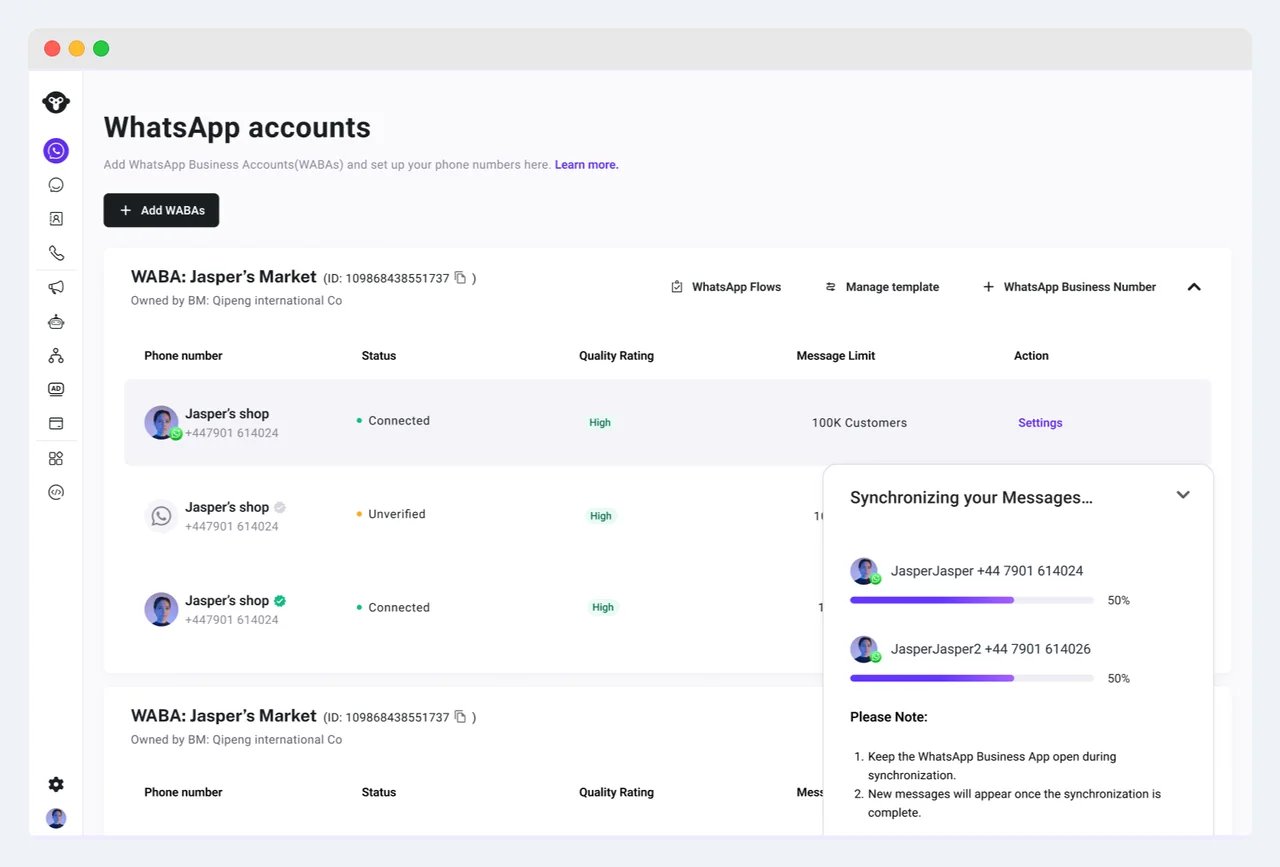
After authorization is complete, YCloud starts synchronizing chats immediately if you chose to share your chat history.
Keep the WhatsApp Business App open during synchronization. New messages appear in YCloud Inbox only after synchronization is complete.
WhatsApp Business App coexistence can be connected in two ways. Choose the method that matches how your business manages Meta assets.
| Connection method | When to use it | What you need |
| - | - | - |
| **Connect with Facebook** | Use this method when you want the WhatsApp Business App number to belong to and be managed under your Meta business portfolio. | A Facebook account, company registration documents, and a business website for Business Verification. |
| **Connect by QR code** | Use this faster method when you do not want to sign in with Facebook or create a business portfolio during onboarding. | Your business information and access to the WhatsApp Business App on the phone being connected. |
Both methods keep the phone number available in the WhatsApp Business App while connecting it to YCloud.
## Option 1: Connect with Facebook
This method binds the WhatsApp Business App number to a Meta business portfolio. You can later maintain and manage the associated business assets in Meta Business Portfolio.
Before starting, prepare a Facebook account, your company's registration documents, and its website. These materials are required for Business Verification.
1. Sign in to your Facebook account.
2. Create a business portfolio or select an existing one.
3. In the WhatsApp Business Account step, select **Connect a WhatsApp Business App**.
4. Enter the phone number used by your WhatsApp Business App.
5. When the QR code appears, open the WhatsApp Business App on the phone and scan it to authorize the connection.
6. On the phone, choose whether to synchronize your chat history. You can synchronize up to the most recent six months of history.
## Option 2: Connect by QR code
This is the faster onboarding method. It does not require a Facebook login or the creation of a business portfolio during the connection process.
1. Select the QR-code connection method.
2. Enter your business name and website information.
WhatsApp Business App coexistence still requires Business Verification. The **Business name** entered during onboarding must exactly match the legal business name on the registration documents that you plan to submit. A mismatch may affect Business Verification later.
Enter the **Website** correctly. If your business does not have a website, select **My business does not have a website or profile page** instead of leaving the field incomplete.
3. Enter the WhatsApp Business App phone number that you want to connect.
4. Open the WhatsApp Business App on the phone and scan the QR code to authorize the connection.
5. On the phone, choose whether to synchronize your chat history. You can synchronize up to the most recent six months of history.
## Synchronize chat history
After authorization is complete, YCloud starts synchronizing chats immediately if you chose to share your chat history.
Keep the WhatsApp Business App open during synchronization. New messages appear in YCloud Inbox only after synchronization is complete.
 ## Watch the tutorial video
[Watch the WhatsApp Business App coexistence tutorial](https://youtu.be/gIJx2XGC3gA)
## Frequently asked questions
No. You can continue to send and receive messages and manage contacts in the WhatsApp Business App.
No. WhatsApp Business App coexistence must be connected through the YCloud platform. YCloud does not provide an API for this onboarding operation.
This usually means that authorization succeeded but the final binding failed. Possible causes include:
* **Previously connected to another platform:** The account may still be associated with another provider. Follow the coexistence account migration process before trying to bind it to YCloud.
* **Temporary binding failure:** If the binding interface was temporarily unstable, unlink YCloud from the WhatsApp Business App on the phone, then start the connection again.
* **Incomplete website information:** If neither a valid website nor **My business does not have a website or profile page** was selected, the account may remain pending. Unlink it on the phone and repeat the connection with complete business information.
| Error | Meaning and recommended action |
| - | - |
| `#2655093: already shared with another partner` | The account was previously associated with another provider. Ask the previous provider to remove its partner access completely, then try again. A successful reconnection cannot be guaranteed. |
| `#2655121: Restricted WhatsApp Business Account` | The account is blocked or has previously been blocked in the mobile app and may be considered high risk. Use a different number or wait several days before trying again. |
| `#3441061: phone number linked to automated events` | Disable the automated events indicated by Meta, wait for Meta's changes to synchronize, and then try again. |
| `Your phone number isn't eligible to connect to the WhatsApp Business platform. More activity on the WhatsApp Business app is needed to help determine eligibility.` | Meta does not yet have enough recent activity to determine that the number is eligible. This can happen when the account is new, has few recent conversations, or has not been active recently. Continue using the WhatsApp Business app for genuine conversations, then try to connect again later. |
Meta may automatically unlink the account when the WhatsApp Business App has been inactive or when the app is signed in on a different device. Connect the account again in YCloud.
This documentation is built and hosted on [Mintlify](https://mintlify.com), a developer documentation platform.
## Watch the tutorial video
[Watch the WhatsApp Business App coexistence tutorial](https://youtu.be/gIJx2XGC3gA)
## Frequently asked questions
No. You can continue to send and receive messages and manage contacts in the WhatsApp Business App.
No. WhatsApp Business App coexistence must be connected through the YCloud platform. YCloud does not provide an API for this onboarding operation.
This usually means that authorization succeeded but the final binding failed. Possible causes include:
* **Previously connected to another platform:** The account may still be associated with another provider. Follow the coexistence account migration process before trying to bind it to YCloud.
* **Temporary binding failure:** If the binding interface was temporarily unstable, unlink YCloud from the WhatsApp Business App on the phone, then start the connection again.
* **Incomplete website information:** If neither a valid website nor **My business does not have a website or profile page** was selected, the account may remain pending. Unlink it on the phone and repeat the connection with complete business information.
| Error | Meaning and recommended action |
| - | - |
| `#2655093: already shared with another partner` | The account was previously associated with another provider. Ask the previous provider to remove its partner access completely, then try again. A successful reconnection cannot be guaranteed. |
| `#2655121: Restricted WhatsApp Business Account` | The account is blocked or has previously been blocked in the mobile app and may be considered high risk. Use a different number or wait several days before trying again. |
| `#3441061: phone number linked to automated events` | Disable the automated events indicated by Meta, wait for Meta's changes to synchronize, and then try again. |
| `Your phone number isn't eligible to connect to the WhatsApp Business platform. More activity on the WhatsApp Business app is needed to help determine eligibility.` | Meta does not yet have enough recent activity to determine that the number is eligible. This can happen when the account is new, has few recent conversations, or has not been active recently. Continue using the WhatsApp Business app for genuine conversations, then try to connect again later. |
Meta may automatically unlink the account when the WhatsApp Business App has been inactive or when the app is signed in on a different device. Connect the account again in YCloud.
This documentation is built and hosted on [Mintlify](https://mintlify.com), a developer documentation platform.