> ## Documentation Index
> Fetch the complete documentation index at: https://docs.ycloud.com/llms.txt
> Use this file to discover all available pages before exploring further.
# Message Logs
> Inspect the delivery status of individual inbound and outbound WhatsApp messages.
The **Message Logs** page provides a record of individual WhatsApp messages processed by YCloud. Every message successfully submitted to the YCloud platform is displayed here.
If your business sends a message but the recipient does not receive it, use Message Logs to check the message's current status and investigate the specific failure reason.
To open the page, go to **Analytics > Message logs**.
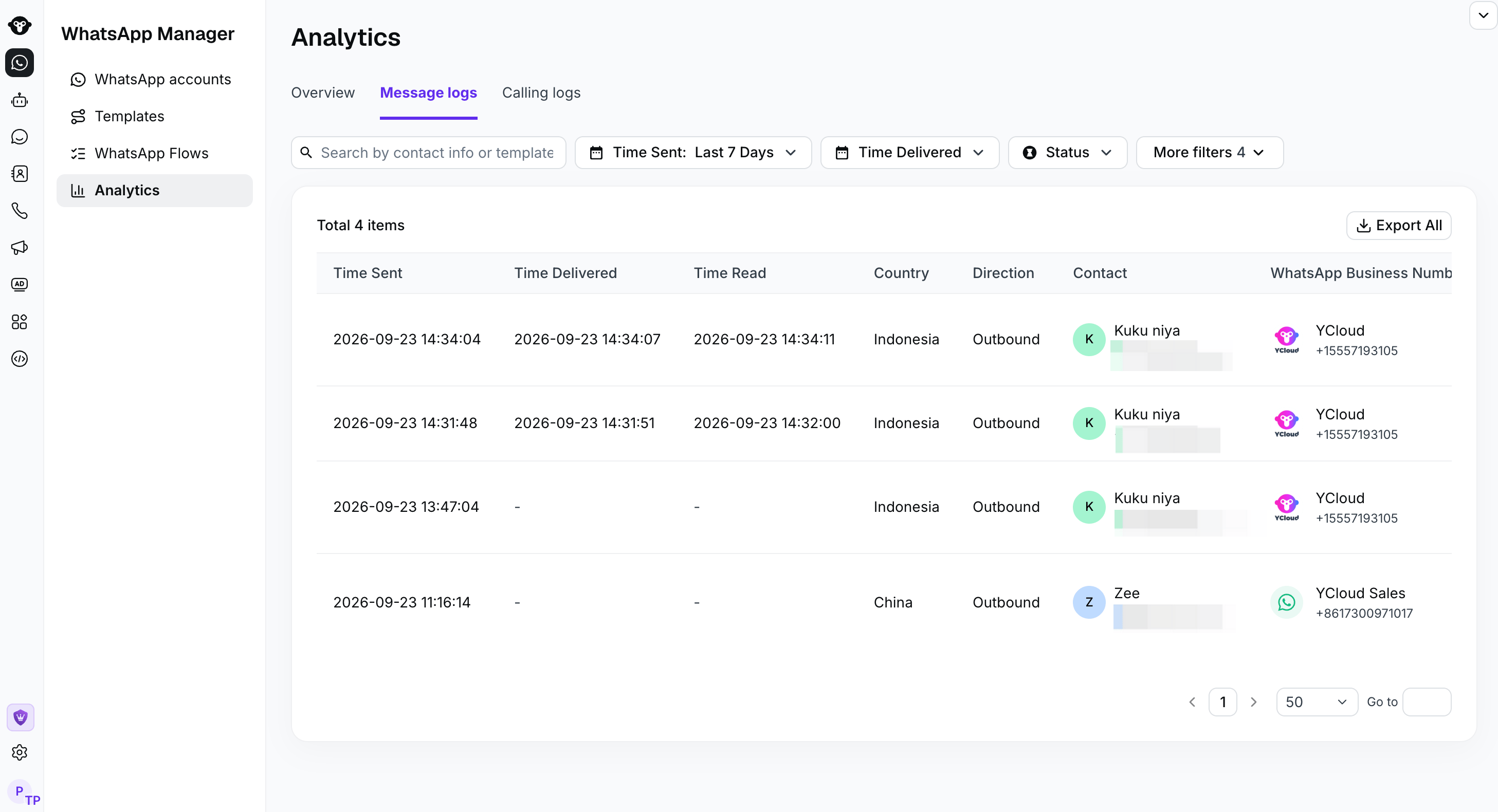 ## Search and filter messages
By default, Message Logs displays **outbound** messages. To view messages received from customers, open the **Direction** filter and select **Inbound**.
Available filters include:
* Contact information or template name
* Time sent
* Time delivered
* Country
* Direction
* WhatsApp Business Number
* Status
* Message type
Combine filters to locate a specific message or investigate a group of related messages.
## Search and filter messages
By default, Message Logs displays **outbound** messages. To view messages received from customers, open the **Direction** filter and select **Inbound**.
Available filters include:
* Contact information or template name
* Time sent
* Time delivered
* Country
* Direction
* WhatsApp Business Number
* Status
* Message type
Combine filters to locate a specific message or investigate a group of related messages.
 This example shows a search with no matching messages.
## Understand the log fields
Each record can include:
| Field | Description |
| - | - |
| **Time Sent** | When the message was sent or received by YCloud. |
| **Time Delivered** | When WhatsApp reported that the message was delivered. |
| **Time Read** | When WhatsApp reported that the recipient read the message. |
| **Country** | The customer's country or region. |
| **Direction** | **Outbound** for messages sent by the business or **Inbound** for messages received from customers. |
| **Contact** | The customer associated with the message. |
| **WhatsApp Business Number** | The business phone number that sent or received the message. |
| **Message** | A preview of the message or the template name. |
| **Status** | The latest known message status, such as Sent, Delivered, Read, or Failed. |
For failed messages, open the record or view its failure details to identify the reason before retrying.
If an outbound message does not appear in Message Logs, confirm that the original request was successfully accepted by YCloud.
## Export message logs
Click **Export** to download the filtered message records. During export, you can select the timezone used for the exported timestamps.
Exporting is permission-controlled:
* Account administrators can export logs.
* Other members must be granted the appropriate export permission.
* The person performing the export must complete two-factor authentication (2FA).
## Frequently asked questions
Messages can fail for different reasons. View the failure details for the record to see the specific error, then resolve the reported issue before sending the message again.
A read time appears only after WhatsApp reports a read receipt. If the recipient has disabled read receipts, YCloud may not receive a read status.
WhatsApp supports many rich-media and interactive message formats, and some cannot be fully rendered in the log table. Copy the customer's phone number and search for the conversation in Inbox to view the chat content.
This documentation is built and hosted on [Mintlify](https://mintlify.com), a developer documentation platform.
This example shows a search with no matching messages.
## Understand the log fields
Each record can include:
| Field | Description |
| - | - |
| **Time Sent** | When the message was sent or received by YCloud. |
| **Time Delivered** | When WhatsApp reported that the message was delivered. |
| **Time Read** | When WhatsApp reported that the recipient read the message. |
| **Country** | The customer's country or region. |
| **Direction** | **Outbound** for messages sent by the business or **Inbound** for messages received from customers. |
| **Contact** | The customer associated with the message. |
| **WhatsApp Business Number** | The business phone number that sent or received the message. |
| **Message** | A preview of the message or the template name. |
| **Status** | The latest known message status, such as Sent, Delivered, Read, or Failed. |
For failed messages, open the record or view its failure details to identify the reason before retrying.
If an outbound message does not appear in Message Logs, confirm that the original request was successfully accepted by YCloud.
## Export message logs
Click **Export** to download the filtered message records. During export, you can select the timezone used for the exported timestamps.
Exporting is permission-controlled:
* Account administrators can export logs.
* Other members must be granted the appropriate export permission.
* The person performing the export must complete two-factor authentication (2FA).
## Frequently asked questions
Messages can fail for different reasons. View the failure details for the record to see the specific error, then resolve the reported issue before sending the message again.
A read time appears only after WhatsApp reports a read receipt. If the recipient has disabled read receipts, YCloud may not receive a read status.
WhatsApp supports many rich-media and interactive message formats, and some cannot be fully rendered in the log table. Copy the customer's phone number and search for the conversation in Inbox to view the chat content.
This documentation is built and hosted on [Mintlify](https://mintlify.com), a developer documentation platform.