> ## Documentation Index
> Fetch the complete documentation index at: https://docs.ycloud.com/llms.txt
> Use this file to discover all available pages before exploring further.
# Copy Template
To create templates quickly and easily, you can use the copy template feature. Recommended usage scenarios:
1. When there are multiple WABAs in the YCloud account, you need to copy the same template to multiple WABAs.
2. Within the same WABA, you need to create a template that is not identical but similar in content.
3. When a template fails the review due to an incorrect Category selection, you can use the copy template button to create a new template and select the correct Category.
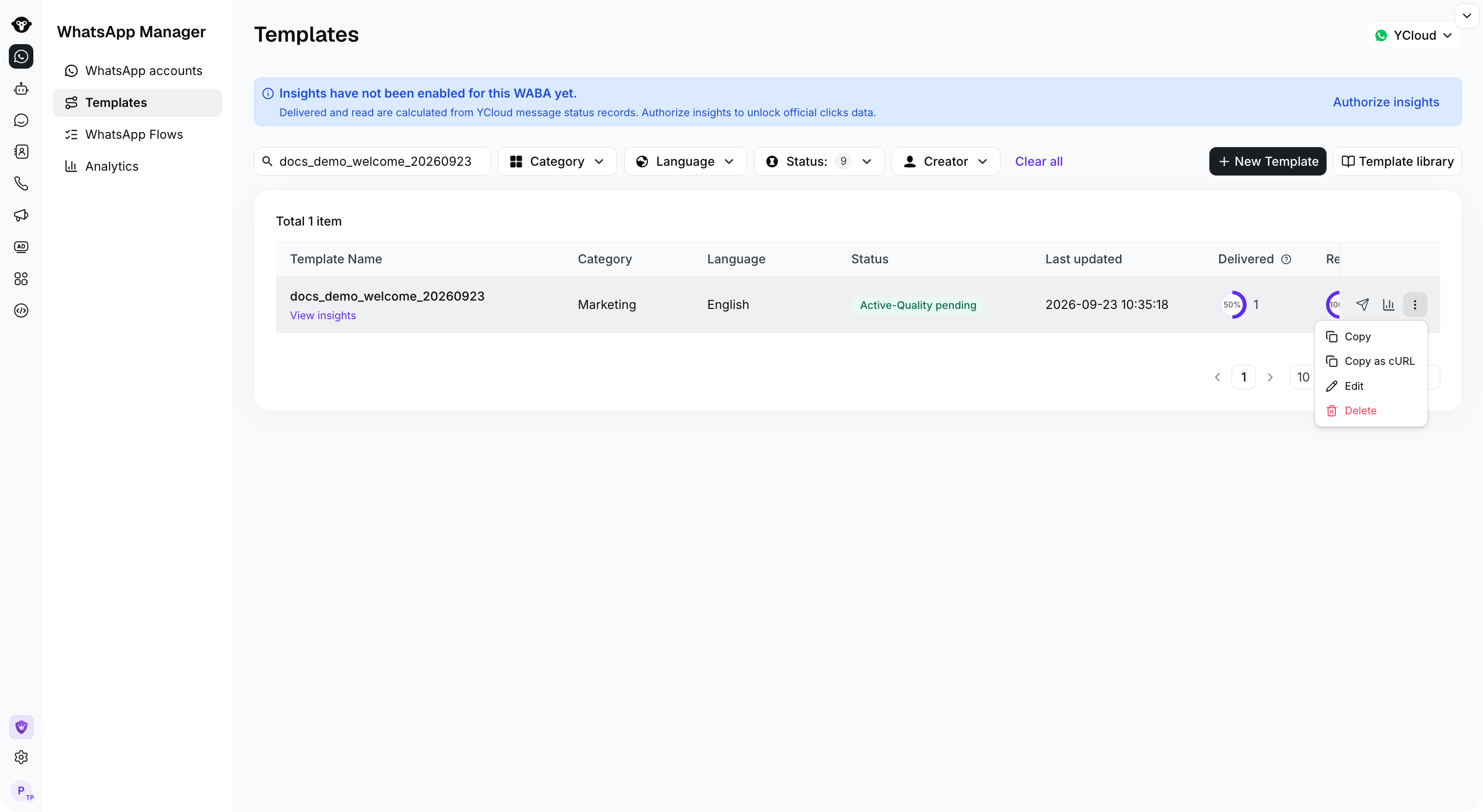
## Step 1: Click the Copy Button
 ## Step 2: Set Copy Information
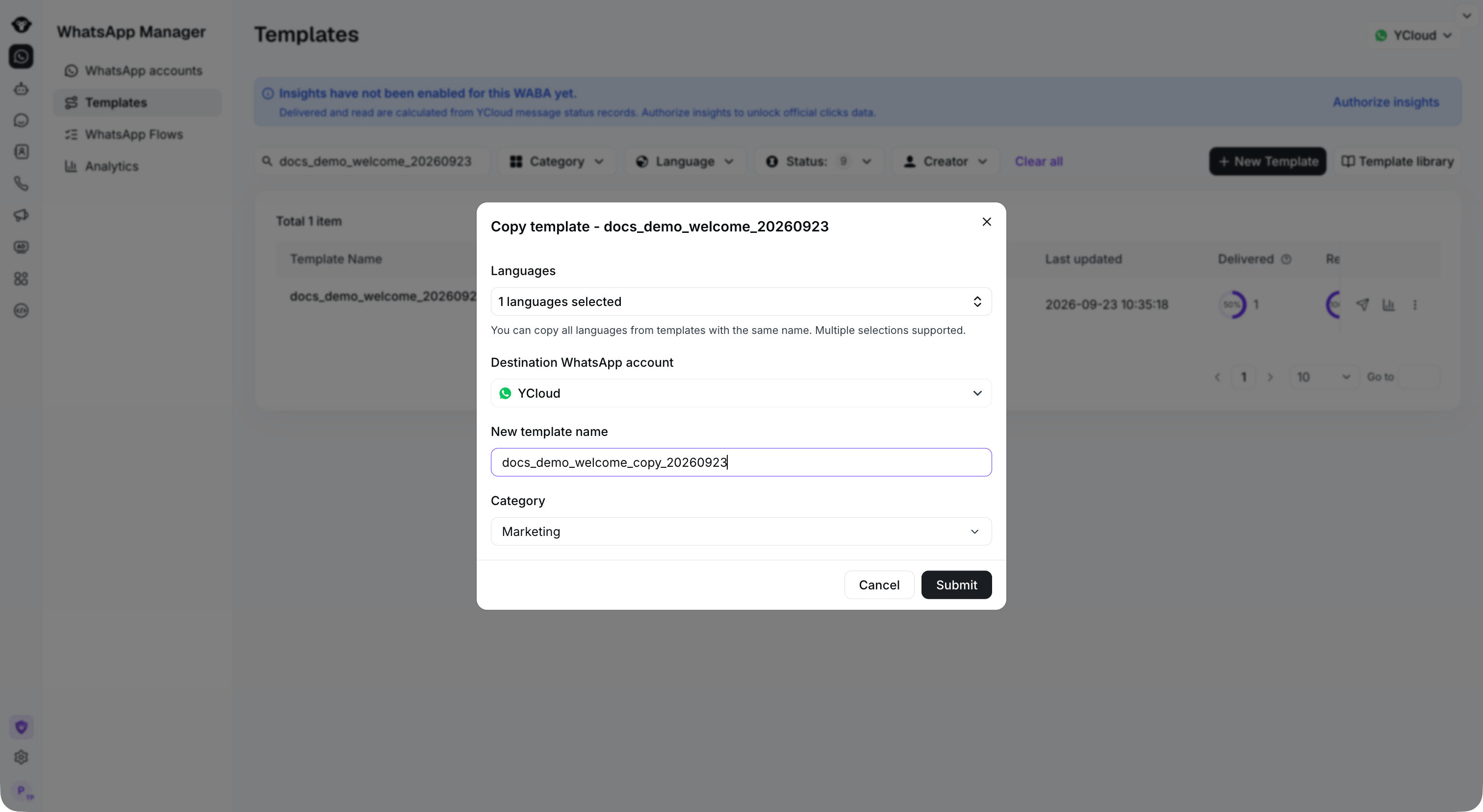
1. Destination WhatsApp accounts: Target WABA. Select the WABA to which you want to copy the template, or you can choose the current WABA.
2. Template name: New template name. Name the new template.
3. Category: Template type. It is not recommended to adjust if the template has already been approved.
After setting the content, click Submit.
## Step 2: Set Copy Information
1. Destination WhatsApp accounts: Target WABA. Select the WABA to which you want to copy the template, or you can choose the current WABA.
2. Template name: New template name. Name the new template.
3. Category: Template type. It is not recommended to adjust if the template has already been approved.
After setting the content, click Submit.
 ## Step 3: Edit the New Template
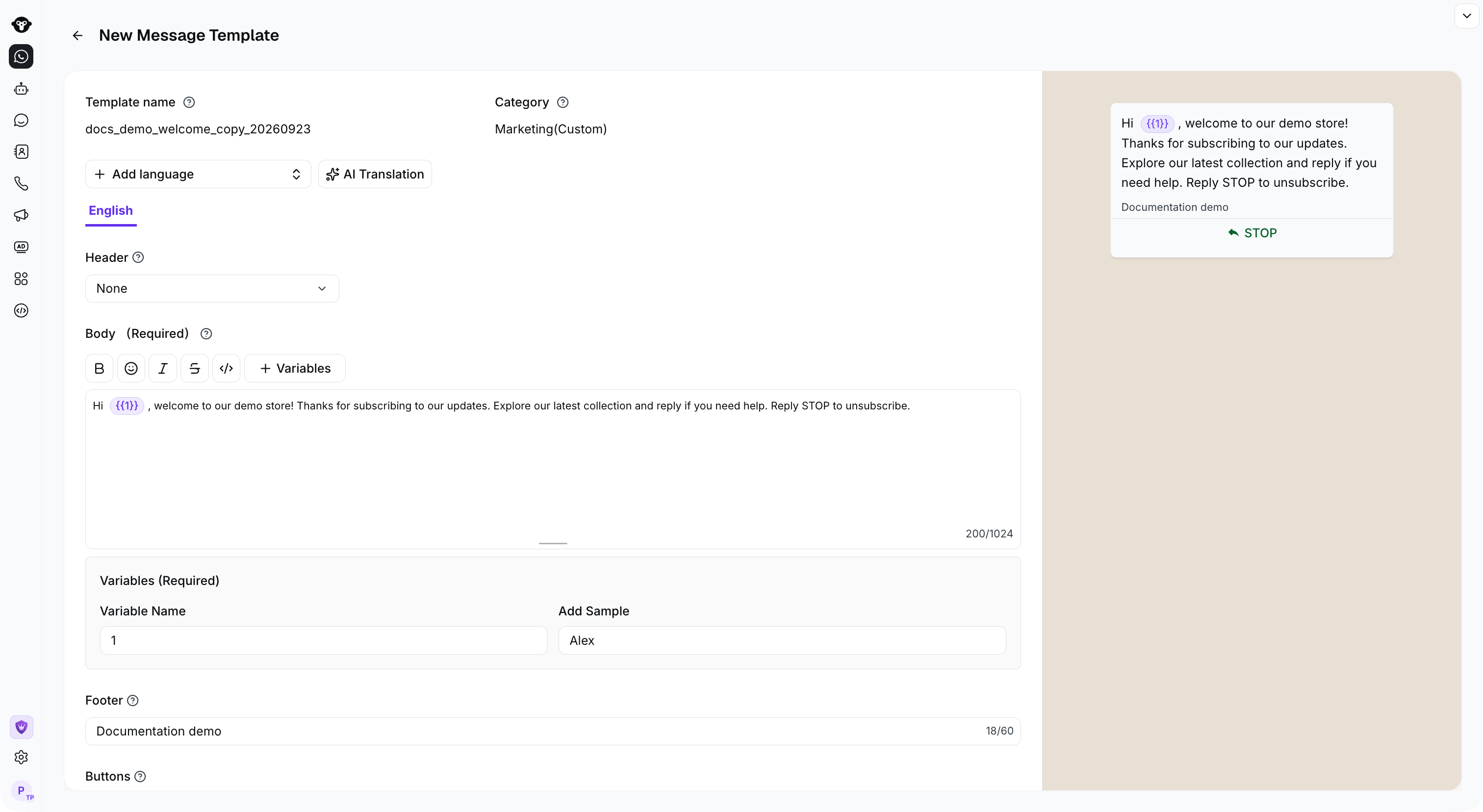
Enter the new template's editing page, and after confirming the content is correct, click Submit.
## Step 3: Edit the New Template
Enter the new template's editing page, and after confirming the content is correct, click Submit.
 This documentation is built and hosted on [Mintlify](https://mintlify.com), a developer documentation platform.