> ## Documentation Index
> Fetch the complete documentation index at: https://docs.ycloud.com/llms.txt
> Use this file to discover all available pages before exploring further.
# Create WhatsApp Pay Template
Please note: Your YCloud account can only create templates with WhatsApp Pay links after the BM account has been successfully linked to the third-party payment account.
## Step 1:
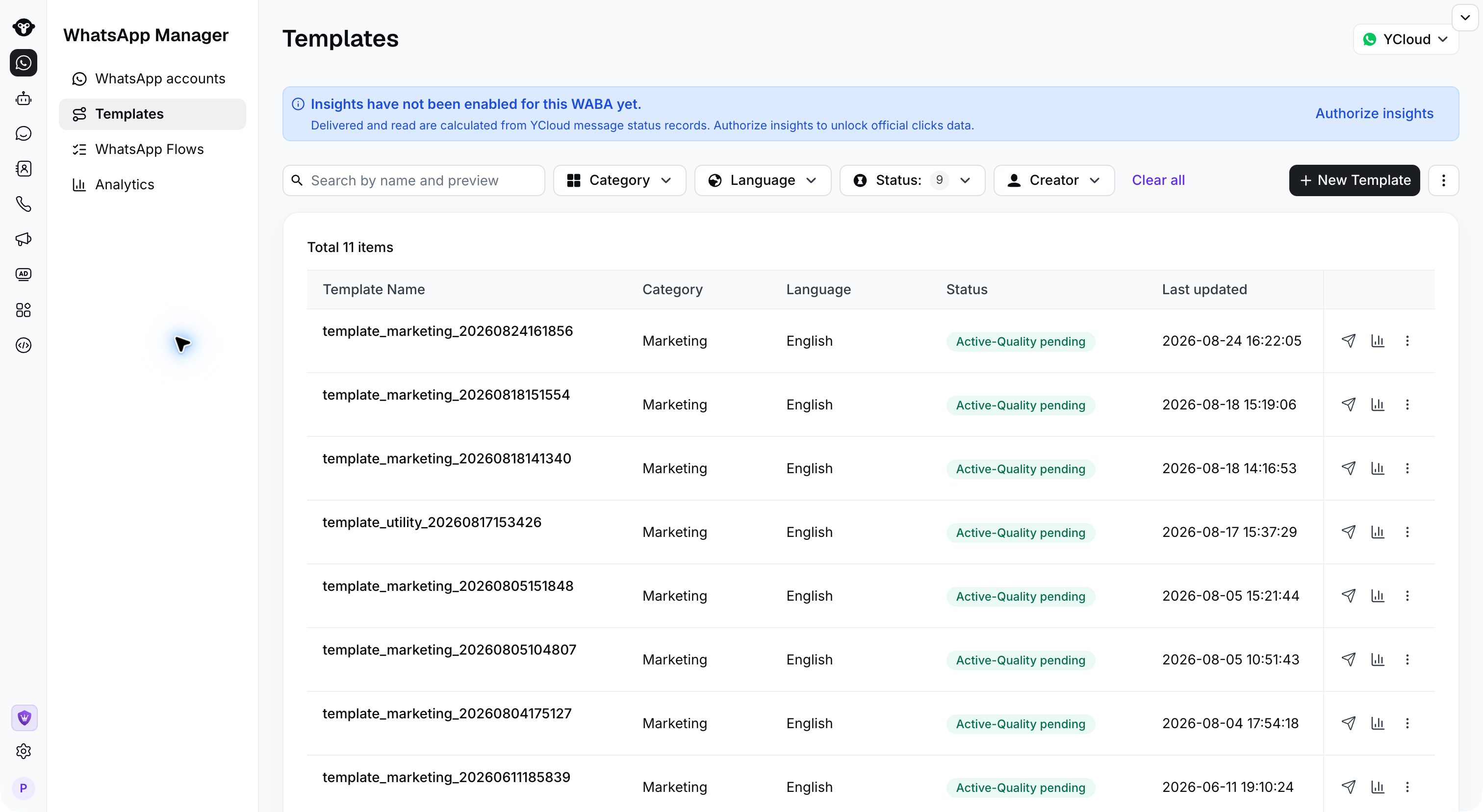
Log in to YCloud, open **Templates**, and click **New Template**.
 ## Step 2:
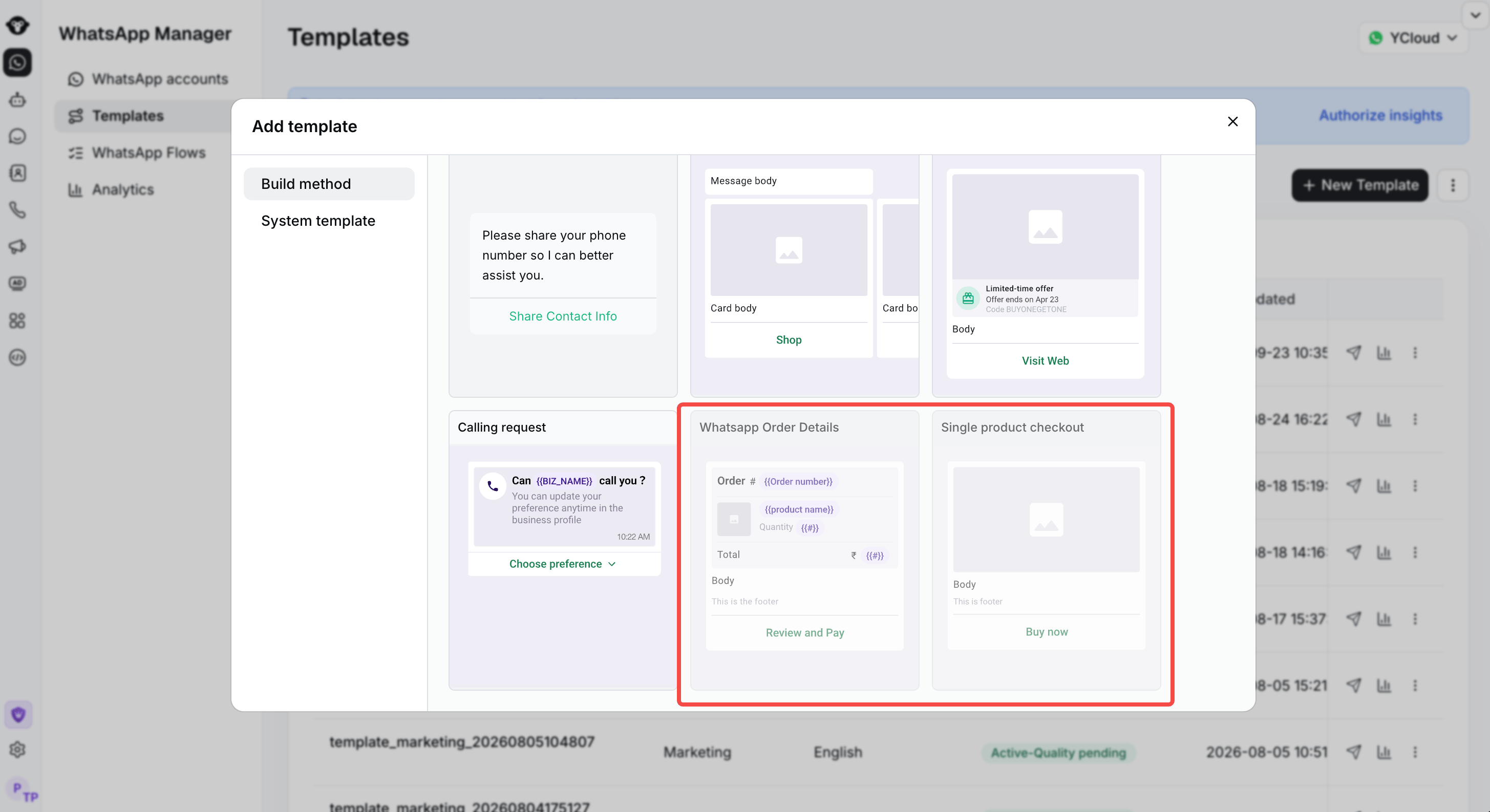
Select the template type you want to create with WhatsApp Pay. Then, follow the prompts on the page to fill in the required information within the message template, and click "Submit" to complete the process.
## Step 2:
Select the template type you want to create with WhatsApp Pay. Then, follow the prompts on the page to fill in the required information within the message template, and click "Submit" to complete the process.
 This documentation is built and hosted on [Mintlify](https://mintlify.com), a developer documentation platform.