> ## Documentation Index
> Fetch the complete documentation index at: https://docs.ycloud.com/llms.txt
> Use this file to discover all available pages before exploring further.
# Test a message
> Quickly send an approved WhatsApp template to a test recipient.
After a WhatsApp message template has been approved, you can use **Test a message** to send one message and verify the template experience before using it in a production workflow.
## Before you begin
Make sure that:
* The template has been approved and is available in the template list.
* A connected WhatsApp business phone number is available as the sender.
* You have the recipient's complete phone number, including the `+` sign and country code.
## Send a test message
1. Open the relevant WABA in the YCloud dashboard.
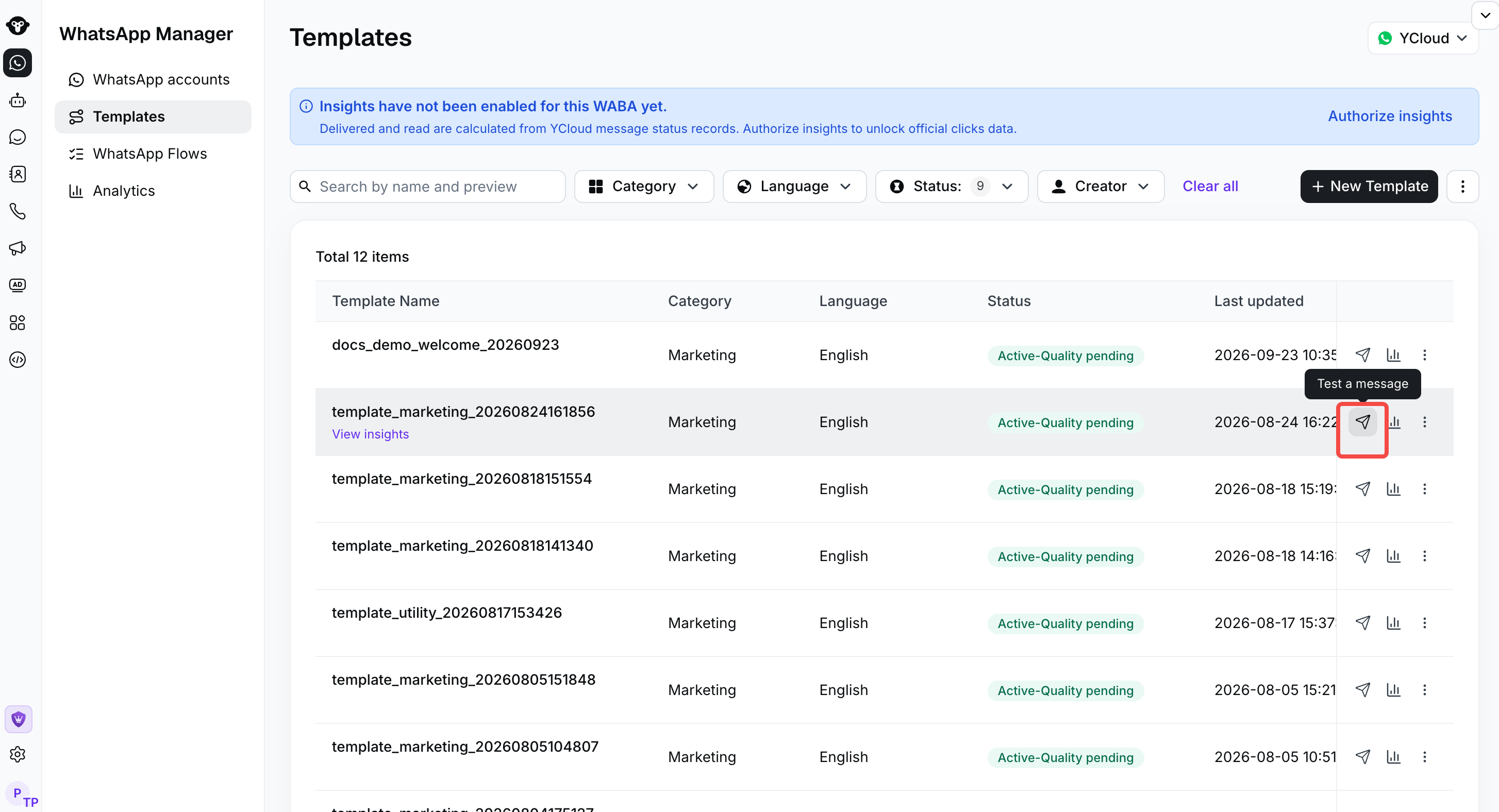
2. Go to **Manage template** to open the template list.
3. Find the approved template that you want to test.
4. In the **Action** column, click the paper-plane **Test a message** icon.
5. In the **Sender** field, select the WhatsApp business phone number that will send the message.
6. In the **Recipient** field, enter the complete destination number, including the `+` sign and country code. For example: `+62...`.
7. Review the sender and recipient, then click **Send test**.
The test uses the selected template, language, and sender. Make sure that the sender belongs to the WABA that owns the template.
 Select the sender and enter a test recipient before sending.
## Test from a development environment
For developers who want to test the template through the API, use **Copy as cURL**. YCloud assembles a complete message-sending example for the selected template, including its name and language.
1. Find the approved template in the template list.
2. In the **Action** column, click the **More** icon.
3. Select **Copy as cURL**.
4. Copy the generated command.
5. Replace these three placeholders:
* `{{YOUR_API_KEY}}`: Your YCloud API key.
* `{{YOUR_SENDER_NUMBER}}`: The WhatsApp business phone number that sends the message.
* `{{YOUR_RECIPIENT_NUMBER}}`: The complete recipient number, including the `+` sign and country code.
6. Run the updated cURL command in your development or test environment.
Keep the API key secret. Do not save a completed cURL command containing a real key in source control, logs, tickets, or shared chat messages.
## Verify the result
Check the recipient's WhatsApp application and confirm that the message content, variables, language, and buttons appear as expected.
If the message is not received, please check the [Message logs](https://www.ycloud.com/console/#/app/dashboard/analytics) page to check the message status.
This documentation is built and hosted on [Mintlify](https://mintlify.com), a developer documentation platform.
Select the sender and enter a test recipient before sending.
## Test from a development environment
For developers who want to test the template through the API, use **Copy as cURL**. YCloud assembles a complete message-sending example for the selected template, including its name and language.
1. Find the approved template in the template list.
2. In the **Action** column, click the **More** icon.
3. Select **Copy as cURL**.
4. Copy the generated command.
5. Replace these three placeholders:
* `{{YOUR_API_KEY}}`: Your YCloud API key.
* `{{YOUR_SENDER_NUMBER}}`: The WhatsApp business phone number that sends the message.
* `{{YOUR_RECIPIENT_NUMBER}}`: The complete recipient number, including the `+` sign and country code.
6. Run the updated cURL command in your development or test environment.
Keep the API key secret. Do not save a completed cURL command containing a real key in source control, logs, tickets, or shared chat messages.
## Verify the result
Check the recipient's WhatsApp application and confirm that the message content, variables, language, and buttons appear as expected.
If the message is not received, please check the [Message logs](https://www.ycloud.com/console/#/app/dashboard/analytics) page to check the message status.
This documentation is built and hosted on [Mintlify](https://mintlify.com), a developer documentation platform.