> ## Documentation Index
> Fetch the complete documentation index at: https://docs.ycloud.com/llms.txt
> Use this file to discover all available pages before exploring further.
# Contact Segments
## Step 1 — Find the entrance to create a new segment
You can find the entry for creating a new segment through the following path:
Log in to your [YCloud account](https://www.ycloud.com/console/#/entry/login) > navigate to Contact > Click "Add filter".
 ## Step 2 — Set filter conditions
Add the appropriate filter criteria based on your segmentation needs.
## Step 2 — Set filter conditions
Add the appropriate filter criteria based on your segmentation needs.
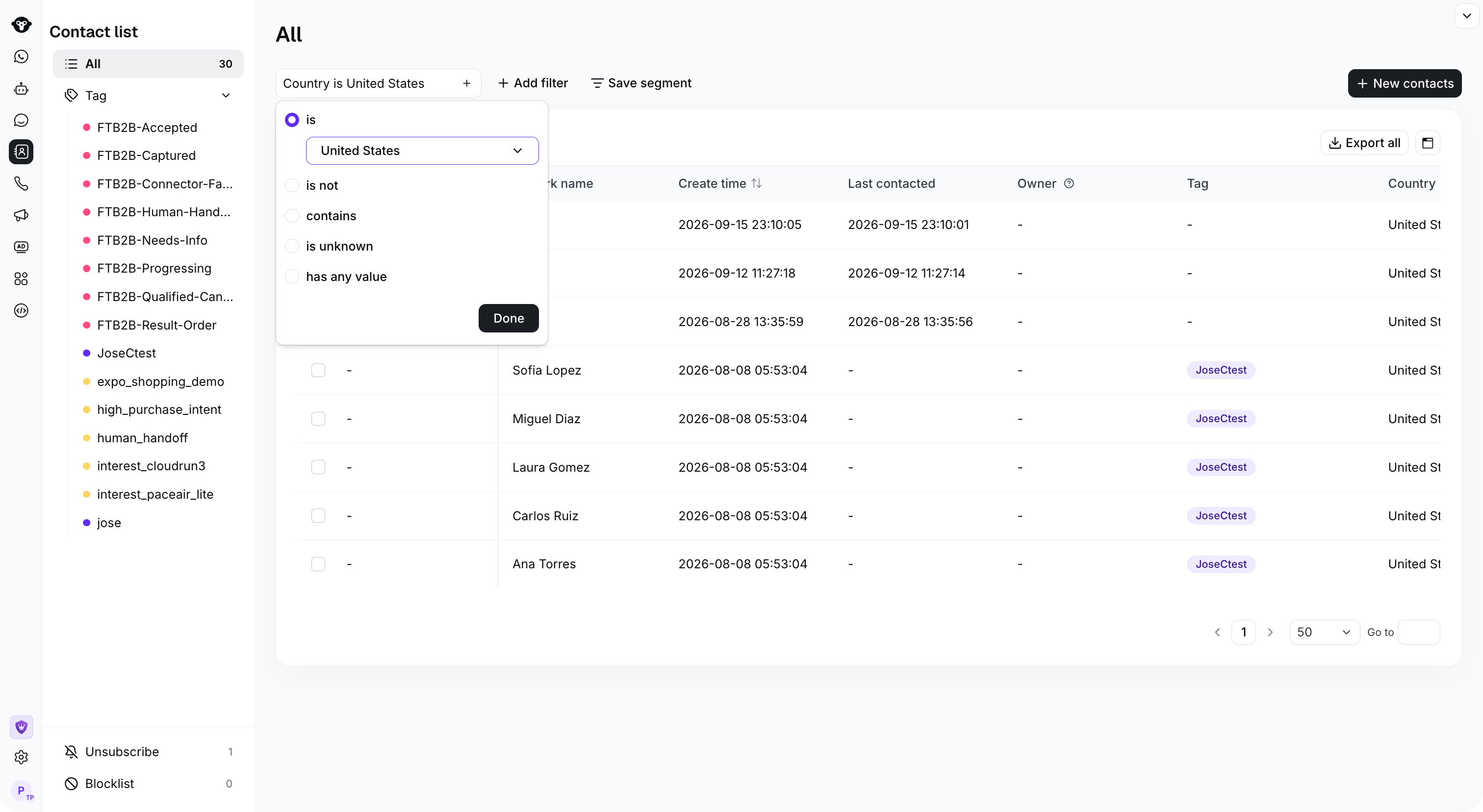
For example, group contacts whose country is the United States, you need to follow the steps below.
#### 1.Select filter type
Select **Country**.
 #### 2.Edit filter
Select **United States**.
#### 2.Edit filter
Select **United States**.
 #### 3.Save Segment
Select **Done** to display the matching contacts.
#### 3.Save Segment
Select **Done** to display the matching contacts.
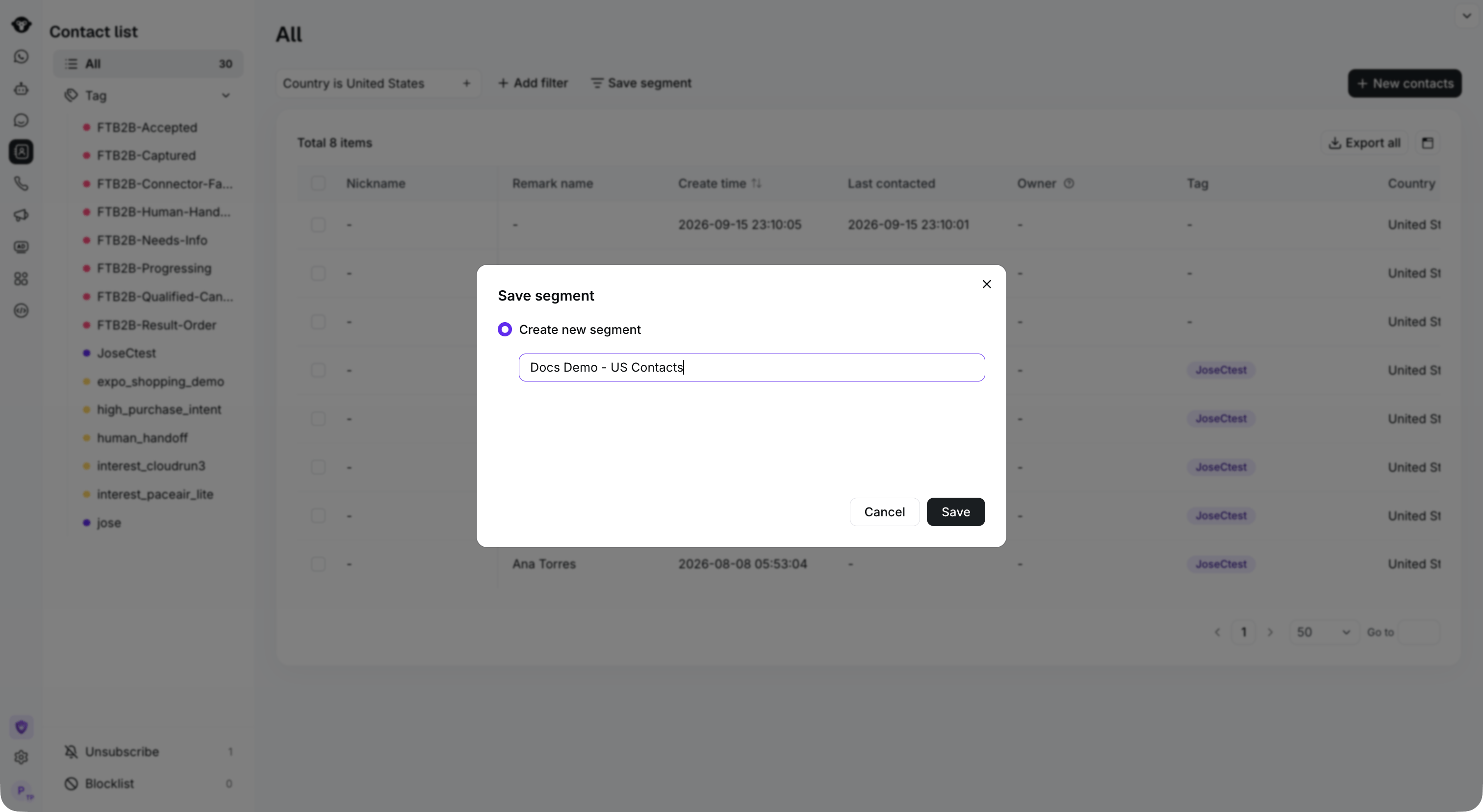
 Select **Save segment**, enter a name, and select **Save**. The saved segment appears in the contact list on the left.
 ## Advanced usage
### Combine filters with AND and OR
A segment can contain multiple filter conditions. Use the relationship selector between two conditions to switch between **AND** and **OR**:
* **AND:** A contact must match every connected condition to be included.
* **OR:** A contact is included when it matches at least one of the connected conditions.
For example:
* `Country is India AND Create time is more than 3 days ago` includes only contacts that satisfy both conditions.
* `Country is India OR Tag is VIP` includes contacts that satisfy either condition.
To configure the relationship:
1. Add two or more filters.
2. Click the **and** or **or** connector displayed between the filter conditions.
3. Select the relationship you want to use.
4. Continue adding filters and setting their relationships as needed.
5. Review the resulting contact list, then click **Save Segment**.
Choose **AND** when you need a narrower, more precise audience. Choose **OR** when contacts can qualify through different criteria.
### Use a segment in Campaign
After saving a segment, you can reference it when configuring a Campaign audience. This lets you send a campaign to contacts who match the segment's filter conditions without selecting recipients individually.
When creating or editing a campaign:
1. Go to **Campaign** and configure the campaign content.
2. In the audience or recipient settings, choose **Contact segment**.
3. Select the saved segment you want to use.
4. Review the audience before sending or scheduling the campaign.
Give segments clear names that describe their criteria, especially when your account contains multiple campaign audiences.
This documentation is built and hosted on [Mintlify](https://mintlify.com), a developer documentation platform.
## Advanced usage
### Combine filters with AND and OR
A segment can contain multiple filter conditions. Use the relationship selector between two conditions to switch between **AND** and **OR**:
* **AND:** A contact must match every connected condition to be included.
* **OR:** A contact is included when it matches at least one of the connected conditions.
For example:
* `Country is India AND Create time is more than 3 days ago` includes only contacts that satisfy both conditions.
* `Country is India OR Tag is VIP` includes contacts that satisfy either condition.
To configure the relationship:
1. Add two or more filters.
2. Click the **and** or **or** connector displayed between the filter conditions.
3. Select the relationship you want to use.
4. Continue adding filters and setting their relationships as needed.
5. Review the resulting contact list, then click **Save Segment**.
Choose **AND** when you need a narrower, more precise audience. Choose **OR** when contacts can qualify through different criteria.
### Use a segment in Campaign
After saving a segment, you can reference it when configuring a Campaign audience. This lets you send a campaign to contacts who match the segment's filter conditions without selecting recipients individually.
When creating or editing a campaign:
1. Go to **Campaign** and configure the campaign content.
2. In the audience or recipient settings, choose **Contact segment**.
3. Select the saved segment you want to use.
4. Review the audience before sending or scheduling the campaign.
Give segments clear names that describe their criteria, especially when your account contains multiple campaign audiences.
This documentation is built and hosted on [Mintlify](https://mintlify.com), a developer documentation platform.