> ## Documentation Index
> Fetch the complete documentation index at: https://docs.ycloud.com/llms.txt
> Use this file to discover all available pages before exploring further.
# Contact Tag Settings
Regarding tag settings, we support two methods for adding tags. You can choose either of the following methods:
1. You can view and edit tags at **Settings > Contact > Tags**.
2. You can tag users in the Contact list section, or you can tag users in the Inbox tool.
## Add tags in Settings
### Step 1
Log in to your [YCloud account](https://www.ycloud.com/console/#/entry/login), navigate to **Settings > Contact > Tags**.
 ### Step 2
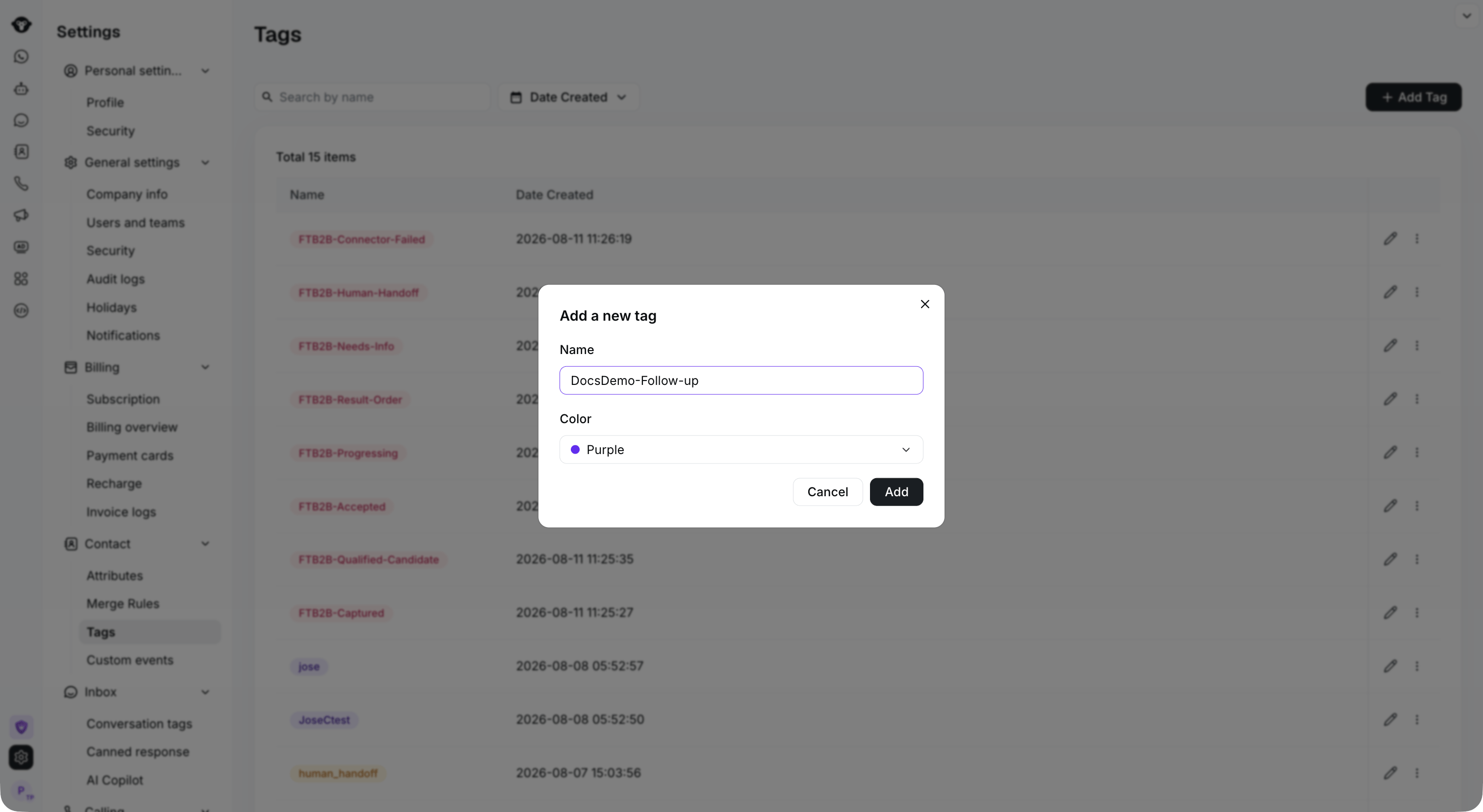
Click **Add Tag**, enter a name and choose a color, and click **Add** to complete the operation. After successful addition, you can edit and delete the tag.
### Step 2
Click **Add Tag**, enter a name and choose a color, and click **Add** to complete the operation. After successful addition, you can edit and delete the tag.
 ## Adding in Contact list
### Step 1
Log in to your [YCloud account](https://www.ycloud.com/console/#/entry/login), open **Contact > Contact list**. Select one or more contacts, then click **Tag them**.
## Adding in Contact list
### Step 1
Log in to your [YCloud account](https://www.ycloud.com/console/#/entry/login), open **Contact > Contact list**. Select one or more contacts, then click **Tag them**.
 ### Step 2
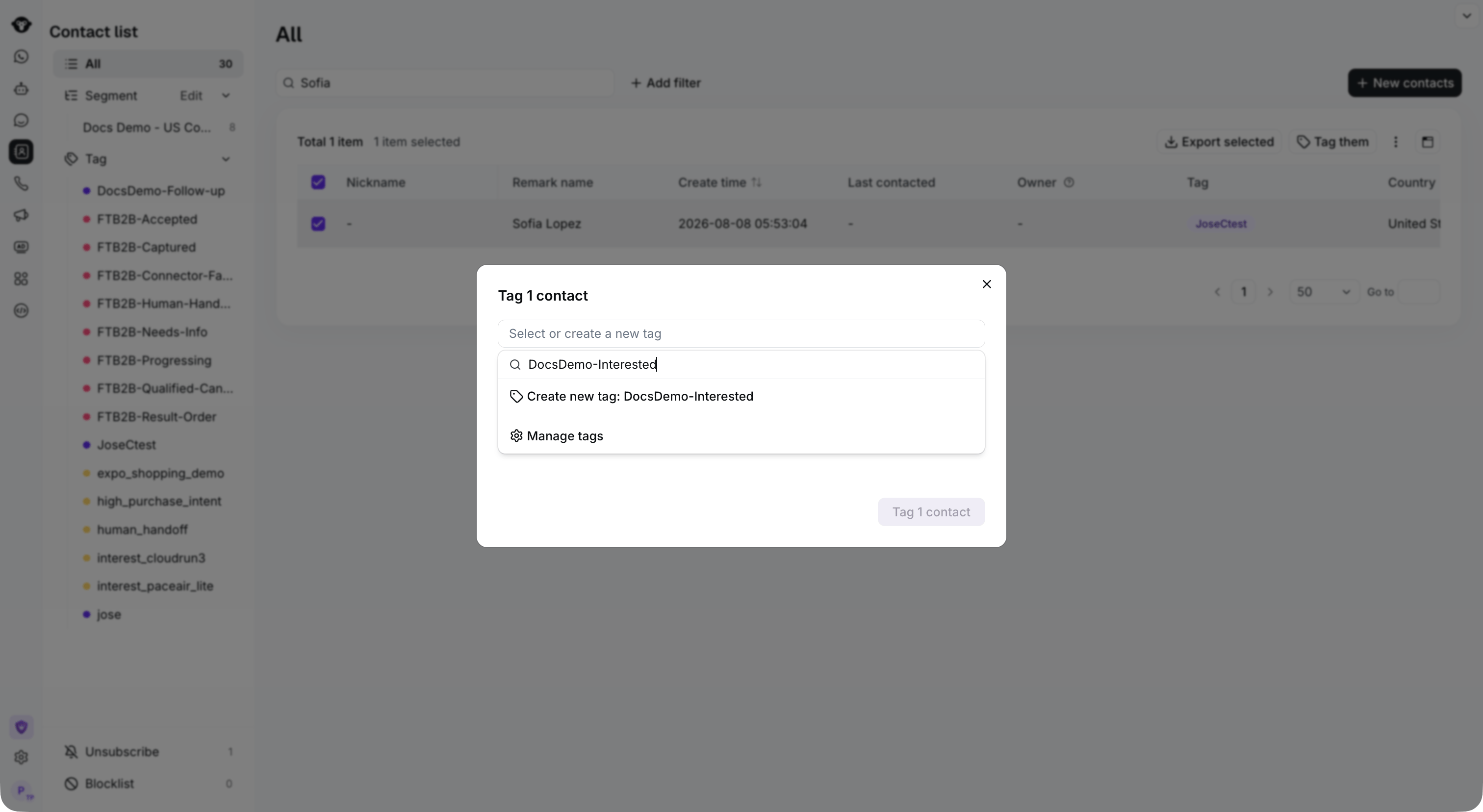
Open **Select or create a new tag**. Search for an existing tag, or enter a new name and select **Create new tag**. Then click **Tag 1 contact** (the count reflects your selection) to apply the tag.
### Step 2
Open **Select or create a new tag**. Search for an existing tag, or enter a new name and select **Create new tag**. Then click **Tag 1 contact** (the count reflects your selection) to apply the tag.
 This documentation is built and hosted on [Mintlify](https://mintlify.com), a developer documentation platform.