> ## Documentation Index
> Fetch the complete documentation index at: https://docs.ycloud.com/llms.txt
> Use this file to discover all available pages before exploring further.
# Create/Import Contacts
## **Single Manual Import**
### Step 1
Log in to your [YCloud account](https://www.ycloud.com/console/#/entry/login), open **Contact**, and select **New contacts**.
 ### Step 2
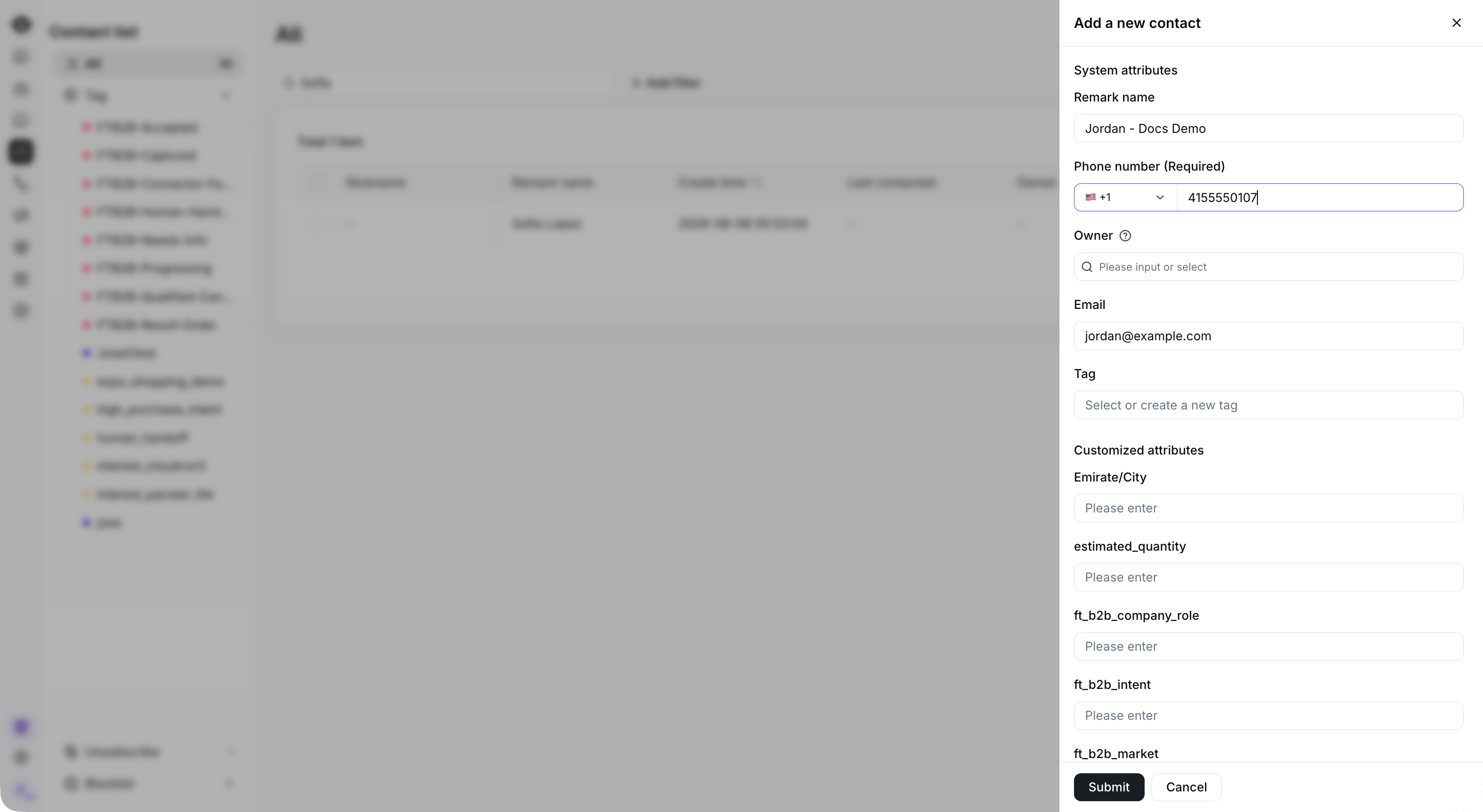
Select **Add a new contact**, enter the contact details, and select **Submit**.
### Step 2
Select **Add a new contact**, enter the contact details, and select **Submit**.
 ## **Bulk Manual Import**
### Step 1
Log in to your [YCloud account](https://www.ycloud.com/console/#/entry/login), open **Contact**, and select **New contacts**.
## **Bulk Manual Import**
### Step 1
Log in to your [YCloud account](https://www.ycloud.com/console/#/entry/login), open **Contact**, and select **New contacts**.
 ### Step 2
Select **Upload a file**, choose your contact spreadsheet, and select **Next**.
### Step 2
Select **Upload a file**, choose your contact spreadsheet, and select **Next**.
 ## API Import
Click to view the [**API Import**](/api-reference/contacts/create-a-contact) documentation
This documentation is built and hosted on [Mintlify](https://mintlify.com), a developer documentation platform.
## API Import
Click to view the [**API Import**](/api-reference/contacts/create-a-contact) documentation
This documentation is built and hosted on [Mintlify](https://mintlify.com), a developer documentation platform.