> ## Documentation Index
> Fetch the complete documentation index at: https://docs.ycloud.com/llms.txt
> Use this file to discover all available pages before exploring further.
# Connect a Meta Ad Account
> Connect your Meta ad account to YCloud for Click to WhatsApp ads.
# Connect a Meta Ad Account
Connect the Meta ad account you plan to use for Click to WhatsApp (CTWA) ads to YCloud. Connecting your account is required before you can view ad data in YCloud or, when needed, report conversion results from ad traffic to Meta.
## Before you begin
* A Meta ad account for your CTWA ads.
* The Facebook account used for authorization. It must have all currently available permissions under Partial access for the ad account you want to connect.
## Start in YCloud
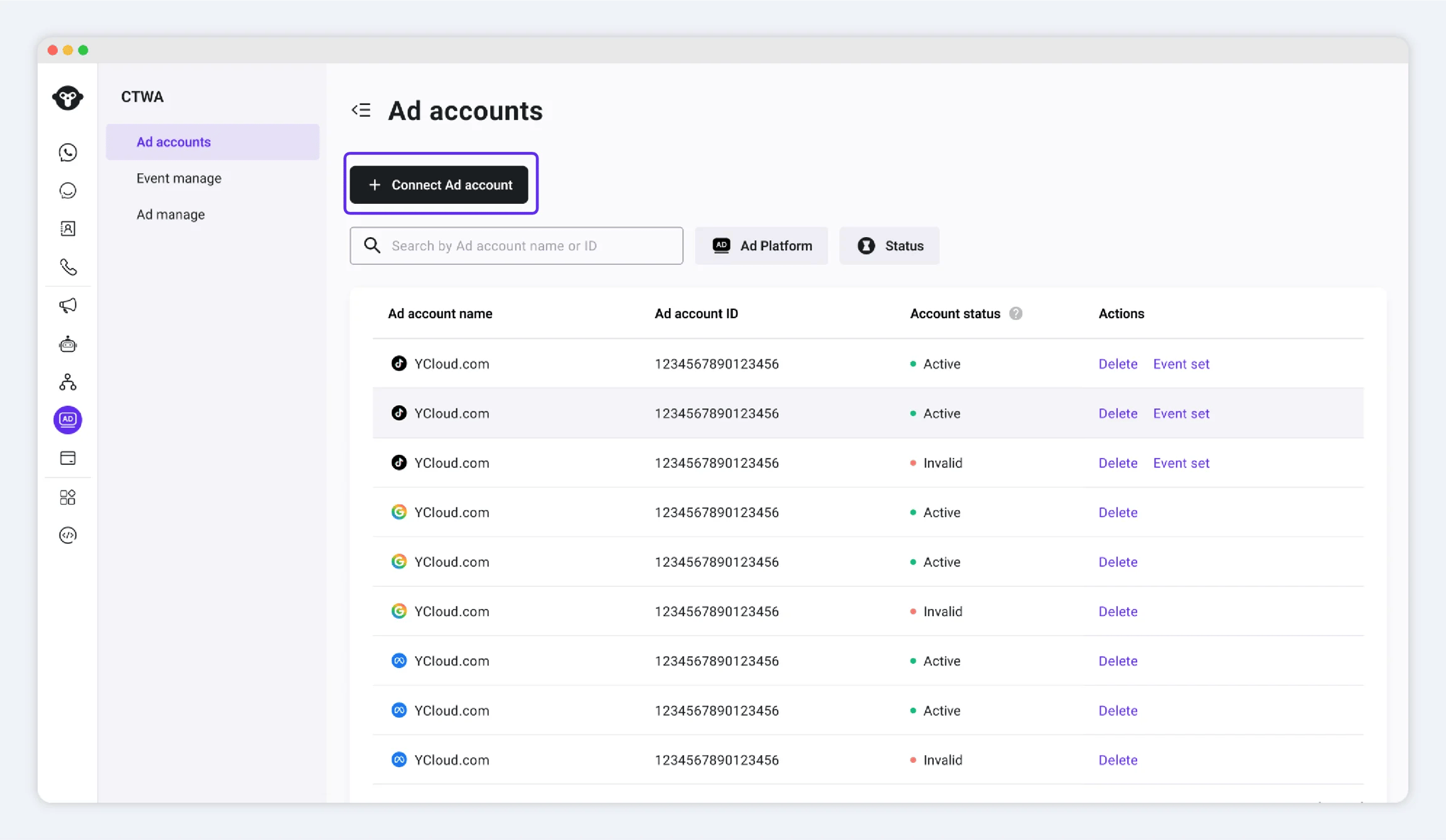
For your first connection, go to `CTWA` and click **Connect Ad Account (Meta Ads)**.
 If you have already connected an ad account, go to `CTWA > Ad Account` and click **Connect Ad Account**.
 ## Complete authorization in Meta
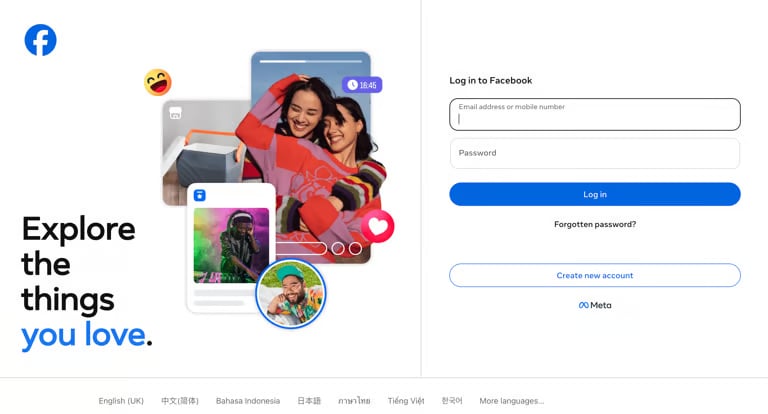
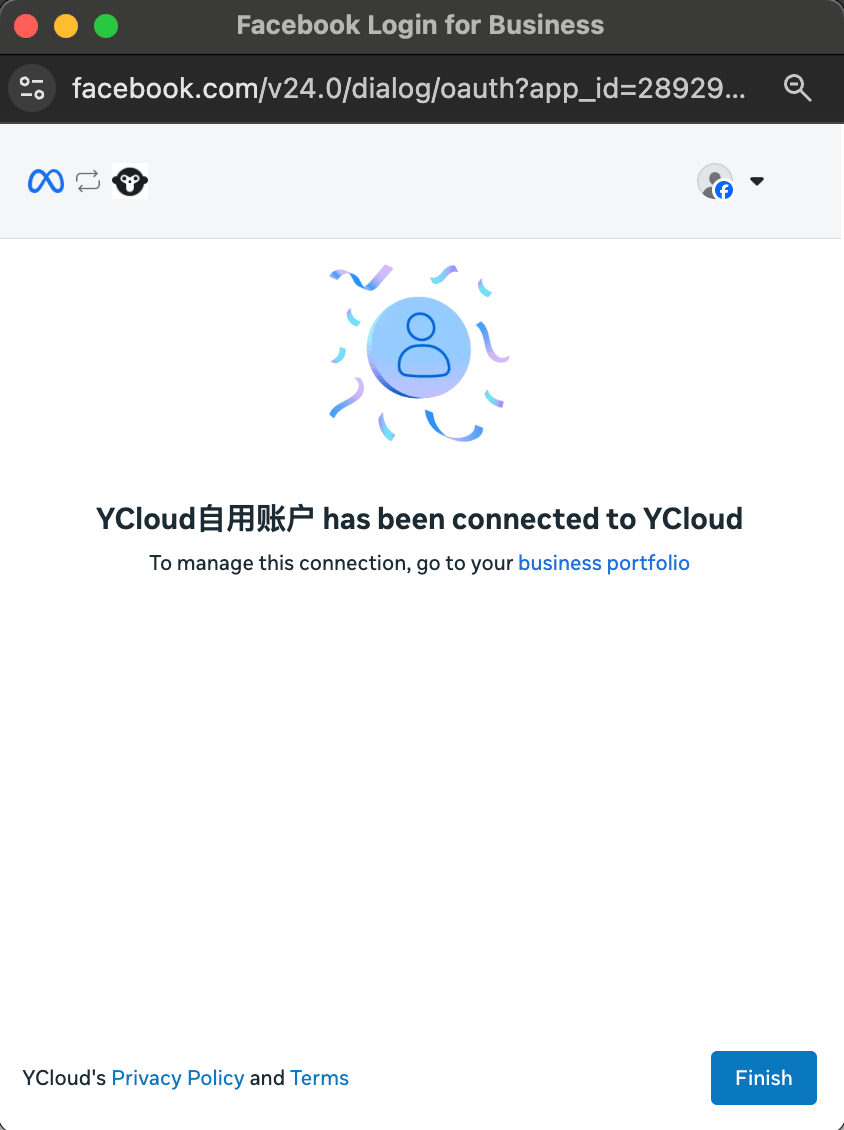
1. Sign in with the Facebook account used for authorization.
## Complete authorization in Meta
1. Sign in with the Facebook account used for authorization.
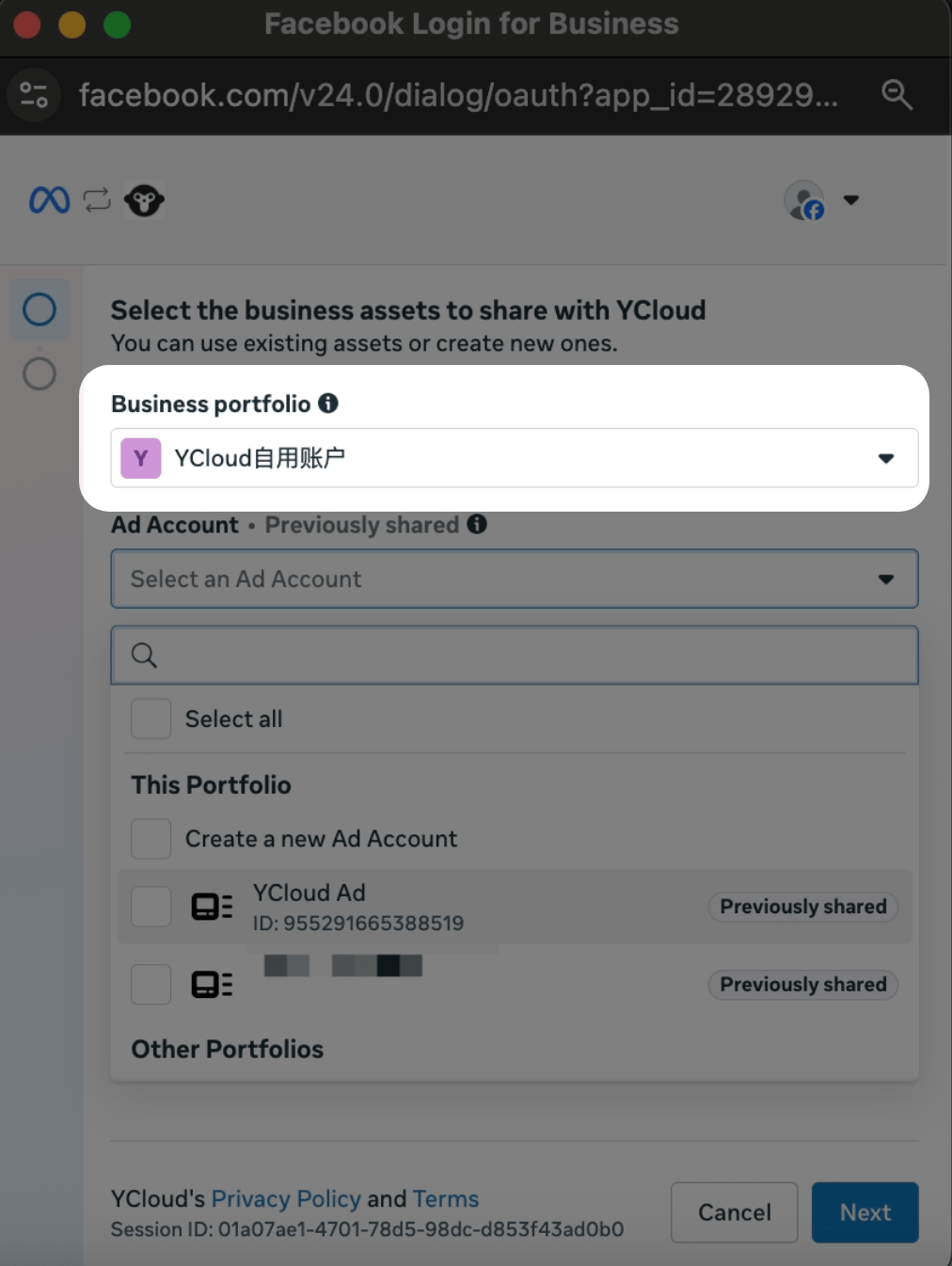
 2. Select the business portfolio you want to use.
3. Select the ad accounts you want to connect to YCloud. You can select more than one account.
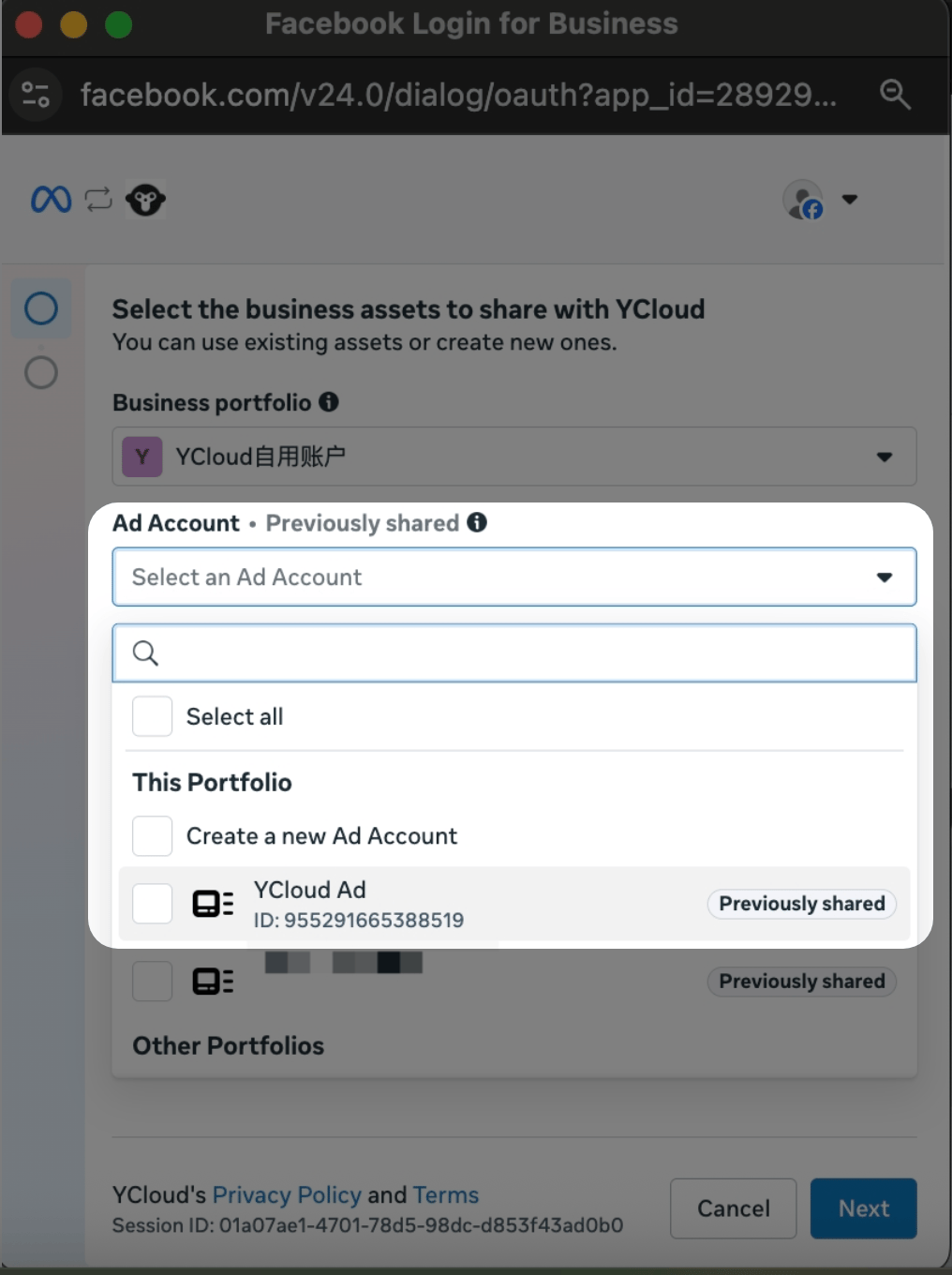
Ad accounts that have already been authorized to YCloud are selected by default. Clearing an account's selection revokes YCloud's authorization for that account
Click **Continue** to finish authorization, then click **Finish** to return to YCloud.
## Confirm the connection
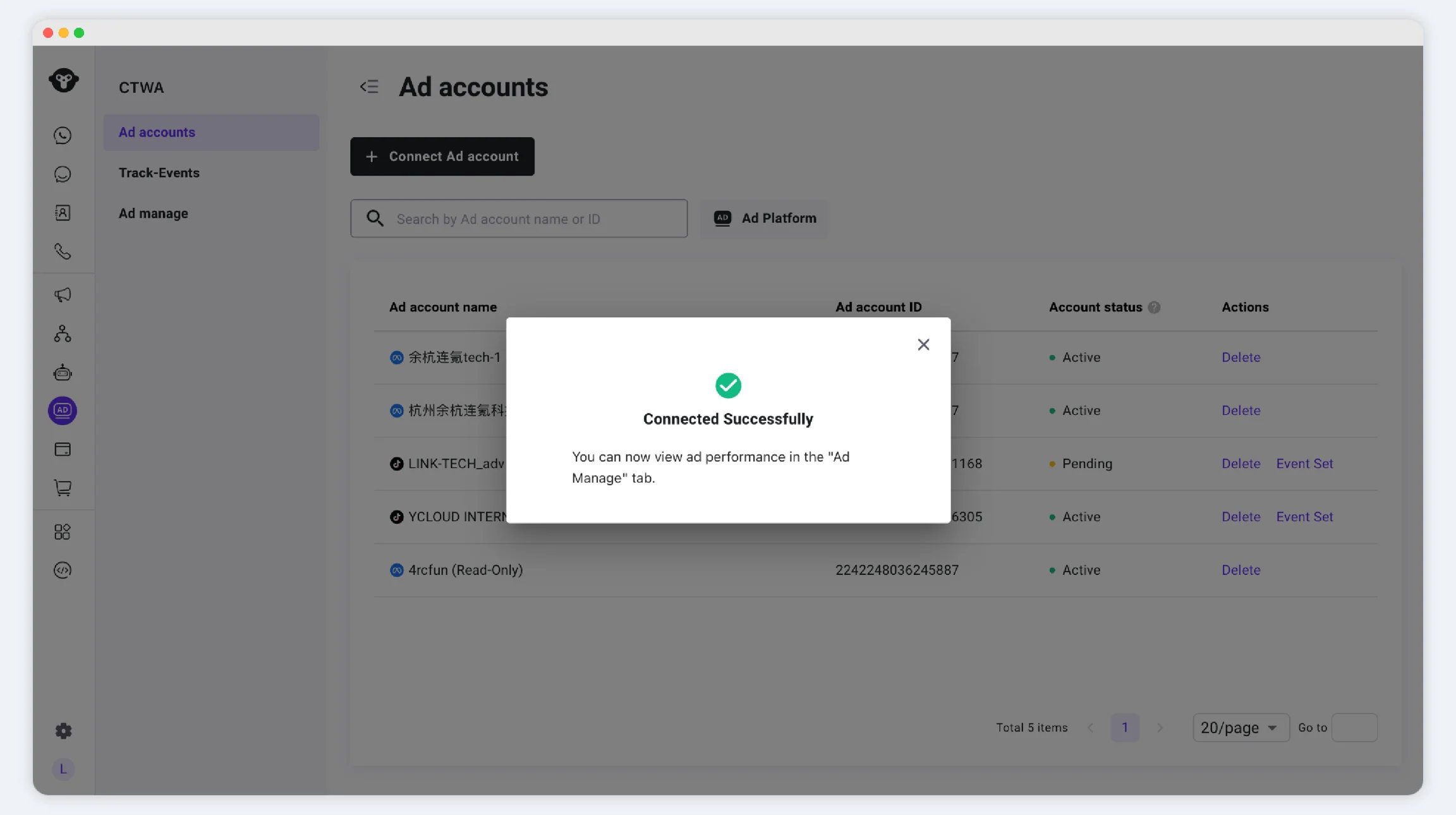
Return to YCloud and go to `CTWA > Ad Account`. If the ad account appears in the list, the connection is successful.
 ## Next steps
Create your ads in Meta Ads Manager.
* [Create a Click to WhatsApp Ad](/en/documentation/ctwa-click-to-whatsapp-ad/meta-ctwa-ads/create-a-click-to-whatsapp-ad)
* [Measure your Meta CTWA ads](/en/documentation/ctwa-click-to-whatsapp-ad/meta-ctwa-ads/report-ctwa-ad-results-to-meta)
After your ad is live
* [Handle CTWA conversations](/en/documentation/ctwa-click-to-whatsapp-ad/receive-ctwa-visitors)
* [View CTWA data](/en/documentation/ctwa-click-to-whatsapp-ad/ctwa-analysis)
## Frequently Asked Questions
The Meta authorization page displays only assets that the Facebook account you are currently signed in to can access. Check the following two situations.
### 1. Your Facebook account does not have access to the ad account
In Meta Business Settings, go to **Users > People**.
## Next steps
Create your ads in Meta Ads Manager.
* [Create a Click to WhatsApp Ad](/en/documentation/ctwa-click-to-whatsapp-ad/meta-ctwa-ads/create-a-click-to-whatsapp-ad)
* [Measure your Meta CTWA ads](/en/documentation/ctwa-click-to-whatsapp-ad/meta-ctwa-ads/report-ctwa-ad-results-to-meta)
After your ad is live
* [Handle CTWA conversations](/en/documentation/ctwa-click-to-whatsapp-ad/receive-ctwa-visitors)
* [View CTWA data](/en/documentation/ctwa-click-to-whatsapp-ad/ctwa-analysis)
## Frequently Asked Questions
The Meta authorization page displays only assets that the Facebook account you are currently signed in to can access. Check the following two situations.
### 1. Your Facebook account does not have access to the ad account
In Meta Business Settings, go to **Users > People**.
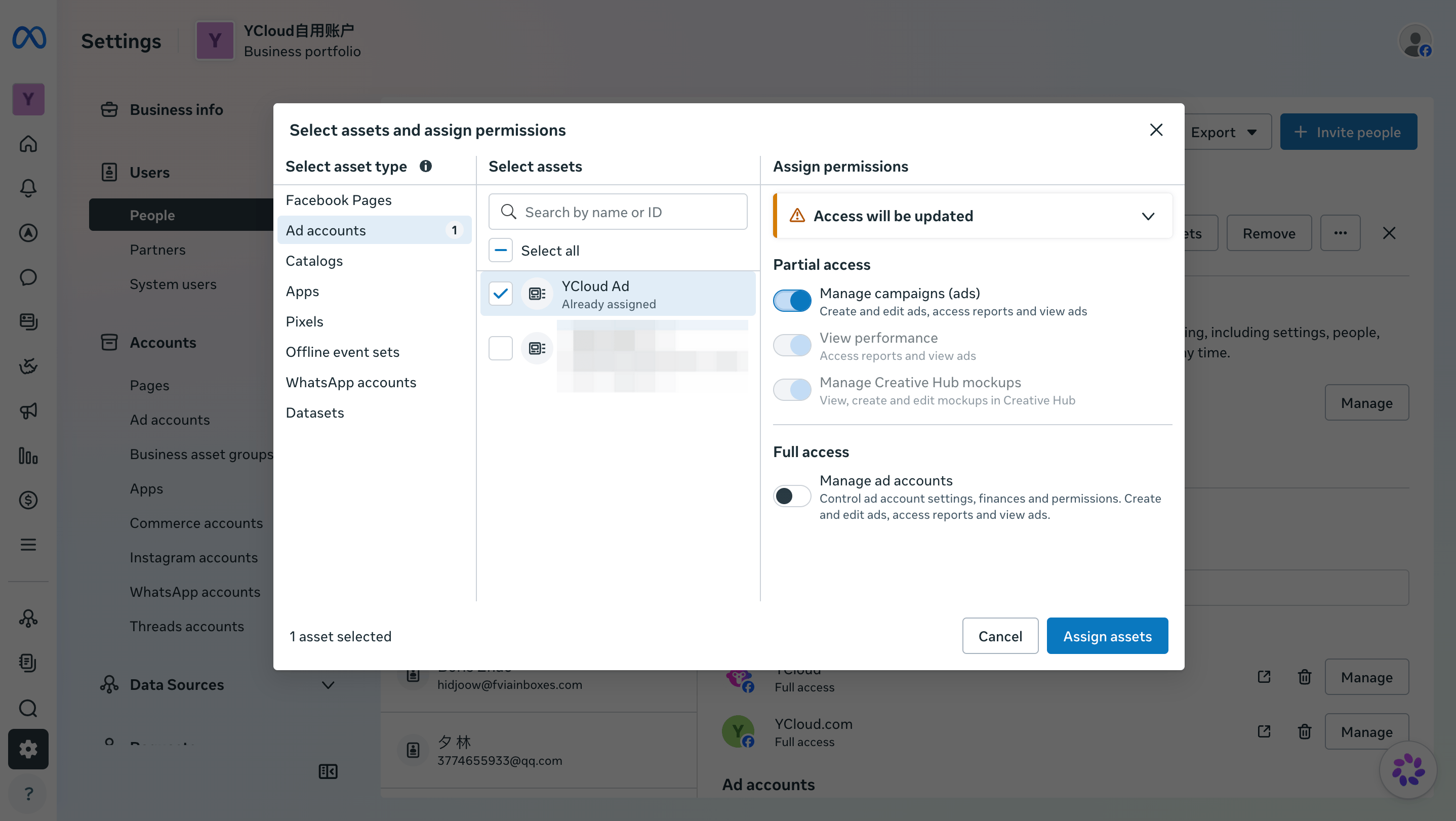
Select the Facebook account you use to authorize YCloud, then check whether the target ad account has been assigned to it.
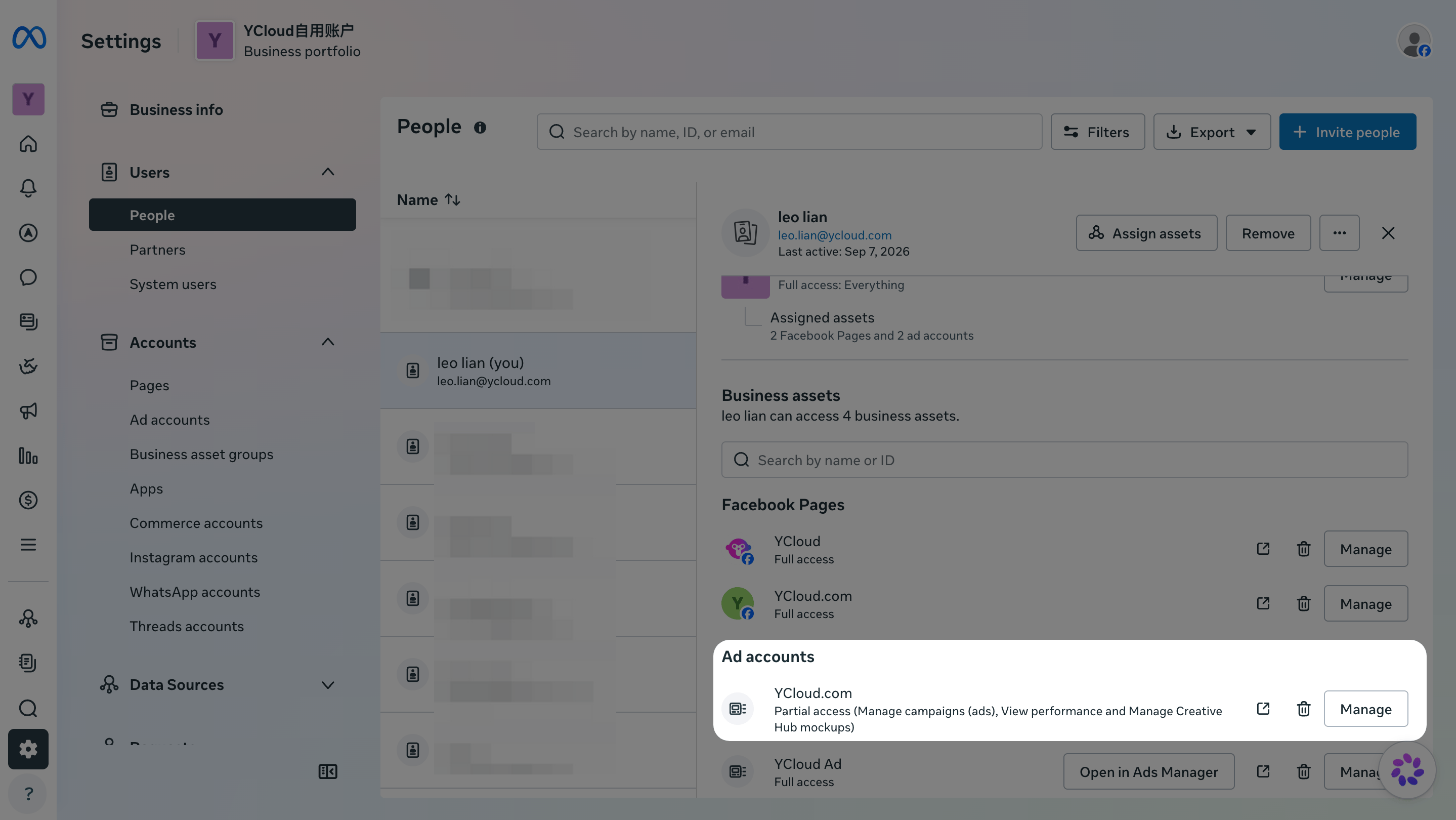 > This confirms that the Facebook account has been assigned to the ad account.
If the ad account is assigned and all currently available permissions under Partial access are enabled, return to YCloud and try connecting again.
> If the ad account is not assigned, or not all currently available permissions under Partial access are enabled, select **Add assets > Ad accounts**. Add the target ad account, enable all currently available permissions under Partial access, and save your changes.
> This confirms that the Facebook account has been assigned to the ad account.
If the ad account is assigned and all currently available permissions under Partial access are enabled, return to YCloud and try connecting again.
> If the ad account is not assigned, or not all currently available permissions under Partial access are enabled, select **Add assets > Ad accounts**. Add the target ad account, enable all currently available permissions under Partial access, and save your changes.
 ### 2. The ad account owner has not shared the ad account with your business portfolio
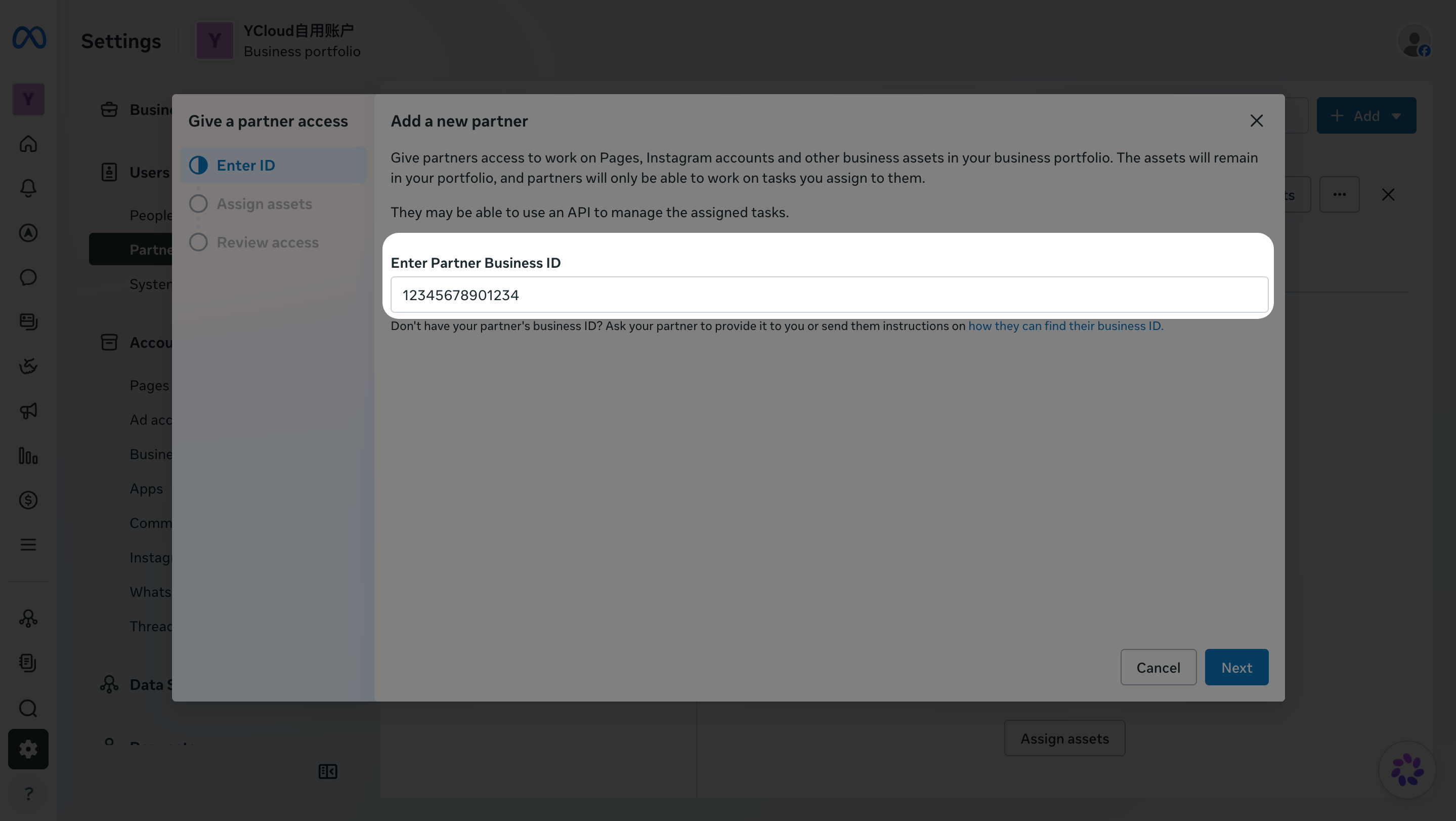
If your ad account was set up by an agency or another `business portfolio`, copy your **Business portfolio ID** from **Meta Business Settings > Business info** and send it to the agency.
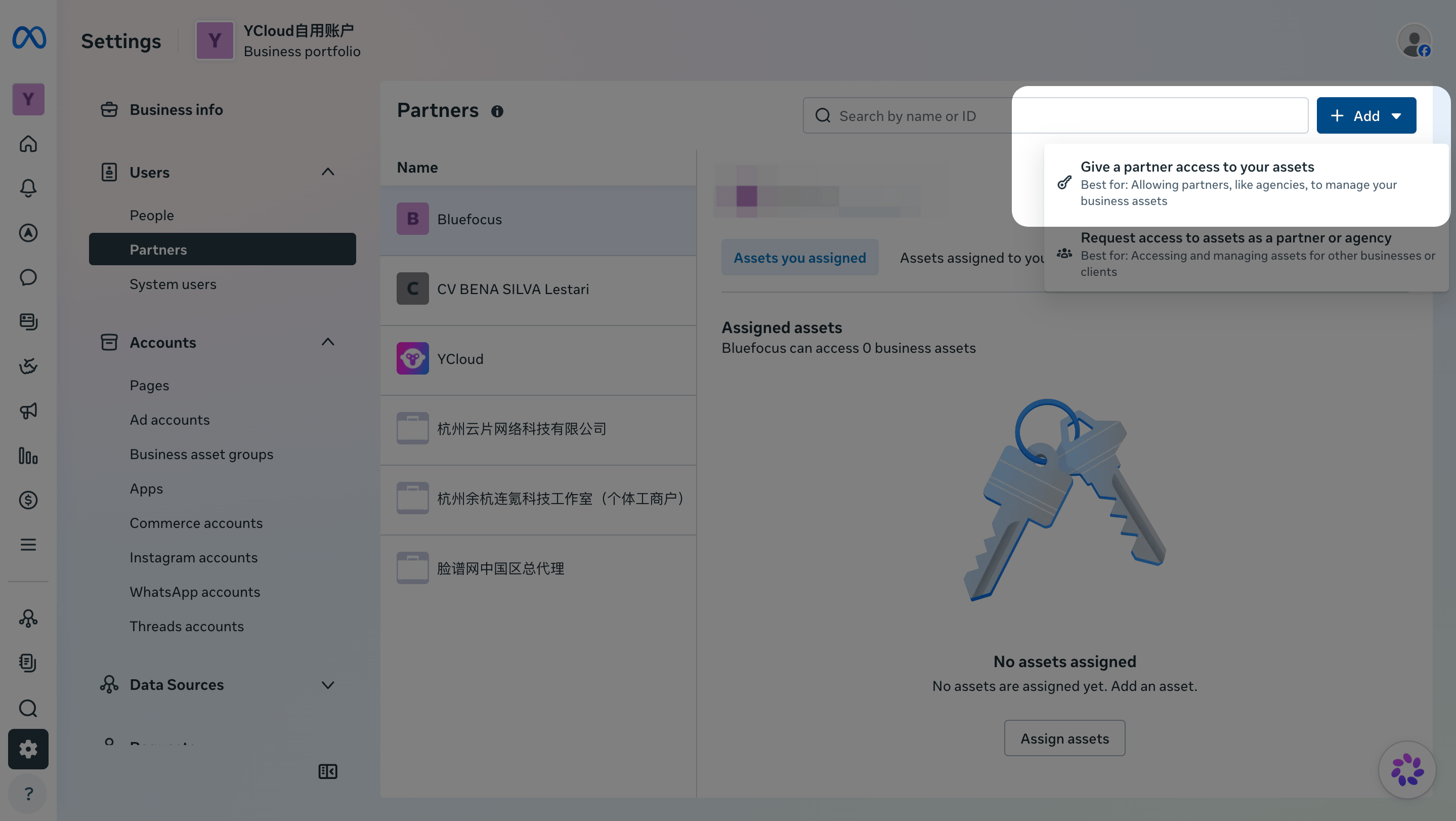
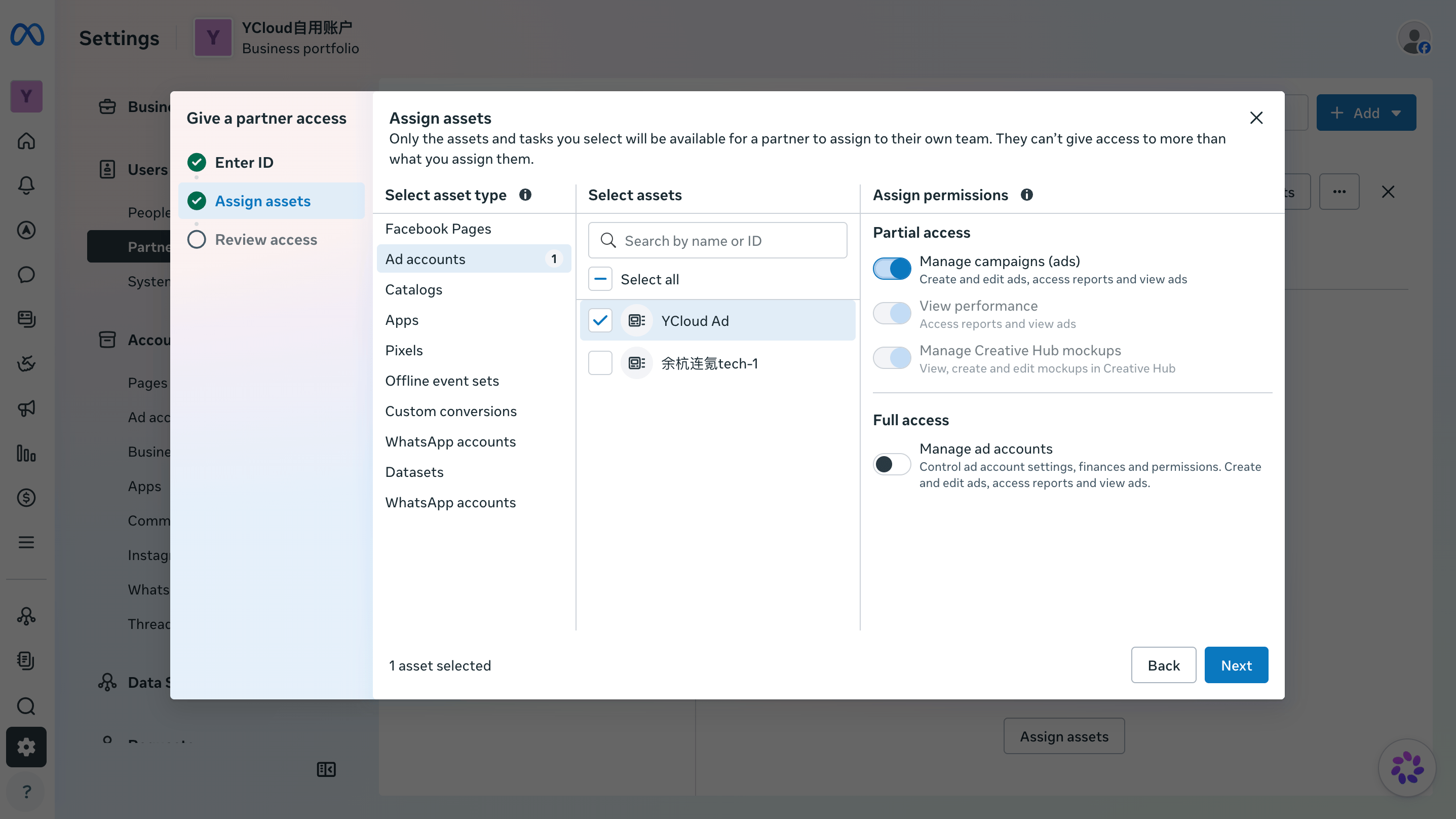
Ask the agency to go to **Meta Business Settings > Users > Partners > Add > Give a partner access to your assets**. The agency should share the ad account with your business portfolio, select **Ad accounts** and the target account, and enable all currently available permissions under Partial access.
### 2. The ad account owner has not shared the ad account with your business portfolio
If your ad account was set up by an agency or another `business portfolio`, copy your **Business portfolio ID** from **Meta Business Settings > Business info** and send it to the agency.
Ask the agency to go to **Meta Business Settings > Users > Partners > Add > Give a partner access to your assets**. The agency should share the ad account with your business portfolio, select **Ad accounts** and the target account, and enable all currently available permissions under Partial access.
 After the account is shared, follow the steps in situation 1 to confirm that the Facebook account you use to authorize YCloud has access to the ad account. Then try connecting again.
Remove access in Meta:
1. Click on **Settings** at the bottom of the left-hand sidebar.
2. Under the **Users** section, click on **Partners**.
3. Select **YCloud** from your list of partners.
4. Go to the **Assets you assigned** tab on the right side.
5. Locate the specific ad account you wish to disconnect.
6. Click the **Remove** (trash can icon) next to that specific account only.
7. Confirm the removal in the pop-up window.
Do **NOT** click the **Remove** button at the very top of the partner page, as that will delete the entire partnership and disconnect all three accounts.
This documentation is built and hosted on [Mintlify](https://mintlify.com), a developer documentation platform.
After the account is shared, follow the steps in situation 1 to confirm that the Facebook account you use to authorize YCloud has access to the ad account. Then try connecting again.
Remove access in Meta:
1. Click on **Settings** at the bottom of the left-hand sidebar.
2. Under the **Users** section, click on **Partners**.
3. Select **YCloud** from your list of partners.
4. Go to the **Assets you assigned** tab on the right side.
5. Locate the specific ad account you wish to disconnect.
6. Click the **Remove** (trash can icon) next to that specific account only.
7. Confirm the removal in the pop-up window.
Do **NOT** click the **Remove** button at the very top of the partner page, as that will delete the entire partnership and disconnect all three accounts.
This documentation is built and hosted on [Mintlify](https://mintlify.com), a developer documentation platform.