> ## Documentation Index
> Fetch the complete documentation index at: https://docs.ycloud.com/llms.txt
> Use this file to discover all available pages before exploring further.
# Create a Click-to-WhatsApp Ad
> Create a Click-to-WhatsApp ad in Meta Ads Manager and start WhatsApp conversations with customers.
# Create a Click-to-WhatsApp Ad
With a Click-to-WhatsApp ad, customers can see your ad on Facebook, Instagram, or WhatsApp and start a conversation with your business in WhatsApp.
## Create a Campaign
1. Go to Meta Ads Manager. Select **Campaigns**, then select **Create**.
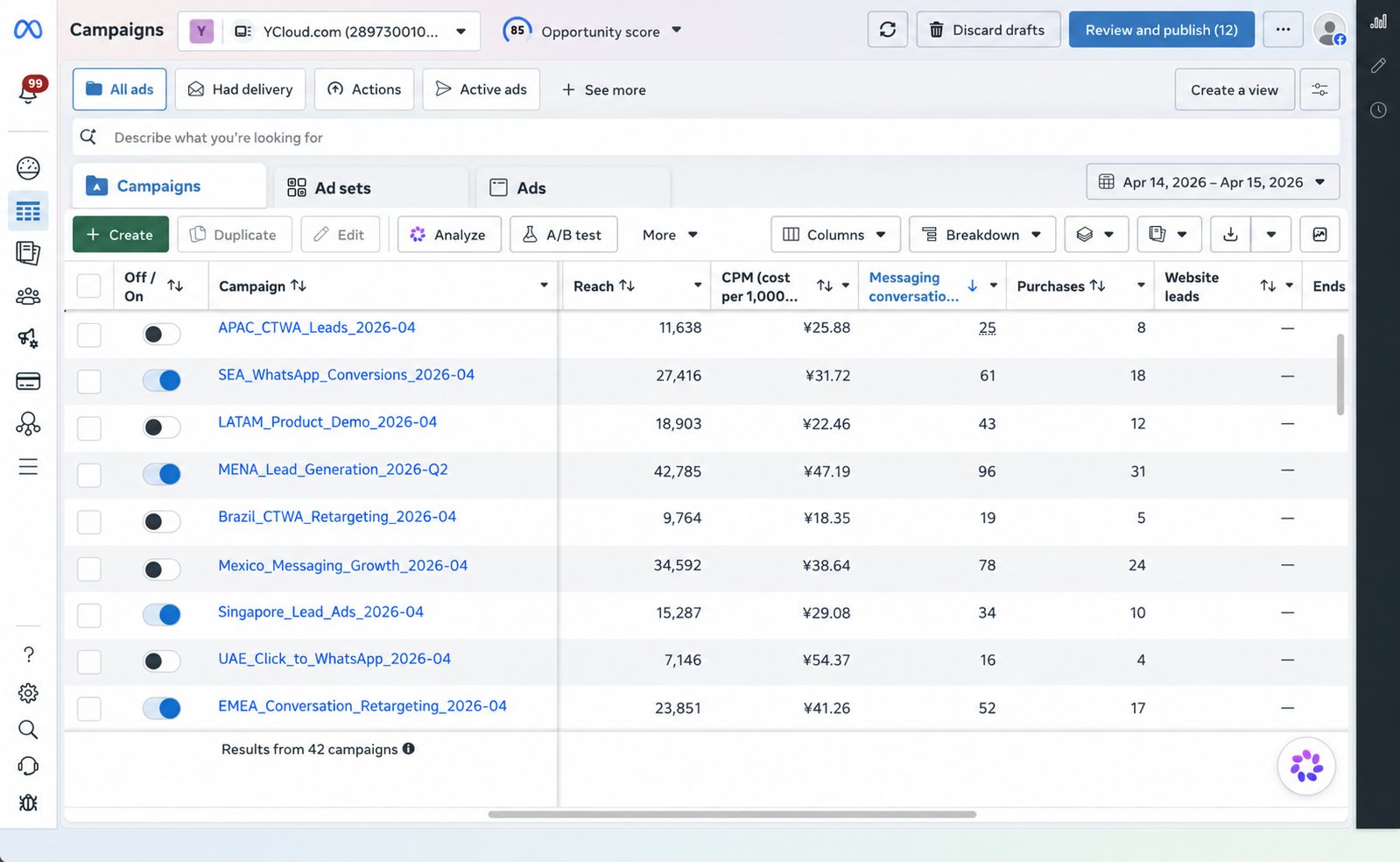 2. For the campaign objective, select **Engagement**.
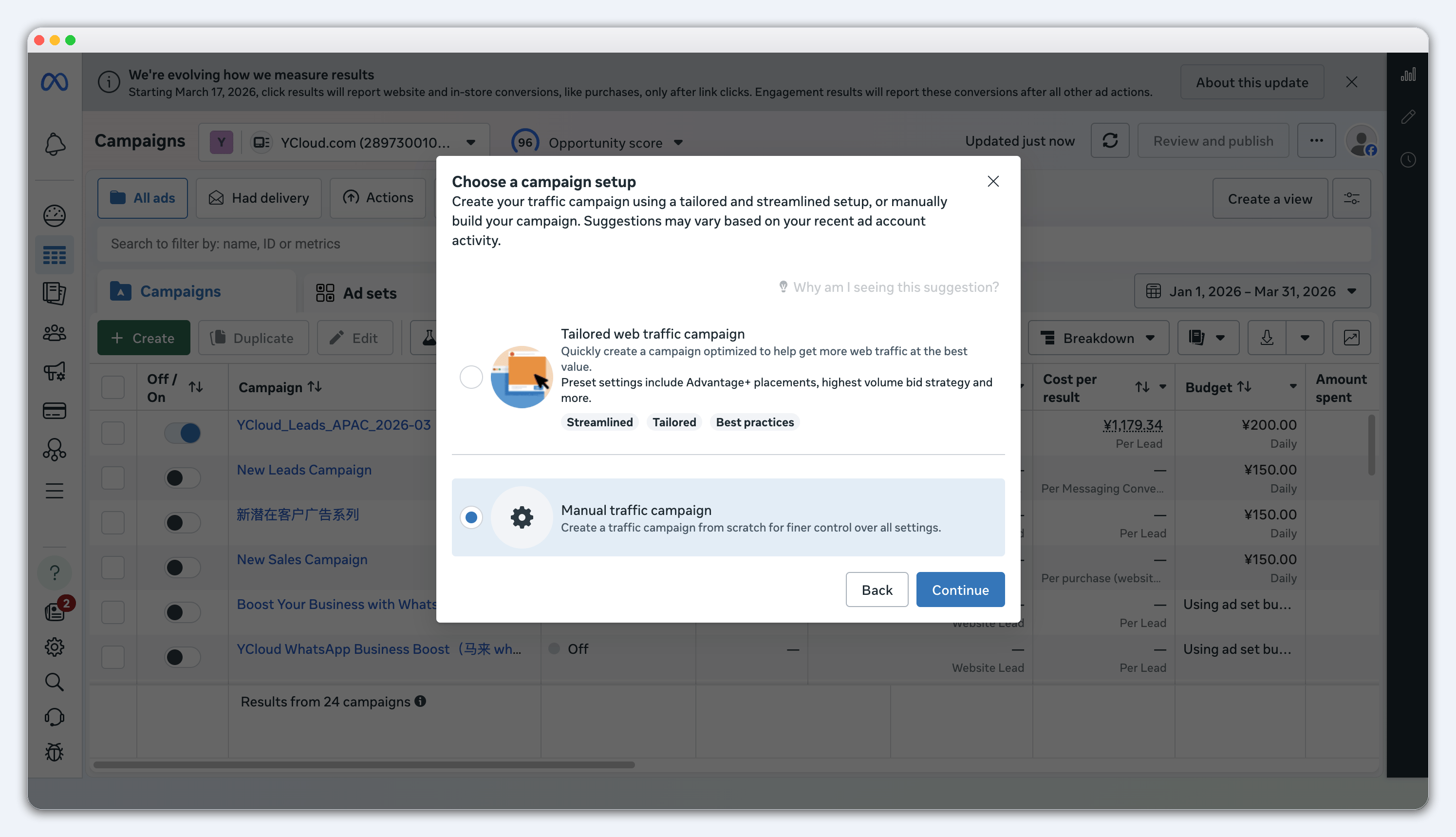
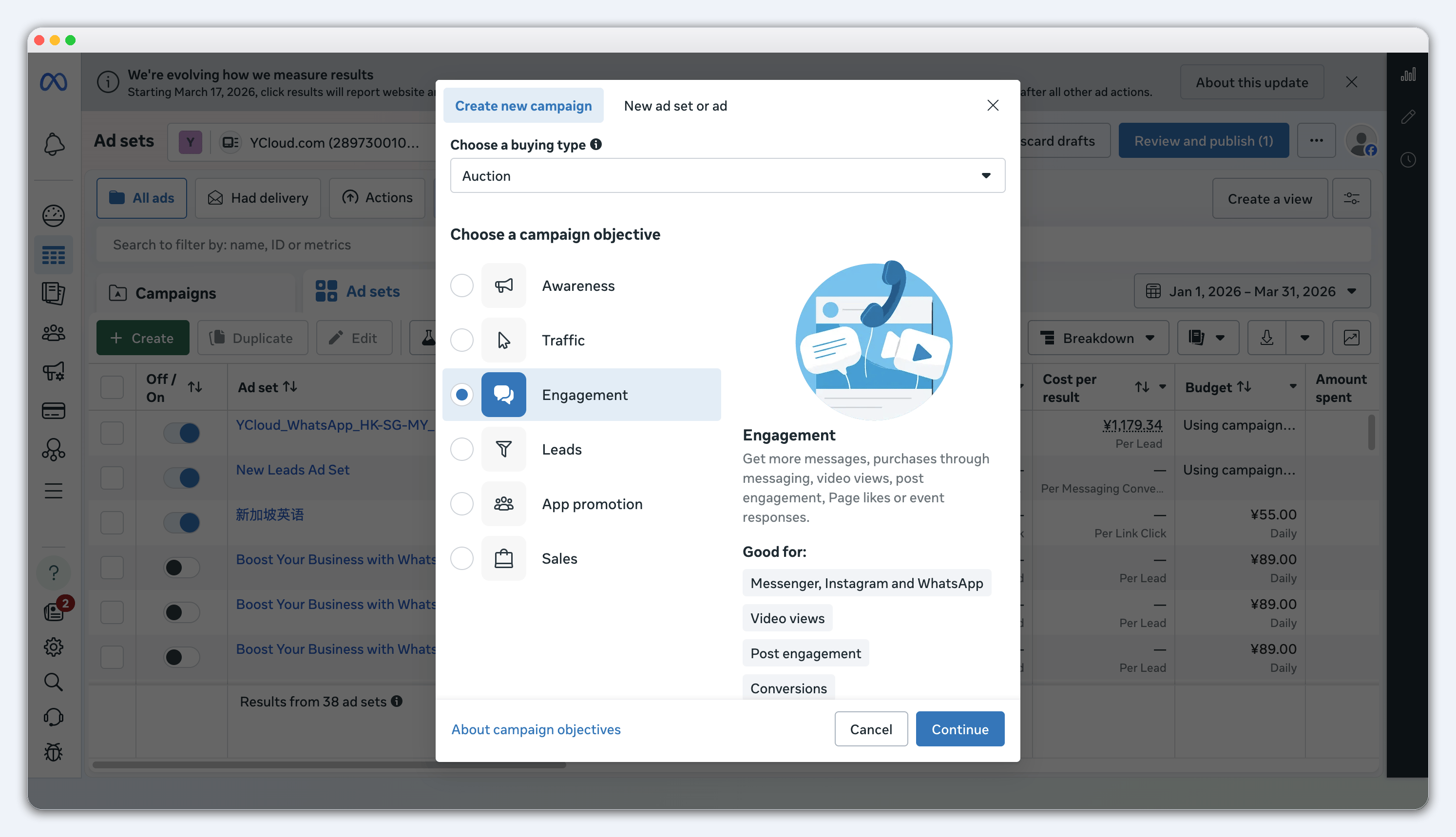 3. Select **Manual campaign**, then select **Continue**.
 In Campaign details, turn off **Advantage+ catalog ads**.
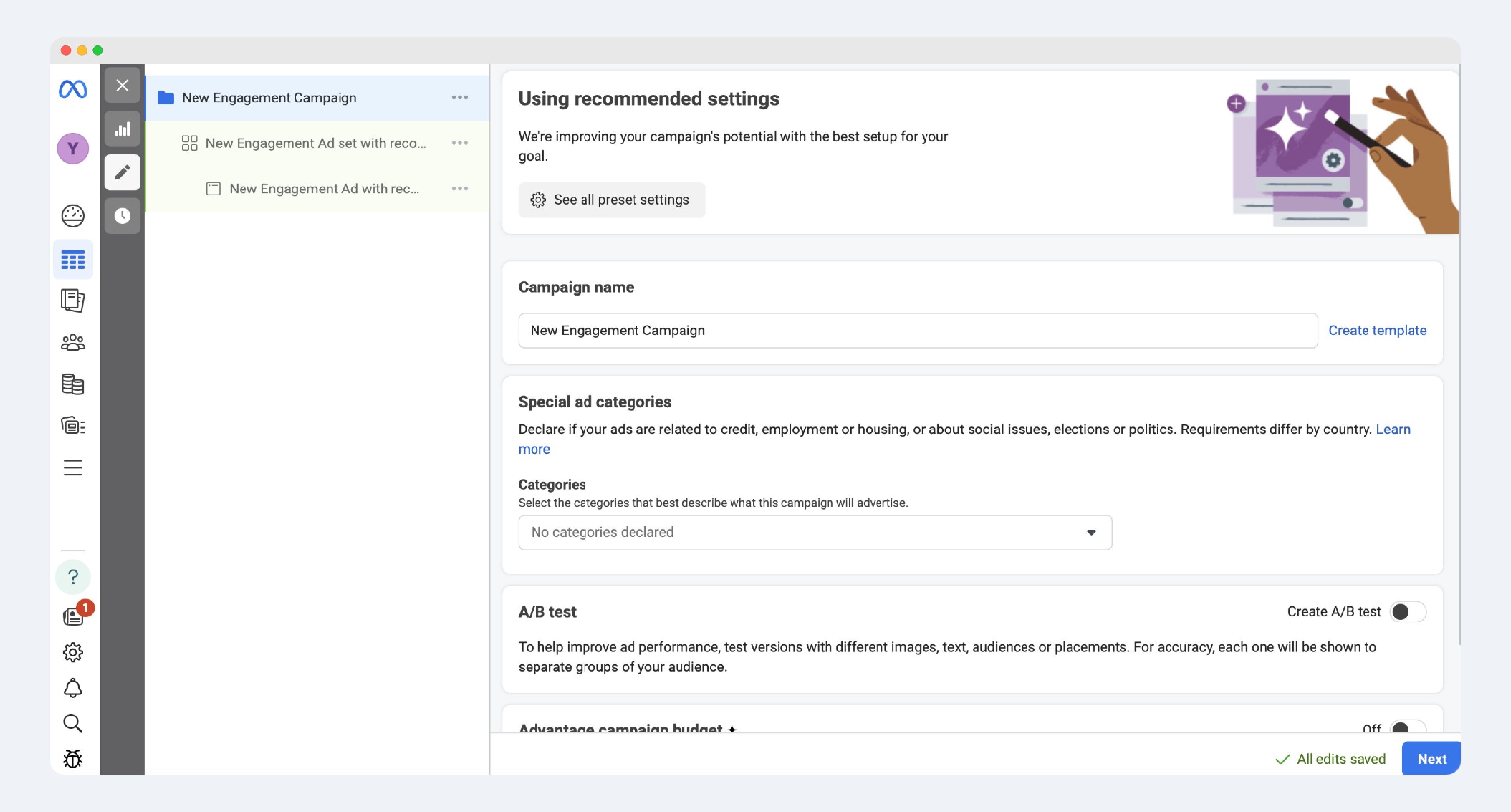 Complete the remaining campaign details as needed, then select **Next** to set up your ad set.
## Set Up an Ad Set
1. For **Conversion location**, select **Messaging destinations**.
Complete the remaining campaign details as needed, then select **Next** to set up your ad set.
## Set Up an Ad Set
1. For **Conversion location**, select **Messaging destinations**.
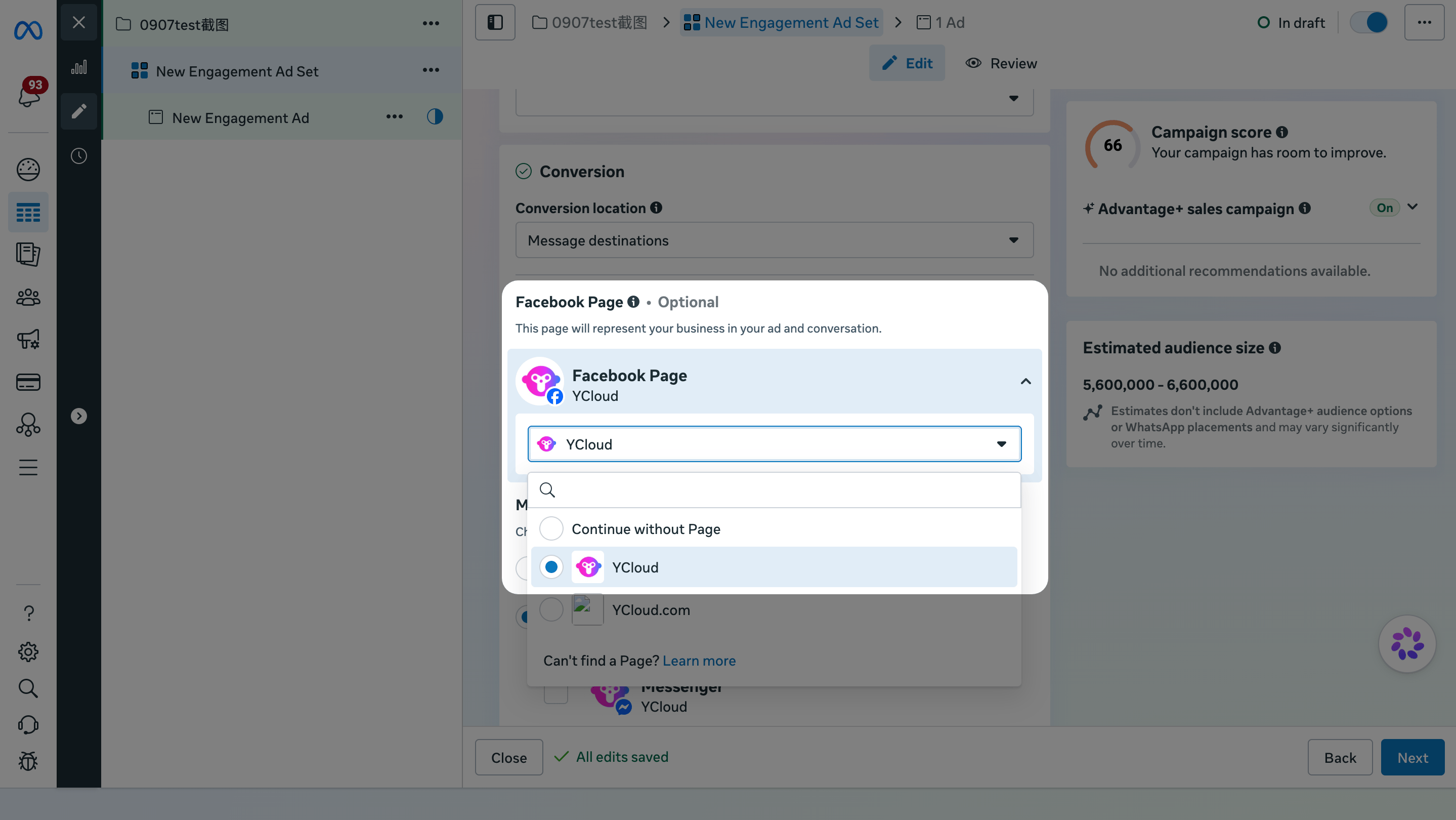
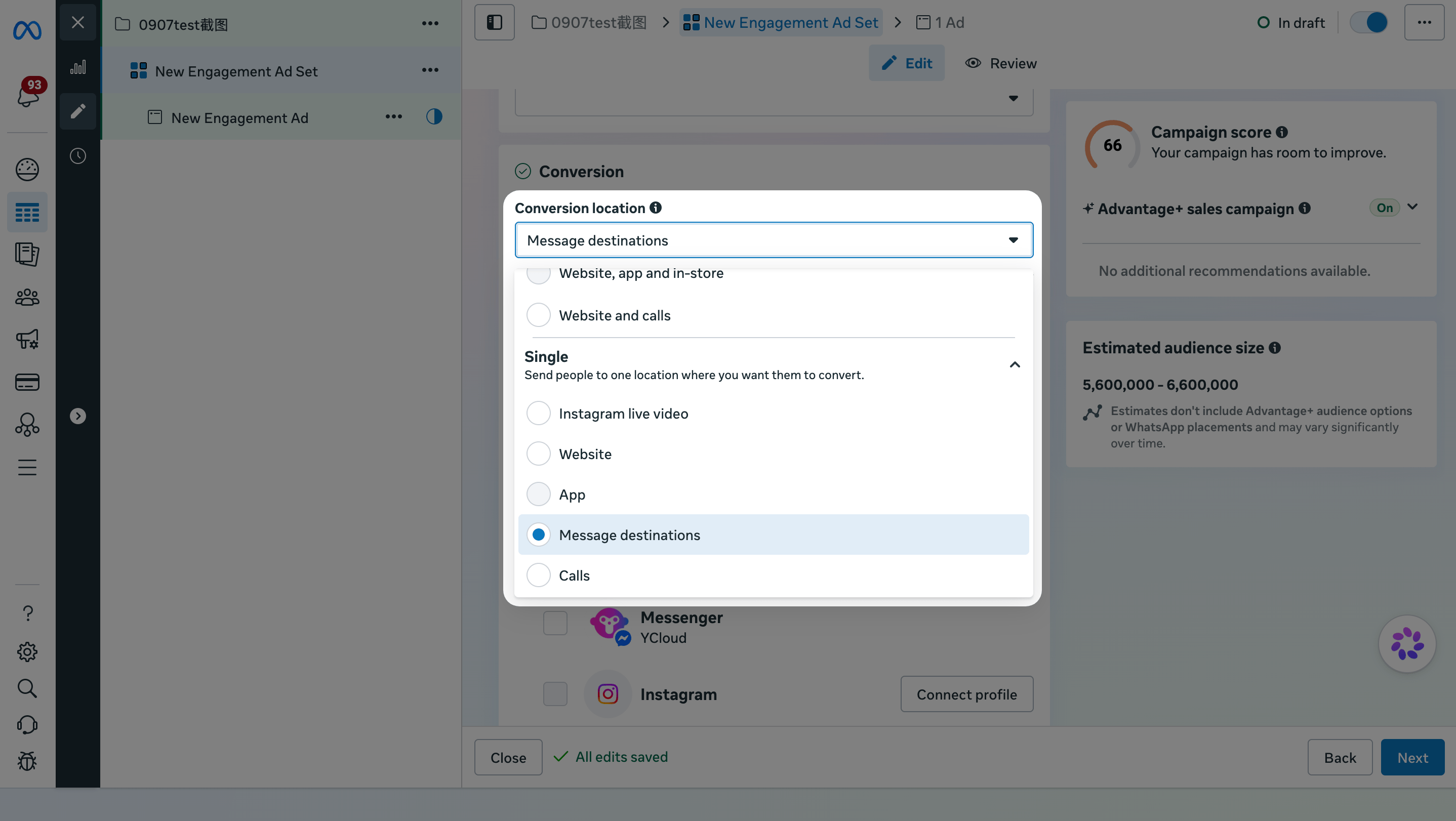 2. Select the **Facebook Page** for this ad, then select **Manual Destination**.
 3. Under Messaging apps, select **WhatsApp**, then select the WhatsApp Business number that will receive customer messages.
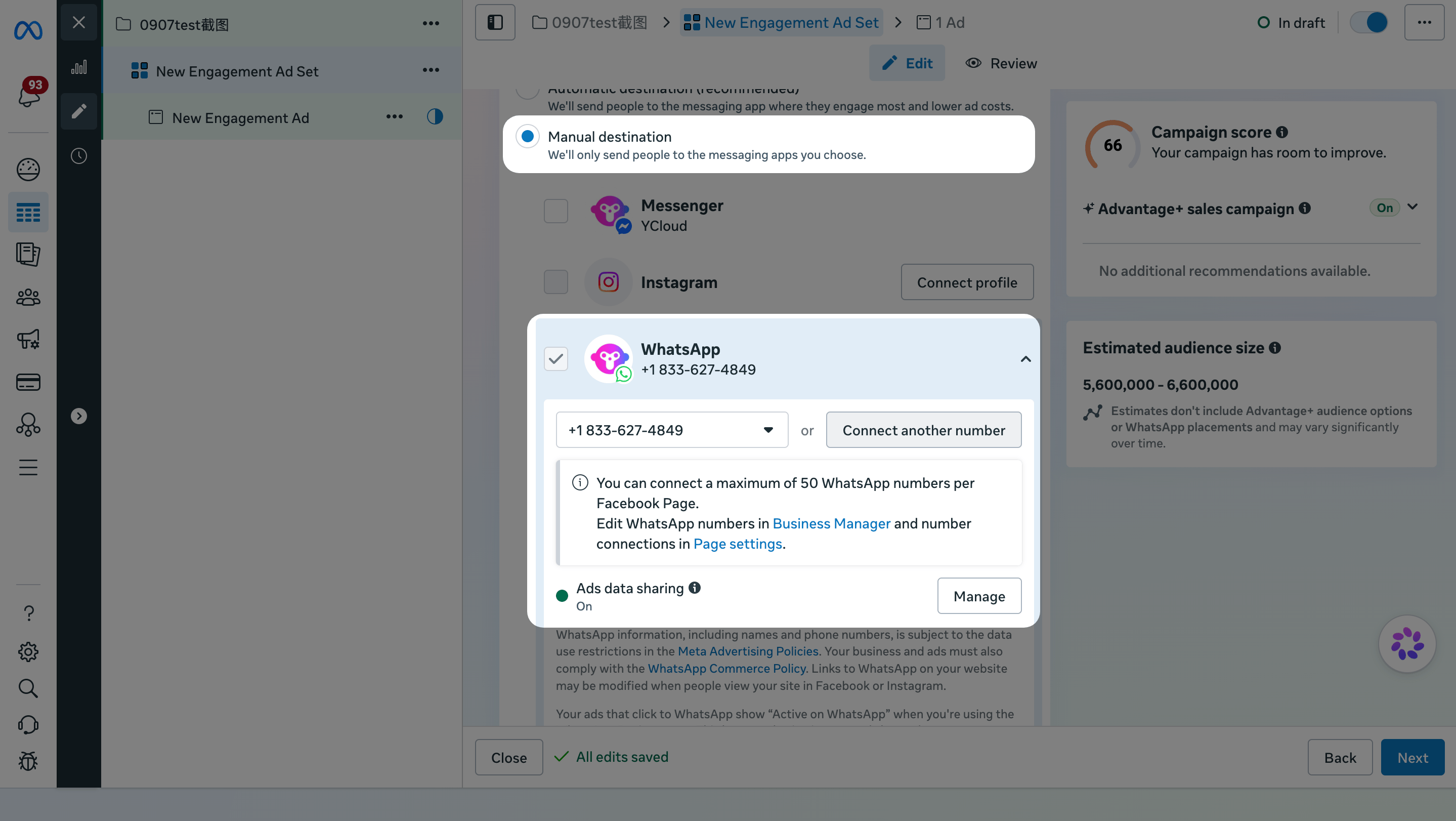 Cannot find the WhatsApp Business number you want to use? See [Frequently Asked Questions](#frequently-asked-questions).
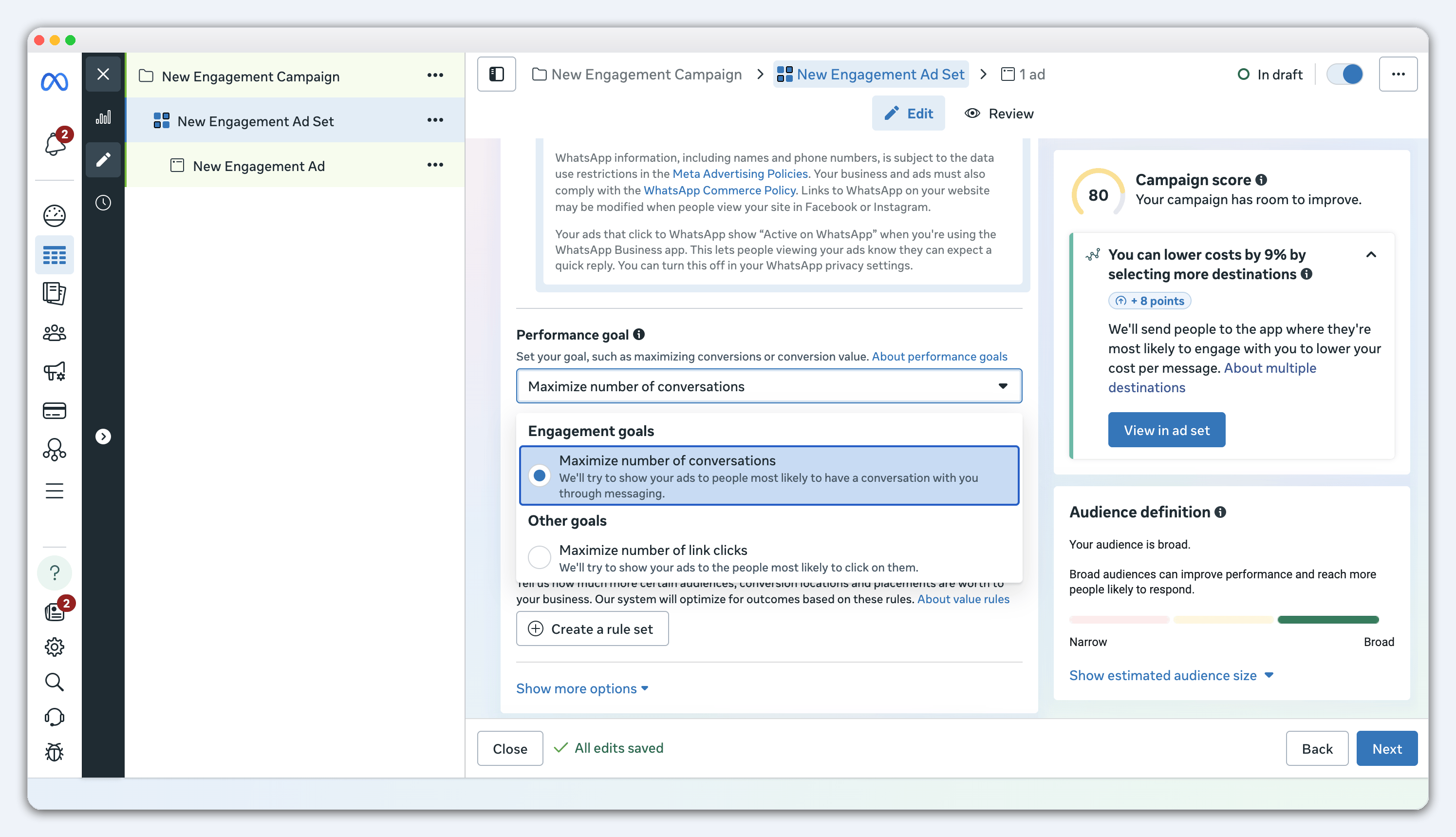
4. For **Performance goal**, select **Maximize number of conversations**.
This goal helps Meta find people who are more likely to start a WhatsApp conversation with your business.
Meta also offers deeper-funnel conversion goals. Learn when to use them in the [Frequently Asked Questions](#frequently-asked-questions) below.
Cannot find the WhatsApp Business number you want to use? See [Frequently Asked Questions](#frequently-asked-questions).
4. For **Performance goal**, select **Maximize number of conversations**.
This goal helps Meta find people who are more likely to start a WhatsApp conversation with your business.
Meta also offers deeper-funnel conversion goals. Learn when to use them in the [Frequently Asked Questions](#frequently-asked-questions) below.
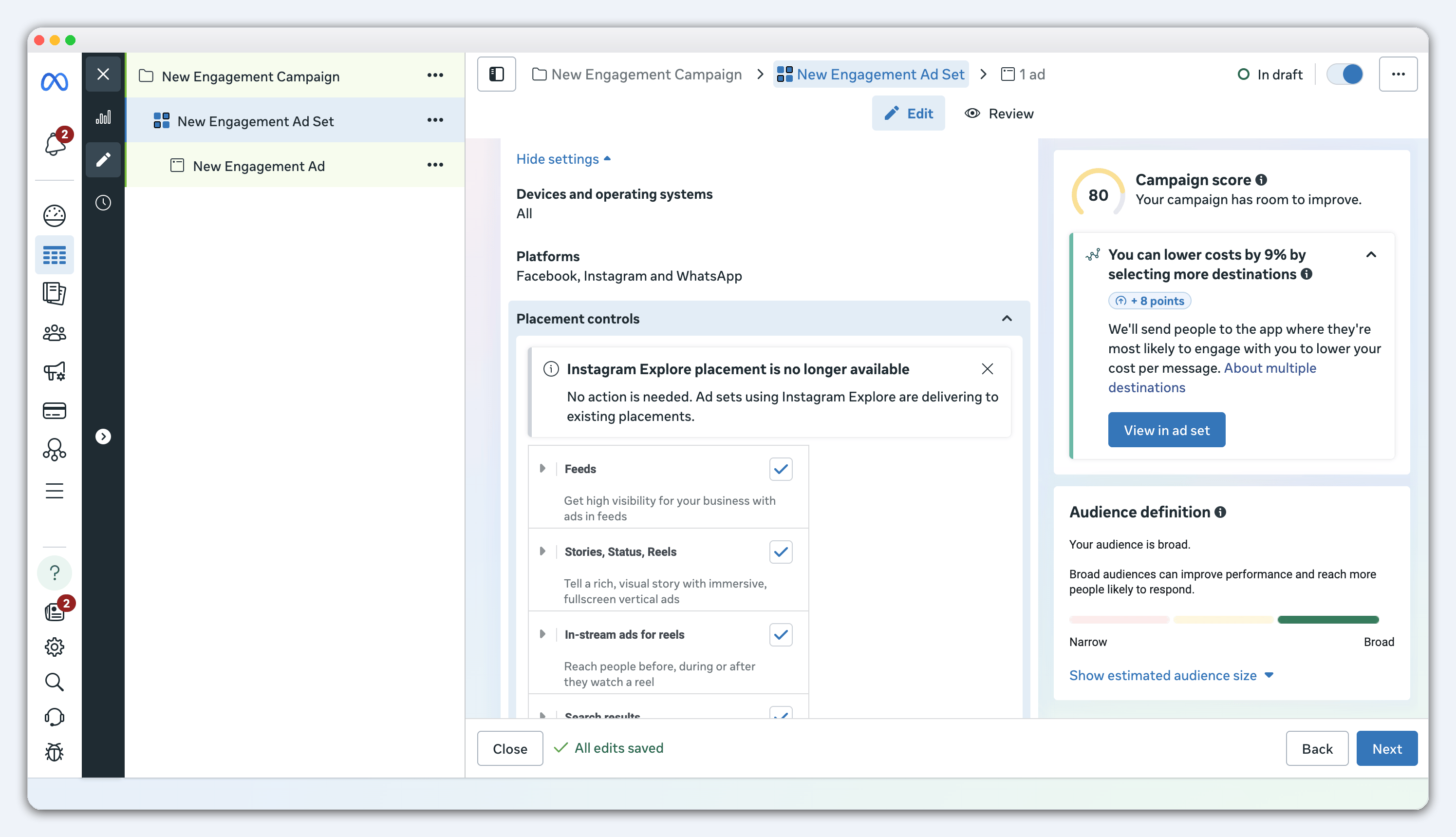
 5. Set your audience, placements, budget, and schedule.
For delivery devices, select app only (iOS or Android). For placements, prioritize Feeds and exclude Reels and Stories.
5. Set your audience, placements, budget, and schedule.
For delivery devices, select app only (iOS or Android). For placements, prioritize Feeds and exclude Reels and Stories.
 ## Create an Ad
1. Add your creative, copy, and CTA button.
## Create an Ad
1. Add your creative, copy, and CTA button.
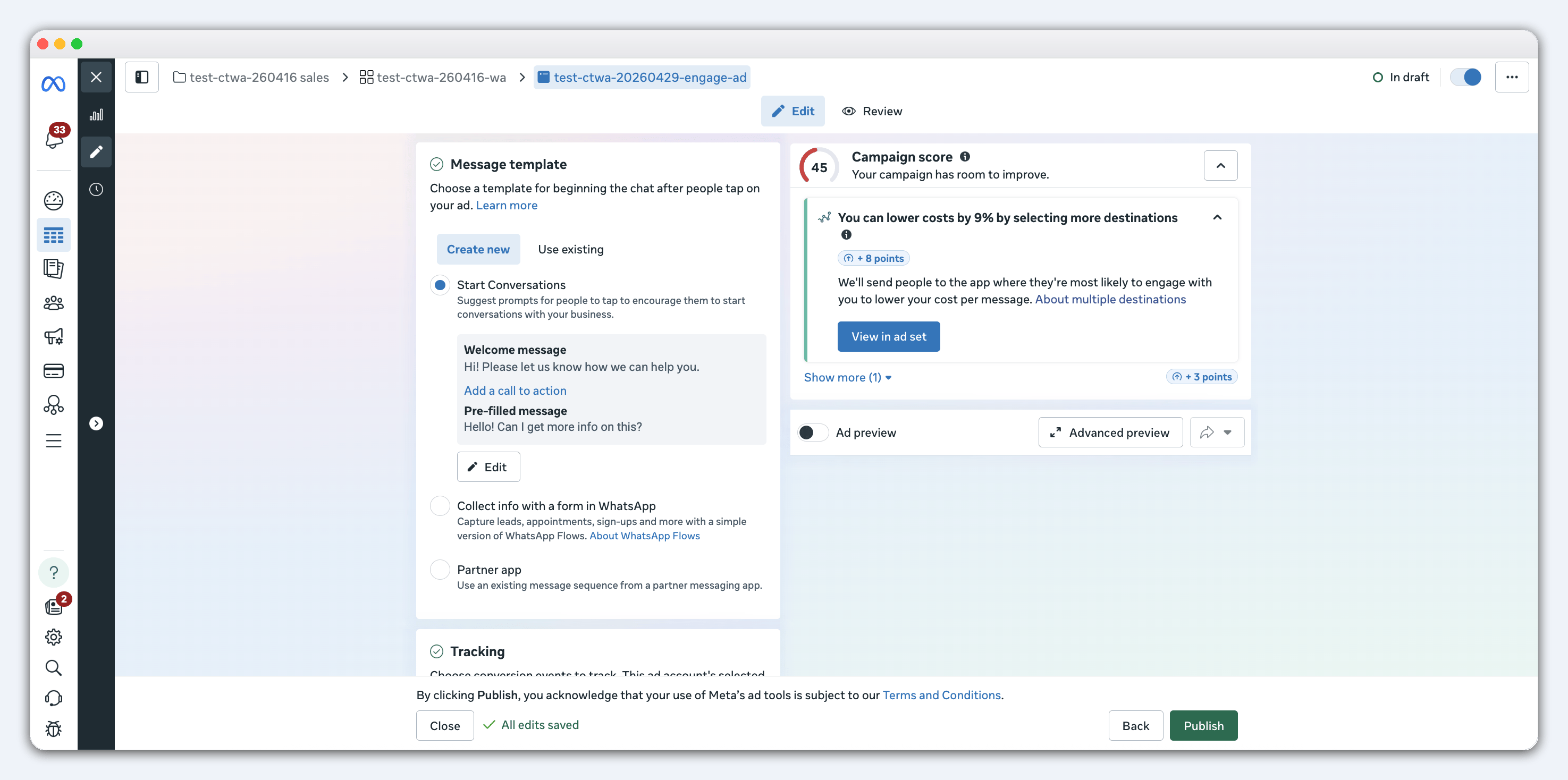 2. In the **Message template** section, select **Create new** to set the opening experience customers see after they enter WhatsApp.
A Message template here is a Meta ad opening setting. It is not a YCloud WhatsApp message template used to proactively send messages.
Choose one of the following options:
* **Frequently asked questions**: Shows questions that customers can tap to send. Use this when customers may have different reasons for contacting you.
* **Pre-filled message**: Adds a message to the WhatsApp input box. Use this when you are promoting one product, campaign, or service.
2. In the **Message template** section, select **Create new** to set the opening experience customers see after they enter WhatsApp.
A Message template here is a Meta ad opening setting. It is not a YCloud WhatsApp message template used to proactively send messages.
Choose one of the following options:
* **Frequently asked questions**: Shows questions that customers can tap to send. Use this when customers may have different reasons for contacting you.
* **Pre-filled message**: Adds a message to the WhatsApp input box. Use this when you are promoting one product, campaign, or service.
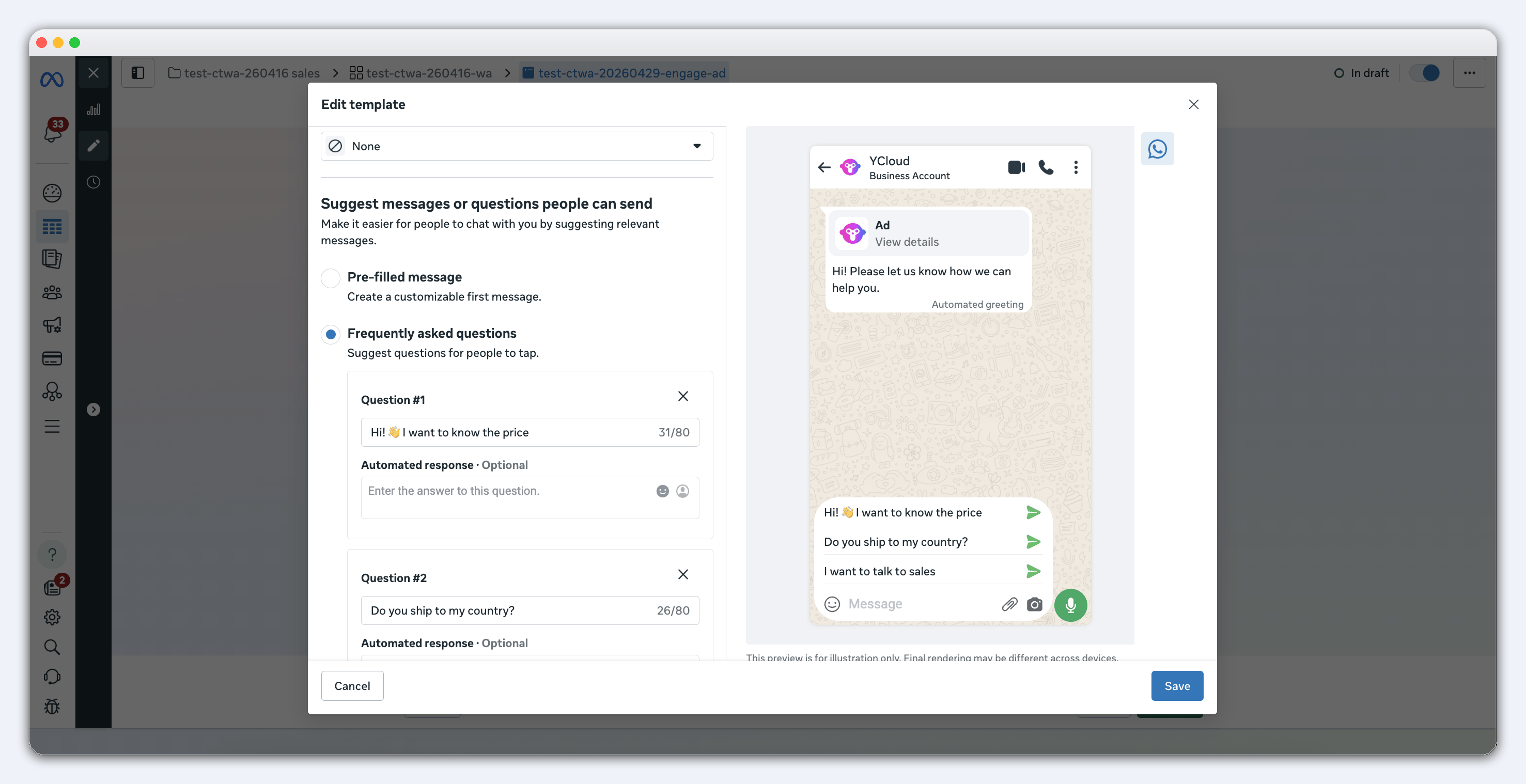
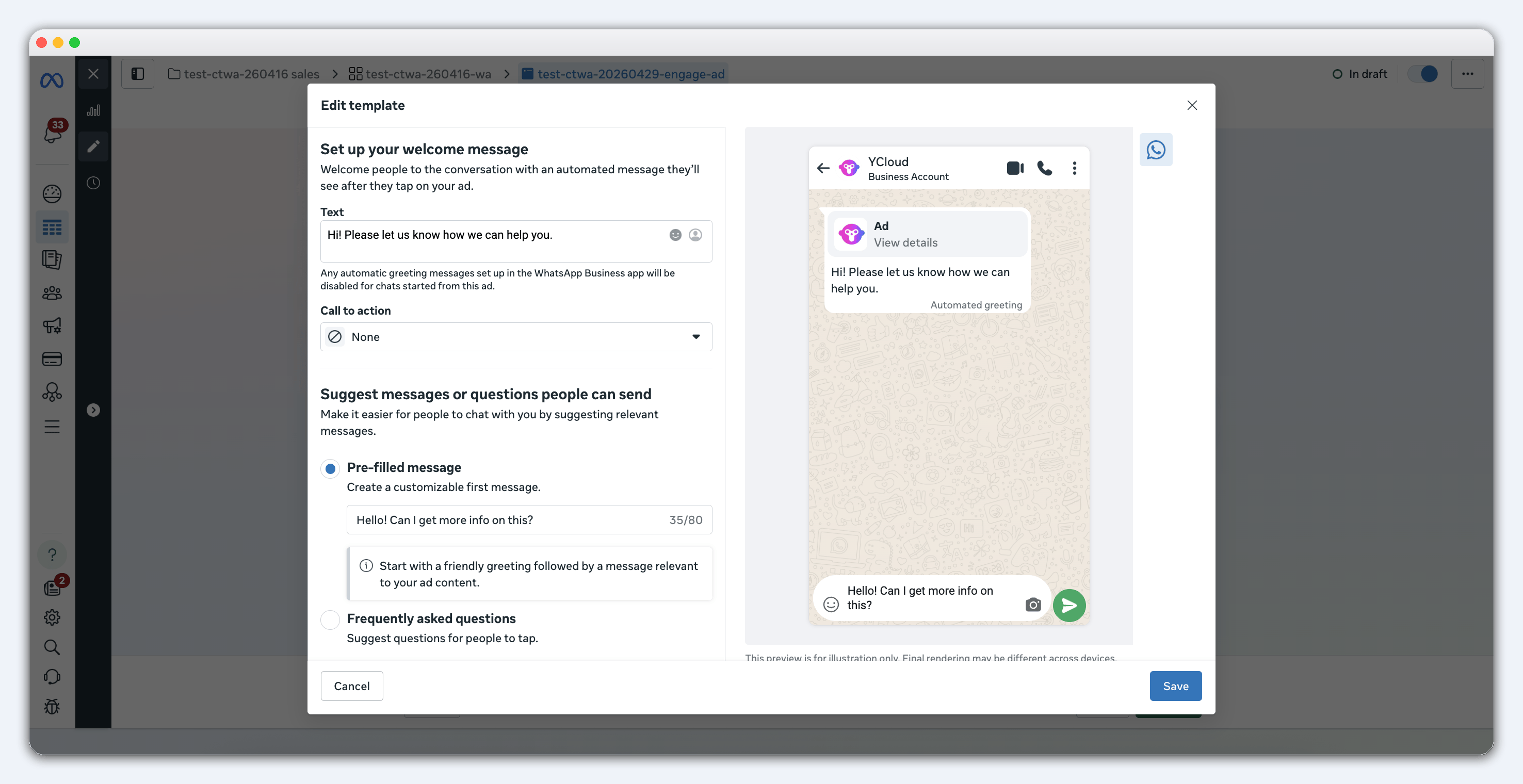 3. Use Preview to check how the ad appears and what customers see after they enter WhatsApp.
## Submit for Review
When you have finished setting up the ad, select **Publish** to submit it for review. After Meta approves the ad, it starts delivering based on the audience, budget, and schedule you set.
## Frequently Asked Questions
First, go to **Facebook Page → Settings → Linked accounts → WhatsApp** to link the Facebook Page and WhatsApp number.
3. Use Preview to check how the ad appears and what customers see after they enter WhatsApp.
## Submit for Review
When you have finished setting up the ad, select **Publish** to submit it for review. After Meta approves the ad, it starts delivering based on the audience, budget, and schedule you set.
## Frequently Asked Questions
First, go to **Facebook Page → Settings → Linked accounts → WhatsApp** to link the Facebook Page and WhatsApp number.
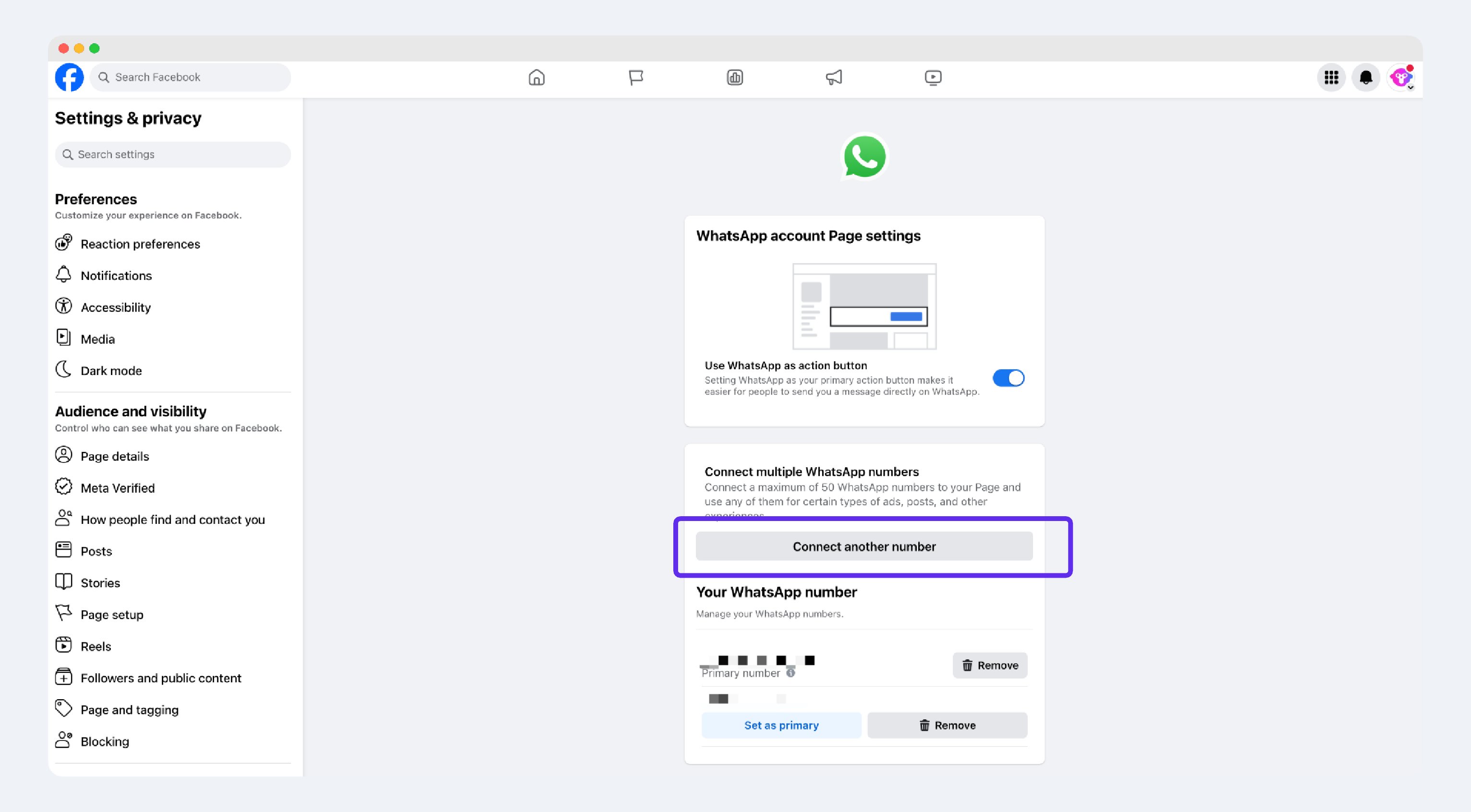 Enter your WhatsApp number, then select **Connect**.
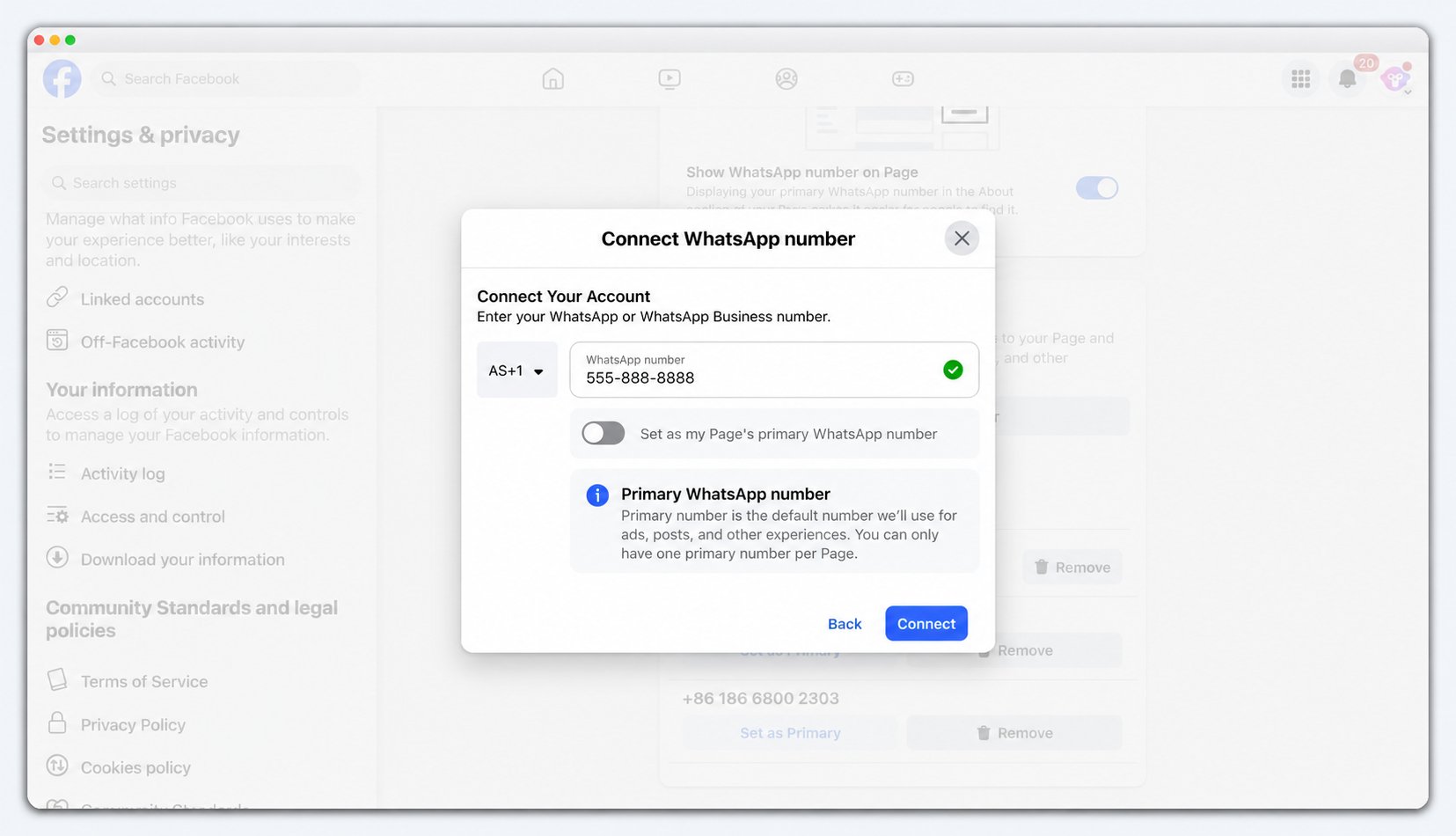 What happens next depends on the type of number you use. Follow the case that applies to your number.
**Case 1: WhatsApp Business App number**
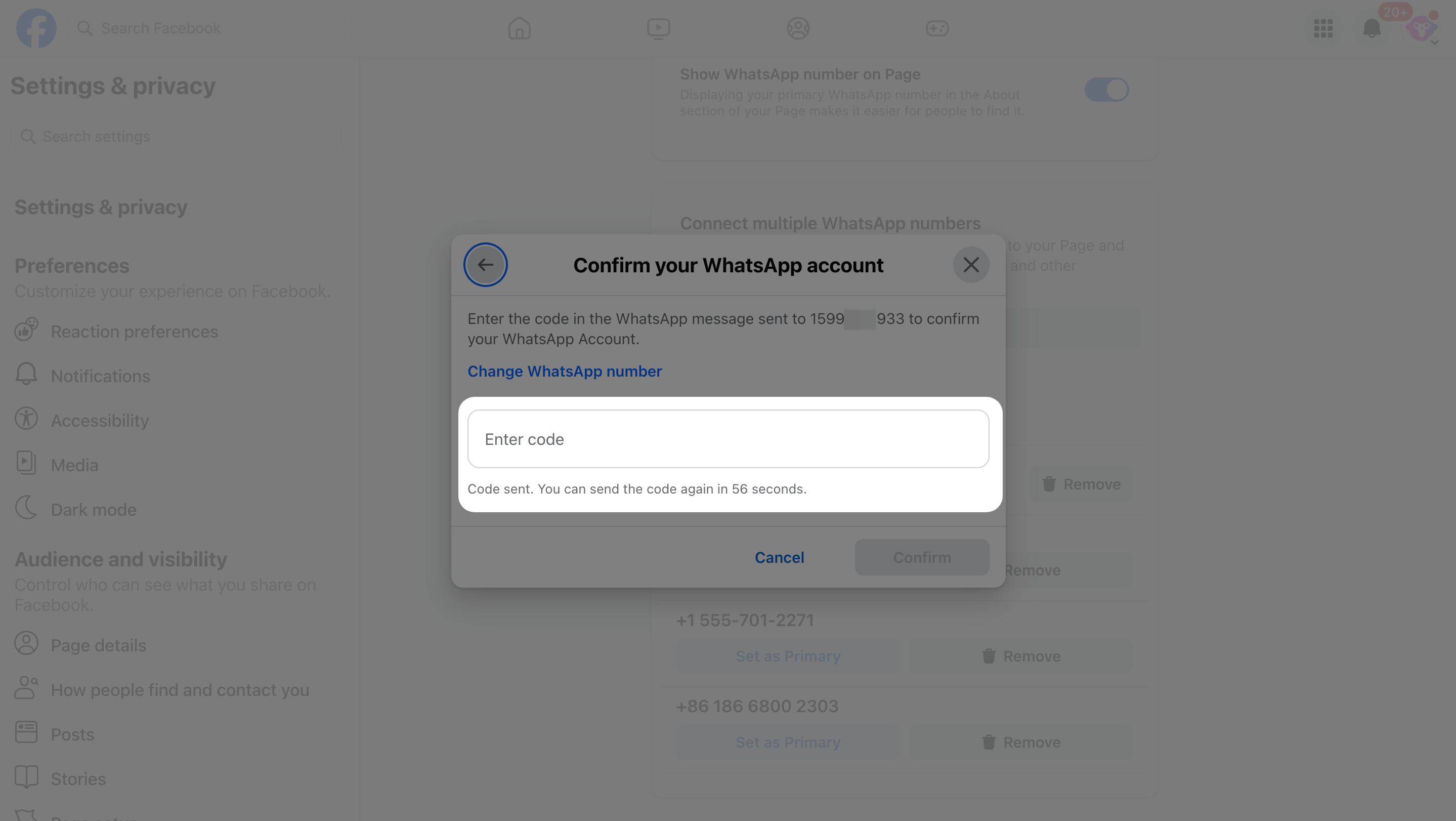
Follow Meta's verification-code flow. Find the verification code in the WhatsApp Business App, then enter it to complete the connection.
What happens next depends on the type of number you use. Follow the case that applies to your number.
**Case 1: WhatsApp Business App number**
Follow Meta's verification-code flow. Find the verification code in the WhatsApp Business App, then enter it to complete the connection.
 **Case 2: WhatsApp Business API number**
A WhatsApp Business API number cannot receive a verification code. Do not select **Send WhatsApp code**.
**Case 2: WhatsApp Business API number**
A WhatsApp Business API number cannot receive a verification code. Do not select **Send WhatsApp code**.
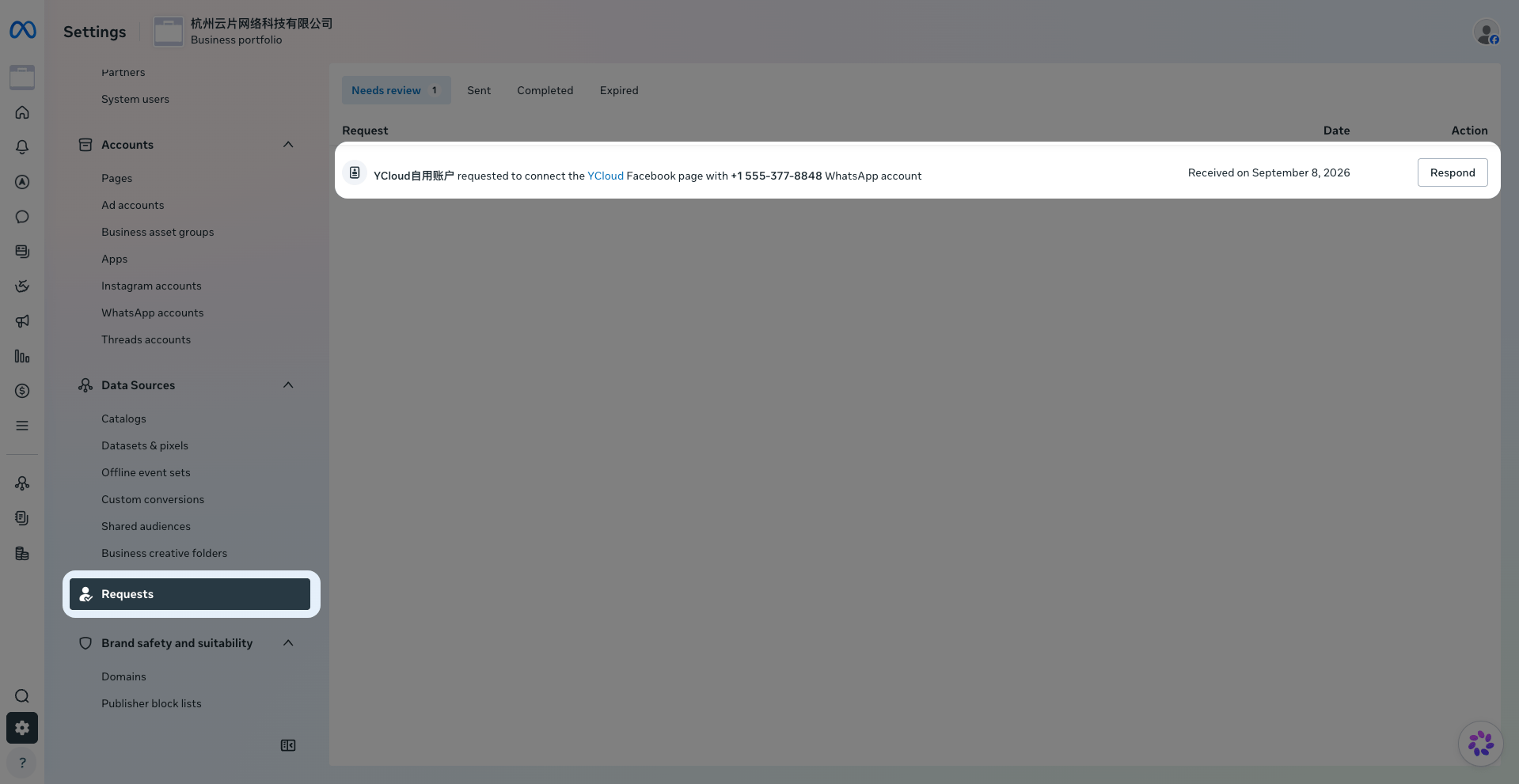
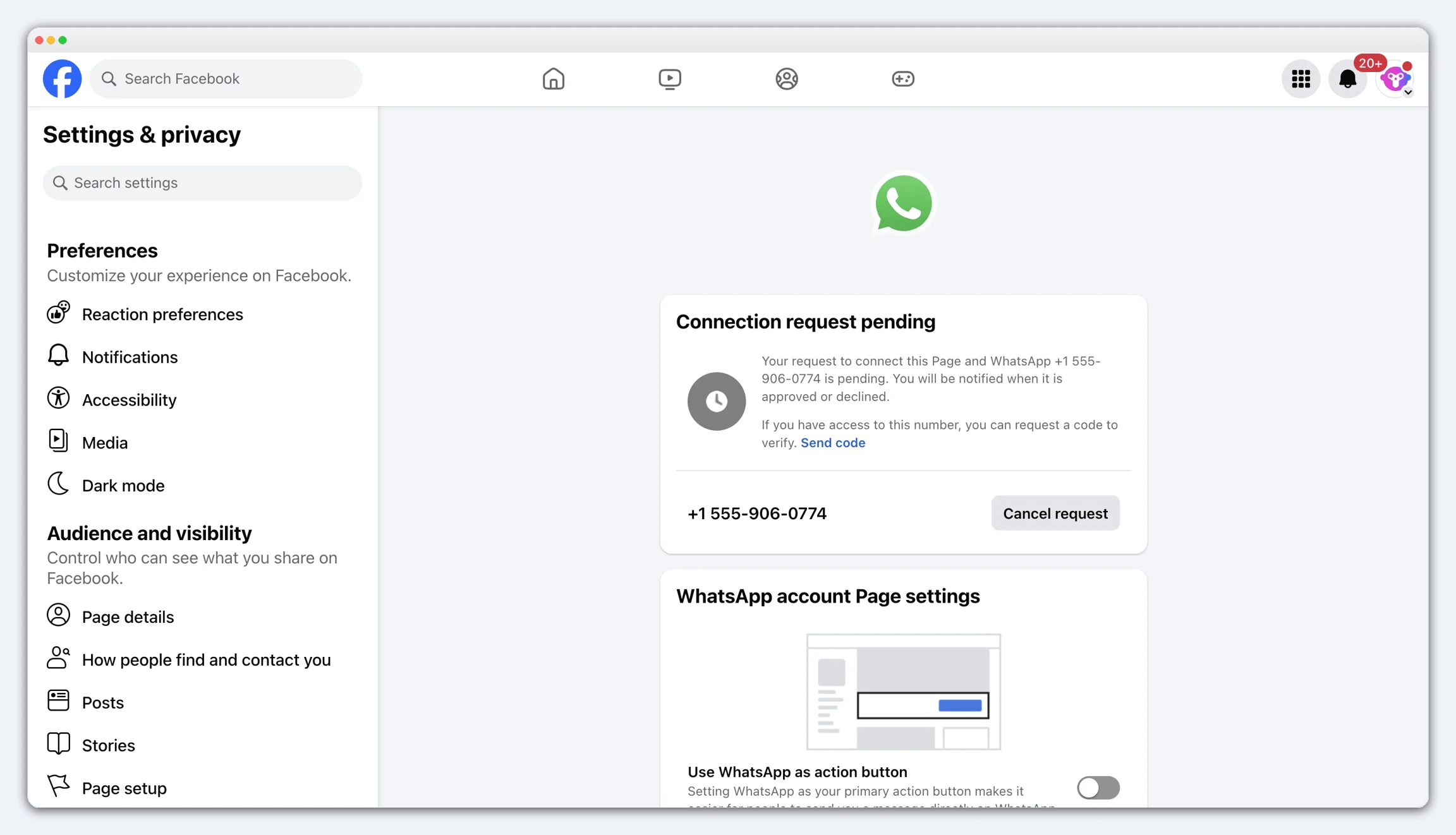 Instead, go to the Meta Business Portfolio that owns the WABA for that API number. Open **Requests**, find the request from the Facebook Page to link the WhatsApp number, and approve it. Then return to ad creation and select the number.
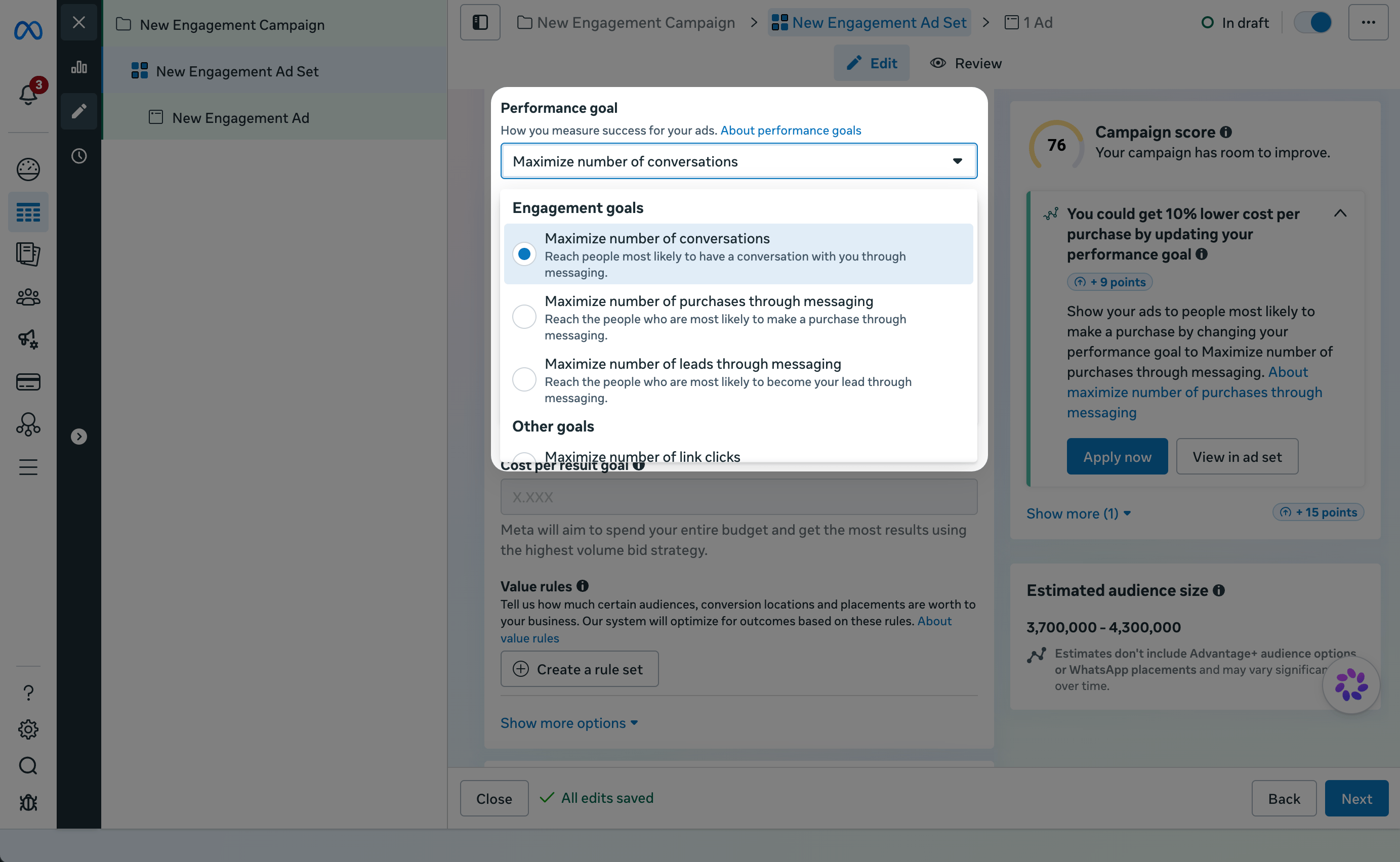 Choose the goal that matches the business result you want Meta to optimize for.
| Performance goal | What Meta optimizes for | When to use it |
| - | - | - |
| **Maximize number of conversations** | People most likely to start a WhatsApp conversation with your business | Recommended for most businesses, especially new campaigns. |
| **Maximize number of leads through messaging** | People most likely to become a Lead through WhatsApp | When qualified leads, such as appointments or quotes, are your goal. |
| **Maximize number of purchases through messaging** | People most likely to make a purchase through WhatsApp | When confirmed orders or payments are your goal. |
| **Maximize number of link clicks — Not recommended** | People most likely to click your ad | A click does not guarantee a WhatsApp message or customer information. |
Start with **Maximize number of conversations** while building conversation volume. Move to **Lead** or **Purchase** optimization after you can consistently report the business outcome you want Meta to optimize for.
First, check the campaign setup. The usual campaign objective depends on the goal:
| Performance goal | Usual campaign objective |
| - | - |
| **Maximize number of leads through messaging** | **Leads** |
| **Maximize number of purchases through messaging** | **Sales** |
At the Ad Set level, choose messaging as the conversion location or destination, select **WhatsApp**, and then check **Performance goal**. In some accounts or campaign setups, Lead or Purchase optimization may also appear under the **Engagement** objective. Check again in a newly created Campaign and Ad Set because availability can differ from an existing setup.
Next, check whether the Facebook Page meets Meta's eligibility requirements. Meta evaluates each Facebook Page separately.
| Performance goal | Minimum eligibility requirement |
| - | - |
| **Maximize number of leads through messaging** | In the previous 30 days, Meta must receive at least **10 Lead or Purchase signals** for the Facebook Page. The signals must come from Click-to-WhatsApp ad conversations, and the Lead result must be reported within **7 days** after the customer clicks the ad. |
| **Maximize number of purchases through messaging** | In the previous 30 days, Meta must receive at least **10 Purchase signals** for the Facebook Page. The signals must come from Click-to-WhatsApp ad conversations, and the Purchase result must be reported within **7 days** after the customer clicks the ad. A stable volume of **20 or more Purchase signals** is recommended. |
If multiple WhatsApp numbers are linked to the same Facebook Page, their eligible customer activity can help that Page meet the requirement. Each Facebook Page qualifies separately.
To report the Lead or Purchase signals needed for deeper optimization, see [Report CTWA Ad Results to Meta](/en/documentation/ctwa-click-to-whatsapp-ad/meta-ctwa-ads/report-ctwa-ad-results-to-meta).
Meta is gradually rolling out the Lead optimization goal, so it may not yet be available to your account even when the setup and eligibility requirements are met.
The Purchase optimization goal is generally available after the setup and eligibility requirements are met. If it is still unavailable, wait a few days for Meta to update the Page's eligibility, then check again in a newly created campaign. While waiting, use another available goal—especially **Maximize number of conversations**.
This documentation is built and hosted on [Mintlify](https://mintlify.com), a developer documentation platform.
Choose the goal that matches the business result you want Meta to optimize for.
| Performance goal | What Meta optimizes for | When to use it |
| - | - | - |
| **Maximize number of conversations** | People most likely to start a WhatsApp conversation with your business | Recommended for most businesses, especially new campaigns. |
| **Maximize number of leads through messaging** | People most likely to become a Lead through WhatsApp | When qualified leads, such as appointments or quotes, are your goal. |
| **Maximize number of purchases through messaging** | People most likely to make a purchase through WhatsApp | When confirmed orders or payments are your goal. |
| **Maximize number of link clicks — Not recommended** | People most likely to click your ad | A click does not guarantee a WhatsApp message or customer information. |
Start with **Maximize number of conversations** while building conversation volume. Move to **Lead** or **Purchase** optimization after you can consistently report the business outcome you want Meta to optimize for.
First, check the campaign setup. The usual campaign objective depends on the goal:
| Performance goal | Usual campaign objective |
| - | - |
| **Maximize number of leads through messaging** | **Leads** |
| **Maximize number of purchases through messaging** | **Sales** |
At the Ad Set level, choose messaging as the conversion location or destination, select **WhatsApp**, and then check **Performance goal**. In some accounts or campaign setups, Lead or Purchase optimization may also appear under the **Engagement** objective. Check again in a newly created Campaign and Ad Set because availability can differ from an existing setup.
Next, check whether the Facebook Page meets Meta's eligibility requirements. Meta evaluates each Facebook Page separately.
| Performance goal | Minimum eligibility requirement |
| - | - |
| **Maximize number of leads through messaging** | In the previous 30 days, Meta must receive at least **10 Lead or Purchase signals** for the Facebook Page. The signals must come from Click-to-WhatsApp ad conversations, and the Lead result must be reported within **7 days** after the customer clicks the ad. |
| **Maximize number of purchases through messaging** | In the previous 30 days, Meta must receive at least **10 Purchase signals** for the Facebook Page. The signals must come from Click-to-WhatsApp ad conversations, and the Purchase result must be reported within **7 days** after the customer clicks the ad. A stable volume of **20 or more Purchase signals** is recommended. |
If multiple WhatsApp numbers are linked to the same Facebook Page, their eligible customer activity can help that Page meet the requirement. Each Facebook Page qualifies separately.
To report the Lead or Purchase signals needed for deeper optimization, see [Report CTWA Ad Results to Meta](/en/documentation/ctwa-click-to-whatsapp-ad/meta-ctwa-ads/report-ctwa-ad-results-to-meta).
Meta is gradually rolling out the Lead optimization goal, so it may not yet be available to your account even when the setup and eligibility requirements are met.
The Purchase optimization goal is generally available after the setup and eligibility requirements are met. If it is still unavailable, wait a few days for Meta to update the Page's eligibility, then check again in a newly created campaign. While waiting, use another available goal—especially **Maximize number of conversations**.
This documentation is built and hosted on [Mintlify](https://mintlify.com), a developer documentation platform.