> ## Documentation Index
> Fetch the complete documentation index at: https://docs.ycloud.com/llms.txt
> Use this file to discover all available pages before exploring further.
# Conversation Tags
> Use conversation tags to label each conversation, which facilitates quick classification of conversations and improves conversation management efficiency
## what are conversation tags
Conversation tags are a convenient tagging tool that we provide for you. When you need to quickly tag a conversation (whether it is open or closed) for classification, you can use conversation tags to quickly implement the tagging operation. Conversation tags support custom text and color, which allows you to manage the session freely.
## How to use conversation tags
### For open conversations
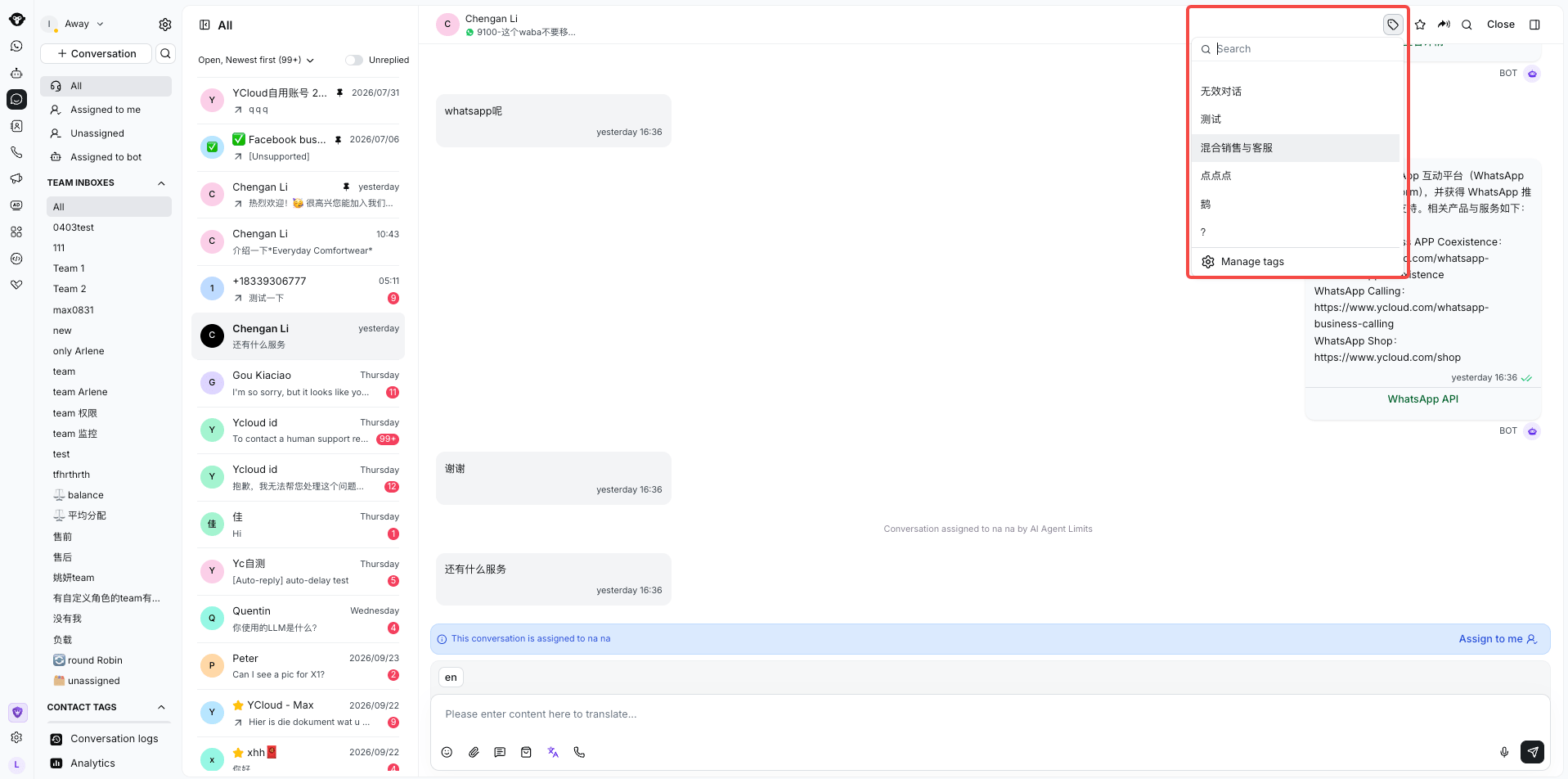
You can add conversation tags to a conversation by clicking the Add Conversation Tag button above the conversation display area.
We support selecting and adding from the existing tag list, or adding tags with custom text.
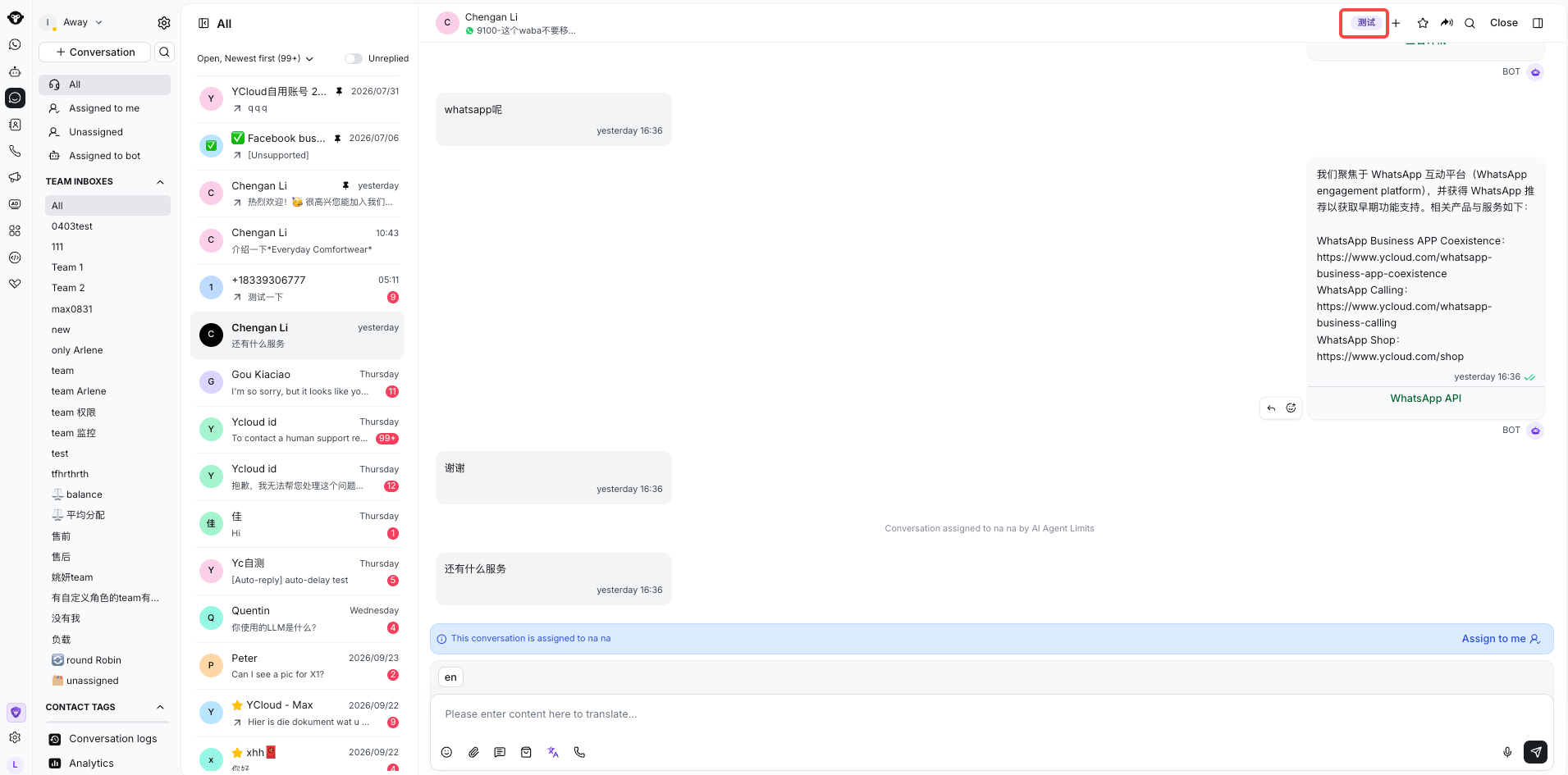
 If you want to delete a specific conversation tag, just place your mouse over the tag and click the delete symbol that appears to the right of the tag to delete the corresponding tag.
 ### For closed conversations
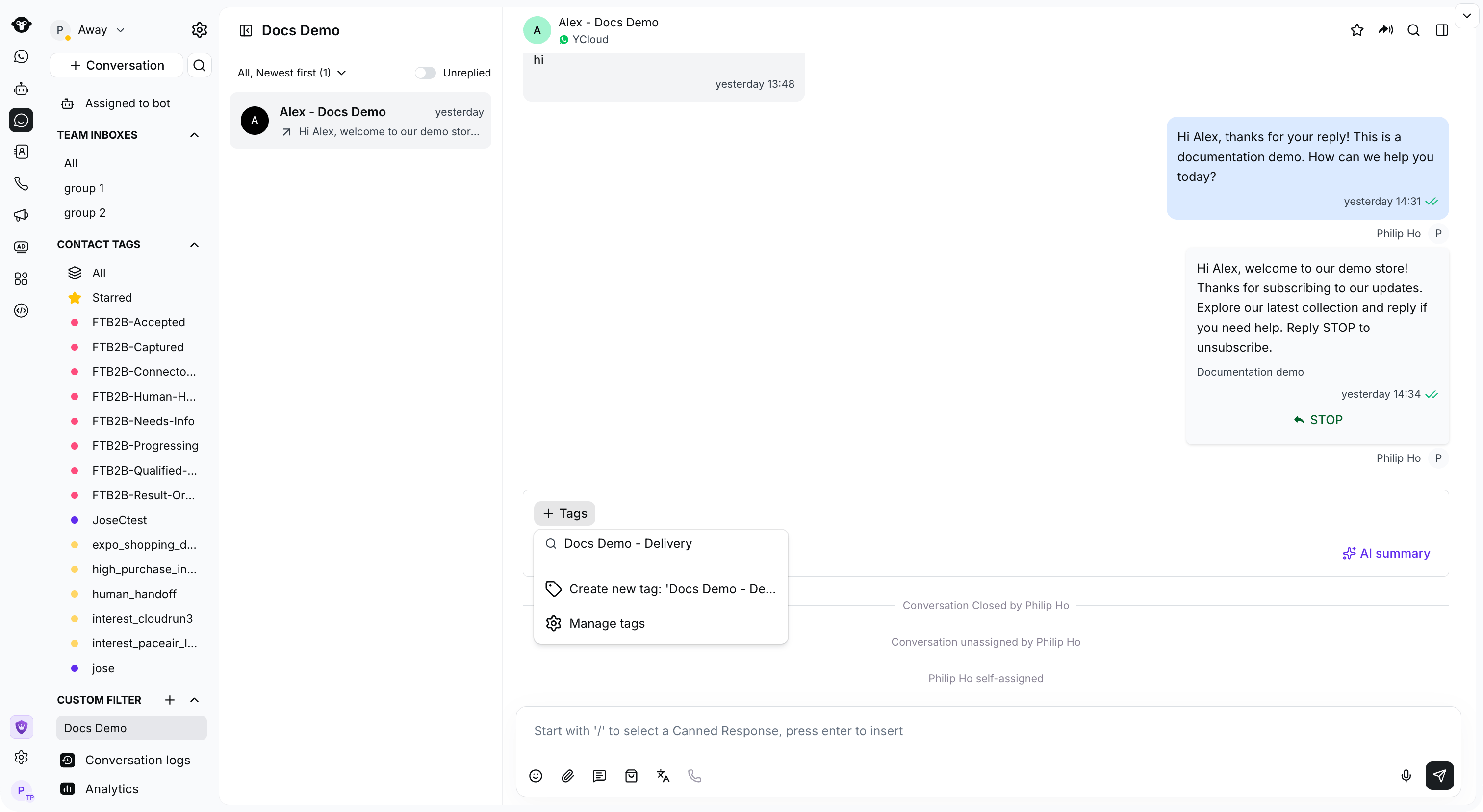
Click **Tags** below the closed conversation to select an existing tag or create a new one.
### For closed conversations
Click **Tags** below the closed conversation to select an existing tag or create a new one.
 ## How to manage the conversation tags
### The acess to manage
Users with the Admin and Inbox manager roles can access the conversation tags management page.
### The entrance to manage
When you add conversation tags in the conversation display area, click the Manage Tags button at the bottom of the list to enter the conversation tag management page.
## How to manage the conversation tags
### The acess to manage
Users with the Admin and Inbox manager roles can access the conversation tags management page.
### The entrance to manage
When you add conversation tags in the conversation display area, click the Manage Tags button at the bottom of the list to enter the conversation tag management page.
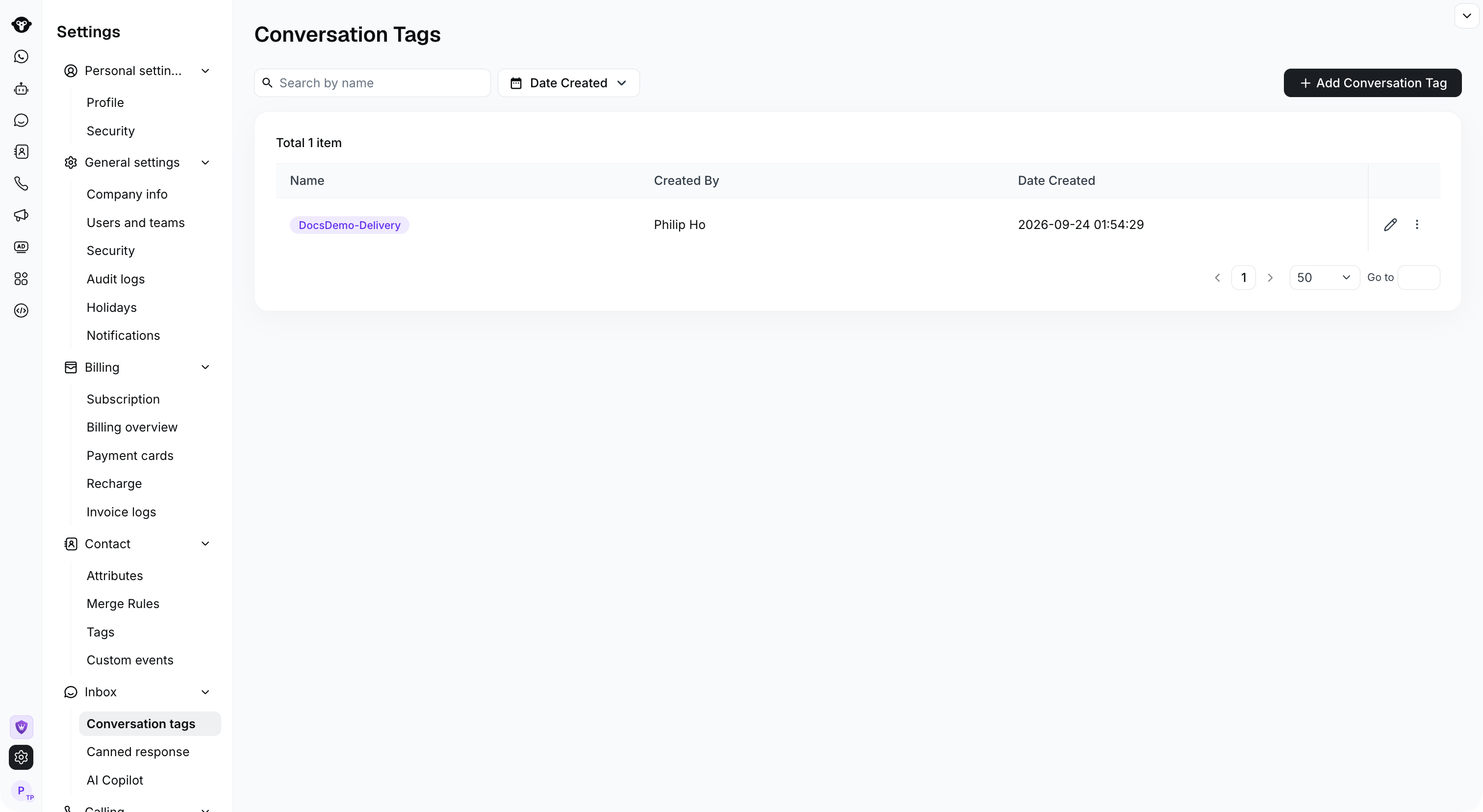
 Or, go to **Settings > Inbox > Conversation tags**.
 ### Manage conversation tags
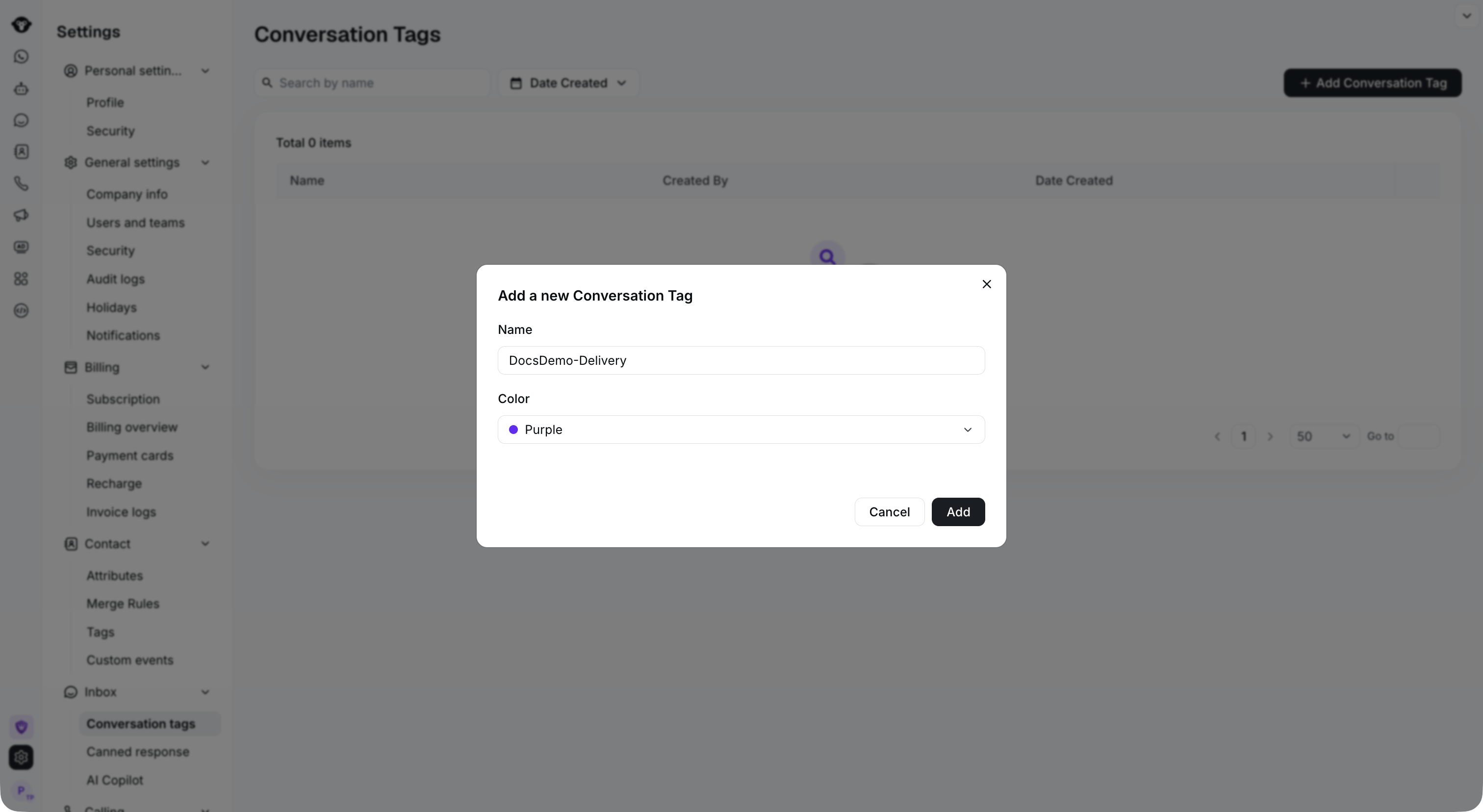
1. Click the Add Conversation Tag button to add a custom tag, which supports custom tag text and color.
2. The search bar allows you to filter tags by tag name and tag creation time.
3. Click the Edit button to edit the corresponding tag.
4. Click the Delete button to delete the corresponding tag. Please note that the tags already marked in conversations will also be deleted after deletion. Please operate with caution.
### Manage conversation tags
1. Click the Add Conversation Tag button to add a custom tag, which supports custom tag text and color.
2. The search bar allows you to filter tags by tag name and tag creation time.
3. Click the Edit button to edit the corresponding tag.
4. Click the Delete button to delete the corresponding tag. Please note that the tags already marked in conversations will also be deleted after deletion. Please operate with caution.

 This documentation is built and hosted on [Mintlify](https://mintlify.com), a developer documentation platform.