> ## Documentation Index
> Fetch the complete documentation index at: https://docs.ycloud.com/llms.txt
> Use this file to discover all available pages before exploring further.
# Inbox Analytics
> Monitor live Inbox activity and analyze agent and Team Inbox performance.
## Analytics entry point
In **Inbox**, select **Analytics** near the bottom of the sidebar. The current Analytics page has **Live**, **All**, **Agents**, and **Team Inboxes** tabs.
## Live
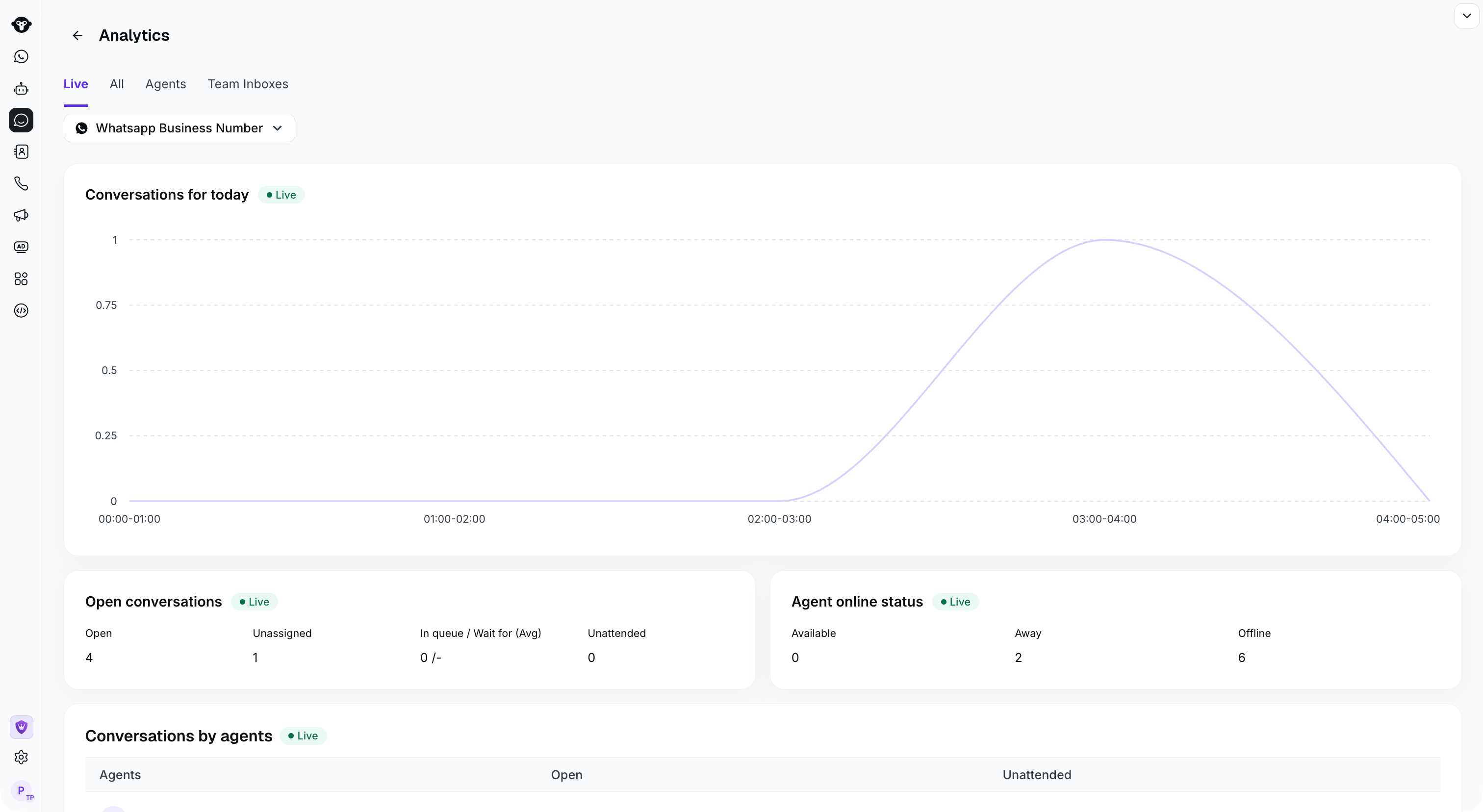
Inbox real-time overview provides you with real-time information. With this feature, you can clearly see today's conversation count, understand the overall scale of user interactions today, and keep track of agents' live reception status. The statistics time zone follows your computer's timezone settings. By default, it shows data for all WhatsApp accounts. You can use the top filter to view Inbox data for a specific WhatsApp number separately.
* **Today's conversations:** The number of conversations that entered each hour today
* **Open conversations:** Includes open conversations, unassigned conversations, and conversations that have been assigned but not yet replied to
* **Agent status:** Available, Away and Offline
* **Agent conversation handling:** View the number of open conversations and unreplied conversations for each agent. This helps you understand agent performance and workload.
 ## All
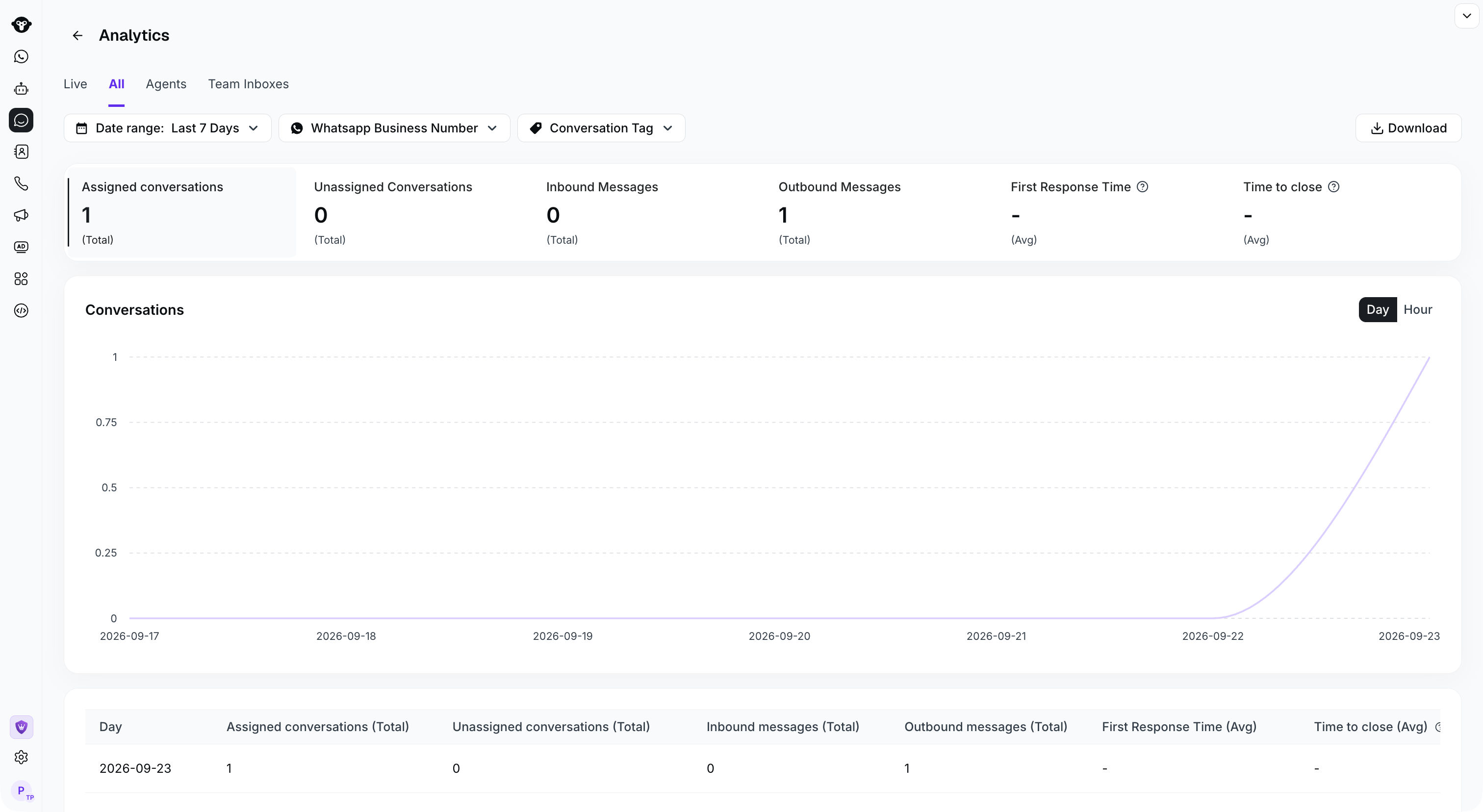
Understand the overall Inbox conversation situation, including conversation distribution, the number of incoming and outgoing messages, the first response time of conversations, and the closing time, etc.
## All
Understand the overall Inbox conversation situation, including conversation distribution, the number of incoming and outgoing messages, the first response time of conversations, and the closing time, etc.
 ## Agents
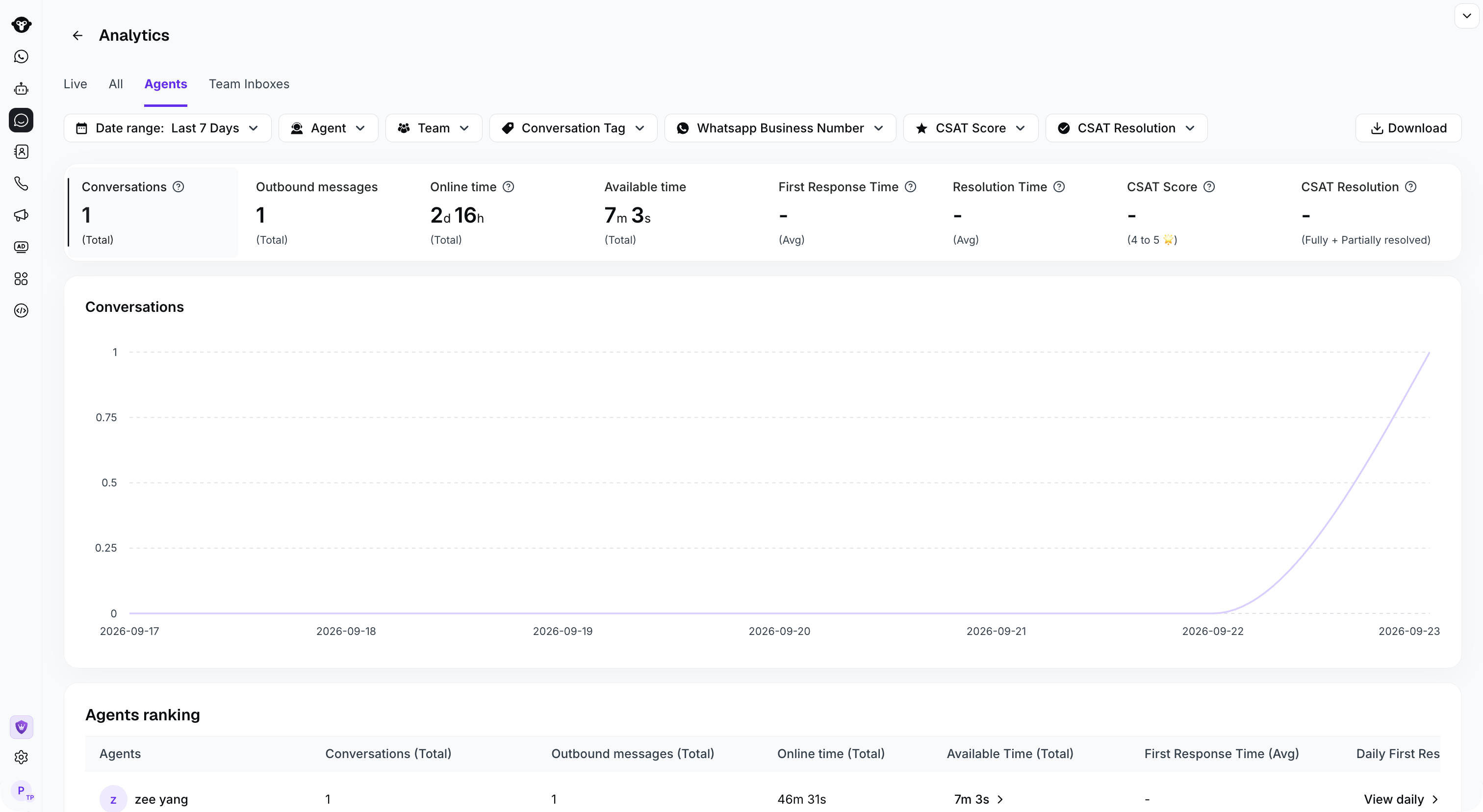
* Filtering statistics: Select a time range. By default, the last 7 days are shown. Select the corresponding agent. By default, the total data for all agents is shown. You can also filter by other dimensions such as agent, team, conversation tag.
* Downloading statistics: Click the "`Download`" button.
## Agents
* Filtering statistics: Select a time range. By default, the last 7 days are shown. Select the corresponding agent. By default, the total data for all agents is shown. You can also filter by other dimensions such as agent, team, conversation tag.
* Downloading statistics: Click the "`Download`" button.
 #### Conversation statistics fields
Conversation statistics units: days: d, hours: h, minutes: m
| Field | Description |
| - | - |
| Conversations (Total)(Conversation count) | The number of conversations handled by the agent. The time period is determined by the conversation creation time. |
| Online time (Total)(Online duration) | Statistics for the length of time the agent was online. |
| First Response Time(Avg) (Average first response time) | The average time between the actual conversation opening time after entering Inbox and the agent's first reply.
#### Conversation statistics fields
Conversation statistics units: days: d, hours: h, minutes: m
| Field | Description |
| - | - |
| Conversations (Total)(Conversation count) | The number of conversations handled by the agent. The time period is determined by the conversation creation time. |
| Online time (Total)(Online duration) | Statistics for the length of time the agent was online. |
| First Response Time(Avg) (Average first response time) | The average time between the actual conversation opening time after entering Inbox and the agent's first reply.
PS:
Current agent average response time = current agent's total first response times / current agent's total conversations with a first response. The agent who sent the first reply is counted as the responder for that conversation. |
| Resolution Time (Avg)(Conversation resolution time) | The time between the actual conversation opening time after entering Inbox and the conversation closing time |
| CSAT(Customer Satisfaction Survey) | The percentage of positive 4-5🌟 ratings given by users after the conversation ends |
#### Agent ranking statistics
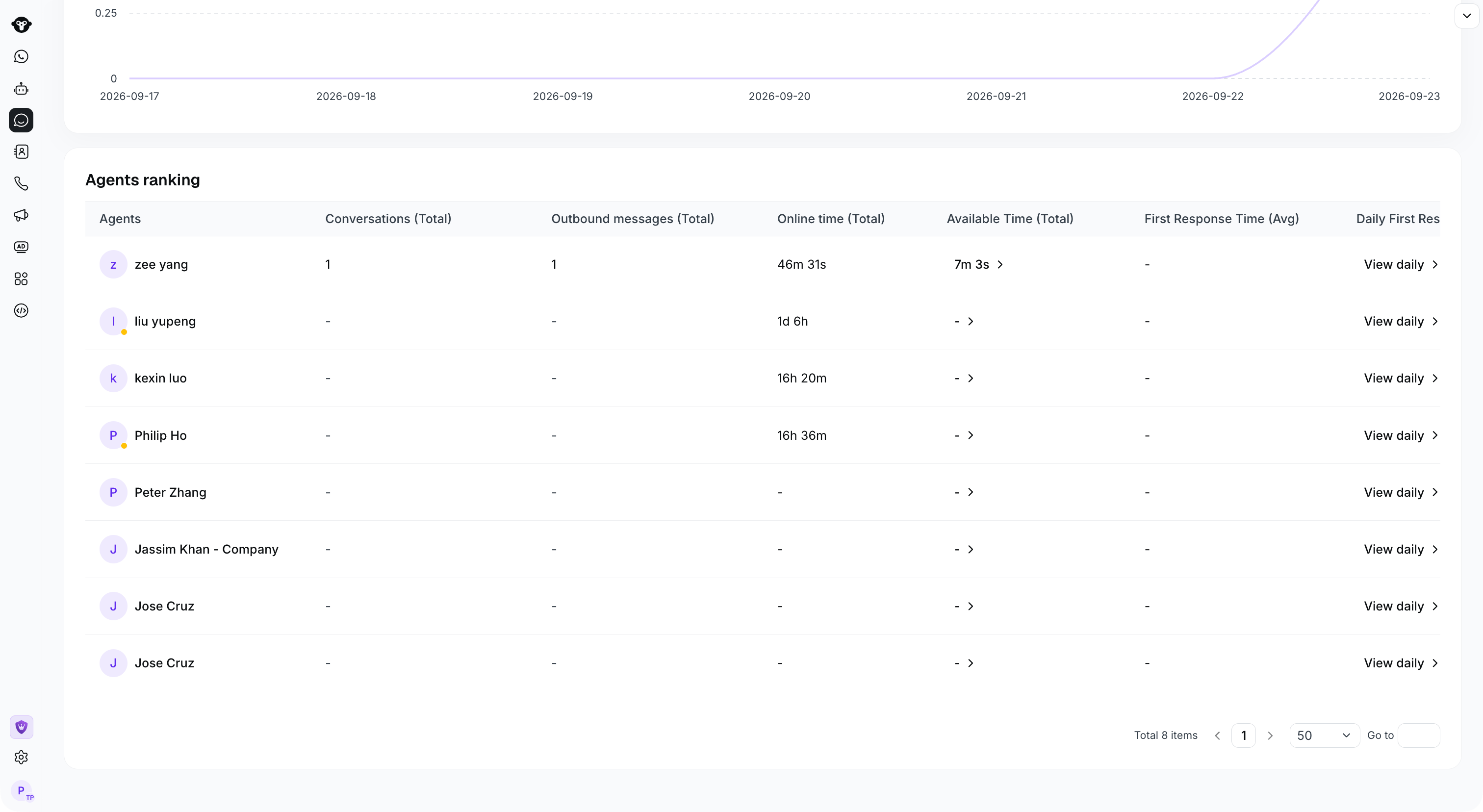
Sorting rule: agents with more handled conversations are ranked first.
 ## Team Inboxes
* Filtering statistics: Select a time range. By default, the last 7 days are shown. Select the corresponding Team Inbox. By default, the total data for all Team Inboxes is shown.
* Downloading statistics: Click the "`Download`" button
## Team Inboxes
* Filtering statistics: Select a time range. By default, the last 7 days are shown. Select the corresponding Team Inbox. By default, the total data for all Team Inboxes is shown.
* Downloading statistics: Click the "`Download`" button
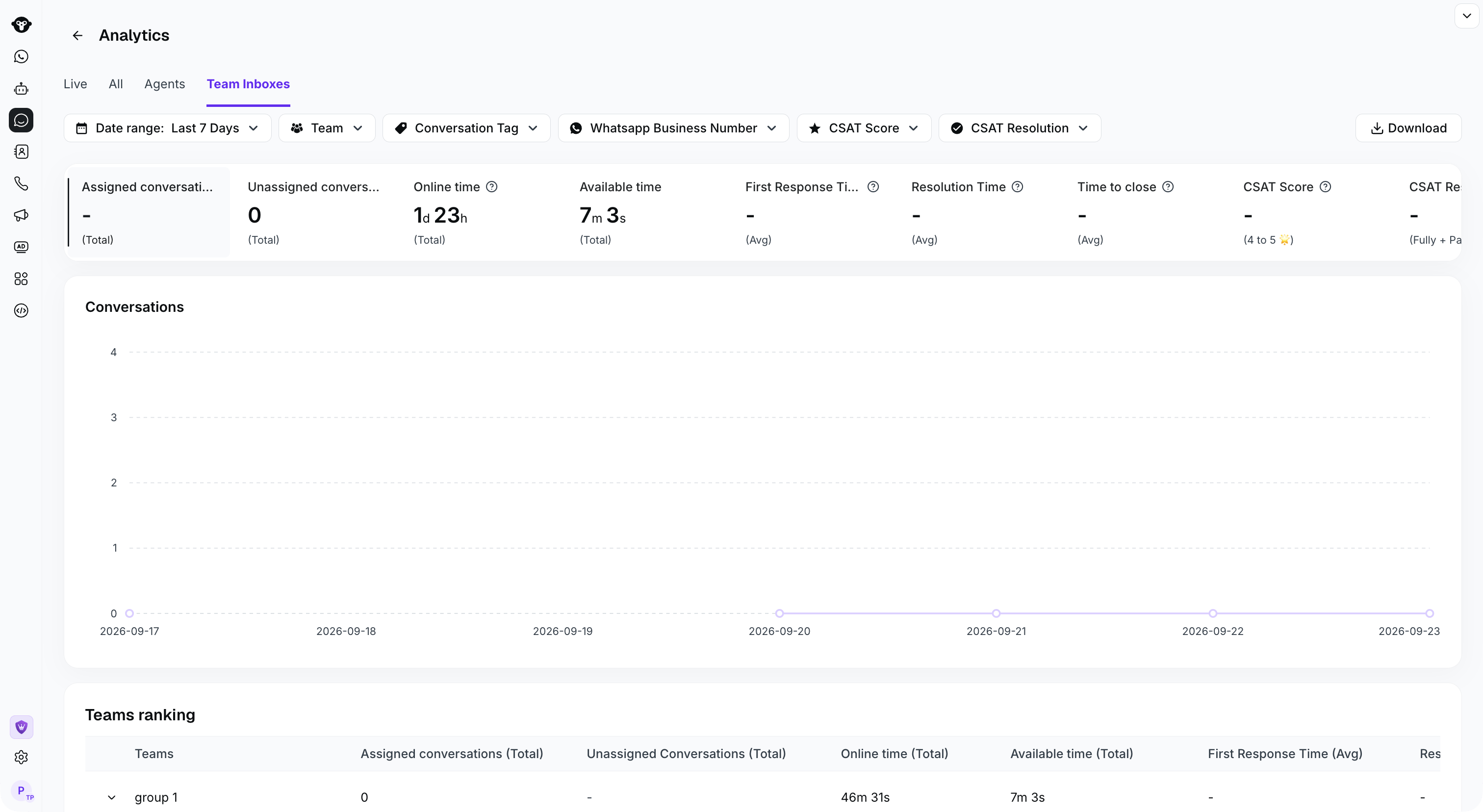 #### Team Inboxes conversation statistics fields
| Field | Description |
| - | - |
| Assigned Conversations | Total number of conversations which were already assigned, both to human agents and Bot agents. |
| Unassigned conversations | Total number of unassigned conversations. |
| Online time | Agent online time, including available and away status. |
| Available time | Agent available time, refers to when human agents both online and available. |
| First Response Time (Average) | Average time from the time a conversation is transferred to the responsible agent until the agent's first reply. |
| Resolution Time (Average) | Time from when a conversation is assigned (incl. AI Agents) to when it's closed. For conversations handled by multiple agents, time is attributed to the last one. |
| Time to close (Average) | The average time taken to close conversations in the selected period. |
| CSAT Score | The percentage of survey responses rated 4 or 5 stars. |
| CSAT Resolution | The percentage of responses marked fully or partially resolved. |
This documentation is built and hosted on [Mintlify](https://mintlify.com), a developer documentation platform.
#### Team Inboxes conversation statistics fields
| Field | Description |
| - | - |
| Assigned Conversations | Total number of conversations which were already assigned, both to human agents and Bot agents. |
| Unassigned conversations | Total number of unassigned conversations. |
| Online time | Agent online time, including available and away status. |
| Available time | Agent available time, refers to when human agents both online and available. |
| First Response Time (Average) | Average time from the time a conversation is transferred to the responsible agent until the agent's first reply. |
| Resolution Time (Average) | Time from when a conversation is assigned (incl. AI Agents) to when it's closed. For conversations handled by multiple agents, time is attributed to the last one. |
| Time to close (Average) | The average time taken to close conversations in the selected period. |
| CSAT Score | The percentage of survey responses rated 4 or 5 stars. |
| CSAT Resolution | The percentage of responses marked fully or partially resolved. |
This documentation is built and hosted on [Mintlify](https://mintlify.com), a developer documentation platform.