> ## Documentation Index
> Fetch the complete documentation index at: https://docs.ycloud.com/llms.txt
> Use this file to discover all available pages before exploring further.
# Initiate New Chat
> Methods to initiate a chat with a customer in Inbox
Learn how to start a chat with a customer using **3** methods.
If the contact has sent you a message, it will appear in your Inbox list. You can chat with the customer, transfer an existing conversation to yourself, or you can search for the target user's WhatsApp number and send a WhatsApp template.
## Respond to Customer Messages
When a customer sends you a message, you can reply immediately and start a chat conversation.
Through the filter on the left, the conversation list will display open conversations. Select one of the conversations, and the conversation window will expand on the right.
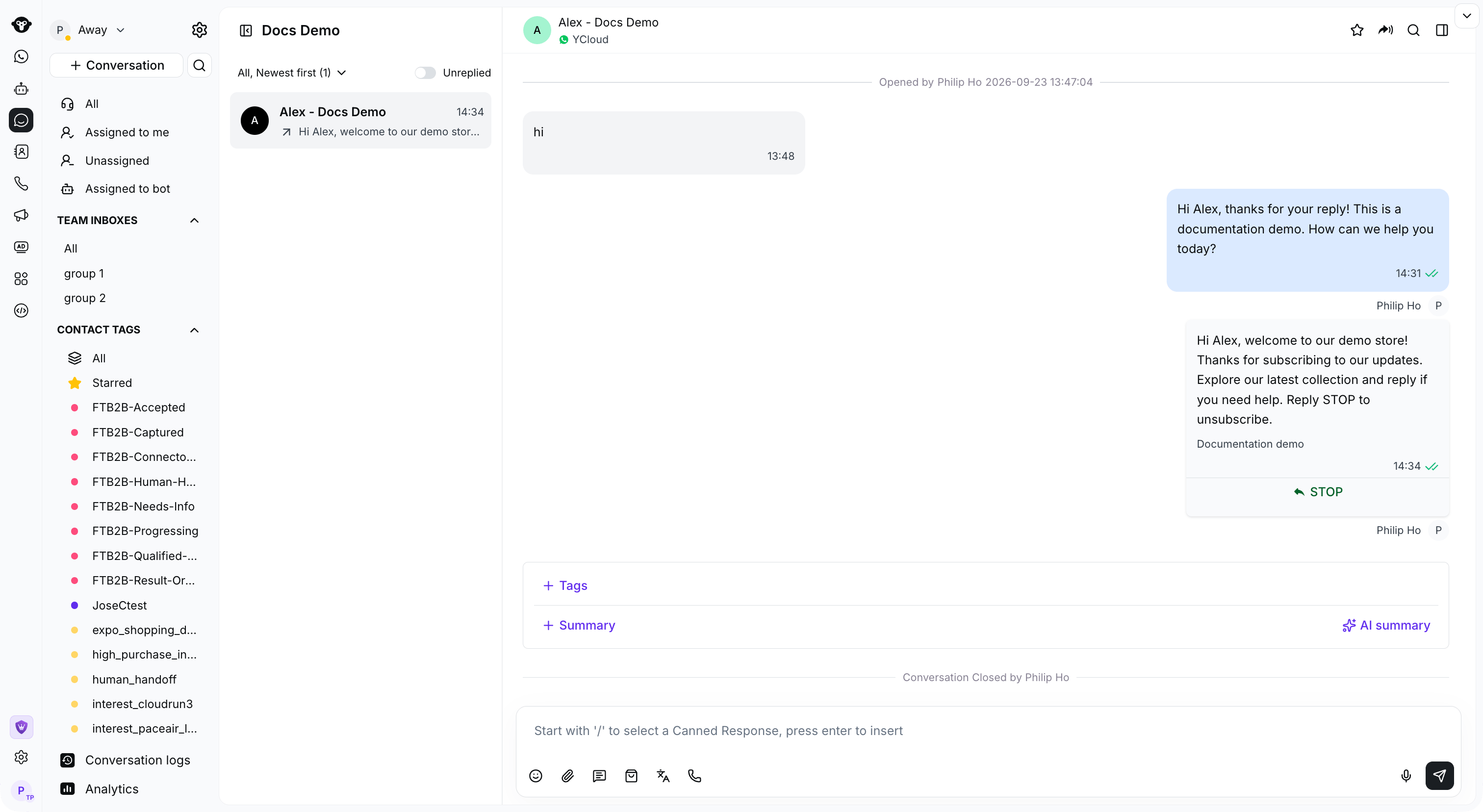 ## Transfer the Conversation to Yourself
Click **Assign to me** above the message box to transfer the conversation to yourself.
## Transfer the Conversation to Yourself
Click **Assign to me** above the message box to transfer the conversation to yourself.
 ## Start a Conversation with Any User
If you want to send a message to a contact that is not saved in your Inbox, you can search for them and send a WhatsApp template as the first interaction.
### Step 1: Search for the customer's phone number
Click the search icon beside **Conversation**, select **Contact**, and enter the phone number.
## Start a Conversation with Any User
If you want to send a message to a contact that is not saved in your Inbox, you can search for them and send a WhatsApp template as the first interaction.
### Step 1: Search for the customer's phone number
Click the search icon beside **Conversation**, select **Contact**, and enter the phone number.
 ### Step 2: Click the button below “+ Create a new conversation” to create a new session
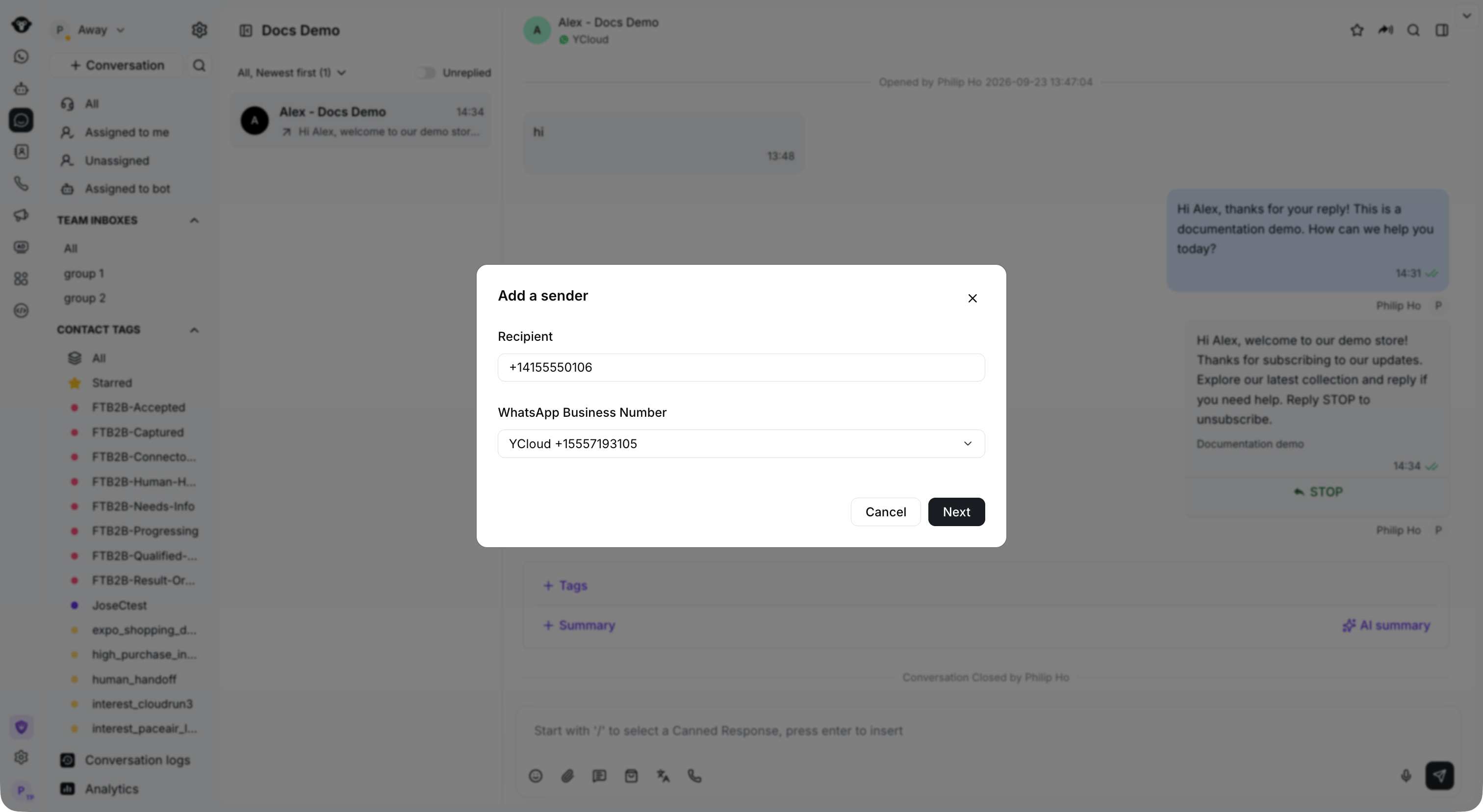
 ### Step 3: Select the WhatsApp Business Number to send from
Select your sending number, then click **Next**.
### Step 3: Select the WhatsApp Business Number to send from
Select your sending number, then click **Next**.
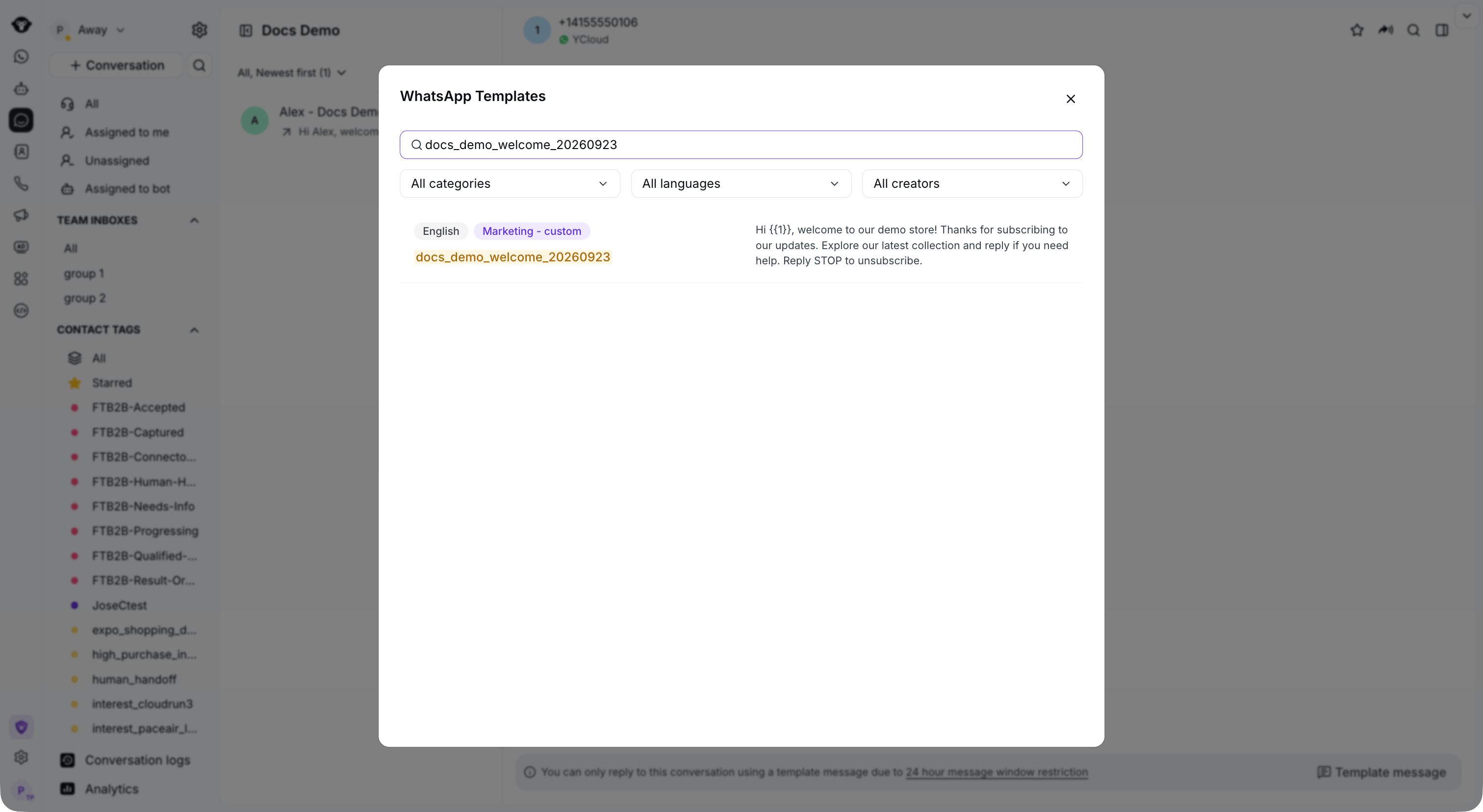
 ### Step 4: Choose the template to send
Search by template name or body, or filter templates by category, language, or creator.
### Step 4: Choose the template to send
Search by template name or body, or filter templates by category, language, or creator.
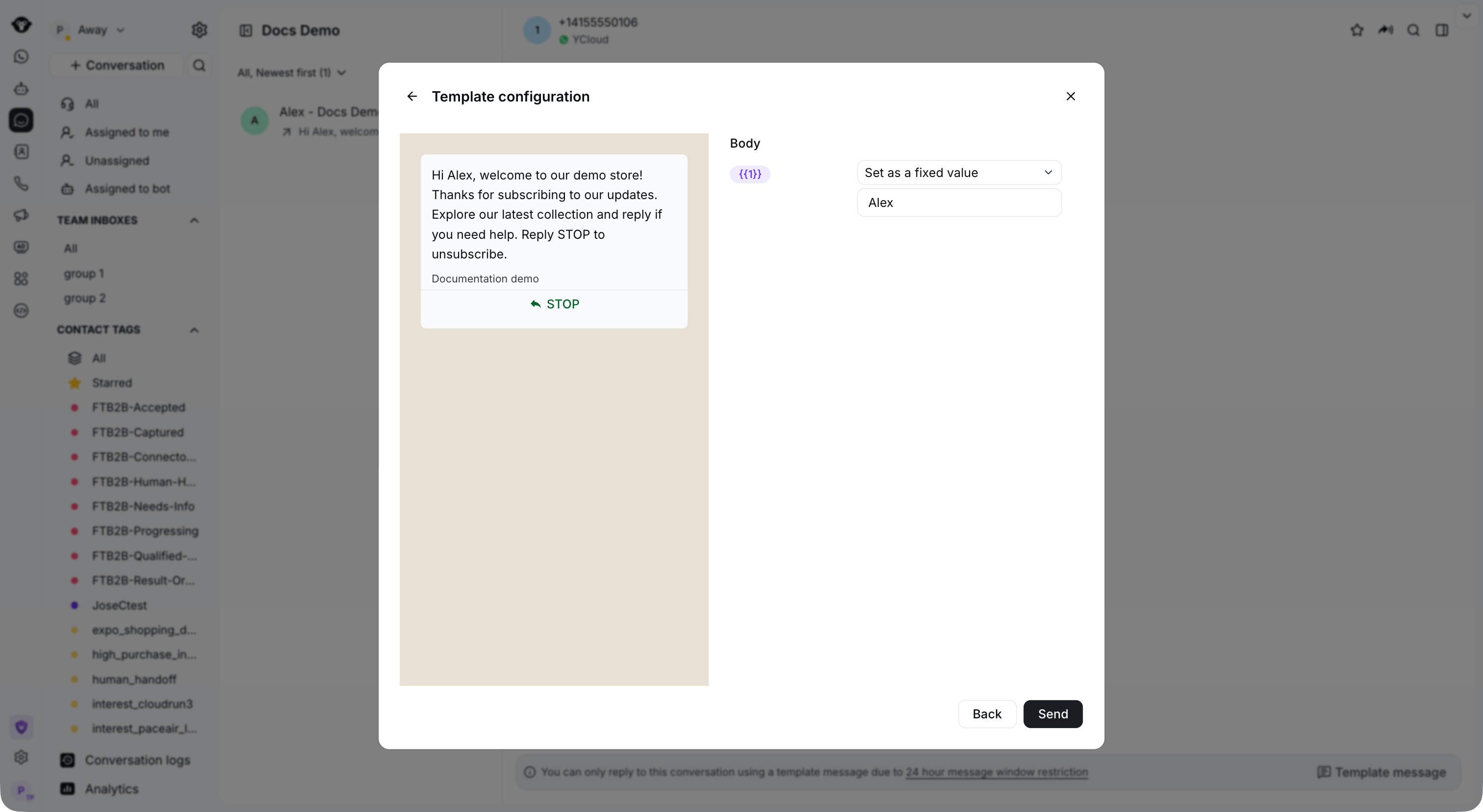
 ### Step 5: Confirm the template content/set template variables
Check the preview and variable values, then click **Send**.
### Step 5: Confirm the template content/set template variables
Check the preview and variable values, then click **Send**.
 This documentation is built and hosted on [Mintlify](https://mintlify.com), a developer documentation platform.