> ## Documentation Index
> Fetch the complete documentation index at: https://docs.ycloud.com/llms.txt
> Use this file to discover all available pages before exploring further.
# Search contacts & chat history
> Guide to Using the Inbox Chat History Search Function
### Function Introduction
The Inbox has added a new search function to help customer service staff quickly locate historical conversations and contact information. It supports two search modes:
* **Global Search**: Search across all conversations and contacts
* **Search within conversation**: Search historical messages in the currently open single conversation
### 1. Global Search (Web)
#### Entrance
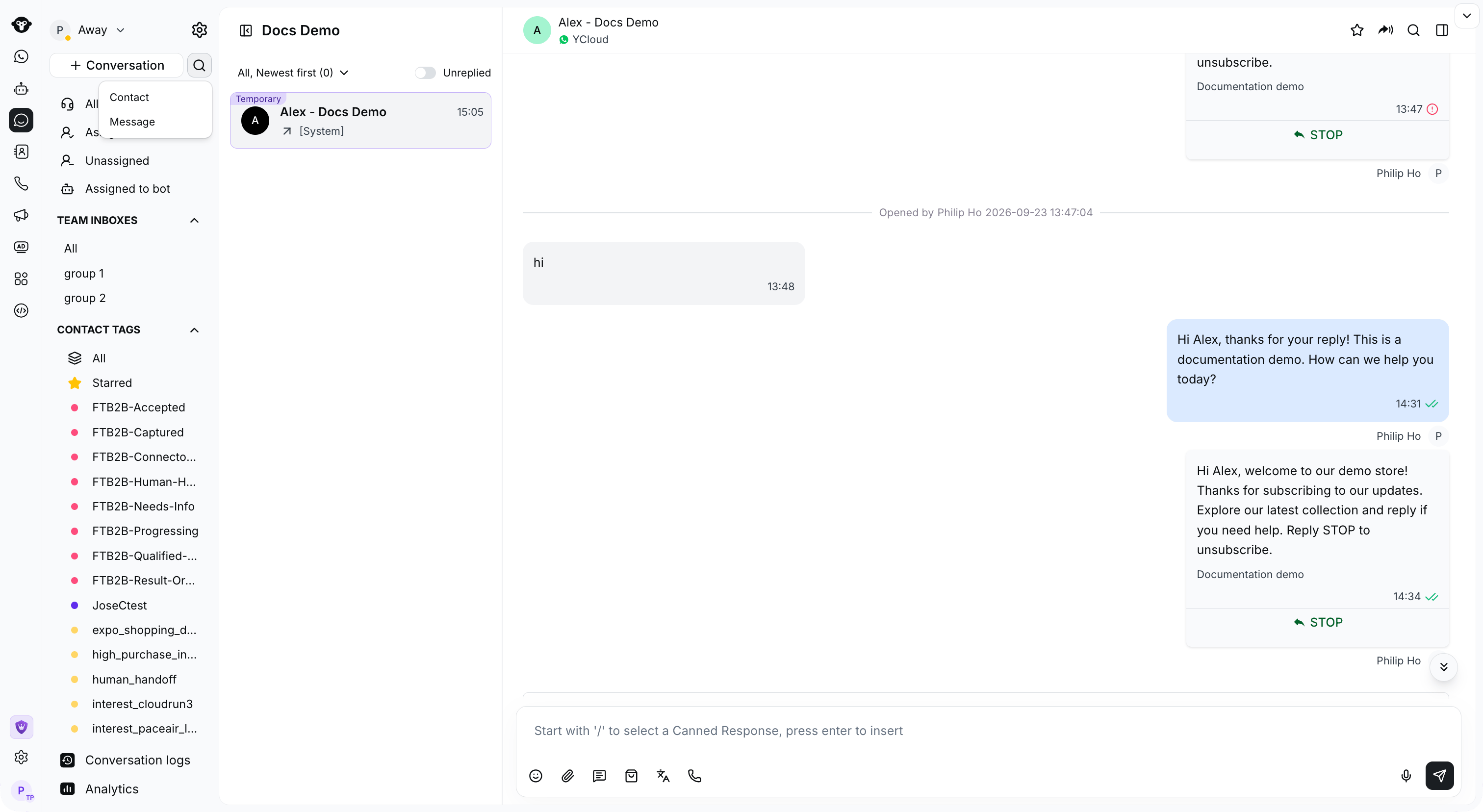
Click the search icon beside **Conversation** and choose a search mode.
 #### Contact Search
Select **Contact** from the search menu. **Supported searches:**
* Contact Name (Fuzzy Search, Case-Insensitive)
* Contact phone number (exact match)
**Result card includes:** avatar initials, name, phone number, last message preview, message time, and associated Agent
**Click Result:** Directly jump to the corresponding conversation.
**New Conversation:** Regardless of whether the search results are empty or not, the page always displays the "+ Create a new conversation" button. After clicking it, the new conversation pop-up window will open, and the entered number will be automatically filled in.
#### Contact Search
Select **Contact** from the search menu. **Supported searches:**
* Contact Name (Fuzzy Search, Case-Insensitive)
* Contact phone number (exact match)
**Result card includes:** avatar initials, name, phone number, last message preview, message time, and associated Agent
**Click Result:** Directly jump to the corresponding conversation.
**New Conversation:** Regardless of whether the search results are empty or not, the page always displays the "+ Create a new conversation" button. After clicking it, the new conversation pop-up window will open, and the entered number will be automatically filled in.
 #### Message Search
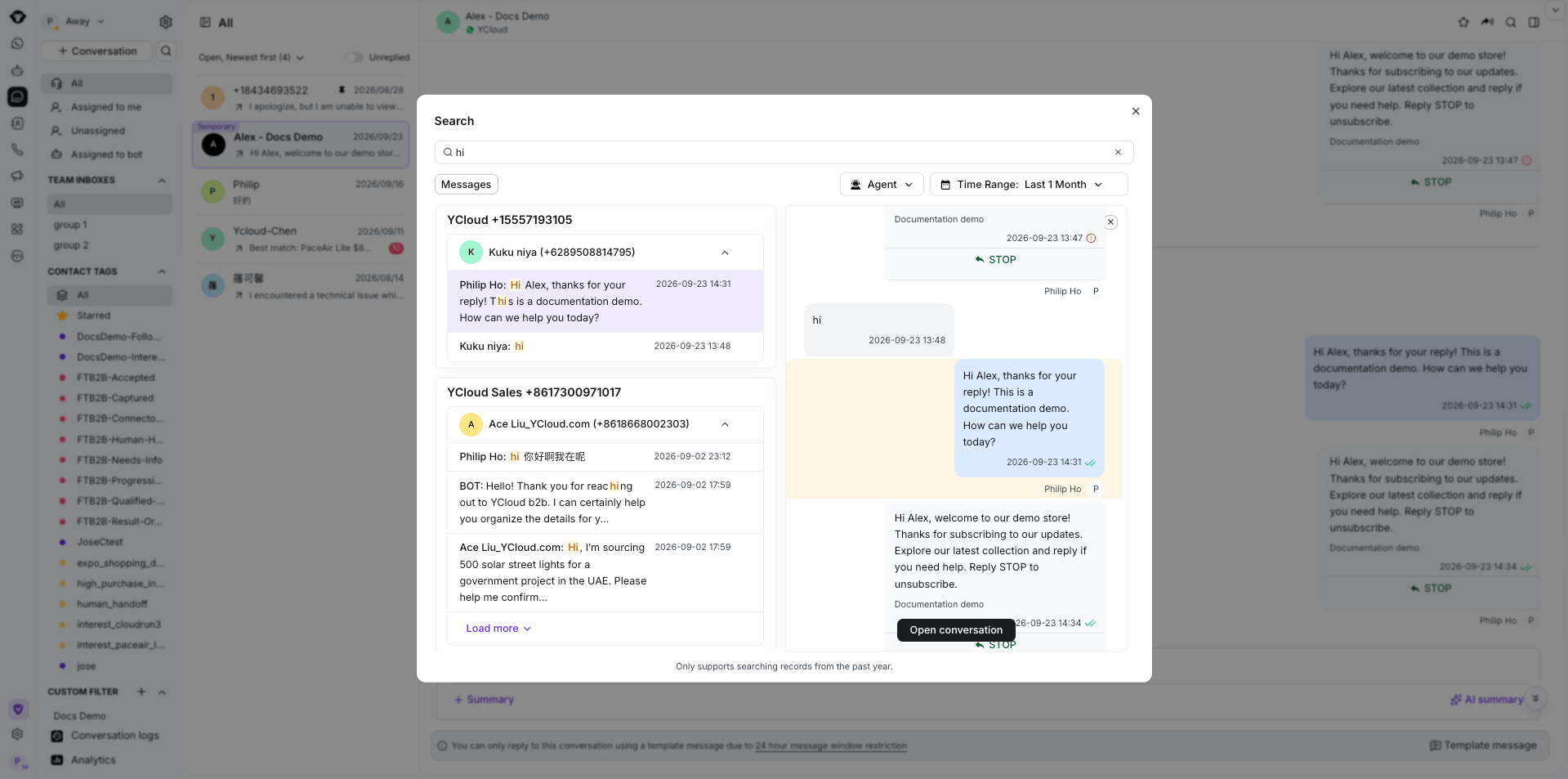
Open the search menu in Inbox and select **Message** to search message history.
**Supported searches:**
* Text message content
* Text part of the graphic message
**Search time range:** By default, it supports message records from the last 1 year.**Filter Criteria:**
* **Agent**: Supports fuzzy search, multiple selection available
* **Time**: Select the start time and end time
**The result card includes:** sender's avatar initials, sender's name, contact information, message content snippet (keyword highlighted), message time
#### Message Search
Open the search menu in Inbox and select **Message** to search message history.
**Supported searches:**
* Text message content
* Text part of the graphic message
**Search time range:** By default, it supports message records from the last 1 year.**Filter Criteria:**
* **Agent**: Supports fuzzy search, multiple selection available
* **Time**: Select the start time and end time
**The result card includes:** sender's avatar initials, sender's name, contact information, message content snippet (keyword highlighted), message time
 **Click Result:**
* Click on the conversation title row: Expand or collapse the message list under this conversation
* Click the "Jump" button: Jump to the corresponding conversation
* Click on the right side of a specific message row: A preview panel will pop up, displaying the context within 24 hours before and after that message
* Click the "Jump" button of a specific message: Jump to the position of that message in the corresponding conversation, where the message will be highlighted for 2 seconds and then disappear
#### Close Search
Click the **X** beside contact search, or **Close** in the message-search dialog, to return to Inbox.
**Click Result:**
* Click on the conversation title row: Expand or collapse the message list under this conversation
* Click the "Jump" button: Jump to the corresponding conversation
* Click on the right side of a specific message row: A preview panel will pop up, displaying the context within 24 hours before and after that message
* Click the "Jump" button of a specific message: Jump to the position of that message in the corresponding conversation, where the message will be highlighted for 2 seconds and then disappear
#### Close Search
Click the **X** beside contact search, or **Close** in the message-search dialog, to return to Inbox.
 ### 2. In-conversation Search (Web)
#### Entrance
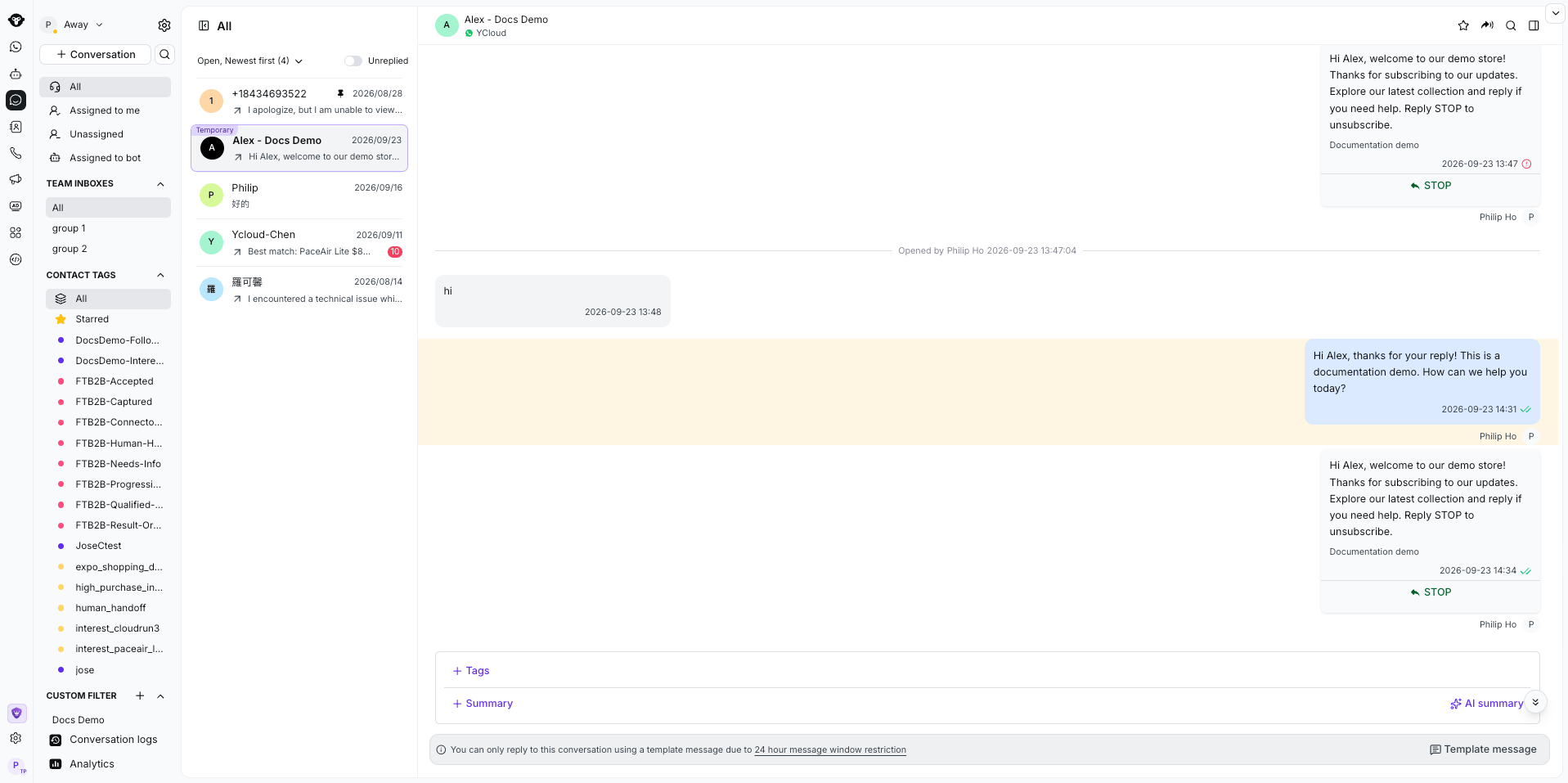
After opening any conversation, click the search icon at the top right of the conversation details area on the right.
#### Usage
1. Click the search icon to expand the search box
2. Enter keywords, and the system will search in the historical messages of the current session in real time
3. When hovering over a message in the search results list, a background color is displayed
4. Click on a message, and it will automatically jump and scroll to the position of that message
**Search Scope:** All historical messages within the current conversation (including messages sent by both the customer service and the client)
### 2. In-conversation Search (Web)
#### Entrance
After opening any conversation, click the search icon at the top right of the conversation details area on the right.
#### Usage
1. Click the search icon to expand the search box
2. Enter keywords, and the system will search in the historical messages of the current session in real time
3. When hovering over a message in the search results list, a background color is displayed
4. Click on a message, and it will automatically jump and scroll to the position of that message
**Search Scope:** All historical messages within the current conversation (including messages sent by both the customer service and the client)
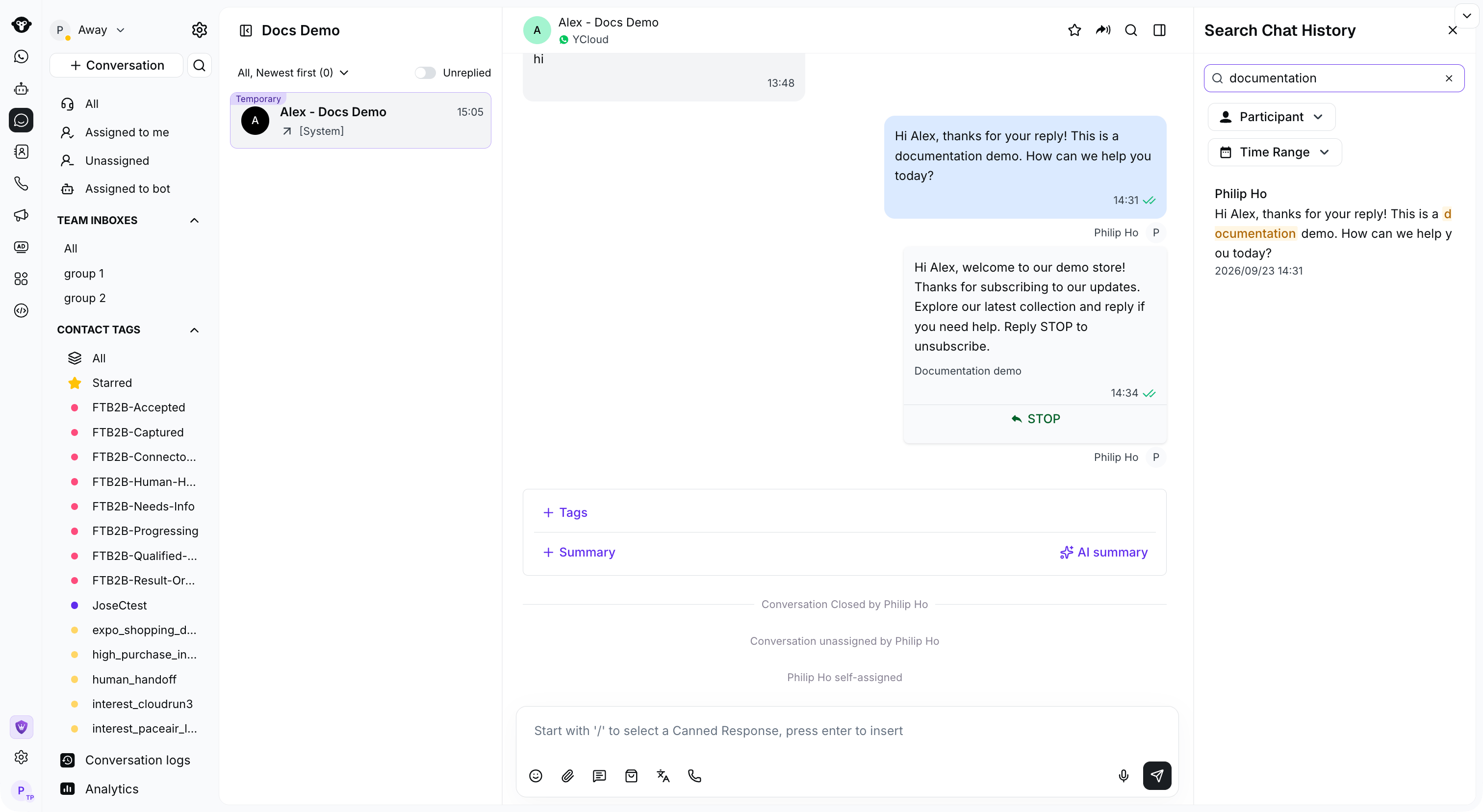 **Filter Criteria:**
* **Participant**: Filter message records by sender
* **Time**: Select the start time and end time
**Highlight Rules:**
* Currently selected item in the result list: gray background
* Keywords matched in the list: marked in bold or special color
* Matching items within the dialog box: highlighted in light yellow
**When there are no results:** Display a no-results prompt, keep the search box open, and allow users to continue modifying keywords.
### 3. Mobile Search
#### Global Search
1. Click the search button, and by default, it will enter the "Contacts" search
2. Click the toggle button to switch between "Contacts" and "Messages"
3. Message search only supports fuzzy search of chat content, **not** filtering by Agent or time
4. Search time range is consistent with the web version (last 1 year)
**Filter Criteria:**
* **Participant**: Filter message records by sender
* **Time**: Select the start time and end time
**Highlight Rules:**
* Currently selected item in the result list: gray background
* Keywords matched in the list: marked in bold or special color
* Matching items within the dialog box: highlighted in light yellow
**When there are no results:** Display a no-results prompt, keep the search box open, and allow users to continue modifying keywords.
### 3. Mobile Search
#### Global Search
1. Click the search button, and by default, it will enter the "Contacts" search
2. Click the toggle button to switch between "Contacts" and "Messages"
3. Message search only supports fuzzy search of chat content, **not** filtering by Agent or time
4. Search time range is consistent with the web version (last 1 year)
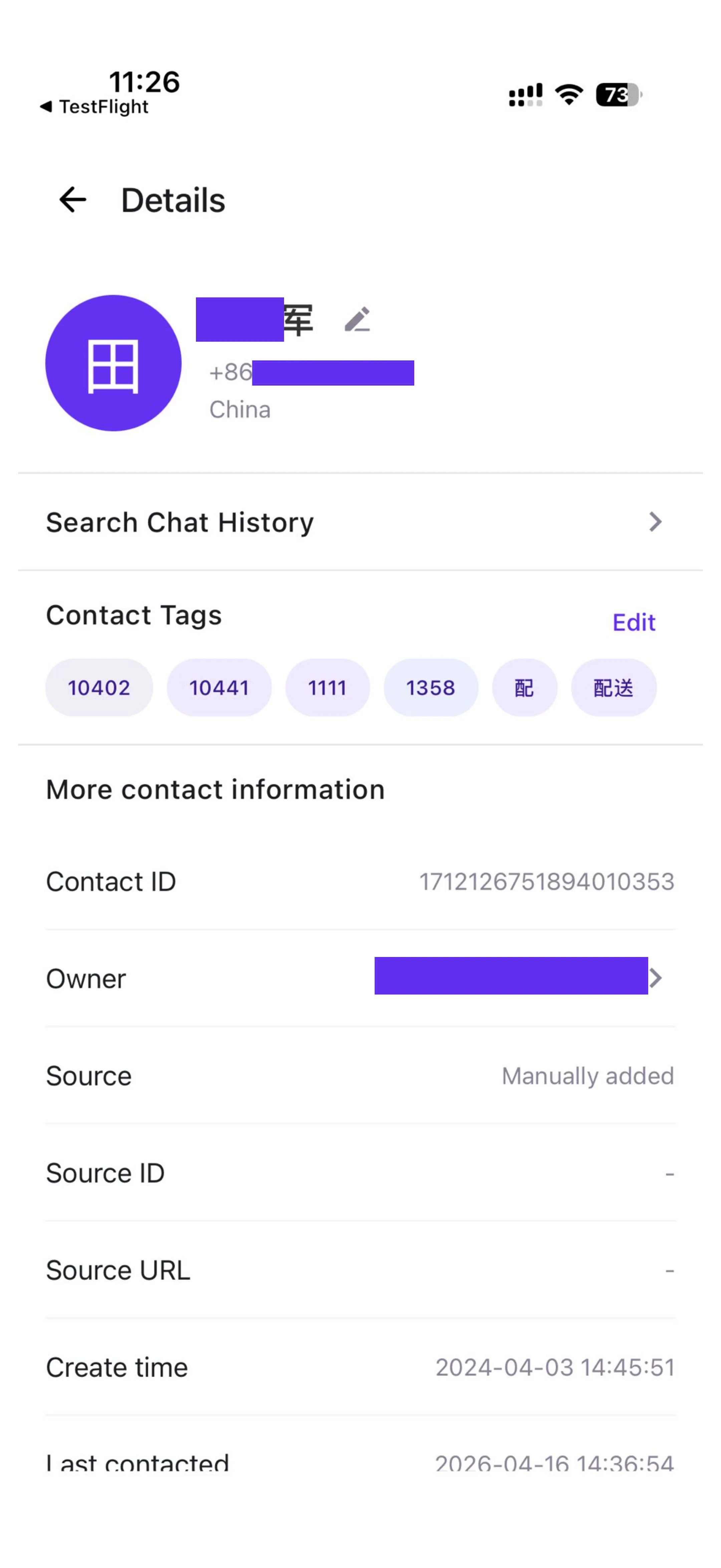
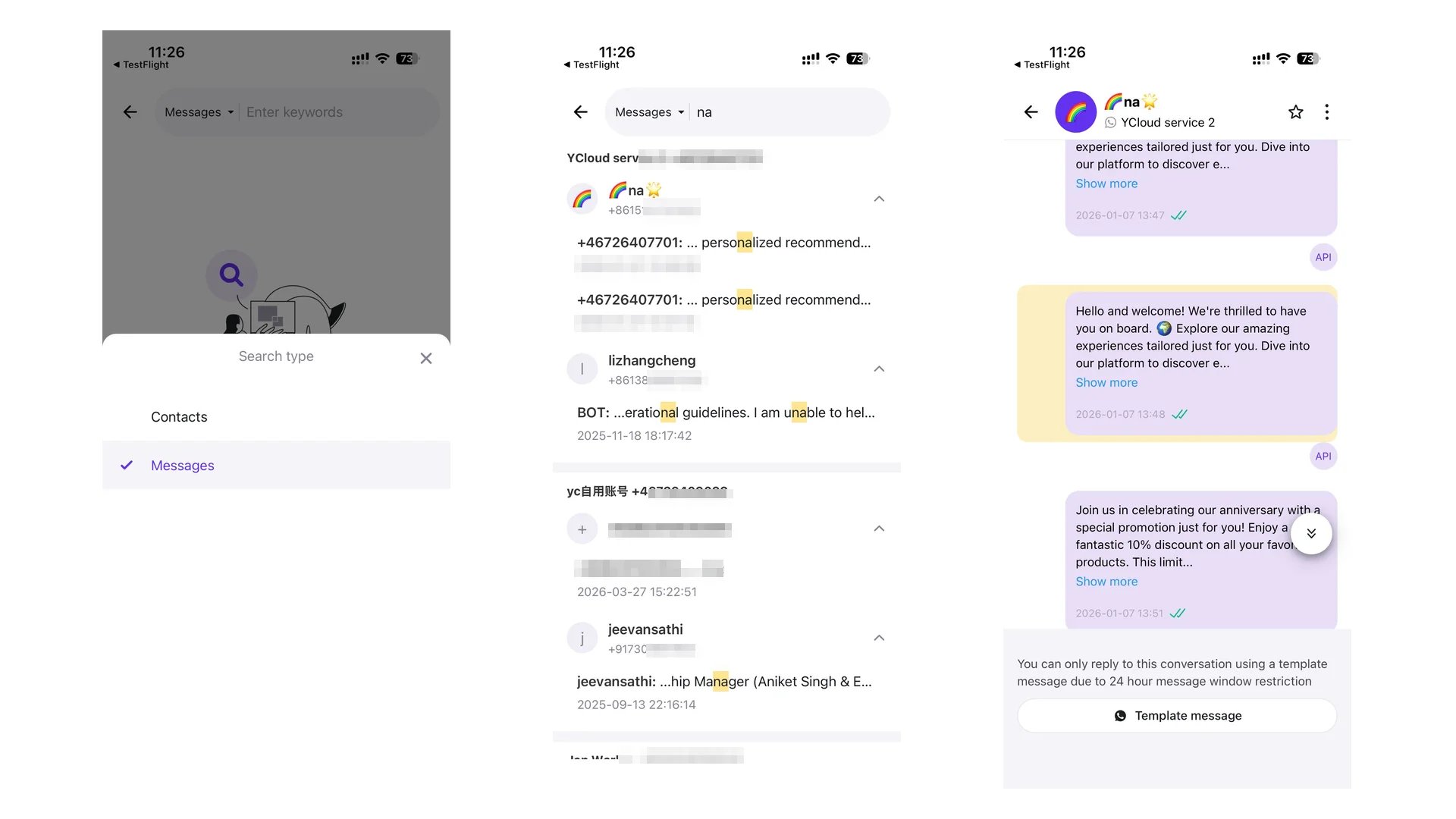 #### In-conversation Search
1. Enter the Conversation Details Page (Details)
2. Click the 「Search chat history」 button to enter the search page
3. Enter keywords to search the content of the current session
4. Click "Cancel" to return to the details page
### Frequently Asked Questions
**Q: How many characters need to be entered at least to trigger a search?**
A: Entering 1 character is sufficient to trigger a real-time search.
**Q: How far back can message search go?**
A: The global search feature supports message records from the past 1 year, and the page will display corresponding prompts. Message search within a conversation has no time limit.
**Q: Which fields does contact search support?**
A: It supports contact name (fuzzy search) and phone number (exact match).
**Q: What content types does message search support?**
A: It supports plain text messages and the text part of image-text messages. Image content does not currently support search.
**Q: After switching the contact/message tab, will the previously entered content still be there?**
A: No. After switching tabs, the content in the input box will be automatically cleared, and you need to re-enter the keywords.
This documentation is built and hosted on [Mintlify](https://mintlify.com), a developer documentation platform.
#### In-conversation Search
1. Enter the Conversation Details Page (Details)
2. Click the 「Search chat history」 button to enter the search page
3. Enter keywords to search the content of the current session
4. Click "Cancel" to return to the details page
### Frequently Asked Questions
**Q: How many characters need to be entered at least to trigger a search?**
A: Entering 1 character is sufficient to trigger a real-time search.
**Q: How far back can message search go?**
A: The global search feature supports message records from the past 1 year, and the page will display corresponding prompts. Message search within a conversation has no time limit.
**Q: Which fields does contact search support?**
A: It supports contact name (fuzzy search) and phone number (exact match).
**Q: What content types does message search support?**
A: It supports plain text messages and the text part of image-text messages. Image content does not currently support search.
**Q: After switching the contact/message tab, will the previously entered content still be there?**
A: No. After switching tabs, the content in the input box will be automatically cleared, and you need to re-enter the keywords.
This documentation is built and hosted on [Mintlify](https://mintlify.com), a developer documentation platform.