> ## Documentation Index
> Fetch the complete documentation index at: https://docs.ycloud.com/llms.txt
> Use this file to discover all available pages before exploring further.
# Welcome Messages
> Configure Inbox and rule-based agent welcome messages for new conversations.
When you want to send a fixed, preconfigured message whenever a customer starts a conversation, regardless of the content of the incoming message, the welcome message feature can meet your needs.
#### 1. Agent welcome message
1. After entering Inbox, click the **Inbox settings** gear beside your status.
 1. Select **Welcome Message** to manage your welcome messages.
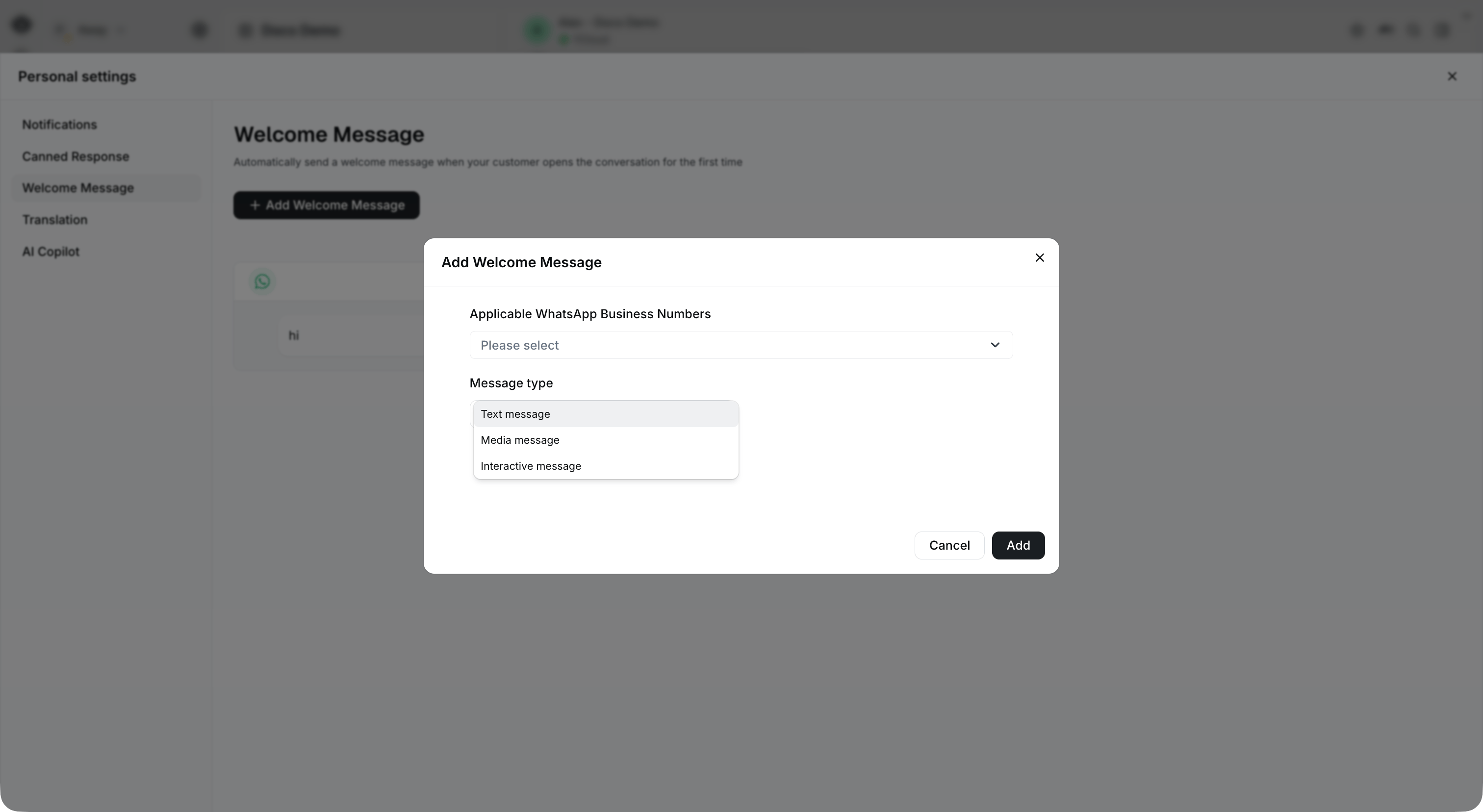
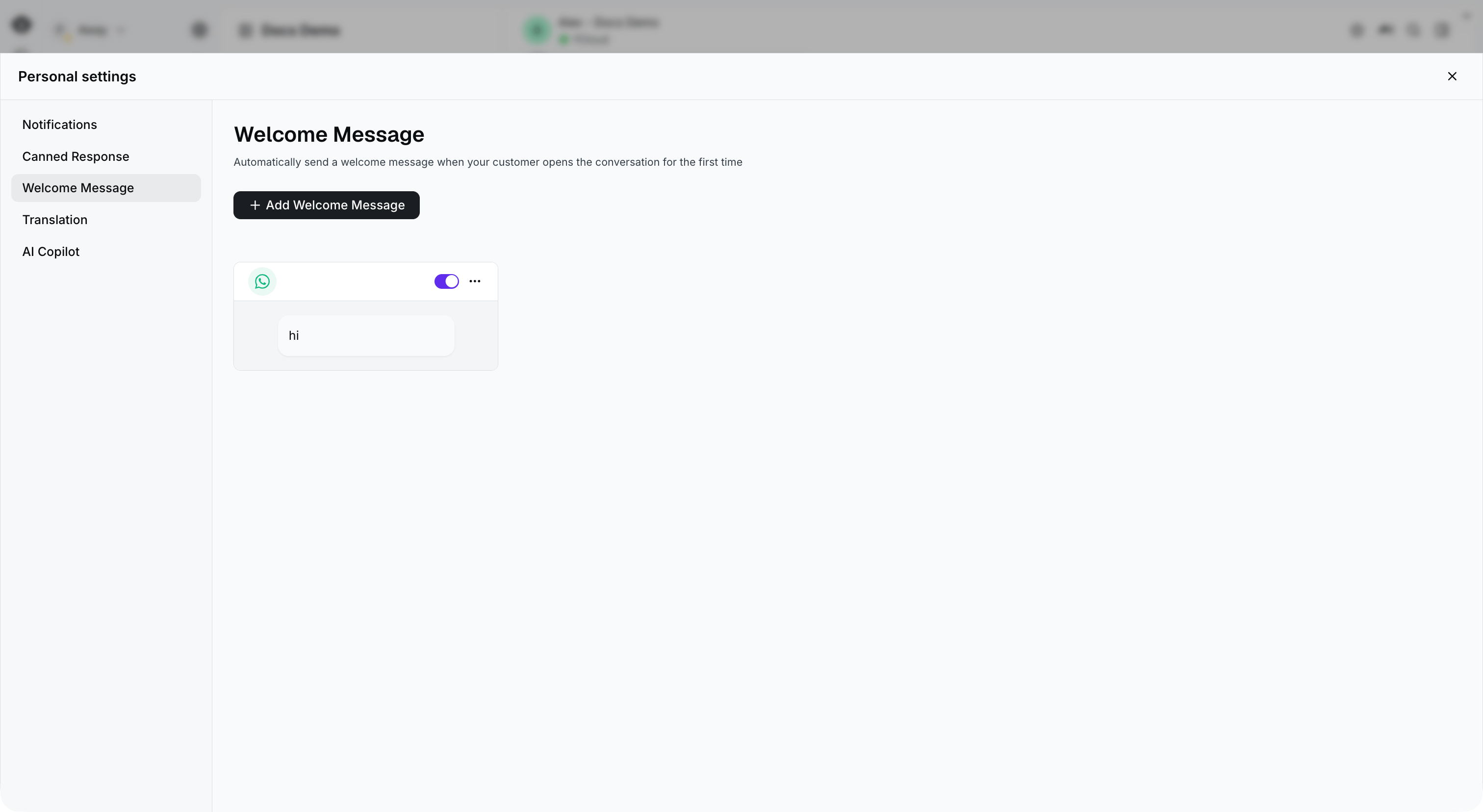 1. Click the Add Welcome Message button to create a new welcome message, then choose which business numbers it applies to. Three different types of welcome messages are supported: text, media, and interactive messages
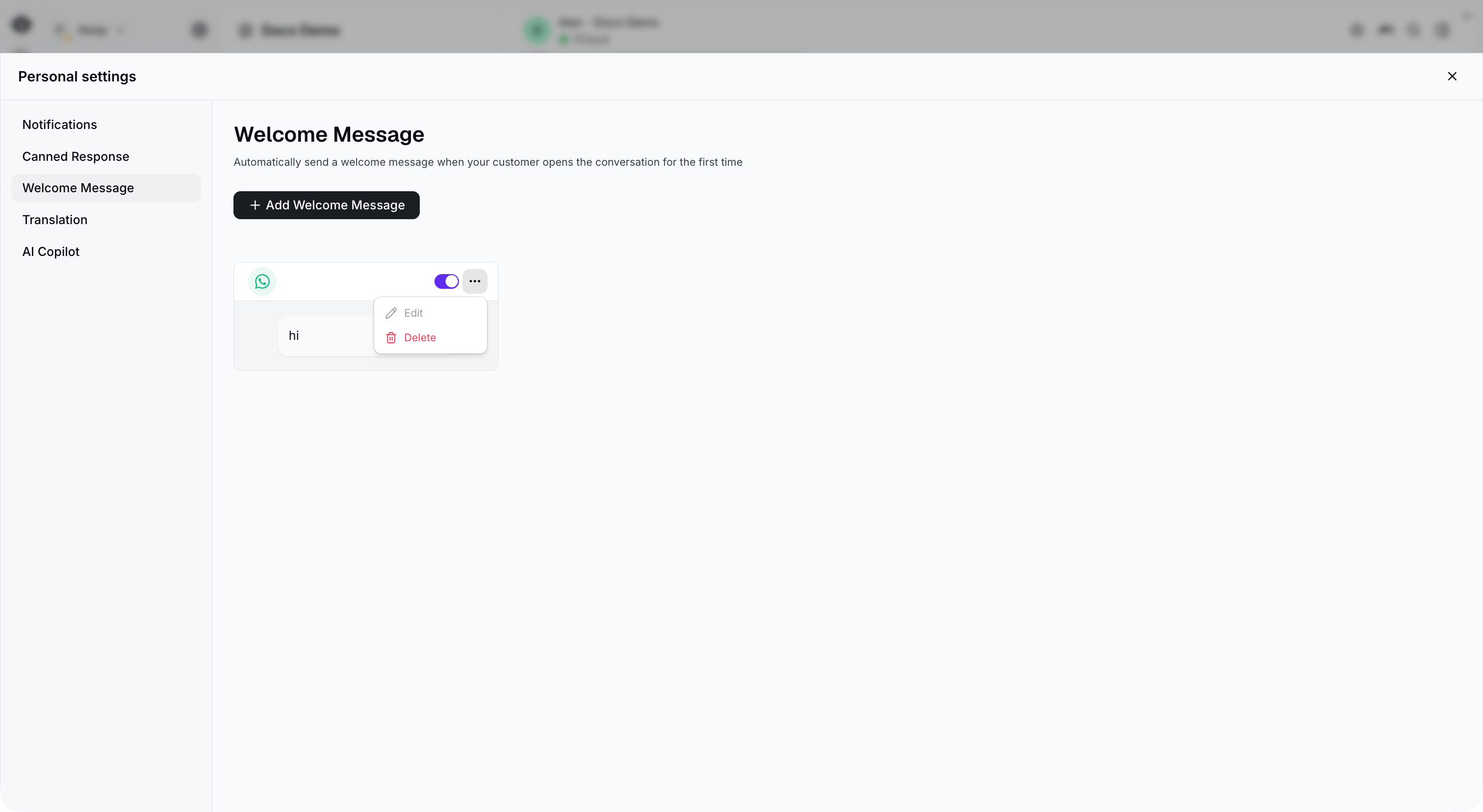
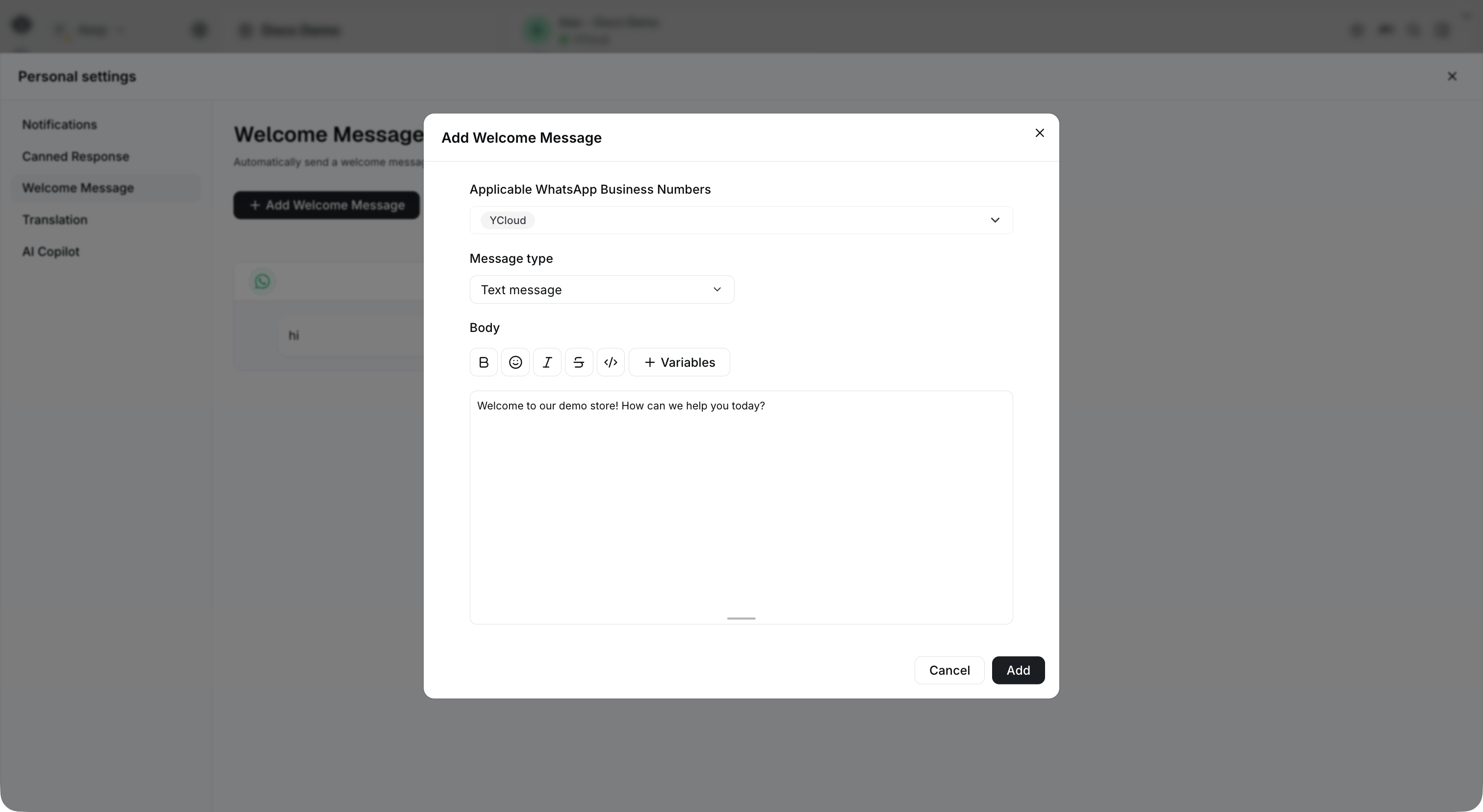 1. Turn on the switch to activate the welcome message. You can also edit or delete the welcome message by clicking the button in the upper-right corner
 #### 2. Rule-based agent welcome message
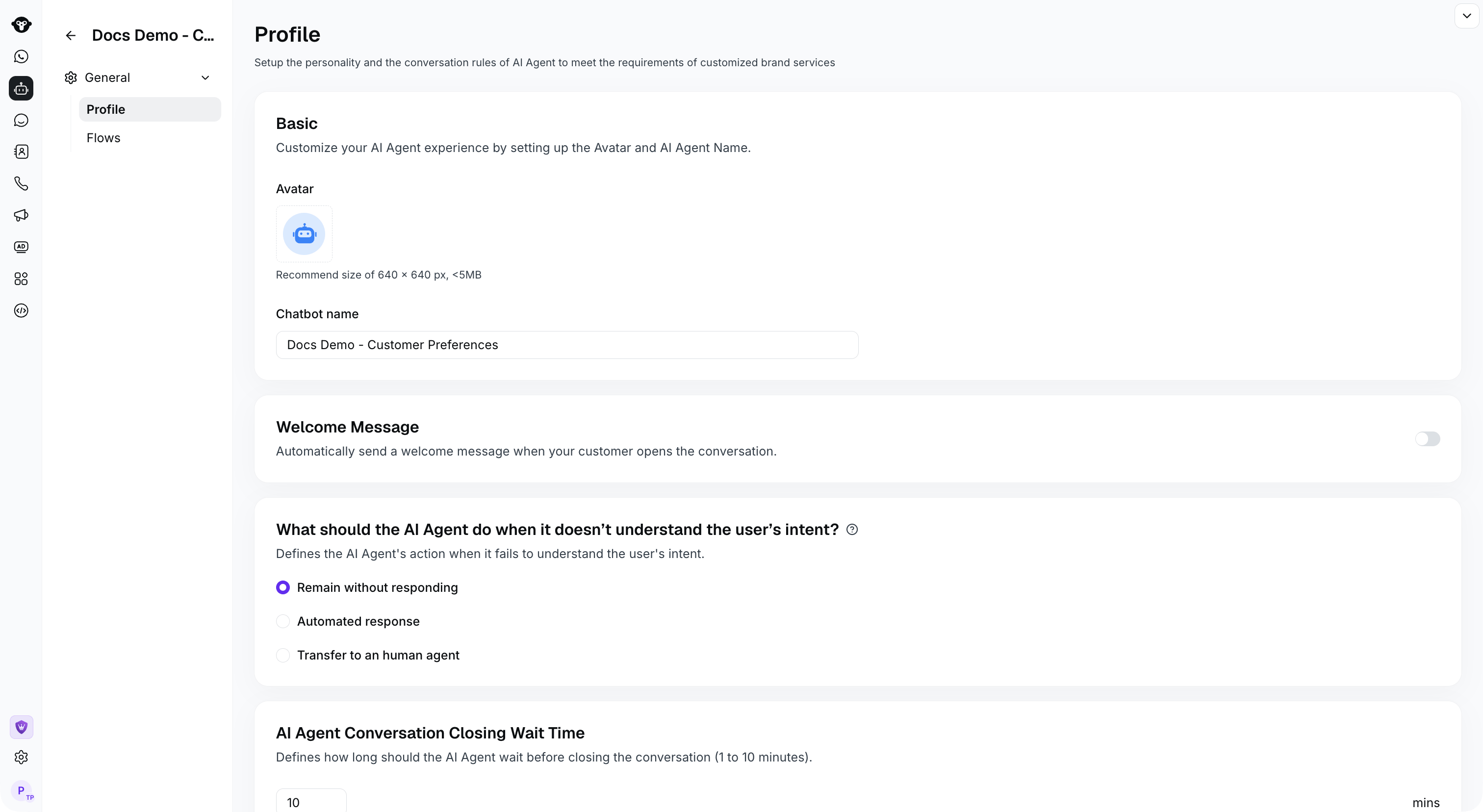
To configure a welcome message for a rule-based agent, open **AI Agent**, select the **Rule-based Agent** tab and your agent, then go to **General > Profile > Welcome Message**. The screenshot shows the setting turned off in the demo agent; turn it on to configure the message for your agent.
#### 2. Rule-based agent welcome message
To configure a welcome message for a rule-based agent, open **AI Agent**, select the **Rule-based Agent** tab and your agent, then go to **General > Profile > Welcome Message**. The screenshot shows the setting turned off in the demo agent; turn it on to configure the message for your agent.
 This documentation is built and hosted on [Mintlify](https://mintlify.com), a developer documentation platform.