> ## Documentation Index
> Fetch the complete documentation index at: https://docs.ycloud.com/llms.txt
> Use this file to discover all available pages before exploring further.
# WhatsApp Calling in Inbox
Make and receive [WhatsApp voice calls](/en/documentation/calling/overview) directly from Inbox.
## Invite Customers to Call in
When text messages are not sufficient during a conversation, you can invite the customer to start a voice call, allowing you to resolve issues faster and more efficiently.
Inbound calls are free of charge.
### 1. Send a Call Invitation
Entry point:
Click WhatsApp Calling > Ask customer to call
 Enter the reason for the call. After confirming the information, click Send.
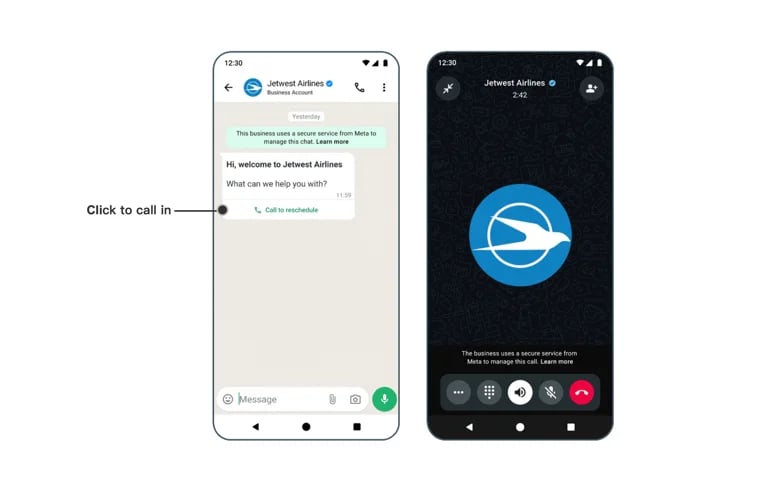
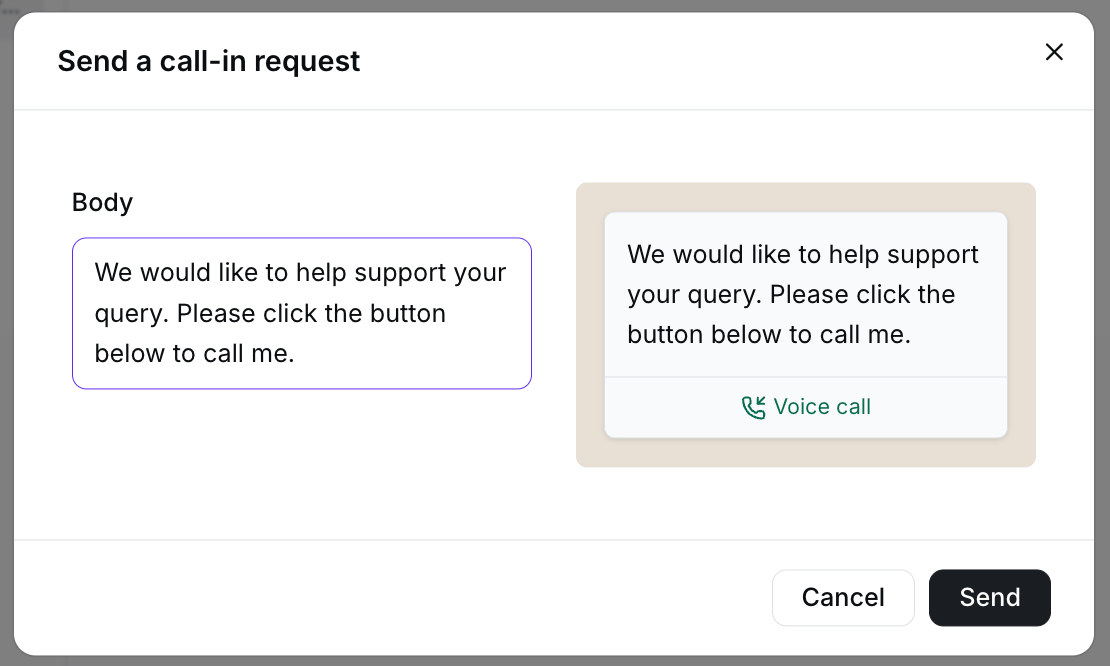 Once sent, the customer will receive a call invitation message on their phone, as shown below. The customer can initiate the call by tapping the Call button.
 #### 2. Answer an Incoming Call
When the customer starts a voice call using the invitation link you sent, you will see a notification in the Inbox.
#### 2. Answer an Incoming Call
When the customer starts a voice call using the invitation link you sent, you will see a notification in the Inbox.
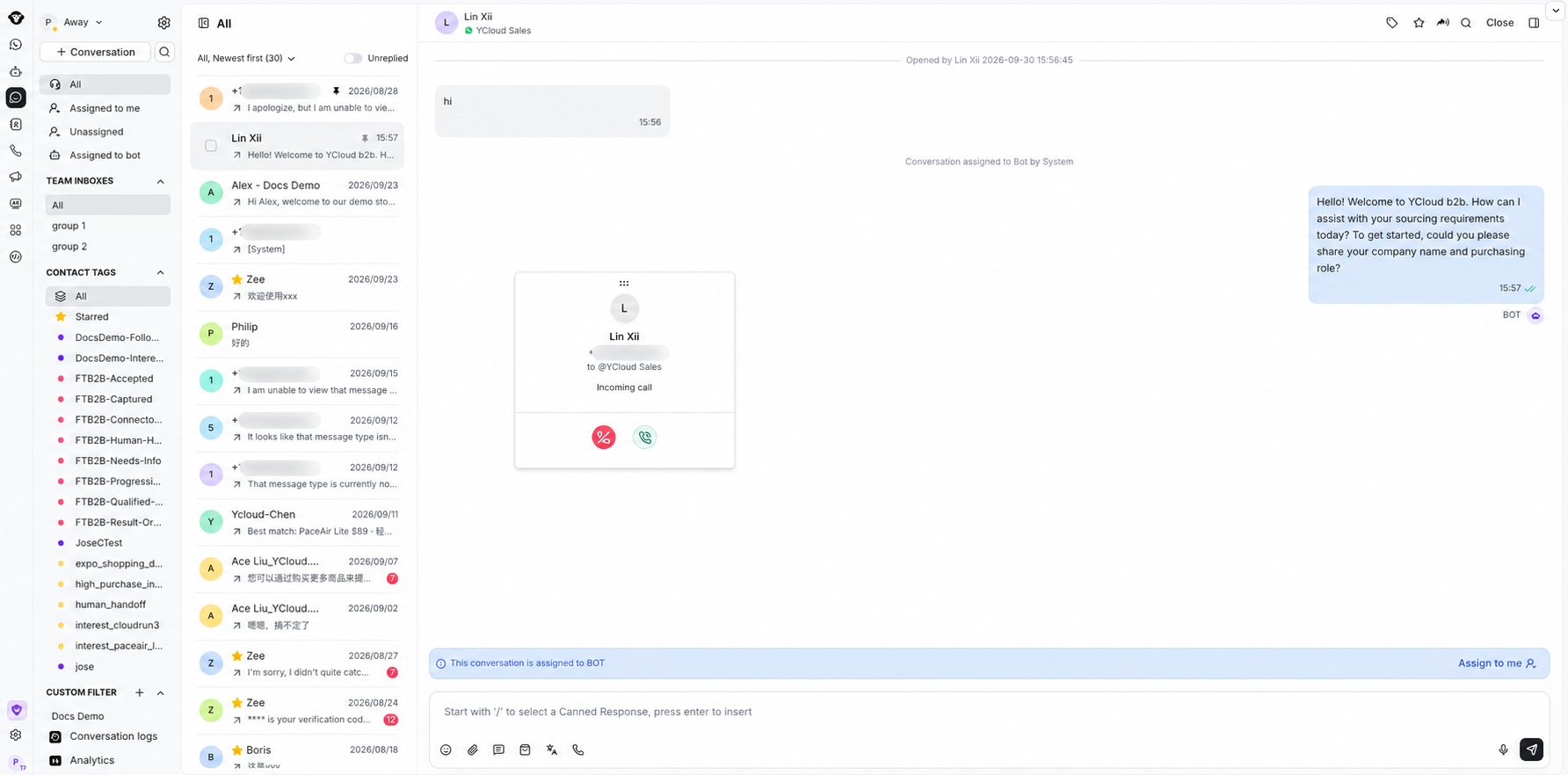 Click Answer to accept the call and start the conversation.
##
## Make an Outbound Call
Before making an outbound call, you must have permission to place calls using the business phone number. Please refer to the [relevant documentation](/en/documentation/calling/overview#outbound-calling-permissions) for more details.
⚠️ Outbound voice calls are chargeable.
For pricing details, please visit: [https://www.ycloud.com/pricing#price-table](https://www.ycloud.com/pricing#price-table)
### 1. Request for Calling permission
Entry point:
Click WhatsApp Calling > Call out
Click Answer to accept the call and start the conversation.
##
## Make an Outbound Call
Before making an outbound call, you must have permission to place calls using the business phone number. Please refer to the [relevant documentation](/en/documentation/calling/overview#outbound-calling-permissions) for more details.
⚠️ Outbound voice calls are chargeable.
For pricing details, please visit: [https://www.ycloud.com/pricing#price-table](https://www.ycloud.com/pricing#price-table)
### 1. Request for Calling permission
Entry point:
Click WhatsApp Calling > Call out
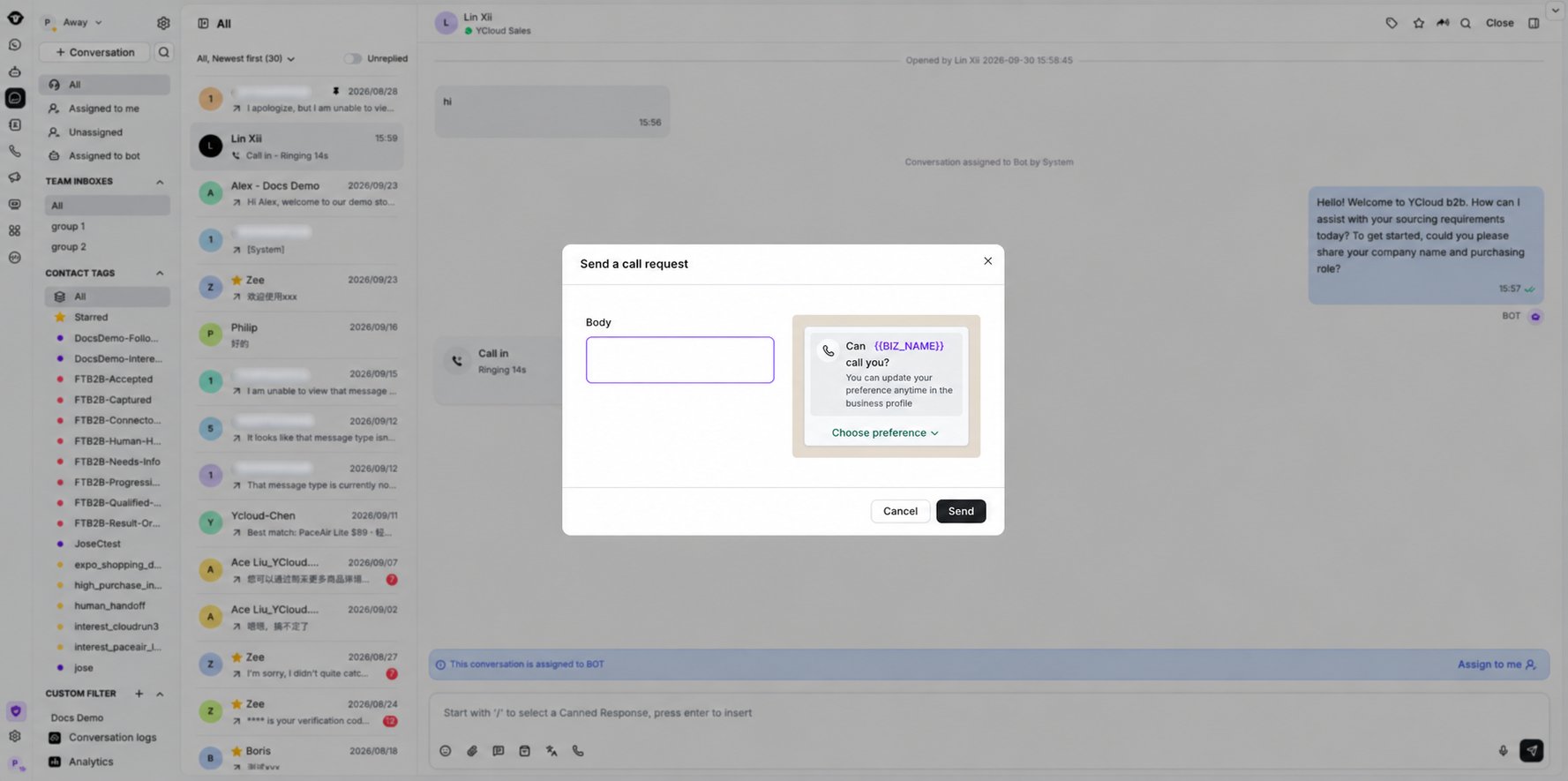
 YCloud will guide you to first send a call request message to the customer.
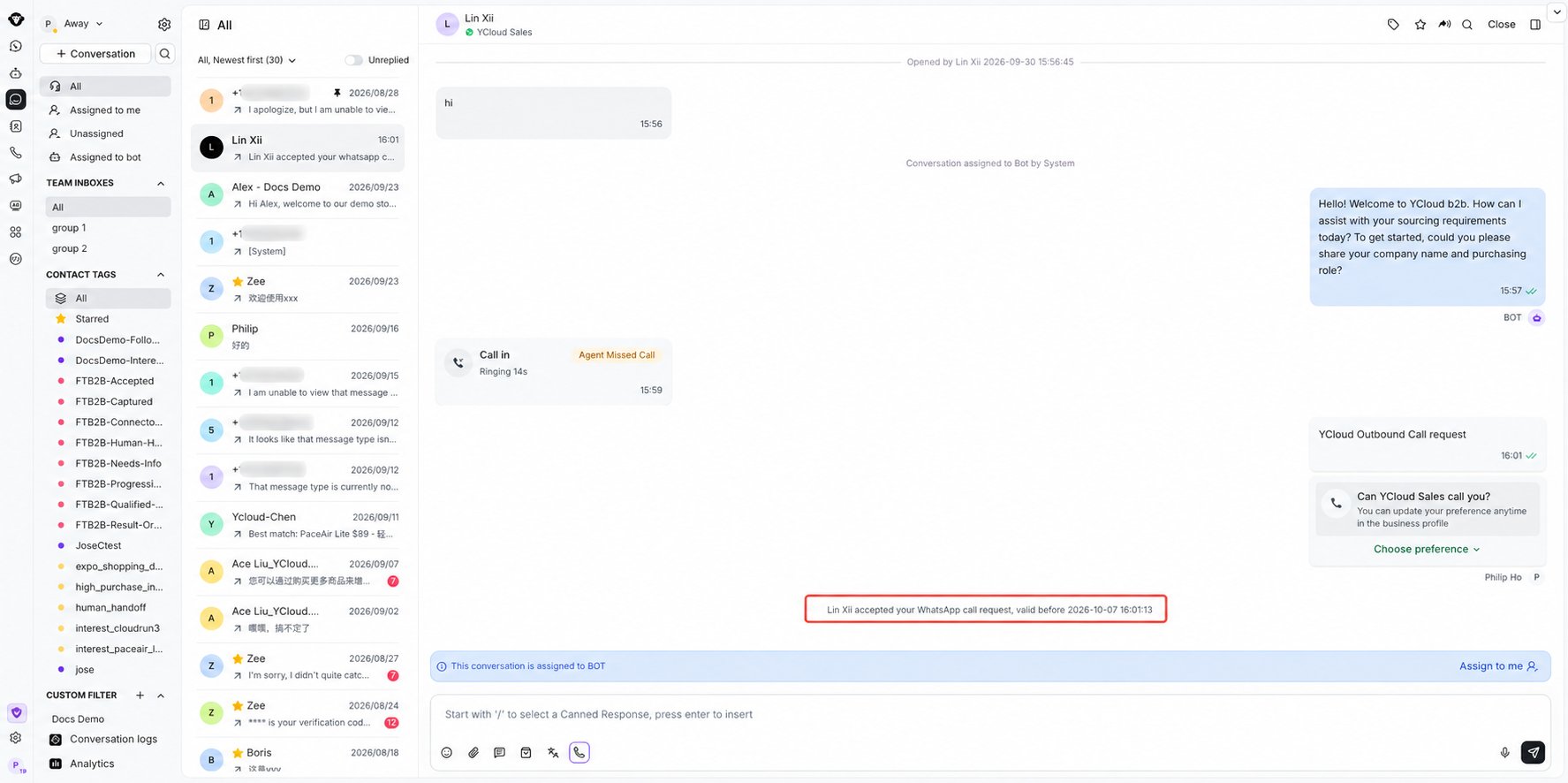
 ### 2. Receive Authorization
Once the customer grants permission, you will receive a system notification in the Inbox.
### 2. Receive Authorization
Once the customer grants permission, you will receive a system notification in the Inbox.
 ### 3. Start the Ountbound Call
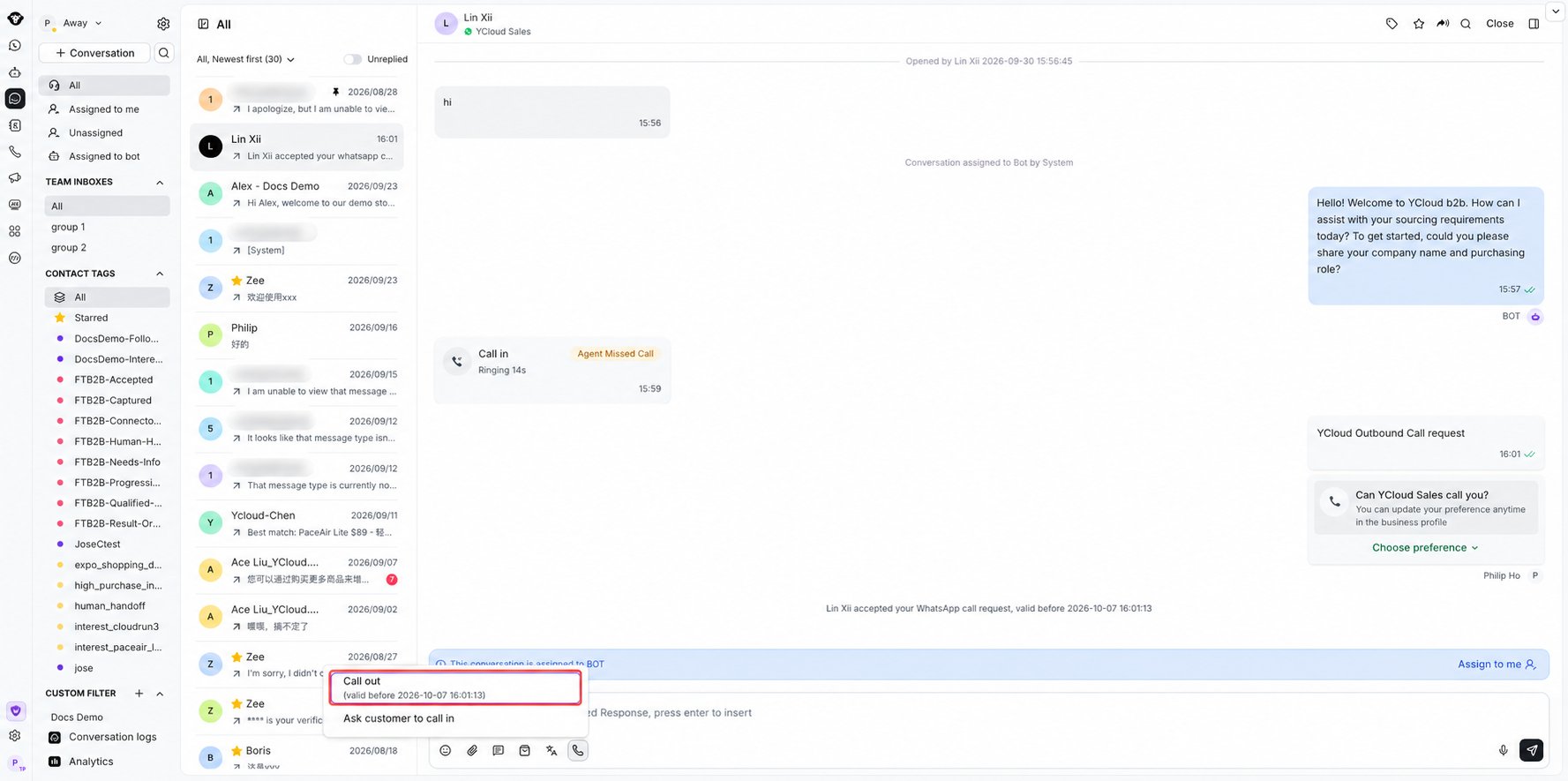
After authorization is granted, click the Call out button again to initiate the outbound voice call.
### 3. Start the Ountbound Call
After authorization is granted, click the Call out button again to initiate the outbound voice call.
 ### View Call Records
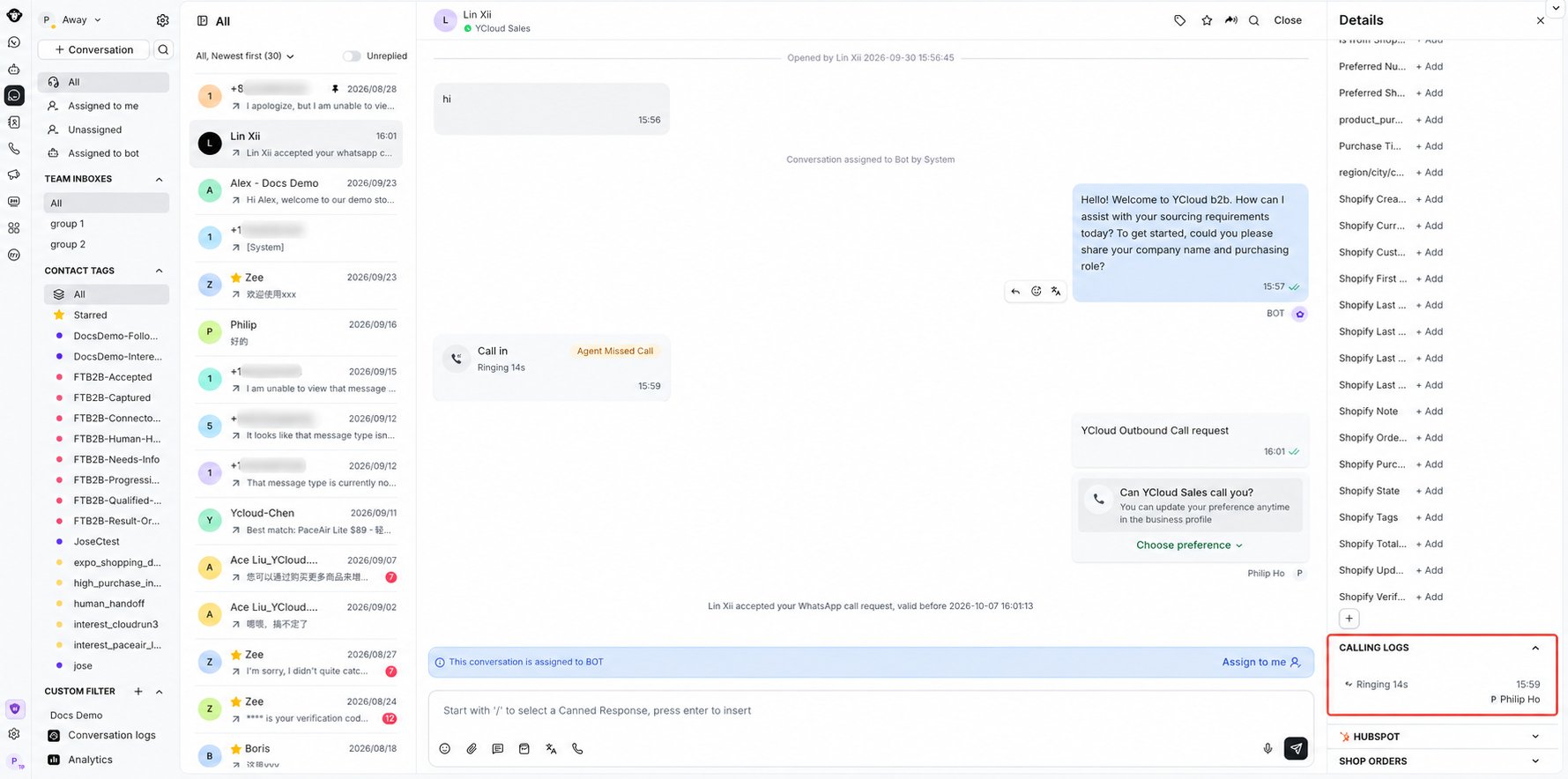
Open the Call Records panel on the right-hand side of the Inbox to view detailed call logs, including call status and duration.
### View Call Records
Open the Call Records panel on the right-hand side of the Inbox to view detailed call logs, including call status and duration.
 This documentation is built and hosted on [Mintlify](https://mintlify.com), a developer documentation platform.