> ## Documentation Index
> Fetch the complete documentation index at: https://docs.ycloud.com/llms.txt
> Use this file to discover all available pages before exploring further.
# Email
YCloud Email is a faster, simpler way to deliver at scale, suitable for sending transactional and marketing emails. Better than using a personal email address, you can have unlimited sending quotas and avoid being marked as spam.\
If you are building an application, then you will primarily interact with the Web API, which is the fastest, most flexible, and most secure option we offer. Once you have integrated with our Web API, you will see fast email delivery, highly configurable settings, data capabilities, and account security through your API key.
## Before You Start
To understand the pricing for emails, please check the prices on our website: [https://www.ycloud.com/en/price](https://www.ycloud.com/en/price)
### Getting Started
To use any YCloud product, you need to [register](https://www.ycloud.com/console/#/entry/register) for a free account.
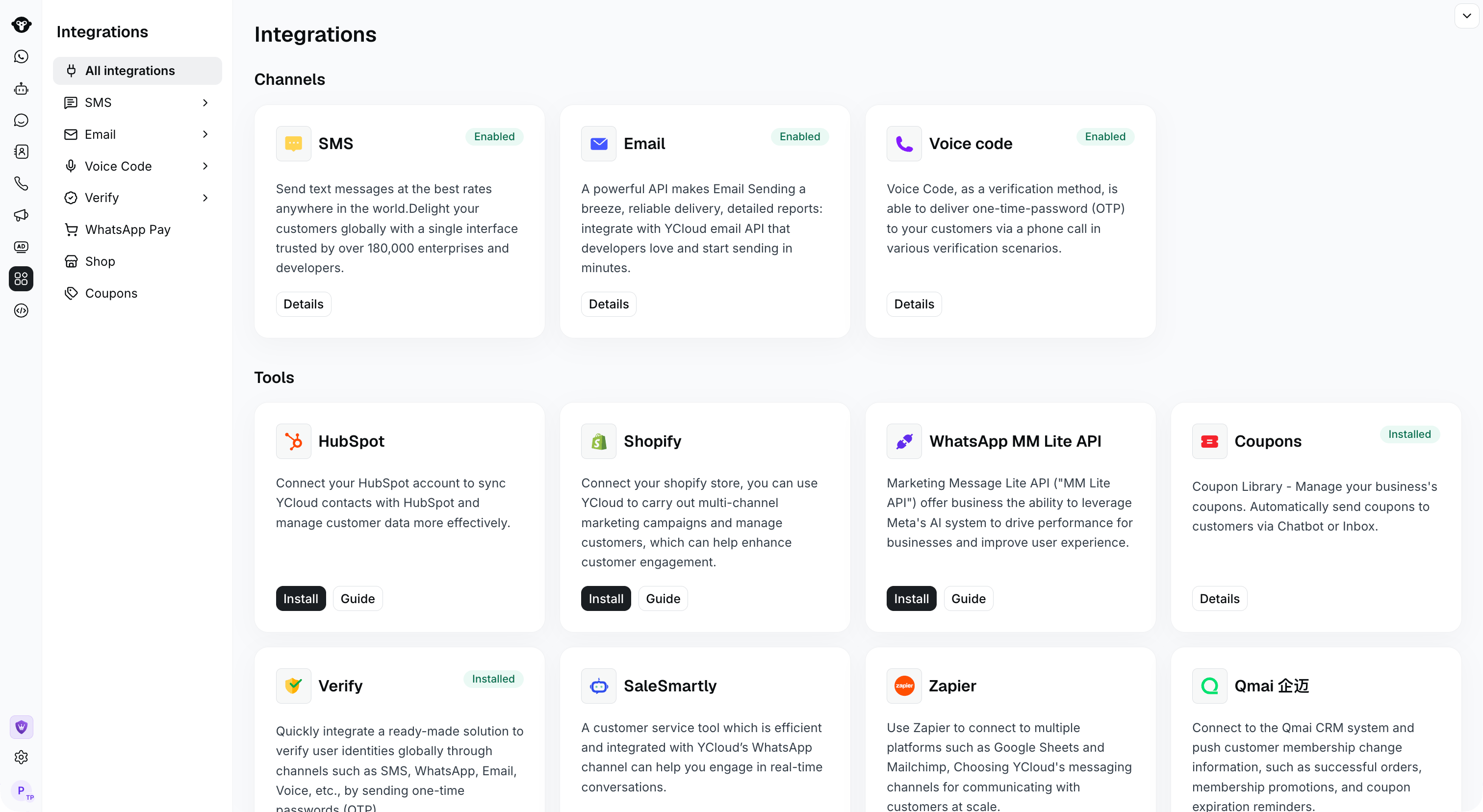
To activate the Email feature, click the Enable button on the [Integrations](https://www.ycloud.com/console/#/app/integrations/all) page.
 ## For Trial Accounts
You should be aware of some limitations:
* Trial accounts only support sending to your own registered email.
* The maximum daily delivery is 50 emails.
* YCloud provides an address [ycloud@ycloud-mail.com](mailto:ycloud@ycloud-mail.com) for testing, but this address only supports sending to your own registered email, regardless of whether you upgrade your account.
## Setting Up Your Domain
Add and verify your official domain. You need to prepare a domain for sending emails. Through your DNS provider (such as GoDaddy, Rackspace, Cloudflare, Route53, etc.). You can add the DNS records provided by YCloud to your DNS entries. These entries are called SPF and DKIM records.\
This domain will be the address displayed in the recipient field.
## Upgrading Your Account by Recharging
You can decide at any time to complete the free trial and [upgrade your account.](https://www.ycloud.com/console/#/app/billing/buyCredits)
## Using and Testing
It's time to integrate the [Email Send API](/api-reference/emails/send-an-email) and test, sending one or more emails with attachments to one or more target addresses.
This documentation is built and hosted on [Mintlify](https://mintlify.com), a developer documentation platform.
## For Trial Accounts
You should be aware of some limitations:
* Trial accounts only support sending to your own registered email.
* The maximum daily delivery is 50 emails.
* YCloud provides an address [ycloud@ycloud-mail.com](mailto:ycloud@ycloud-mail.com) for testing, but this address only supports sending to your own registered email, regardless of whether you upgrade your account.
## Setting Up Your Domain
Add and verify your official domain. You need to prepare a domain for sending emails. Through your DNS provider (such as GoDaddy, Rackspace, Cloudflare, Route53, etc.). You can add the DNS records provided by YCloud to your DNS entries. These entries are called SPF and DKIM records.\
This domain will be the address displayed in the recipient field.
## Upgrading Your Account by Recharging
You can decide at any time to complete the free trial and [upgrade your account.](https://www.ycloud.com/console/#/app/billing/buyCredits)
## Using and Testing
It's time to integrate the [Email Send API](/api-reference/emails/send-an-email) and test, sending one or more emails with attachments to one or more target addresses.
This documentation is built and hosted on [Mintlify](https://mintlify.com), a developer documentation platform.