> ## Documentation Index
> Fetch the complete documentation index at: https://docs.ycloud.com/llms.txt
> Use this file to discover all available pages before exploring further.
# Mass Messaging
Send SMS messages in bulk.
Note: YCloud reviews all bulk SMS messages. Messages in some countries and regions require prior reporting. If you have any questions, please contact customer service.
## Step 1: Entry
Log in to YCloud and visit [Campaign](https://www.ycloud.com/console/#/app/bulkMessages/logs)
## Step 2: Create SMS Bulk Message
Click the create button and select SMS bulk message
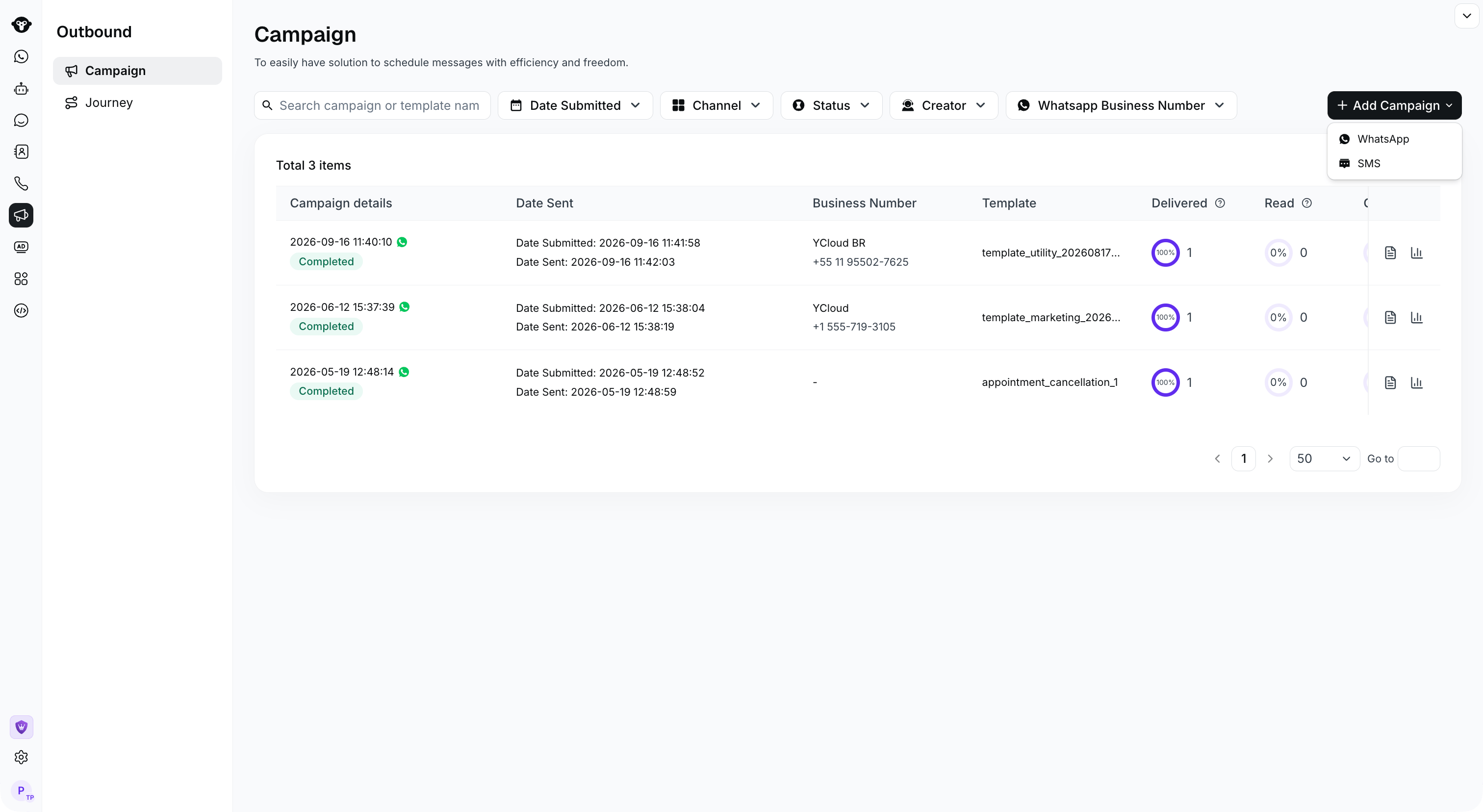 ## Step 3: Set Recipients
Provide 3 ways to set recipients:
1. Manually input phone numbers
2. Upload a file of phone numbers
3. Select a crowd from Contact
#### Manually Input Phone Numbers
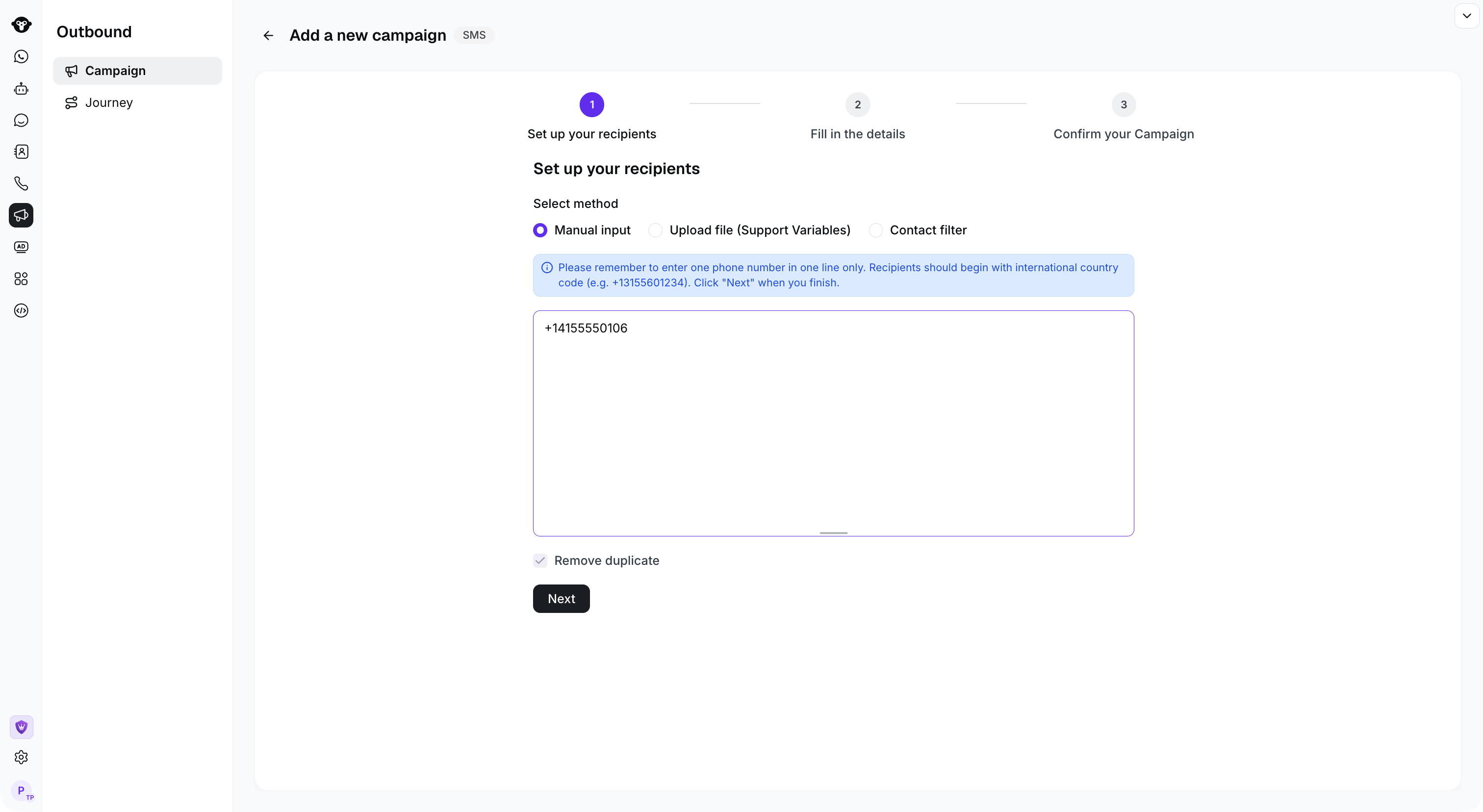
Input phone numbers in a multi-line text field, with one number per line. Ensure the number is in international format and starts with the country/region code. For example, if the UK number is 44 and the phone number is 7759398257, you should input +447759398257. If you already have an Excel file, you can copy the phone number column and paste it into the box.
## Step 3: Set Recipients
Provide 3 ways to set recipients:
1. Manually input phone numbers
2. Upload a file of phone numbers
3. Select a crowd from Contact
#### Manually Input Phone Numbers
Input phone numbers in a multi-line text field, with one number per line. Ensure the number is in international format and starts with the country/region code. For example, if the UK number is 44 and the phone number is 7759398257, you should input +447759398257. If you already have an Excel file, you can copy the phone number column and paste it into the box.
 #### Upload Phone Number File
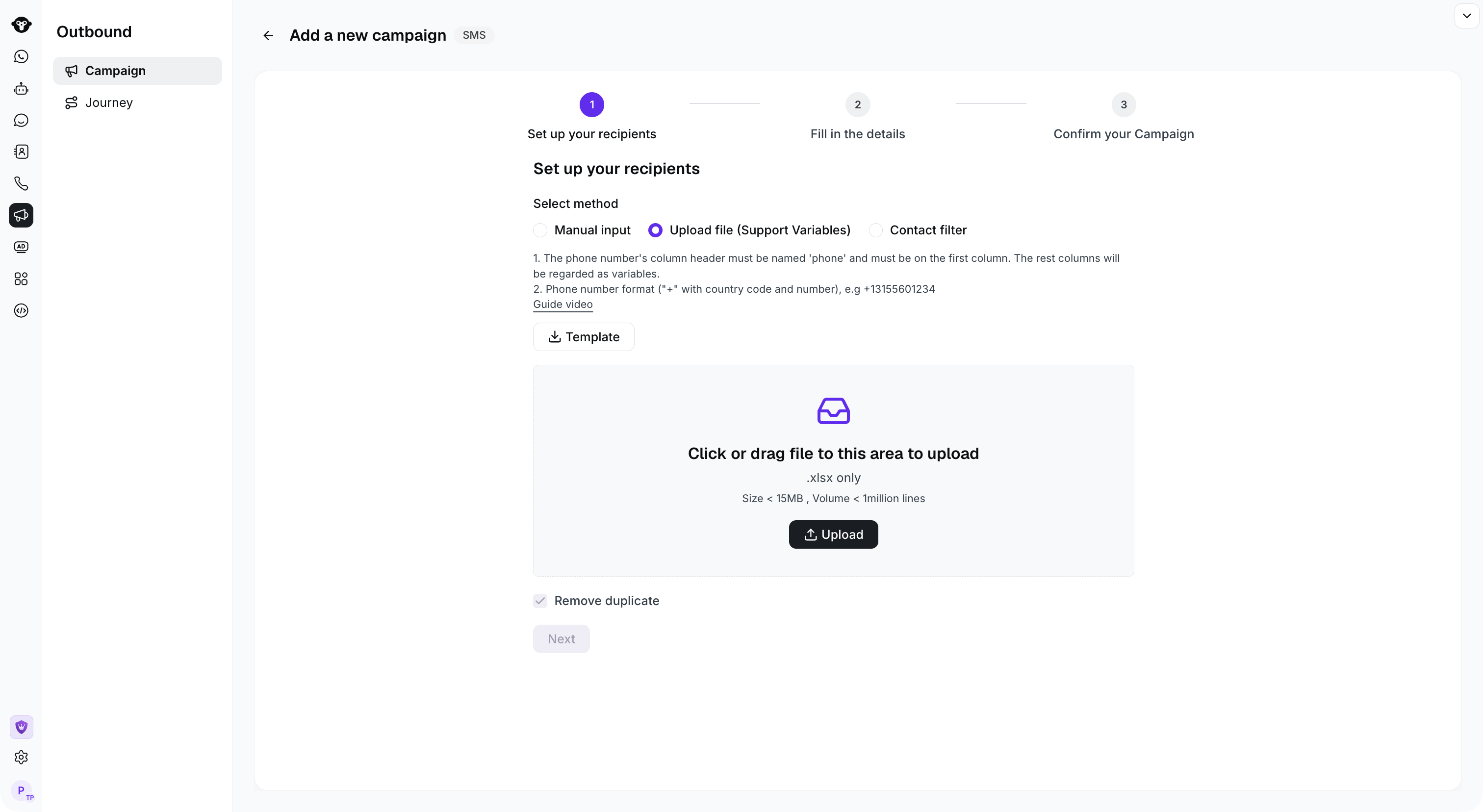
1. Download the template and fill in the phone numbers.
2. Open the template file and fill in the phone numbers
* Phone numbers must be in the first column and named "phone".
* If there are no variables in the message, you can delete the other columns in the template.
* If there are variables in the message, you can input the variable names starting from the second column, first row. For example, if the SMS is "*Hi #name#, your balance is below #balance#*". Then you can set a variable named "*name*" and a variable named "*balance*".
#### Upload Phone Number File
1. Download the template and fill in the phone numbers.
2. Open the template file and fill in the phone numbers
* Phone numbers must be in the first column and named "phone".
* If there are no variables in the message, you can delete the other columns in the template.
* If there are variables in the message, you can input the variable names starting from the second column, first row. For example, if the SMS is "*Hi #name#, your balance is below #balance#*". Then you can set a variable named "*name*" and a variable named "*balance*".
 #### Select a Crowd from Contact
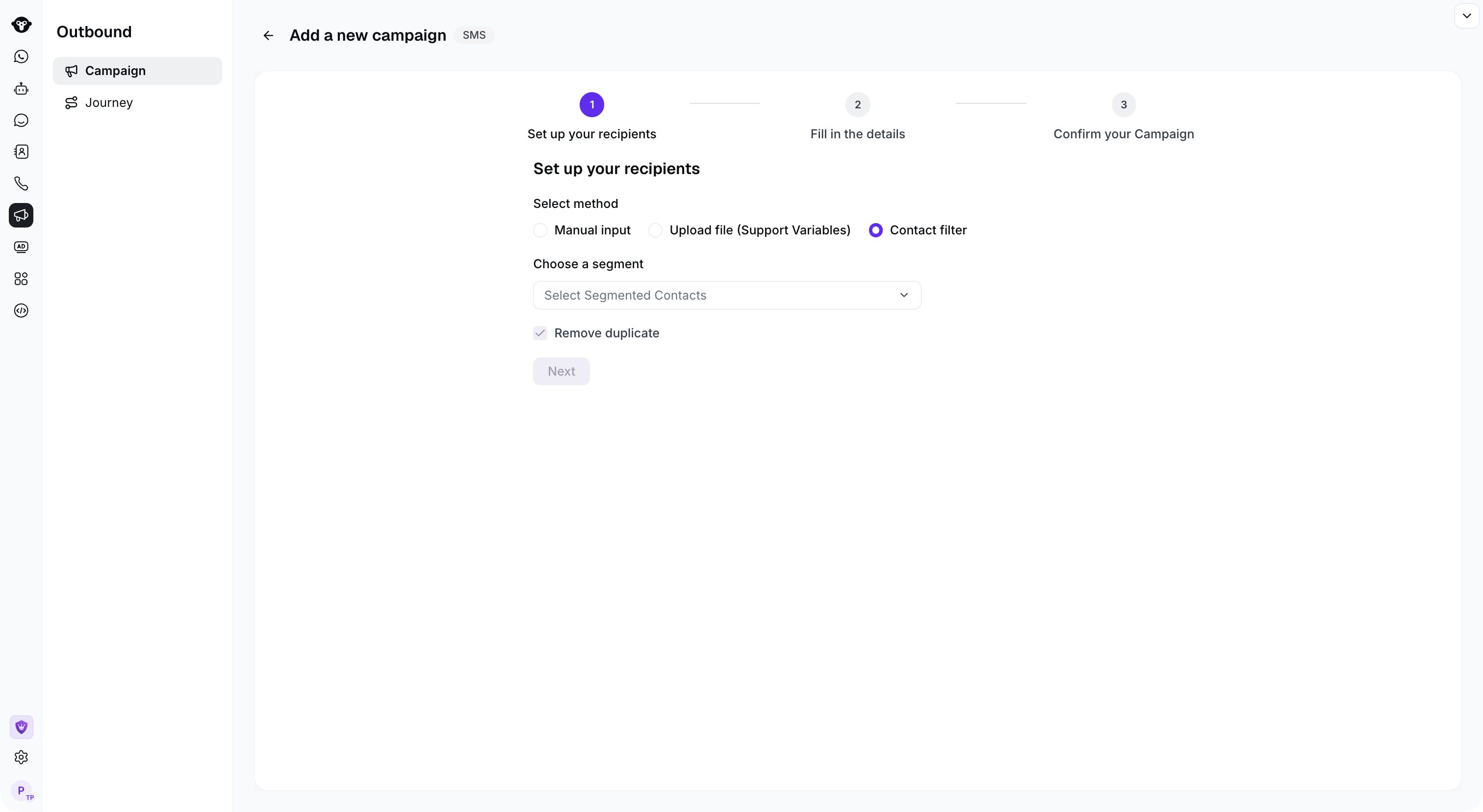
If you haven't created a crowd yet, you can add a Segment in Contact. For related operations, please refer to [Contact Grouping](/en/documentation/contact/contact-segments)
#### Select a Crowd from Contact
If you haven't created a crowd yet, you can add a Segment in Contact. For related operations, please refer to [Contact Grouping](/en/documentation/contact/contact-segments)
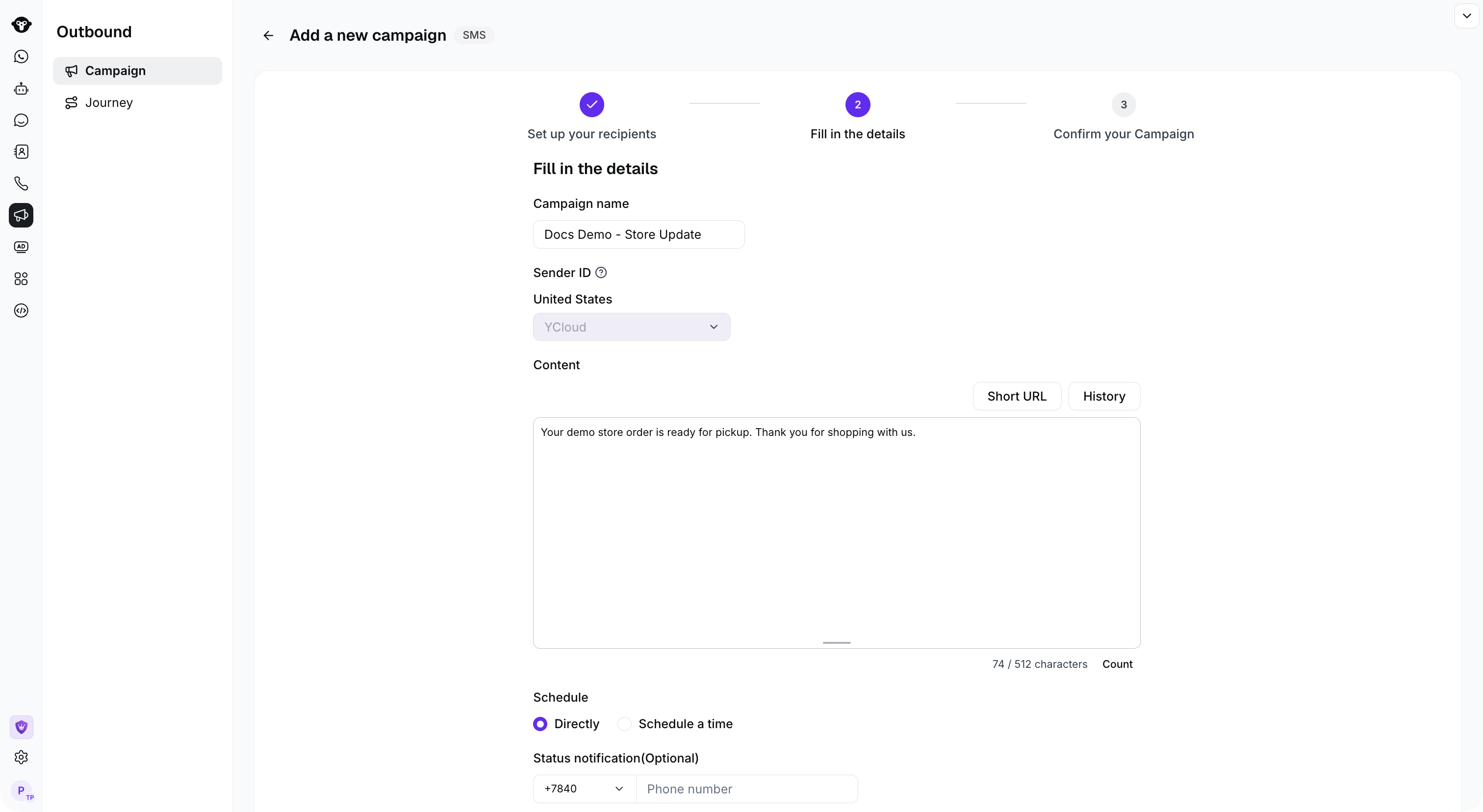
 ## Step 4: Set Bulk Message
Set the content
* Name of the bulk message campaign
* Signature/Sender ID: If you have your own sender ID in the target country/region, there will be a sender ID selection. Signature is for the signature when sending to mainland China, if not, please contact customer service for support.
* Message content: Input the SMS content. Please pay attention to the number of characters and message billing units indicated in the box.
* Variables: If you upload a file with phone numbers and variables, you can click the variable name above the editing box to insert it.
* Select historical template: You can click the History button to select a historical template, which does not require a secondary review if it has passed the historical review.
* Short link: Supports converting long links to short links to reduce the number of characters in the content.
* Send time setting: Send immediately or schedule send
* Campaign review notification: You can set your own mobile number, and you will receive an SMS reminder after the bulk message campaign review is approved.
After filling in the content, you can click Next.
## Step 4: Set Bulk Message
Set the content
* Name of the bulk message campaign
* Signature/Sender ID: If you have your own sender ID in the target country/region, there will be a sender ID selection. Signature is for the signature when sending to mainland China, if not, please contact customer service for support.
* Message content: Input the SMS content. Please pay attention to the number of characters and message billing units indicated in the box.
* Variables: If you upload a file with phone numbers and variables, you can click the variable name above the editing box to insert it.
* Select historical template: You can click the History button to select a historical template, which does not require a secondary review if it has passed the historical review.
* Short link: Supports converting long links to short links to reduce the number of characters in the content.
* Send time setting: Send immediately or schedule send
* Campaign review notification: You can set your own mobile number, and you will receive an SMS reminder after the bulk message campaign review is approved.
After filling in the content, you can click Next.
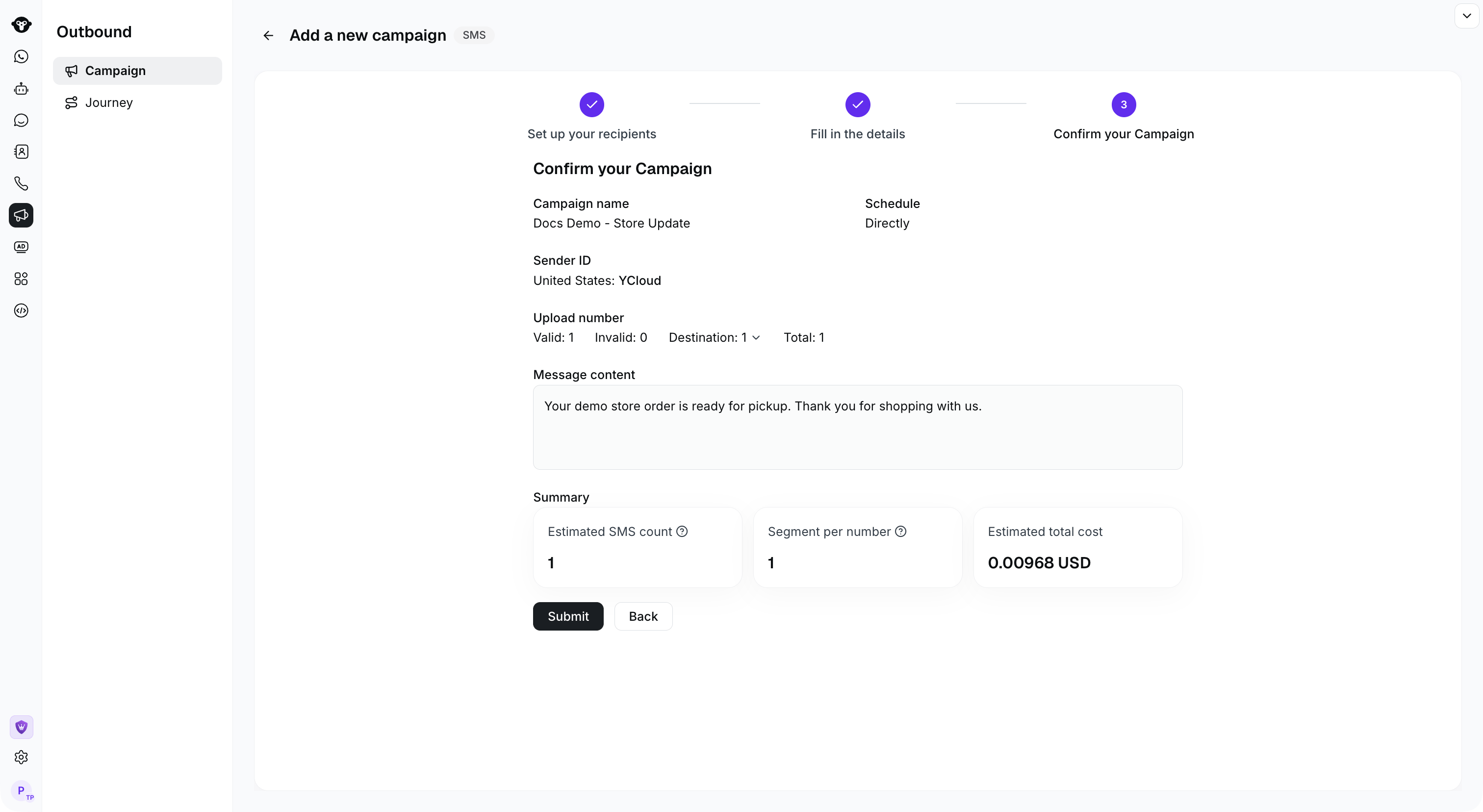
 ## Step 5: Confirm Information
Confirm the information and click the Submit button
## Step 5: Confirm Information
Confirm the information and click the Submit button
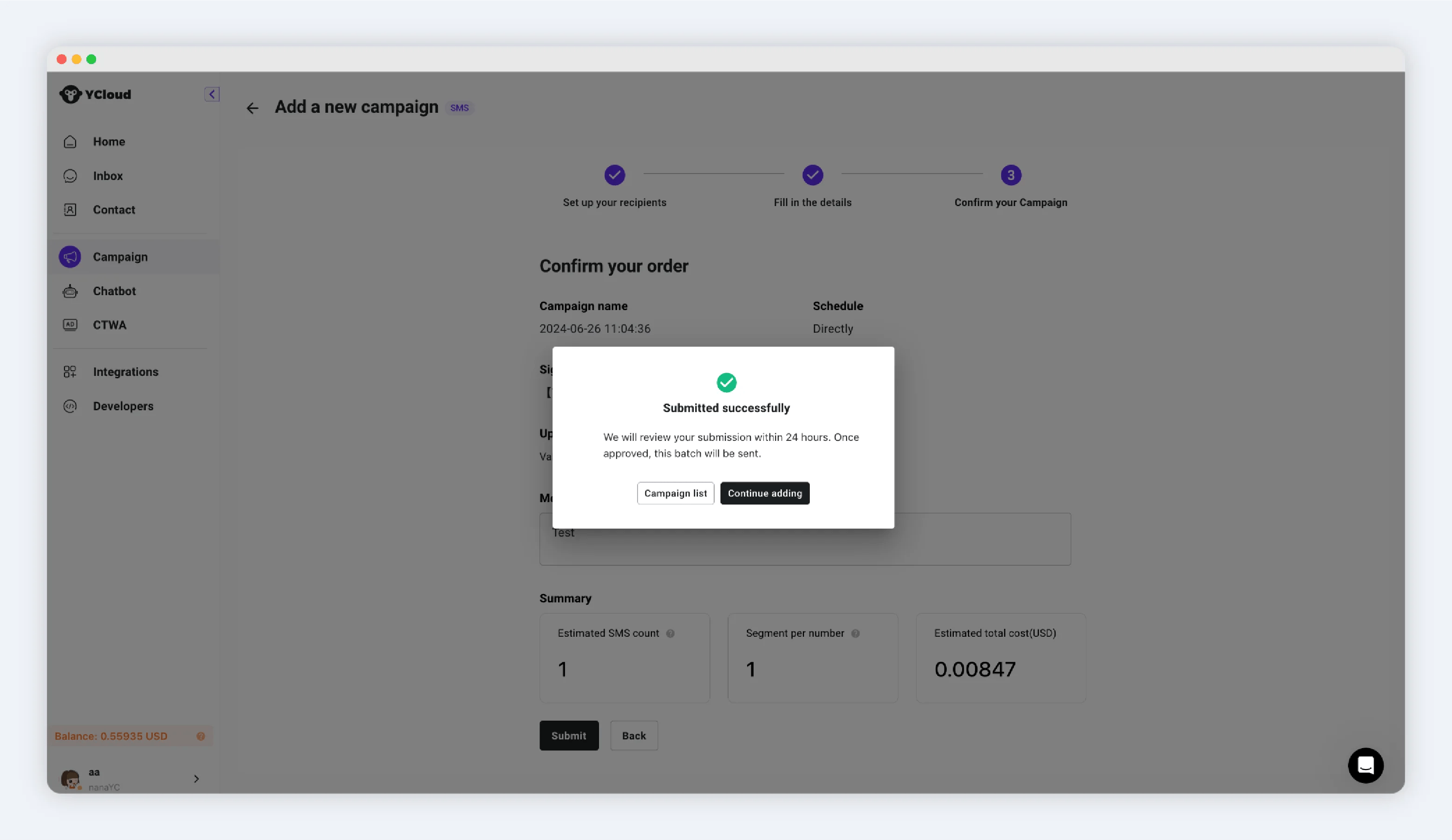
 Submission success prompt
 This documentation is built and hosted on [Mintlify](https://mintlify.com), a developer documentation platform.