> ## Documentation Index
> Fetch the complete documentation index at: https://docs.ycloud.com/llms.txt
> Use this file to discover all available pages before exploring further.
# Connect your Shopify store
> Connect Shopify to YCloud, sync eligible customer contacts, and use Shopify notifications and chat.
# Connect your Shopify store
Connect your Shopify store to YCloud to manually sync eligible customer contacts, send WhatsApp notifications from Shopify events, and add a chat widget to your storefront.
## What the integration supports
After you connect your store, you can:
* Sync Shopify customers with phone numbers to **Contacts** in YCloud.
* Configure WhatsApp notifications for abandoned checkouts, COD order confirmations, fulfilled orders, and canceled orders.
* Add a WhatsApp chat widget to your Shopify storefront.
## Connect your store
1. In YCloud, go to **Integrations** > **Shopify** and select **Install**.
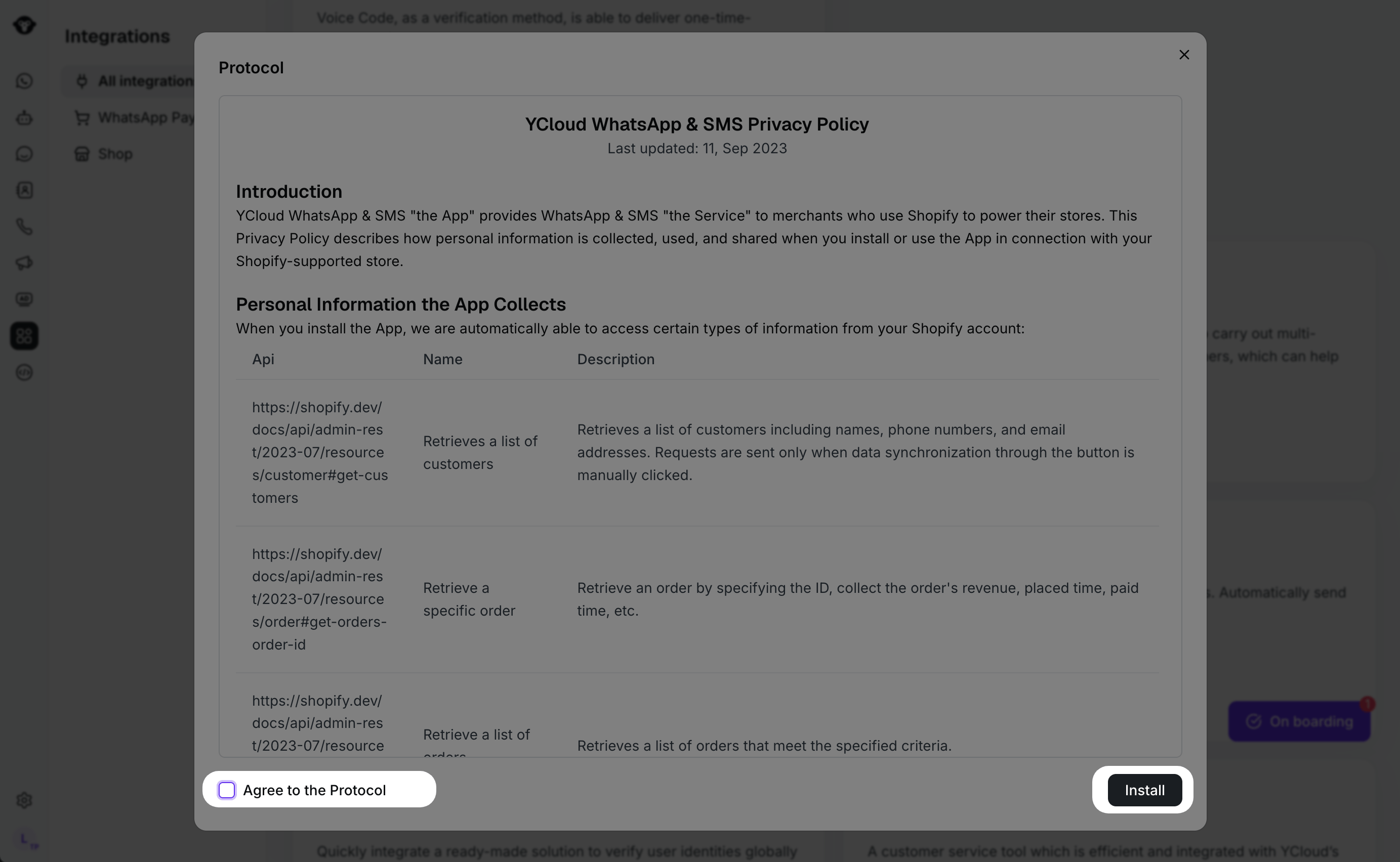
 2. Review the displayed synchronization agreement and privacy notice. When you are ready, select **Install**.
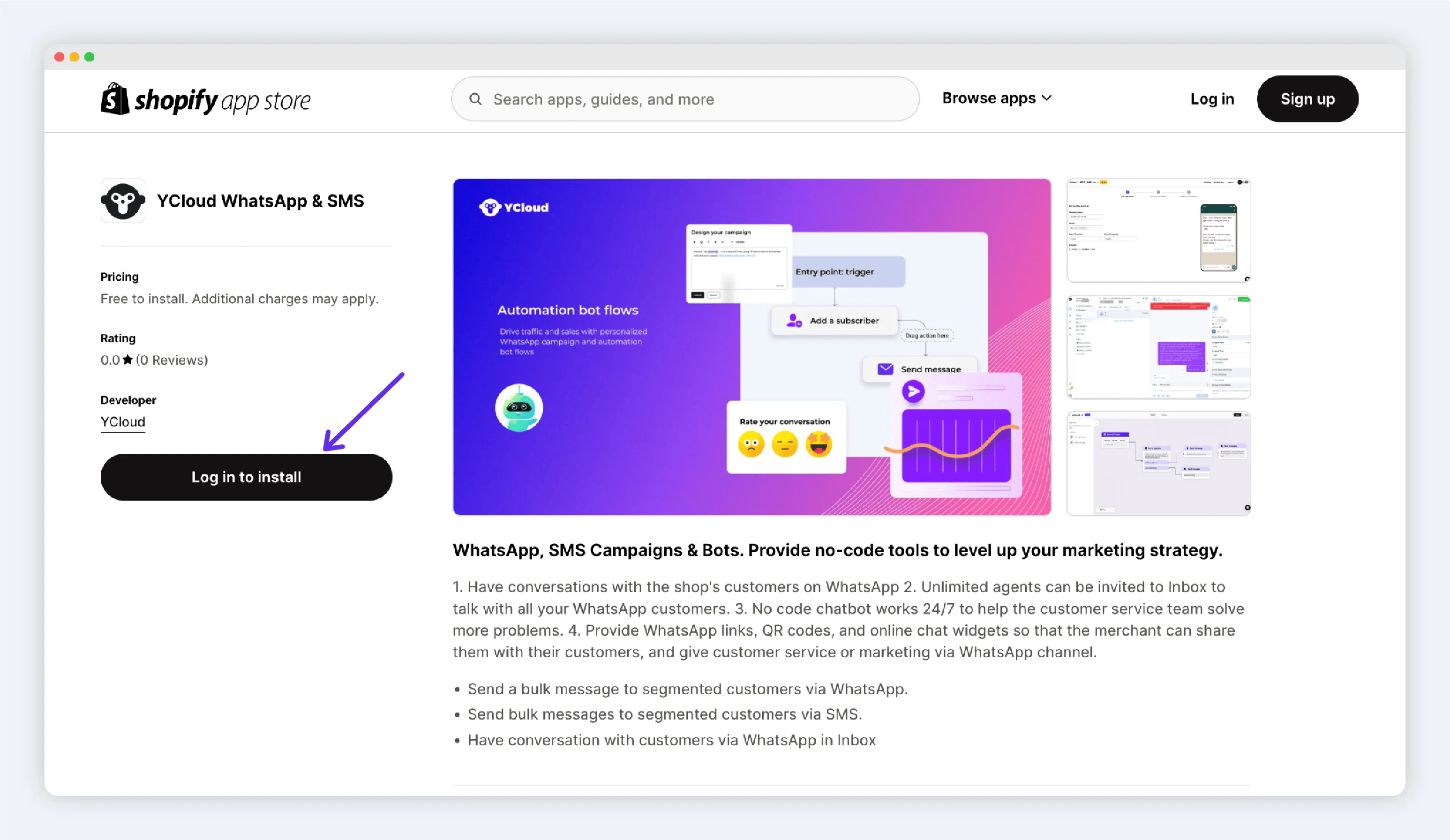
 3. You will be redirected to the Shopify App Store. Install the YCloud app for the store you want to connect.
 ## Sync Shopify customers
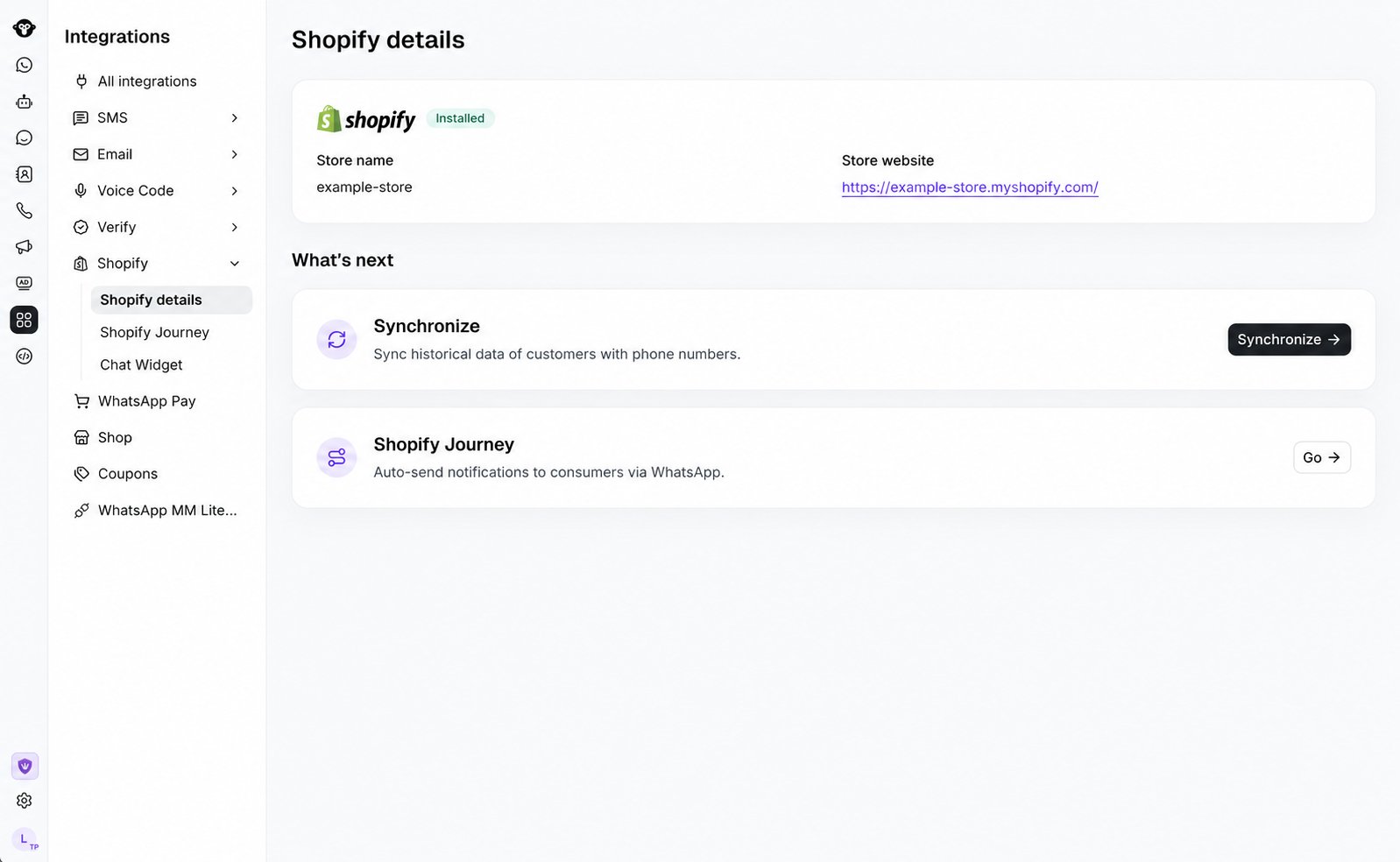
Customer synchronization is a manual action after your store is connected.
1. Open the Shopify integration in YCloud.
2. Start customer synchronization and confirm the displayed sync notice.
3. Review the completed contacts in **Contacts**.
Only Shopify customers with phone numbers are included in the current historical sync.
## Sync Shopify customers
Customer synchronization is a manual action after your store is connected.
1. Open the Shopify integration in YCloud.
2. Start customer synchronization and confirm the displayed sync notice.
3. Review the completed contacts in **Contacts**.
Only Shopify customers with phone numbers are included in the current historical sync.
 ## Use Shopify notifications
Open **Shopify Journey** to configure the notification scenarios that fit your store:
* [Recover abandoned checkouts](/en/documentation/integrations/e-commerce/shopify/recover-abandoned-checkouts)
* [Confirm COD orders](/en/documentation/integrations/e-commerce/shopify/confirm-cod-orders)
* [Notify customers about canceled or fulfilled orders](/en/documentation/integrations/e-commerce/shopify/notify-customers-about-canceled-or-fulfilled-orders)
## Add a chat widget
Use a YCloud Chatlink Widget to let storefront visitors start a WhatsApp conversation. See [Add a chat widget to your Shopify store](/en/documentation/integrations/e-commerce/shopify/add-a-chat-widget-to-your-shopify-store).
## Frequently Asked Questions
No. Start the sync manually after the store is connected. The current historical sync includes Shopify customers with phone numbers.
You can sync eligible customer contacts, configure the four WhatsApp notification scenarios, and add a WhatsApp chat widget to your storefront.
In your Shopify admin, go to **Settings** > **Apps**. For the YCloud app, select the **…** button, then select **Uninstall**. You can optionally select a reason for uninstalling, then select **Uninstall** again to confirm.
For Shopify's complete instructions, see [Uninstalling apps](https://help.shopify.com/en/manual/apps/uninstalling-apps).
This documentation is built and hosted on [Mintlify](https://mintlify.com), a developer documentation platform.
## Use Shopify notifications
Open **Shopify Journey** to configure the notification scenarios that fit your store:
* [Recover abandoned checkouts](/en/documentation/integrations/e-commerce/shopify/recover-abandoned-checkouts)
* [Confirm COD orders](/en/documentation/integrations/e-commerce/shopify/confirm-cod-orders)
* [Notify customers about canceled or fulfilled orders](/en/documentation/integrations/e-commerce/shopify/notify-customers-about-canceled-or-fulfilled-orders)
## Add a chat widget
Use a YCloud Chatlink Widget to let storefront visitors start a WhatsApp conversation. See [Add a chat widget to your Shopify store](/en/documentation/integrations/e-commerce/shopify/add-a-chat-widget-to-your-shopify-store).
## Frequently Asked Questions
No. Start the sync manually after the store is connected. The current historical sync includes Shopify customers with phone numbers.
You can sync eligible customer contacts, configure the four WhatsApp notification scenarios, and add a WhatsApp chat widget to your storefront.
In your Shopify admin, go to **Settings** > **Apps**. For the YCloud app, select the **…** button, then select **Uninstall**. You can optionally select a reason for uninstalling, then select **Uninstall** again to confirm.
For Shopify's complete instructions, see [Uninstalling apps](https://help.shopify.com/en/manual/apps/uninstalling-apps).
This documentation is built and hosted on [Mintlify](https://mintlify.com), a developer documentation platform.