> ## Documentation Index
> Fetch the complete documentation index at: https://docs.ycloud.com/llms.txt
> Use this file to discover all available pages before exploring further.
# Confirm COD orders
> Send a WhatsApp confirmation request when a pending-payment COD order is created in Shopify.
# Confirm COD orders
Send a WhatsApp confirmation request when a pending-payment cash-on-delivery (COD) order is created in Shopify. You can track the customer's quick reply during the tracking period you set.
## Before you start
* Connect your Shopify store to YCloud.
* Select the WhatsApp Business phone number that will send the confirmation.
* Prepare an approved WhatsApp template with at least one quick-reply button.
## Configure the workflow
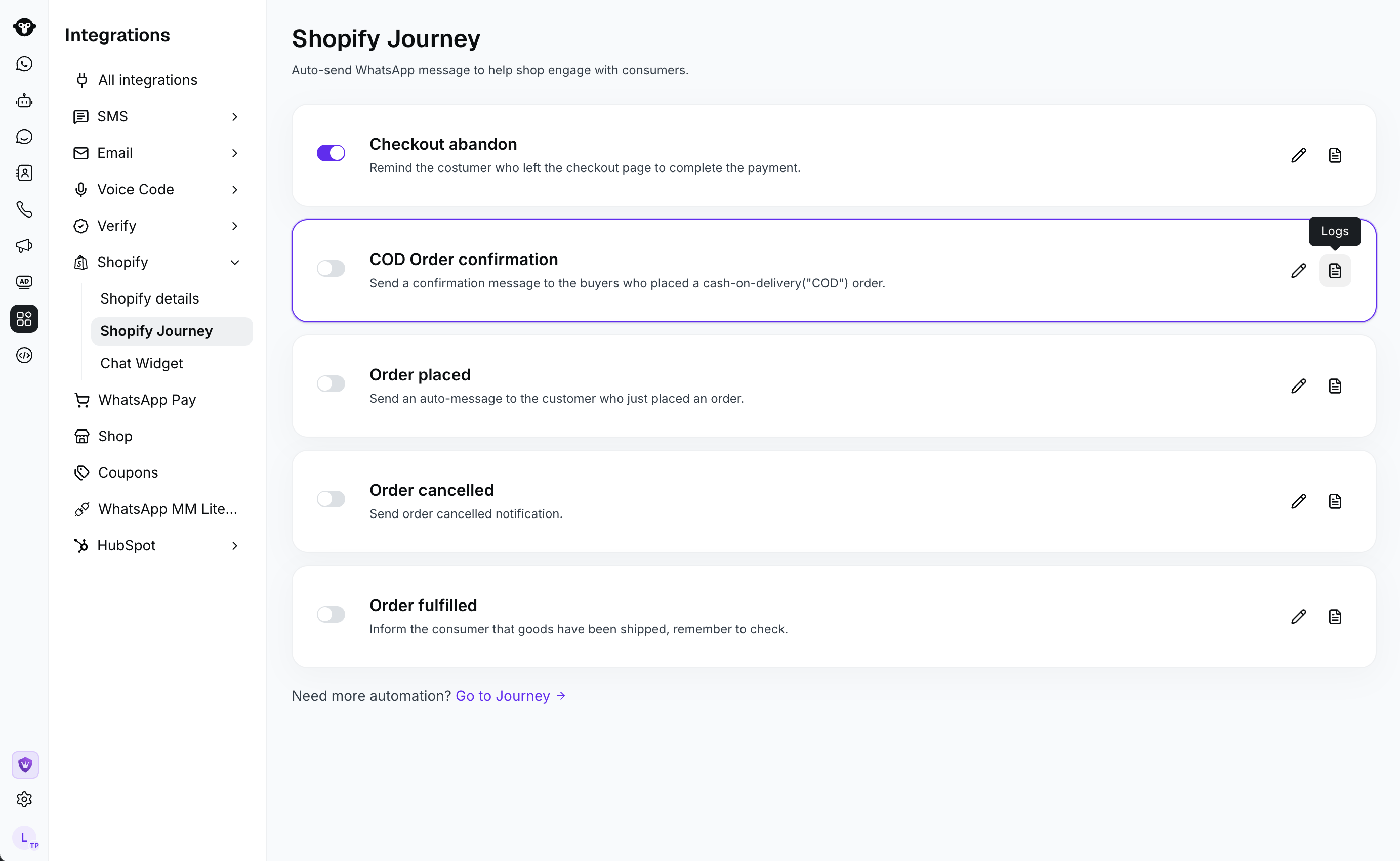
1. In YCloud, go to **Integrations** > **Shopify** > **Shopify Journey**. Open the COD order confirmation workflow and select **Edit**.
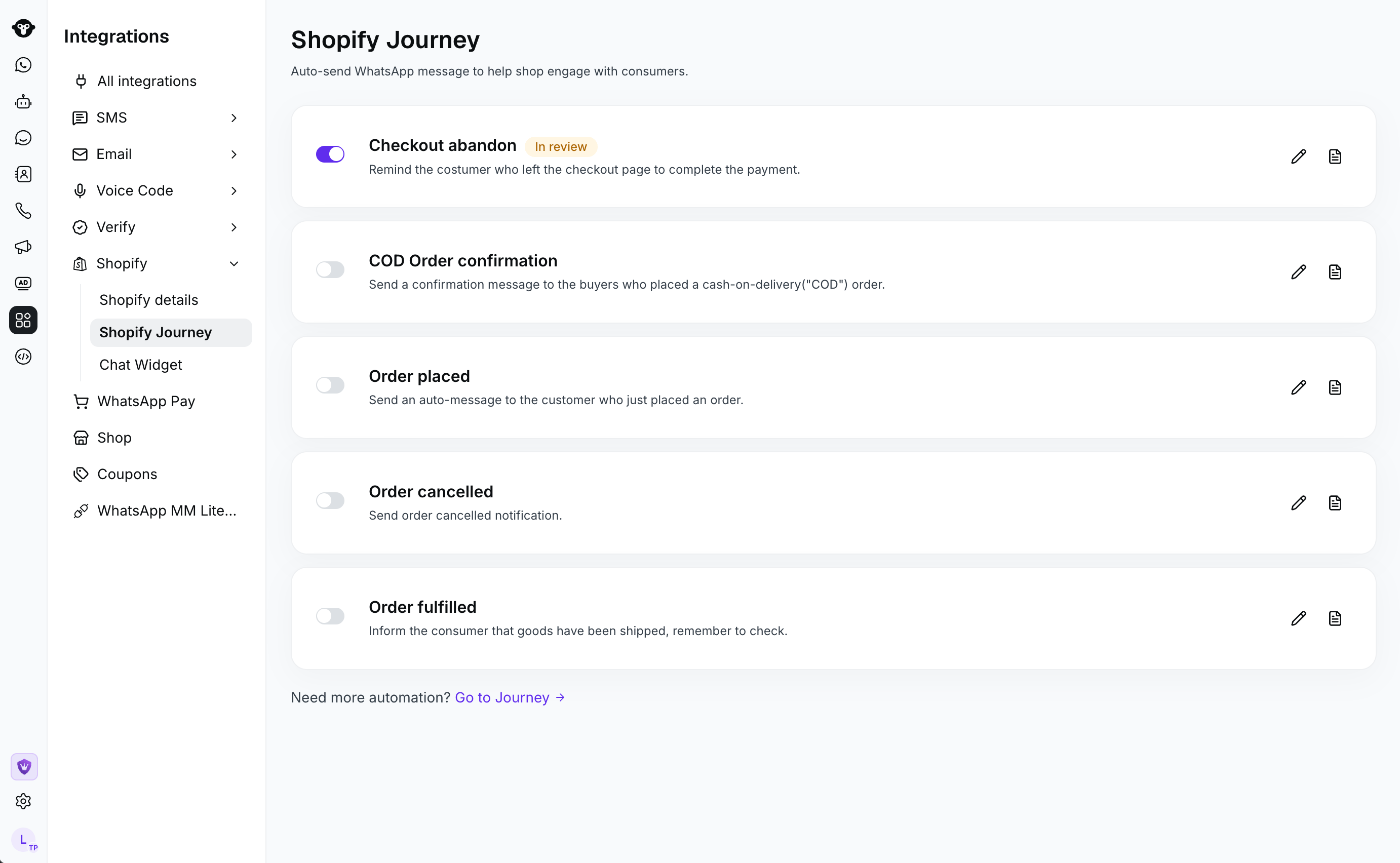 2. Choose the WhatsApp Business phone number that will send the request.
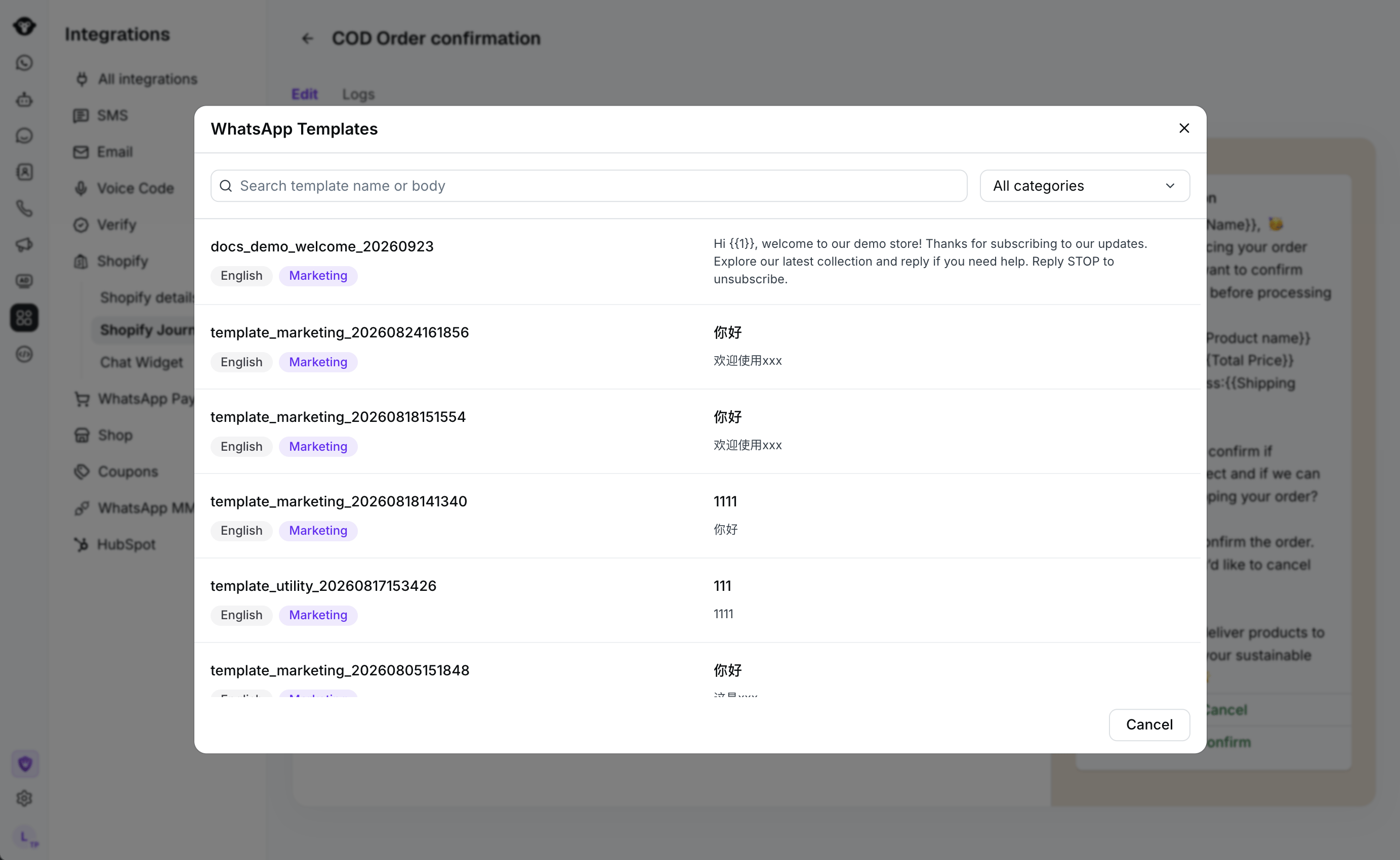
 3. Choose the confirmation template. If the template contains variables, map the supported Shopify information to them.
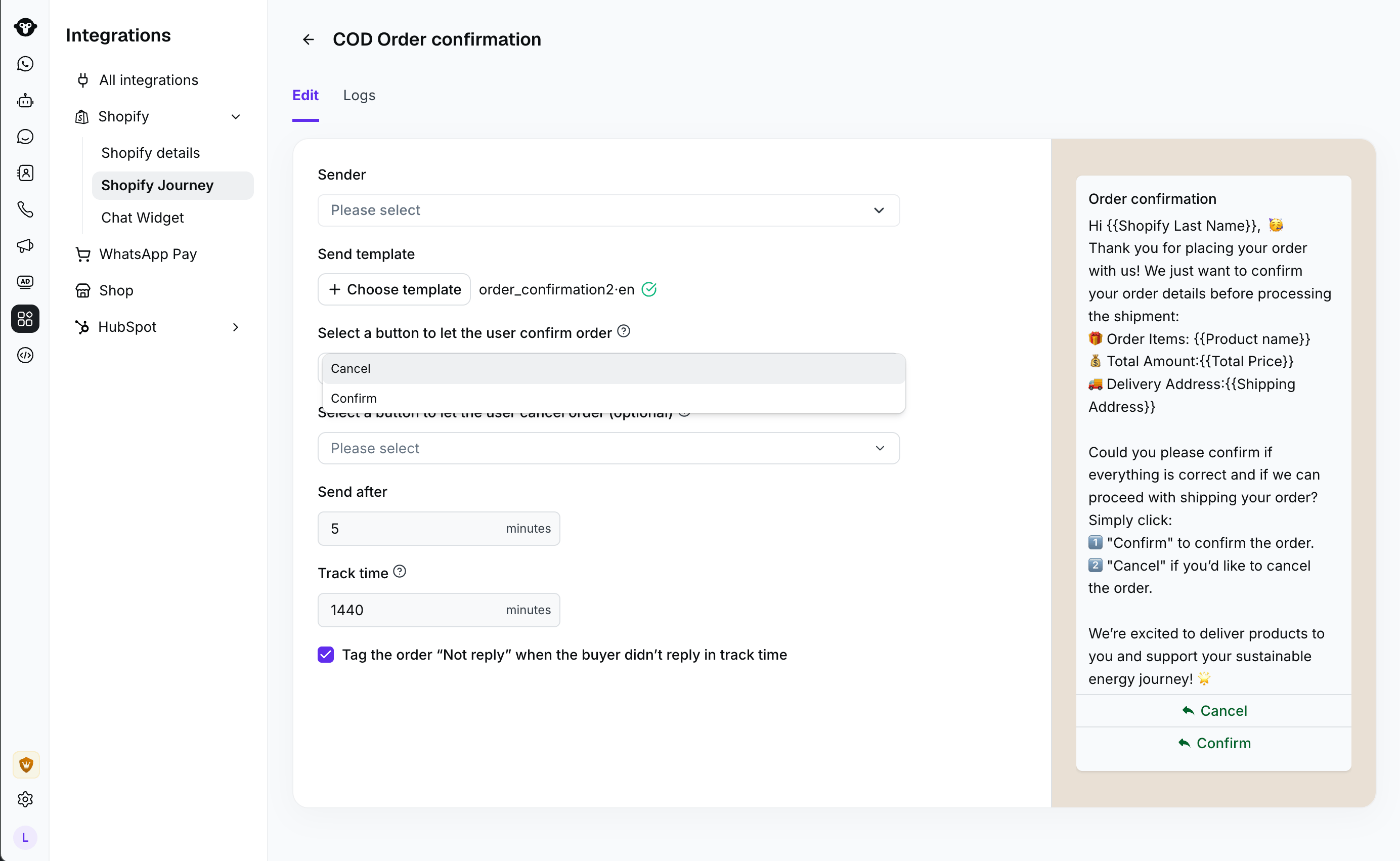
 4. Configure the quick-reply options that customers can use to submit a confirmation or cancellation response.
5. Set when to send the request after the COD order is created, then set the tracking period for customer replies.
4. Configure the quick-reply options that customers can use to submit a confirmation or cancellation response.
5. Set when to send the request after the COD order is created, then set the tracking period for customer replies.
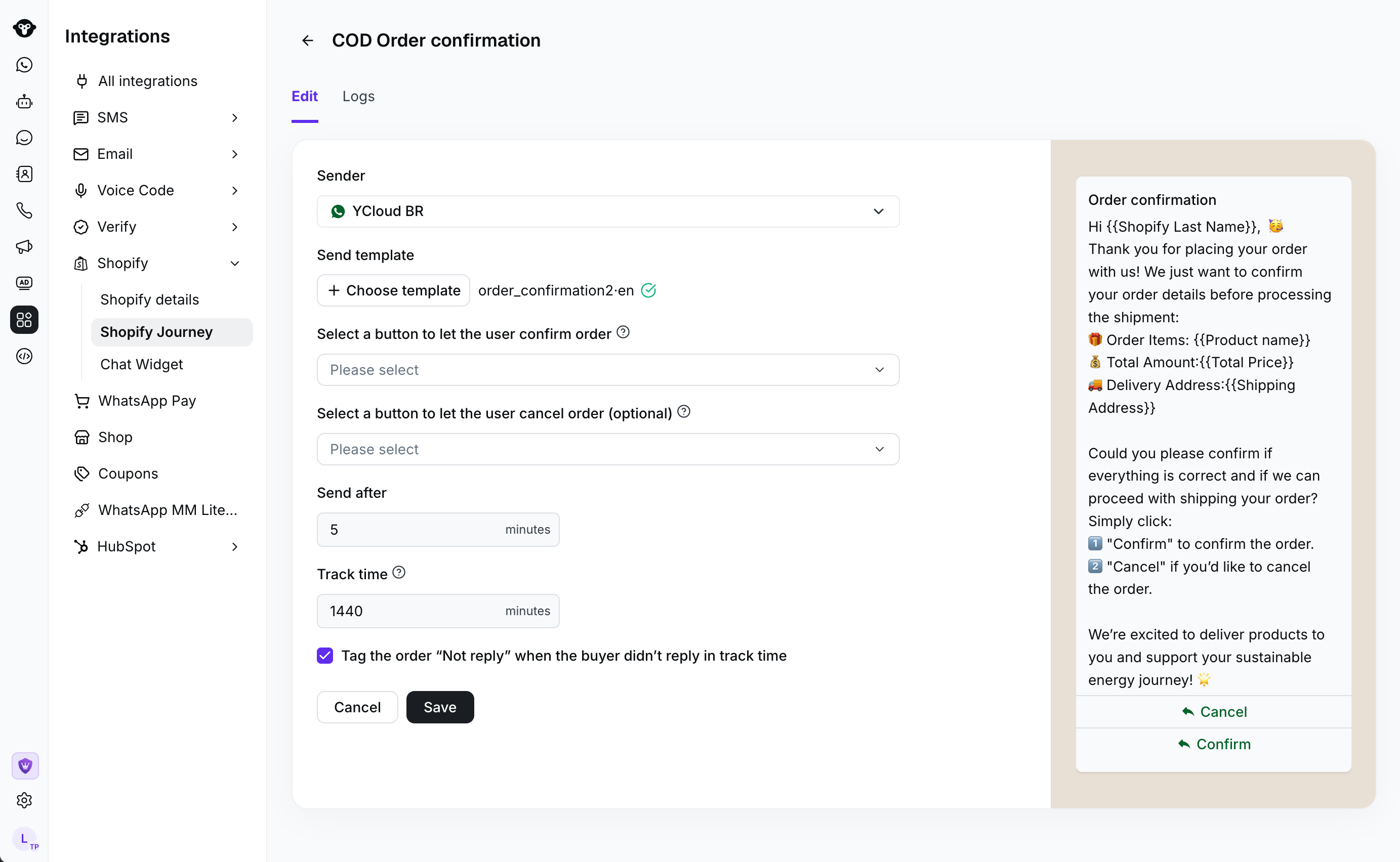 6. Select **Save**, then activate the workflow.
## Review activity
Open **Logs** to review delivery and reply records.
6. Select **Save**, then activate the workflow.
## Review activity
Open **Logs** to review delivery and reply records.
 ## Recommendations
* Send the confirmation promptly enough for the buyer to recognize the order.
* Use unambiguous quick-reply labels so buyers know how to respond.
* Set a tracking period that matches how long your team can act on a response.
## Frequently Asked Questions
The workflow processes newly created Shopify orders with pending payment status.
The workflow uses quick replies to recognize the customer's confirmation or cancellation response during the tracking period.
This documentation is built and hosted on [Mintlify](https://mintlify.com), a developer documentation platform.
## Recommendations
* Send the confirmation promptly enough for the buyer to recognize the order.
* Use unambiguous quick-reply labels so buyers know how to respond.
* Set a tracking period that matches how long your team can act on a response.
## Frequently Asked Questions
The workflow processes newly created Shopify orders with pending payment status.
The workflow uses quick replies to recognize the customer's confirmation or cancellation response during the tracking period.
This documentation is built and hosted on [Mintlify](https://mintlify.com), a developer documentation platform.