> ## Documentation Index
> Fetch the complete documentation index at: https://docs.ycloud.com/llms.txt
> Use this file to discover all available pages before exploring further.
# Recover abandoned checkouts
> Send a WhatsApp reminder when a Shopify customer leaves checkout without completing an order.
# Recover abandoned checkouts
Set up a WhatsApp reminder for customers who begin checkout but do not complete an order.
## Before you start
* [Connect your Shopify store to YCloud](/en/documentation/integrations/e-commerce/shopify).
* Prepare an approved WhatsApp template for checkout recovery. Use a clear action that takes the customer back to their checkout when appropriate.
* Select the WhatsApp Business phone number that will send the reminder.
## Configure the workflow
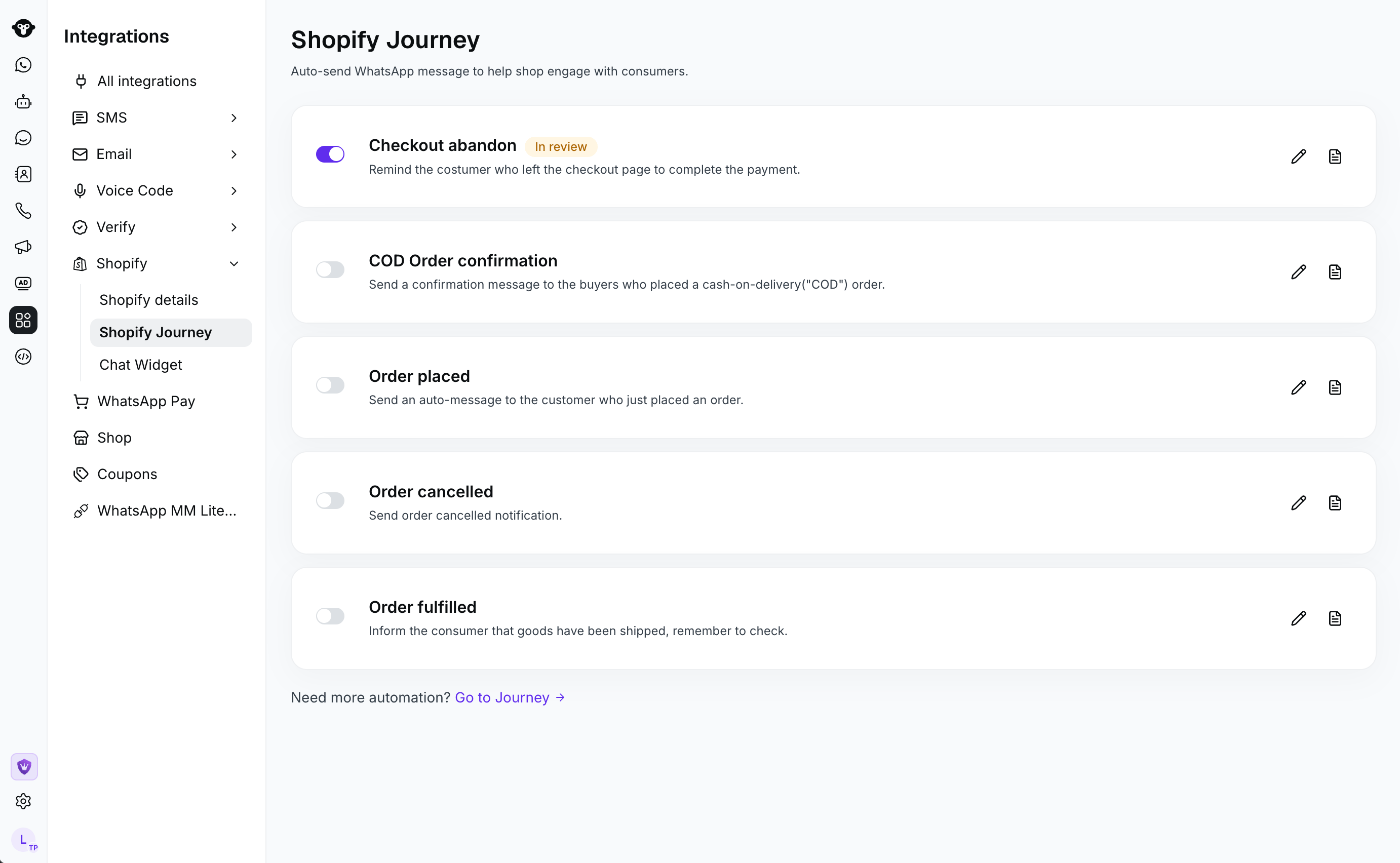
1. In YCloud, go to **Integrations** > **Shopify** > **Shopify Journey**. Open the checkout-abandonment workflow.
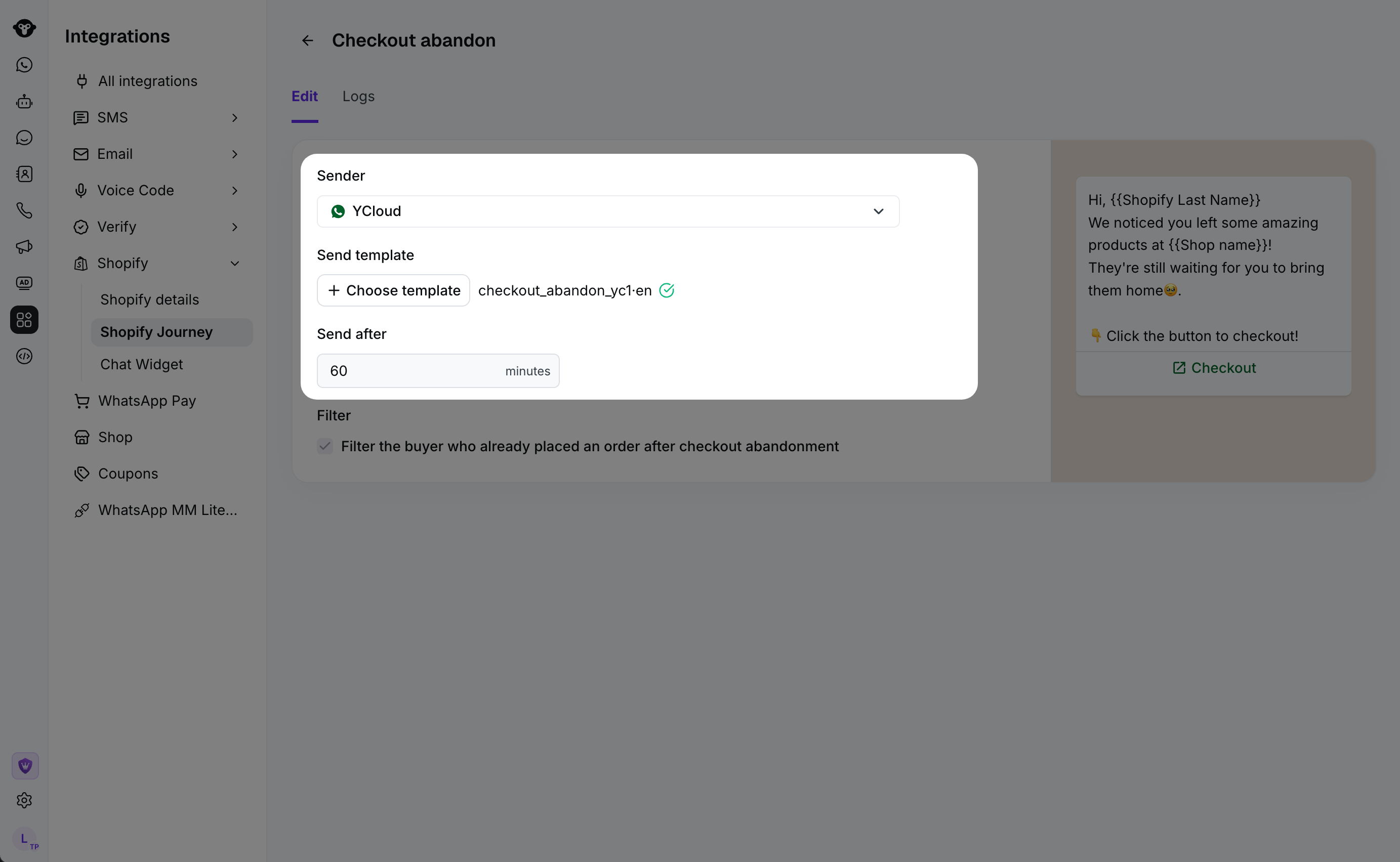
 2. Configure the message:
* **Sender**: the WhatsApp Business phone number that sends the reminder.
* **Send template**: the approved WhatsApp template to send.
* **Send after**: the delay after the customer starts checkout.
* **Filter**: optionally filter buyers who place an order after checkout abandonment.
2. Configure the message:
* **Sender**: the WhatsApp Business phone number that sends the reminder.
* **Send template**: the approved WhatsApp template to send.
* **Send after**: the delay after the customer starts checkout.
* **Filter**: optionally filter buyers who place an order after checkout abandonment.
 This recovery flow waits for the delay you set, then sends the selected template.
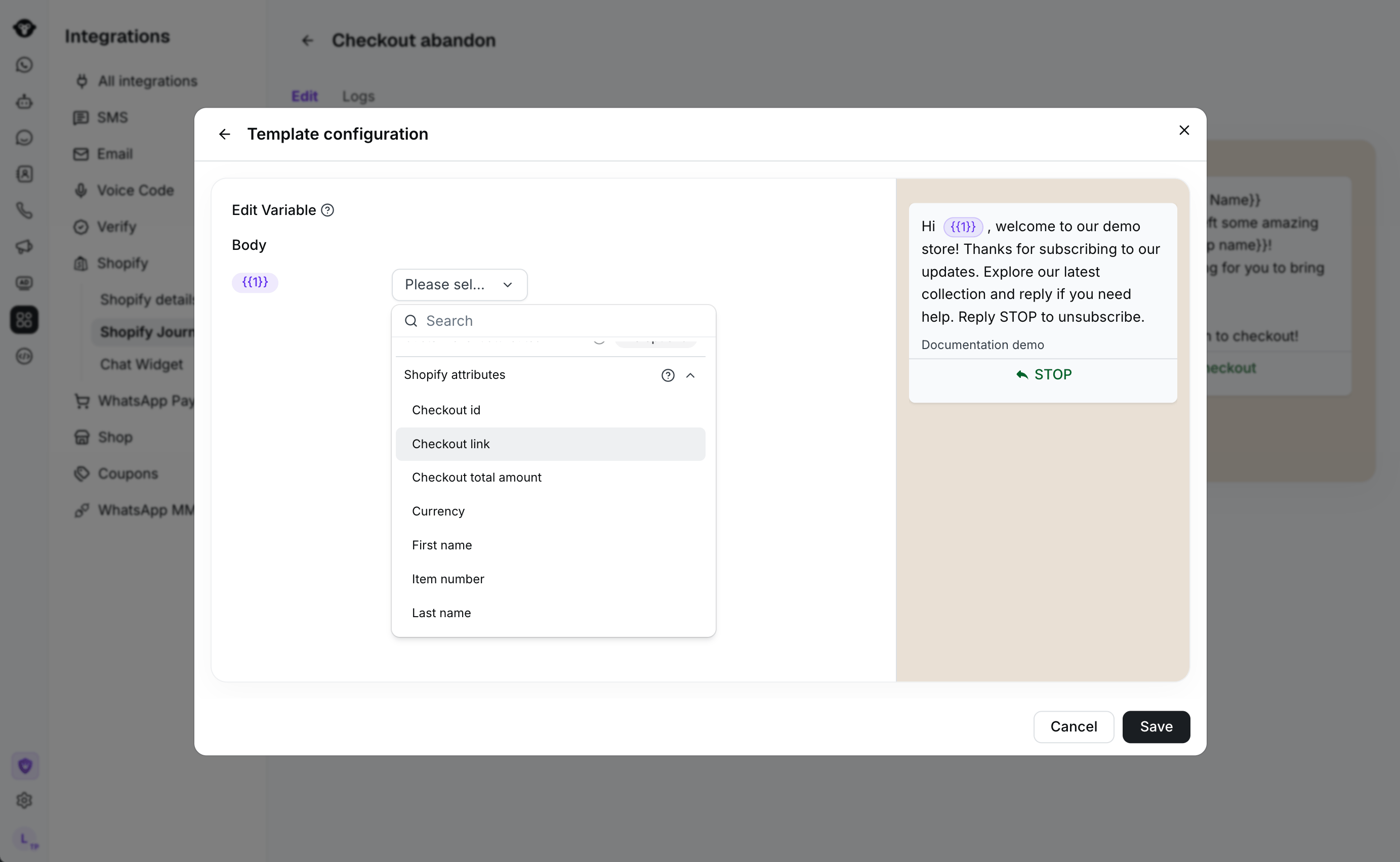 3. Select **Save**, then activate the workflow.
## Review activity
Open **Logs** in the workflow to review message activity.
## Recommendations
* Choose a delay that fits your typical buying cycle.
* Enable the buyer filter when you do not want to remind customers who have already placed another order.
* Keep the template concise and make the next action clear.
## Frequently Asked Questions
The workflow begins when Shopify records that a customer has started checkout. YCloud waits for the delay you configure before sending the reminder.
Yes. Enable the filter for buyers who placed an order after checkout abandonment. Before sending, YCloud rechecks the checkout record and applies this filter when it is enabled.
This documentation is built and hosted on [Mintlify](https://mintlify.com), a developer documentation platform.
3. Select **Save**, then activate the workflow.
## Review activity
Open **Logs** in the workflow to review message activity.
## Recommendations
* Choose a delay that fits your typical buying cycle.
* Enable the buyer filter when you do not want to remind customers who have already placed another order.
* Keep the template concise and make the next action clear.
## Frequently Asked Questions
The workflow begins when Shopify records that a customer has started checkout. YCloud waits for the delay you configure before sending the reminder.
Yes. Enable the filter for buyers who placed an order after checkout abandonment. Before sending, YCloud rechecks the checkout record and applies this filter when it is enabled.
This documentation is built and hosted on [Mintlify](https://mintlify.com), a developer documentation platform.