> ## Documentation Index
> Fetch the complete documentation index at: https://docs.ycloud.com/llms.txt
> Use this file to discover all available pages before exploring further.
# Messenger marketing
> Connect your Facebook Page, build a customer audience, and send Messenger marketing campaigns from YCloud.
Messenger marketing messages are **paid messages** sent from your Facebook Page. In a Messenger campaign, you can set a **Lifetime budget** for the total campaign budget and an optional **Daily budget** for average daily spending.
Use the Messenger integration in YCloud to upload a customer list, let Meta match your customers to an audience, and create and schedule your message. You can then track campaign performance in YCloud.
## Before you start
Make sure you have:
* **Messenger Channel management permission** in your YCloud workspace.
* A Facebook account with permission to authorize the Facebook Page you want to use.
* A customer list that you are authorized to use for marketing and upload to Meta.
Your Facebook Page must be located outside the **European Economic Area (EEA), the United Kingdom, Japan, and South Korea**. The Marketing Message API for Messenger is available for web applications only.
YCloud manages the ad account used for these campaigns. You only need to authorize your Facebook Page.
## 1. Connect your Facebook Page
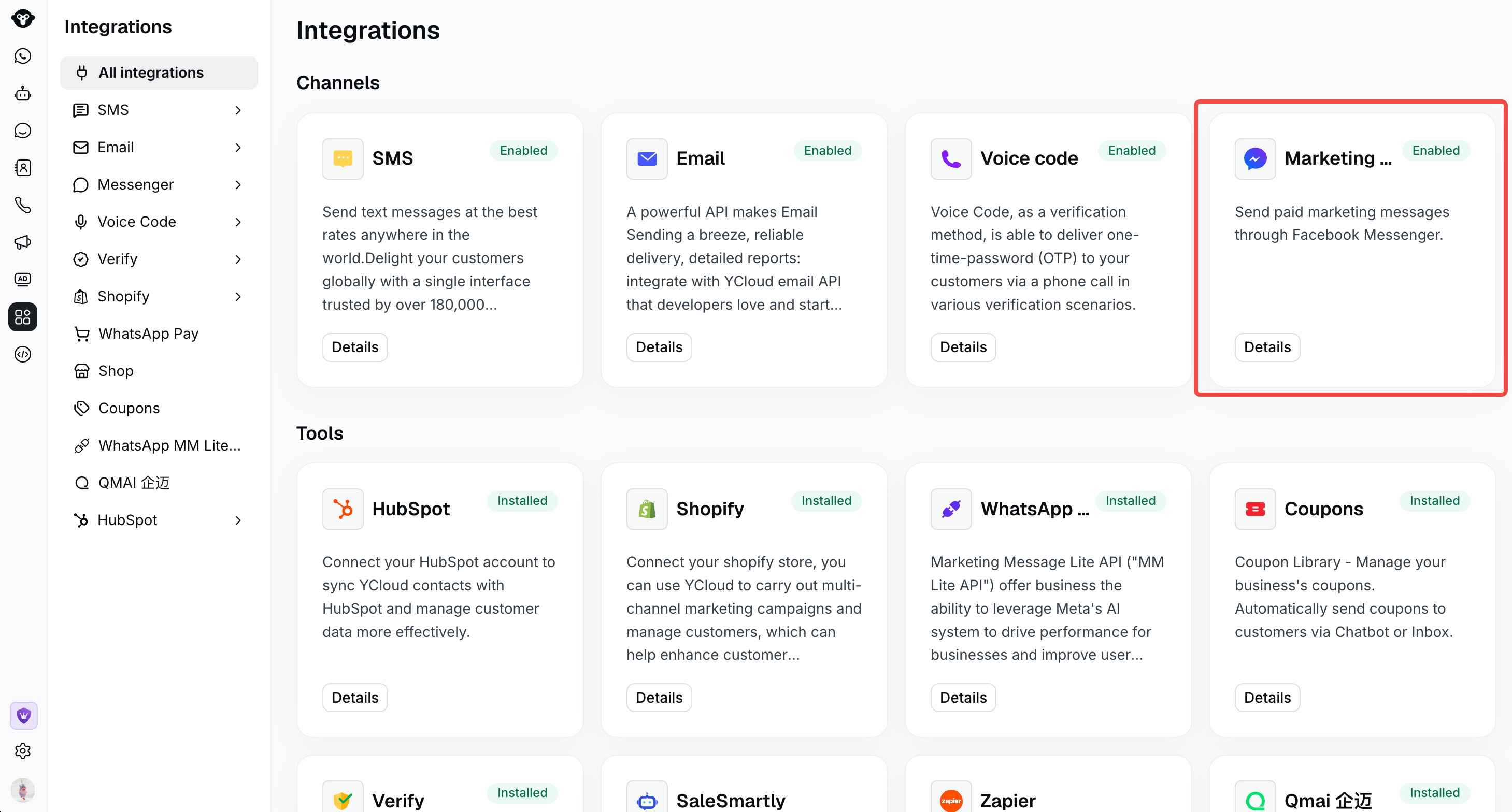
1. Open **Integrations**, find **Messenger**, and click **Install**. If the integration is already enabled, click **Details** or open **Messenger** from the sidebar.
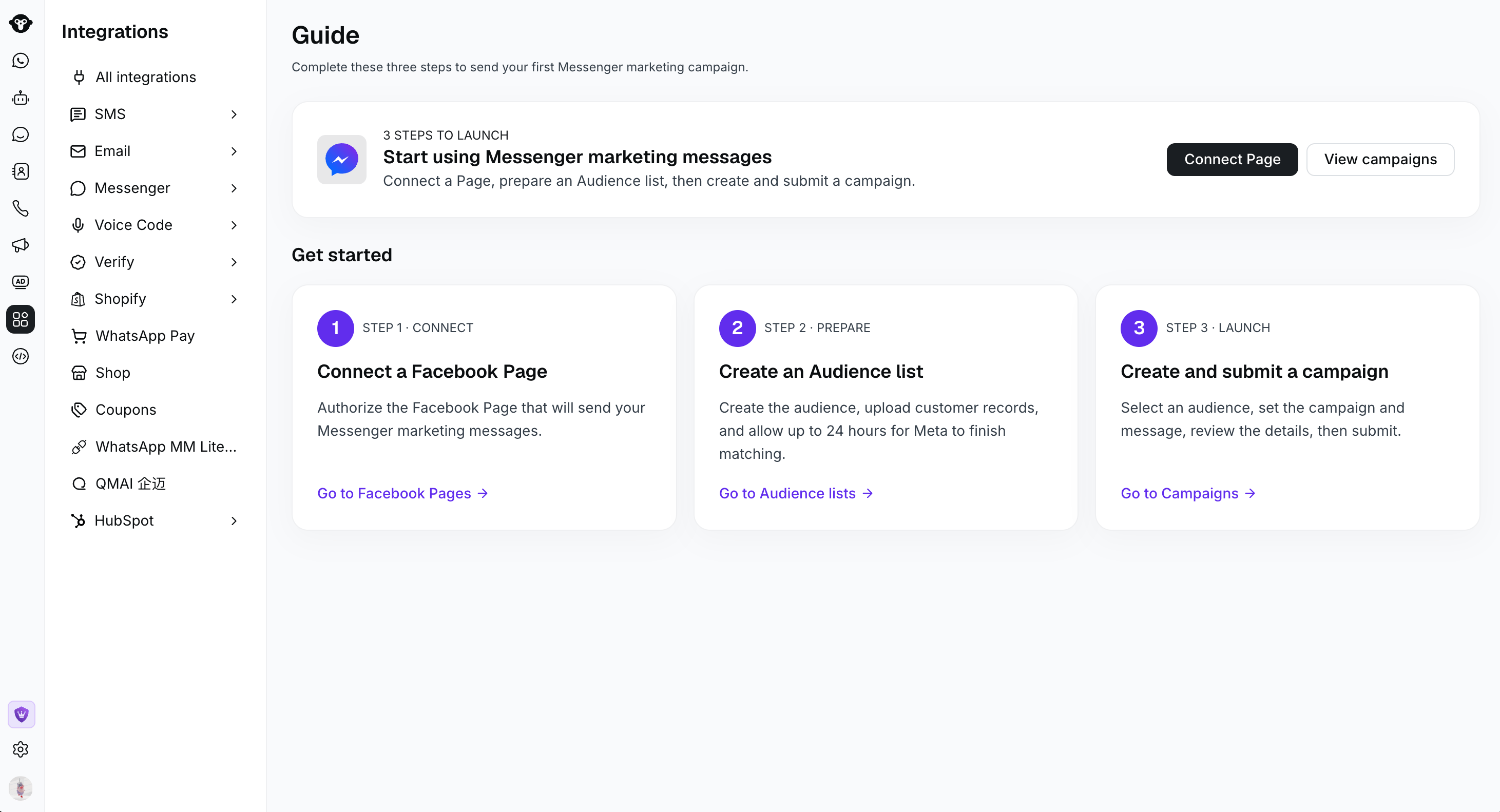
 2. In Messenger, open **Guide** and click **Connect Page**.
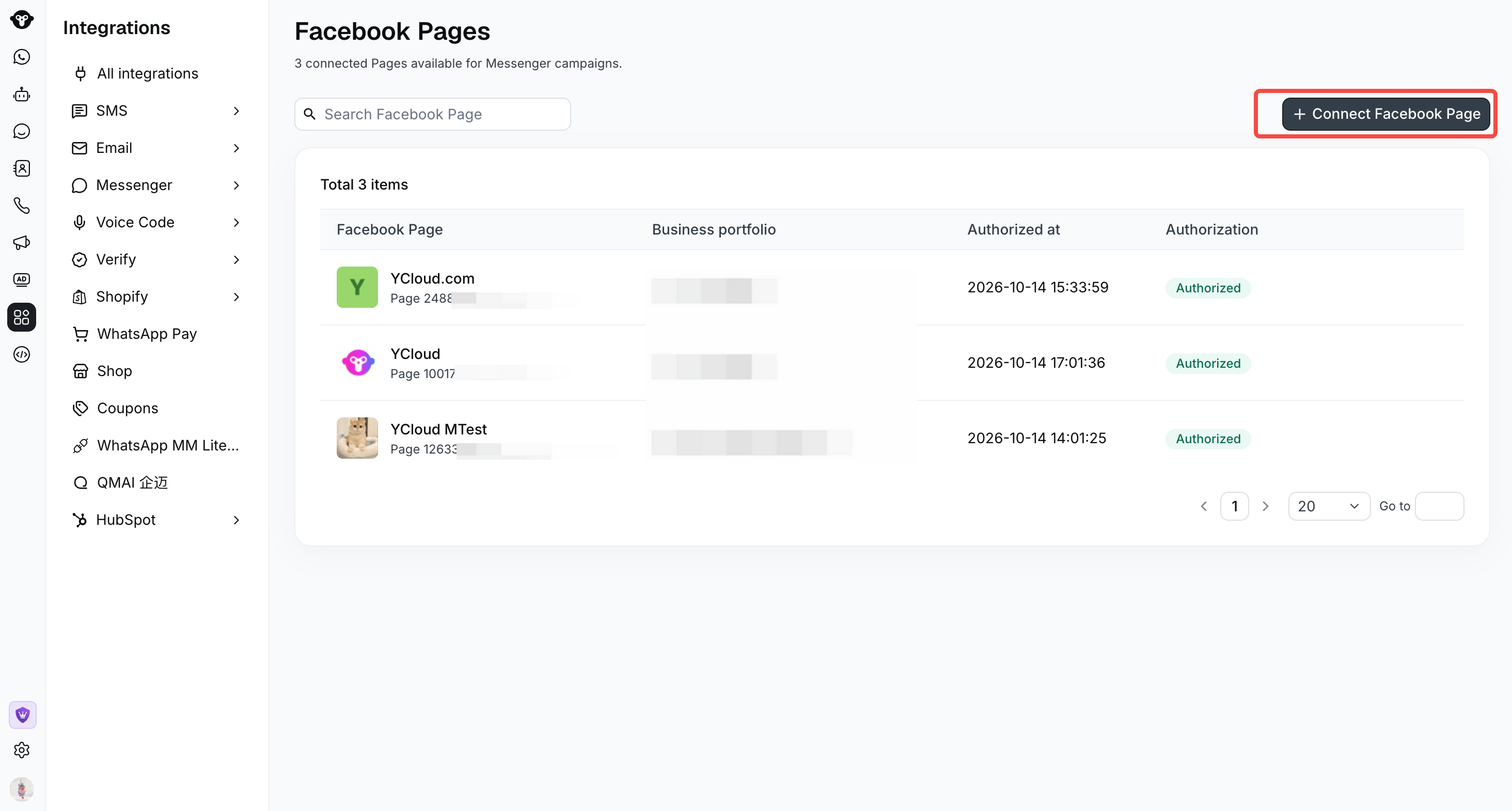
 You can also open **Facebook Pages** and click **Connect Facebook Page**.
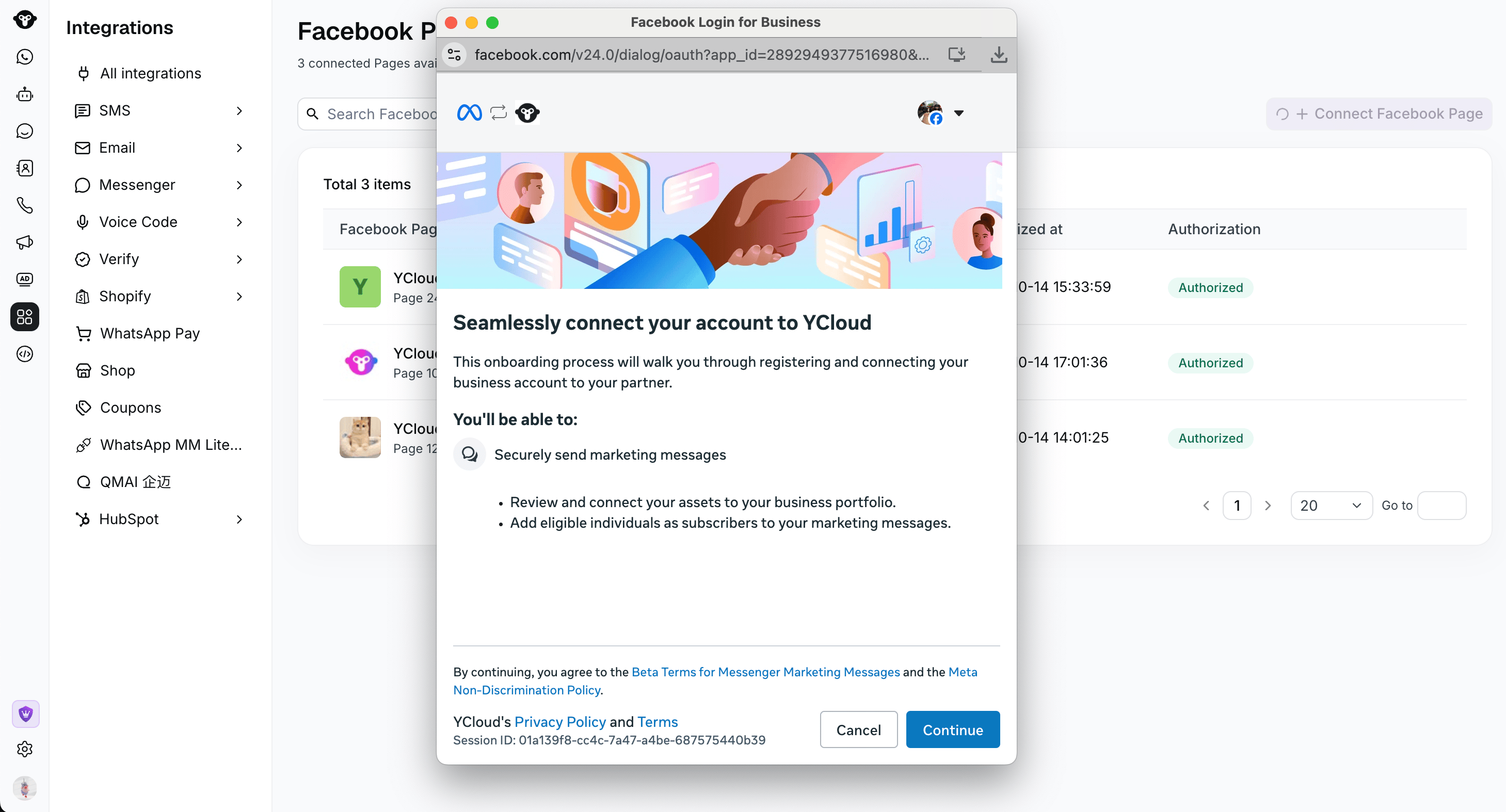
 3. Complete the Meta authorization flow. Select the business portfolio and Facebook Page you want to connect, and grant the requested permissions.
 4. Return to YCloud. Check that the Page appears under **Facebook Pages** with its Page ID, business portfolio, and **Authorized** status.
If authorization fails, check your access to the selected Page and try again.
## 2. Create and upload an audience
A Custom Audience connects a customer list to a Facebook Page. Meta matches the uploaded customer information to people who may be eligible to receive your campaign.
### Create the audience
1. Open **Audience lists** and click **Create Custom Audience**.
2. Enter an **Audience name** and an optional **Description**.
3. Select a connected **Facebook Page**.
4. Click **Create Audience** to continue to **Upload customer list**.
4. Return to YCloud. Check that the Page appears under **Facebook Pages** with its Page ID, business portfolio, and **Authorized** status.
If authorization fails, check your access to the selected Page and try again.
## 2. Create and upload an audience
A Custom Audience connects a customer list to a Facebook Page. Meta matches the uploaded customer information to people who may be eligible to receive your campaign.
### Create the audience
1. Open **Audience lists** and click **Create Custom Audience**.
2. Enter an **Audience name** and an optional **Description**.
3. Select a connected **Facebook Page**.
4. Click **Create Audience** to continue to **Upload customer list**.
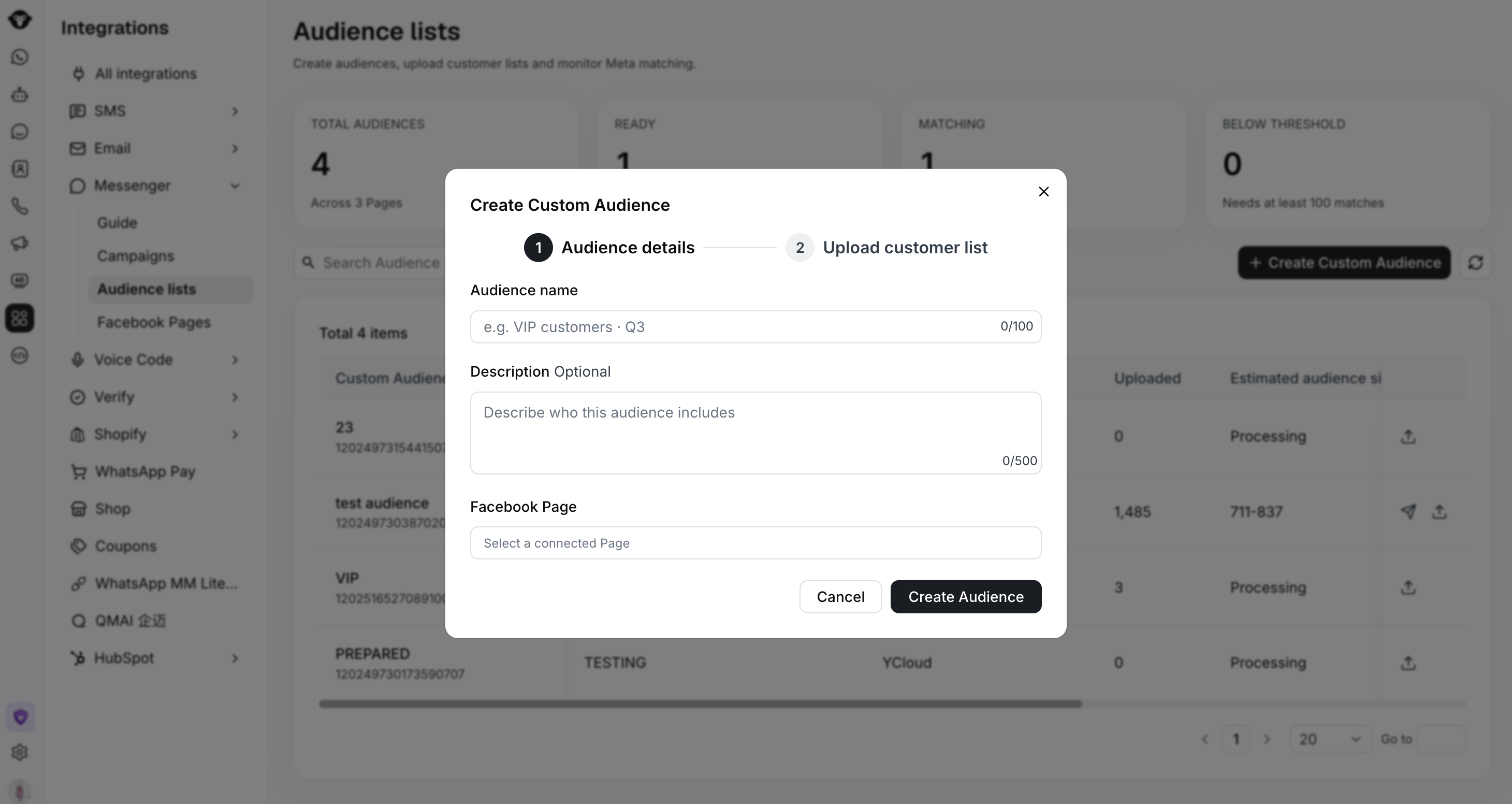 The Facebook Page is fixed after you create the audience. Campaigns using this audience inherit the same Page. To use another Page, create another audience.
### Upload your customer list
Click **Download import example (.xlsx)** in the upload dialog and use it to prepare your file. The template contains only two columns: `phone` and `email`.
| Column | What to include |
| - | - |
| `phone` | The customer's phone number, including the country code. |
| `email` | The customer's email address. |
Each row represents **one customer**. You can provide only their phone number, only their email address, or both. Leave the other cell blank if you only have one identifier. If you provide both, the phone number and email address must belong to **the same person**.
Meta uses the phone number and/or email address you provide to match the customer to its users. At least one of the two fields must be filled in each row.
Choose an `.xlsx` or `.xls` file and click **Confirm**. Each file can be up to **15 MB** and contain up to **1,000,000 rows**. Split larger lists into smaller files.
If the upload fails, correct the issue and retry in the upload dialog. The audience already has an ID, so you do not need to create another audience.
### Check the matching status
Matching can take up to **6 hours**. Check the audience's status in **Audience lists**:
| Status | What it means | Next step |
| - | - | - |
| **Matching** | Meta is processing the customer list. | You can prepare and submit a campaign. Delivery waits until the audience is ready. |
| **Ready** | The matched audience is available for campaigns. | Create a campaign and set its schedule. |
| **Below threshold** | The matched audience is too small to use. | Click **Upload more** and add more eligible customers. This audience cannot be selected for a campaign yet. |
The Facebook Page is fixed after you create the audience. Campaigns using this audience inherit the same Page. To use another Page, create another audience.
### Upload your customer list
Click **Download import example (.xlsx)** in the upload dialog and use it to prepare your file. The template contains only two columns: `phone` and `email`.
| Column | What to include |
| - | - |
| `phone` | The customer's phone number, including the country code. |
| `email` | The customer's email address. |
Each row represents **one customer**. You can provide only their phone number, only their email address, or both. Leave the other cell blank if you only have one identifier. If you provide both, the phone number and email address must belong to **the same person**.
Meta uses the phone number and/or email address you provide to match the customer to its users. At least one of the two fields must be filled in each row.
Choose an `.xlsx` or `.xls` file and click **Confirm**. Each file can be up to **15 MB** and contain up to **1,000,000 rows**. Split larger lists into smaller files.
If the upload fails, correct the issue and retry in the upload dialog. The audience already has an ID, so you do not need to create another audience.
### Check the matching status
Matching can take up to **6 hours**. Check the audience's status in **Audience lists**:
| Status | What it means | Next step |
| - | - | - |
| **Matching** | Meta is processing the customer list. | You can prepare and submit a campaign. Delivery waits until the audience is ready. |
| **Ready** | The matched audience is available for campaigns. | Create a campaign and set its schedule. |
| **Below threshold** | The matched audience is too small to use. | Click **Upload more** and add more eligible customers. This audience cannot be selected for a campaign yet. |
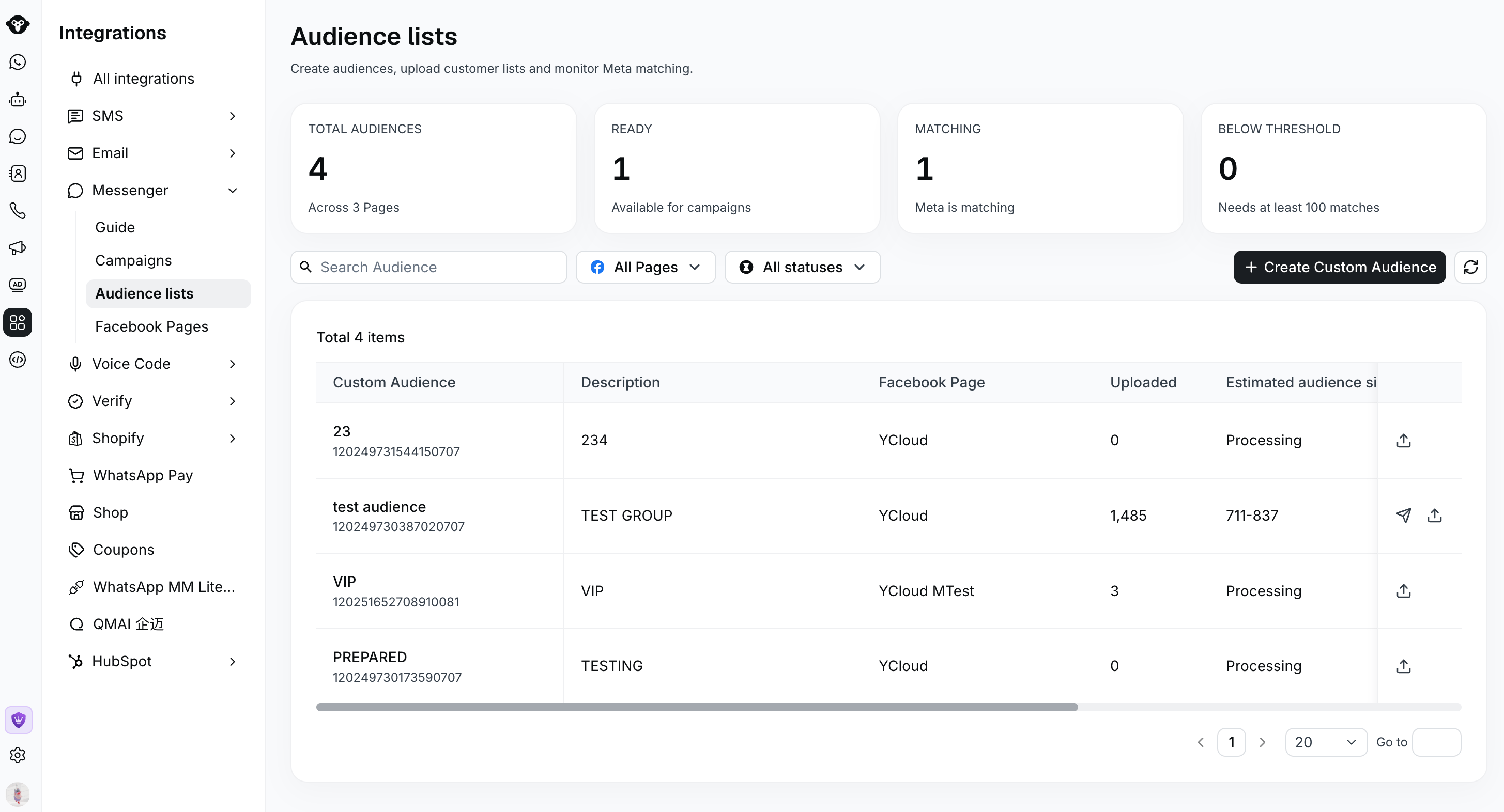 **Uploaded** shows the number of customers uploaded. **Estimated audience size** shows the estimated matched audience as a range. Neither number guarantees how many messages will be delivered.
To add customers later, click **Upload more**. This appends customers to the existing audience. If any **Active** campaign uses the audience, pause all active campaigns using it before uploading more customers.
## 3. Set up a campaign
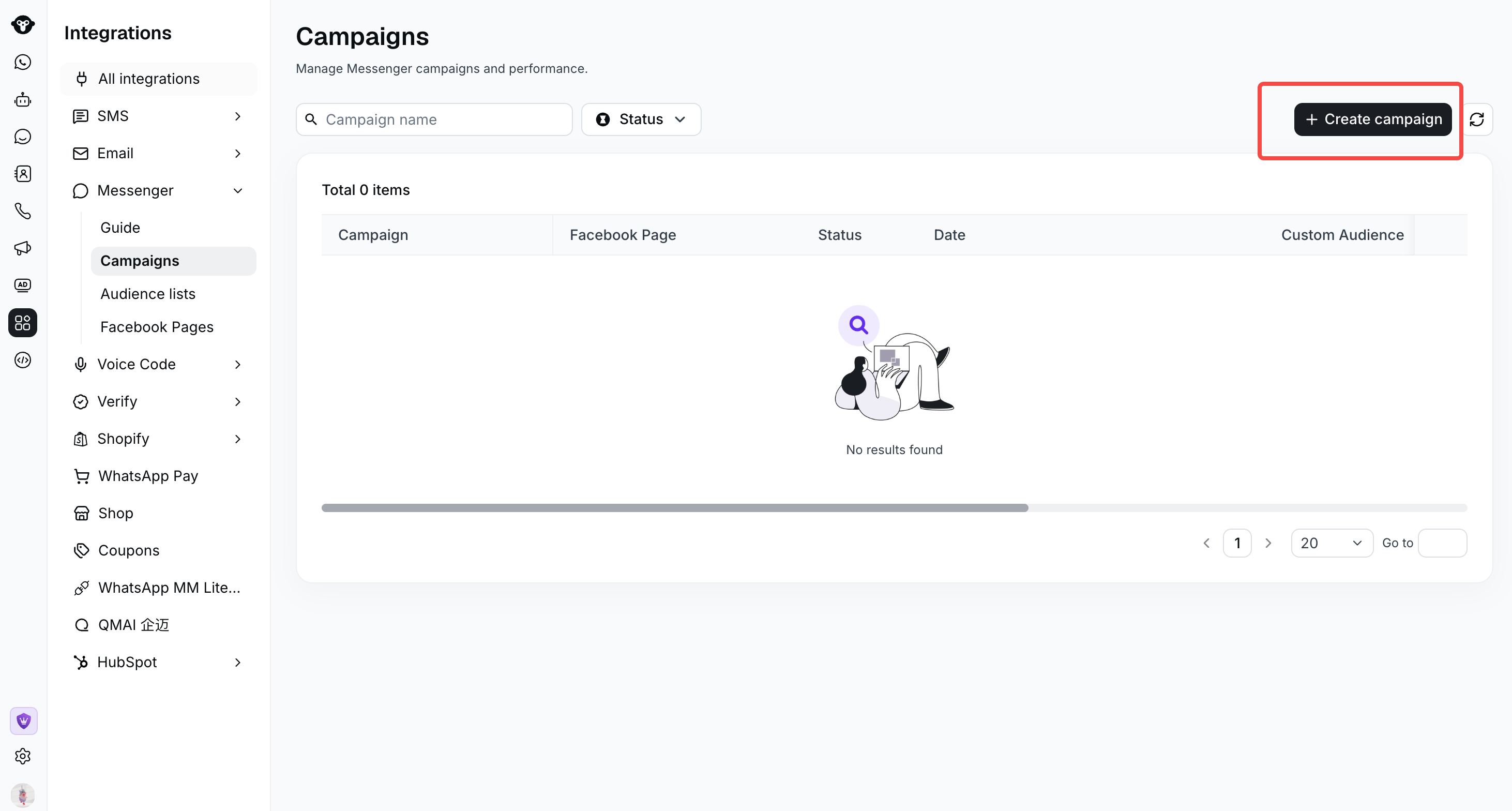
Open **Campaigns** and click **Create campaign**. The editor has three steps: **Campaign setup**, **Message template**, and **Review**.
**Uploaded** shows the number of customers uploaded. **Estimated audience size** shows the estimated matched audience as a range. Neither number guarantees how many messages will be delivered.
To add customers later, click **Upload more**. This appends customers to the existing audience. If any **Active** campaign uses the audience, pause all active campaigns using it before uploading more customers.
## 3. Set up a campaign
Open **Campaigns** and click **Create campaign**. The editor has three steps: **Campaign setup**, **Message template**, and **Review**.
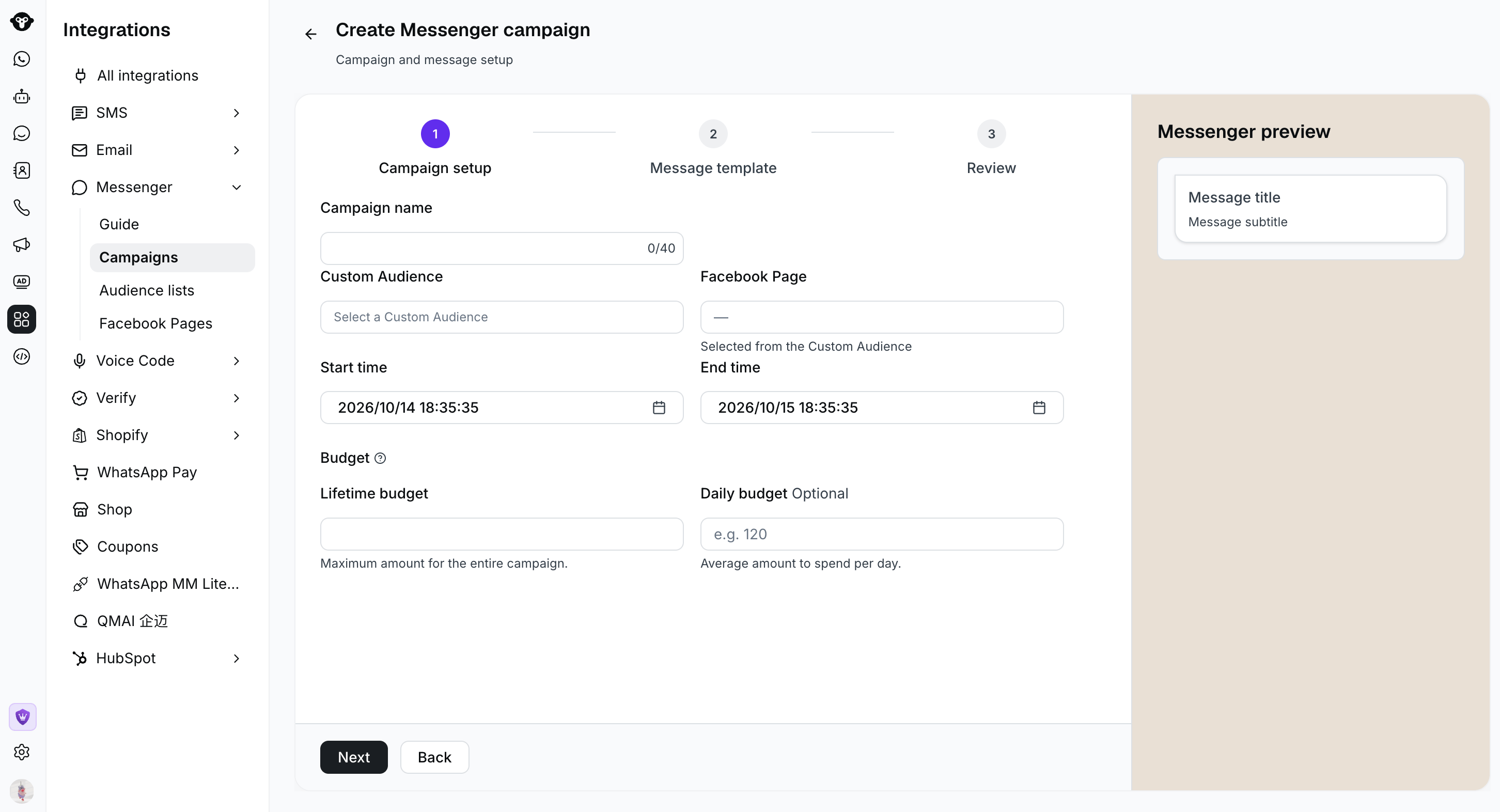
 In **Campaign setup**, complete the following fields:
| Field | What to enter |
| - | - |
| **Campaign name** | A name you can recognize in campaign reports. |
| **Custom Audience** | A **Ready** or **Matching** audience. |
| **Facebook Page** | Filled automatically from the audience and cannot be changed here. |
| **Start time** and **End time** | The campaign schedule. End time must be later than start time. Times use your computer's local timezone. |
| **Lifetime budget** | The total campaign budget in USD. Required and greater than zero. |
| **Daily budget** | An optional average daily budget in USD. If set, it must be greater than zero. |
In **Campaign setup**, complete the following fields:
| Field | What to enter |
| - | - |
| **Campaign name** | A name you can recognize in campaign reports. |
| **Custom Audience** | A **Ready** or **Matching** audience. |
| **Facebook Page** | Filled automatically from the audience and cannot be changed here. |
| **Start time** and **End time** | The campaign schedule. End time must be later than start time. Times use your computer's local timezone. |
| **Lifetime budget** | The total campaign budget in USD. Required and greater than zero. |
| **Daily budget** | An optional average daily budget in USD. If set, it must be greater than zero. |
 Click **Next** to write your message.
Daily budget represents average daily spending; do not treat it as a strict daily spending ceiling. Use the lifetime budget to plan the campaign's total budget.
## 4. Write and preview your message
Use the **Generic message editor** to compose the message. The preview updates as you edit.
| Field | How to use it |
| - | - |
| **Greeting** | Optional introductory text. |
| **Title** | Required headline for your message. |
| **Subtitle** | Optional supporting text. |
| **Media** | Select **None**, **Image**, or **Video**. |
| **+ Visit website button** | Optionally add a button with a label and an HTTPS website URL. |
| **Deep link** | Optionally enable app links. If enabled, provide both Android and iOS links. |
Greeting, title, and subtitle support plain text. Personalization variables are not supported.
### Add media
* **None:** Send the message without an image or video.
* **Image:** Upload **1–6 JPG or PNG images**, each under **2 MB**. Select one image as the **main image**. If you upload more than one image, recipients can browse them in a carousel. Square images at **450 × 450 pixels** are recommended. Use the preview arrows to check every image.
* **Video:** Upload one **MP4** file.
### Example message
For a seasonal promotion, you could use:
| Field | Example |
| - | - |
| **Greeting** | Our autumn collection has arrived. |
| **Title** | Find your new everyday favorites |
| **Subtitle** | Explore fresh colors and styles for the season. |
| **Button label** | Shop the collection |
| **Website URL** | `https://www.example.com/autumn` |
Keep the headline focused on one offer, choose media that supports it, and make the button's destination match the message. Check the preview before continuing.
## 5. Review and submit
1. Click **Next** to open **Review**.
2. Check the Facebook Page, audience, estimated reach, schedule, and budgets.
3. Review the message preview, including every image and the button destination.
4. Click **Submit**.
After a successful submission, the campaign appears in **Campaigns**. A campaign with a ready audience is **Scheduled**. If the audience is still matching, the campaign shows **Waiting for audience matching** and proceeds automatically when the audience is ready, subject to its schedule.
If submission returns an error, your inputs remain available. Correct the highlighted fields or follow the error message, then submit again.
## 6. Manage campaigns and track results
Use the campaign name search and status filter in **Campaigns** to find a campaign. Click its name to open the details, or refresh the list to retrieve updated results.
| Campaign status | Available actions |
| - | - |
| **Scheduled** | **Edit** or **Cancel**. |
| **Waiting for audience matching** | **Edit** or **Cancel** while matching completes. |
| **Active** | **Pause**, then confirm the action. |
| **Paused** | **Activate** to resume. A paused campaign cannot be edited. |
| **Completed** or **Canceled** | View the campaign and its results. A canceled campaign cannot be resumed. |
Campaign details include the Page, audience, schedule, budgets, amount spent, message preview, and performance metrics.
| Metric | How to read it |
| - | - |
| **Amount spent** | The campaign spend reported by Meta. |
| **Delivered** | The number of people reached. The percentage uses the lower end of the estimated audience size as its denominator. |
| **Read** | Read messages. The percentage is calculated against delivered messages. |
| **Clicked** | Reported clicks. The percentage is calculated against delivered messages. |
Delivery reporting is aggregate only. You can see how many people received your message, but you cannot identify which customers in your uploaded audience received it. Individual recipient delivery records are not available.
Metrics may take time to update. A dash (`—`) means a value is unavailable or a percentage cannot be calculated; it does not necessarily mean zero activity.
## Tips for your first campaign
* **Add a Visit website button to every campaign.** Link to a relevant landing page and use campaign tracking parameters, such as UTM tags, together with conversion tracking in your website analytics to measure outcomes such as purchases or sign-ups. The button provides a path to your website; adding it alone does not automatically track conversions.
* **Prepare the audience early.** Allow up to 6 hours for matching before your planned start time.
* **Start with a focused customer segment.** Use accurate customer identifiers and a message relevant to that group.
* **Test with a manageable budget.** Review delivery, reads, clicks, and actual spend before increasing your investment in future campaigns.
* **Check your timezone.** Campaign schedules use your computer's local timezone.
* **Review content before submission.** Editing is available while scheduled or waiting for matching. Pausing an active campaign does not make it editable.
## Troubleshooting
| Issue | What to do |
| - | - |
| Messenger is missing from Integrations. | Ask your workspace administrator to check your Messenger Channel management permission. |
| Your Page does not appear after authorization. | Check that you selected the correct Page and granted the requested Meta permissions. |
| A customer file is rejected. | Check the file type, size, row count, and that each row has a phone number or email address. |
| The audience is below threshold. | Upload more eligible customers and wait for matching to complete. |
| **Upload more** is unavailable. | Pause every active campaign that uses this audience, then retry. |
| The campaign is waiting for matching. | Check the audience status. Matching can take up to 6 hours. |
This documentation is built and hosted on [Mintlify](https://mintlify.com), a developer documentation platform.
Click **Next** to write your message.
Daily budget represents average daily spending; do not treat it as a strict daily spending ceiling. Use the lifetime budget to plan the campaign's total budget.
## 4. Write and preview your message
Use the **Generic message editor** to compose the message. The preview updates as you edit.
| Field | How to use it |
| - | - |
| **Greeting** | Optional introductory text. |
| **Title** | Required headline for your message. |
| **Subtitle** | Optional supporting text. |
| **Media** | Select **None**, **Image**, or **Video**. |
| **+ Visit website button** | Optionally add a button with a label and an HTTPS website URL. |
| **Deep link** | Optionally enable app links. If enabled, provide both Android and iOS links. |
Greeting, title, and subtitle support plain text. Personalization variables are not supported.
### Add media
* **None:** Send the message without an image or video.
* **Image:** Upload **1–6 JPG or PNG images**, each under **2 MB**. Select one image as the **main image**. If you upload more than one image, recipients can browse them in a carousel. Square images at **450 × 450 pixels** are recommended. Use the preview arrows to check every image.
* **Video:** Upload one **MP4** file.
### Example message
For a seasonal promotion, you could use:
| Field | Example |
| - | - |
| **Greeting** | Our autumn collection has arrived. |
| **Title** | Find your new everyday favorites |
| **Subtitle** | Explore fresh colors and styles for the season. |
| **Button label** | Shop the collection |
| **Website URL** | `https://www.example.com/autumn` |
Keep the headline focused on one offer, choose media that supports it, and make the button's destination match the message. Check the preview before continuing.
## 5. Review and submit
1. Click **Next** to open **Review**.
2. Check the Facebook Page, audience, estimated reach, schedule, and budgets.
3. Review the message preview, including every image and the button destination.
4. Click **Submit**.
After a successful submission, the campaign appears in **Campaigns**. A campaign with a ready audience is **Scheduled**. If the audience is still matching, the campaign shows **Waiting for audience matching** and proceeds automatically when the audience is ready, subject to its schedule.
If submission returns an error, your inputs remain available. Correct the highlighted fields or follow the error message, then submit again.
## 6. Manage campaigns and track results
Use the campaign name search and status filter in **Campaigns** to find a campaign. Click its name to open the details, or refresh the list to retrieve updated results.
| Campaign status | Available actions |
| - | - |
| **Scheduled** | **Edit** or **Cancel**. |
| **Waiting for audience matching** | **Edit** or **Cancel** while matching completes. |
| **Active** | **Pause**, then confirm the action. |
| **Paused** | **Activate** to resume. A paused campaign cannot be edited. |
| **Completed** or **Canceled** | View the campaign and its results. A canceled campaign cannot be resumed. |
Campaign details include the Page, audience, schedule, budgets, amount spent, message preview, and performance metrics.
| Metric | How to read it |
| - | - |
| **Amount spent** | The campaign spend reported by Meta. |
| **Delivered** | The number of people reached. The percentage uses the lower end of the estimated audience size as its denominator. |
| **Read** | Read messages. The percentage is calculated against delivered messages. |
| **Clicked** | Reported clicks. The percentage is calculated against delivered messages. |
Delivery reporting is aggregate only. You can see how many people received your message, but you cannot identify which customers in your uploaded audience received it. Individual recipient delivery records are not available.
Metrics may take time to update. A dash (`—`) means a value is unavailable or a percentage cannot be calculated; it does not necessarily mean zero activity.
## Tips for your first campaign
* **Add a Visit website button to every campaign.** Link to a relevant landing page and use campaign tracking parameters, such as UTM tags, together with conversion tracking in your website analytics to measure outcomes such as purchases or sign-ups. The button provides a path to your website; adding it alone does not automatically track conversions.
* **Prepare the audience early.** Allow up to 6 hours for matching before your planned start time.
* **Start with a focused customer segment.** Use accurate customer identifiers and a message relevant to that group.
* **Test with a manageable budget.** Review delivery, reads, clicks, and actual spend before increasing your investment in future campaigns.
* **Check your timezone.** Campaign schedules use your computer's local timezone.
* **Review content before submission.** Editing is available while scheduled or waiting for matching. Pausing an active campaign does not make it editable.
## Troubleshooting
| Issue | What to do |
| - | - |
| Messenger is missing from Integrations. | Ask your workspace administrator to check your Messenger Channel management permission. |
| Your Page does not appear after authorization. | Check that you selected the correct Page and granted the requested Meta permissions. |
| A customer file is rejected. | Check the file type, size, row count, and that each row has a phone number or email address. |
| The audience is below threshold. | Upload more eligible customers and wait for matching to complete. |
| **Upload more** is unavailable. | Pause every active campaign that uses this audience, then retry. |
| The campaign is waiting for matching. | Check the audience status. Matching can take up to 6 hours. |
This documentation is built and hosted on [Mintlify](https://mintlify.com), a developer documentation platform.