> ## Documentation Index
> Fetch the complete documentation index at: https://docs.ycloud.com/llms.txt
> Use this file to discover all available pages before exploring further.
# Send template
> Send a WhatsApp template message in a Journey.
# Send template
Use **Send template** to send a WhatsApp template message to contacts who reach this step in a Journey.
## Before you start
Configure the Journey Trigger and select its Sender before you add this step. The templates available in this step are associated with the Sender selected for the Journey.
## Select a template
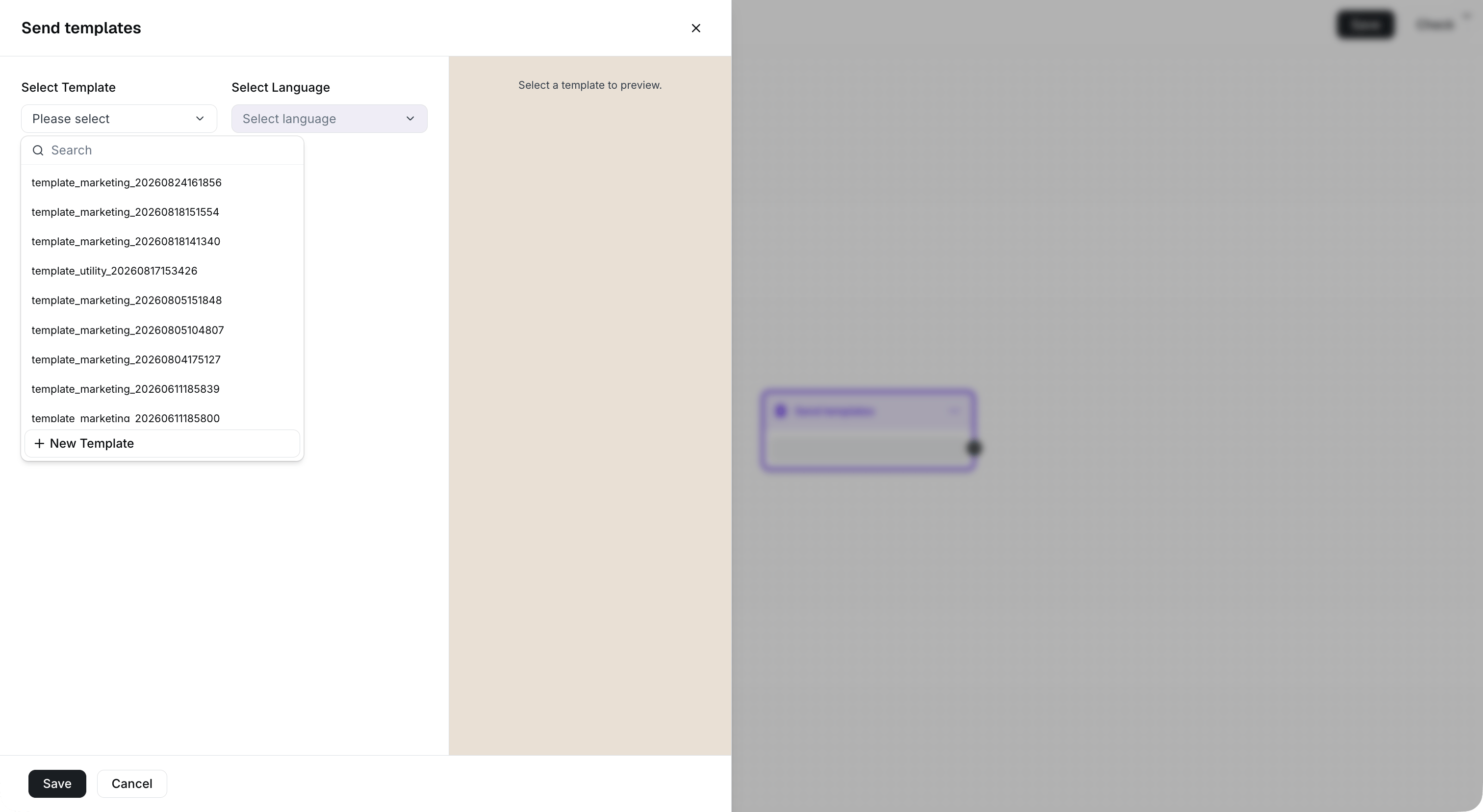
1. Add a **Send template** component to the Journey.
2. Search for and select the template you want to send.
3. Select a language when the template supports more than one language.
If the template you need is not available, check the Sender selected in the Trigger and confirm that the template is available for its WhatsApp Business Account.
 ## Set template variables
If your selected template contains variables, enter a value for each required variable before you save the step.
Templates without variables do not require variable configuration.
## Set template variables
If your selected template contains variables, enter a value for each required variable before you save the step.
Templates without variables do not require variable configuration.
 ## Next steps
Connect this step to a [Wait](/en/documentation/journey/components-and-features-introduction/wait) component to delay the next action, or use a [Message status rule](/en/documentation/journey/components-and-features-introduction/message-status-rule) to route contacts based on their response.
This documentation is built and hosted on [Mintlify](https://mintlify.com), a developer documentation platform.
## Next steps
Connect this step to a [Wait](/en/documentation/journey/components-and-features-introduction/wait) component to delay the next action, or use a [Message status rule](/en/documentation/journey/components-and-features-introduction/message-status-rule) to route contacts based on their response.
This documentation is built and hosted on [Mintlify](https://mintlify.com), a developer documentation platform.