> ## Documentation Index
> Fetch the complete documentation index at: https://docs.ycloud.com/llms.txt
> Use this file to discover all available pages before exploring further.
# Wait
> Delay the next Journey step for a defined period.
# Wait
Use **Wait** to delay the next step in a Journey.
For example, you can wait before sending a follow-up message or before checking whether a contact has responded.
## Configure a wait period
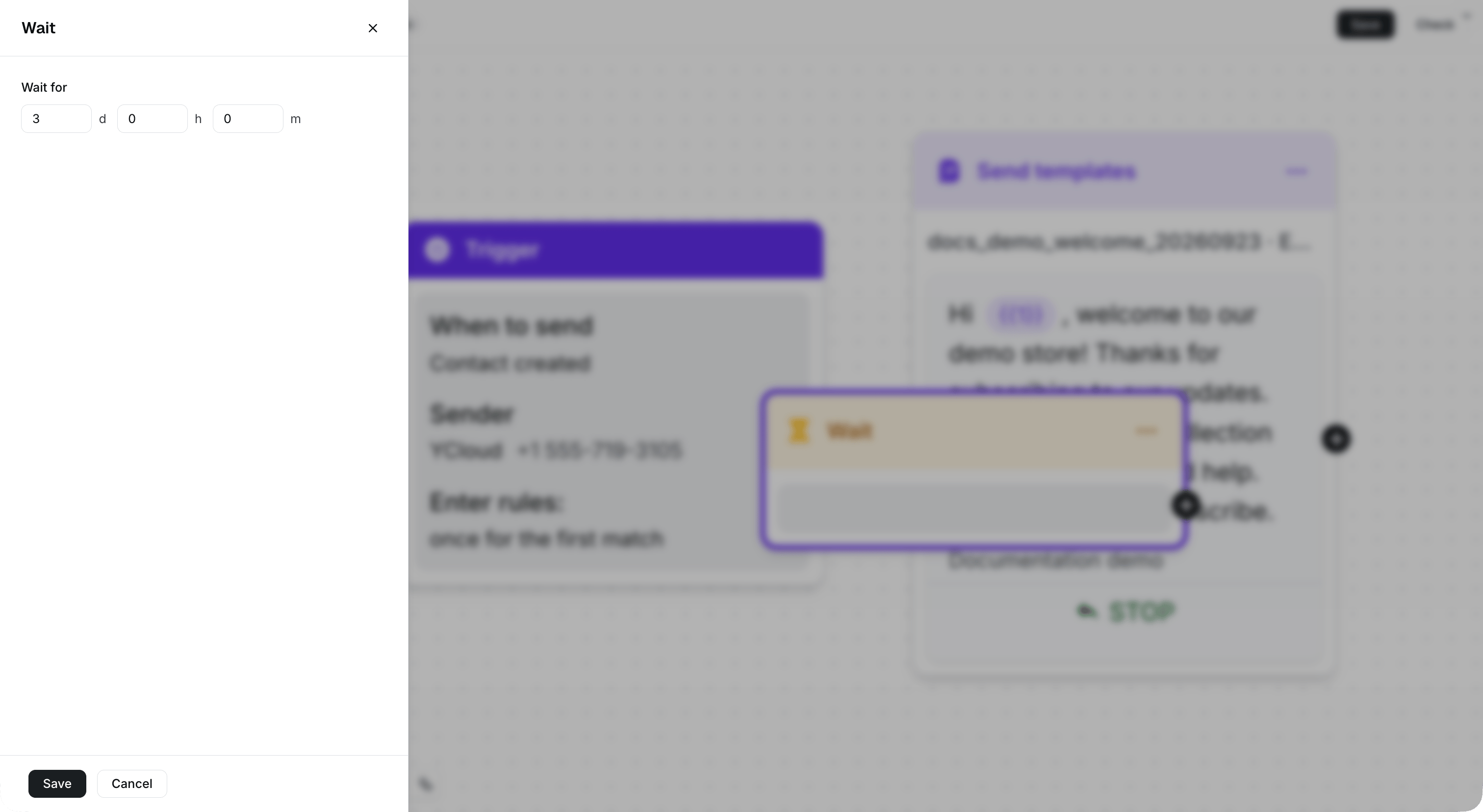
1. Add a **Wait** component to the Journey.
2. Set the duration before the next step runs.
3. Connect the Wait component to the next step in your flow.
You can set a wait period from 1 minute to 100 days.
 ## Use Wait in a follow-up flow
1. Send a template message.
2. Wait for a defined period.
3. Send a follow-up message, add a tag, or continue with another Journey component.
For response-based routing, use a [Message status rule](/en/documentation/journey/components-and-features-introduction/message-status-rule) instead.
This documentation is built and hosted on [Mintlify](https://mintlify.com), a developer documentation platform.
## Use Wait in a follow-up flow
1. Send a template message.
2. Wait for a defined period.
3. Send a follow-up message, add a tag, or continue with another Journey component.
For response-based routing, use a [Message status rule](/en/documentation/journey/components-and-features-introduction/message-status-rule) instead.
This documentation is built and hosted on [Mintlify](https://mintlify.com), a developer documentation platform.