> ## Documentation Index
> Fetch the complete documentation index at: https://docs.ycloud.com/llms.txt
> Use this file to discover all available pages before exploring further.
# Create a journey
# Create a journey
Create a Journey to automate the next actions for contacts who meet the conditions you set. Start with an available template or build a flow from scratch.
## Before you start
Prepare the entry condition, Sender, template message, and follow-up actions you want to use. If you plan to add tags or use message-status checks, decide how they should support the flow before you begin.
## Open Journey
Open the Journey workspace in YCloud to view your existing Journeys or create a new one.
 ## Start from a template or build from scratch
Select **Create Journey**, then choose one of the following options:
* **Start from a template** to begin with an available flow that you can adapt to your use case.
* **Build from scratch** to configure every part of the flow yourself.
## Start from a template or build from scratch
Select **Create Journey**, then choose one of the following options:
* **Start from a template** to begin with an available flow that you can adapt to your use case.
* **Build from scratch** to configure every part of the flow yourself.
 ## Configure the trigger
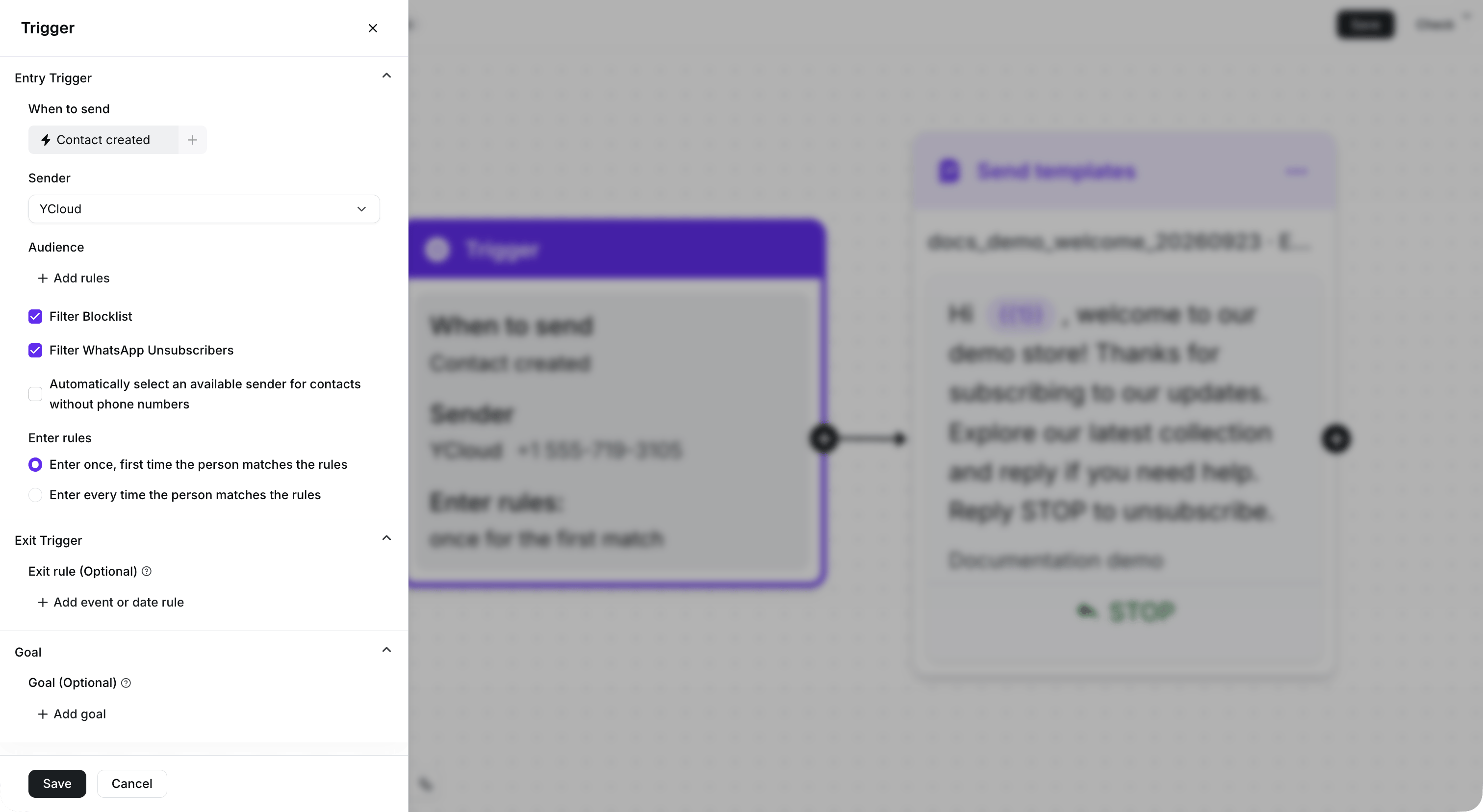
A Journey needs a **Trigger**. Configure the entry conditions, select a **Sender**, and choose the entry rule for your flow. The entry rule determines whether a contact enters only the first time that they match the conditions or each time that they match them.
## Configure the trigger
A Journey needs a **Trigger**. Configure the entry conditions, select a **Sender**, and choose the entry rule for your flow. The entry rule determines whether a contact enters only the first time that they match the conditions or each time that they match them.
 ## Add and configure steps
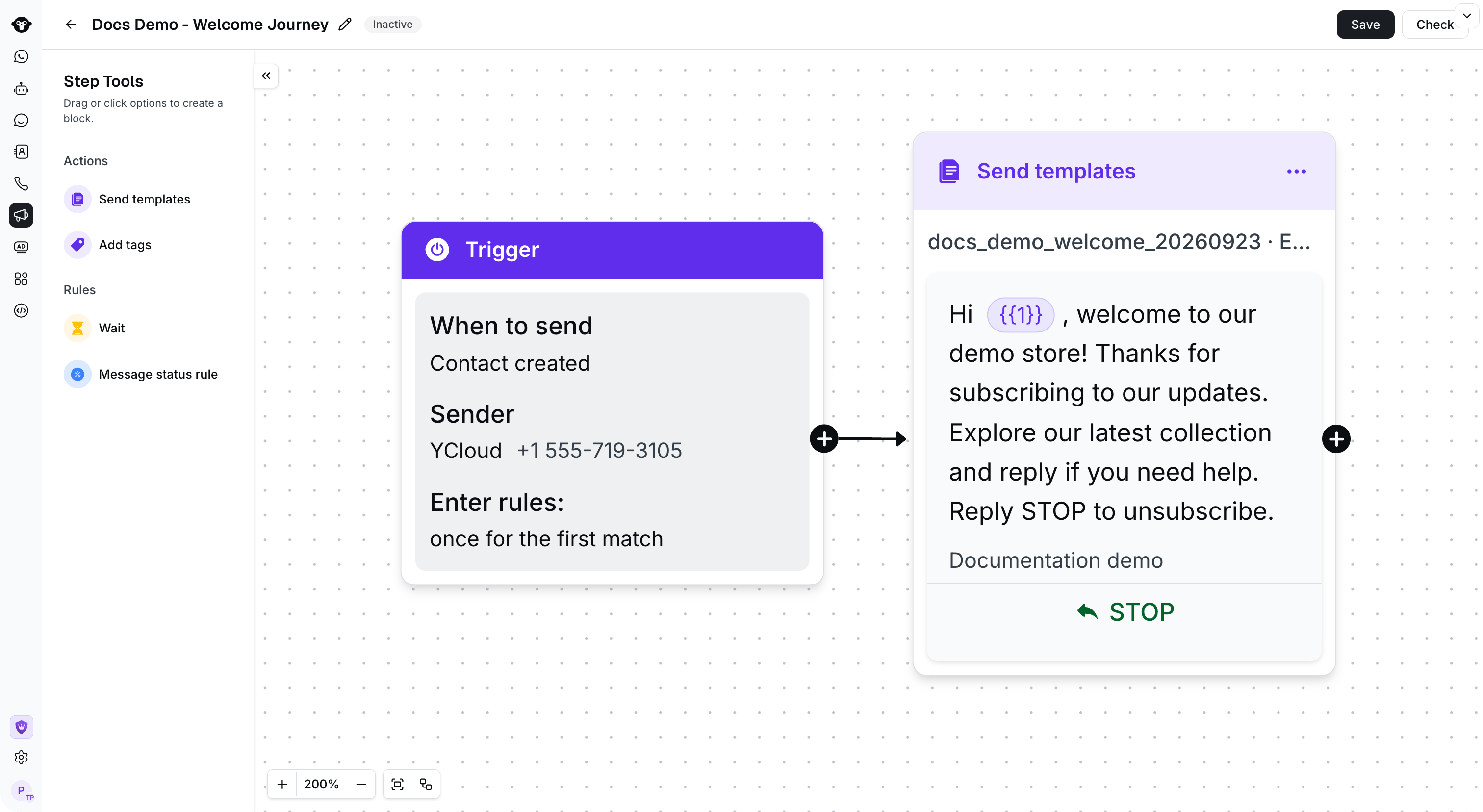
Add the steps that should run after the Trigger. For example, you can send a template message, wait before the next action, check a message status, or add a tag.
Configure each step before you connect it to the next step. Keep the flow focused on one customer outcome, such as following up after a message or applying a tag after a response.
## Add and configure steps
Add the steps that should run after the Trigger. For example, you can send a template message, wait before the next action, check a message status, or add a tag.
Configure each step before you connect it to the next step. Keep the flow focused on one customer outcome, such as following up after a message or applying a tag after a response.
 ## Review and save
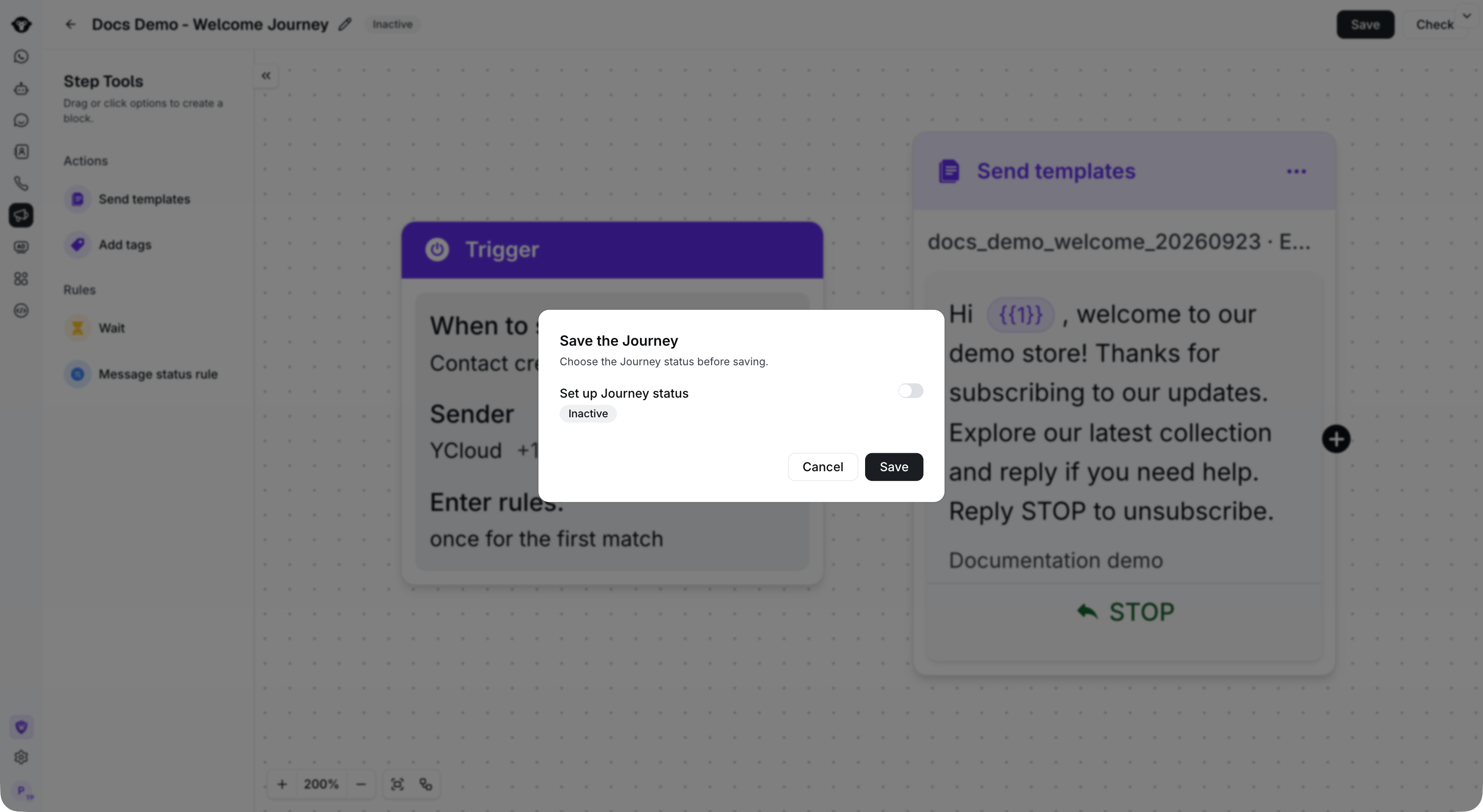
Review the Trigger, every step, and the connections between steps. Correct configuration errors before you save the Journey as **Active**.
Choose **Inactive** if you want to save the flow before activating it. Choose **Active** when the flow is ready to run.
## Review and save
Review the Trigger, every step, and the connections between steps. Correct configuration errors before you save the Journey as **Active**.
Choose **Inactive** if you want to save the flow before activating it. Choose **Active** when the flow is ready to run.
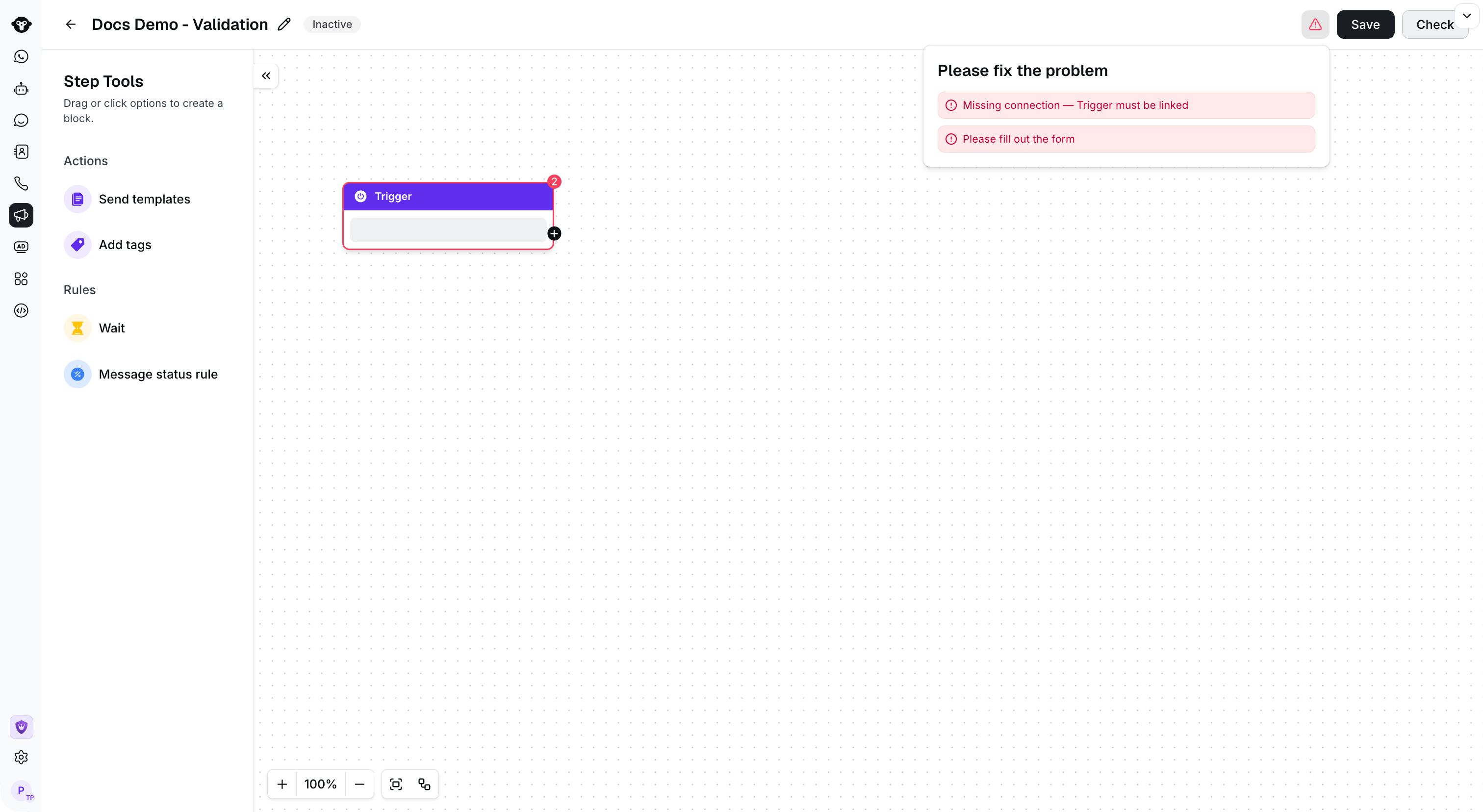
 If a step has a configuration error, correct it before you activate the Journey.
 ## What to do next
Learn how to configure each option in [Journey components](/en/documentation/journey/components-and-features-introduction/index).
This documentation is built and hosted on [Mintlify](https://mintlify.com), a developer documentation platform.
## What to do next
Learn how to configure each option in [Journey components](/en/documentation/journey/components-and-features-introduction/index).
This documentation is built and hosted on [Mintlify](https://mintlify.com), a developer documentation platform.