> ## Documentation Index
> Fetch the complete documentation index at: https://docs.ycloud.com/llms.txt
> Use this file to discover all available pages before exploring further.
# Prepare and check eligibility
> Confirm the business prerequisites and check whether a WhatsApp Business phone number can use Meta Business Agent.
Complete this guide before creating an agent. The result is an eligible WhatsApp Business phone number and a clear list of any prerequisites that still block onboarding.
## Before you begin
| Requirement | What to confirm |
| - | - |
| YCloud API key | The key belongs to the tenant that manages the WhatsApp Business phone number. |
| Phone Number ID | Use the WhatsApp Business Phone Number ID as `entityId`, not the display phone number or WABA ID. |
| Business access | An administrator can manage the business that owns the WABA. |
| Product terms | The owning business can accept the Meta AI Terms after eligibility is confirmed. |
| Billing readiness | The owning business can configure a client credit line for Meta Business Agent usage and resolve any billing issue before onboarding. |
Check eligibility before asking the business owner to complete setup. Terms acceptance and billing setup happen outside the YCloud API. YCloud cannot complete those actions on behalf of the business owner.
## Store the API key and Phone Number ID
Keep the API key on your server and set the Phone Number ID separately from the customer-facing phone number.
```bash theme={"theme":{"light":"github-light","dark":"github-dark"}}
export YCLOUD_API_KEY="YOUR_API_KEY"
export PHONE_NUMBER_ID="YOUR_PHONE_NUMBER_ID"
```
## Check eligibility
Eligibility is evaluated for the individual WhatsApp Business phone number.
**API reference:** [GET Check Eligibility](/api-reference/meta-business-agents/check-eligibility)
```bash theme={"theme":{"light":"github-light","dark":"github-dark"}}
curl "https://api.ycloud.com/v2/metaBusinessAgents/$PHONE_NUMBER_ID/eligibility" \
--header "X-API-Key: $YCLOUD_API_KEY"
```
An eligible response is:
```json theme={"theme":{"light":"github-light","dark":"github-dark"}}
{
"is_eligible": true
}
```
## Decide whether to continue
| Result | Next action |
| - | - |
| `is_eligible=true` | Continue to onboarding. |
| `is_eligible=false` | Stop. Do not create a local country or business-category override. |
| `401` | Confirm the YCloud API key and tenant access. Do not send a Meta access token. |
| `403` | Confirm product access and that the owning business accepted the required terms. |
| `500` | Meta can return a server error for an ineligible or not-yet-enabled number. Retry the read with backoff before escalating. |
## Accept the terms in WhatsApp Manager
After eligibility is confirmed, open WhatsApp Manager and select the business account that owns the phone number. Under **Account tools**, open **Meta Business Agent**.
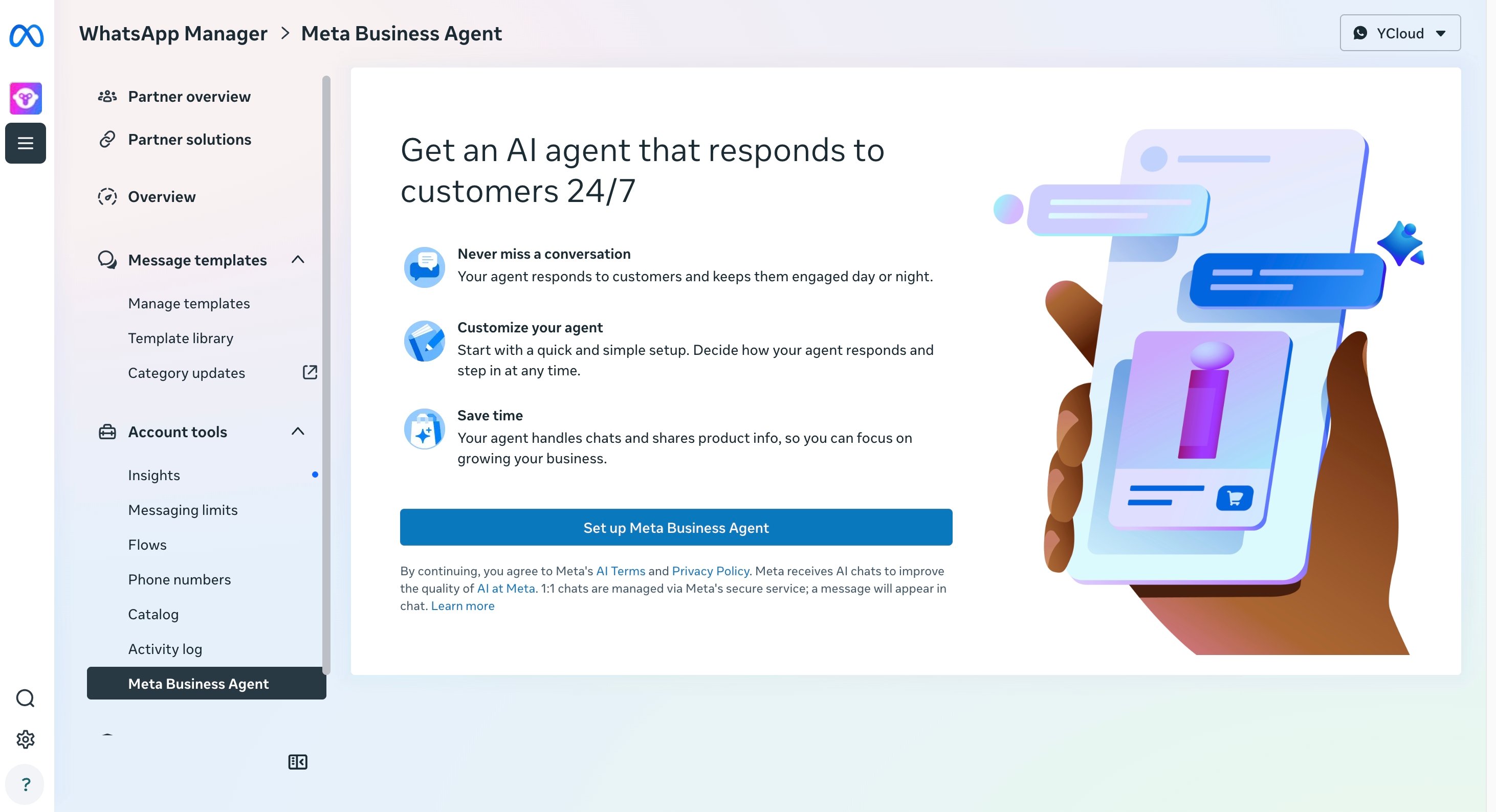 Select **Set up Meta Business Agent**. As stated on the page, continuing means that the business agrees to the Meta AI Terms and Privacy Policy. A person with access to the owning business must complete this step. Opening the page from another business account does not grant authority to accept terms for the owner.
This acceptance action happens in WhatsApp Manager. It is not performed by [POST Onboard Agent](/api-reference/meta-business-agents/onboard-agent), and YCloud cannot accept the terms for the business owner. If an onboarding or settings request returns `403`, confirm that this setup was completed for the WABA that owns the phone number.
## Add a payment method
Meta requires a client credit line for Meta Business Agent usage. Before onboarding, configure it in the owning business's Billing Hub:
1. Sign in as a business administrator or finance user who can manage billing for the business that owns the WABA.
2. Open [**Billing Hub**](https://business.facebook.com/latest/billing_hub/credit_lines/), then open **Credit lines**.
3. If the business already has a client credit line, add the Meta Business Agent account to that credit line. Otherwise, apply for a client credit line.
4. Confirm that the credit line is available to the Meta Business Agent account before onboarding the phone number.
Credit-line management might not yet be available in every business's Billing Hub. If the required action is missing, contact Meta support instead of repeatedly calling the onboarding API.
Billing setup happens outside the YCloud API. YCloud cannot create, approve, or associate a client credit line for the business. If onboarding remains blocked after billing setup, confirm that the Meta Business Agent account is associated with the intended credit line under the business that owns the WABA.
## Check end-user number support
End-user phone numbers with the `+86` country calling code are not currently supported by Meta Business Agent. The number can still be syntactically valid E.164, but the agent will not reply to messages from that end user. Use a supported non-`+86` number for allowlisted testing and live validation.
Do not cache eligibility indefinitely. Check it again when onboarding a different phone number or after a previously ineligible number becomes available.
Create the agent, keep rollout restricted, and add its initial configuration.
This documentation is built and hosted on [Mintlify](https://mintlify.com), a developer documentation platform.
Select **Set up Meta Business Agent**. As stated on the page, continuing means that the business agrees to the Meta AI Terms and Privacy Policy. A person with access to the owning business must complete this step. Opening the page from another business account does not grant authority to accept terms for the owner.
This acceptance action happens in WhatsApp Manager. It is not performed by [POST Onboard Agent](/api-reference/meta-business-agents/onboard-agent), and YCloud cannot accept the terms for the business owner. If an onboarding or settings request returns `403`, confirm that this setup was completed for the WABA that owns the phone number.
## Add a payment method
Meta requires a client credit line for Meta Business Agent usage. Before onboarding, configure it in the owning business's Billing Hub:
1. Sign in as a business administrator or finance user who can manage billing for the business that owns the WABA.
2. Open [**Billing Hub**](https://business.facebook.com/latest/billing_hub/credit_lines/), then open **Credit lines**.
3. If the business already has a client credit line, add the Meta Business Agent account to that credit line. Otherwise, apply for a client credit line.
4. Confirm that the credit line is available to the Meta Business Agent account before onboarding the phone number.
Credit-line management might not yet be available in every business's Billing Hub. If the required action is missing, contact Meta support instead of repeatedly calling the onboarding API.
Billing setup happens outside the YCloud API. YCloud cannot create, approve, or associate a client credit line for the business. If onboarding remains blocked after billing setup, confirm that the Meta Business Agent account is associated with the intended credit line under the business that owns the WABA.
## Check end-user number support
End-user phone numbers with the `+86` country calling code are not currently supported by Meta Business Agent. The number can still be syntactically valid E.164, but the agent will not reply to messages from that end user. Use a supported non-`+86` number for allowlisted testing and live validation.
Do not cache eligibility indefinitely. Check it again when onboarding a different phone number or after a previously ineligible number becomes available.
Create the agent, keep rollout restricted, and add its initial configuration.
This documentation is built and hosted on [Mintlify](https://mintlify.com), a developer documentation platform.