> ## Documentation Index
> Fetch the complete documentation index at: https://docs.ycloud.com/llms.txt
> Use this file to discover all available pages before exploring further.
# Install Shop
> Learn how to install a shop and start your business.
# Install Shop
You can install one store for each company. To create another shop, first create a new company.
[Learn more about companies](/en/documentation/account-management/company-info#company-name)
## Install a store
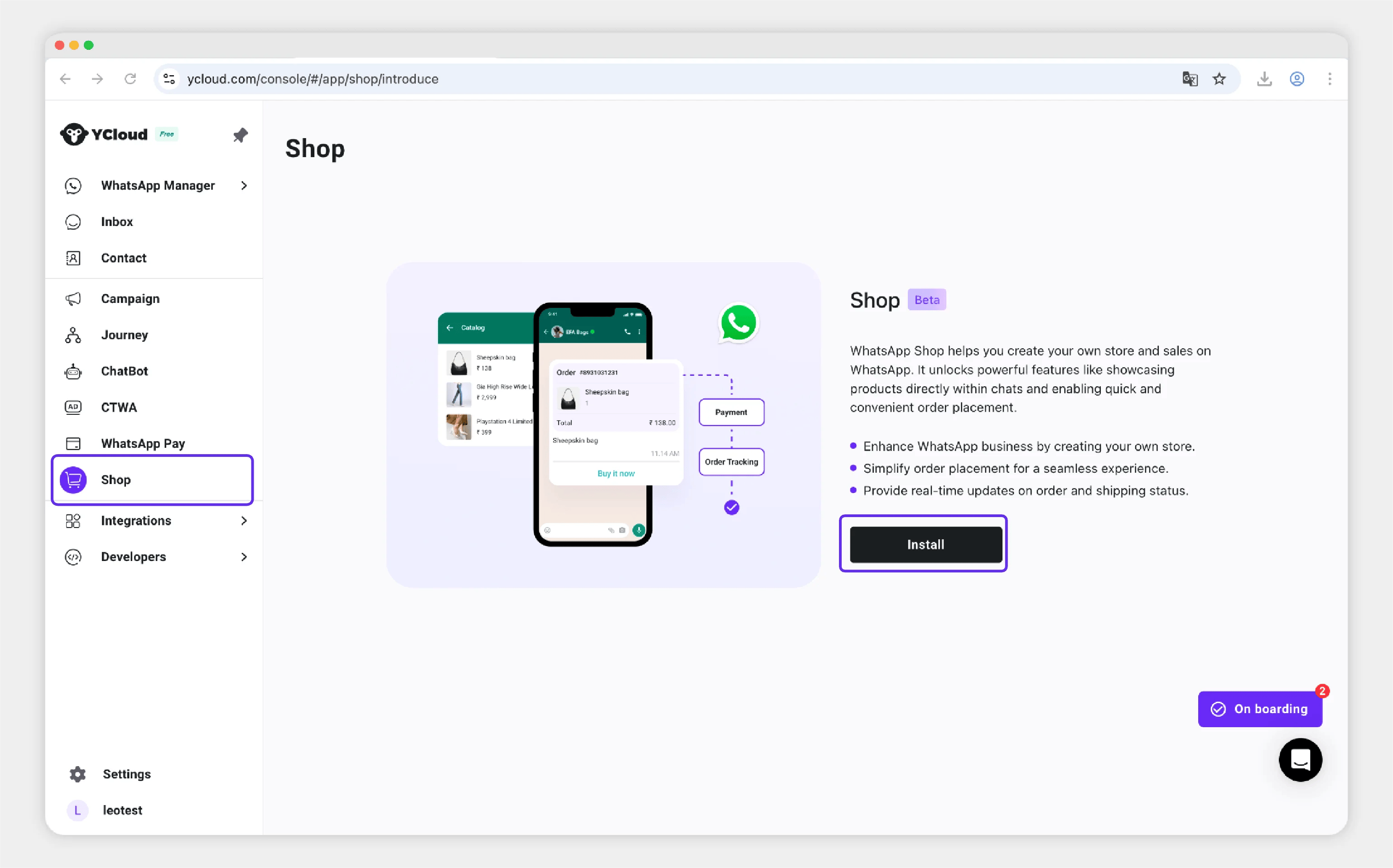
1. Sign in to the [**YCloud console**](https://www.ycloud.com/console).
2. Go to **Shop → Install**.
 ## Enter store information
Enter the basic information for your store.
## Enter store information
Enter the basic information for your store.
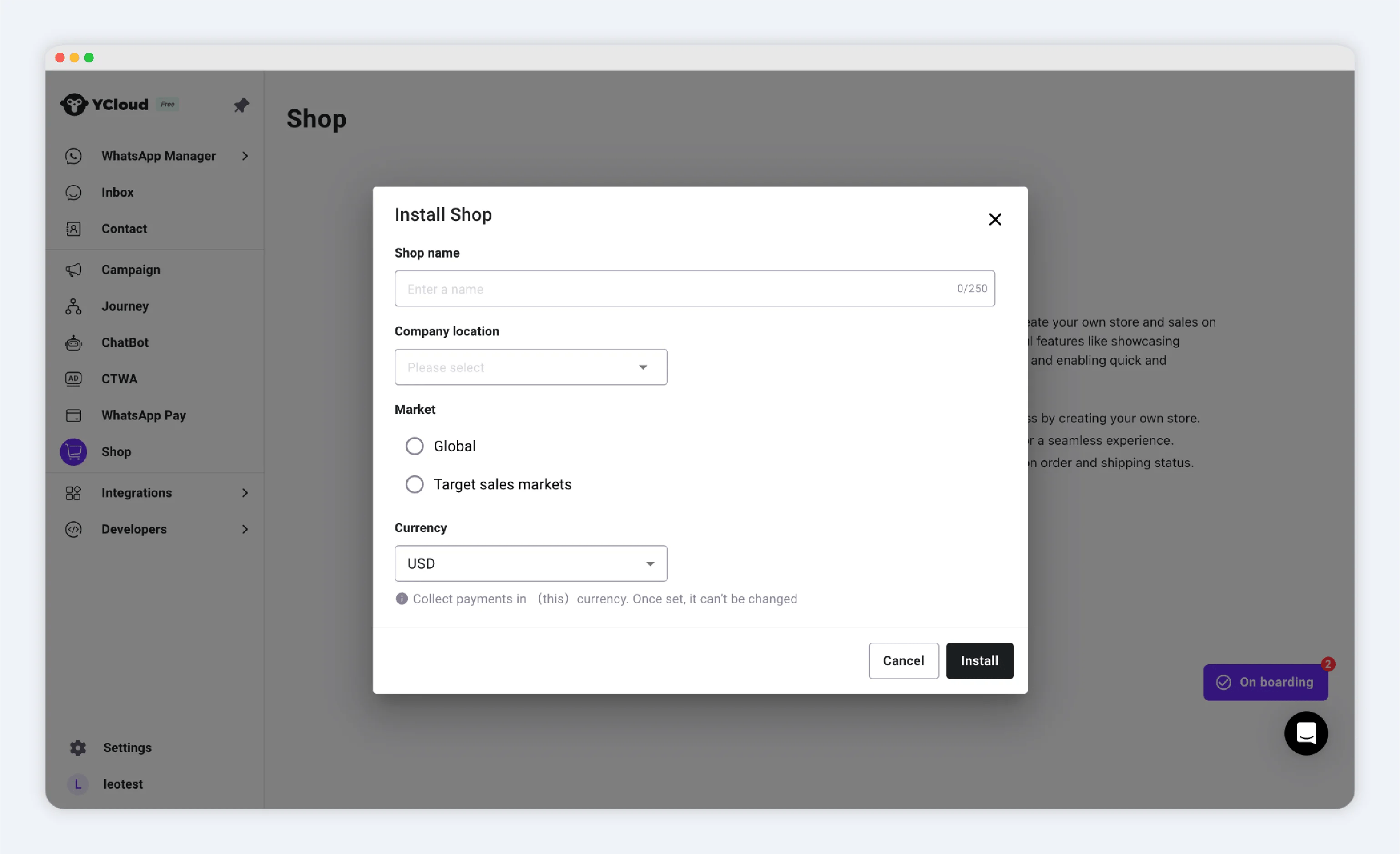 * **Shop Name**: The name of your store. You can change it later.
Customers may see the shop name in orders and WhatsApp messages.
* **Company Location**: Select the country where your company is based.
* **Market**: Choose the countries or regions where you sell products.
* **Global**: You sell to all countries and regions.
* **Target Sales Markets**: You sell only to the countries and regions you select. For example, if you select the United States and Canada, customers outside those markets cannot use their addresses for delivery.
## Choose your settlement currency
When you create a shop, choose one settlement currency. Product prices, shipping fees, and other charges use this currency.
### Supported currencies
The following table shows the currency and an example of how a price appears to customers.
| Currency and region | Example customer price |
| - | - |
| United States Dollar (USD) | \$7.59 |
| Euro (EUR) | €9.99 |
| British Pound (GBP) | £9.99 |
| Australian Dollar (AUD) | AUD \$9.99 |
| Canadian Dollar (CAD) | CAD \$9.99 |
| Mexican Peso (MXN) | Mex\$9.99 |
| Malaysian Ringgit (MYR) | RM 9.99 |
| Singapore Dollar (SGD) | SGD \$9.99 |
| Japanese Yen (JPY) | JP¥1,299 |
| Philippine Peso (PHP) | ₱9.99 |
| Thai Baht (THB) | ฿9.99 |
| Indian Rupee (INR) | INR ₹9.99 |
| United Arab Emirates Dirham (AED) | AED 9.99 |
| Saudi Riyal (SAR) | SR 9.99 |
| Moroccan Dirham (MAD) | MAD 9.99 |
| New Taiwan Dollar (TWD) | NT\$1,299 |
| New Zealand Dollar (NZD) | NZ\$9.99 |
**PayPal Wallet currency support**
PayPal Wallet supports only some shop currencies. If you plan to offer PayPal Wallet, make sure that your selected settlement currency is [supported by PayPal](https://developer.paypal.com/docs/reports/reference/paypal-supported-currencies/) before you create the shop.
You cannot change the settlement currency after the store is created. Choose carefully.
Select **Install** to create the store.
* **Shop Name**: The name of your store. You can change it later.
Customers may see the shop name in orders and WhatsApp messages.
* **Company Location**: Select the country where your company is based.
* **Market**: Choose the countries or regions where you sell products.
* **Global**: You sell to all countries and regions.
* **Target Sales Markets**: You sell only to the countries and regions you select. For example, if you select the United States and Canada, customers outside those markets cannot use their addresses for delivery.
## Choose your settlement currency
When you create a shop, choose one settlement currency. Product prices, shipping fees, and other charges use this currency.
### Supported currencies
The following table shows the currency and an example of how a price appears to customers.
| Currency and region | Example customer price |
| - | - |
| United States Dollar (USD) | \$7.59 |
| Euro (EUR) | €9.99 |
| British Pound (GBP) | £9.99 |
| Australian Dollar (AUD) | AUD \$9.99 |
| Canadian Dollar (CAD) | CAD \$9.99 |
| Mexican Peso (MXN) | Mex\$9.99 |
| Malaysian Ringgit (MYR) | RM 9.99 |
| Singapore Dollar (SGD) | SGD \$9.99 |
| Japanese Yen (JPY) | JP¥1,299 |
| Philippine Peso (PHP) | ₱9.99 |
| Thai Baht (THB) | ฿9.99 |
| Indian Rupee (INR) | INR ₹9.99 |
| United Arab Emirates Dirham (AED) | AED 9.99 |
| Saudi Riyal (SAR) | SR 9.99 |
| Moroccan Dirham (MAD) | MAD 9.99 |
| New Taiwan Dollar (TWD) | NT\$1,299 |
| New Zealand Dollar (NZD) | NZ\$9.99 |
**PayPal Wallet currency support**
PayPal Wallet supports only some shop currencies. If you plan to offer PayPal Wallet, make sure that your selected settlement currency is [supported by PayPal](https://developer.paypal.com/docs/reports/reference/paypal-supported-currencies/) before you create the shop.
You cannot change the settlement currency after the store is created. Choose carefully.
Select **Install** to create the store.
 ## Next steps
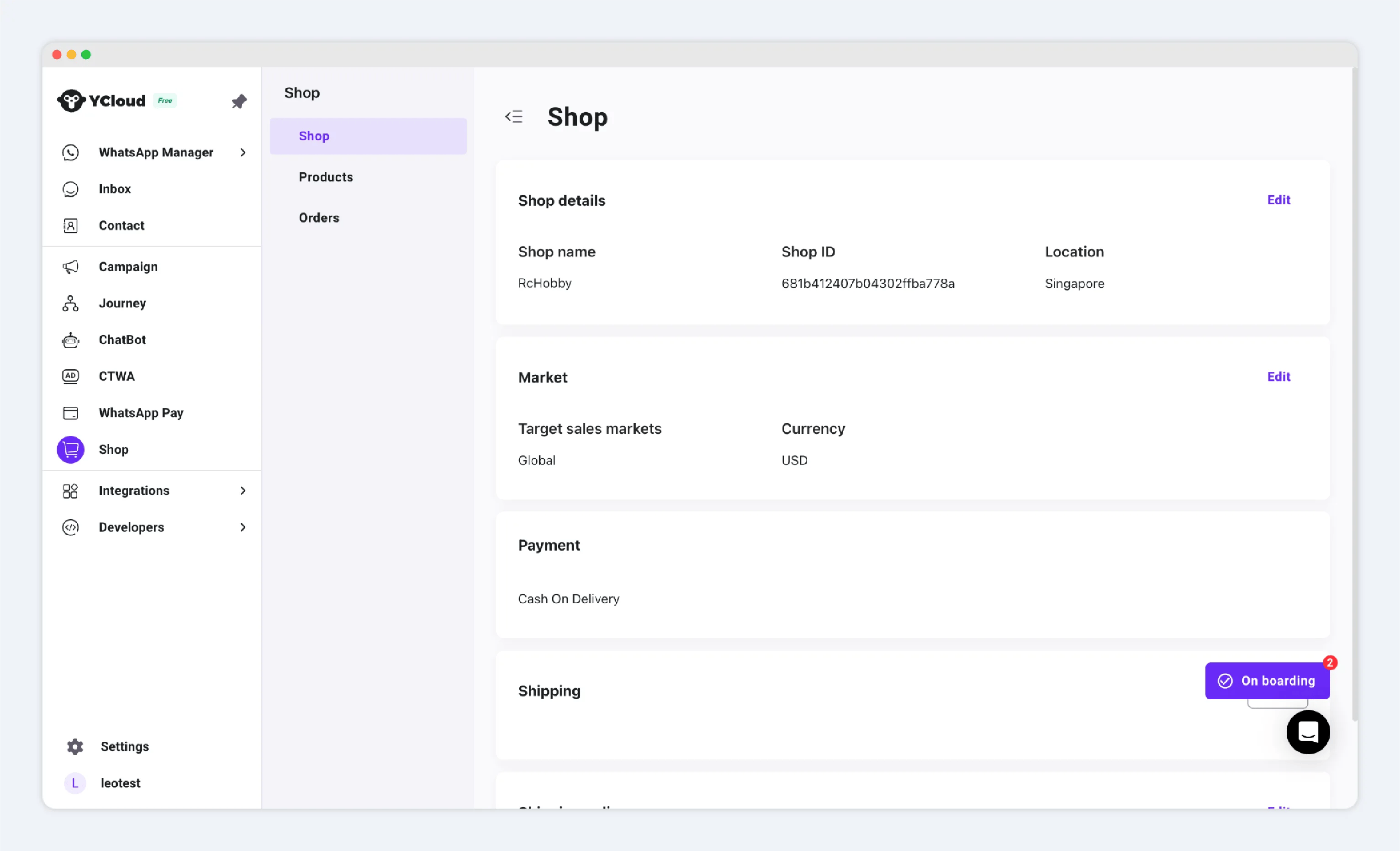
Configure the remaining settings for your store:
* [Shipping Settings](/en/documentation/shop/shipping-settings)
* [Payment Settings](/en/documentation/shop/payment-settings)
This documentation is built and hosted on [Mintlify](https://mintlify.com), a developer documentation platform.
## Next steps
Configure the remaining settings for your store:
* [Shipping Settings](/en/documentation/shop/shipping-settings)
* [Payment Settings](/en/documentation/shop/payment-settings)
This documentation is built and hosted on [Mintlify](https://mintlify.com), a developer documentation platform.