> ## Documentation Index
> Fetch the complete documentation index at: https://docs.ycloud.com/llms.txt
> Use this file to discover all available pages before exploring further.
# Order
> This article explains how to manage orders in Shop.
# Order
## **Before Selling**
**Required Setup**
Ensure your store is fully configured:
* [**Install a store**](/en/documentation/shop/install-shop)
* [**Add products**](/en/documentation/shop/product)
* [**Set up shipping**](/en/documentation/shop/shipping-settings)
* [**Configure payment methods**](/en/documentation/shop/payment-settings)
## **Order Creation**
When communicating with customers in **Inbox**, you can directly share product links if they show interest:
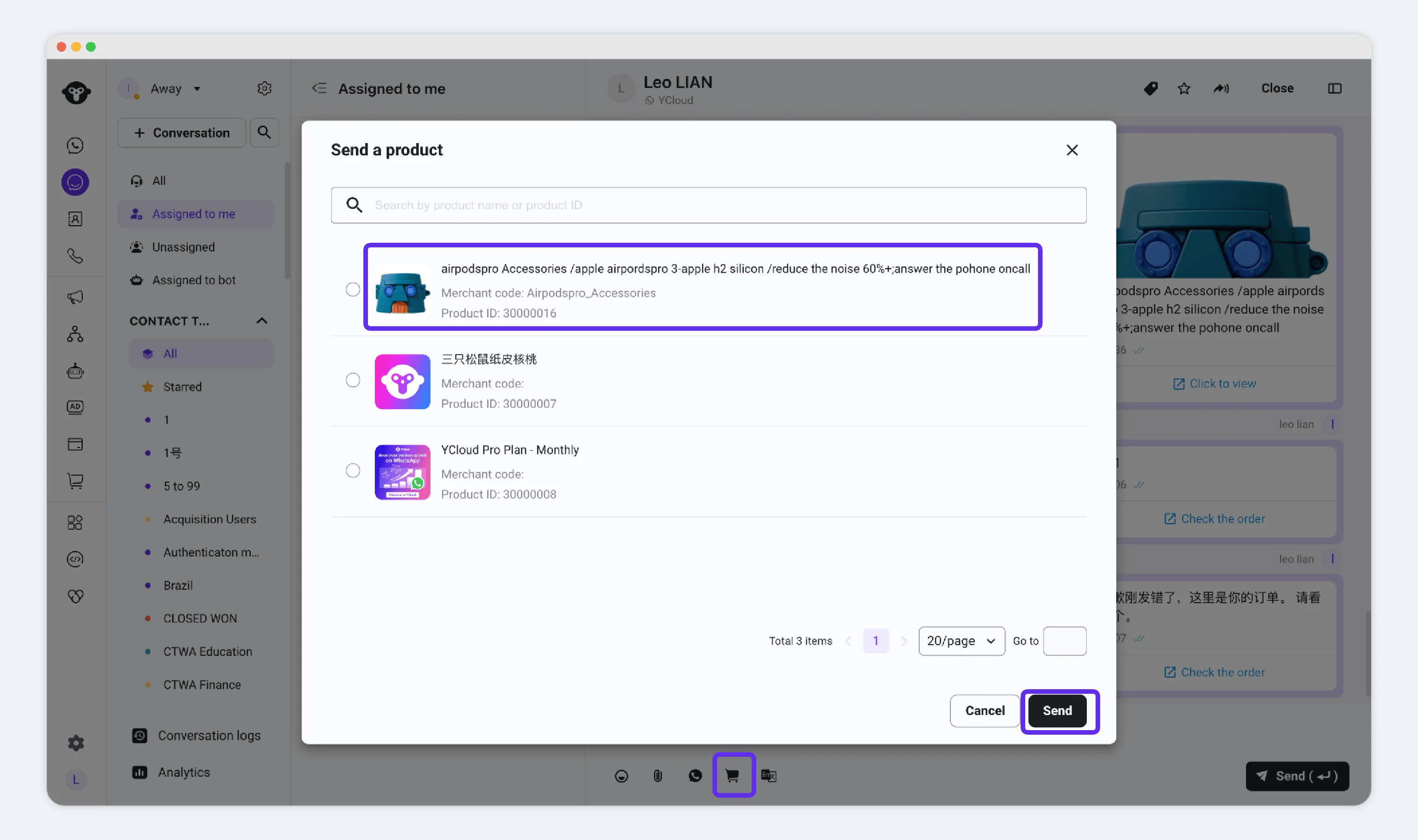 1. Open the chat with the customer.
2. Click the **menu** → Select **"Send a Product"** → Choose the product and send.
**Customer’s Purchase Process:**
* Clicks the product link → Selects SKU → **"Buy Now"** → Enters shipping address → Places order.
**Currently Supported Payment Methods:**
* **COD (Cash on Delivery)**
* **PayPal wallet**
[know more about payments](/en/documentation/shop/payment-settings)
## **Order Operation**
After receiving an order, focus on these key tasks:
* [Order Fulfillment (Shipping)](./#id-1.-order-fulfillment-shipping)
* [Marking Orders as Paid](./#id-2.-marking-orders-as-paid-cod-orders)
* [Order Cancellation](./#id-3.-order-cancellation)
* [Refunds & Returns](./#id-4.-refunds-and-returns)
### **1. Order Fulfillment (Shipping)**
Products fall into **two categories**: **Physical** and **Digital**.
#### **Physical Products**
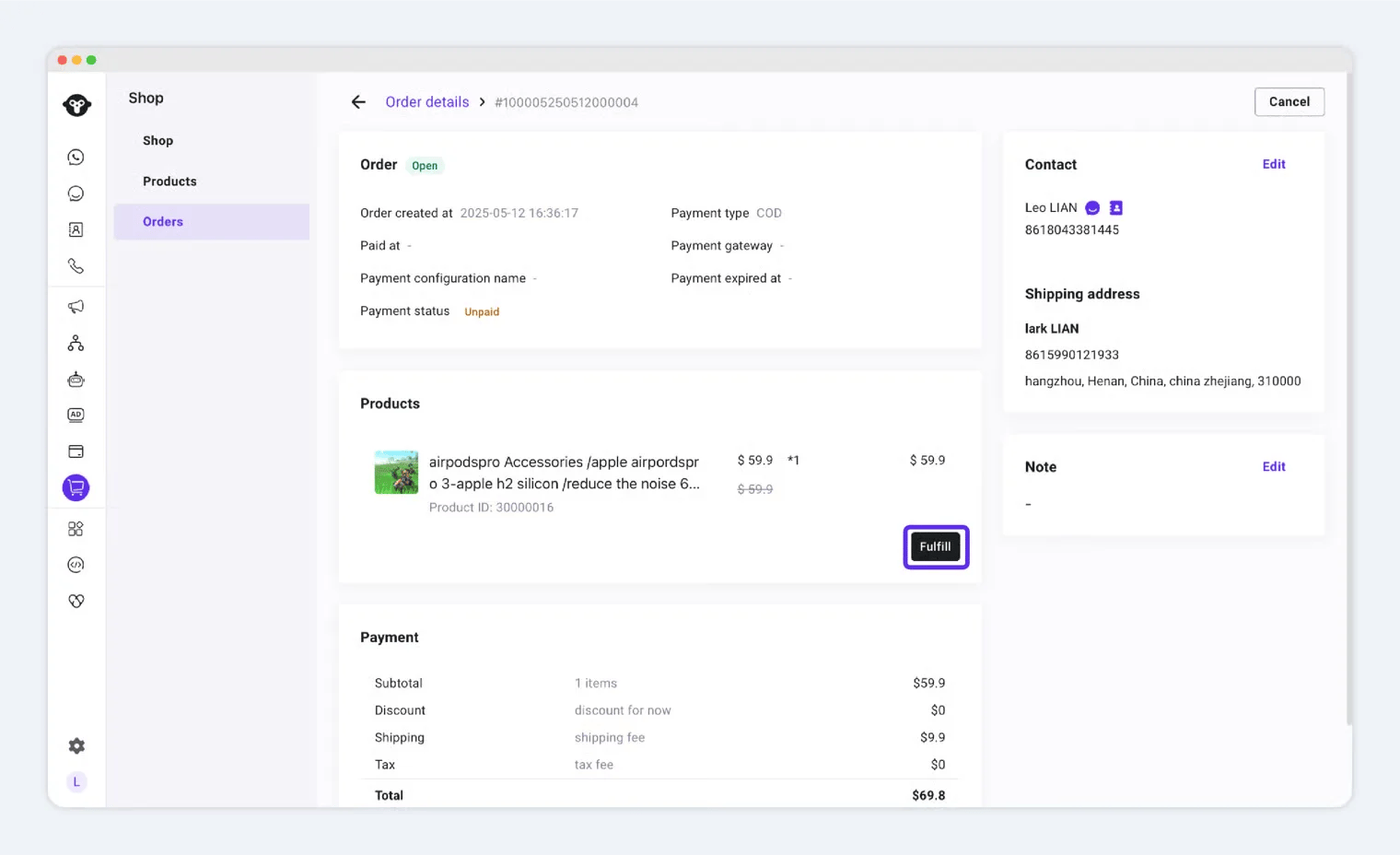
To ship an order:
1. Locate the order.
2. Click **"Ship"** → Enter **shipping details**.
1. Open the chat with the customer.
2. Click the **menu** → Select **"Send a Product"** → Choose the product and send.
**Customer’s Purchase Process:**
* Clicks the product link → Selects SKU → **"Buy Now"** → Enters shipping address → Places order.
**Currently Supported Payment Methods:**
* **COD (Cash on Delivery)**
* **PayPal wallet**
[know more about payments](/en/documentation/shop/payment-settings)
## **Order Operation**
After receiving an order, focus on these key tasks:
* [Order Fulfillment (Shipping)](./#id-1.-order-fulfillment-shipping)
* [Marking Orders as Paid](./#id-2.-marking-orders-as-paid-cod-orders)
* [Order Cancellation](./#id-3.-order-cancellation)
* [Refunds & Returns](./#id-4.-refunds-and-returns)
### **1. Order Fulfillment (Shipping)**
Products fall into **two categories**: **Physical** and **Digital**.
#### **Physical Products**
To ship an order:
1. Locate the order.
2. Click **"Ship"** → Enter **shipping details**.
 #### **Digital Products**
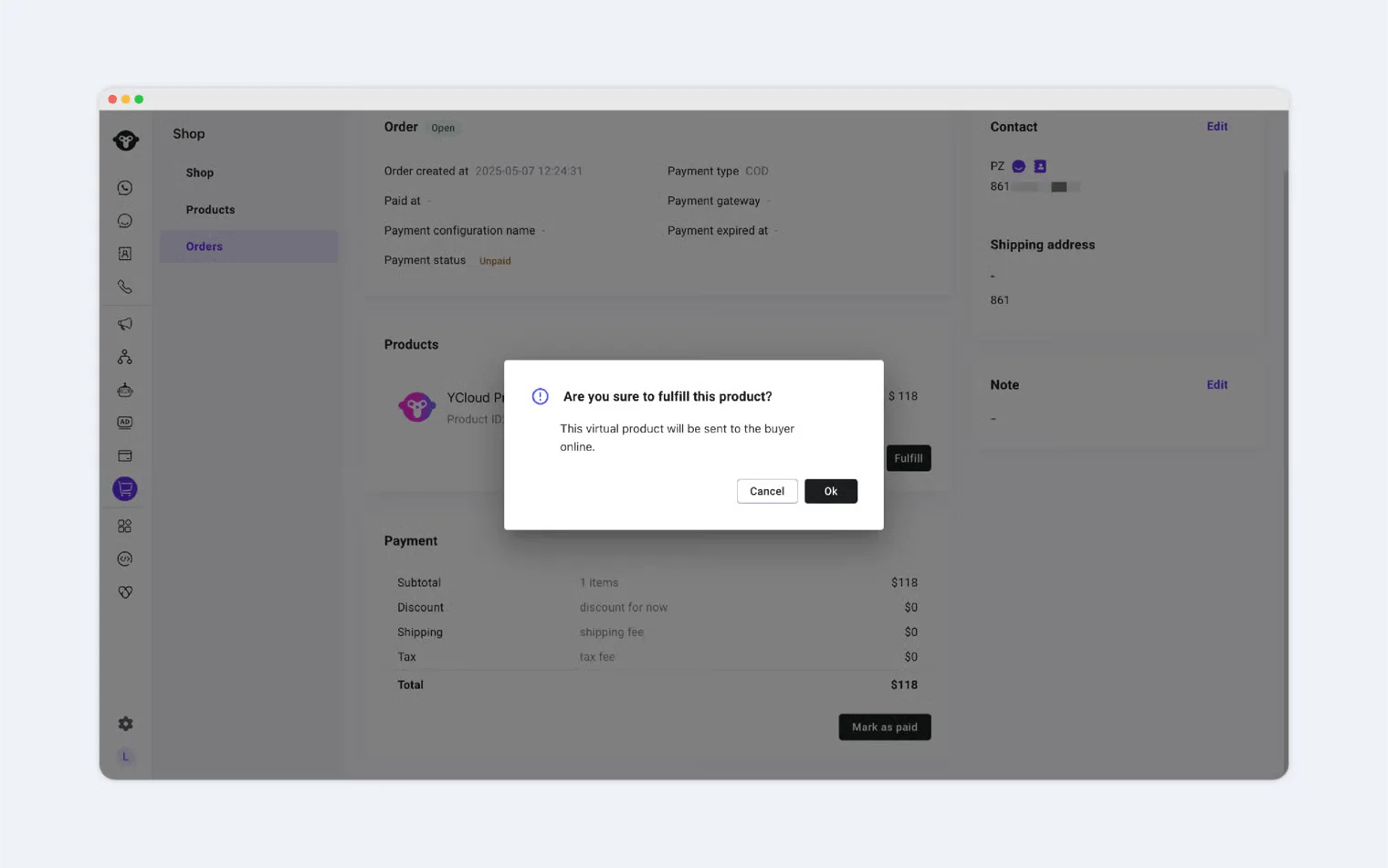 Digital product fulfillment **cannot be undone**. Proceed with caution.
* Once the customer purchases a digital product, click **"OK"** to confirm delivery.
* The system will automatically mark it as **"Shipped"**.
### **2. Marking Orders as Paid**
For **Cash on Delivery (COD)**, payment is collected offline.
Digital product fulfillment **cannot be undone**. Proceed with caution.
* Once the customer purchases a digital product, click **"OK"** to confirm delivery.
* The system will automatically mark it as **"Shipped"**.
### **2. Marking Orders as Paid**
For **Cash on Delivery (COD)**, payment is collected offline.
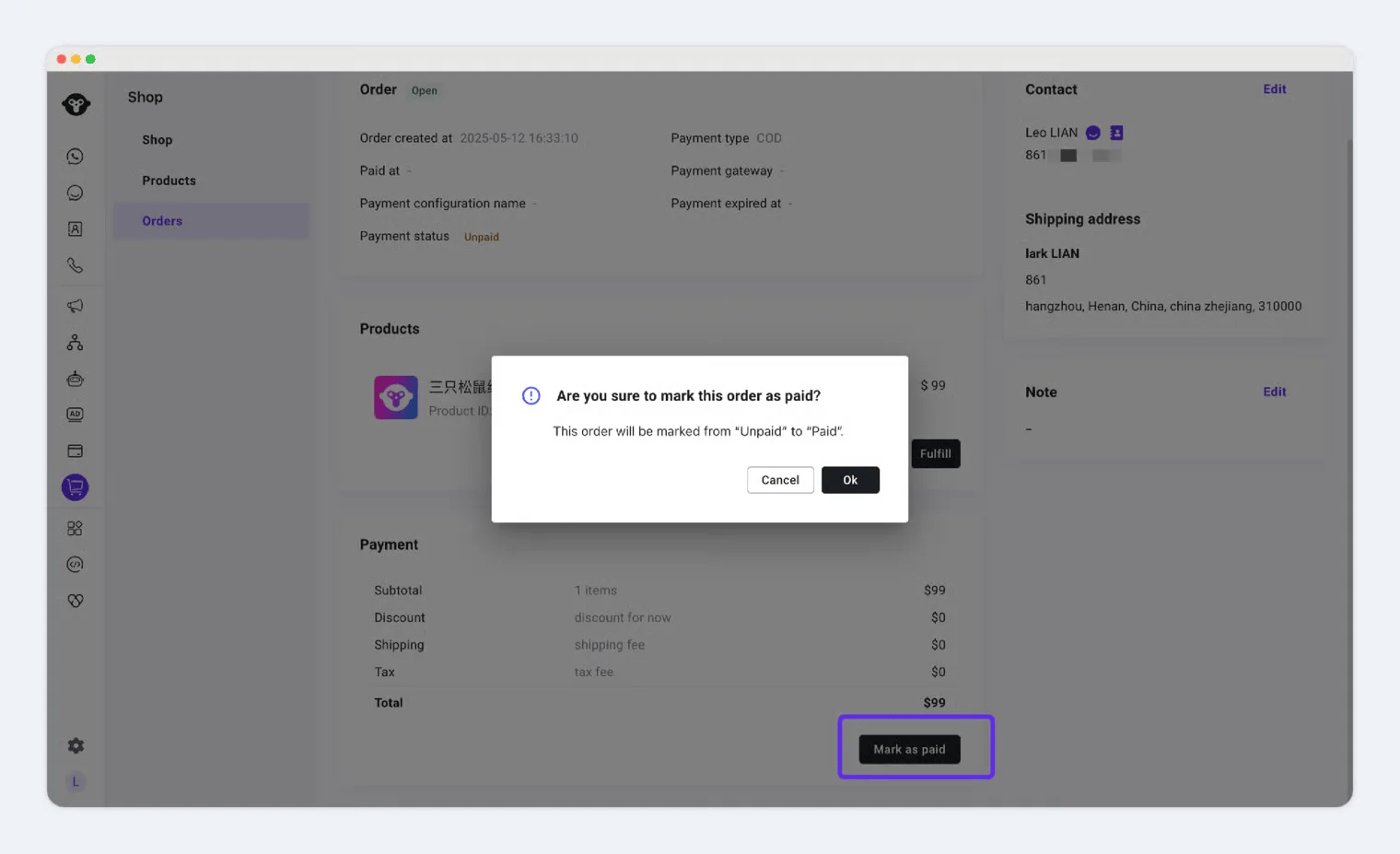 * Once you confirm receiving payment, manually mark the order as **"Paid"**.
* Click **"OK"**, and the status will update from **"Pending"** to **"Paid"**.
### **3. Order Cancellation**
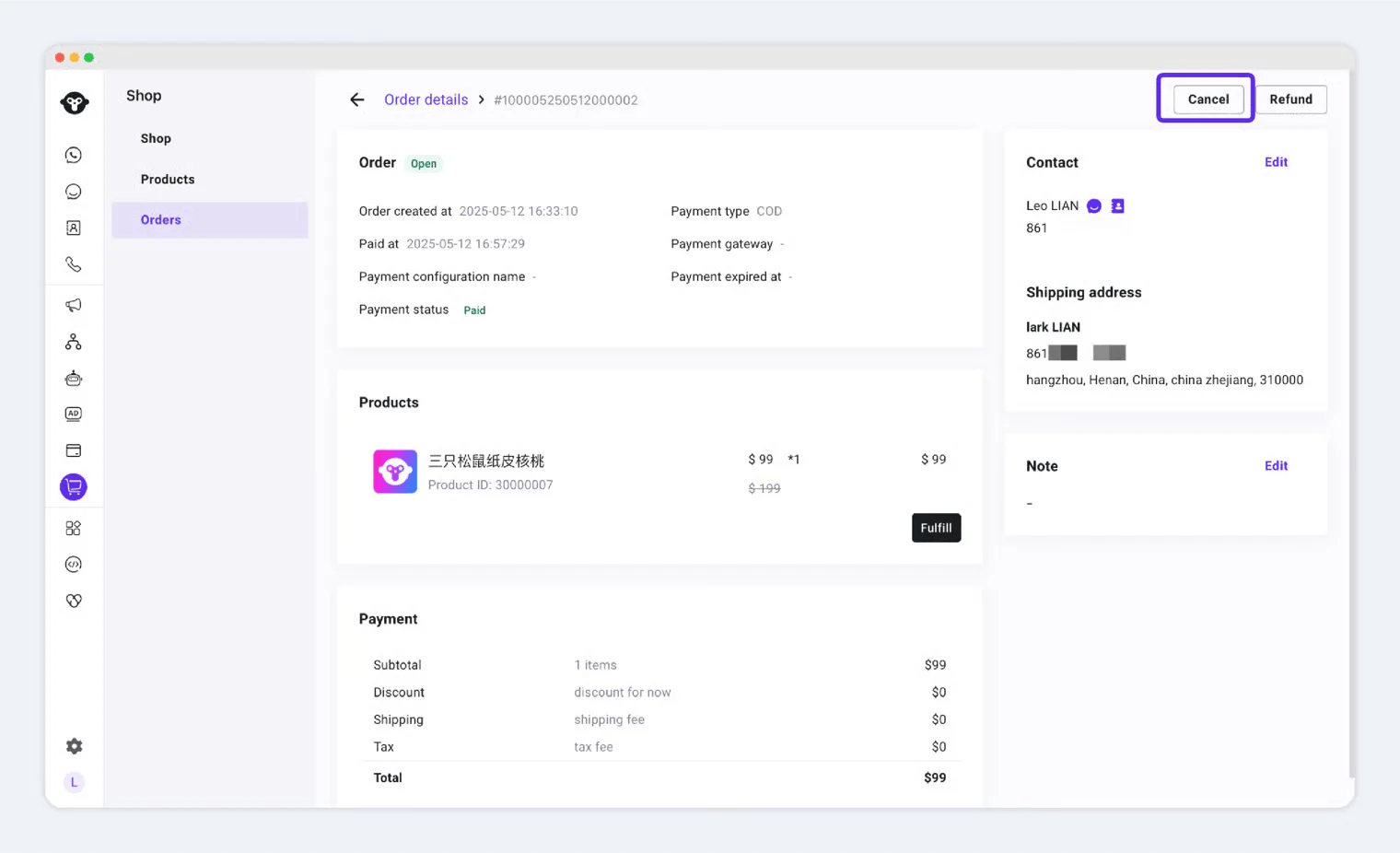
If an order no longer needs fulfillment, you can **cancel it**.
* Once you confirm receiving payment, manually mark the order as **"Paid"**.
* Click **"OK"**, and the status will update from **"Pending"** to **"Paid"**.
### **3. Order Cancellation**
If an order no longer needs fulfillment, you can **cancel it**.
 ### **4. Refunds & Returns**
To process a refund or return:
1. Click **"Refund"** or **"Return"**.
2. fill in :
* **Refund amount**
* **Reason**
* **Notes (Optional, visible only to you)**
Tips
* The **refund amount** and **reason** will be visible to the customer.
* The **"Note"** field is **private** (customer cannot see it).
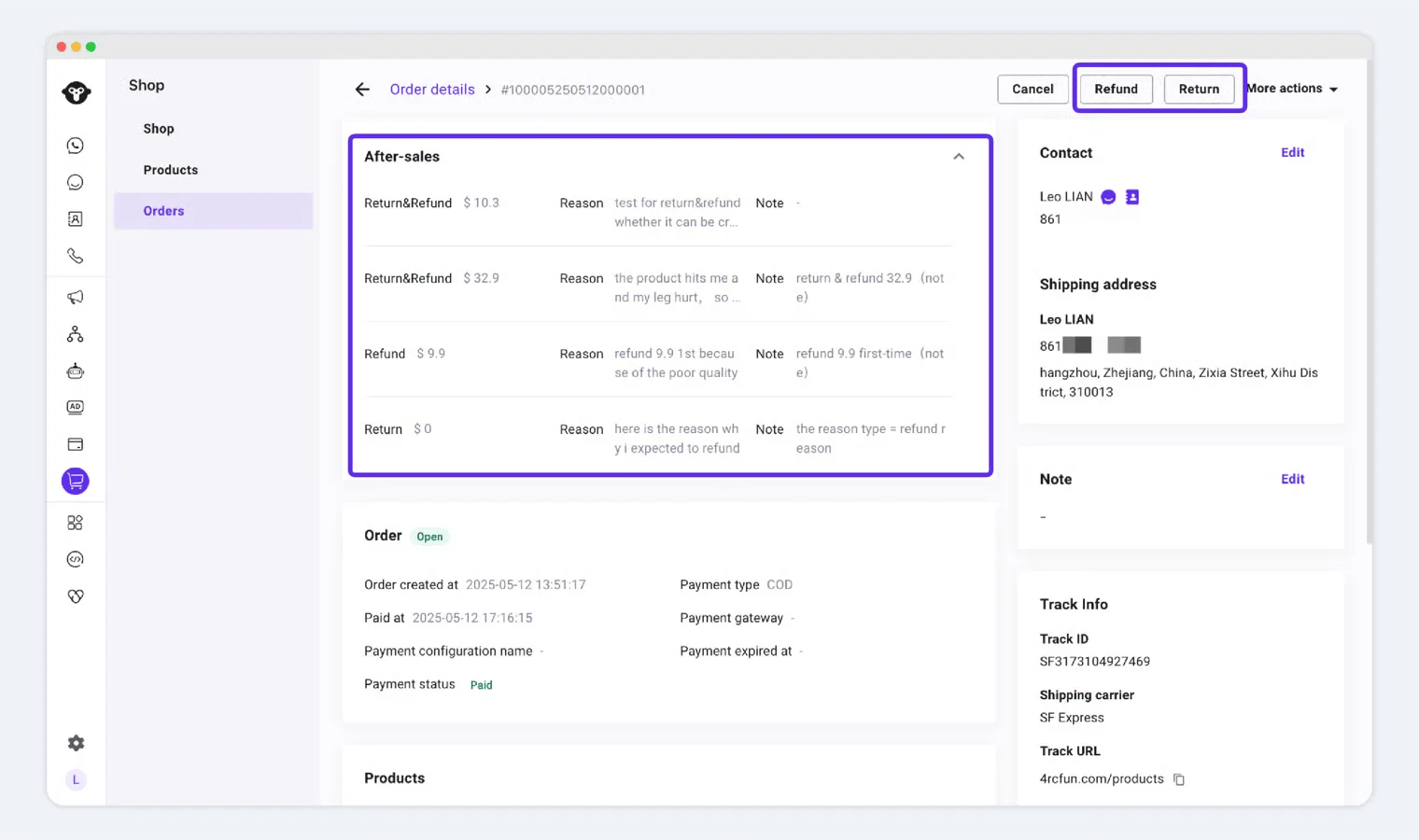
After saving, refund/return details will appear in the **order summary** (see example below).
### **4. Refunds & Returns**
To process a refund or return:
1. Click **"Refund"** or **"Return"**.
2. fill in :
* **Refund amount**
* **Reason**
* **Notes (Optional, visible only to you)**
Tips
* The **refund amount** and **reason** will be visible to the customer.
* The **"Note"** field is **private** (customer cannot see it).
After saving, refund/return details will appear in the **order summary** (see example below).
 This documentation is built and hosted on [Mintlify](https://mintlify.com), a developer documentation platform.