> ## Documentation Index
> Fetch the complete documentation index at: https://docs.ycloud.com/llms.txt
> Use this file to discover all available pages before exploring further.
# Payment Settings
> Learn how to configure payment methods in your Shop.
# Payment Settings
Currently, Shop supports the following payment options:
* **Cash on Delivery (COD)**
* **PayPal Wallet**
***
When your Shop is first activated, all payment options are disabled by default.
You can enable them as needed.
## Add a payment method
* Go to **Integrations > Shop**, then click **Add** in the **Payments** section.
* Choose the payment method you wish to enable.
 Select **Add**, then choose the payment method you want to enable.
 ## Cash on Delivery (COD)
**Activation Steps:**
1. Select **Cash on Delivery**.
2. In the dialog, select **Activate**.
## Cash on Delivery (COD)
**Activation Steps:**
1. Select **Cash on Delivery**.
2. In the dialog, select **Activate**.
 * Once activated:
* COD will appear as an available payment option during checkout.
* Customers can place orders without paying upfront.
* You ship the product; they pay upon receipt.
To disable COD, select **Deactivate**.
* Once activated:
* COD will appear as an available payment option during checkout.
* Customers can place orders without paying upfront.
* You ship the product; they pay upon receipt.
To disable COD, select **Deactivate**.
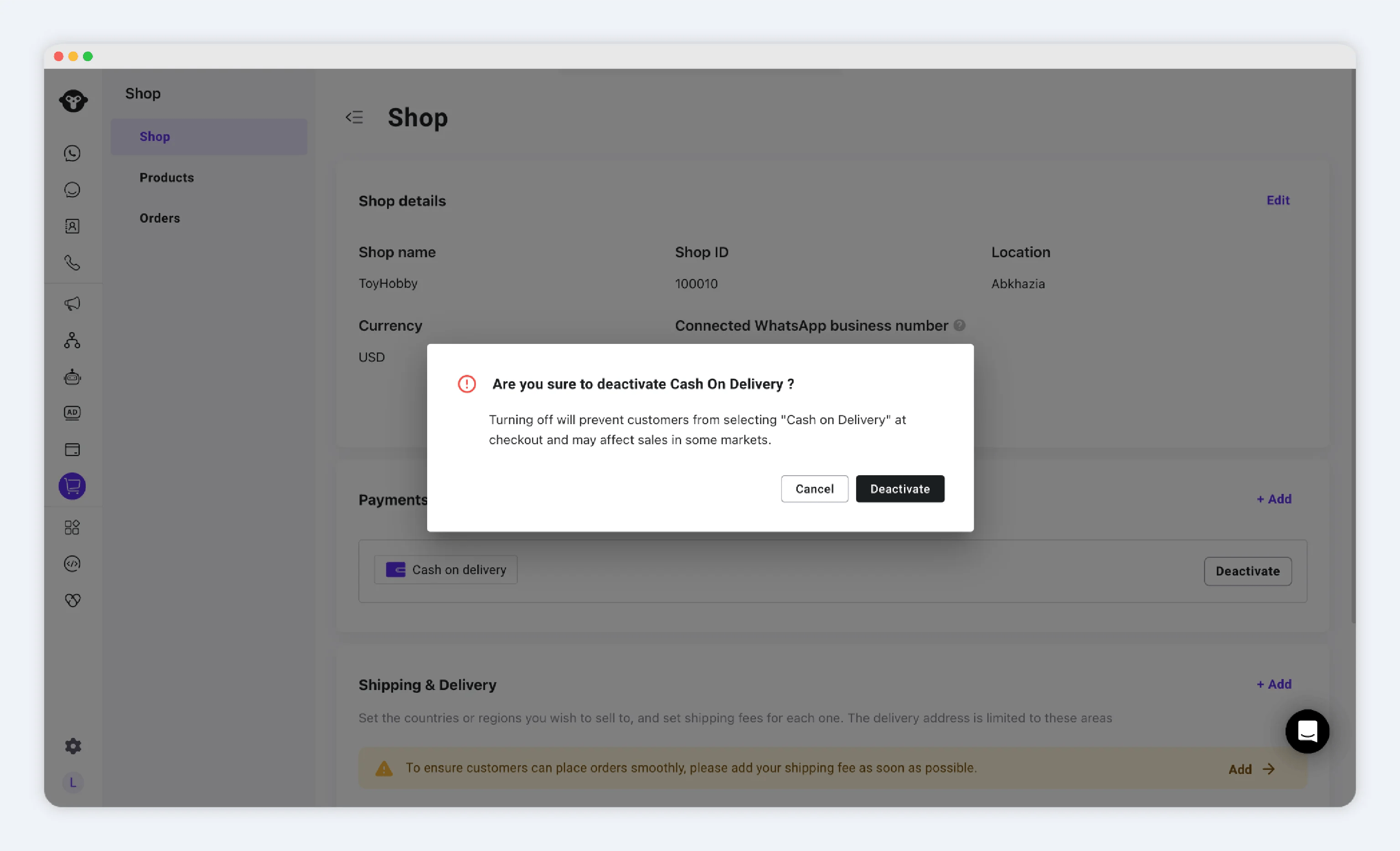 COD will no longer appear at checkout.
## PayPal Wallet
**Activation Steps:**
1. Select **PayPal**.
2. Select **Activate**.
3. You are redirected to PayPal to sign in and authorize the connection:
* Must use a **Business** PayPal account (personal accounts cannot be connected).
COD will no longer appear at checkout.
## PayPal Wallet
**Activation Steps:**
1. Select **PayPal**.
2. Select **Activate**.
3. You are redirected to PayPal to sign in and authorize the connection:
* Must use a **Business** PayPal account (personal accounts cannot be connected).
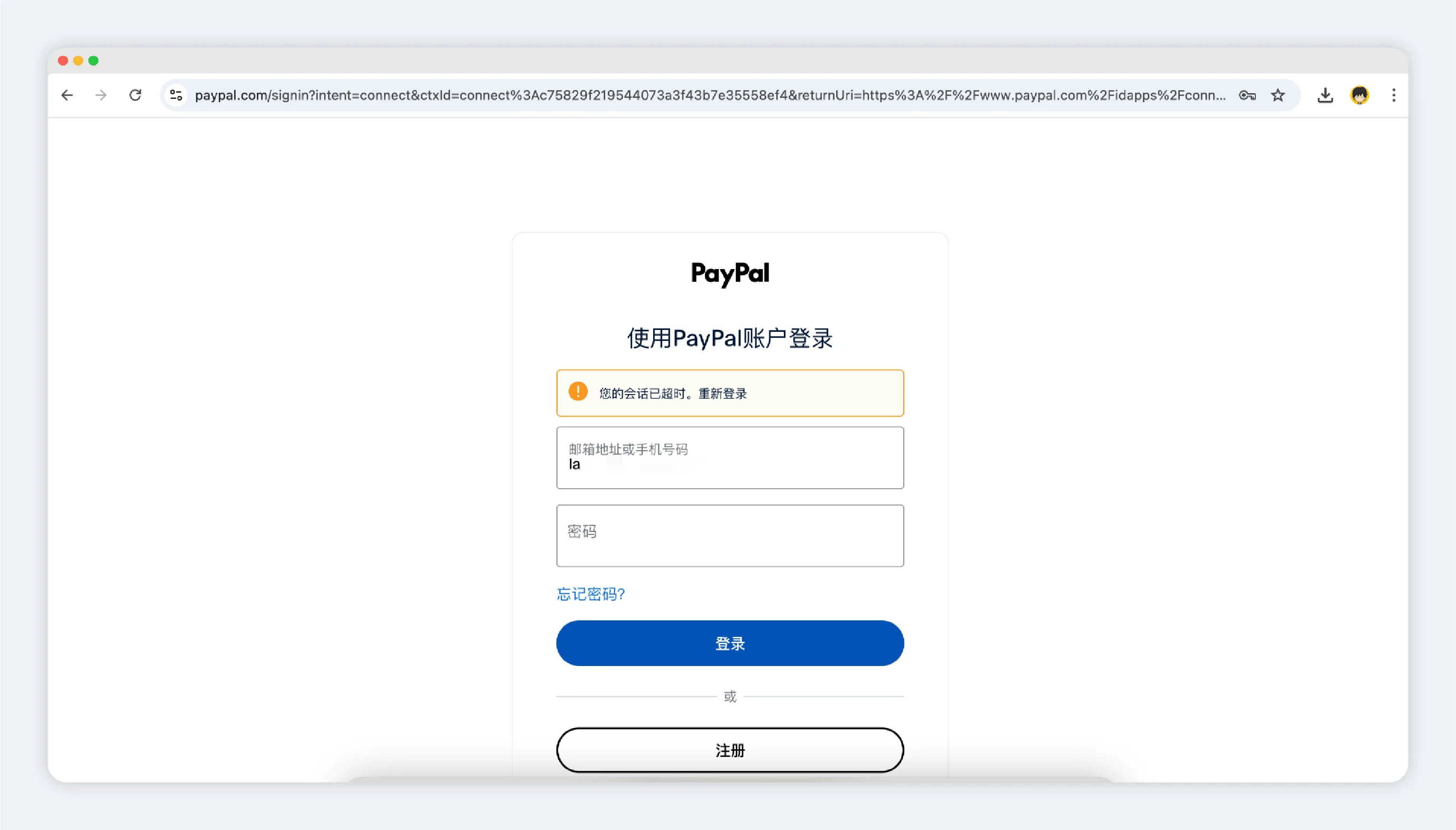 4. After authorization, you’ll return to the Shop backend with a confirmation of successful binding.
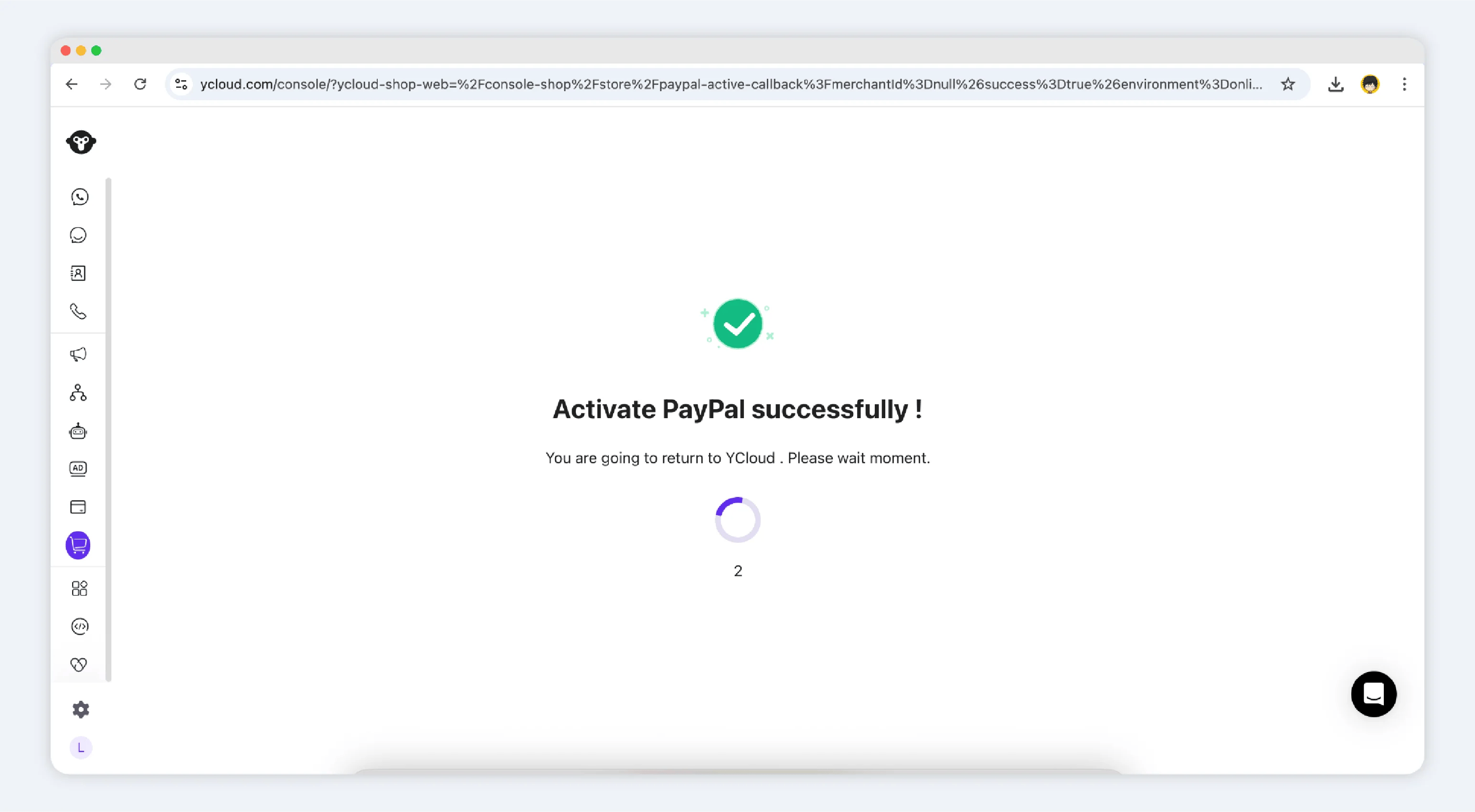 5. You’ll see the PayPal business account listed in the payments section.
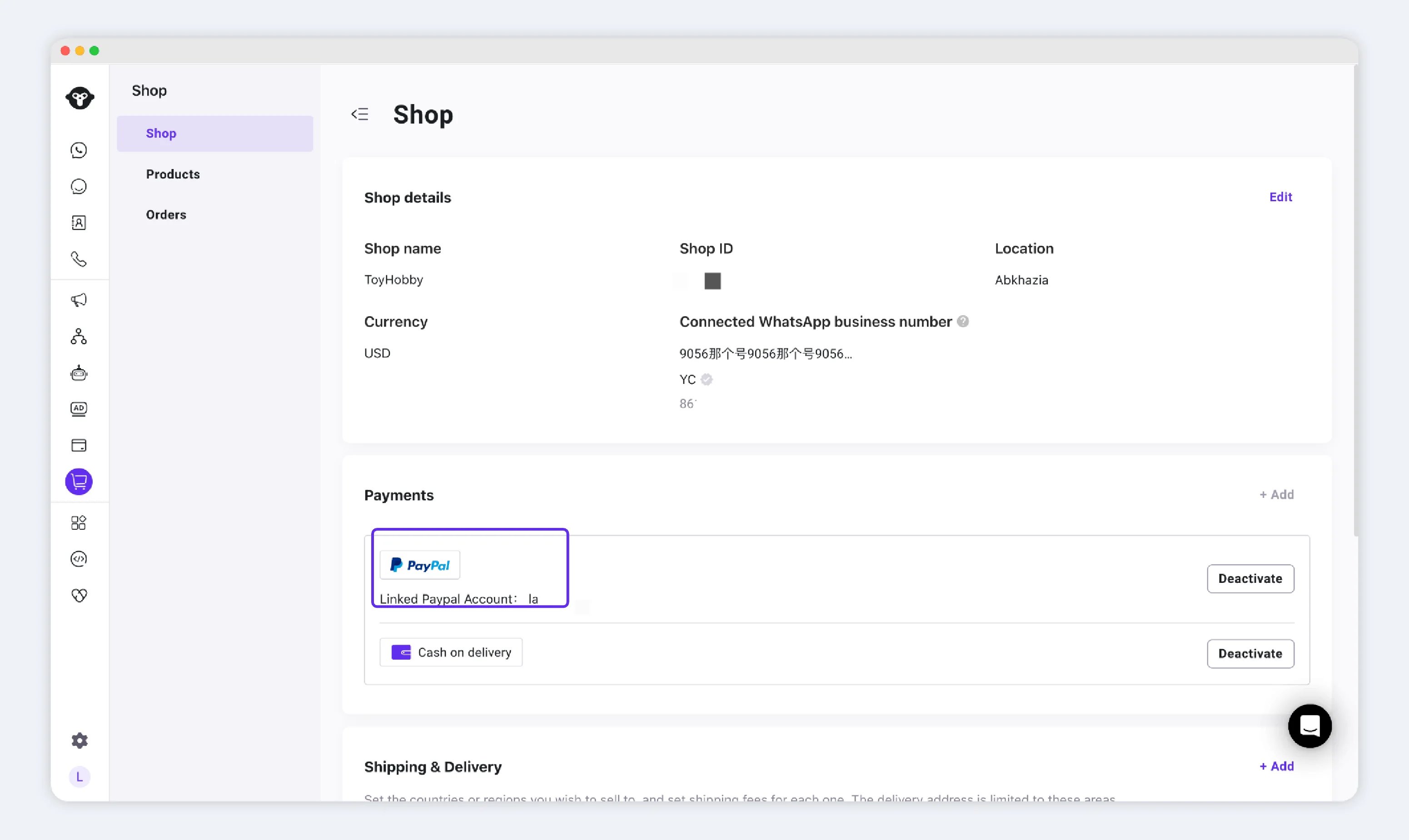 6. Once active, PayPal appears as an available payment option during checkout.
To deactivate, simply click **Deactivate**, and PayPal will be removed from the customer’s payment options.
Once you’ve completed your payment setup, you can proceed to:
* [**Manage Products**](/en/documentation/shop/product)
* [**Manage Orders**](/en/documentation/shop/orders/index)
This documentation is built and hosted on [Mintlify](https://mintlify.com), a developer documentation platform.
6. Once active, PayPal appears as an available payment option during checkout.
To deactivate, simply click **Deactivate**, and PayPal will be removed from the customer’s payment options.
Once you’ve completed your payment setup, you can proceed to:
* [**Manage Products**](/en/documentation/shop/product)
* [**Manage Orders**](/en/documentation/shop/orders/index)
This documentation is built and hosted on [Mintlify](https://mintlify.com), a developer documentation platform.