> ## Documentation Index
> Fetch the complete documentation index at: https://docs.ycloud.com/llms.txt
> Use this file to discover all available pages before exploring further.
# Product
> This article explains how to add and update products in your Shop.
# Product
Before you add products, make sure you have created your store. Learn [how to install a store](/en/documentation/shop/install-shop).
Use this page to add products, preview and publish them, share product links, and archive or delete products.
## Add a product
1. Go to **Integrations > Shop > Products**.
2. Select **Add new product**.
 3. Enter the product information.
 Complete the following sections.
### Title and description
Customers see the title and description on the product page and in order-related messages.
* **Title**: Use a clear product name that includes the key use, scenario, keywords, and specifications.
* **Description**: Add a detailed overview with rich text and images. If you are a reseller, write an original description rather than copying the manufacturer’s text.
### Product images
Customers see product images on the product detail page and in order confirmations.
* Select **Upload** to add images that appear on the product page.
* Use JPG, JPEG, or PNG files smaller than 1 MB.
* Use a square image, such as 450 × 450 px.
* You can add up to 10 images. Delete an existing image before adding an eleventh image.
* Use **Preview** to check how the images look to customers.
### Pricing and inventory
Your shop currency is set when you create the store. [Learn more about settlement currency](/en/documentation/shop/install-shop).
* **Compare-at price**: A reference price shown with a strikethrough. It is for display only.
* **Sale price**: The price customers pay.
#### Single-SKU products
Complete the following sections.
### Title and description
Customers see the title and description on the product page and in order-related messages.
* **Title**: Use a clear product name that includes the key use, scenario, keywords, and specifications.
* **Description**: Add a detailed overview with rich text and images. If you are a reseller, write an original description rather than copying the manufacturer’s text.
### Product images
Customers see product images on the product detail page and in order confirmations.
* Select **Upload** to add images that appear on the product page.
* Use JPG, JPEG, or PNG files smaller than 1 MB.
* Use a square image, such as 450 × 450 px.
* You can add up to 10 images. Delete an existing image before adding an eleventh image.
* Use **Preview** to check how the images look to customers.
### Pricing and inventory
Your shop currency is set when you create the store. [Learn more about settlement currency](/en/documentation/shop/install-shop).
* **Compare-at price**: A reference price shown with a strikethrough. It is for display only.
* **Sale price**: The price customers pay.
#### Single-SKU products
 Enter the stock level, compare-at price, and sale price, then publish the product.
#### Multi-SKU products
Enter the stock level, compare-at price, and sale price, then publish the product.
#### Multi-SKU products
 Add each variant and enter its attributes, including name, sale price, and stock.
 * **Enabled**: The SKU is visible and can be purchased.
* **Disabled**: The SKU is hidden and cannot be ordered.
### Category
Select **Physical** or **Virtual**.
* **Physical Product**: Requires shipping.
* **Virtual Product**: Does not require shipping, such as a membership or digital license.
This field is required for catalog integrations.
### Product type
For Meta or Google Catalog advertising, select one of these options:
* **New**
* **Refurbished**
* **Used**
This field is required for catalog integrations.
## Preview and publish products
Only published products are visible to customers.
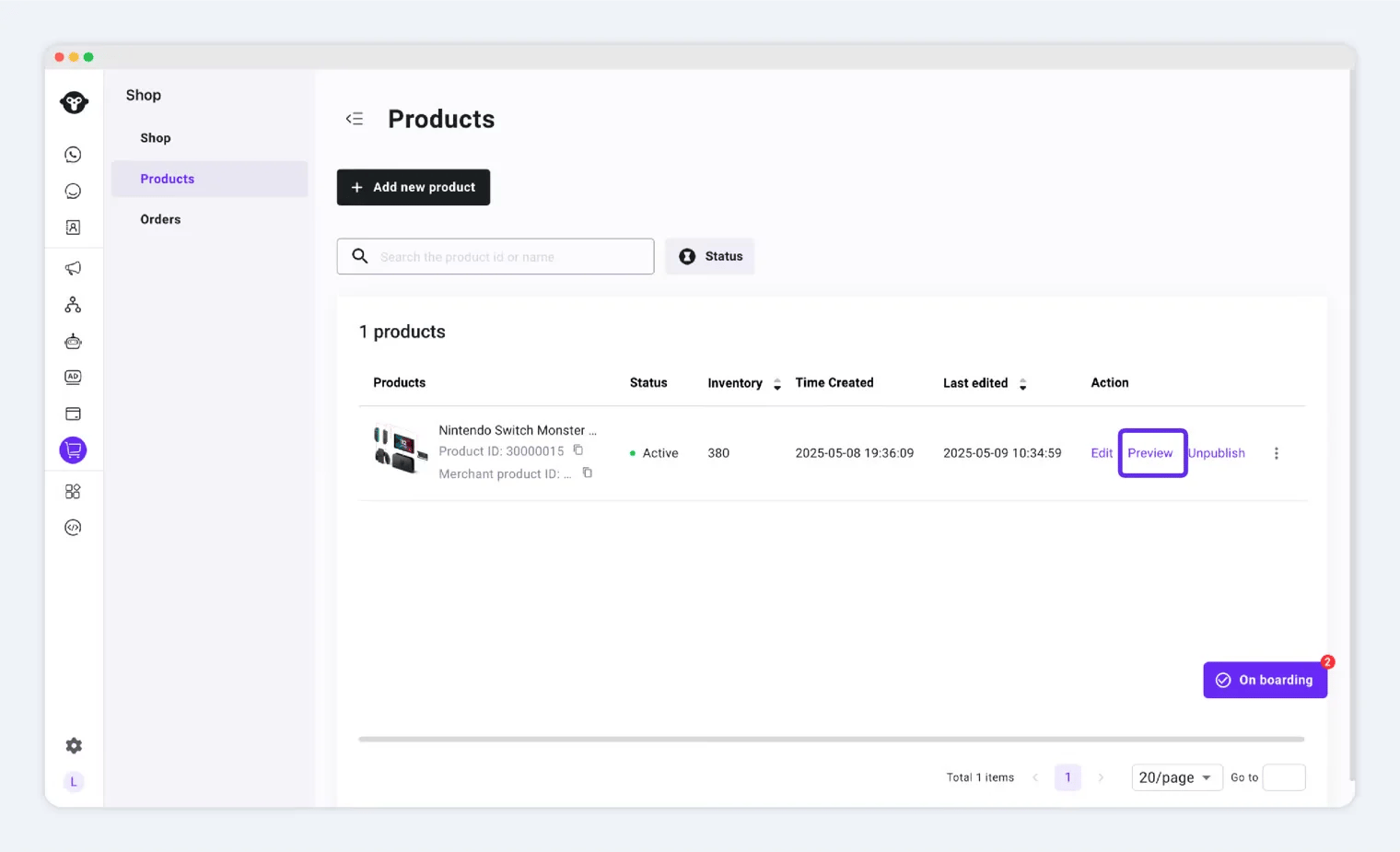
1. Use **Preview** to check product details.
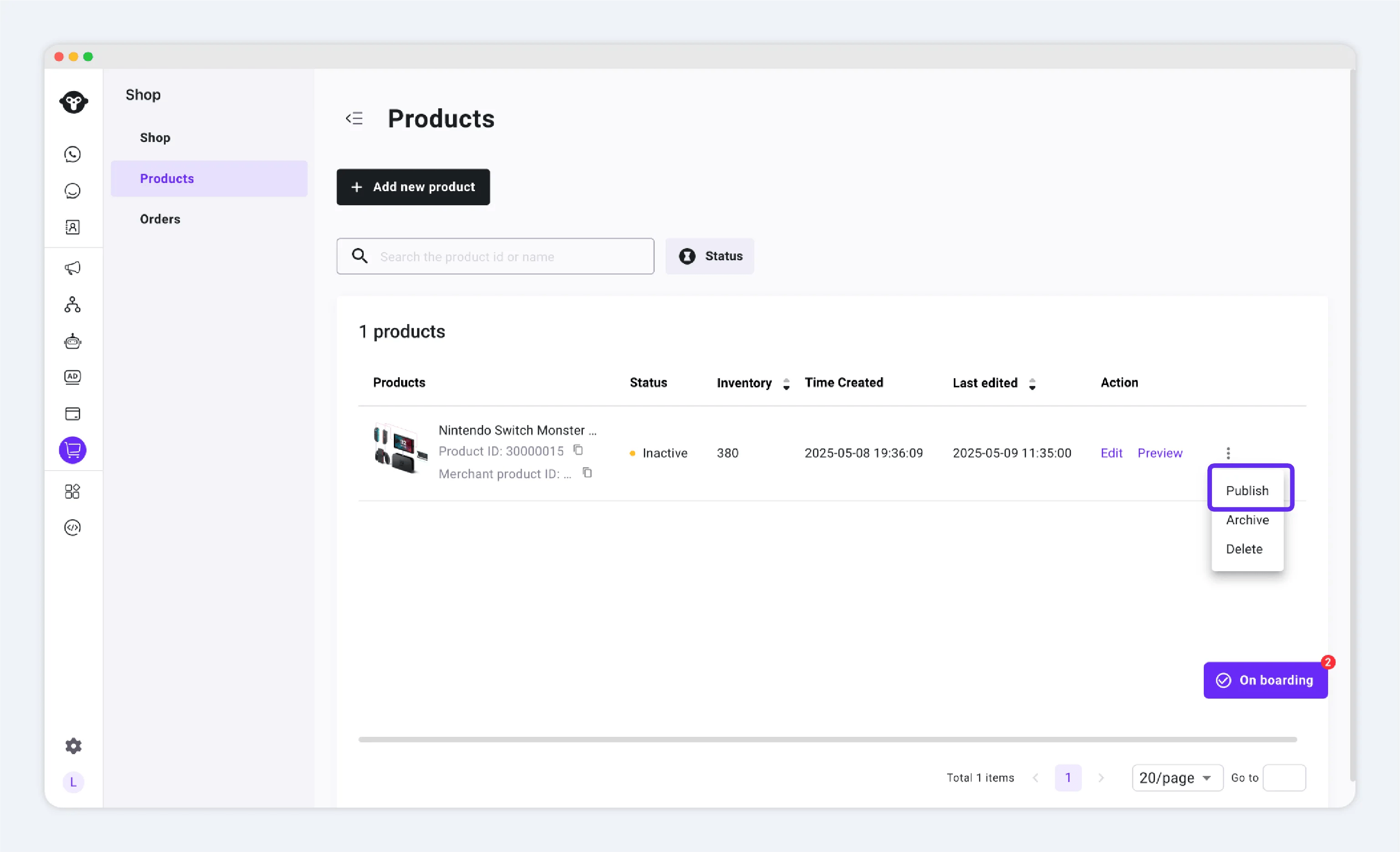
2. Select **Publish** to make the product active and share its link with customers.
### Preview a product
* **Enabled**: The SKU is visible and can be purchased.
* **Disabled**: The SKU is hidden and cannot be ordered.
### Category
Select **Physical** or **Virtual**.
* **Physical Product**: Requires shipping.
* **Virtual Product**: Does not require shipping, such as a membership or digital license.
This field is required for catalog integrations.
### Product type
For Meta or Google Catalog advertising, select one of these options:
* **New**
* **Refurbished**
* **Used**
This field is required for catalog integrations.
## Preview and publish products
Only published products are visible to customers.
1. Use **Preview** to check product details.
2. Select **Publish** to make the product active and share its link with customers.
### Preview a product
 ### Product status and available actions
New products start as **Inactive (Draft)**.
| Product status | Available action | Result |
| - | - | - |
| Inactive | Publish | The product becomes **Active**, visible to customers, and available for purchase. |
| Active | Unpublish | The product becomes **Inactive**, hidden from customers, and unavailable for purchase. |
| Inactive or Active | Edit, Delete, Archive | **Edit** updates product information. **Delete** permanently removes the product. **Archive** hides the product from customers while keeping it available for further management. |
### Publish a product
Select **Publish** to make the product available. The operation succeeds when the status changes to **Active**.
### Product status and available actions
New products start as **Inactive (Draft)**.
| Product status | Available action | Result |
| - | - | - |
| Inactive | Publish | The product becomes **Active**, visible to customers, and available for purchase. |
| Active | Unpublish | The product becomes **Inactive**, hidden from customers, and unavailable for purchase. |
| Inactive or Active | Edit, Delete, Archive | **Edit** updates product information. **Delete** permanently removes the product. **Archive** hides the product from customers while keeping it available for further management. |
### Publish a product
Select **Publish** to make the product available. The operation succeeds when the status changes to **Active**.
 ### Unpublish a product
When you unpublish a product, customers can no longer view or purchase it.
If a product is **Active**, select **Unpublish** to take it off sale.
### Unpublish a product
When you unpublish a product, customers can no longer view or purchase it.
If a product is **Active**, select **Unpublish** to take it off sale.
 ## Share a product link on WhatsApp
After publishing a product, share its link in **WhatsApp** so customers can browse and buy it.
1. In **Inbox**, open the conversation with the customer.
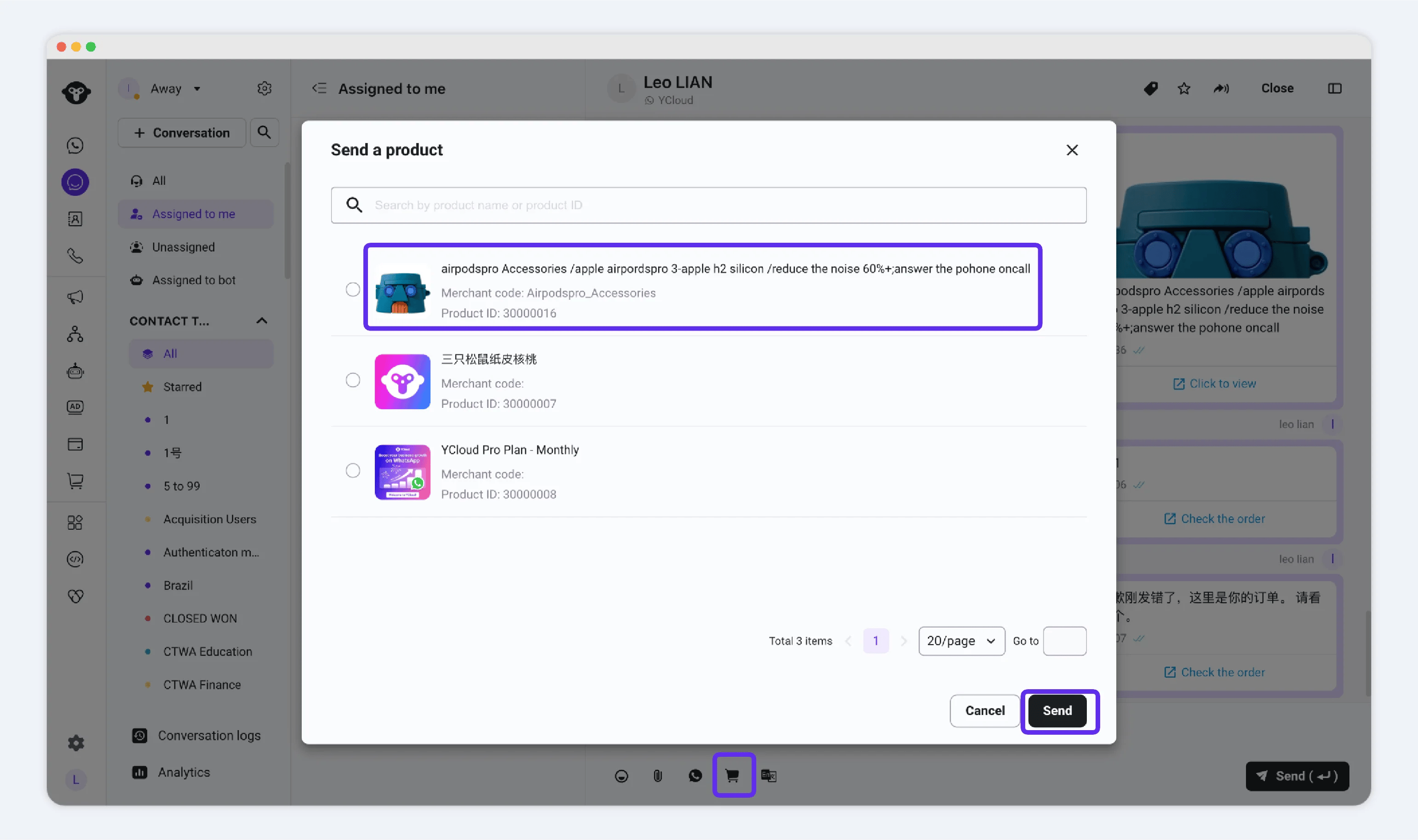
2. Open the menu, select **Send a Product**, then choose the product to send.
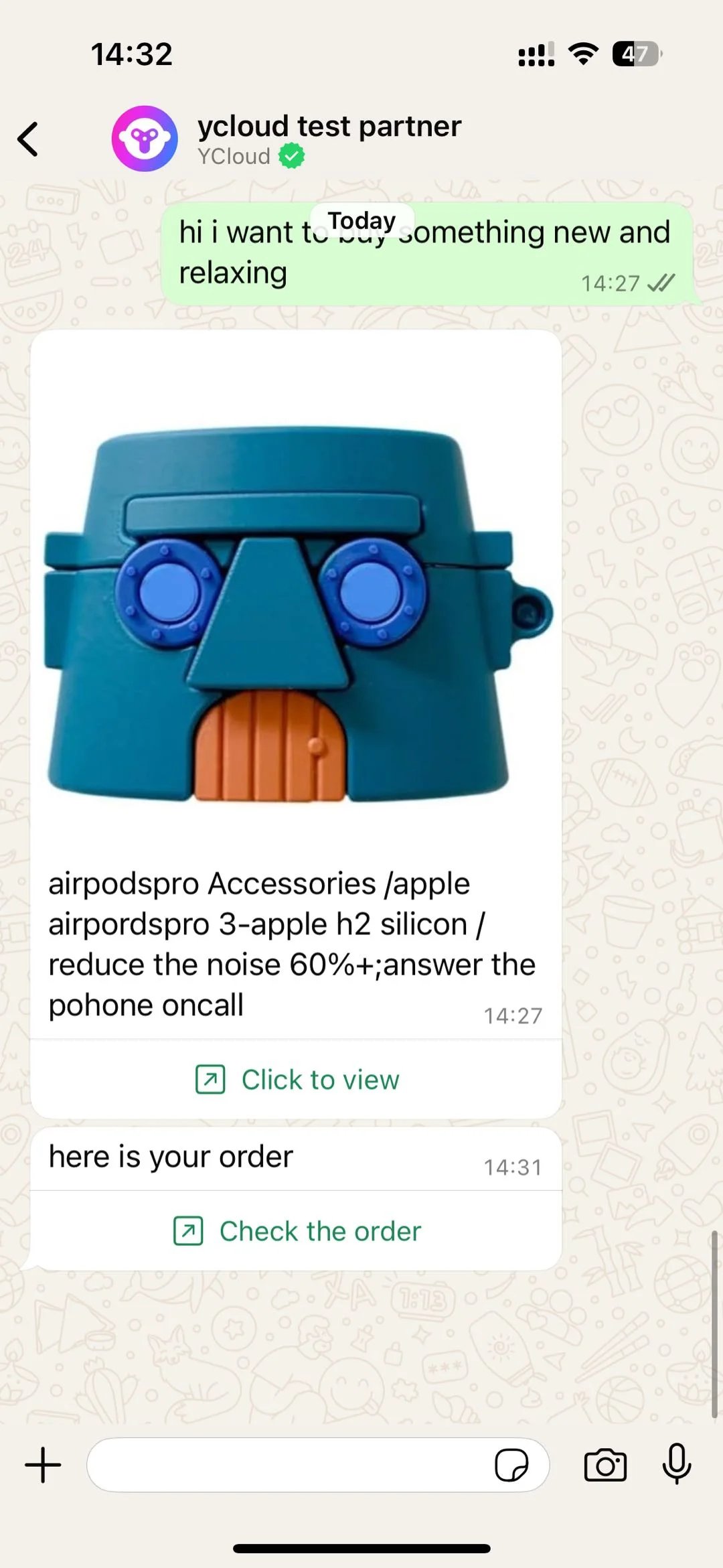
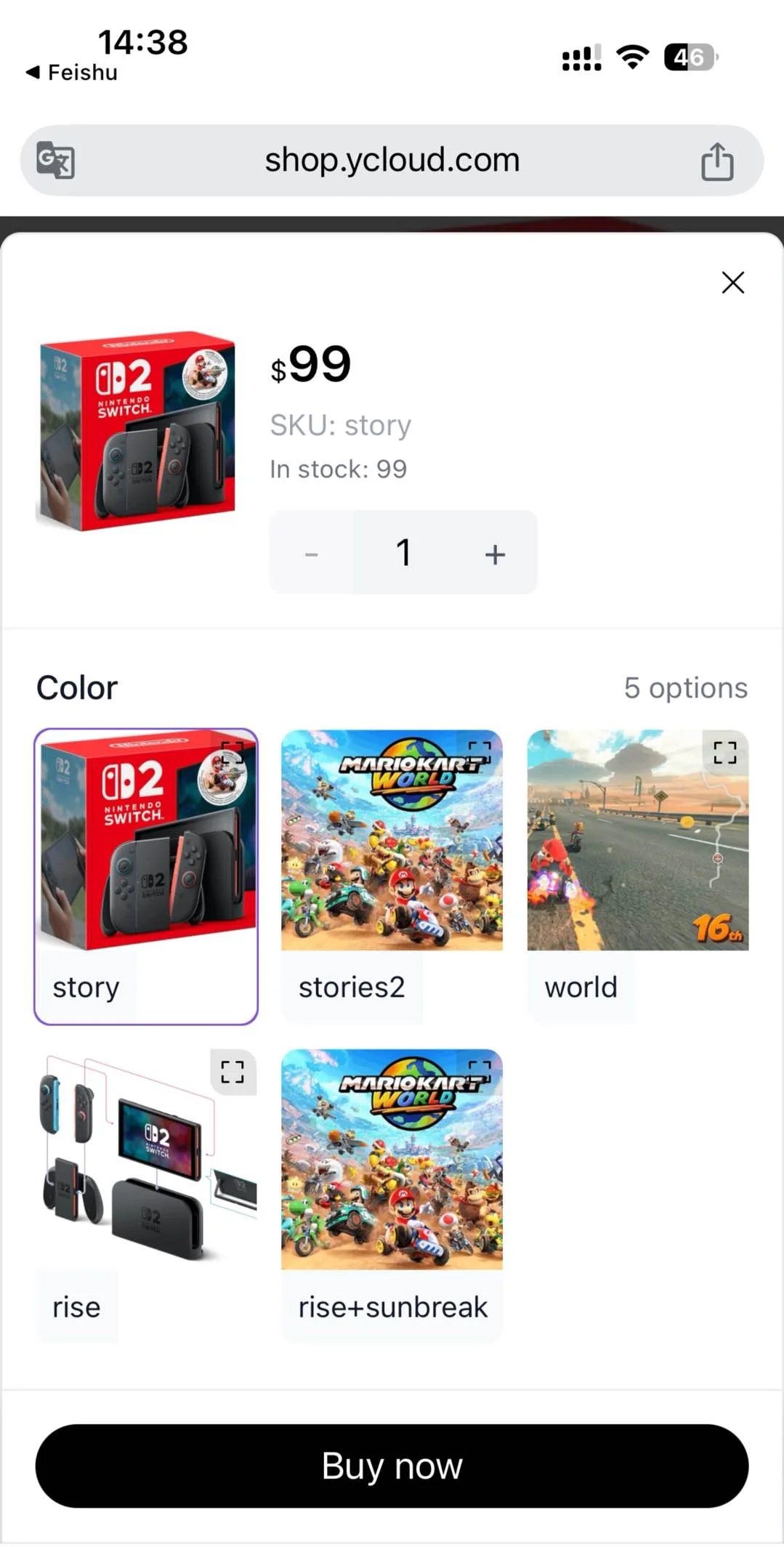
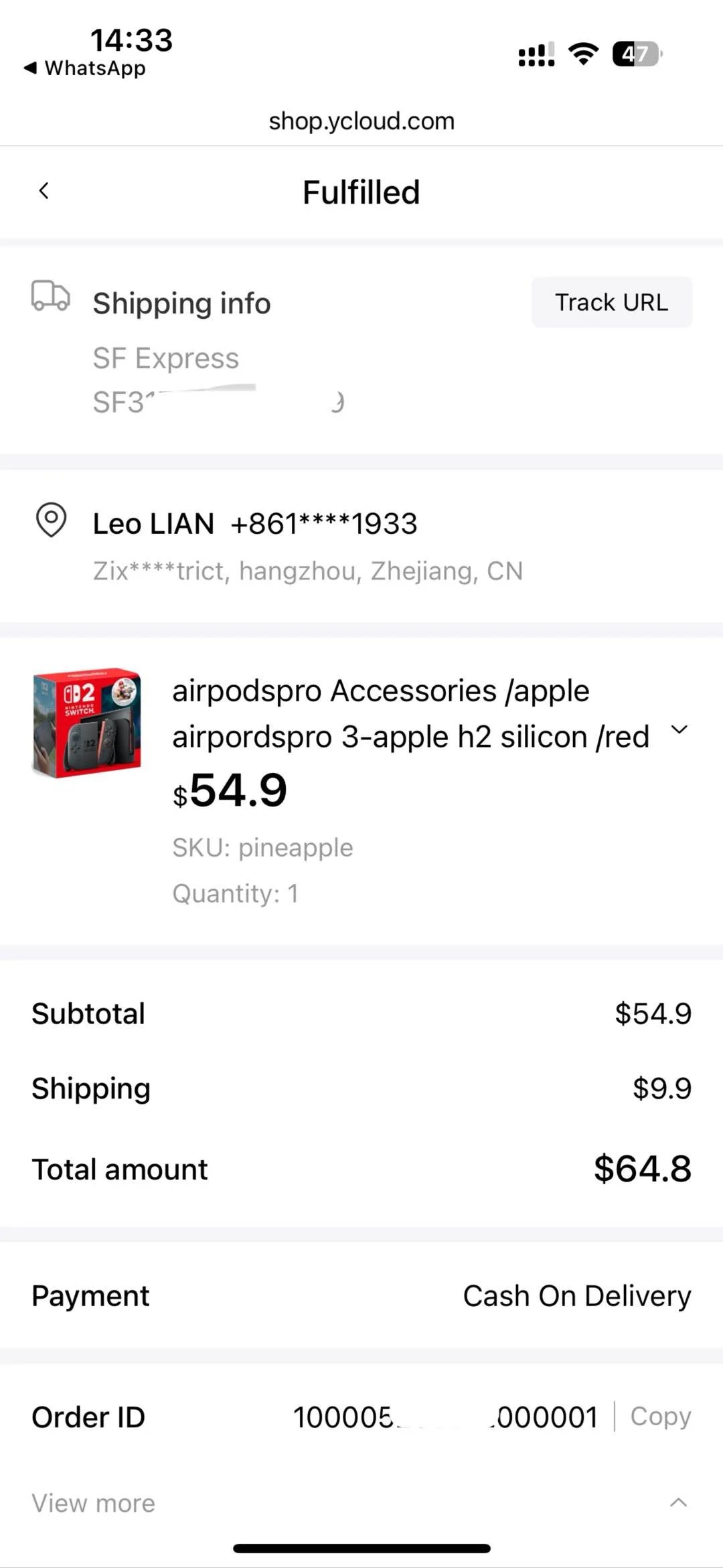
3. The customer selects a SKU and completes checkout. Use [Orders](/en/documentation/shop/orders/index) to fulfill the order after it is placed.
### Send a product from Inbox
## Share a product link on WhatsApp
After publishing a product, share its link in **WhatsApp** so customers can browse and buy it.
1. In **Inbox**, open the conversation with the customer.
2. Open the menu, select **Send a Product**, then choose the product to send.
3. The customer selects a SKU and completes checkout. Use [Orders](/en/documentation/shop/orders/index) to fulfill the order after it is placed.
### Send a product from Inbox
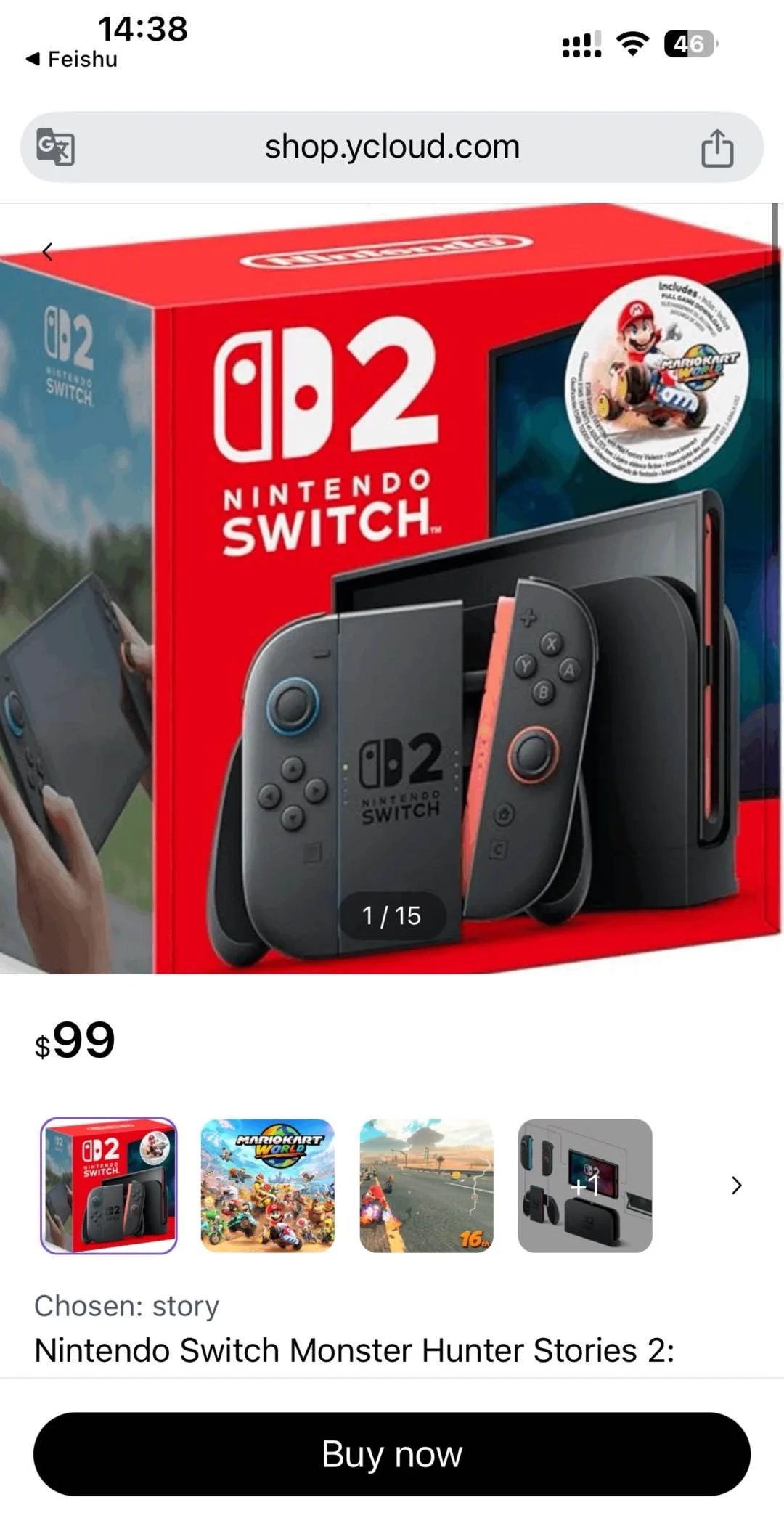
 ### Customer browsing experience
 ### Customer purchase experience
 ## Archive or delete a product
If you no longer want to sell a product, you can archive or delete it.
| Feature | Delete | Archive |
| - | - | - |
| Permanently removed | Yes | No |
| Recoverable | No | Yes |
| Still manageable | No | Yes |
| Visible to customers | No | No |
This documentation is built and hosted on [Mintlify](https://mintlify.com), a developer documentation platform.
## Archive or delete a product
If you no longer want to sell a product, you can archive or delete it.
| Feature | Delete | Archive |
| - | - | - |
| Permanently removed | Yes | No |
| Recoverable | No | Yes |
| Still manageable | No | Yes |
| Visible to customers | No | No |
This documentation is built and hosted on [Mintlify](https://mintlify.com), a developer documentation platform.