> ## Documentation Index
> Fetch the complete documentation index at: https://docs.ycloud.com/llms.txt
> Use this file to discover all available pages before exploring further.

# Business verification

> Prepare your business details and complete Meta business verification.

Business verification establishes the organization behind a Meta business portfolio and your connection to that organization. You complete the review in Meta Business Suite or through the product-specific verification flow Meta offers.

## Before you start

Confirm these five items:

1. **Correct business portfolio.** Select the portfolio that owns the relevant WABA, not another portfolio with a similar display name.
2. **Full control.** The person completing the standard verification flow needs full control of the portfolio. Access to a WABA or a YCloud account alone is not enough.
3. **Eligibility or a verification request.** Meta must offer the flow for the feature you are using. Some products start verification outside **Security Center**.
4. **Consistent business information.** Prepare the legal business name, address, phone number, and website.
5. **Access to a connection method.** Someone authorized must be able to receive the offered code or verify the business domain.

Use [Account structure and WABAs](/en/documentation/whatsapp-business-platform/accounts-and-business-identity/account-structure-and-wabas) if you are unsure which portfolio owns the number.

<a id="preparation-for-business-verification" />

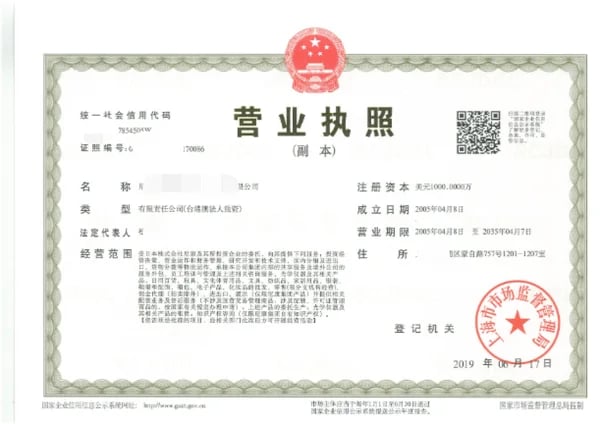
<table><thead><tr><th>Materials</th><th width="249">Requirement</th><th>Example</th></tr></thead><tbody><tr><td>An official website</td><td><ol><li>HTTPS encrypted</li><li>The company name is displayed on the website</li></ol></td><td><p>[https://www.ycloud.com](https://www.ycloud.com)</p><p /><p /><p>Display the company name on the websit:</p><p>© 2024 YCloud International Pte. Ltd. All rights reserved</p></td></tr><tr><td><p><strong>An official document containing the legal name of the business.</strong> </p><ol><li>business license</li><li>company bylaws</li><li> Enterprise tax registration certificate.</li></ol></td><td>The file must include the full name of the company, its address, and its telephone number</td><td><img src="https://mintcdn.com/lchnan/7IqVC2giQEcOq6-5/product-assets/2eb3fc01fe-image-134.webp?fit=max&auto=format&n=7IqVC2giQEcOq6-5&q=85&s=683396df7a6d7ec7ec7577bff81d325d" alt="YCloud product screenshot" width="600" height="424" data-path="product-assets/2eb3fc01fe-image-134.webp" /></td></tr><tr><td>Email address  (required when you choose to use email address for business verification)</td><td><p>Email's domain must be same as your website.</p><p /><p>Aim to collect the verification code in order to prove that the website belongs to you.</p></td><td>[service@ycloud.com](mailto:service@ycloud.com)</td></tr></tbody></table>

## Prepare a matching set of business details

Meta compares the information you submit with business records and, when requested, supporting documents.

| Information | Prepare | Common mismatch |
| - | - | - |
| Legal name | The registered entity name, including its legal suffix where applicable. | Entering a storefront brand while the document identifies a different company. |
| Business address | The official address supported by your records. | Using a branch address but uploading a document for the head office without establishing the relationship. |
| Business phone number | A contact number supported by the submitted records where required. | A document names the company but shows a different phone number. |
| Website | A working HTTPS website representing the business. | An inaccessible site, unfinished landing page, or unclear relationship between the brand and legal entity. |
| Business connection | Access to the offered email, phone, SMS, WhatsApp, or domain method. | Choosing a mailbox or phone controlled by a former employee. |

For example, if the legal entity is **Example Retail Ltd.** and the store trades as **Example Store**, do not randomly alternate the two names across the submission. Use the legal name where Meta asks for it and make the brand's relationship to the company clear on legitimate business materials. Do not edit an official document to make it match.

### Which documents can you use?

Meta may recognize a business record without asking for uploads. If uploads are requested, prepare official, current documents appropriate to the field being verified.

| Document | Appropriate use or limitation |
| - | - |
| Certificate or articles of incorporation | Evidence of the registered legal business. |
| Business registration or business license | Evidence of the registered business, subject to the fields shown in the document. |
| Government-issued business tax document | Evidence issued by the relevant authority. Self-filed tax documents are not accepted for this purpose. |
| Business bank statement | A supported document type when it establishes the requested business information. |
| Utility bill | Address or phone evidence only, with the legal business name present. It is not accepted to verify the legal name itself. |

Make sure the business name and the address or phone number being verified are visible. Keep the issuer and relevant document details legible; do not upload expired documents. Cover unrelated sensitive personal information, such as a social security number, without hiding the business information needed for review.

Meta accepts documents in multiple languages, including English, Mandarin, Spanish, Portuguese, French, Arabic, and others. If your document's language is not supported, Meta asks for an English translation bearing an official translation-agency stamp. Check the complete [supported document and language list](https://www.facebook.com/business/help/159334372093366) before ordering a translation.

## Complete the standard desktop verification flow

<Steps>
  <Step title="Open the correct portfolio">
    Sign in to Meta Business Suite, select your business portfolio, and open [Security Center](https://business.facebook.com/settings/security). Confirm you have full control before continuing.
  </Step>

  <Step title="Start verification">
    Select **Start verification** when it is available. If Meta sent an in-product or email request for a specific feature, follow that request's route instead.
  </Step>

  <Step title="Enter the business details">
    Enter the legal name, address, business phone number, and website. Check spelling, legal suffixes, and address details against your documents before submitting.
  </Step>

  <Step title="Select a matching business record">
    Select the record only if it represents your organization. If none matches, use **My business isn't listed** or **None of these match**, then provide the requested information or documents. Do not choose a similarly named company to continue.
  </Step>

  <Step title="Confirm your connection to the business">
    Choose one of the methods Meta actually offers and complete it. Options may include email, phone call, SMS, WhatsApp message, or domain verification. You may be asked for proof of domain ownership when using email.
  </Step>

  <Step title="Submit and track the result">
    Complete the confirmation and select **Done**. Keep the submission confirmation and check the portfolio's verification status and any requests for additional information.
  </Step>
</Steps>

These steps follow Meta's [current business verification instructions](https://www.facebook.com/business/help/2058515294227817). The screen layout and offered methods can vary by business and verification route.

### Choose a method you can complete

| Method offered by Meta | Check before selecting it |
| - | - |
| Email | The mailbox works, is monitored, and represents the business. Check spam filtering and any domain-ownership request. |
| Phone call or SMS | The number can receive the chosen channel. For a call, check call screening or an automated phone menu. |
| WhatsApp message | You can access the WhatsApp destination shown in the flow. Do not assume it must be the same number you are connecting to YCloud. |
| Domain verification | The authorized website or DNS administrator can complete Meta's offered ownership-verification method. |

Use the information and destination shown by Meta.

## If the button is missing or the review fails

| What you see | What to do |
| - | - |
| No verification option | Recheck the selected portfolio and your full-control access. Then check whether the relevant product starts verification in a different place. |
| **Ineligible for verification** in Security Center | That standard flow is not required or available there for the current portfolio. Follow a product-specific verification request if one exists. Do not create random apps or WABAs to force the button to appear. |
| Business not found | Use the no-match option and submit the requested official documents. A missing directory record is not, by itself, proof that the business is invalid. |
| Legal name or address does not match | Compare each field with the exact document you uploaded; fix the actual mismatch before resubmitting. |
| Document rejected | Check accepted document type, expiry, legibility, and whether it proves the particular field. A utility bill alone cannot establish the legal name. |
| Code does not arrive | Confirm the destination, channel access, spam filtering, and any retry countdown. Do not repeatedly request codes without checking the cause. |
| Additional information requested | Respond to that request with the specific missing evidence instead of starting a duplicate submission. |
| Still in review | Meta says review may take up to **14 business days**. This is an estimate, not guaranteed approval or a provider service-level commitment. |

For case-specific errors, keep the exact rejection text and use Meta's [verification troubleshooting guidance](https://www.facebook.com/business/help/2342133782492969). YCloud support can help identify the assets and explain context, but Meta decides the outcome.

## What changes after approval?

Check that the intended portfolio shows the verified result. Then return to the capability you need:

* For more proactive messaging capacity, check the separate [messaging limit](/en/documentation/whatsapp-business-platform/pricing-limits-and-quality/messaging-limits-and-throughput).
* For additional registered numbers, check the [number cap](/en/documentation/whatsapp-business-platform/accounts-and-business-identity/business-phone-numbers).
* For a badge, assess the separate [OBA requirements](/en/documentation/whatsapp-business-platform/accounts-and-business-identity/official-business-accounts).

Approval does not automatically complete these other processes. If you later change the verified business details, Meta requires verification again. Plan legal-entity and ownership changes before modifying the portfolio.

## Prepare an effective support request

Include the portfolio ID, WABA ID, exact status or error, submission date, and a redacted screenshot of the relevant Meta screen. Explain what changed between attempts. Do not send passwords, verification codes, full identity documents, or access tokens in a general support message.

## Frequently asked questions

<AccordionGroup>
  <Accordion title="My brand name and registered company name are different. Which should I submit?">
    Use the legal entity's details for business verification. Keep the brand relationship clear on your website and in the evidence Meta requests. Do not replace the legal name with a marketing name just to make it match the WhatsApp display name; the display name has a separate review.
  </Accordion>

  <Accordion title="Can I use a utility bill as my only business document?">
    Not for every field. A supported utility bill can help establish an address or phone number, but it is not accepted as proof of the legal business name. Select accepted documents that cover each requested detail; the same document does not necessarily prove all of them. See the document table above and Meta's country-specific requirements.
  </Accordion>

  <Accordion title="Verification is complete in another portfolio. Does that verify this WABA?">
    Check which portfolio owns the WABA you are actually connecting. A verified status in another portfolio is not evidence that this owning portfolio is verified. Record the portfolio ID and WABA ID before contacting support; do not create another portfolio merely because you cannot find the verified one.
  </Accordion>
</AccordionGroup>


This documentation is built and hosted on [Mintlify](https://mintlify.com), a developer documentation platform.