> ## Documentation Index
> Fetch the complete documentation index at: https://docs.ycloud.com/llms.txt
> Use this file to discover all available pages before exploring further.
# Template overview
> Understand when to use a WhatsApp template, choose a category, and prepare for review and sending.
A message template is a reusable message structure associated with a WhatsApp Business Account (WABA). You submit it for Meta review before using it to send template messages.
Use a template when you need to message a customer outside the customer service window. You can also use templates while the window is open. See [Service messages](/en/documentation/whatsapp-business-platform/messaging/service-messages#customer-service-window) for the window rules.
Template approval does not give you permission to contact a customer. Check customer consent and opt-out preferences before sending.
## Choose a template category
Choose the category based on the message's purpose, not the price you would prefer to pay.
| Category | Purpose | Example scenario |
| - | - | - |
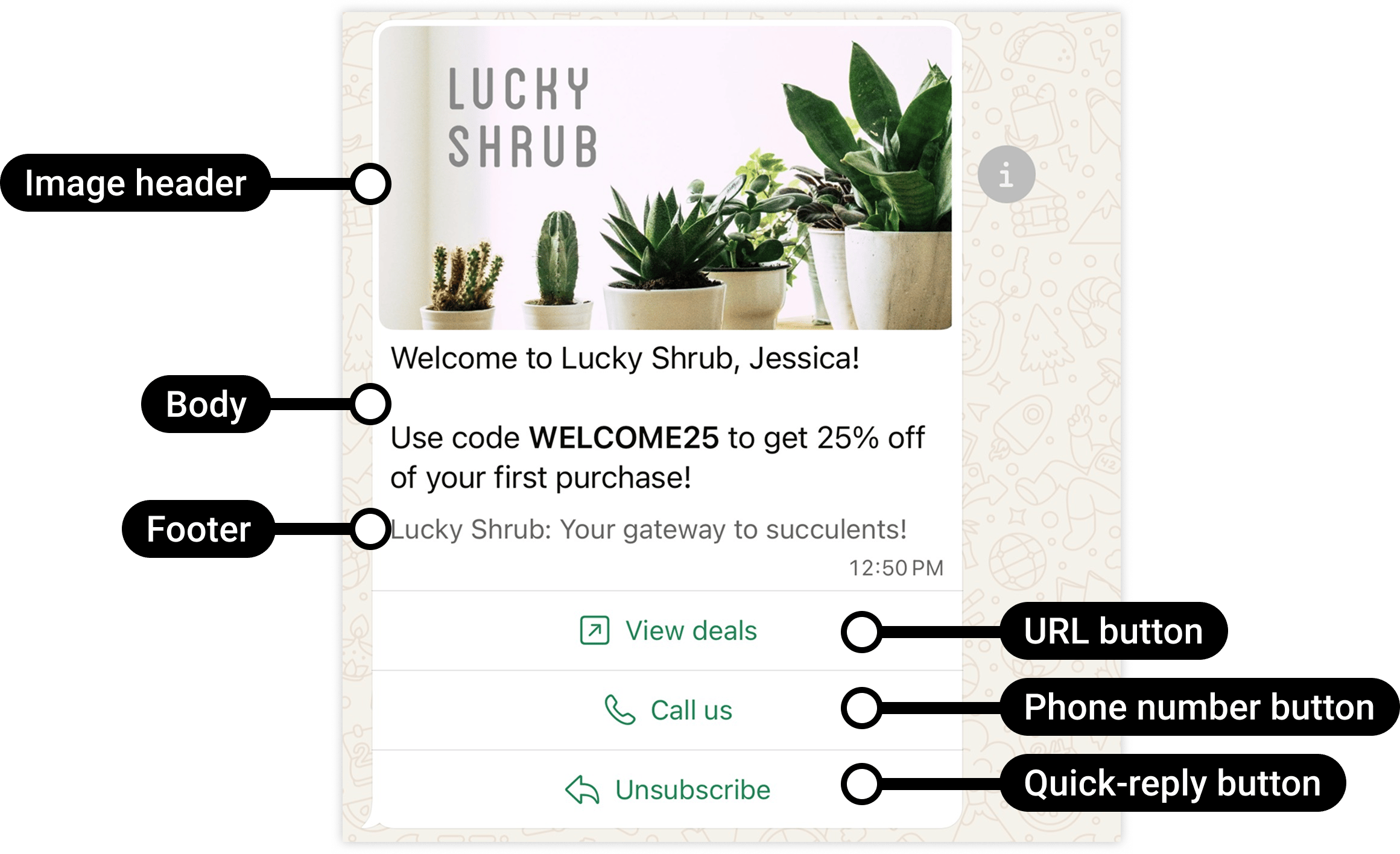
| [Marketing](/en/documentation/whatsapp-business-platform/messaging/message-templates/marketing-templates) | Promote, recommend, re-engage, or encourage a purchase or other action. | Share an offer with customers who subscribed to marketing updates. |
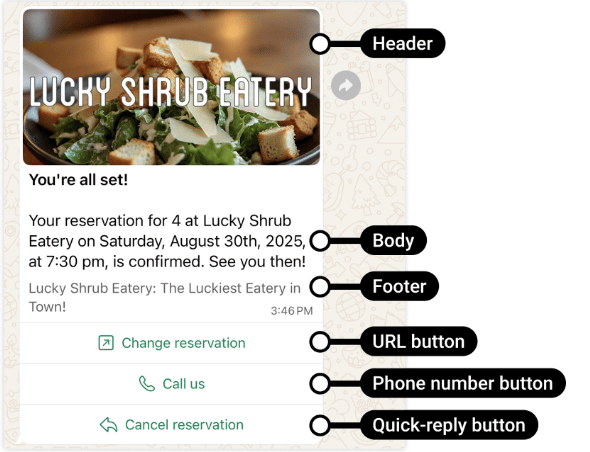
| [Utility](/en/documentation/whatsapp-business-platform/messaging/message-templates/utility-templates) | Send a non-promotional update related to the customer's request, transaction, account, or another qualifying essential purpose. | Confirm a specific appointment or update an existing order. |
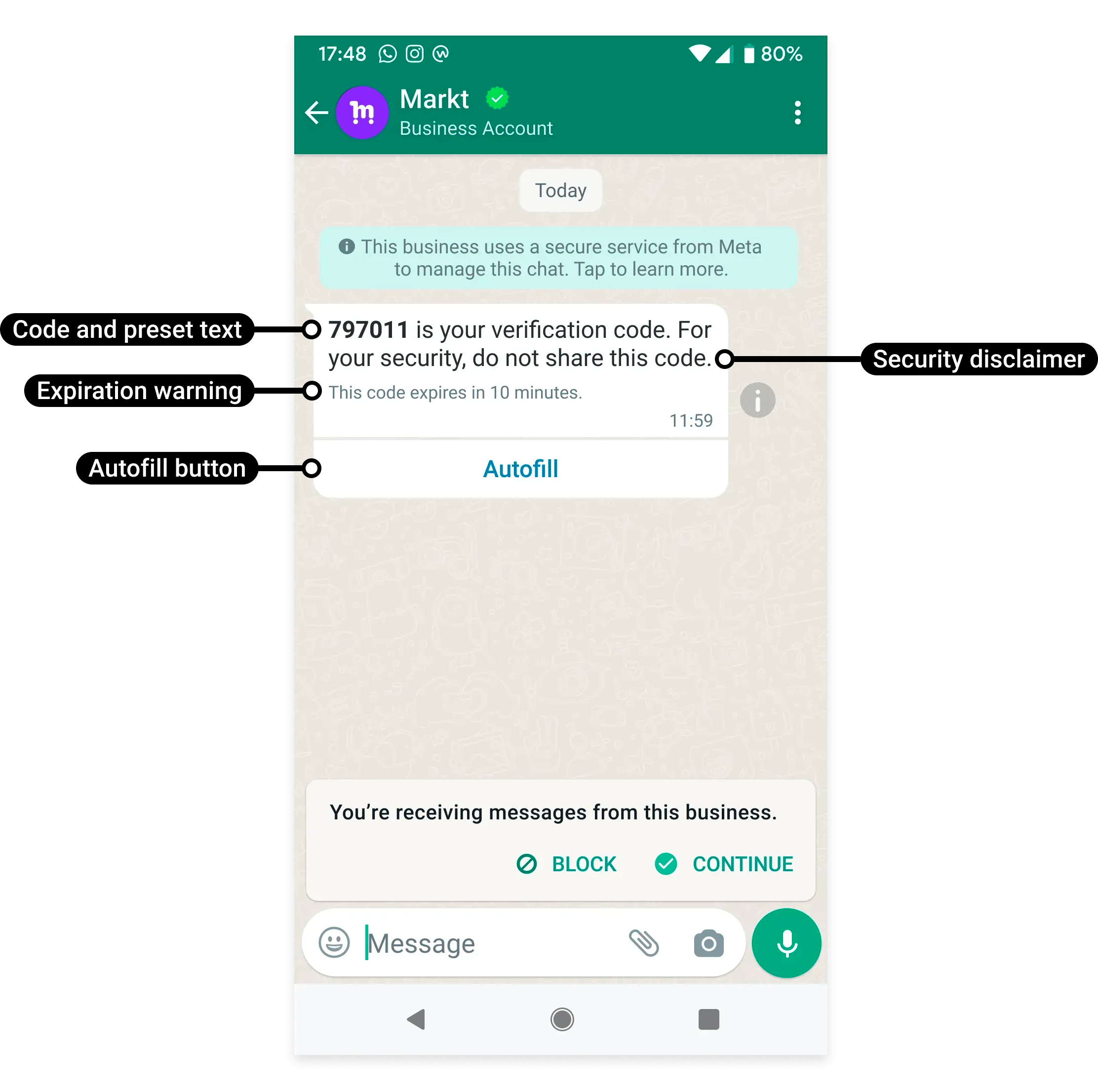
| [Authentication](/en/documentation/whatsapp-business-platform/messaging/message-templates/authentication-message-templates/index) | Authenticate a user with a one-time passcode. | Verify a login or account recovery request. |
A message that combines a transaction update with an offer is not purely utility. Meta treats mixed utility and promotional content as marketing.
For category criteria and examples, see Meta's [template categorization guidelines](https://developers.facebook.com/docs/whatsapp/updates-to-pricing/new-template-guidelines/).
Source: [Meta official example](https://developers.facebook.com/documentation/business-messaging/whatsapp/templates/marketing-templates/custom-marketing-templates/).
Source: [Meta official example](https://developers.facebook.com/documentation/business-messaging/whatsapp/templates/utility-templates/utility-templates).
Source: [Meta official example](https://developers.facebook.com/documentation/business-messaging/whatsapp/templates/authentication-templates/authentication-templates/).
## Understand the template and the message
The template defines the reviewed structure. The message you send fills in the required values for one recipient.
For example, a fictional order-update template might contain:
```text theme={"theme":{"light":"github-light","dark":"github-dark"}}
Your order {{1}} has shipped. Track its progress using the button below.
```
When sending, you supply the order reference and any other required content. Keep variable values consistent with the template's approved purpose. Do not use variables to insert unrelated promotional content.
The example is illustrative, not a pre-approved template.
## Components and formats
Depending on the selected category and format, a template can include:
* A header.
* A body.
* A footer.
* Buttons.
* Variables and example values.
Categories describe purpose. Formats describe presentation. A carousel or media header is a format choice, not a fourth template category.
Not every component or format is available for every category or workflow. Check the options supported by the [YCloud template creation guide](/en/documentation/channels/whatsapp-accounts-management/template-management/create-template/index) before designing the message.
See [Template components and formats](/en/documentation/whatsapp-business-platform/messaging/message-templates/template-components-and-formats) for the format comparison and detailed guides.
## Create a usable first template in YCloud
1. Open **Templates**. If you manage multiple WABAs, switch to the intended WABA first; an approved template in another WABA is not automatically available to this sender.
2. Enter a stable name using the editor's supported lowercase letters, numbers, and underscores. Choose a name that describes the event, such as `booking_confirmation`.
3. Choose **Marketing**, **Utility**, or **Authentication** from the actual use case.
4. Select the exact language variant. A template can have multiple language versions, but each version needs the correct content and review result.
5. Configure the supported header, body, footer, and buttons. Provide sample values for variables and sample media where requested.
6. Check the customer preview, submit, and confirm. Wait for the review result before connecting the template to a production send.
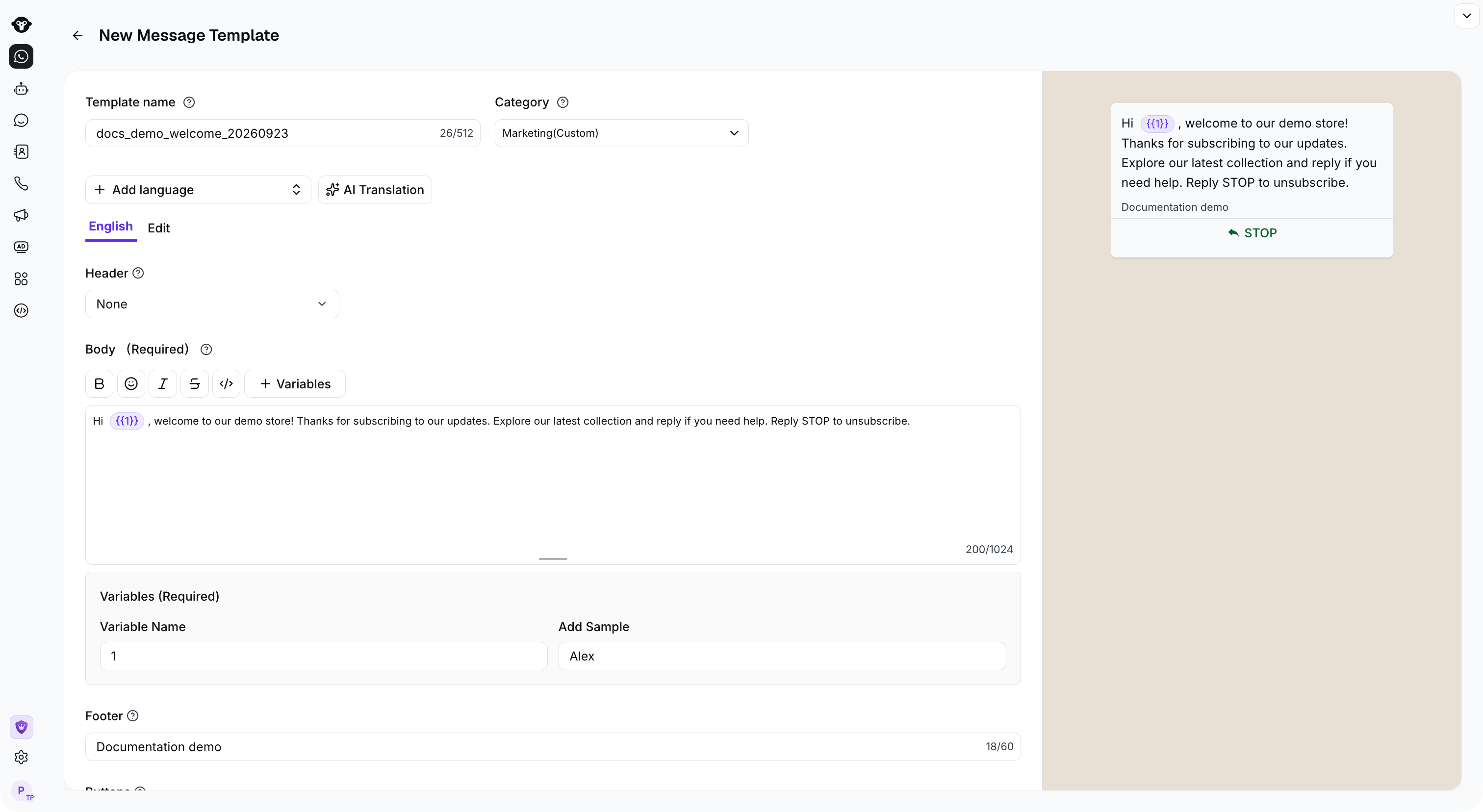 The [full console guide](/en/documentation/channels/whatsapp-accounts-management/template-management/create-template/index) contains the detailed screen sequence. The key decisions and requirements are covered here; you do not need Meta's developer tools for this console workflow.
### Language and reuse: common misunderstandings
* **One approved language is not all languages.** Sending `en_US` is not equivalent to sending `en`. Choose the exact approved variant.
* **Template language does not translate variable values.** Your system must provide the correct customer-facing dates, labels, and values.
* **Approval belongs to the template resource in its WABA.** A similarly named template in another WABA is a different resource.
* **A template is not a recipient list.** Creating it does not send it or subscribe anyone.
* **An approved body is not the completed message.** Missing variables, incorrect media, or a wrong button parameter can still make a send fail.
For your first test, use a test recipient who expects the message, inspect the delivered content and every button, and verify the final message status. A successful submission in the editor is not an end-to-end test.
## From draft to delivery
1. **Define the purpose.** Identify the customer action or business event that should trigger the message.
2. **Choose the category and content.** Keep the message clear and supply representative examples for variables.
3. **Create and submit the template.** Use YCloud's template management workflow or API.
4. **Check the review result.** Do not send a template that is still awaiting approval or is unavailable.
5. **Send and monitor.** Supply the required values and track message delivery and customer feedback.
Review status and quality are different dimensions. Approval does not guarantee permanent availability: later feedback or platform controls can affect a template.
See [Template review and lifecycle](/en/documentation/whatsapp-business-platform/messaging/message-templates/template-review-and-lifecycle) for review outcomes and safe changes, and [Quality and delivery controls](/en/documentation/whatsapp-business-platform/pricing-limits-and-quality/quality-and-delivery-controls) for sending controls.
## Before you send
* Confirm that the customer expects the communication.
* Check that the selected template belongs to the intended WABA.
* Use the correct approved language version.
* Supply all required values and media.
* Check the template's current status.
* Confirm current pricing and any sending restrictions.
* Handle delivery failures and opt-outs.
## Start using templates
Create and submit your template through the console.
Work with template resources in your integration.
Supply the template and recipient-specific values.
Learn when you can use free-form replies instead.
## Frequently asked questions
Review examples help Meta understand the placeholders. They are not your customer-specific send values. At dispatch, provide every required parameter in the approved structure and language. Test with synthetic values so a review sample is not accidentally reused as an order number, name, or verification code.
You must send an approved language version that exists under the intended WABA and template name. Selecting another language code does not translate the content or approve a new version. Route recipients to a matching approved version, or use an appropriate fallback that exists.
Check both numbers' WABAs. A template is a WABA asset, not a globally available name in your YCloud account. Compare the WABA, name, language, status, and supplied components for the failing send. If a migration or replacement changed assets, update the caller's references rather than repeatedly retrying the old combination.
This documentation is built and hosted on [Mintlify](https://mintlify.com), a developer documentation platform.
The [full console guide](/en/documentation/channels/whatsapp-accounts-management/template-management/create-template/index) contains the detailed screen sequence. The key decisions and requirements are covered here; you do not need Meta's developer tools for this console workflow.
### Language and reuse: common misunderstandings
* **One approved language is not all languages.** Sending `en_US` is not equivalent to sending `en`. Choose the exact approved variant.
* **Template language does not translate variable values.** Your system must provide the correct customer-facing dates, labels, and values.
* **Approval belongs to the template resource in its WABA.** A similarly named template in another WABA is a different resource.
* **A template is not a recipient list.** Creating it does not send it or subscribe anyone.
* **An approved body is not the completed message.** Missing variables, incorrect media, or a wrong button parameter can still make a send fail.
For your first test, use a test recipient who expects the message, inspect the delivered content and every button, and verify the final message status. A successful submission in the editor is not an end-to-end test.
## From draft to delivery
1. **Define the purpose.** Identify the customer action or business event that should trigger the message.
2. **Choose the category and content.** Keep the message clear and supply representative examples for variables.
3. **Create and submit the template.** Use YCloud's template management workflow or API.
4. **Check the review result.** Do not send a template that is still awaiting approval or is unavailable.
5. **Send and monitor.** Supply the required values and track message delivery and customer feedback.
Review status and quality are different dimensions. Approval does not guarantee permanent availability: later feedback or platform controls can affect a template.
See [Template review and lifecycle](/en/documentation/whatsapp-business-platform/messaging/message-templates/template-review-and-lifecycle) for review outcomes and safe changes, and [Quality and delivery controls](/en/documentation/whatsapp-business-platform/pricing-limits-and-quality/quality-and-delivery-controls) for sending controls.
## Before you send
* Confirm that the customer expects the communication.
* Check that the selected template belongs to the intended WABA.
* Use the correct approved language version.
* Supply all required values and media.
* Check the template's current status.
* Confirm current pricing and any sending restrictions.
* Handle delivery failures and opt-outs.
## Start using templates
Create and submit your template through the console.
Work with template resources in your integration.
Supply the template and recipient-specific values.
Learn when you can use free-form replies instead.
## Frequently asked questions
Review examples help Meta understand the placeholders. They are not your customer-specific send values. At dispatch, provide every required parameter in the approved structure and language. Test with synthetic values so a review sample is not accidentally reused as an order number, name, or verification code.
You must send an approved language version that exists under the intended WABA and template name. Selecting another language code does not translate the content or approve a new version. Route recipients to a matching approved version, or use an appropriate fallback that exists.
Check both numbers' WABAs. A template is a WABA asset, not a globally available name in your YCloud account. Compare the WABA, name, language, status, and supplied components for the failing send. If a migration or replacement changed assets, update the caller's references rather than repeatedly retrying the old combination.
This documentation is built and hosted on [Mintlify](https://mintlify.com), a developer documentation platform.