> ## Documentation Index
> Fetch the complete documentation index at: https://docs.ycloud.com/llms.txt
> Use this file to discover all available pages before exploring further.
# Carousel templates
> Present several media cards in a marketing template and test the supported card structure.
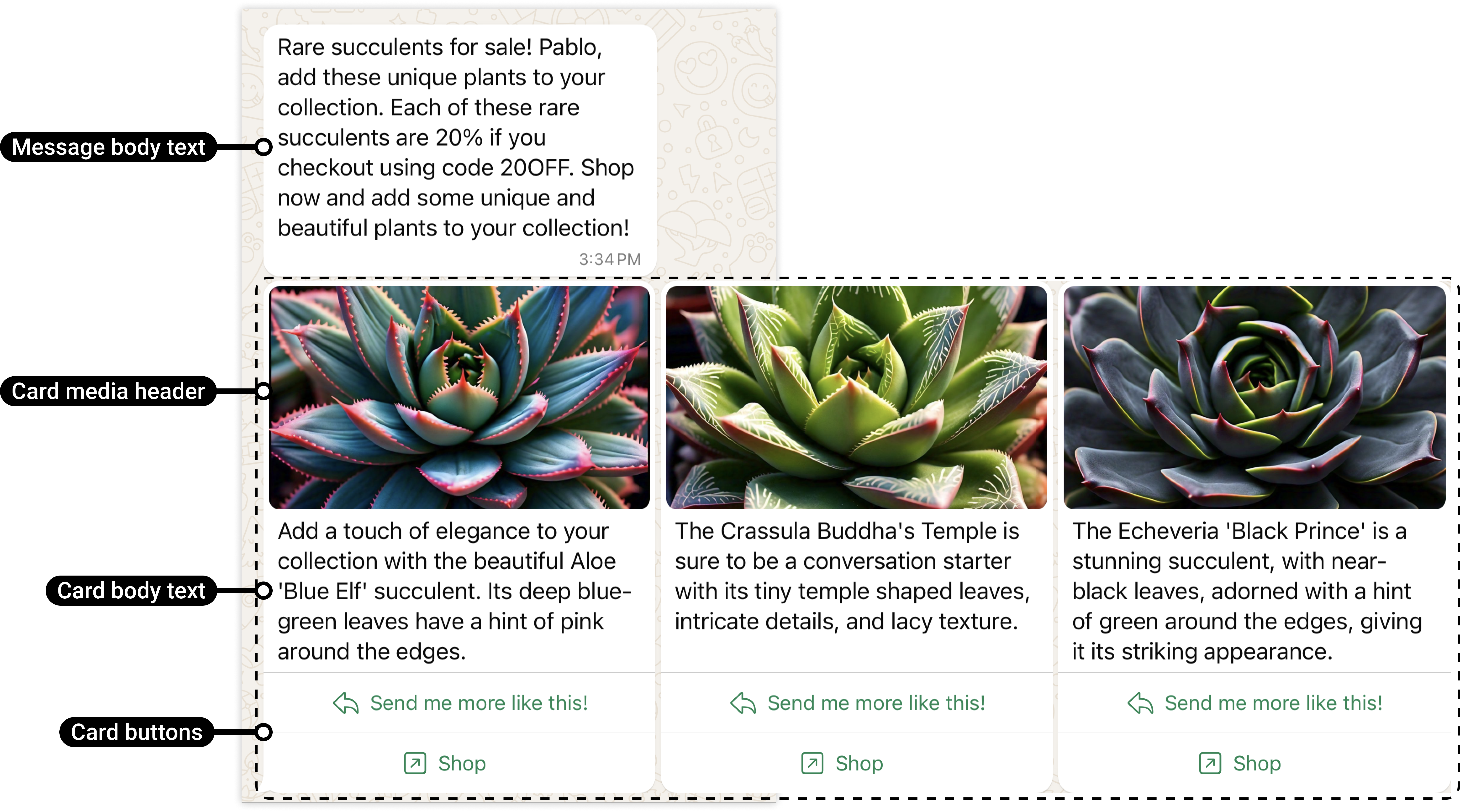
Use a media carousel to present several choices in one horizontally scrollable marketing message—for example, three travel packages, seasonal collections, or service plans.
Source: [Meta official example](https://developers.facebook.com/documentation/business-messaging/whatsapp/templates/marketing-templates/media-card-carousel-templates/).
A card with a website button sends the customer to that website; a purchase there must be measured by your website or commerce integration.
## Plan the complete card set
| Part | What to prepare |
| - | - |
| Shared message body | Explain why the customer is receiving the selection and what to do next. |
| Cards | Plan 2–10 cards and keep the approved count when sending. |
| Media header | An image or video for each card, with a consistent header format. |
| Card text | A short explanation; YCloud documents a maximum of 160 characters per card body. |
| Buttons | Up to two supported buttons per card, with a consistent component structure. |
Meta requires the cards in one template to share their component structure. If you use card body text, include it across the card set. Do not combine an image-only first card with differently structured later cards.
For a conservative YCloud implementation, include a media header, concise body, and at least one action on every card. The YCloud contract's high-level description calls some components optional while its component-level descriptions require body and buttons; use the editor's accepted structure and confirm any bodyless API design before relying on it.
## Example: three weekend packages
Use one card each for **City**, **Coast**, and **Mountains**:
* Keep the same image proportions and visual treatment.
* Give each card a distinct description and destination.
* Use the same action pattern, such as **View package**.
* Put the most useful choice first, but make each card understandable independently.
* Ensure the landing page shows the package represented by that card.
Do not place essential terms only on the last card. Customers may not scroll through the whole message.
## Create the template in YCloud
1. Open **Templates**, select the correct WABA, and create a **Marketing** template.
2. Choose the supported media-card carousel format.
3. Add the shared body and any required sample values.
4. Configure each card's media, text, and buttons.
5. Preview every card and submit the template for review.
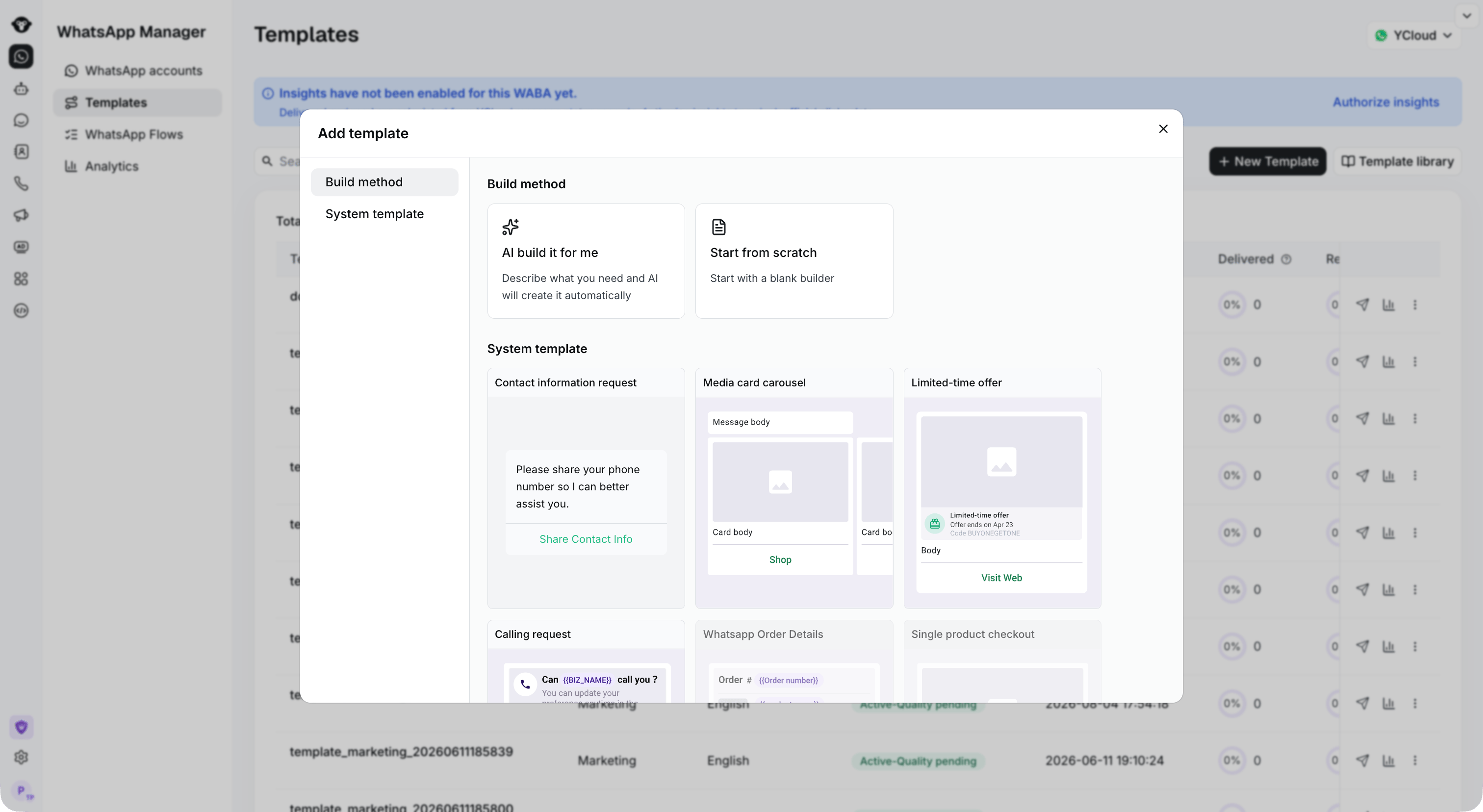 For an API workflow, follow [Manage templates](/en/api-reference/guides/whatsapp-platform/manage-whatsapp-templates). Creation defines the structure and review examples; a later send supplies the live media and variable values.
## Map each card when sending
Keep the approved template name, language, card count, media type, and button arrangement. In YCloud's send contract, `card_index` starts at `0`; the first card is not `1`. Each card's parameters belong to that card's component.
A common error is placing the second product's URL under the first card. Test with clearly different sample images and destinations so that mapping mistakes are visible.
Use the supported [Campaign](/en/documentation/campaign/create-a-whatsapp-marketing-campaign), [Inbox](/en/documentation/inbox/initiate-new-chat), or [API](/en/api-reference/guides/whatsapp-platform/send-whatsapp-message) workflow after approval.
## Test before launch
Verify all cards on a phone, variable substitution, media loading, each button, and the destination's availability. Test a recipient in your intended language. A preview does not establish delivery eligibility.
Check [marketing consent and controls](/en/documentation/whatsapp-business-platform/messaging/message-templates/marketing-templates), then monitor message delivery separately from website purchases.
Source: [Meta media-card carousel templates](https://developers.facebook.com/docs/whatsapp/business-management-api/message-templates/media-card-carousel-templates/).
This documentation is built and hosted on [Mintlify](https://mintlify.com), a developer documentation platform.
For an API workflow, follow [Manage templates](/en/api-reference/guides/whatsapp-platform/manage-whatsapp-templates). Creation defines the structure and review examples; a later send supplies the live media and variable values.
## Map each card when sending
Keep the approved template name, language, card count, media type, and button arrangement. In YCloud's send contract, `card_index` starts at `0`; the first card is not `1`. Each card's parameters belong to that card's component.
A common error is placing the second product's URL under the first card. Test with clearly different sample images and destinations so that mapping mistakes are visible.
Use the supported [Campaign](/en/documentation/campaign/create-a-whatsapp-marketing-campaign), [Inbox](/en/documentation/inbox/initiate-new-chat), or [API](/en/api-reference/guides/whatsapp-platform/send-whatsapp-message) workflow after approval.
## Test before launch
Verify all cards on a phone, variable substitution, media loading, each button, and the destination's availability. Test a recipient in your intended language. A preview does not establish delivery eligibility.
Check [marketing consent and controls](/en/documentation/whatsapp-business-platform/messaging/message-templates/marketing-templates), then monitor message delivery separately from website purchases.
Source: [Meta media-card carousel templates](https://developers.facebook.com/docs/whatsapp/business-management-api/message-templates/media-card-carousel-templates/).
This documentation is built and hosted on [Mintlify](https://mintlify.com), a developer documentation platform.