> ## Documentation Index
> Fetch the complete documentation index at: https://docs.ycloud.com/llms.txt
> Use this file to discover all available pages before exploring further.
# Catalog templates
> Open a connected product catalog from a marketing template.
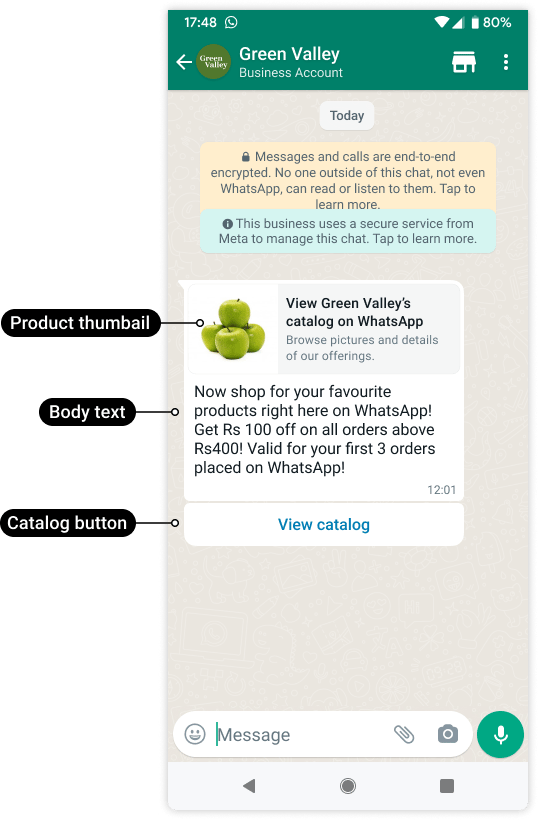
Use a catalog template to let customers browse your connected catalog.
Source: [Meta official example](https://developers.facebook.com/documentation/business-messaging/whatsapp/catalogs/catalog-template-messages/).
The customer selects **View catalog** to open the catalog inside WhatsApp.
 Source: [Meta official example](https://developers.facebook.com/documentation/business-messaging/whatsapp/catalogs/catalog-template-messages/).
## Choose this format deliberately
| Goal | Better fit |
| - | - |
| Invite customers to browse the full assortment | Catalog template. |
| Present a curated selection | [Multi-product template](/en/documentation/whatsapp-business-platform/messaging/message-templates/multi-product-templates). |
| Compare several visual offers with external destinations | [Media carousel](/en/documentation/whatsapp-business-platform/messaging/message-templates/carousel-templates). |
| Answer an active product inquiry | A supported interactive product or catalog [service message](/en/documentation/whatsapp-business-platform/messaging/service-messages). |
Catalog templates follow marketing-template requirements. A customer must be eligible for that marketing message even if the products themselves are approved.
## Prepare the assets
Before creating the template:
1. Identify the WABA and sending number.
2. Confirm the intended Meta catalog is connected to the relevant WhatsApp assets.
3. Check that the catalog has available, policy-compliant items.
4. Record the exact product retailer IDs, shown as **Content ID** in Commerce Manager.
5. Choose a suitable product image for the message thumbnail.
6. Confirm who handles cart submissions and order questions.
An internal stock-system ID is not necessarily the catalog's retailer ID. Match the actual value; product names are not identifiers.
## Create and send
The existing YCloud guide uses API creation and sending for this format. Do not assume that every console template editor or campaign composer exposes it.
Create the marketing template with its body, review examples, and supported `CATALOG` button. After approval, reference the exact template name and language when sending.
The send-time button subtype is `catalog`. Its action can include `thumbnail_product_retailer_id` to select the catalog item whose image appears in the message. This changes the thumbnail, not the catalog into a one-product selection.
YCloud's contract documents a first-catalog-item image fallback when the relevant parameters are omitted. For a predictable campaign, choose a valid thumbnail explicitly and test the result rather than relying on catalog ordering.
See [Manage templates](/en/api-reference/guides/whatsapp-platform/manage-whatsapp-templates) and [Send WhatsApp messages](/en/api-reference/guides/whatsapp-platform/send-whatsapp-message) for the complete requests.
## Verify the customer journey
Send a controlled test and check:
* The thumbnail represents the offer.
* **View catalog** opens the intended catalog.
* Products have current images, prices, availability, and currency.
* The recipient can make the supported selection.
* Your team or integration receives the resulting inquiry or order request.
* Payment and fulfillment are handled separately.
A template can remain approved while catalog items change. Recheck the live catalog before each campaign.
## Troubleshoot
If the catalog cannot open, inspect the sender's catalog relationship and current commerce settings. If only one image or product fails, check its retailer ID, availability, and catalog record.
A submitted cart is customer intent, not proof of stock reservation or payment. Follow [Catalogs and commerce](/en/documentation/whatsapp-business-platform/more-whatsapp-features/catalogs-and-commerce) to validate the transaction before promising fulfillment.
This documentation is built and hosted on [Mintlify](https://mintlify.com), a developer documentation platform.
Source: [Meta official example](https://developers.facebook.com/documentation/business-messaging/whatsapp/catalogs/catalog-template-messages/).
## Choose this format deliberately
| Goal | Better fit |
| - | - |
| Invite customers to browse the full assortment | Catalog template. |
| Present a curated selection | [Multi-product template](/en/documentation/whatsapp-business-platform/messaging/message-templates/multi-product-templates). |
| Compare several visual offers with external destinations | [Media carousel](/en/documentation/whatsapp-business-platform/messaging/message-templates/carousel-templates). |
| Answer an active product inquiry | A supported interactive product or catalog [service message](/en/documentation/whatsapp-business-platform/messaging/service-messages). |
Catalog templates follow marketing-template requirements. A customer must be eligible for that marketing message even if the products themselves are approved.
## Prepare the assets
Before creating the template:
1. Identify the WABA and sending number.
2. Confirm the intended Meta catalog is connected to the relevant WhatsApp assets.
3. Check that the catalog has available, policy-compliant items.
4. Record the exact product retailer IDs, shown as **Content ID** in Commerce Manager.
5. Choose a suitable product image for the message thumbnail.
6. Confirm who handles cart submissions and order questions.
An internal stock-system ID is not necessarily the catalog's retailer ID. Match the actual value; product names are not identifiers.
## Create and send
The existing YCloud guide uses API creation and sending for this format. Do not assume that every console template editor or campaign composer exposes it.
Create the marketing template with its body, review examples, and supported `CATALOG` button. After approval, reference the exact template name and language when sending.
The send-time button subtype is `catalog`. Its action can include `thumbnail_product_retailer_id` to select the catalog item whose image appears in the message. This changes the thumbnail, not the catalog into a one-product selection.
YCloud's contract documents a first-catalog-item image fallback when the relevant parameters are omitted. For a predictable campaign, choose a valid thumbnail explicitly and test the result rather than relying on catalog ordering.
See [Manage templates](/en/api-reference/guides/whatsapp-platform/manage-whatsapp-templates) and [Send WhatsApp messages](/en/api-reference/guides/whatsapp-platform/send-whatsapp-message) for the complete requests.
## Verify the customer journey
Send a controlled test and check:
* The thumbnail represents the offer.
* **View catalog** opens the intended catalog.
* Products have current images, prices, availability, and currency.
* The recipient can make the supported selection.
* Your team or integration receives the resulting inquiry or order request.
* Payment and fulfillment are handled separately.
A template can remain approved while catalog items change. Recheck the live catalog before each campaign.
## Troubleshoot
If the catalog cannot open, inspect the sender's catalog relationship and current commerce settings. If only one image or product fails, check its retailer ID, availability, and catalog record.
A submitted cart is customer intent, not proof of stock reservation or payment. Follow [Catalogs and commerce](/en/documentation/whatsapp-business-platform/more-whatsapp-features/catalogs-and-commerce) to validate the transaction before promising fulfillment.
This documentation is built and hosted on [Mintlify](https://mintlify.com), a developer documentation platform.