> ## Documentation Index
> Fetch the complete documentation index at: https://docs.ycloud.com/llms.txt
> Use this file to discover all available pages before exploring further.
# Multi-product templates
> Show a selected set of catalog products in a marketing template.
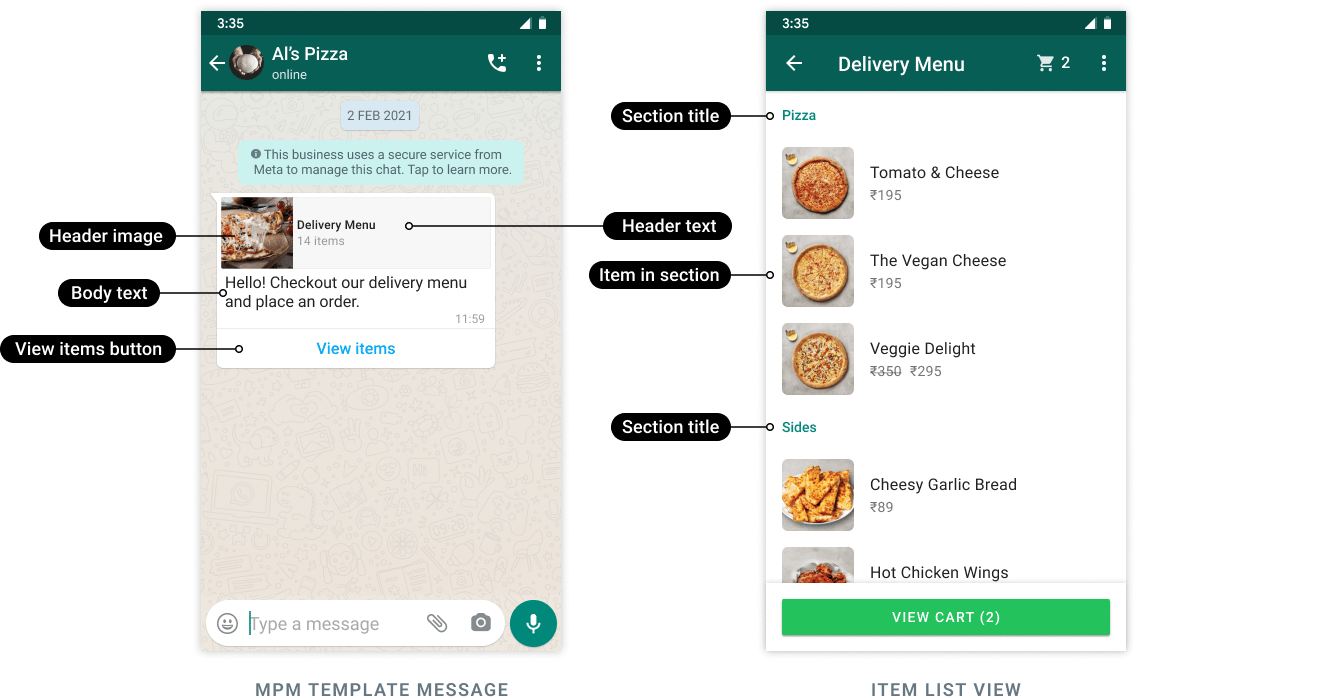
Use a multi-product template to present a selected set of catalog items in a marketing message. Customers open **View items** to browse the products and sections you supply.
Source: [Meta official example](https://developers.facebook.com/documentation/business-messaging/whatsapp/catalogs/mpm-template-messages/).
## Prepare the catalog
Connect the correct catalog to the intended WhatsApp assets. Verify product availability, commerce-policy eligibility, and every product retailer ID.
In Commerce Manager, the retailer identifier is labeled **Content ID**. Use that value—not the product name, image URL, or an unrelated internal item ID.
The existing YCloud workflow uses API creation and sending. Do not assume that this template appears in every console editor.
## Structure the selection
The current YCloud sending contract documents:
| Element | Limit or requirement |
| - | - |
| Sections | Up to 10. |
| Section title | Up to 24 characters; no Markdown. |
| Products per section | At least one. |
| Products across all sections | No more than 30 in total. |
| Product identifier | Each item supplies `product_retailer_id`. |
The 30-product limit applies to the entire message, not separately to each section.
For example, a travel shop could use **Day trips** with four items and **Weekend kits** with six. Ten products across two clear sections is easier to scan than filling the maximum solely because it is available.
## Create once, supply products at send time
1. Create a marketing template with the supported `MPM` button and required body samples.
2. Wait for approval and confirm the sending language.
3. Build the live product sections for that campaign.
4. Supply the button subtype `mpm` and the action containing those sections.
5. Send a controlled test before sending to the audience.
The thumbnail can be selected with `thumbnail_product_retailer_id`. The selection itself uses the action's `sections` and their `product_items`.
Example of the **action object only**, using fictional catalog identifiers:
```json theme={"theme":{"light":"github-light","dark":"github-dark"}}
{
"thumbnail_product_retailer_id": "SKU-DAYPACK",
"sections": [
{
"title": "Day trips",
"product_items": [
{ "product_retailer_id": "SKU-DAYPACK" },
{ "product_retailer_id": "SKU-BOTTLE" }
]
}
]
}
```
This fragment is not a complete send request. Place it in the appropriate template button parameter and include the template's other required values. Use [Manage templates](/en/api-reference/guides/whatsapp-platform/manage-whatsapp-templates) and [Send WhatsApp messages](/en/api-reference/guides/whatsapp-platform/send-whatsapp-message) for the full workflow.
## Test the selected items
Check that each section appears, all identifiers resolve in the connected catalog, prices are current, and the intended thumbnail loads. An available product in another catalog is not automatically accessible to this sender.
If a campaign needs a different assortment, validate the new send-time selection. Do not assume template approval validates future catalog content.
## Handle the customer response
A submitted selection is an order request, not proof of payment. Recheck stock, quantity, price, delivery details, and the final payable total. Confirm payment through your payment system before treating the order as paid.
For an active customer inquiry, interactive product-list service messages use a separate format and require the appropriate [service window](/en/documentation/whatsapp-business-platform/messaging/service-messages). See [Catalogs and commerce](/en/documentation/whatsapp-business-platform/more-whatsapp-features/catalogs-and-commerce) for the end-to-end transaction boundary.
This documentation is built and hosted on [Mintlify](https://mintlify.com), a developer documentation platform.