> ## Documentation Index
> Fetch the complete documentation index at: https://docs.ycloud.com/llms.txt
> Use this file to discover all available pages before exploring further.
# WhatsApp Calling
> Understand inbound and outbound WhatsApp voice calls, customer permission, and YCloud integration choices.
WhatsApp Calling lets a business handle voice calls through its WhatsApp business number. Use it when a conversation needs real-time clarification, such as resolving a complex support issue.
## Inbound and outbound calls
| Direction | Who starts | Main requirement |
| - | - | - |
| Inbound, or user-initiated | The customer calls your business. | Calling is enabled and the receiving setup is ready. |
| Outbound, or business-initiated | Your business calls the customer. | The number is eligible and the customer has granted the required calling permission. |
A normal phone-number button can launch a telephone call outside WhatsApp. A WhatsApp call button and a call-permission request are different interactions.
## Confirm eligibility before designing the workflow
Availability can depend on the business number's country, account capabilities, connection mode, and calling configuration.
Check the actual number you plan to use. Do not assume that a number eligible for messages is automatically eligible for outbound calls, or that [app coexistence](/en/documentation/whatsapp-business-platform/accounts-and-business-identity/whatsapp-business-app-coexistence) gives you API access to app calls.
Meta updates permission and calling limits. Use its [Calling documentation](https://developers.facebook.com/docs/whatsapp/cloud-api/calling/) for current upstream rules and confirm the supported setup with YCloud.
## Permission to message is not permission to call
Before an outbound call, obtain the required WhatsApp calling permission and check that it is still valid.
A customer who subscribed to messages, received a template, or spoke with you previously should not be assumed to have current outbound-call permission. Permission requests are themselves subject to messaging eligibility and platform limits.
Respect a refusal or withdrawal. Repeated unanswered calls are a signal to stop and reconsider the timing, not a reason to increase attempts.
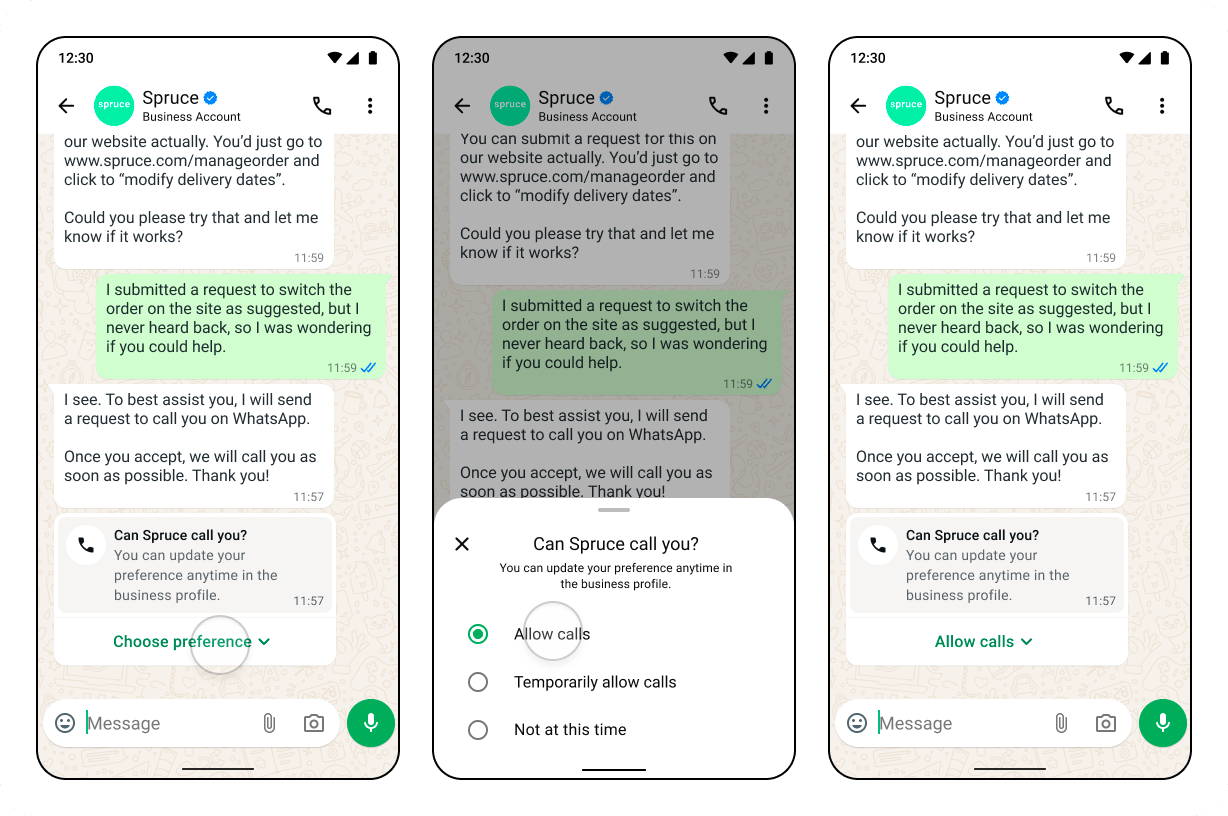 Source: [Meta's official example](https://developers.facebook.com/documentation/business-messaging/whatsapp/calling/user-call-permissions/).
## Choose a YCloud integration
YCloud documents two approaches:
* **YCloud platform calling:** Your team handles calls through supported console workflows.
* **API integration:** Your application handles call signaling and the associated media integration.
Confirm the configuration before enabling calling. The existing YCloud guide treats these as alternative integration modes, not two switches to turn on simultaneously.
For operational setup, use [Calling administration](/en/documentation/calling/admin-guide). For an integration, use [Manage WhatsApp Calling](/en/api-reference/guides/whatsapp-platform/manage-whatsapp-calls).
## Prepare the customer and agent experience
Define:
* When calling is available.
* Which team members can use the number.
* How customers reach the right team.
* What happens when a call is missed or declined.
* How a call returns to a messaging conversation.
* Whether any recording or retention requires additional notice or consent.
Test microphone access, audio quality, agent availability, and fallback handling. An accepted API request does not mean the customer answered or that audio connected successfully.
## Set up and test platform calling
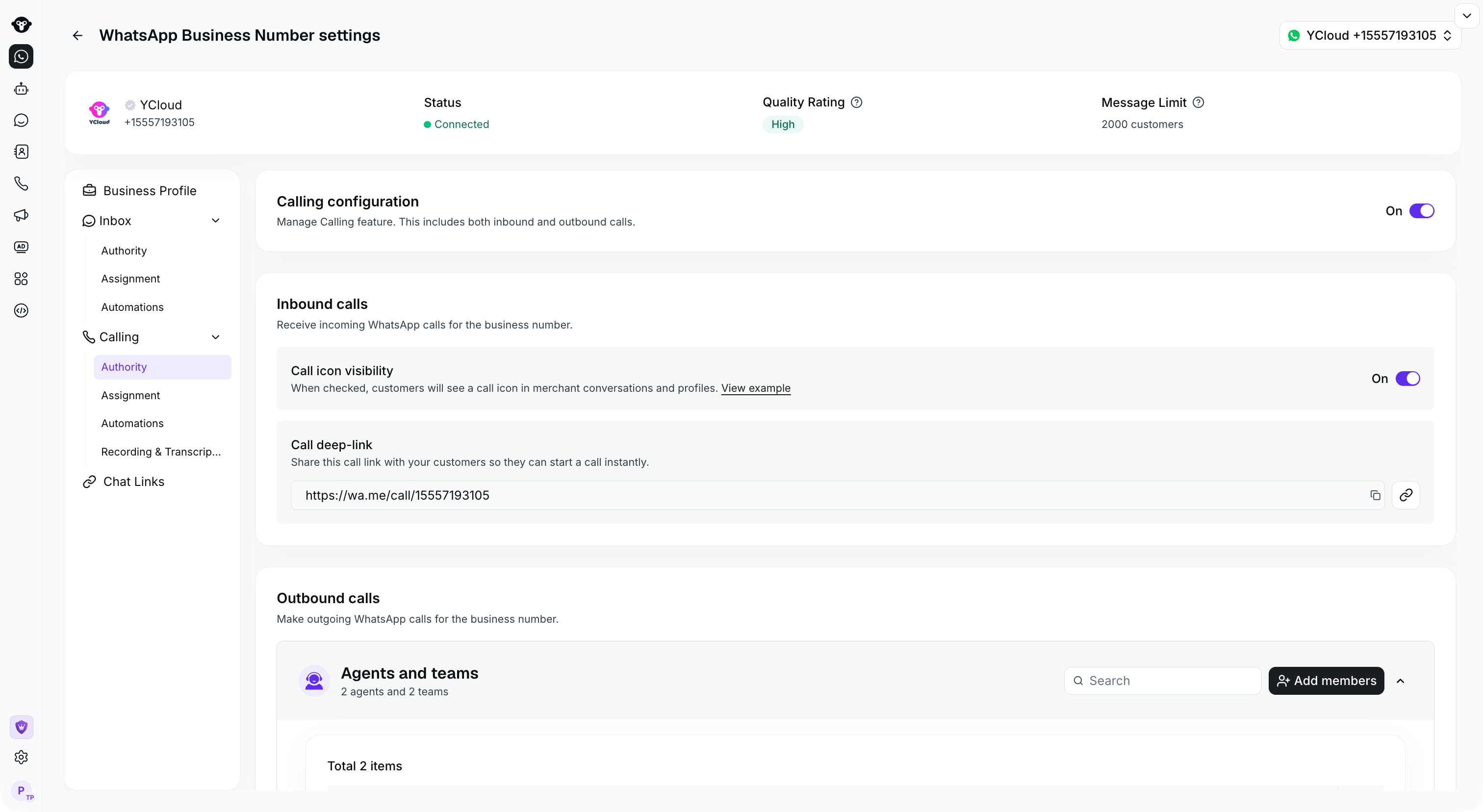
For YCloud platform calling, the current console guide uses this sequence:
1. Make sure the intended agents exist under **Settings → Users and teams → Users**.
2. Open the business number's **Calling → Authority** and enable **Calling configuration**.
3. Decide whether to show **Call icon visibility** in the customer's chat and profile.
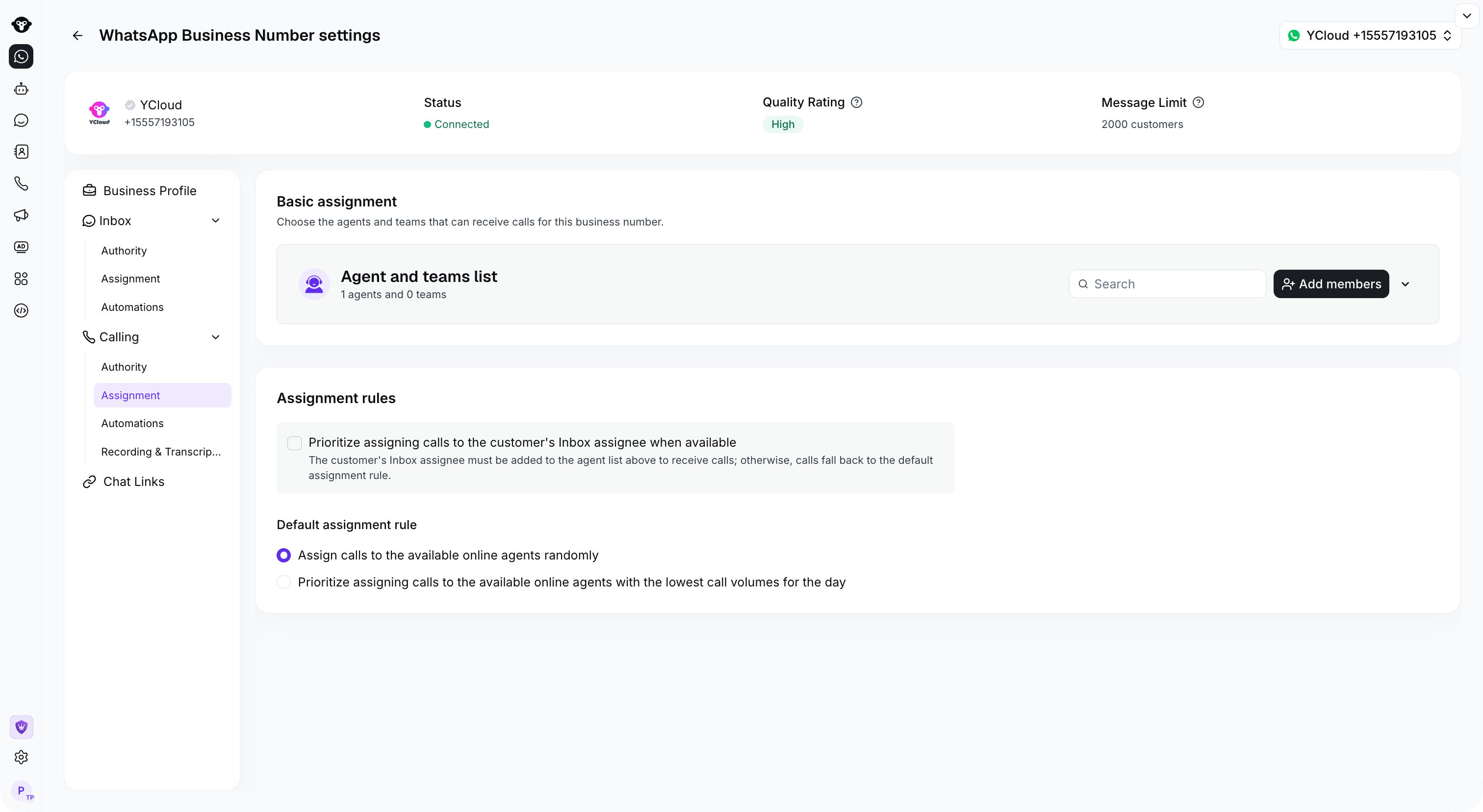
4. Choose the documented assignment method: random assignment to online agents or load balancing based on the lowest number of calls received that day.
5. Test with an eligible number and an available agent, then review the call record in **Calling logs**.
Hiding the call icon does not disable all calling entry points. A supported call-button message can still provide an entry point. Use the actual calling setting when deciding whether the number should accept calls.
Source: [Meta's official example](https://developers.facebook.com/documentation/business-messaging/whatsapp/calling/user-call-permissions/).
## Choose a YCloud integration
YCloud documents two approaches:
* **YCloud platform calling:** Your team handles calls through supported console workflows.
* **API integration:** Your application handles call signaling and the associated media integration.
Confirm the configuration before enabling calling. The existing YCloud guide treats these as alternative integration modes, not two switches to turn on simultaneously.
For operational setup, use [Calling administration](/en/documentation/calling/admin-guide). For an integration, use [Manage WhatsApp Calling](/en/api-reference/guides/whatsapp-platform/manage-whatsapp-calls).
## Prepare the customer and agent experience
Define:
* When calling is available.
* Which team members can use the number.
* How customers reach the right team.
* What happens when a call is missed or declined.
* How a call returns to a messaging conversation.
* Whether any recording or retention requires additional notice or consent.
Test microphone access, audio quality, agent availability, and fallback handling. An accepted API request does not mean the customer answered or that audio connected successfully.
## Set up and test platform calling
For YCloud platform calling, the current console guide uses this sequence:
1. Make sure the intended agents exist under **Settings → Users and teams → Users**.
2. Open the business number's **Calling → Authority** and enable **Calling configuration**.
3. Decide whether to show **Call icon visibility** in the customer's chat and profile.
4. Choose the documented assignment method: random assignment to online agents or load balancing based on the lowest number of calls received that day.
5. Test with an eligible number and an available agent, then review the call record in **Calling logs**.
Hiding the call icon does not disable all calling entry points. A supported call-button message can still provide an entry point. Use the actual calling setting when deciding whether the number should accept calls.
 ## Separate permission, ringing, and connection
For an outbound call, verify these stages independently:
| Stage | What success establishes | What it does not establish |
| - | - | - |
| Permission granted | The customer permits the supported calling interaction. | That the permission remains valid indefinitely. |
| Call request accepted | The platform accepts the attempt. | That the customer's device rang or the customer answered. |
| Call connected | The call reaches the connected state. | That audio quality is usable or the issue is resolved. |
| Call ended | The session has finished. | That a sale, resolution, or other business outcome occurred. |
Test declined permission, no answer, an offline agent, microphone denial, and a dropped connection—not only a successful call.
If outbound calling is unavailable, first check country and number eligibility, current permission, connection mode, and configuration. Do not repeatedly request permission or retry calls to work around a restriction. Calling limits shown in older YCloud material and newer Meta material can differ; confirm the effective limit for your YCloud connection before building automatic retries.
## Understand charges separately
Call charging is separate from template-message charging. Check your current YCloud calling rates and commercial terms before estimating costs.
A free-entry-point message window should not be treated as a general exemption from calling or advertising charges. See [WhatsApp pricing](/en/documentation/whatsapp-business-platform/pricing-limits-and-quality/whatsapp-pricing) for the messaging model.
## Continue
* [Calling setup and administration](/en/documentation/calling/admin-guide)
* [Calling in Inbox](/en/documentation/inbox/whatsapp-calling-in-inbox)
* [Call logs](/en/documentation/calling/calling-logs)
* [Calling API guide](/en/api-reference/guides/whatsapp-platform/manage-whatsapp-calls)
## Frequently asked questions
Check current permission rather than a historical screenshot. Permissions can be changed or revoked, and eligibility or connection settings may also block a call. Review the actual call error and number configuration before requesting permission again; do not repeatedly call or send permission requests to overcome a refusal.
Icon visibility controls the chat/profile entry point, not necessarily every call entry point. A supported call-button message can still initiate a call. If you need to stop accepting calls, review the actual calling enablement and routing settings, not only the icon.
A connected call is a different stage from permission or request acceptance. Check microphone permission, the agent's selected input/output device, network conditions, and—if using an API integration—the media setup. Use the call ID and logs to investigate the affected session instead of repeatedly requesting customer permission.
This documentation is built and hosted on [Mintlify](https://mintlify.com), a developer documentation platform.
## Separate permission, ringing, and connection
For an outbound call, verify these stages independently:
| Stage | What success establishes | What it does not establish |
| - | - | - |
| Permission granted | The customer permits the supported calling interaction. | That the permission remains valid indefinitely. |
| Call request accepted | The platform accepts the attempt. | That the customer's device rang or the customer answered. |
| Call connected | The call reaches the connected state. | That audio quality is usable or the issue is resolved. |
| Call ended | The session has finished. | That a sale, resolution, or other business outcome occurred. |
Test declined permission, no answer, an offline agent, microphone denial, and a dropped connection—not only a successful call.
If outbound calling is unavailable, first check country and number eligibility, current permission, connection mode, and configuration. Do not repeatedly request permission or retry calls to work around a restriction. Calling limits shown in older YCloud material and newer Meta material can differ; confirm the effective limit for your YCloud connection before building automatic retries.
## Understand charges separately
Call charging is separate from template-message charging. Check your current YCloud calling rates and commercial terms before estimating costs.
A free-entry-point message window should not be treated as a general exemption from calling or advertising charges. See [WhatsApp pricing](/en/documentation/whatsapp-business-platform/pricing-limits-and-quality/whatsapp-pricing) for the messaging model.
## Continue
* [Calling setup and administration](/en/documentation/calling/admin-guide)
* [Calling in Inbox](/en/documentation/inbox/whatsapp-calling-in-inbox)
* [Call logs](/en/documentation/calling/calling-logs)
* [Calling API guide](/en/api-reference/guides/whatsapp-platform/manage-whatsapp-calls)
## Frequently asked questions
Check current permission rather than a historical screenshot. Permissions can be changed or revoked, and eligibility or connection settings may also block a call. Review the actual call error and number configuration before requesting permission again; do not repeatedly call or send permission requests to overcome a refusal.
Icon visibility controls the chat/profile entry point, not necessarily every call entry point. A supported call-button message can still initiate a call. If you need to stop accepting calls, review the actual calling enablement and routing settings, not only the icon.
A connected call is a different stage from permission or request acceptance. Check microphone permission, the agent's selected input/output device, network conditions, and—if using an API integration—the media setup. Use the call ID and logs to investigate the affected session instead of repeatedly requesting customer permission.
This documentation is built and hosted on [Mintlify](https://mintlify.com), a developer documentation platform.