> ## Documentation Index
> Fetch the complete documentation index at: https://docs.ycloud.com/llms.txt
> Use this file to discover all available pages before exploring further.
# Send a WhatsApp Flow
> Choose a template or interactive Flow message and connect it to a supported YCloud workflow.
Create and test your Flow before inviting customers to use it. See [WhatsApp Flows](/en/documentation/whatsapp-business-platform/more-whatsapp-features/whatsapp-flows/index) for the concepts and lifecycle.
## Choose the message route
| Situation | Route |
| - | - |
| A template is required | Use an approved marketing or utility template with a Flow button. |
| The customer service window is open | Use a supported interactive Flow message or an approved template. |
Check the [service window](/en/documentation/whatsapp-business-platform/messaging/service-messages) at send time. A Flow does not bypass normal messaging eligibility.
## Send through YCloud products
For a template-based send, follow [Create a WhatsApp Flow template](/en/documentation/channels/whatsapp-accounts-management/template-management/create-template/create-whatsapp-flows-template), then select the approved template in your supported sending workflow.
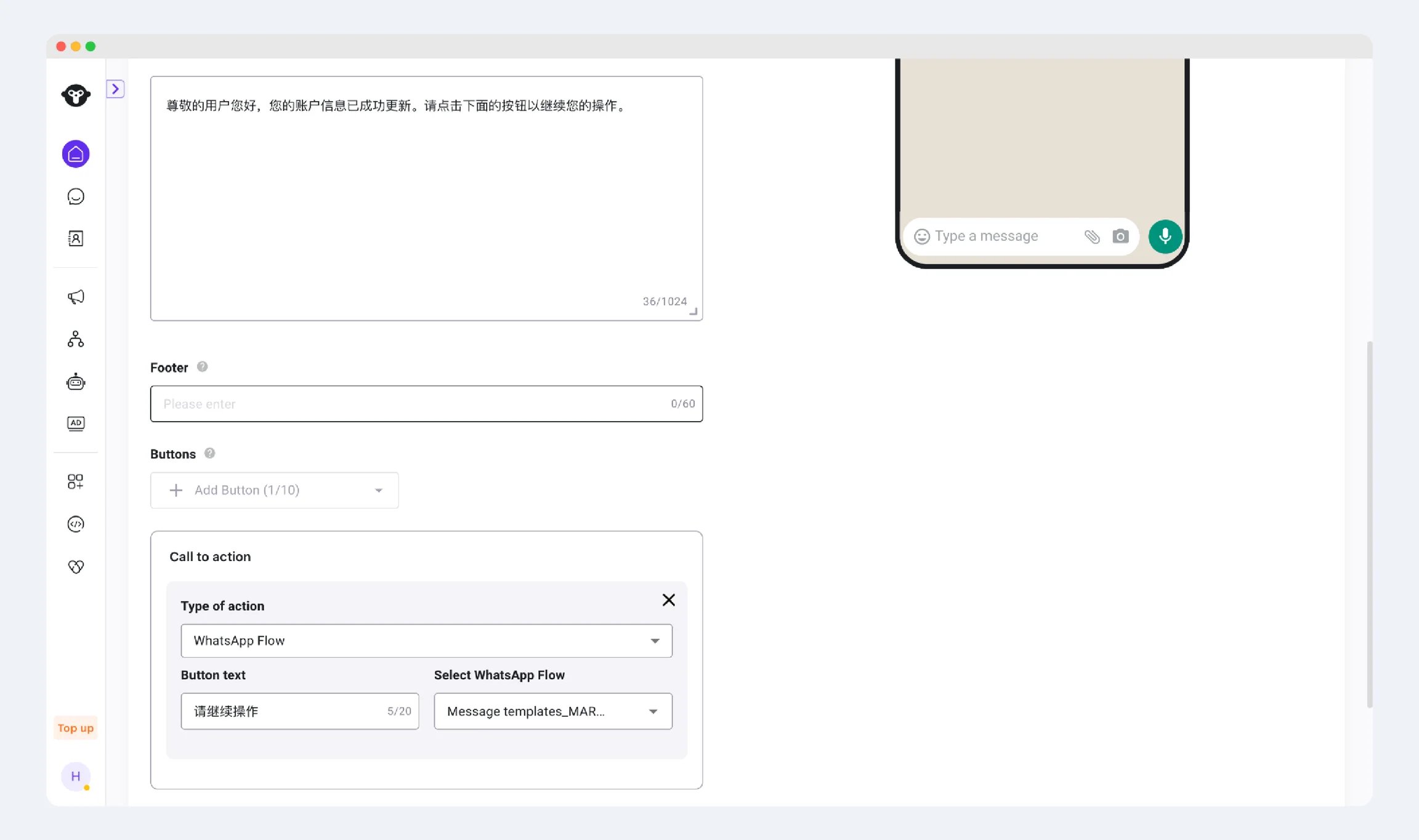 Use [Campaigns](/en/documentation/campaign/create-a-whatsapp-marketing-campaign) for a supported audience send or [the WhatsApp Messages API](/en/api-reference/guides/whatsapp-platform/send-whatsapp-message) for an integration.
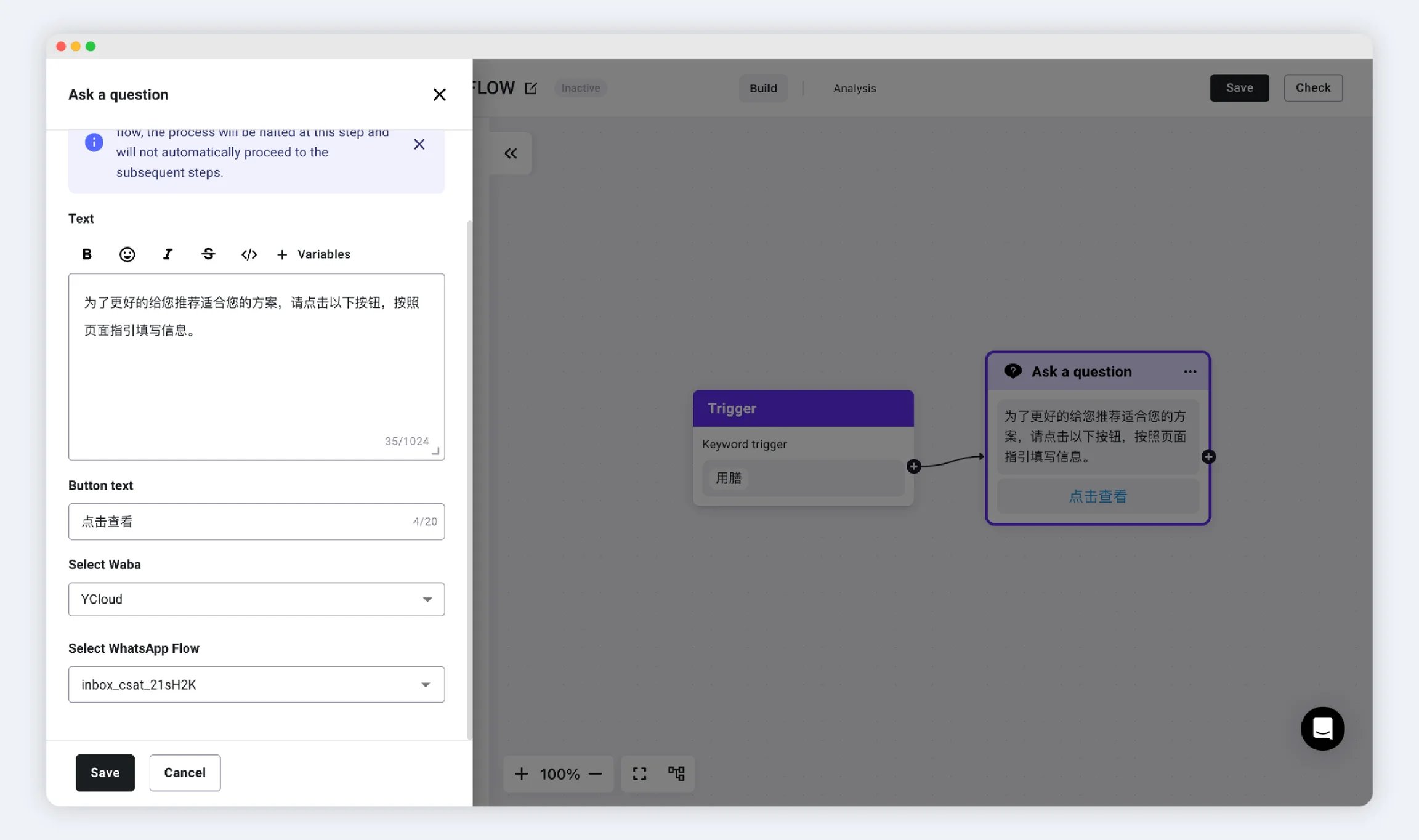
YCloud's Rule-based Agent workflow also documents a WhatsApp Flow option in its question component. Select the intended WABA and Flow, then test what happens when the customer submits, abandons, or does not answer.
Use [Campaigns](/en/documentation/campaign/create-a-whatsapp-marketing-campaign) for a supported audience send or [the WhatsApp Messages API](/en/api-reference/guides/whatsapp-platform/send-whatsapp-message) for an integration.
YCloud's Rule-based Agent workflow also documents a WhatsApp Flow option in its question component. Select the intended WABA and Flow, then test what happens when the customer submits, abandons, or does not answer.
 ## Prepare the invitation values
For a template invitation, verify the exact WABA, template name, language, and Flow button before sending. A Flow with the same display name in another WABA is not the same resource.
For API sending, the Flow button's action can include:
| Field | Use |
| - | - |
| `flow_token` | An opaque reference generated by your business to associate the interaction with a request. |
| `flow_action_data` | Initial data needed by the first screen. |
Do not place passwords or personal information in the token. YCloud documents a default token of `unused`; if your workflow needs correlation, supply a meaningful opaque reference instead of relying on that default.
For an interactive Flow invitation, use the interactive-message structure—not the template button structure. Keep the Flow version and entry action consistent with the published definition.
## Example: book a consultation
For a customer already discussing an appointment:
1. Confirm the service window is open.
2. Send a supported Flow invitation with an explanation such as “Choose a preferred consultation time.”
3. Associate it with the active request, not an unrelated previous booking.
4. On submission, recheck availability and create the booking or request.
5. Send an accurate result: either a confirmation or a notice that staff will follow up.
For an outbound invitation, first use an eligible approved template and the appropriate consent. A promotional consultation offer can be marketing even though the form looks like an appointment form.
## Define the no-submission path
In a Rule-based Agent question component, test submission, abandonment, and the configured no-answer behavior. Do not assume that closing the form produces a completed response.
If a person submits successfully, stop reminders for that request. If the customer has not submitted, check whether a reminder is appropriate, whether the service window remains open, and whether a template is now required.
If the Flow does not appear in a selector, check its owning WABA, lifecycle state, and availability before creating a duplicate. If the invitation delivers but a screen fails, investigate Flow configuration or its data endpoint rather than resending the same message repeatedly.
## Validate the result
Check message delivery separately from form submission. Confirm that submitted data reaches the correct customer record and that your business system completes the intended action.
Do not repeatedly send the form because a customer has not submitted it. Review the conversation and consent before following up.
Continue with [Review Flow submissions](/en/documentation/whatsapp-business-platform/more-whatsapp-features/whatsapp-flows/review-whatsapp-flow-submissions).
This documentation is built and hosted on [Mintlify](https://mintlify.com), a developer documentation platform.
## Prepare the invitation values
For a template invitation, verify the exact WABA, template name, language, and Flow button before sending. A Flow with the same display name in another WABA is not the same resource.
For API sending, the Flow button's action can include:
| Field | Use |
| - | - |
| `flow_token` | An opaque reference generated by your business to associate the interaction with a request. |
| `flow_action_data` | Initial data needed by the first screen. |
Do not place passwords or personal information in the token. YCloud documents a default token of `unused`; if your workflow needs correlation, supply a meaningful opaque reference instead of relying on that default.
For an interactive Flow invitation, use the interactive-message structure—not the template button structure. Keep the Flow version and entry action consistent with the published definition.
## Example: book a consultation
For a customer already discussing an appointment:
1. Confirm the service window is open.
2. Send a supported Flow invitation with an explanation such as “Choose a preferred consultation time.”
3. Associate it with the active request, not an unrelated previous booking.
4. On submission, recheck availability and create the booking or request.
5. Send an accurate result: either a confirmation or a notice that staff will follow up.
For an outbound invitation, first use an eligible approved template and the appropriate consent. A promotional consultation offer can be marketing even though the form looks like an appointment form.
## Define the no-submission path
In a Rule-based Agent question component, test submission, abandonment, and the configured no-answer behavior. Do not assume that closing the form produces a completed response.
If a person submits successfully, stop reminders for that request. If the customer has not submitted, check whether a reminder is appropriate, whether the service window remains open, and whether a template is now required.
If the Flow does not appear in a selector, check its owning WABA, lifecycle state, and availability before creating a duplicate. If the invitation delivers but a screen fails, investigate Flow configuration or its data endpoint rather than resending the same message repeatedly.
## Validate the result
Check message delivery separately from form submission. Confirm that submitted data reaches the correct customer record and that your business system completes the intended action.
Do not repeatedly send the form because a customer has not submitted it. Review the conversation and consent before following up.
Continue with [Review Flow submissions](/en/documentation/whatsapp-business-platform/more-whatsapp-features/whatsapp-flows/review-whatsapp-flow-submissions).
This documentation is built and hosted on [Mintlify](https://mintlify.com), a developer documentation platform.