> ## Documentation Index
> Fetch the complete documentation index at: https://docs.ycloud.com/llms.txt
> Use this file to discover all available pages before exploring further.
# Max Price for WhatsApp marketing messages
> Control the maximum amount you are willing to pay for each delivered WhatsApp marketing message and use that price in API sends or bulk campaigns.
Max Price helps you control and optimize your WhatsApp marketing messaging spend. You set the maximum amount that you are willing to pay for each successfully delivered marketing message. Meta calculates the actual delivery price dynamically and charges that amount or less.
**A Max Price is a price ceiling, not a fixed charge.** A higher Max Price can improve the opportunity for delivery, while a lower Max Price can help control cost. Neither setting guarantees a particular delivery rate. Messages that are not delivered do not incur a delivery charge.
## How the effective Max Price is calculated
You first set a default Max Price on a marketing template. You can then add country-specific multipliers for destinations that need a different ceiling.
When you send an individual message through the API, you can optionally apply one more multiplier for that message:
Effective Max Price = template Max Price × country multiplier × per-message multiplier
* Countries without a country adjustment use a multiplier of `1`.
* API sends without a per-message multiplier use a multiplier of `1`.
* Bulk Campaigns use the price settings saved on the template. They do not support a per-message multiplier.
Estimated delivery rates help you compare price settings, but they are for planning only. Actual delivery and final charges can differ because of real-time bidding, recipient status, and Meta eligibility checks.
## Set a Max Price on a template
Choose either the API or the YCloud dashboard when you create the marketing template.
### Option 1: Use the API
When you create a marketing template, include `bidSpec` in the request:
1. Set `maxBid` to the default Max Price. The currency uses your YCloud billing currency.
2. Optionally add `countryPriceAdjustments` for up to 50 countries.
3. For each country adjustment, provide an ISO 3166-1 alpha-2 country code and a multiplier greater than `0` and no more than `10`.
4. Submit the template and wait for template review to finish before sending it.
See [Create a template with Max Price](/en/api-reference/guides/whatsapp-platform/max-price-integration-guide#4-create-a-template-with-max-price) for the request fields, example, and response.
### Option 2: Use the YCloud dashboard
1. In YCloud, open **Templates** and create a new **Marketing** template.
2. Complete the template content and sample values.
3. Under **Advanced settings**, turn on **Bid specification**.
4. Enter the **Default maximum price**.
5. Optional: Select **Add country**, choose a country, and enter its **Price multiplier**. Review the calculated **Effective maximum price** and **Estimated delivery rate**.
6. Select **Submit** and wait for template review to finish.
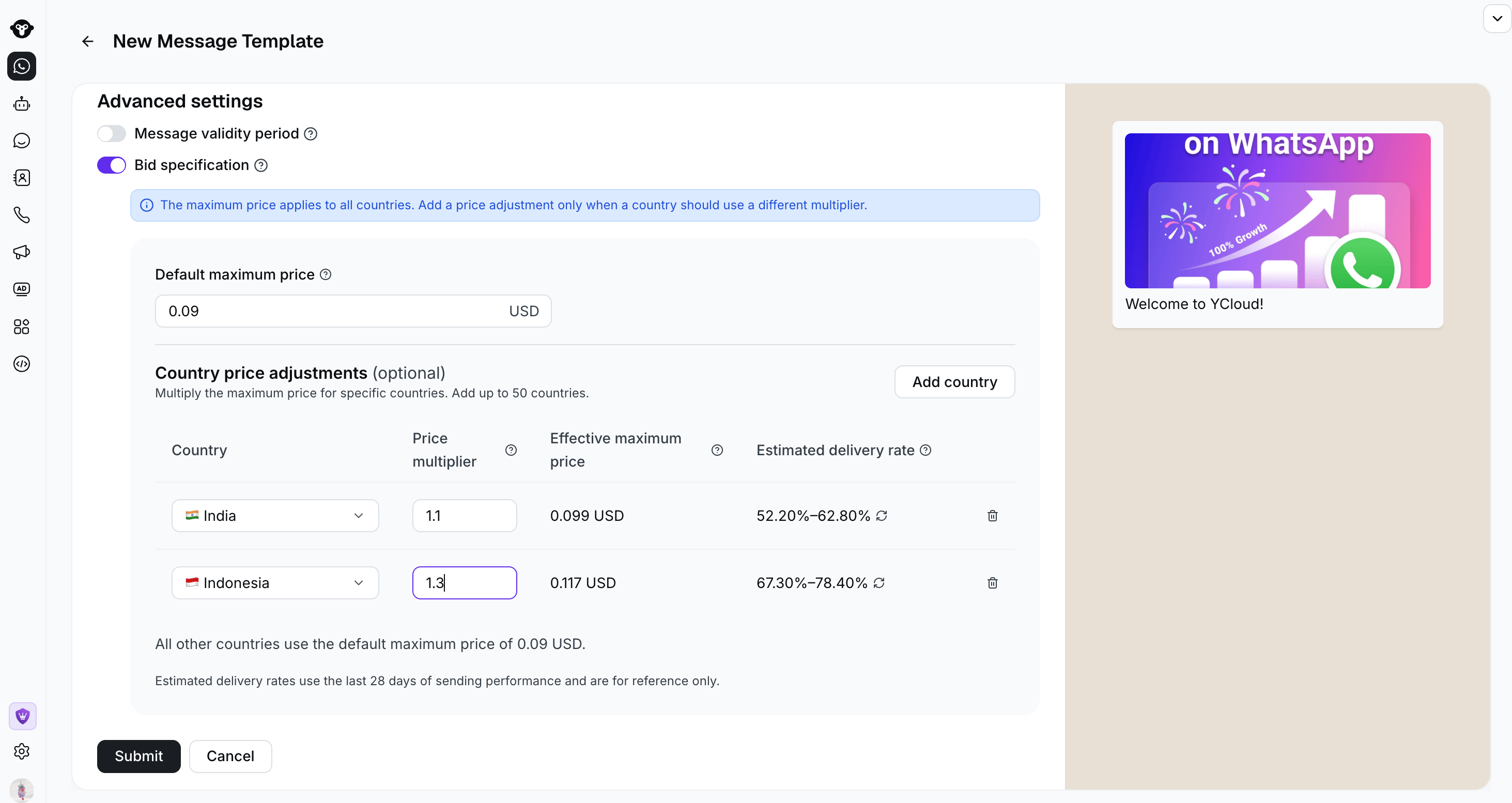 Countries that you do not add use the default Max Price. For example, if the default is `0.09 USD` and India has a multiplier of `1.1`, the effective Max Price for India is `0.099 USD`.
## Send messages with a Max Price template
### Option 1: Send through the API
Send the approved template with the WhatsApp message API. To use the template's price settings without another adjustment, omit the message-level `bidSpec`. To adjust the effective Max Price for one recipient, set `bidSpec.per_message_bid_multiplier` to a value greater than `0`.
See the [Max Price Integration Guide](/en/api-reference/guides/whatsapp-platform/max-price-integration-guide) for the send request, effective price rules, reach estimates, and final-charge webhook fields.
### Option 2: Send a Bulk Campaign
1. In YCloud, go to **Outbound** > **Bulk Campaigns** > **Add Campaign** > **WhatsApp**.
2. Select the sender, a Max Price-enabled template, and its language.
3. Review **Template bidding prices**. The panel shows the final maximum price and estimated delivery rate for each configured country. All other countries use the template's default Max Price.
4. Select **Next**, choose the recipients, review the campaign, and submit it.
Countries that you do not add use the default Max Price. For example, if the default is `0.09 USD` and India has a multiplier of `1.1`, the effective Max Price for India is `0.099 USD`.
## Send messages with a Max Price template
### Option 1: Send through the API
Send the approved template with the WhatsApp message API. To use the template's price settings without another adjustment, omit the message-level `bidSpec`. To adjust the effective Max Price for one recipient, set `bidSpec.per_message_bid_multiplier` to a value greater than `0`.
See the [Max Price Integration Guide](/en/api-reference/guides/whatsapp-platform/max-price-integration-guide) for the send request, effective price rules, reach estimates, and final-charge webhook fields.
### Option 2: Send a Bulk Campaign
1. In YCloud, go to **Outbound** > **Bulk Campaigns** > **Add Campaign** > **WhatsApp**.
2. Select the sender, a Max Price-enabled template, and its language.
3. Review **Template bidding prices**. The panel shows the final maximum price and estimated delivery rate for each configured country. All other countries use the template's default Max Price.
4. Select **Next**, choose the recipients, review the campaign, and submit it.
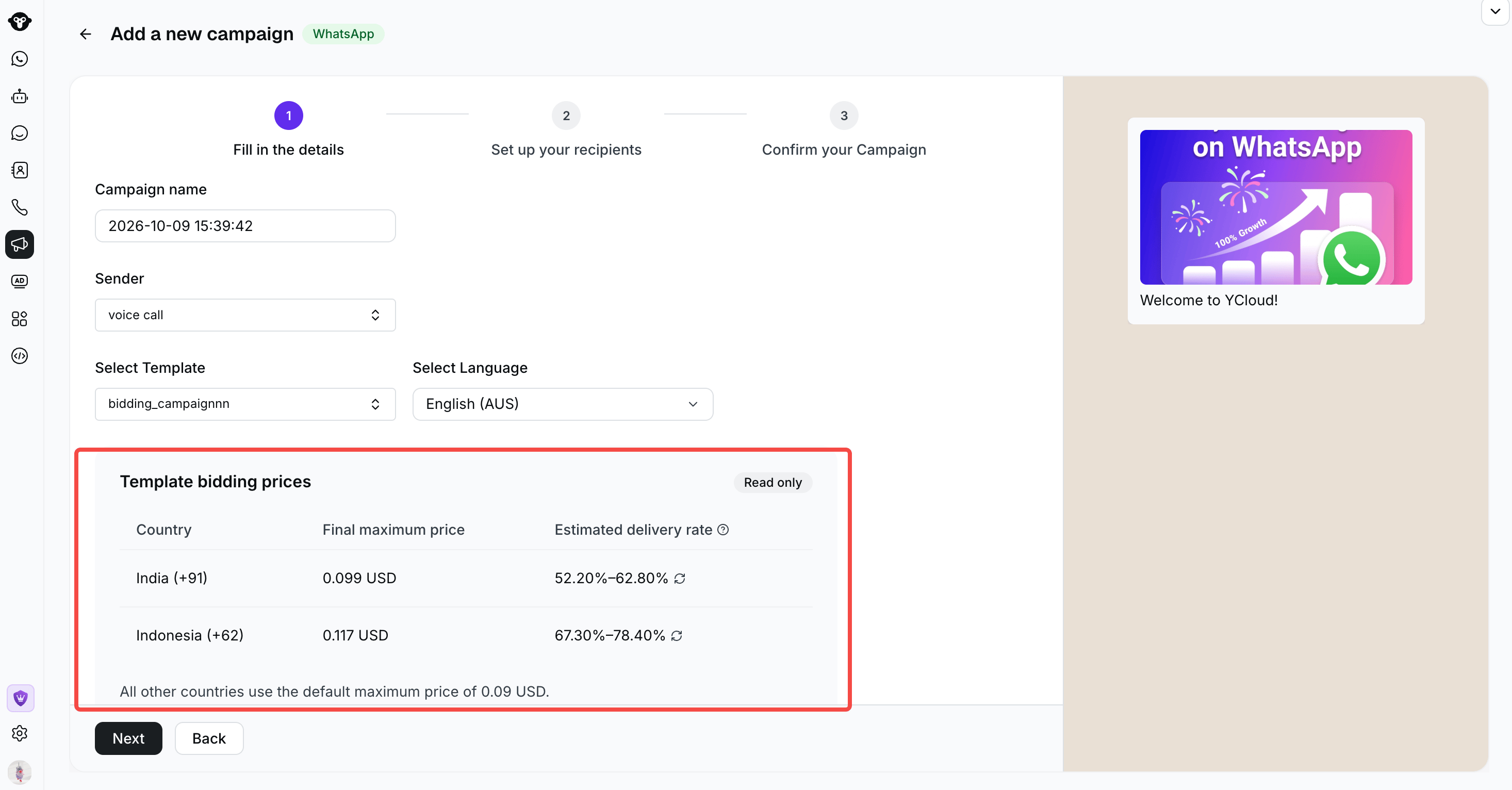 Bulk Campaigns do not support a separate multiplier for each message. Every recipient uses the Max Price saved on the template, including the applicable country multiplier. To set a per-message multiplier, send through the API instead.
## Related topics
* [WhatsApp pricing](/en/documentation/whatsapp-business-platform/pricing-limits-and-quality/whatsapp-pricing)
* [Create a WhatsApp Marketing Campaign](/en/documentation/campaign/create-a-whatsapp-marketing-campaign)
* [Max Price Integration Guide](/en/api-reference/guides/whatsapp-platform/max-price-integration-guide)
This documentation is built and hosted on [Mintlify](https://mintlify.com), a developer documentation platform.
Bulk Campaigns do not support a separate multiplier for each message. Every recipient uses the Max Price saved on the template, including the applicable country multiplier. To set a per-message multiplier, send through the API instead.
## Related topics
* [WhatsApp pricing](/en/documentation/whatsapp-business-platform/pricing-limits-and-quality/whatsapp-pricing)
* [Create a WhatsApp Marketing Campaign](/en/documentation/campaign/create-a-whatsapp-marketing-campaign)
* [Max Price Integration Guide](/en/api-reference/guides/whatsapp-platform/max-price-integration-guide)
This documentation is built and hosted on [Mintlify](https://mintlify.com), a developer documentation platform.