> ## Documentation Index
> Fetch the complete documentation index at: https://docs.ycloud.com/llms.txt
> Use this file to discover all available pages before exploring further.
# How do alliance partners receive payments?
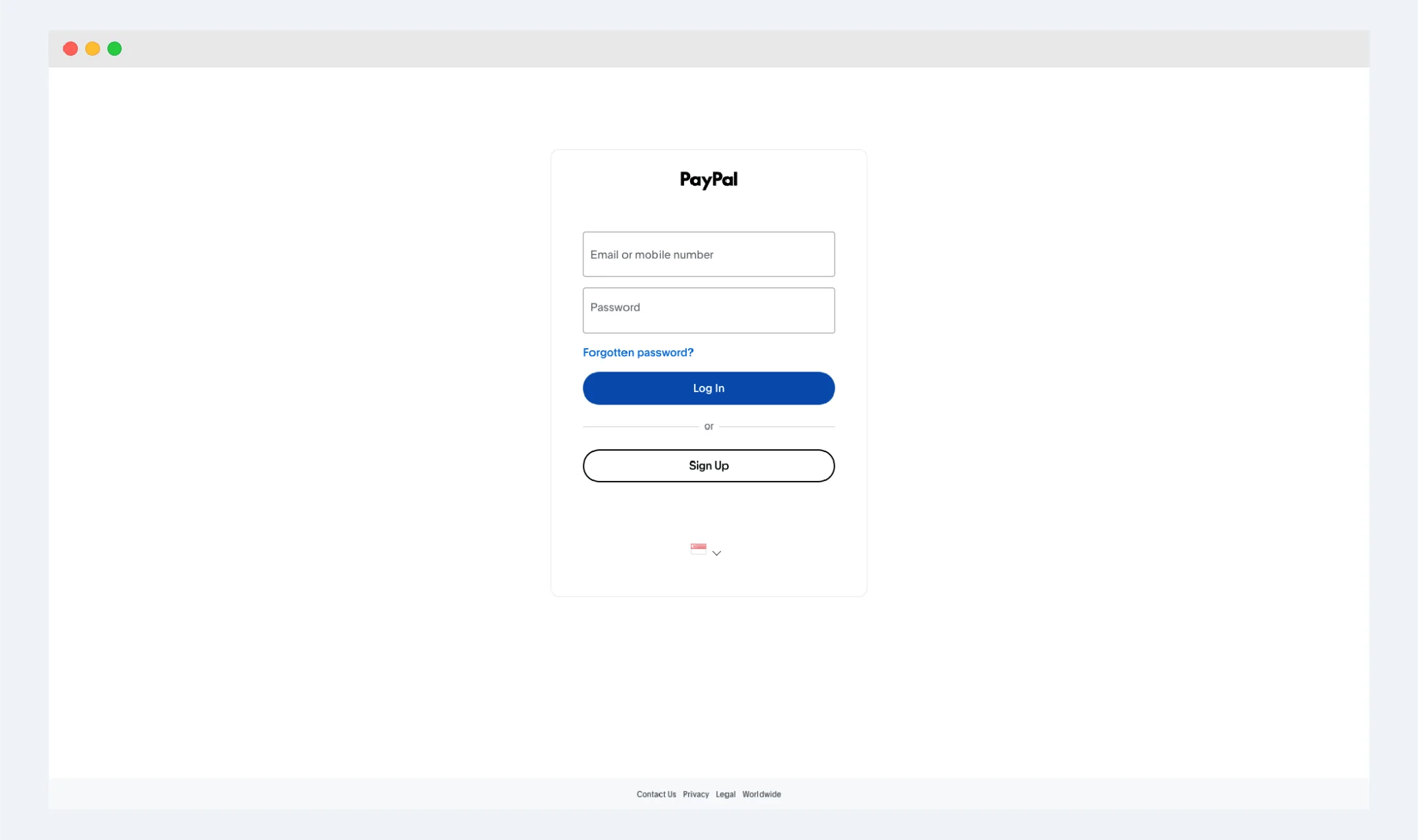
1. Log in to your PayPal account
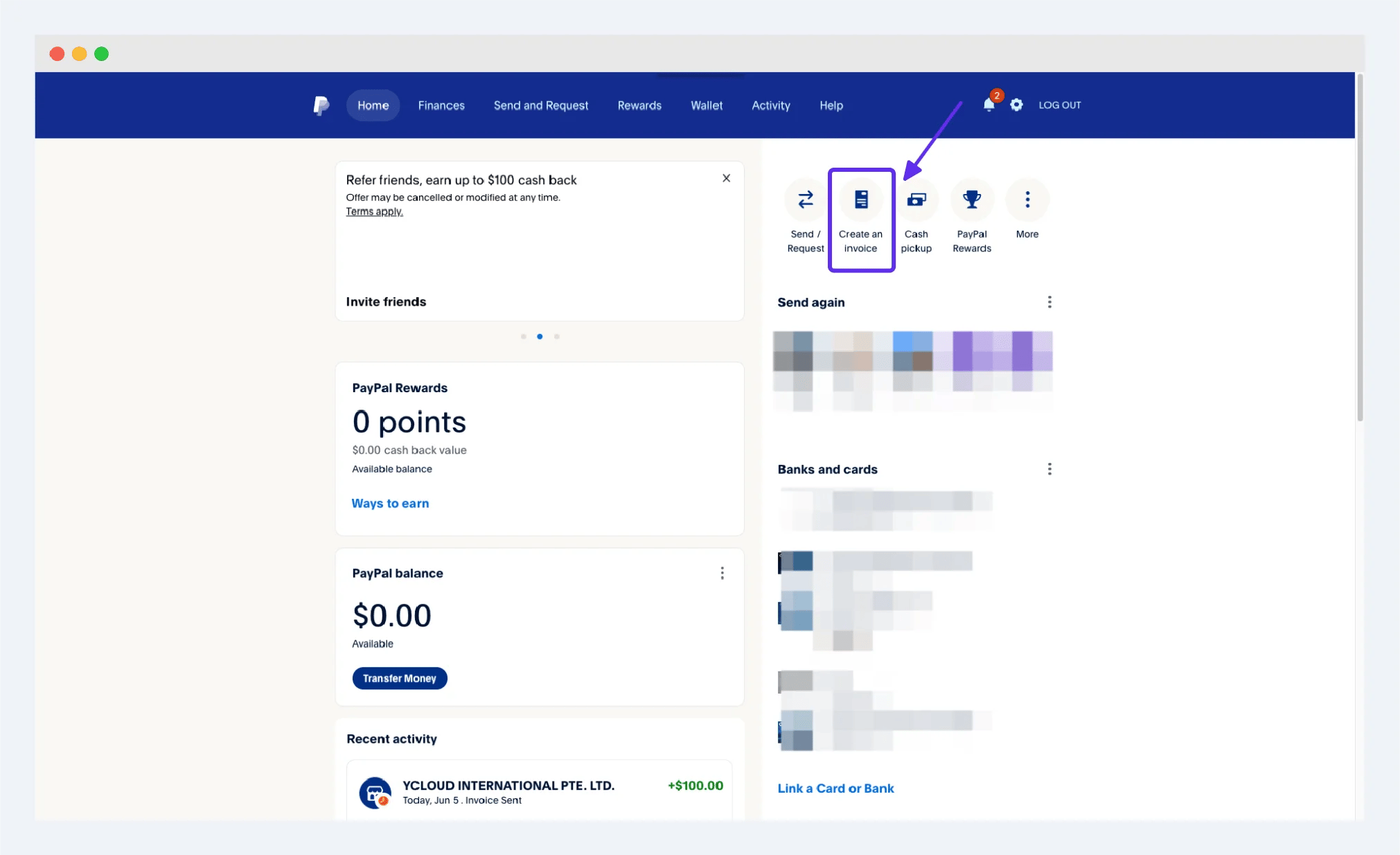
 2. Click the button of 【create an invoice】 on the right side, or enter the creation of invoice from the navigation bar of 【send and request】 above
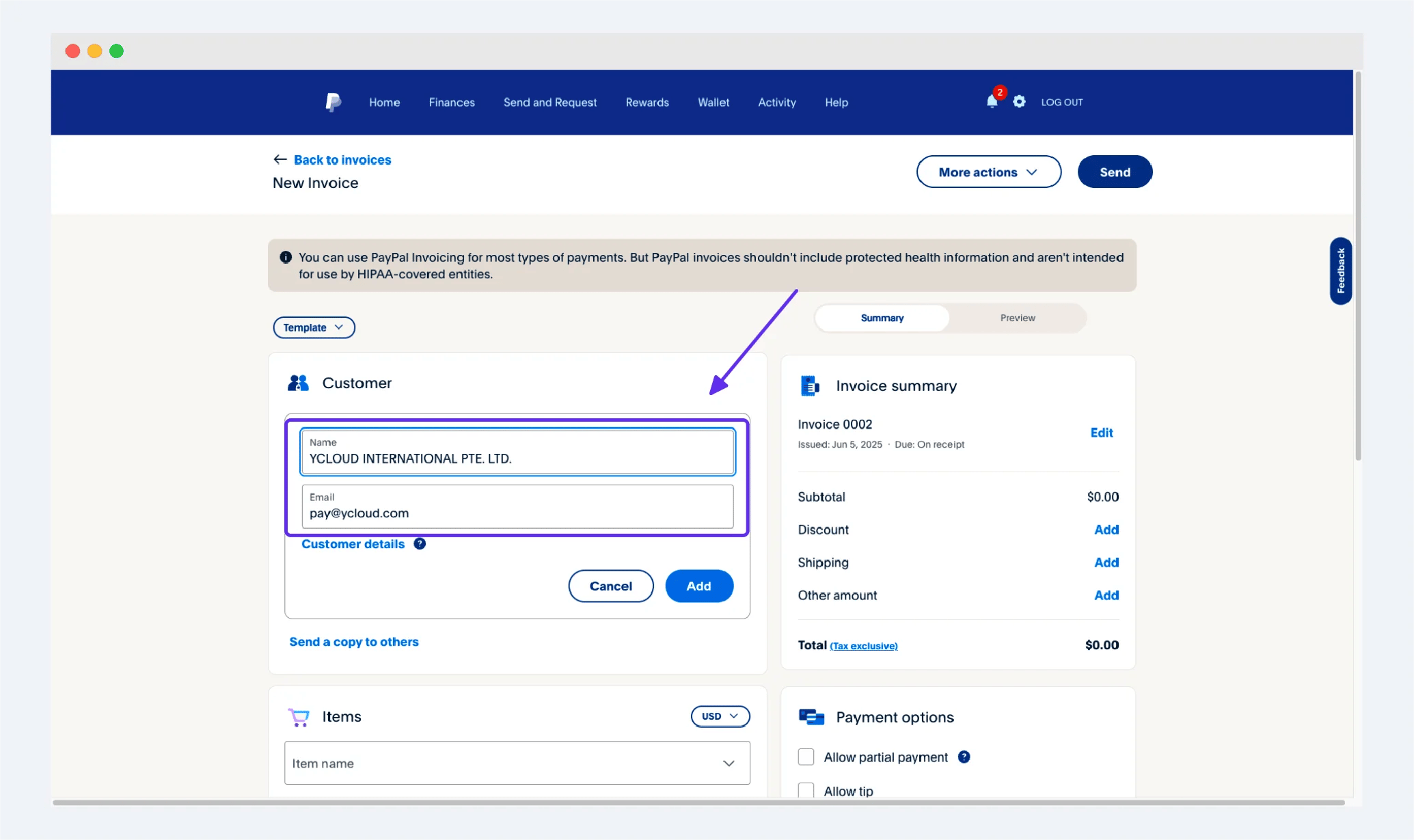
 3. Fill in YCloud's information on the Invoice creation interface
**\[IMPORTANT!!! Recommended to copy and paste the following info]**
\*\*\[Name] Please fill in the full name(include the '.' at the end): ****YCLOUD INTERNATIONAL PTE. LTD.****\[Email] Please fill in: \*\***[pay@ycloud.com](mailto:pay@ycloud.com)**
**Incorrect filling will result in the inability to make payments and delay your collection process. Please carefully check the content to ensure it is consistent with the above**
3. Fill in YCloud's information on the Invoice creation interface
**\[IMPORTANT!!! Recommended to copy and paste the following info]**
\*\*\[Name] Please fill in the full name(include the '.' at the end): ****YCLOUD INTERNATIONAL PTE. LTD.****\[Email] Please fill in: \*\***[pay@ycloud.com](mailto:pay@ycloud.com)**
**Incorrect filling will result in the inability to make payments and delay your collection process. Please carefully check the content to ensure it is consistent with the above**
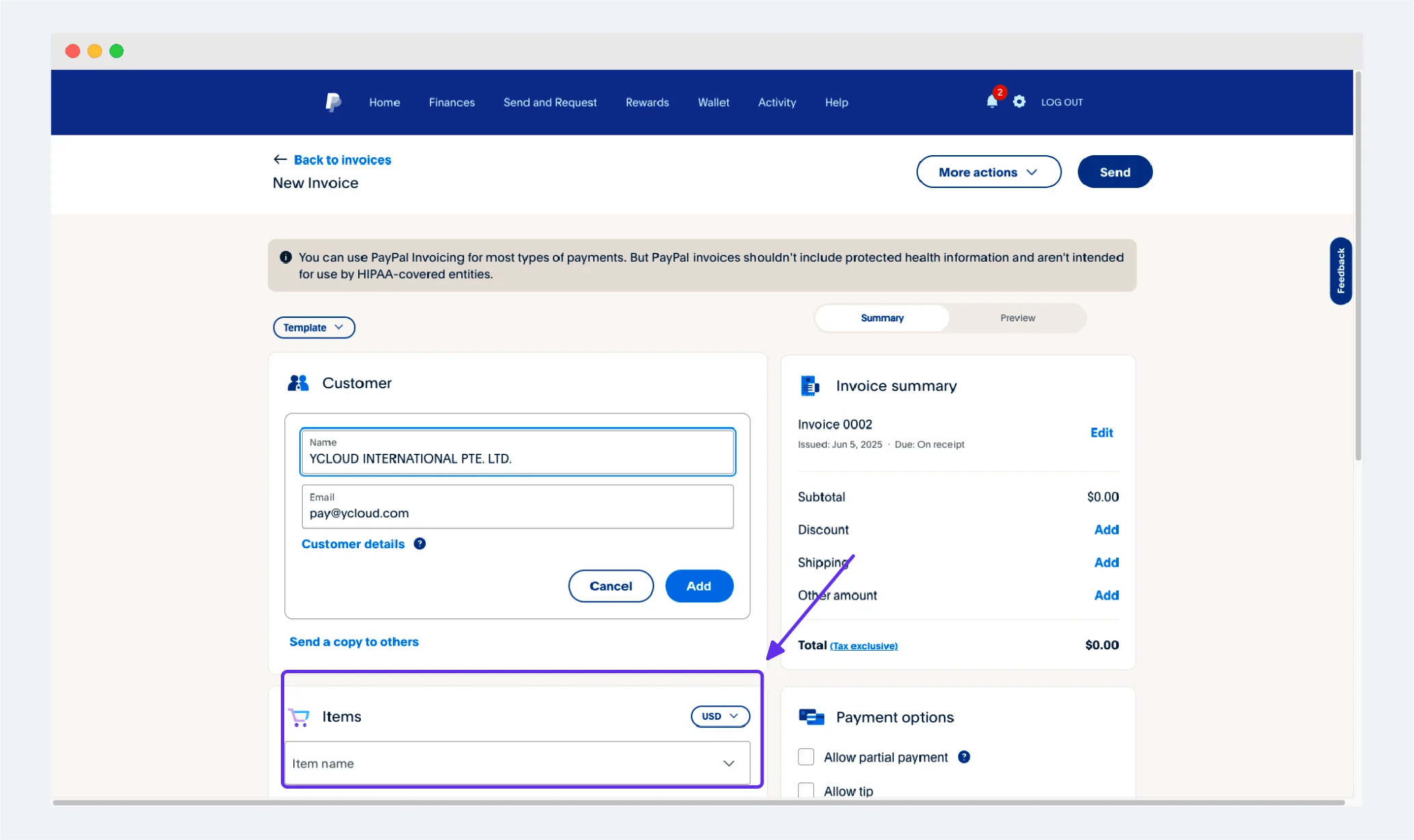
 4. Create an item named "Affiliate Partner Commission" in the Items section and enter your commission amount in US dollars
 5. Click the \[preview] tab on the right to preview and view
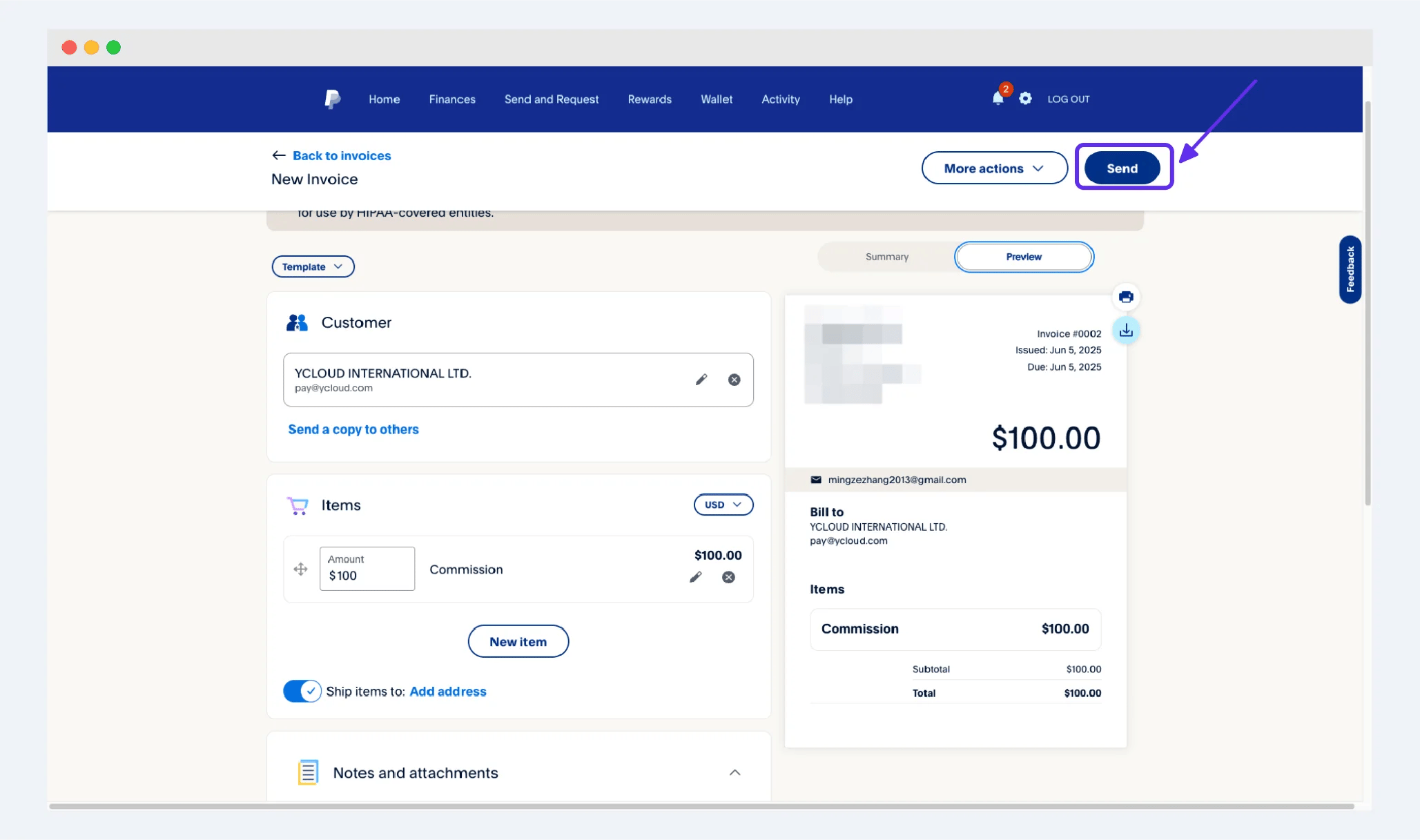
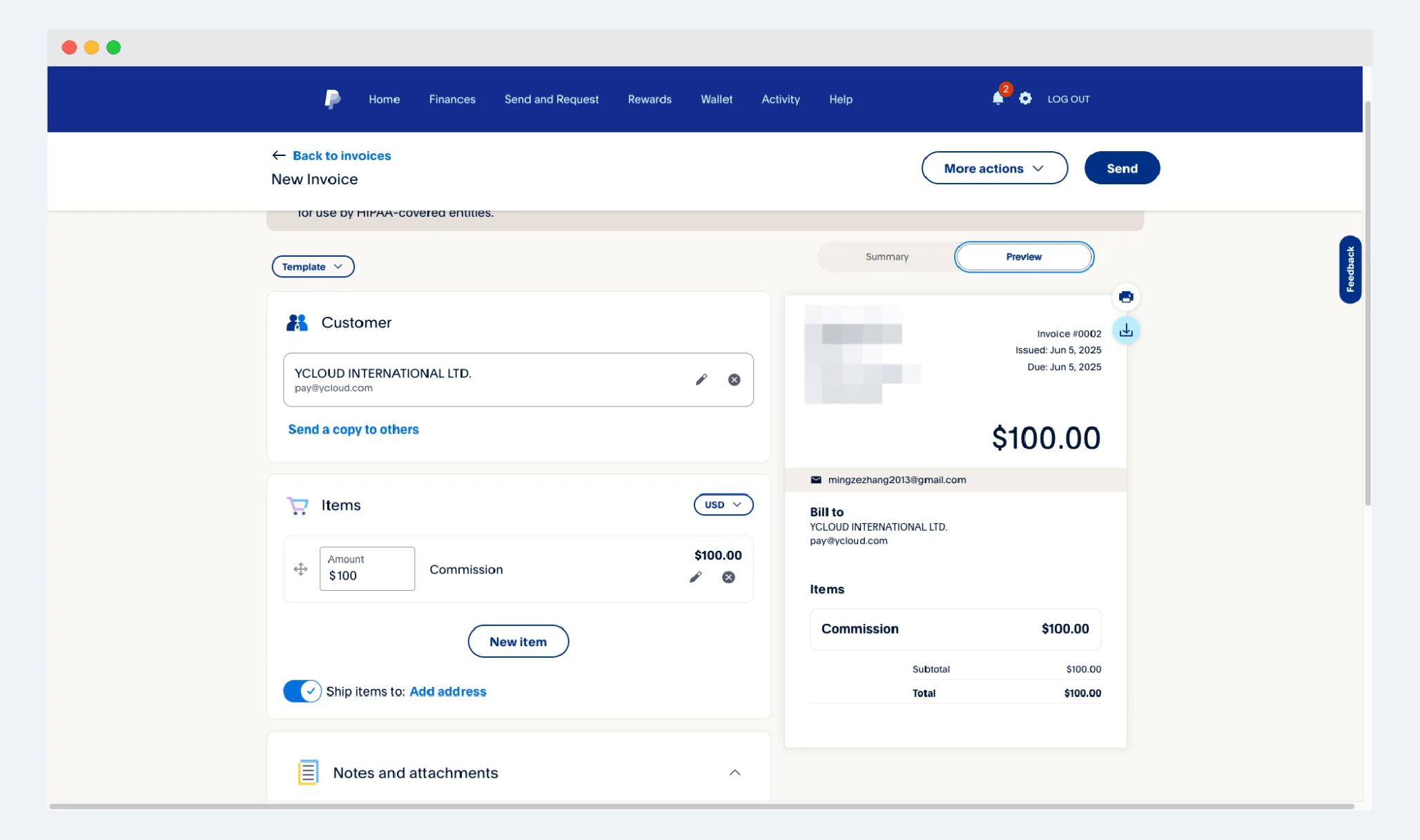 6. After you confirm that the information you filled in, the commission amount and other important information are correct, you can directly click the \[send] button in the upper right corner to send the Invoice to our email address. We will check your commission information after receiving your Invoice and make payment to you
 This documentation is built and hosted on [Mintlify](https://mintlify.com), a developer documentation platform.