> ## Documentation Index
> Fetch the complete documentation index at: https://docs.ycloud.com/llms.txt
> Use this file to discover all available pages before exploring further.
# Partner Direct Link (TP Lite)
> Onboard WhatsApp customers as a YCloud Tech Partner with a hosted link or SDK button, without becoming a Meta partner.
Partner Direct Link (TP Lite) is an integration option for YCloud Tech Partners. You need YCloud to enable it for your account, but you do not need to become a Meta partner.
Create a short-lived onboarding link on your server. Your customer can open it directly or through a button on your website. Start with Direct Link to test your integration, then use the SDK button if you want customers to complete signup in a popup.
## Integration overview
1. **Prepare your account.** Have YCloud enable Partner Direct Link, create an API key, and configure your webhook receiver.
2. **Configure your entry point.** Open Partner Direct Link in the dashboard and set your branding, redirect URL, or SDK origins.
3. **Create a link.** Your server requests an onboarding link for a customer in your system.
4. **Let the customer connect.** They open the hosted page or SDK popup and complete Meta authorization.
5. **Confirm the result.** Your backend receives the webhook and associates the WABA with the customer.
## Before you start
1. Ask YCloud to enable Partner Direct Link for your account. If you are not yet a Tech Partner, [apply to become one](https://www.ycloud.com/tech-partner).
2. Create an API key in **Developers > API Key**.
3. Configure your receiver in **Developers > Webhooks** and subscribe to `whatsapp.business_account.updated`.
Call the link creation API from your server. Never put your API key in browser or mobile app code. Treat each onboarding URL as a temporary credential: keep it out of public pages, analytics, and public logs.
## Find Partner Direct Link in the dashboard
1. Open the YCloud dashboard for the account where Partner Direct Link is enabled.
2. Expand **Developers** in the left sidebar.
3. Click **Partner Direct Link** to open the configuration page.
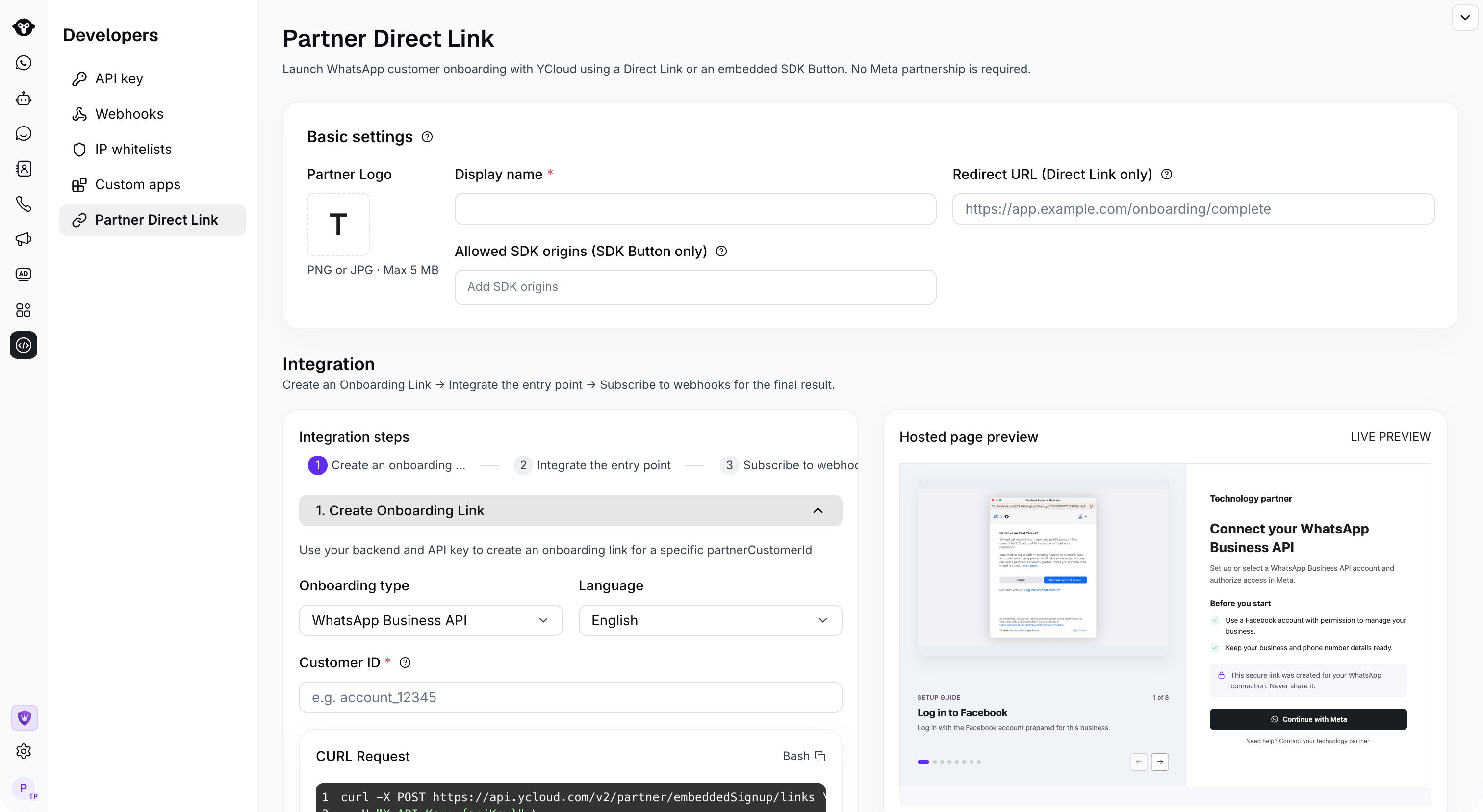
The page contains **Basic settings** for your branding and **Integration** for creating a link, integrating the entry point, and subscribing to webhooks. Use **Hosted page preview** to view the customer-facing page.
## Configure your branding and entry point
Open **Developers > Partner Direct Link** in the YCloud dashboard. Complete **Basic settings**:
| Setting | Requirement | Purpose |
| - | - | - |
| **Display name** | Required | Your partner name on the hosted signup page. |
| **Partner Logo** | Optional | Your logo on the hosted signup page. |
| **Redirect URL (Direct Link only)** | Optional | A complete HTTPS URL to open after successful signup. Without it, customers see a success page with your branding. |
| **Allowed SDK origins (SDK Button only)** | Required for SDK Button | The origins of the pages that load the SDK, such as `https://app.example.com`. |
For SDK origins, enter the exact scheme, domain, and optional port, without a path. Add each subdomain or port separately; wildcards are not supported. Use HTTPS in production. HTTP is allowed only for `localhost` development. Direct Link works without an allowed SDK origin; SDK Button does not.
## Create an onboarding link on your server
```bash theme={"theme":{"light":"github-light","dark":"github-dark"}}
curl -X POST 'https://api.ycloud.com/v2/partner/embeddedSignup/links' \
-H 'X-API-Key: YOUR_YCLOUD_API_KEY' \
-H 'Content-Type: application/json' \
-d '{
"partnerCustomerId": "customer_001",
"onboardingType": "WHATSAPP_BUSINESS_PLATFORM",
"locale": "en_US"
}'
```
| Field | Required | Description |
| - | - | - |
| `partnerCustomerId` | Yes | A stable customer ID from your system. Avoid sensitive information. YCloud returns this ID in the successful binding webhook. |
| `onboardingType` | Yes | Choose `WHATSAPP_BUSINESS_PLATFORM` for API-based messaging, or `WHATSAPP_BUSINESS_APP` for Business App coexistence, as described below. |
| `locale` | No | The hosted page language. Defaults to `en_US`. |
* [**WhatsApp Business Platform**](/en/documentation/whatsapp-business-platform/overview) (`WHATSAPP_BUSINESS_PLATFORM`): Choose this mode to connect a number for messaging through APIs and your software.
* [**WhatsApp Business App coexistence**](/en/documentation/whatsapp-business-platform/accounts-and-business-identity/whatsapp-business-app-coexistence) (`WHATSAPP_BUSINESS_APP`): Choose this mode for an eligible existing Business App number when the customer wants to keep using the app and add API messaging on the same number.
Supported locales are `en_US` (English), `zh_CN` (Simplified Chinese), `es_ES` (Spanish), `pt_BR` (Brazilian Portuguese), `id_ID` (Indonesian), and `ru_RU` (Russian). Values are case-sensitive. Other values return HTTP 400.
Example response:
```json theme={"theme":{"light":"github-light","dark":"github-dark"}}
{
"onboardingUrl": "https://connect.ycloud.com/open/whatsapp/onboard#token=EXAMPLE_TOKEN",
"expiresAt": 1893456000000
}
```
`expiresAt` is the expiry time as a Unix timestamp in milliseconds. The default link lifetime is two hours. Each link connects one customer to one WABA. Before signup completes, the customer can refresh, retry, or open the link in another browser while it remains valid. After successful binding, the link cannot bind another WABA. Create a new link when the customer needs to change or add a WABA.
## Option 1: Direct Link
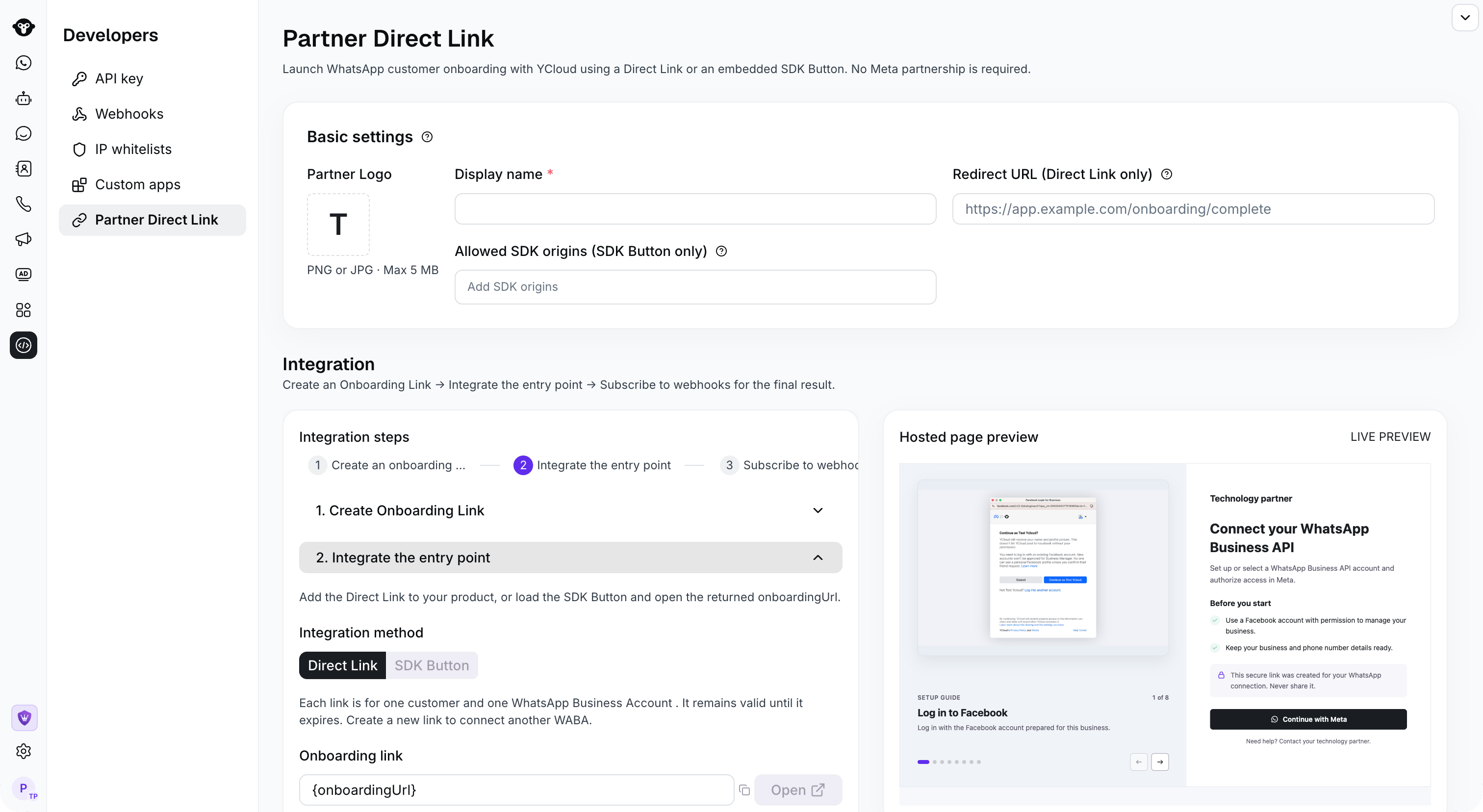
Add a connect button to your customer application. When the customer clicks it, request an onboarding link from your server and navigate to `onboardingUrl` or open it in a new window. You can also send it privately to the intended customer through a secure one-to-one channel.
The customer opens the hosted page and clicks **Continue with Meta**. They use a Facebook account with permission to manage their business and select or create their business, WABA, and phone number in Meta. YCloud completes the binding and displays the result.
If you configured a redirect URL, successful signup redirects there with `status=connected` appended as a query parameter. Use this to update the customer-facing page; use the webhook below to confirm the binding in your backend.
## Option 2: SDK Button
Add your page's origin to **Allowed SDK origins**, then load the SDK. Your browser code calls your own backend to obtain the link. The `/api/ycloud/onboarding-link` route below is an example route that you implement on your server.
```html theme={"theme":{"light":"github-light","dark":"github-dark"}}
```
`onStatus(result)` reports the signup state:
| Field | Meaning |
| - | - |
| `state` | `CONNECTED` means success. Other values indicate an incomplete or failed flow, such as `RETRYABLE_FAILED`. |
| `wabaId` | The WABA ID, returned only on success. |
| `phoneNumberId` | The Meta phone number ID, which may be returned on success. |
| `errorCode` | An error code that may be returned on failure. |
| `retryable` | Whether the customer can retry in the current signup window. |
| `requestId` | A YCloud request ID you can provide to support when troubleshooting. |
`onError(error)` means the SDK could not open signup. Its `code` can be `POPUP_BLOCKED` or `INVALID_ONBOARDING_URL`. `onClose(event)` fires only when the customer closes the window before a final result, with `reason: "USER_CLOSED"`.
These callbacks update your frontend. Use the server-side webhook as the final binding result.
## Confirm the binding with a webhook
YCloud sends `whatsapp.business_account.updated` to your configured webhook receiver after binding succeeds. The following excerpt shows the fields your integration uses:
```json theme={"theme":{"light":"github-light","dark":"github-dark"}}
{
"id": "EXAMPLE_EVENT_ID",
"type": "whatsapp.business_account.updated",
"whatsappBusinessAccount": {
"id": "EXAMPLE_WABA_ID",
"updateEvent": "PARTNER_ADDED",
"paymentMethodAttached": true,
"partnerCustomerId": "customer_001"
}
}
```
When `updateEvent` is `PARTNER_ADDED`, process the WABA as newly added. Match `partnerCustomerId` to your customer and save the WABA `id`. A `paymentMethodAttached` value of `true` means credit attachment succeeded; `false` means it has not completed.
Deduplicate deliveries using the event `id`, and return HTTP 2xx after successful receipt. See [Webhooks](/en/api-reference/guides/api-fundamentals/configure-webhooks) for receiver setup.
## Troubleshoot Partner Direct Link
| Symptom | Action |
| - | - |
| The customer closes Meta or interrupts signup. | Click **Continue with Meta** again while the original link remains valid. |
| The page reports an expired or invalid link. | Create a new link on your server. |
| The SDK reports an invalid origin. | Check that the exact page origin is in **Allowed SDK origins**. |
| Link creation returns HTTP 429. | Wait for the period specified by `Retry-After` before retrying. Avoid repeatedly creating links. |
| Signup shows success but your system has not updated. | Check your webhook configuration, event subscription, and receiver logs. Use the webhook as the final result. |
This documentation is built and hosted on [Mintlify](https://mintlify.com), a developer documentation platform.
 The page contains **Basic settings** for your branding and **Integration** for creating a link, integrating the entry point, and subscribing to webhooks. Use **Hosted page preview** to view the customer-facing page.
## Configure your branding and entry point
Open **Developers > Partner Direct Link** in the YCloud dashboard. Complete **Basic settings**:
| Setting | Requirement | Purpose |
| - | - | - |
| **Display name** | Required | Your partner name on the hosted signup page. |
| **Partner Logo** | Optional | Your logo on the hosted signup page. |
| **Redirect URL (Direct Link only)** | Optional | A complete HTTPS URL to open after successful signup. Without it, customers see a success page with your branding. |
| **Allowed SDK origins (SDK Button only)** | Required for SDK Button | The origins of the pages that load the SDK, such as `https://app.example.com`. |
For SDK origins, enter the exact scheme, domain, and optional port, without a path. Add each subdomain or port separately; wildcards are not supported. Use HTTPS in production. HTTP is allowed only for `localhost` development. Direct Link works without an allowed SDK origin; SDK Button does not.
## Create an onboarding link on your server
```bash theme={"theme":{"light":"github-light","dark":"github-dark"}}
curl -X POST 'https://api.ycloud.com/v2/partner/embeddedSignup/links' \
-H 'X-API-Key: YOUR_YCLOUD_API_KEY' \
-H 'Content-Type: application/json' \
-d '{
"partnerCustomerId": "customer_001",
"onboardingType": "WHATSAPP_BUSINESS_PLATFORM",
"locale": "en_US"
}'
```
| Field | Required | Description |
| - | - | - |
| `partnerCustomerId` | Yes | A stable customer ID from your system. Avoid sensitive information. YCloud returns this ID in the successful binding webhook. |
| `onboardingType` | Yes | Choose `WHATSAPP_BUSINESS_PLATFORM` for API-based messaging, or `WHATSAPP_BUSINESS_APP` for Business App coexistence, as described below. |
| `locale` | No | The hosted page language. Defaults to `en_US`. |
* [**WhatsApp Business Platform**](/en/documentation/whatsapp-business-platform/overview) (`WHATSAPP_BUSINESS_PLATFORM`): Choose this mode to connect a number for messaging through APIs and your software.
* [**WhatsApp Business App coexistence**](/en/documentation/whatsapp-business-platform/accounts-and-business-identity/whatsapp-business-app-coexistence) (`WHATSAPP_BUSINESS_APP`): Choose this mode for an eligible existing Business App number when the customer wants to keep using the app and add API messaging on the same number.
Supported locales are `en_US` (English), `zh_CN` (Simplified Chinese), `es_ES` (Spanish), `pt_BR` (Brazilian Portuguese), `id_ID` (Indonesian), and `ru_RU` (Russian). Values are case-sensitive. Other values return HTTP 400.
Example response:
```json theme={"theme":{"light":"github-light","dark":"github-dark"}}
{
"onboardingUrl": "https://connect.ycloud.com/open/whatsapp/onboard#token=EXAMPLE_TOKEN",
"expiresAt": 1893456000000
}
```
`expiresAt` is the expiry time as a Unix timestamp in milliseconds. The default link lifetime is two hours. Each link connects one customer to one WABA. Before signup completes, the customer can refresh, retry, or open the link in another browser while it remains valid. After successful binding, the link cannot bind another WABA. Create a new link when the customer needs to change or add a WABA.
## Option 1: Direct Link
Add a connect button to your customer application. When the customer clicks it, request an onboarding link from your server and navigate to `onboardingUrl` or open it in a new window. You can also send it privately to the intended customer through a secure one-to-one channel.
The customer opens the hosted page and clicks **Continue with Meta**. They use a Facebook account with permission to manage their business and select or create their business, WABA, and phone number in Meta. YCloud completes the binding and displays the result.
The page contains **Basic settings** for your branding and **Integration** for creating a link, integrating the entry point, and subscribing to webhooks. Use **Hosted page preview** to view the customer-facing page.
## Configure your branding and entry point
Open **Developers > Partner Direct Link** in the YCloud dashboard. Complete **Basic settings**:
| Setting | Requirement | Purpose |
| - | - | - |
| **Display name** | Required | Your partner name on the hosted signup page. |
| **Partner Logo** | Optional | Your logo on the hosted signup page. |
| **Redirect URL (Direct Link only)** | Optional | A complete HTTPS URL to open after successful signup. Without it, customers see a success page with your branding. |
| **Allowed SDK origins (SDK Button only)** | Required for SDK Button | The origins of the pages that load the SDK, such as `https://app.example.com`. |
For SDK origins, enter the exact scheme, domain, and optional port, without a path. Add each subdomain or port separately; wildcards are not supported. Use HTTPS in production. HTTP is allowed only for `localhost` development. Direct Link works without an allowed SDK origin; SDK Button does not.
## Create an onboarding link on your server
```bash theme={"theme":{"light":"github-light","dark":"github-dark"}}
curl -X POST 'https://api.ycloud.com/v2/partner/embeddedSignup/links' \
-H 'X-API-Key: YOUR_YCLOUD_API_KEY' \
-H 'Content-Type: application/json' \
-d '{
"partnerCustomerId": "customer_001",
"onboardingType": "WHATSAPP_BUSINESS_PLATFORM",
"locale": "en_US"
}'
```
| Field | Required | Description |
| - | - | - |
| `partnerCustomerId` | Yes | A stable customer ID from your system. Avoid sensitive information. YCloud returns this ID in the successful binding webhook. |
| `onboardingType` | Yes | Choose `WHATSAPP_BUSINESS_PLATFORM` for API-based messaging, or `WHATSAPP_BUSINESS_APP` for Business App coexistence, as described below. |
| `locale` | No | The hosted page language. Defaults to `en_US`. |
* [**WhatsApp Business Platform**](/en/documentation/whatsapp-business-platform/overview) (`WHATSAPP_BUSINESS_PLATFORM`): Choose this mode to connect a number for messaging through APIs and your software.
* [**WhatsApp Business App coexistence**](/en/documentation/whatsapp-business-platform/accounts-and-business-identity/whatsapp-business-app-coexistence) (`WHATSAPP_BUSINESS_APP`): Choose this mode for an eligible existing Business App number when the customer wants to keep using the app and add API messaging on the same number.
Supported locales are `en_US` (English), `zh_CN` (Simplified Chinese), `es_ES` (Spanish), `pt_BR` (Brazilian Portuguese), `id_ID` (Indonesian), and `ru_RU` (Russian). Values are case-sensitive. Other values return HTTP 400.
Example response:
```json theme={"theme":{"light":"github-light","dark":"github-dark"}}
{
"onboardingUrl": "https://connect.ycloud.com/open/whatsapp/onboard#token=EXAMPLE_TOKEN",
"expiresAt": 1893456000000
}
```
`expiresAt` is the expiry time as a Unix timestamp in milliseconds. The default link lifetime is two hours. Each link connects one customer to one WABA. Before signup completes, the customer can refresh, retry, or open the link in another browser while it remains valid. After successful binding, the link cannot bind another WABA. Create a new link when the customer needs to change or add a WABA.
## Option 1: Direct Link
Add a connect button to your customer application. When the customer clicks it, request an onboarding link from your server and navigate to `onboardingUrl` or open it in a new window. You can also send it privately to the intended customer through a secure one-to-one channel.
The customer opens the hosted page and clicks **Continue with Meta**. They use a Facebook account with permission to manage their business and select or create their business, WABA, and phone number in Meta. YCloud completes the binding and displays the result.
 If you configured a redirect URL, successful signup redirects there with `status=connected` appended as a query parameter. Use this to update the customer-facing page; use the webhook below to confirm the binding in your backend.
## Option 2: SDK Button
Add your page's origin to **Allowed SDK origins**, then load the SDK. Your browser code calls your own backend to obtain the link. The `/api/ycloud/onboarding-link` route below is an example route that you implement on your server.
```html theme={"theme":{"light":"github-light","dark":"github-dark"}}
```
`onStatus(result)` reports the signup state:
| Field | Meaning |
| - | - |
| `state` | `CONNECTED` means success. Other values indicate an incomplete or failed flow, such as `RETRYABLE_FAILED`. |
| `wabaId` | The WABA ID, returned only on success. |
| `phoneNumberId` | The Meta phone number ID, which may be returned on success. |
| `errorCode` | An error code that may be returned on failure. |
| `retryable` | Whether the customer can retry in the current signup window. |
| `requestId` | A YCloud request ID you can provide to support when troubleshooting. |
`onError(error)` means the SDK could not open signup. Its `code` can be `POPUP_BLOCKED` or `INVALID_ONBOARDING_URL`. `onClose(event)` fires only when the customer closes the window before a final result, with `reason: "USER_CLOSED"`.
These callbacks update your frontend. Use the server-side webhook as the final binding result.
## Confirm the binding with a webhook
If you configured a redirect URL, successful signup redirects there with `status=connected` appended as a query parameter. Use this to update the customer-facing page; use the webhook below to confirm the binding in your backend.
## Option 2: SDK Button
Add your page's origin to **Allowed SDK origins**, then load the SDK. Your browser code calls your own backend to obtain the link. The `/api/ycloud/onboarding-link` route below is an example route that you implement on your server.
```html theme={"theme":{"light":"github-light","dark":"github-dark"}}
```
`onStatus(result)` reports the signup state:
| Field | Meaning |
| - | - |
| `state` | `CONNECTED` means success. Other values indicate an incomplete or failed flow, such as `RETRYABLE_FAILED`. |
| `wabaId` | The WABA ID, returned only on success. |
| `phoneNumberId` | The Meta phone number ID, which may be returned on success. |
| `errorCode` | An error code that may be returned on failure. |
| `retryable` | Whether the customer can retry in the current signup window. |
| `requestId` | A YCloud request ID you can provide to support when troubleshooting. |
`onError(error)` means the SDK could not open signup. Its `code` can be `POPUP_BLOCKED` or `INVALID_ONBOARDING_URL`. `onClose(event)` fires only when the customer closes the window before a final result, with `reason: "USER_CLOSED"`.
These callbacks update your frontend. Use the server-side webhook as the final binding result.
## Confirm the binding with a webhook
 YCloud sends `whatsapp.business_account.updated` to your configured webhook receiver after binding succeeds. The following excerpt shows the fields your integration uses:
```json theme={"theme":{"light":"github-light","dark":"github-dark"}}
{
"id": "EXAMPLE_EVENT_ID",
"type": "whatsapp.business_account.updated",
"whatsappBusinessAccount": {
"id": "EXAMPLE_WABA_ID",
"updateEvent": "PARTNER_ADDED",
"paymentMethodAttached": true,
"partnerCustomerId": "customer_001"
}
}
```
When `updateEvent` is `PARTNER_ADDED`, process the WABA as newly added. Match `partnerCustomerId` to your customer and save the WABA `id`. A `paymentMethodAttached` value of `true` means credit attachment succeeded; `false` means it has not completed.
Deduplicate deliveries using the event `id`, and return HTTP 2xx after successful receipt. See [Webhooks](/en/api-reference/guides/api-fundamentals/configure-webhooks) for receiver setup.
## Troubleshoot Partner Direct Link
| Symptom | Action |
| - | - |
| The customer closes Meta or interrupts signup. | Click **Continue with Meta** again while the original link remains valid. |
| The page reports an expired or invalid link. | Create a new link on your server. |
| The SDK reports an invalid origin. | Check that the exact page origin is in **Allowed SDK origins**. |
| Link creation returns HTTP 429. | Wait for the period specified by `Retry-After` before retrying. Avoid repeatedly creating links. |
| Signup shows success but your system has not updated. | Check your webhook configuration, event subscription, and receiver logs. Use the webhook as the final result. |
This documentation is built and hosted on [Mintlify](https://mintlify.com), a developer documentation platform.
YCloud sends `whatsapp.business_account.updated` to your configured webhook receiver after binding succeeds. The following excerpt shows the fields your integration uses:
```json theme={"theme":{"light":"github-light","dark":"github-dark"}}
{
"id": "EXAMPLE_EVENT_ID",
"type": "whatsapp.business_account.updated",
"whatsappBusinessAccount": {
"id": "EXAMPLE_WABA_ID",
"updateEvent": "PARTNER_ADDED",
"paymentMethodAttached": true,
"partnerCustomerId": "customer_001"
}
}
```
When `updateEvent` is `PARTNER_ADDED`, process the WABA as newly added. Match `partnerCustomerId` to your customer and save the WABA `id`. A `paymentMethodAttached` value of `true` means credit attachment succeeded; `false` means it has not completed.
Deduplicate deliveries using the event `id`, and return HTTP 2xx after successful receipt. See [Webhooks](/en/api-reference/guides/api-fundamentals/configure-webhooks) for receiver setup.
## Troubleshoot Partner Direct Link
| Symptom | Action |
| - | - |
| The customer closes Meta or interrupts signup. | Click **Continue with Meta** again while the original link remains valid. |
| The page reports an expired or invalid link. | Create a new link on your server. |
| The SDK reports an invalid origin. | Check that the exact page origin is in **Allowed SDK origins**. |
| Link creation returns HTTP 429. | Wait for the period specified by `Retry-After` before retrying. Avoid repeatedly creating links. |
| Signup shows success but your system has not updated. | Check your webhook configuration, event subscription, and receiver logs. Use the webhook as the final result. |
This documentation is built and hosted on [Mintlify](https://mintlify.com), a developer documentation platform.