> ## Documentation Index
> Fetch the complete documentation index at: https://docs.ycloud.com/llms.txt
> Use this file to discover all available pages before exploring further.
# Criar/Importar contatos
## **Importação manual individual**
### Etapa 1
Faça login na sua [conta da YCloud](https://www.ycloud.com/console/#/entry/login), abra **Contact** e selecione **New contacts**.
 ### Etapa 2
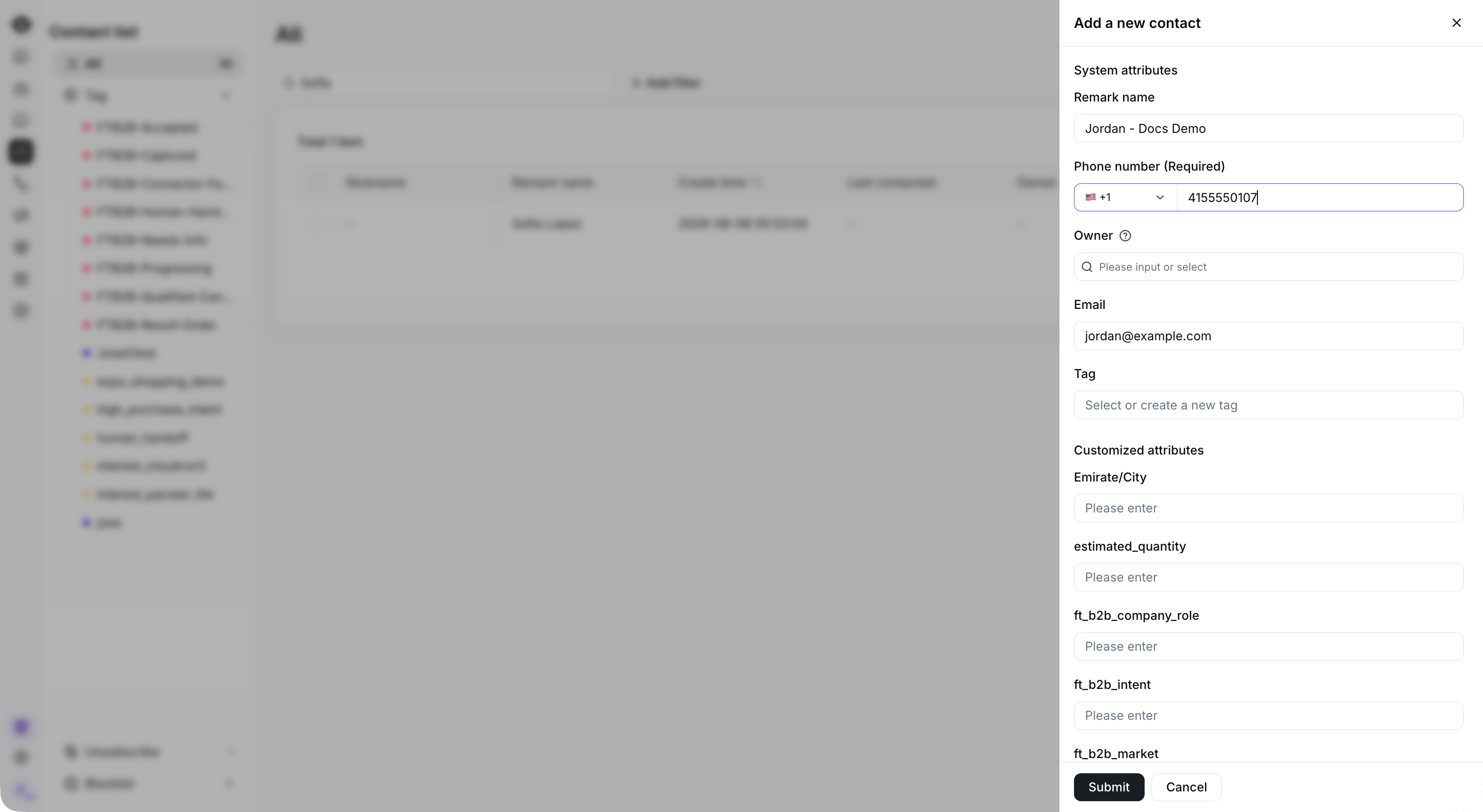
Selecione **Add a new contact**, insira os dados do contato e selecione **Submit**.
### Etapa 2
Selecione **Add a new contact**, insira os dados do contato e selecione **Submit**.
 ## **Importação manual em massa**
### Etapa 1
Faça login na sua [conta da YCloud](https://www.ycloud.com/console/#/entry/login), abra **Contact** e selecione **New contacts**.
## **Importação manual em massa**
### Etapa 1
Faça login na sua [conta da YCloud](https://www.ycloud.com/console/#/entry/login), abra **Contact** e selecione **New contacts**.
 ### Etapa 2
Selecione **Upload a file**, escolha sua planilha de contatos e selecione **Next**.
### Etapa 2
Selecione **Upload a file**, escolha sua planilha de contatos e selecione **Next**.
 ## Importação via API
Clique para visualizar a documentação de [**Importação via API**](/api-reference/contacts/create-a-contact)
This documentation is built and hosted on [Mintlify](https://mintlify.com), a developer documentation platform.
## Importação via API
Clique para visualizar a documentação de [**Importação via API**](/api-reference/contacts/create-a-contact)
This documentation is built and hosted on [Mintlify](https://mintlify.com), a developer documentation platform.