> ## Documentation Index
> Fetch the complete documentation index at: https://docs.ycloud.com/llms.txt
> Use this file to discover all available pages before exploring further.
# 用户与团队
管理用户。邀请团队成员、分配角色并控制用户权限。
入口:设置 > [用户与团队](https://www.ycloud.com/console/#/app/globalSettings/general/usersAndTeams)
## 默认角色
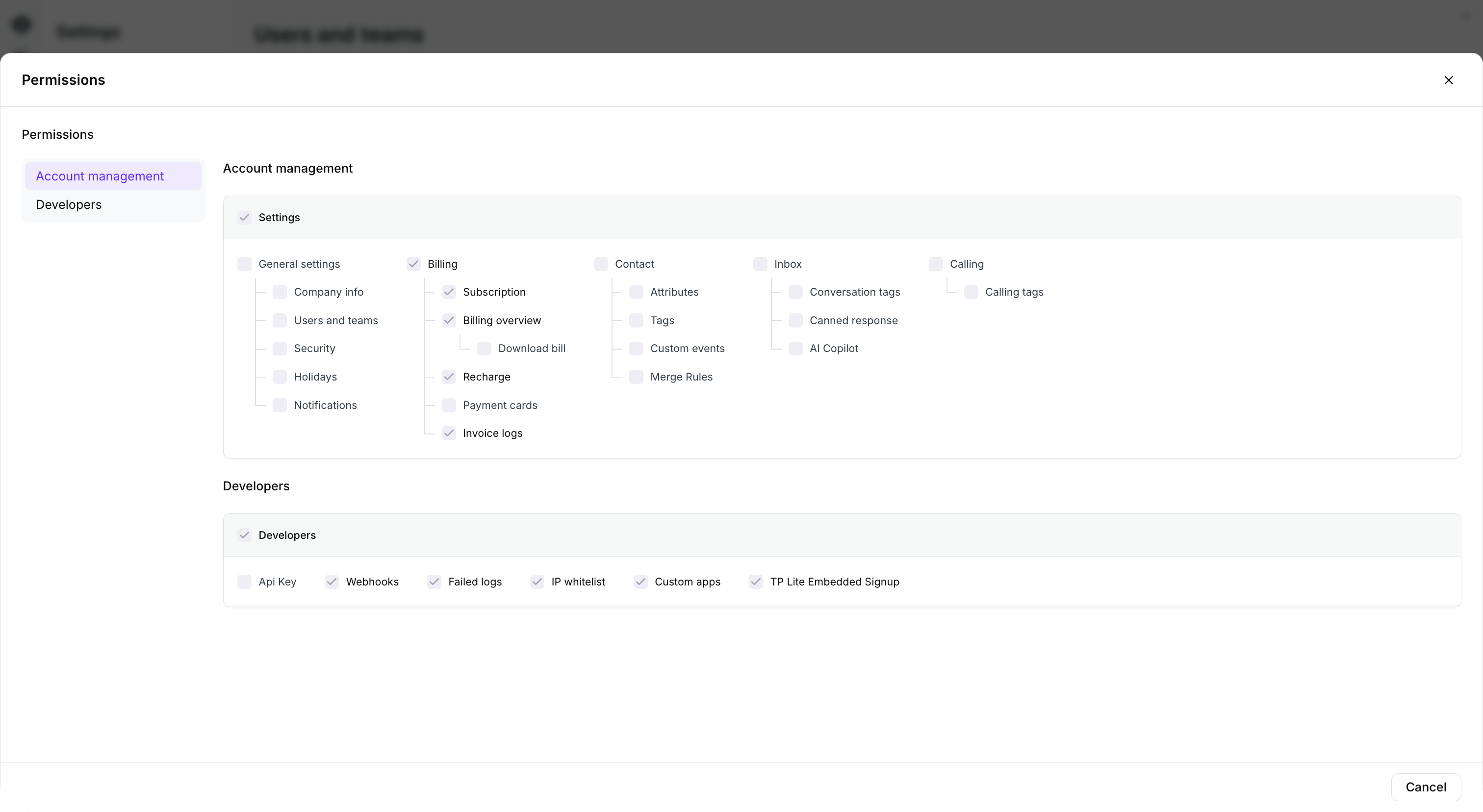
YCloud 提供 6 种系统角色:管理员(Admin)、操作员(Operator)、开发者(Developer)、收件箱管理员(Inbox Manager)、客服(Service)和销售(Sale)。
邀请用户时,可以通过点击“查看权限”来查看默认角色的权限,系统角色权限无法编辑。如果需要自定义权限,请创建自定义角色。
 ## 自定义角色
自定义角色仅适用于 Pro 或更高版本。
你可以创建自己的角色并为这些角色配置不同的权限。创建教程:
1. 前往 [用户与团队](https://www.ycloud.com/console/#/app/globalSettings/general/usersAndTeams),然后点击“添加角色”。
## 自定义角色
自定义角色仅适用于 Pro 或更高版本。
你可以创建自己的角色并为这些角色配置不同的权限。创建教程:
1. 前往 [用户与团队](https://www.ycloud.com/console/#/app/globalSettings/general/usersAndTeams),然后点击“添加角色”。
 2. 配置角色信息,包括角色名称、描述和权限。你可以选择一个系统角色进行快速配置,并在其基础上修改权限。完成设置后保存。
 ### 团队主管
在团队管理中,系统支持为每个团队设置团队主管(Team supervisor)。拥有该角色的用户可以监督团队成员在收件箱(Inbox)中的对话以及在通话(Calling)中的呼叫。
### 邀请用户
要将用户添加到你的账户,请按照以下步骤操作:
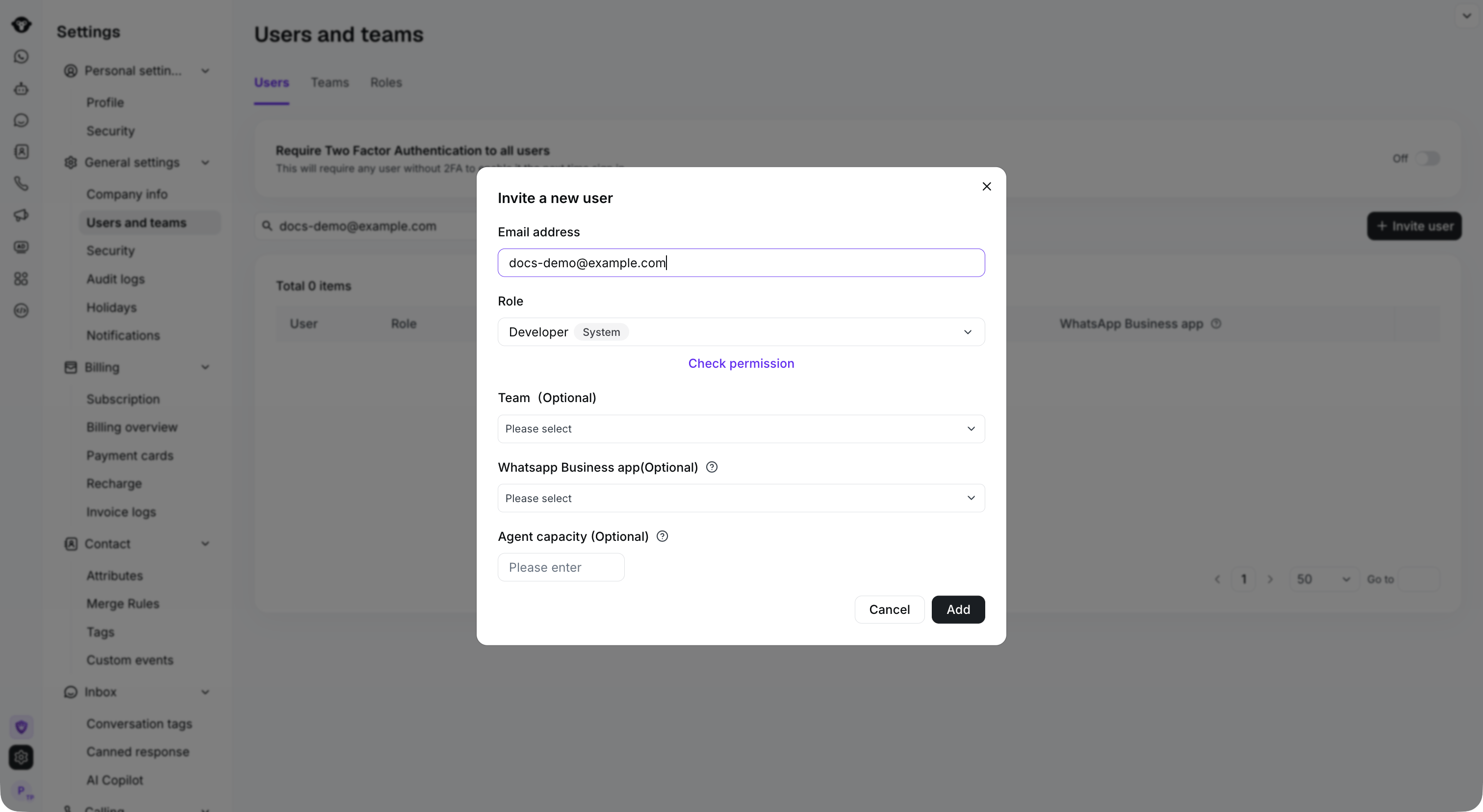
1. 前往 [用户与团队](https://www.ycloud.com/console/#/app/globalSettings/general/usersAndTeams),并点击页面上的“邀请用户”按钮。
### 团队主管
在团队管理中,系统支持为每个团队设置团队主管(Team supervisor)。拥有该角色的用户可以监督团队成员在收件箱(Inbox)中的对话以及在通话(Calling)中的呼叫。
### 邀请用户
要将用户添加到你的账户,请按照以下步骤操作:
1. 前往 [用户与团队](https://www.ycloud.com/console/#/app/globalSettings/general/usersAndTeams),并点击页面上的“邀请用户”按钮。
 2. 填写要邀请的成员的基本信息,然后点击“添加”按钮。系统将向该成员的邮箱发送一封激活邮件。
 3. 团队成员接受邀请
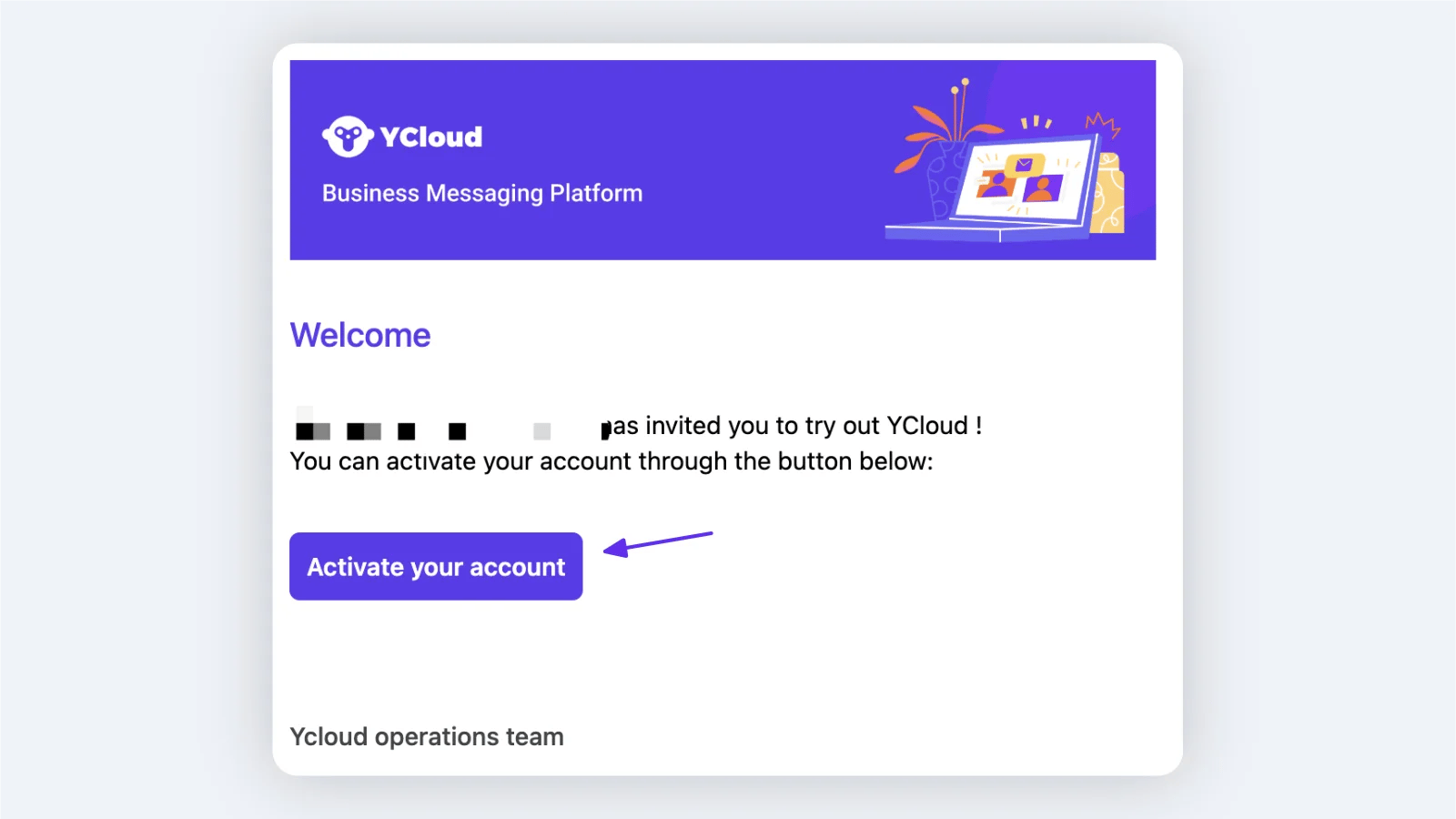
成员找到对应的激活邮件,点击“激活账户”按钮即可接受邀请并完成账户激活。
3. 团队成员接受邀请
成员找到对应的激活邮件,点击“激活账户”按钮即可接受邀请并完成账户激活。
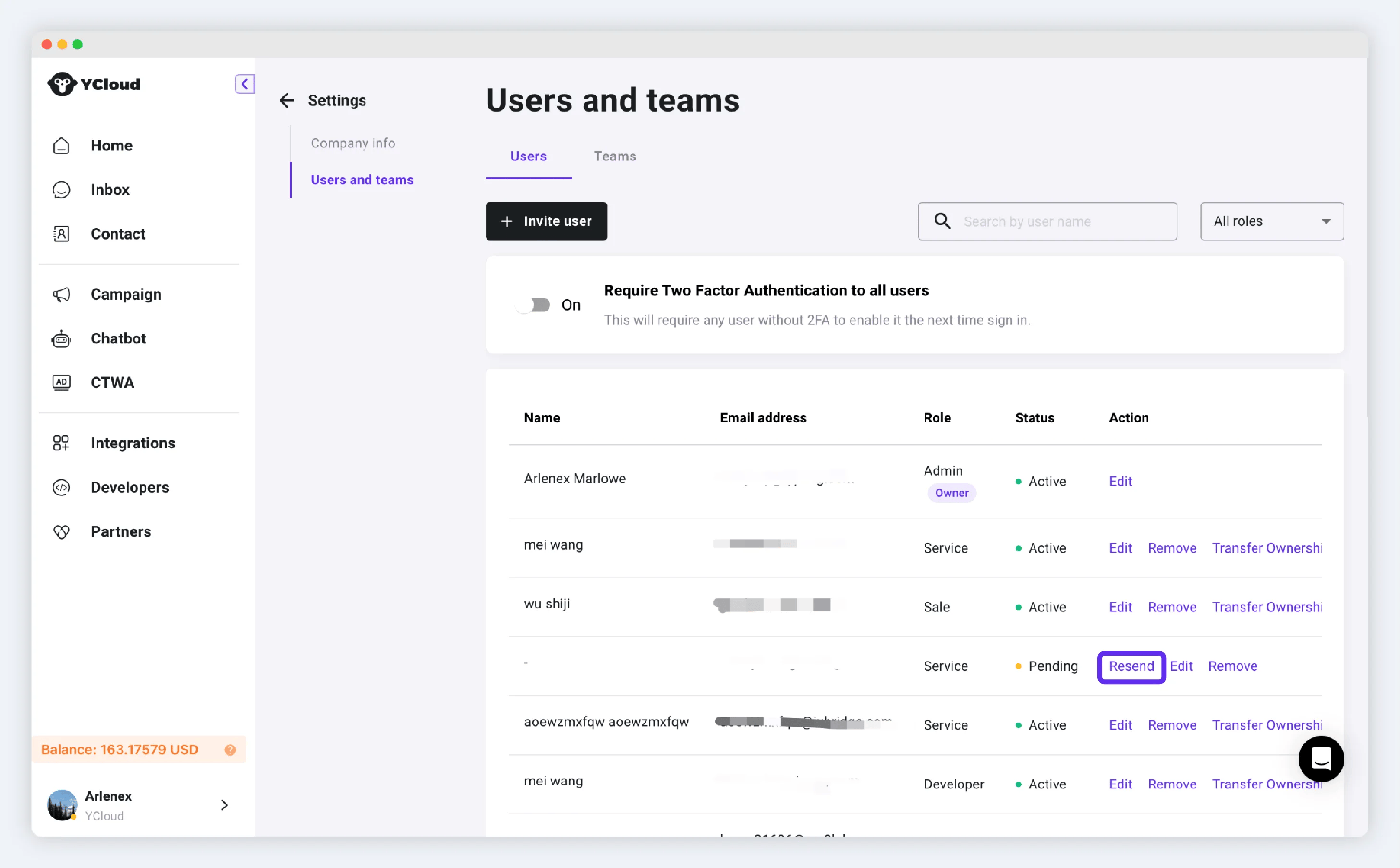
 注:如果成员状态长时间处于待处理状态,或者未收到邀请邮件,可以点击“重新发送”按钮。
 ### 删除用户
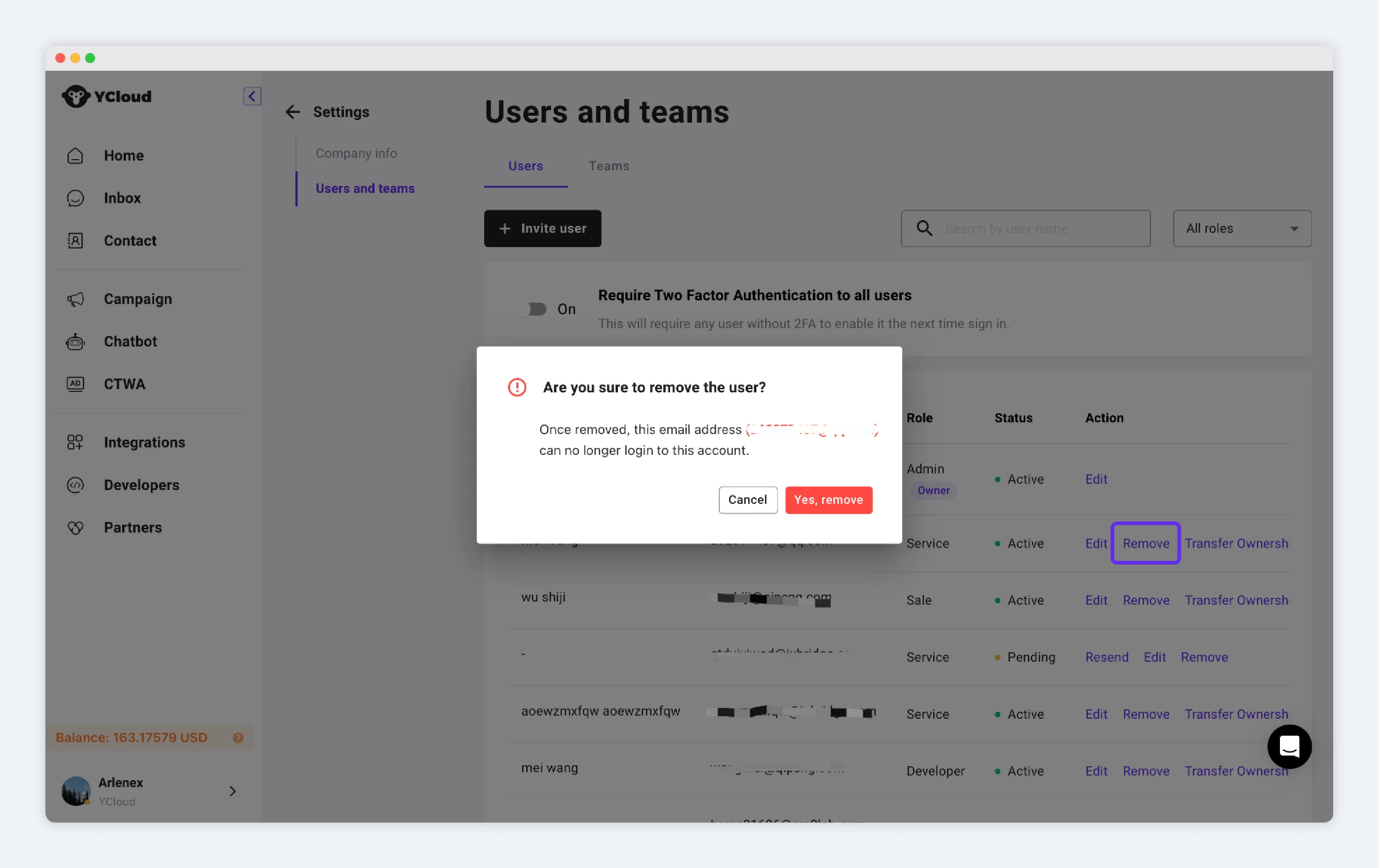
点击用户行对应的“移除”按钮即可永久移除该用户。
### 删除用户
点击用户行对应的“移除”按钮即可永久移除该用户。
 ### 编辑用户
#### 修改用户角色
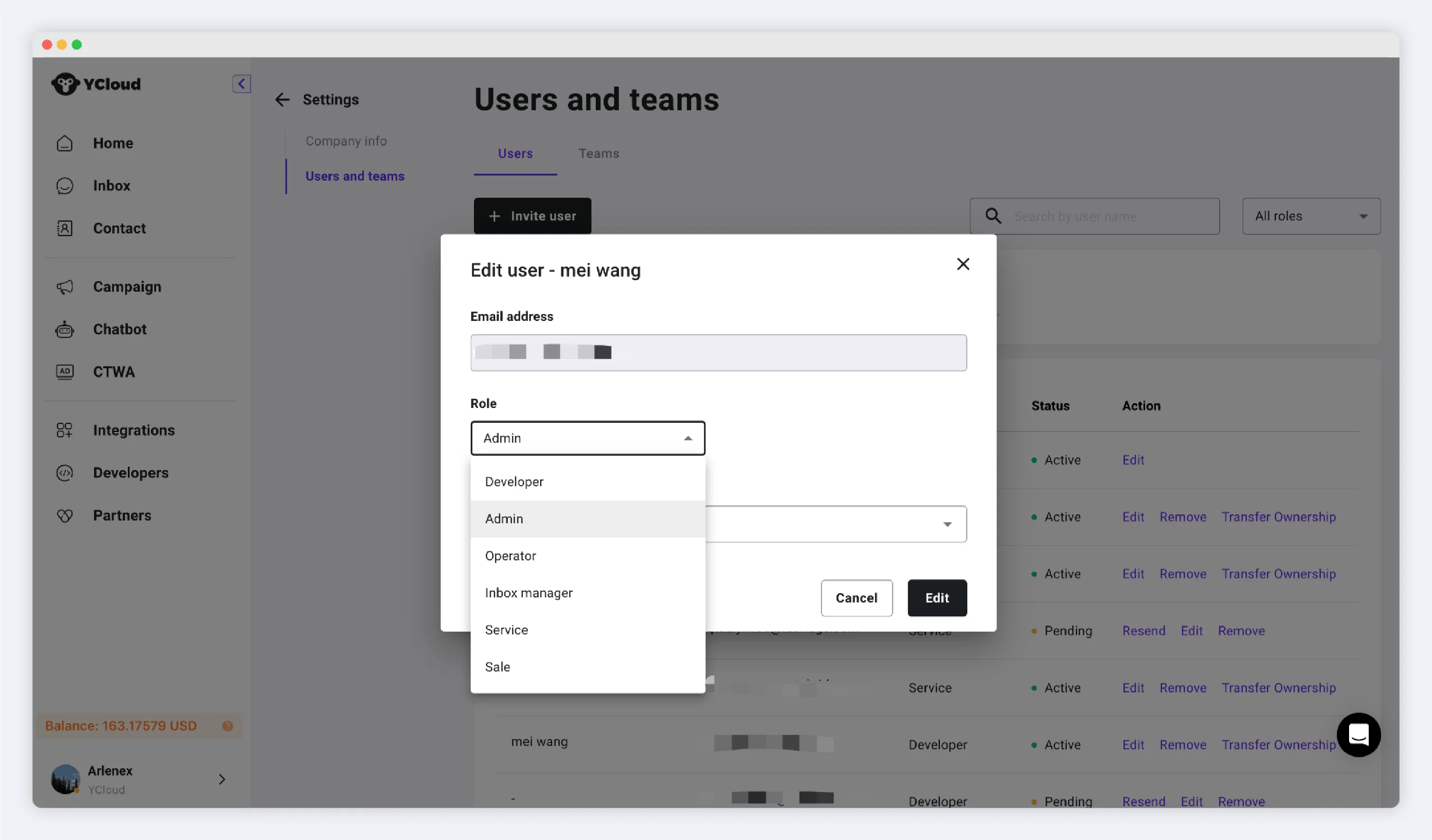
点击操作区域的编辑按钮,在弹出的窗口中可以修改该用户对应的角色和团队。用户邮箱无法修改。完成更改后,点击“编辑”。
### 编辑用户
#### 修改用户角色
点击操作区域的编辑按钮,在弹出的窗口中可以修改该用户对应的角色和团队。用户邮箱无法修改。完成更改后,点击“编辑”。
 **设置接待上限**
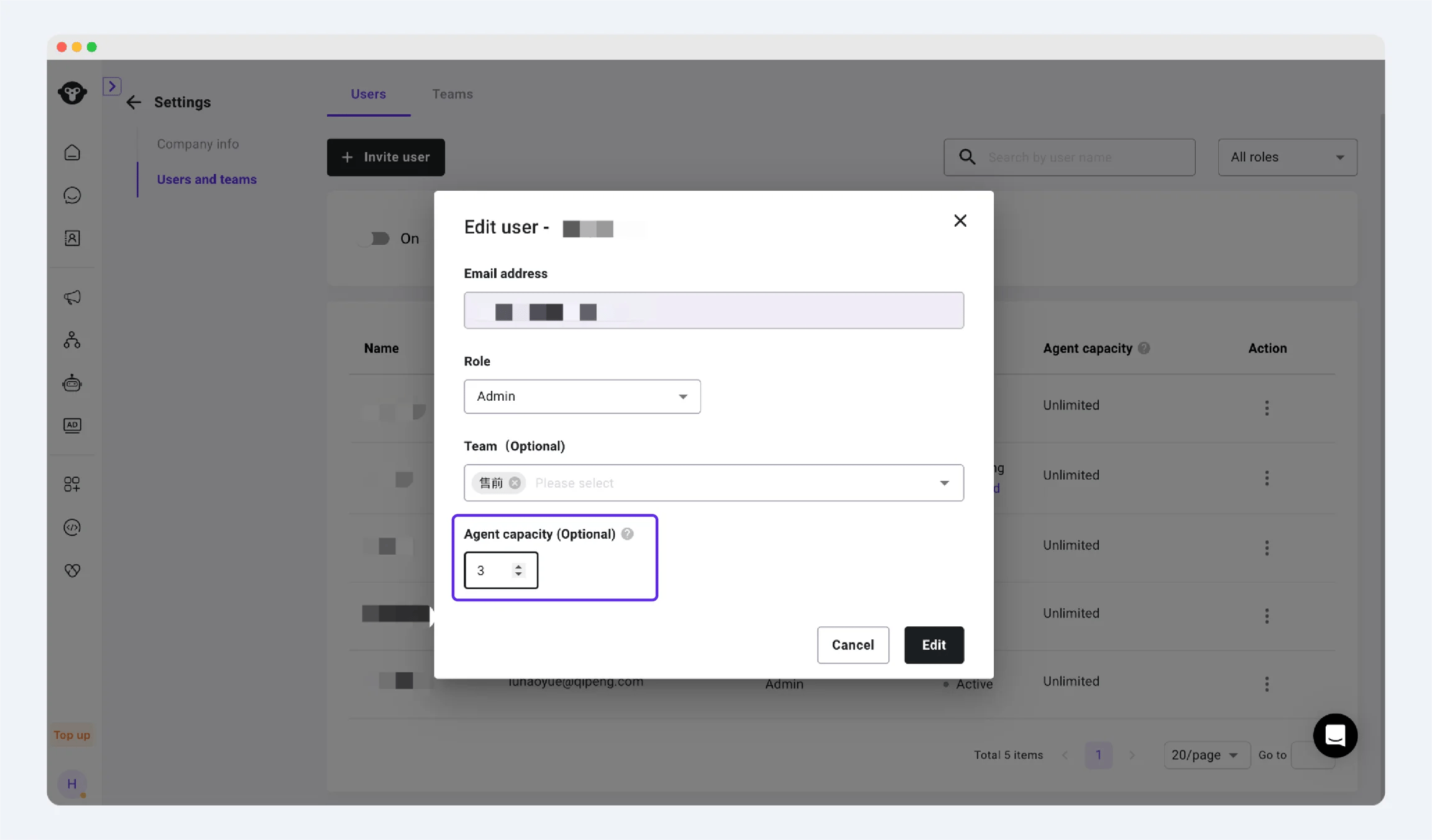
在“操作”列中,选择 **坐席容量** ,以设置用户通过团队分配可以接收的最大进行中会话数量。
坐席容量仅在用户属于某个团队且会话通过该团队的分配规则分发给该用户时生效。当用户达到其容量上限时,后续会话将在团队队列中等待,直到该用户有空闲容量为止。
当分配规则直接将对话转派给特定用户时,坐席容量不生效。在这种情况下,无论该用户是否已达到配置的容量上限,对话都会立即分配并显示在该用户的 **分配给我** 视图中。
 ### 转移所有权
账户所有者(Owner)在仍持有所有者角色时无法被移除。只有 **当前所有者** 才能转移账户所有权;仅拥有管理员(Admin)角色是不够的。
可以通过以下任一方式转移所有权:
* **选择现有用户:** 将所有权转移给已是该账户成员的用户。
* **邀请新用户:** 输入邮箱地址以邀请当前不是该账户成员的人员,并将其设为新所有者。
转移所有权步骤:
1. 以当前所有者身份,前往 **设置 > 用户与团队 > 用户**。
2. 打开当前所有者的操作菜单,并选择 **转移所有者**。
3. 选择 **选择现有用户** 或 **邀请新用户**。
4. 选择现有用户或输入新用户的邮箱地址。
5. 查看更改并确认转移。
转移后,所选或受邀的用户将成为所有者并获得完整的账户访问权限。原所有者将立即失去所有者权限。
**在邀请新所有者之前,请检查可用用户席位。** 如果账户没有适合新用户的可用席位,YCloud 将从账户中移除原所有者以腾出空间给新所有者。如果原所有者必须保留访问权限,请在转移前购买额外席位。
如果账户有足够的席位,前任所有者仍保留在账户中,拥有 **Admin** 权限,但不再是所有者。
### 为所有成员启用双重认证(2FA)
为了更好地保护账户安全,若用户尚未启用 2FA,账户管理员可以设置 2FA 验证开关,要求所有成员在登录企业账户时进行 2FA 验证。
### 转移所有权
账户所有者(Owner)在仍持有所有者角色时无法被移除。只有 **当前所有者** 才能转移账户所有权;仅拥有管理员(Admin)角色是不够的。
可以通过以下任一方式转移所有权:
* **选择现有用户:** 将所有权转移给已是该账户成员的用户。
* **邀请新用户:** 输入邮箱地址以邀请当前不是该账户成员的人员,并将其设为新所有者。
转移所有权步骤:
1. 以当前所有者身份,前往 **设置 > 用户与团队 > 用户**。
2. 打开当前所有者的操作菜单,并选择 **转移所有者**。
3. 选择 **选择现有用户** 或 **邀请新用户**。
4. 选择现有用户或输入新用户的邮箱地址。
5. 查看更改并确认转移。
转移后,所选或受邀的用户将成为所有者并获得完整的账户访问权限。原所有者将立即失去所有者权限。
**在邀请新所有者之前,请检查可用用户席位。** 如果账户没有适合新用户的可用席位,YCloud 将从账户中移除原所有者以腾出空间给新所有者。如果原所有者必须保留访问权限,请在转移前购买额外席位。
如果账户有足够的席位,前任所有者仍保留在账户中,拥有 **Admin** 权限,但不再是所有者。
### 为所有成员启用双重认证(2FA)
为了更好地保护账户安全,若用户尚未启用 2FA,账户管理员可以设置 2FA 验证开关,要求所有成员在登录企业账户时进行 2FA 验证。
 ## 创建和管理团队
团队将处理相同类型客户会话的坐席归为一组,例如销售团队、客户支持团队或区域服务团队。创建团队时,YCloud 还会在 Inbox 中创建相应的 **团队收件箱** 。
配置会话分配时,你可以将对话路由到特定团队。然后,YCloud 会使用该团队的分配规则来决定是否以及如何将对话分配给团队成员。
要创建团队,请按以下步骤操作:
1. 访问 [用户与团队](https://www.ycloud.com/console/#/app/globalSettings/general/usersAndTeams) 并点击页面上的“添加团队”按钮。
2. 输入团队名称并添加应属于该团队的坐席。
3. 如果需要,可以从团队坐席中选择一名或多名团队主管。团队主管可以在 Inbox 中监管其团队成员的会话,并在 Calling 中监管通话。
4. 选择 **团队收件箱分配规则**:
* **未分配:** 路由到该团队的会话不会自动分配。在坐席或主管进行分配或认领之前,它们将保持未分配状态。
* **均匀分配:** 无论成员处于空闲还是离开状态,会话都会按顺序分配给团队成员。
* **轮流分配:** 会话会在当前空闲的团队成员之间按顺序分配。
* **负载均衡:** 会话会分配给当前打开会话数量最少的空闲团队成员。
5. 保存团队。稍后你可以编辑团队名称、成员、主管和分配规则,或在“操作”列中删除该团队。
## 创建和管理团队
团队将处理相同类型客户会话的坐席归为一组,例如销售团队、客户支持团队或区域服务团队。创建团队时,YCloud 还会在 Inbox 中创建相应的 **团队收件箱** 。
配置会话分配时,你可以将对话路由到特定团队。然后,YCloud 会使用该团队的分配规则来决定是否以及如何将对话分配给团队成员。
要创建团队,请按以下步骤操作:
1. 访问 [用户与团队](https://www.ycloud.com/console/#/app/globalSettings/general/usersAndTeams) 并点击页面上的“添加团队”按钮。
2. 输入团队名称并添加应属于该团队的坐席。
3. 如果需要,可以从团队坐席中选择一名或多名团队主管。团队主管可以在 Inbox 中监管其团队成员的会话,并在 Calling 中监管通话。
4. 选择 **团队收件箱分配规则**:
* **未分配:** 路由到该团队的会话不会自动分配。在坐席或主管进行分配或认领之前,它们将保持未分配状态。
* **均匀分配:** 无论成员处于空闲还是离开状态,会话都会按顺序分配给团队成员。
* **轮流分配:** 会话会在当前空闲的团队成员之间按顺序分配。
* **负载均衡:** 会话会分配给当前打开会话数量最少的空闲团队成员。
5. 保存团队。稍后你可以编辑团队名称、成员、主管和分配规则,或在“操作”列中删除该团队。

 ## 常见问题
首先,确定是同一人继续使用该账户,还是需要将访问权限移交给另一位同事。
* **同一人继续使用 YCloud:** 前往你的“个人资料”页面更改自己的登录邮箱地址。请参阅[个人偏好设置](/zh/documentation/account-management/personal-preferences-settings)。仅更改个人邮箱地址不会更改现有的登录密码。
* **其他同事将使用 YCloud:** 前往 **设置 > 用户与团队** 并邀请该同事加入 YCloud 账户。如果该同事还需要成为账户所有者,请使用 **转移所有者**。受邀的同事将自行激活账户并设置密码。
请勿仅仅为了让其他人使用相同凭据而更改你的个人登录邮箱。请将该人员作为单独的用户进行邀请,以便正确管理访问权限和角色权限。
不能。YCloud 目前不支持限制单个用户仅能管理指定的 WhatsApp 商业账户 (WABA)。
如果你的业务需要对不同的 WABA 进行严格的管理隔离,请为必须独立管理的 WABA 创建单独的 YCloud 企业账户。
This documentation is built and hosted on [Mintlify](https://mintlify.com), a developer documentation platform.
## 常见问题
首先,确定是同一人继续使用该账户,还是需要将访问权限移交给另一位同事。
* **同一人继续使用 YCloud:** 前往你的“个人资料”页面更改自己的登录邮箱地址。请参阅[个人偏好设置](/zh/documentation/account-management/personal-preferences-settings)。仅更改个人邮箱地址不会更改现有的登录密码。
* **其他同事将使用 YCloud:** 前往 **设置 > 用户与团队** 并邀请该同事加入 YCloud 账户。如果该同事还需要成为账户所有者,请使用 **转移所有者**。受邀的同事将自行激活账户并设置密码。
请勿仅仅为了让其他人使用相同凭据而更改你的个人登录邮箱。请将该人员作为单独的用户进行邀请,以便正确管理访问权限和角色权限。
不能。YCloud 目前不支持限制单个用户仅能管理指定的 WhatsApp 商业账户 (WABA)。
如果你的业务需要对不同的 WABA 进行严格的管理隔离,请为必须独立管理的 WABA 创建单独的 YCloud 企业账户。
This documentation is built and hosted on [Mintlify](https://mintlify.com), a developer documentation platform.